

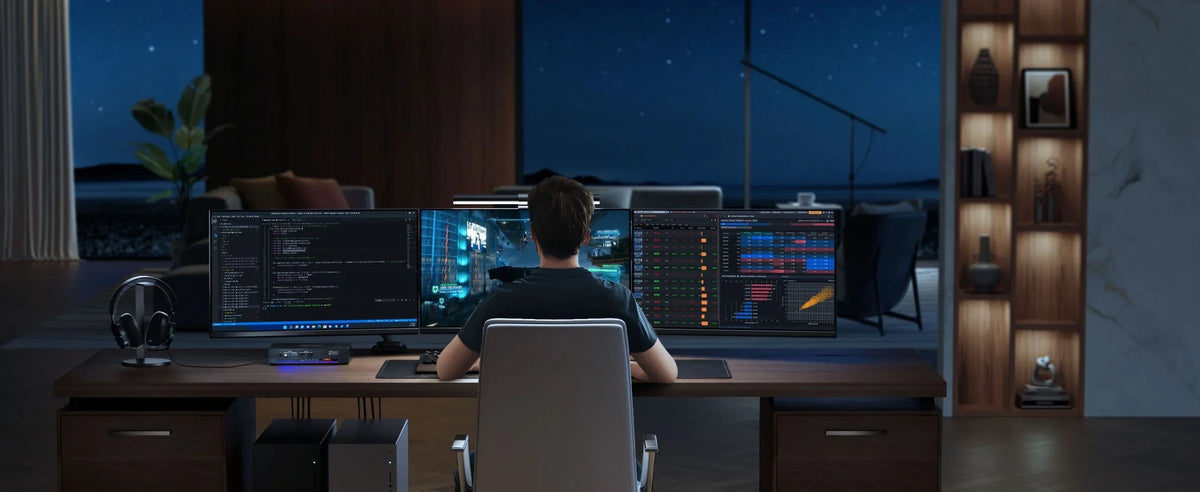
For professionals who need to run multiple computers simultaneously, TESmart KVM switches are a powerful tool for increasing efficiency. The HDC203-PM24 is a triple 4K 60Hz DisplayLink hybrid KVM docking station that can connect two computers (e.g., a desktop and a laptop) and control three monitors.

This article provides a detailed analysis of potential problems and solutions based on the general characteristics and typical usage scenarios of this type of high-performance KVM device.
01 Device connection and display problems
The core function of multi-screen KVM devices is the distribution and management of video signals; however, connection and display issues are the most common problems in practice. Correct connection methods and settings are fundamental to ensuring the proper functioning of the device.

These devices typically support multiple video connections, including HDMI, DP, and USB-C. Even high-end devices like KVMs with Triple-4K@60HzHowever, -4:4:4 displays may encounter display problems.
A common problem is no signal on the monitor or an abnormal resolution. This can be due to an incorrect connection sequence. The correct procedure is: first connect all monitors to the KVM device, then connect the KVM to the computer, and finally connect the power supply.
If the monitor has the nominal resolution (e.g. 4K@60HzIf the signal strength is not reached, check the cable quality. Ensure that high-quality cables with HDMI 2.0 or DP 1.4 specification or higher are used; inferior cables cannot transmit high-resolution and high-frequency signals.
When using a USB-C connection with a laptop, you must confirm that the laptop's USB-C port supports video output. Not all USB-C ports offer this feature, especially on older devices.
02 Signal switching and user experience
The core value of a KVM switch device lies in the seamless switching between multiple computers, but the experience during the switching process directly affects work efficiency.

The device mentioned on the product page typically supports EDID (Extended Display Identification Data) management, which is crucial for maintaining stable display settings. EDID emulation ensures that each computer "thinks" the monitor is always connected, eliminating the need to readjust the resolution after switching devices.
Switching delays or unresponsiveness are another common problem. If switching is slow, check the following: all connections are secure; the USB connection is working correctly (some KVMs trigger switches via USB signals); consider updating the device's firmware.
For devices that require a keyboard shortcut or a dedicated key for switching, familiarize yourself with the correct switching method. If the device supports hotkey switching, you must hold down a specific key (e.g., Ctrl) before pressing the Shift key.
If peripheral devices (keyboard, mouse) do not function properly after switching, check the USB connection and connect the devices to the USB port labeled "HID" or specifically for input devices on the KVM.
03 Compatibility and driver support
Modern KVM devices are becoming increasingly complex, and compatibility and driver support are key factors for the user experience.

The DisplayLink technology mentioned on the product page requires the corresponding driver to be installed on each computer to function correctly. If no image appears after connecting a DisplayLink device, please first download and install the latest driver version from the official website.
Operating system compatibility must also be considered. Most modern KVM devices support Windows, macOS, and Linux, but the range of functions can vary. Particularly on macOS, some advanced features, such as high refresh rate support, may be limited.
For gamers, G-Sync and FreeSync support is a key feature. To activate these functions, ensure that: the monitor supports the technology; a compatible cable is used (usually a high-quality DisplayPort cable); and the settings are correctly configured in the graphics card control menu.
Firmware updates can resolve many compatibility issues. Regularly check the manufacturer's website for new firmware releases and update your devices according to the instructions to improve stability and compatibility.

Split:
Upgrading Mac storage made easy: Save costs and maximize performance with an 8TB Thunderbolt SSD
DKS402-M24 KVM Switch for Desktop Workstations: Comprehensive analysis of performance, features and design