

Table of contents
- Introduction
- What HDMI 2.2 actually changes
- HDMI 2.1 vs. HDMI 2.2: The practical difference
- Why most high-end desks still rely on HDMI 2.1
- Why the HDMI 2.2 ecosystem will take time
- HDMI switch, USB-C dock or HDMI 2.1 KVM?
- Comparison table: Wait, buy, switch, dock or KVM?
- Where a TESmart HDMI 2.1 KVM fits
- What you should check before buying
- FAQ
- Conclusion
Introduction
HDMI 2.2 has become a key part of the display discussion because the standard raises the bar for future video bandwidth, resolution, refresh rate, and AV synchronization. For anyone following gaming monitors, TVs, graphics cards, and professional AV systems, HDMI 2.2 is a standard to keep an eye on.
For users who are setting up a real desk today, however, the more difficult question is much more practical:
Should you wait for an HDMI 2.2 KVM or buy an HDMI 2.1 KVM now?
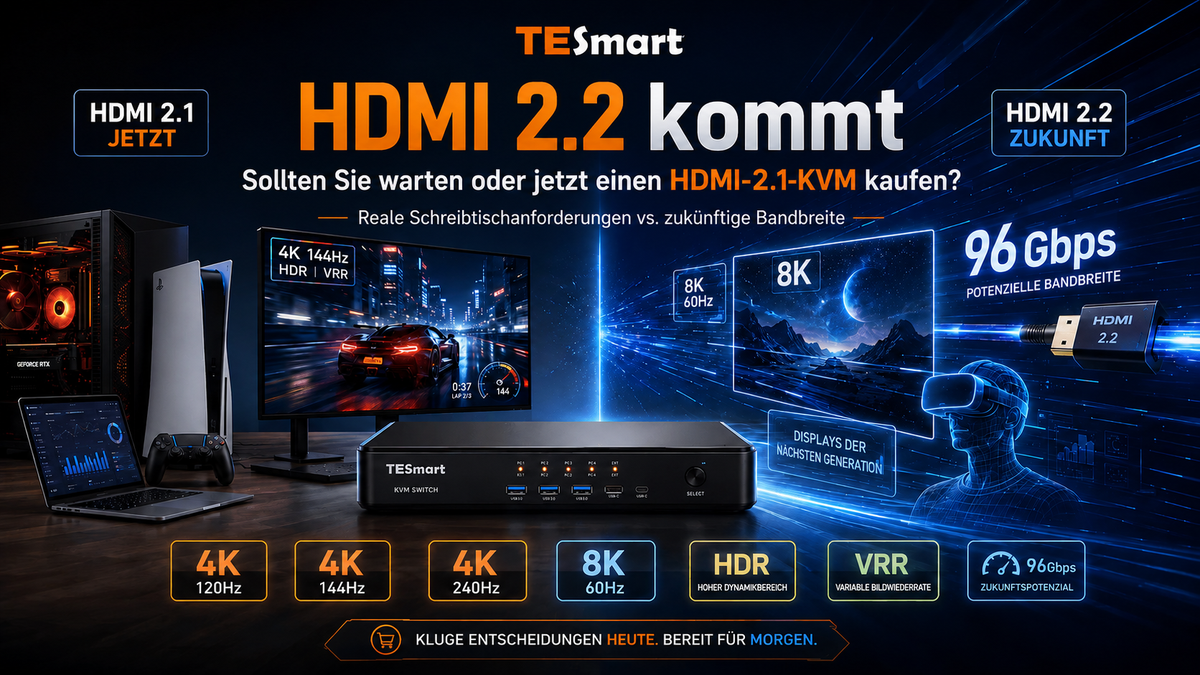
The answer depends less on the version number and more on your current equipment. If your setup includes a PS5, Xbox Series X, a gaming PC, an HDMI 2.1 monitor, an OLED gaming TV, a MacBook, or a work laptop, your immediate requirements likely still revolve around HDMI 2.1: 4K 120Hz, 4K 144Hz, 4K 240Hz, 8K 60Hz, HDR, VRR, ALLM, stable EDID handling, and USB peripheral switching.
Therefore, one remains TESmart HDMI 2.1 KVM For many gaming, creator, and hybrid workstations, this is a realistic option. We develop HDMI KVM solutions for users who need a stable multi-device workstation today, not just a future specification on paper.
What HDMI 2.2 actually changes
HDMI 2.2 expands the technical capabilities of the HDMI ecosystem. According to the HDMI Forum, HDMI 2.2 supports up to 96 Gbps bandwidth with the next generation of HDMI Fixed Rate Link technology, including support for high-end formats such as uncompressed 8K60 and 4K240 with full chroma at 10-bit and 12-bit color. The specification also introduces support for higher resolution formats such as... 12K@120 und 16K@60 ein.
Another important addition is the Ultra96 HDMI Cable. HDMI 2.2 uses the Ultra96 designation for products that support 64Gbps, 80Gbps, or 96Gbps bandwidth. The new Ultra96 HDMI Cable is designed to support the full bandwidth of HDMI 2.2 applications.
HDMI 2.2 also adds the Latency Indication Protocol, or LIP for short. This is particularly relevant for multi-stage AV systems, such as setups with receivers, soundbars, or other AV hardware, where audio and video synchronization can be more difficult to manage.
These are significant changes. HDMI 2.2 is not just a new name. The standard expands what future HDMI devices will be capable of. The key point, however, is that a more powerful standard doesn't automatically make every monitor, TV, GPU, console, cable, and KVM on the market HDMI 2.2-ready.

HDMI 2.1 vs. HDMI 2.2: The practical difference
For most users HDMI 2.1 vs. HDMI 2.2 The easiest way to understand it is this:
HDMI 2.1 is the current high-performance standard for desktop setups. HDMI 2.2 is the next bandwidth step for future displays and AV systems.
HDMI 2.Version 1 brought up to 48Gbps bandwidth, 4K120, 8K60, Dynamic HDR, and support for Ultra High Speed HDMI cables. These features are already relevant for many gaming PCs, PS5 and Xbox setups, high-refresh-rate gaming monitors, and modern televisions.
HDMI 2.2 doubles the maximum bandwidth limit to 96Gbps and prepares the HDMI ecosystem for more demanding combinations of resolution, refresh rate, chroma, and bit depth. This is important for future 4K Ultra High Refresh, 8K High Refresh, 10K, 12K, and 16K workflows. However, these use cases require compatible source devices, displays, cables, and intermediate hardware.
This is precisely where many buyers become confused. The shape of a connector doesn't guarantee full protocol compatibility. An HDMI cable doesn't become "HDMI 2.2" just because it has the same connector. A display advertised with a future-proof feature may still have limited bandwidth on certain ports. A KVM switch can only receive the signal that the entire chain actually supports.

Why most high-end desks still rely on HDMI 2.1
Most current high-end desktops aren't waiting for 16K. They're trying to make today's hardware work correctly.
A gamer might want to switch between a PS5, Xbox Series X, and a Windows gaming PC on the same OLED TV or gaming monitor. A creator might want a gaming PC and a work laptop to share one or two HDMI displays, a keyboard, mouse, headset, capture card, and external storage. A Mac/PC user might need a desk for a MacBook and a Windows workstation without having to constantly replug and replug cables.
In such setups, the actual requirements are usually:
4K 120Hz for consoles and TVs
4K 144Hz or 4K 240Hz for high-refresh monitors, depending on connected devices, cables, display and KVM specifications.
8K 60Hz for users with compatible displays and source devices
VRR, ALLM, HDR and audio behavior depend on the entire HDMI chain.
Stable EDID communication so that systems do not constantly re-detect or forget the display.
Switching between USB keyboard, mouse, controller, webcam, DAC, headset or storage device
Sony's support documentation indicates that PS5 consoles support HDMI 2.1 and 4K 120Hz output. However, Sony also points out that the TV, cable, HDMI port, and intermediate hardware can affect whether 4K 120Hz functions correctly. :contentReference[oaicite:4]{index=4}
This point is important for KVM buyers. 4K 120Hz KVM or 4K 240Hz KVM It doesn't just affect a box in the middle. Source device, GPU settings, console settings, HDMI cable, monitor input, TV enhanced mode, EDID handling, and KVM specifications all need to be compatible.

Why the HDMI 2.2 ecosystem will take time
Waiting for HDMI 2.2 can be beneficial for users who want to rebuild their entire display chain around future devices. However, a complete HDMI 2.2 desktop setup is not a single purchase.
To benefit from HDMI 2.2 bandwidth, a user needs source devices that output HDMI 2.2 with the required bandwidth, displays that accept these signals, Ultra96-certified cables if necessary, and every device in between — including receivers, soundbars, capture devices, splitters, or KVM switches — that supports the required signal path.
This ecosystem needs time for several reasons:
Monitor and TV manufacturers must adopt HDMI 2.2 inputs.
GPU and console manufacturers must integrate HDMI 2.2 outputs.
Cable manufacturers must offer certified Ultra96 products in practical lengths.
KVM manufacturers need suitable chipsets, validation time, firmware tuning, and real-world compatibility testing.
Users need clear product labeling, because "HDMI" alone says nothing about bandwidth, refresh rate, VRR, HDR, DSC or audio behavior.
The HDMI Forum explains that for Ultra96 HDMI Cable certification, each cable length must be tested and certified, similar to the Ultra High Speed HDMI Cable program. This is good for reliability, but it also means the entire ecosystem won't mature overnight.
For users who already own HDMI 2.1 monitors, PS5, Xbox Series X, RTX or AMD gaming PCs, MacBooks and work laptops, waiting for a future HDMI 2.2 KVM may delay a desktop upgrade without solving today's switching problems.

HDMI switch, USB-C dock or HDMI 2.1 KVM?
A common mistake is to consider all switching devices as the same. They solve different problems.
Simple HDMI switch
A simple HDMI switch changes which video source is displayed on a screen. It's useful when you only need to switch video inputs, such as between a game console and a streaming device connected to a TV.
It typically doesn't manage switching of keyboard, mouse, USB peripherals, headset, webcam, or storage. Furthermore, it may not preserve EDID behavior as reliably as a KVM designed for computer workflows.
USB-C dock
A USB-C dock expands a laptop's capabilities. It can provide a single computer with display outputs, USB ports, Ethernet, audio, and power.
However, this doesn't make it a multi-computer switching system. A dock is helpful when a laptop needs more ports. It's not the same as a gaming PC and console KVM and doesn't typically switch an entire desktop between multiple computers.
Standard KVM
A KVM switch switches keyboard, video, and mouse control between computers. A standard KVM may be sufficient for office resolutions such as 1080p or 4K60, depending on the model.
However, for high-refresh HDMI gaming and creator setups, a simple KVM can become a bottleneck if it does not support the required bandwidth, appropriate EDID behavior, or necessary USB features.
HDMI 2.1 KVM
A HDMI 2.1 KVM This is designed for users who want to combine high-bandwidth HDMI video and USB control switching in a single desktop setup. This category is relevant for many PS5, Xbox, gaming PC, Mac/PC hybrid, and high-refresh-monitor users.
A HDMI 2.1 switch for PS5 and PC For example, only the video signal might change. Gaming PC and console KVM It can also manage keyboard, mouse, USB peripherals and display control in the same workflow.

Comparison table: Wait, buy, switch, dock or KVM?
| option | Best suited for | Main limitation | Practical recommendation |
|---|---|---|---|
| On HDMI 2.2 wait | Users who are planning a future desktop setup around HDMI 2.2 displays, GPUs, AV receivers, certified Ultra96 cables and future HDMI 2.2 KVM hardware. | The ecosystem still needs time to evolve across displays, source devices, cables, KVMs, and real-world compatibility testing. | Worth noting, but not necessary for most current 4K 120Hz, 4K 144Hz, 4K 240Hz or 8K 60Hz HDMI 2.1 setups. |
| Buy an HDMI 2.1 KVM now | Users with PS5, Xbox Series X, gaming PC, MacBook or work laptop setups who need to share displays, keyboard, mouse and USB peripherals. | Performance depends on connected devices, cables, display inputs, KVM specifications, and enabled display settings. | For many high-end desks based on today's HDMI 2.1 hardware, this is the most realistic option. |
| Simple HDMI switch | Simple video switching between HDMI sources, such as a console and media player. | It does not manage keyboard, mouse, USB peripherals, or full computer control. | Use only if video switching is sufficient. Do not treat as a KVM replacement. |
| USB-C dock | Expanding a laptop with additional ports, display outputs, Ethernet, USB or charging. | Normally designed for a single computer, not for switching an entire desktop between multiple systems. | Choose a dock if your problem is port expansion. Choose a KVM if your problem is multi-device control switching. |
| TESmart HDMI 2.1 KVM Solution | High-refresh HDMI desks with multiple computers or consoles sharing displays, keyboard, mouse, audio and USB peripherals. | Users still need to check resolution, refresh rate, VRR, HDR, EDID, cable and device compatibility for their specific setup. | A practical solution for current HDMI 2.1 gaming, creator, workstation and hybrid office environments. |
Where a TESmart HDMI 2.1 KVM fits
A TESmart HDMI KVM is not just a video selection switch. It is designed to sit at the center of a desk where multiple devices need to share display output and USB control.
This is important if your desk includes the following:
A PS5 or Xbox Series X and a Windows gaming PC
A gaming PC and a work laptop
A MacBook and a Windows workstation
Two computers sharing one or two high-refresh-HDMI monitors
A keyboard, mouse, USB headset, webcam, controller, DAC or external storage device that is intended to follow the active computer.
For a dual-computer, dual-monitor HDMI desk, a model like this might be suitable. TESmart HKS202-M24 or another HDMI KVM from the HKS series may be suitable if the number of computers, number of displays, target resolution, target refresh rate and USB peripheral requirements match the product specifications.
It's important not to buy based solely on the version number.A good HDMI KVM for gaming should be chosen to cover the entire signal path:
Can every computer output the required HDMI signal?
Does the monitor or TV support this mode on the selected HDMI input?
Are certified Ultra High Speed HDMI cables used to meet HDMI 2.1 bandwidth requirements?
Does the KVM support the expected resolution and refresh rate?
Do you need EDID emulation to reduce re-detection of displays, window movements, or long black screen wait times?
Do your USB devices require USB 2.0, USB 3.0, audio, or dedicated keyboard/mouse ports?
For users who already own HDMI 2.1 devices, an HDMI 2.1 KVM can solve a real problem today: switching the desktop, not just chasing after a future standard.
What you should check before buying
1. Confirm the actual resolution and refresh rate being used.
Do not start with "HDMI 2.1" or "HDMI 2.2" as a label. Start with the target format:
4K 120Hz for console gaming and OLED TVs
4K 144Hz for gaming monitors
4K 240Hz for high-end competitive displays, depending on GPU, monitor, cable and KVM specifications.
8K 60Hz for compatible high-resolution displays
Next, check whether each part of the chain supports this goal.
2. Treat VRR, HDR, and ALLM as functions of the entire chain.
VRR, HDR, ALLM, DSC, and advanced audio behavior depend on more than one device. Source, cable, KVM, display, and settings are all relevant.
If a product page lists support for advanced features, check the exact terms and conditions. Some features may depend on connected devices, cables, display, firmware, and KVM specifications.
3. Pay attention to EDID
EDID informs the source device about the display's capabilities. In a multi-computer workstation, unstable EDID behavior after switching can lead to resolution changes, window rearrangement, black screens, or long detection times.
A KVM designed for desktop workflows should help manage display identity more predictably than a simple video switch.
4. Don't ignore cables
For HDMI 2.1 workflows, certified Ultra High Speed HDMI cables should be used when high bandwidth is required. For future HDMI 2.2 workflows, Ultra96 cable certification will be important for full HDMI 2.2 bandwidth utilization.
Shorter, certified cables are often easier to hold stably than long, non-certified cables, especially at high resolution and high refresh rate.
5. Be careful with MacBook and Dock levels
MacBook setups often use USB-C, HDMI adapters, docks, or hubs. Each additional conversion layer can affect video negotiation and USB behavior.
If you are setting up a mixed Mac/PC desktop, check that the Mac can output the required resolution and refresh rate via its HDMI port, USB-C to HDMI adapter, or dock before adding a KVM to the chain.

FAQ
Is HDMI 2.2 better than HDMI 2.1?
Yes, HDMI 2.2 has a higher maximum bandwidth limit and supports more demanding future video formats. However, "better" doesn't automatically mean it's necessary for your current setup.1 still covers many real high-end requirements, including 4K120 and 8K60, depending on the connected hardware.
Should I wait for an HDMI 2.2 KVM?
Wait if you're planning a future system where every key device supports HDMI 2.2, including the source, display, cables, and KVM. If your current setup is based on a PS5, Xbox Series X, HDMI 2.1 gaming monitors, gaming TVs, or current-generation GPUs, an HDMI 2.1 KVM is usually more practical.
Will an HDMI 2.1 KVM soon become obsolete?
Not for most current users. HDMI 2.1 remains relevant for 4K 120Hz, 4K 144Hz, 4K 240Hz, 8K 60Hz, HDR, VRR, ALLM, and high-performance gaming or workstation desks, depending on product specifications and the entire connected chain.
Can an HDMI 2.1 KVM support 4K 240Hz?
This depends on the KVM model, source device, display, cable quality, color format, bit depth, compression behavior, and settings. Don't assume that every HDMI 2.1 KVM supports every 4K 240Hz scenario. Always check the exact product specifications and your device chain.
Is a simple HDMI switch sufficient for PS5 and PC?
A simple HDMI switch may suffice if you only need to switch video inputs. However, if you want to share a keyboard, mouse, USB headset, webcam, controller, or other USB peripherals between a PS5, PC, MacBook, or work laptop, a KVM switch is the more suitable option.
Is a USB-C dock the same as a KVM?
No. A USB-C dock expands a computer. A KVM switch switches control between multiple computers. Some desktops use both, but they solve different problems.
Do I need new cables for HDMI 2.2?
For the full HDMI 2.2 bandwidth, the Ultra96 HDMI cable category is designated for the new specification. For HDMI 2.1 workflows up to 48 Gbps, certified Ultra High Speed HDMI cables remain the relevant cable category.{index=7}
Does TESmart offer HDMI KVM options for gaming desks?
Yes. TESmart offers HDMI KVM solutions for users who need to share displays, keyboards, mice, audio, and USB peripherals across multiple computers or consoles. For current high-refresh-rate HDMI 2.1 desktops, check out the TESmart HDMI KVM product line and choose the model that matches the number of computers, monitors, and required display mode.
Conclusion
HDMI 2.2 is important because it further develops HDMI towards higher bandwidth, more demanding display formats, and better AV synchronization for complex systems. It is a future-proof standard that will continue to be adopted by monitor, TV, GPU, cable, AV, and KVM ecosystems.
But HDMI 2.1 isn't obsolete. For most users setting up a desktop today, the real issue isn't whether HDMI 2.2 is technically superior. The real issue is how to seamlessly switch between a PS5, Xbox, gaming PC, MacBook, and work laptop across high-refresh-rate displays and shared USB peripherals without constantly unplugging and replugging cables.
If your setup is already based on HDMI 2.1 displays and devices, an HDMI 2.1 KVM remains the more realistic choice. It can solve the desktop problem you actually use today: display switching, EDID stability, keyboard and mouse control, USB peripheral sharing, audio routing, and multi-device workflow management.
Ready for a cleaner, high-refresh-HDMI desk? Discover the TESmart HDMI 2.1 KVM product line and choose a model based on your computer, monitors, target resolution, target refresh rate and peripheral requirements.

Share:
Best KVM setup for OLED gaming monitors 2026: 4K 240Hz, 360Hz, HDR and VRR explained
Using gaming handhelds with KVM: Setup guide for ROG Xbox Ally, Steam Deck, dock, monitor, keyboard and mouse