




Glasfaserverlängerung

Max. Auflösung

Empfohlenes Setup

Glasfaserverlängerung

Reaktionszeit

Videounterstützung

Betriebssysteme
DP KVM extender | 300m fiber optic, 8K60/4K240
DKE30SS-M25 extends DisplayPort image, keyboard and mouse over up to 300m of fiber - with up to 8K60 or 4K240 and sub-1ms latency.
Glasfaserverlängerung
Max. Auflösung
Empfohlenes Setup
Glasfaserverlängerung
Reaktionszeit
Videounterstützung
Betriebssysteme
DP KVM extender | 300m fiber optic, 8K60/4K240
Why DKE30SS-M25?
Overview
01
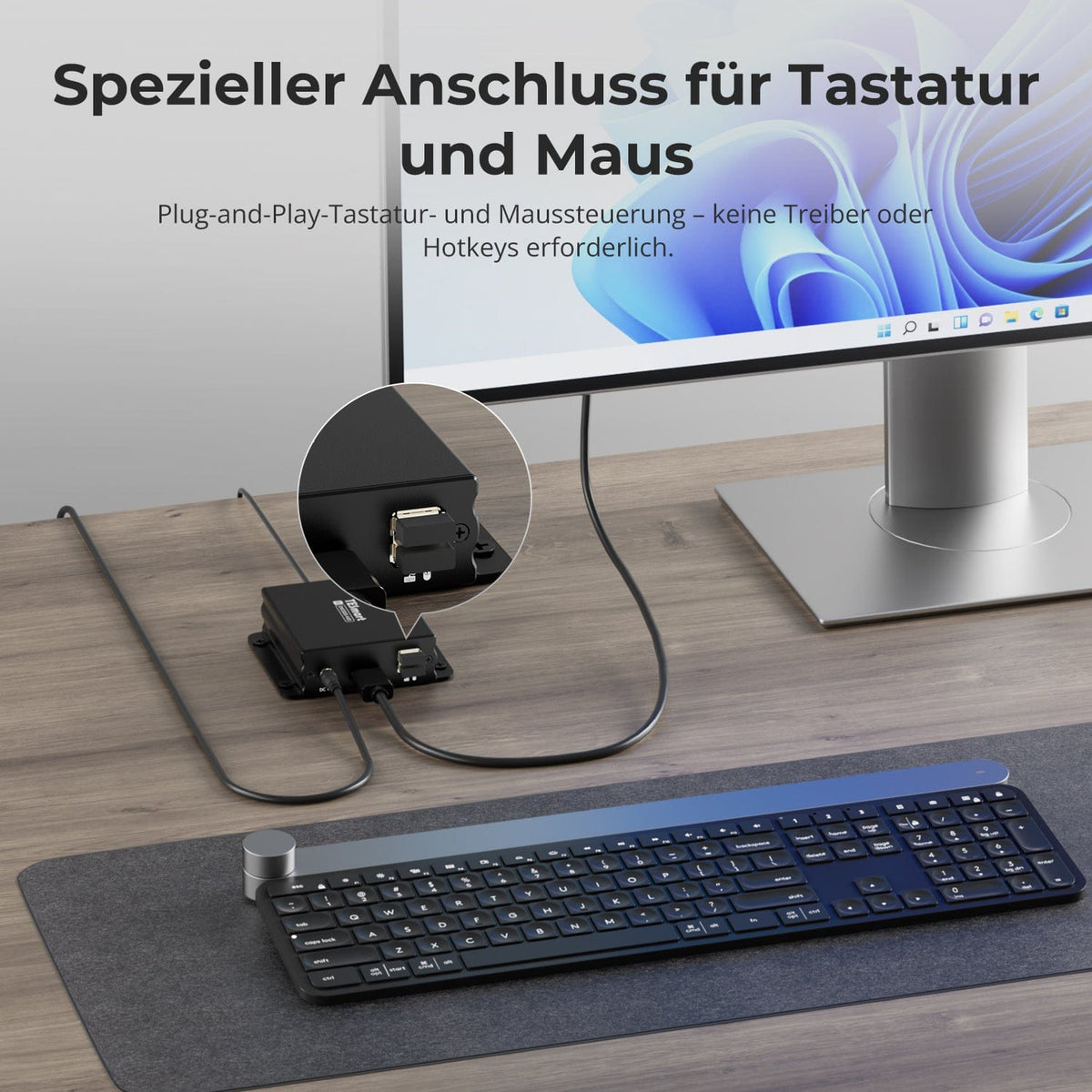
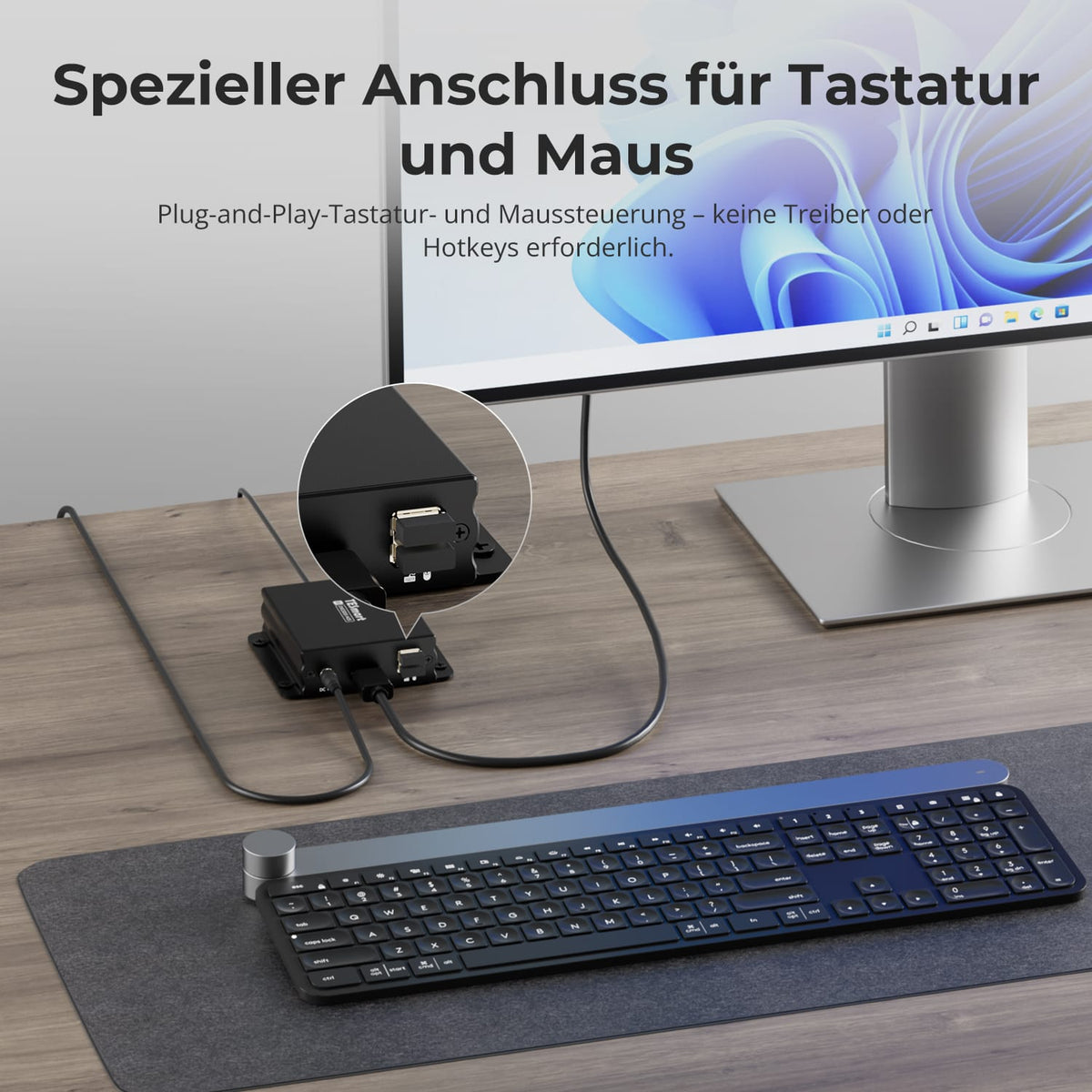
Keyboard and mouse via plug and play
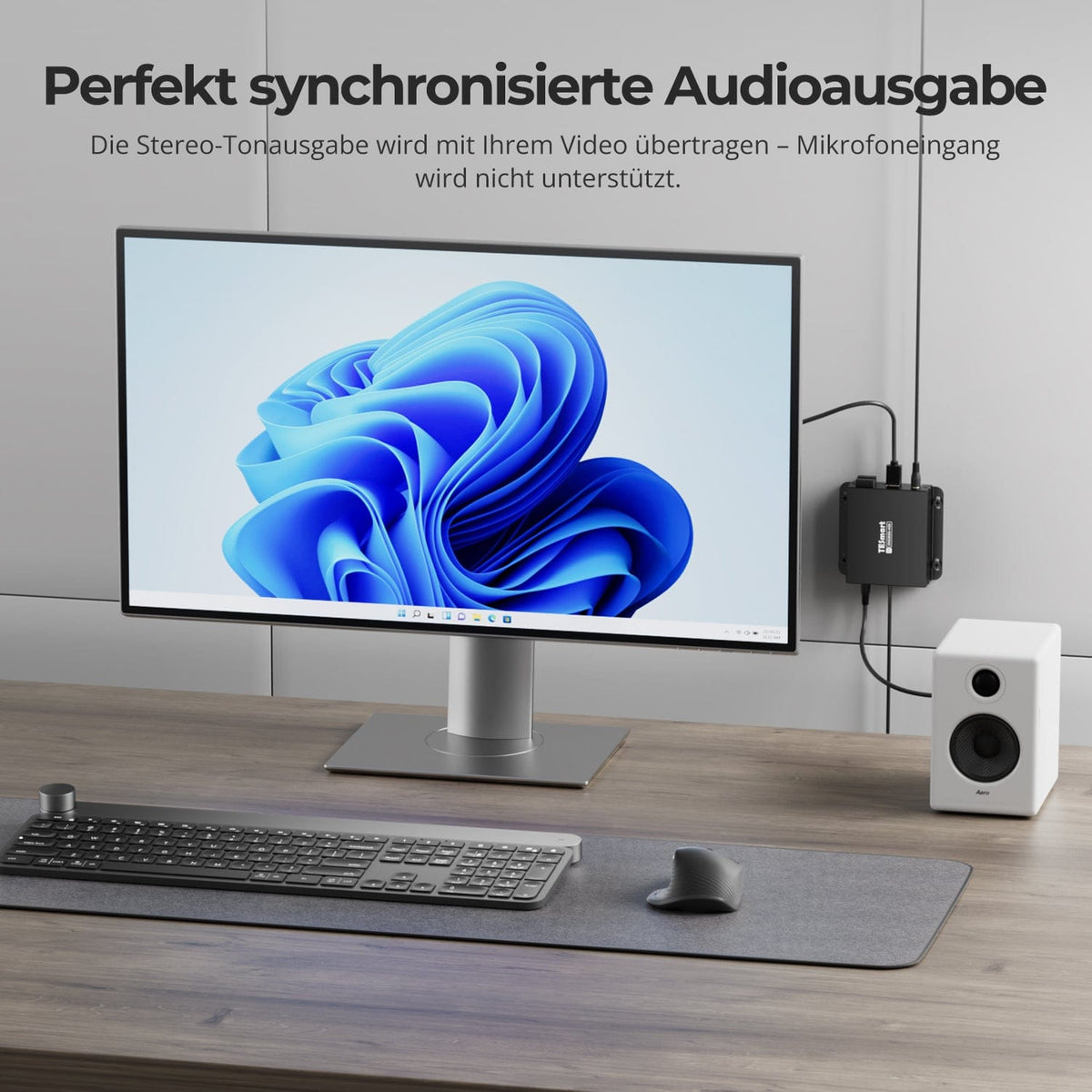
Connect your keyboard and mouse to the designated KM ports. No drivers or hotkeys are required. Stereo audio follows the video signal; microphone input is not supported.
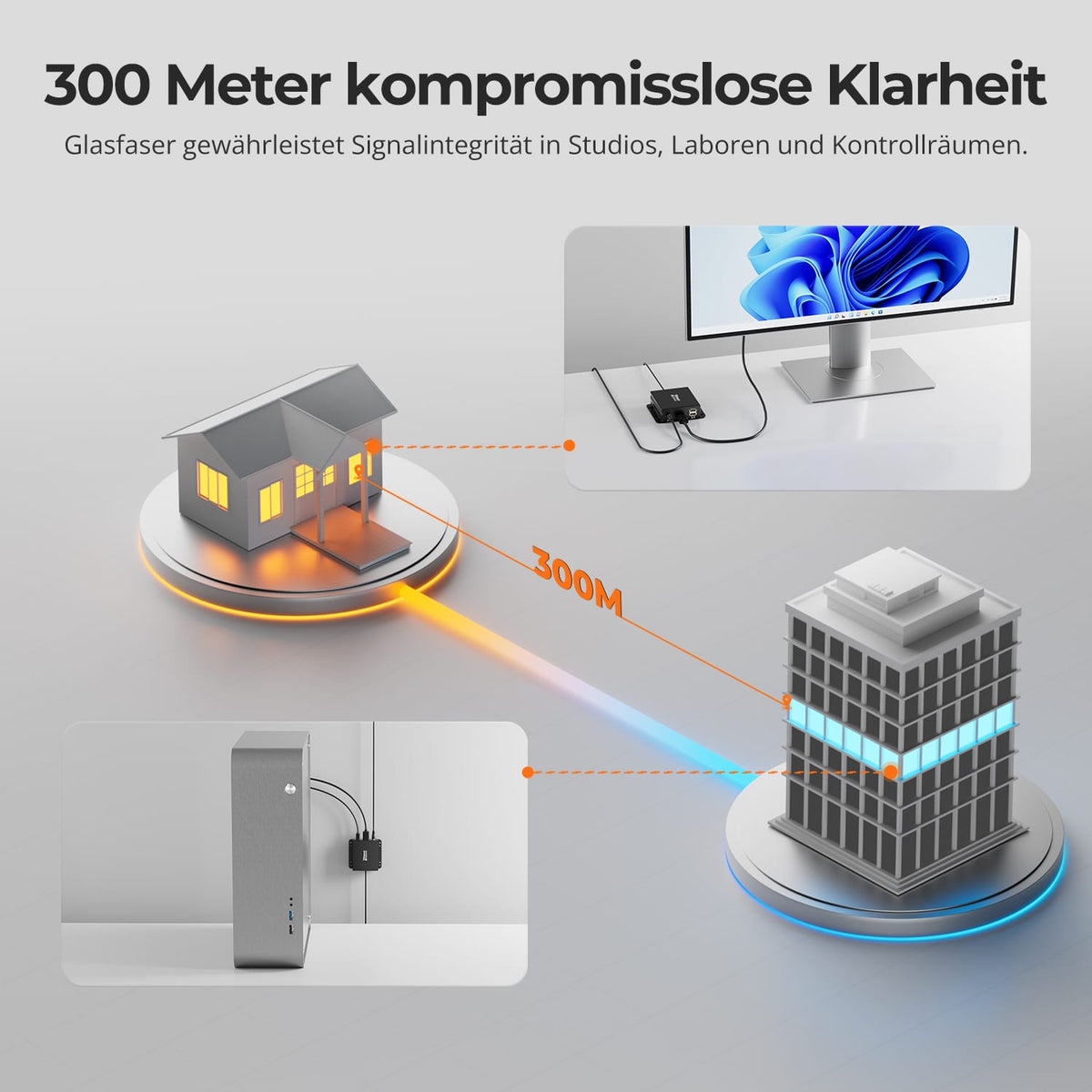
02
Reliable fiber optic connection up to 300 m
Extend your setup up to 300 m of fiber optic cable – for example in studios, laboratories or control rooms – with clear signal transmission.

03
DisplayPort extension cable with 8K@60Hz
Transmit DisplayPort video with 8K@60Hz Over up to 300 m of fiber optic cable, without video compression.
Data & Support
Compatibility & Connections
Technical data
Instructions & Downloads
Scope of delivery
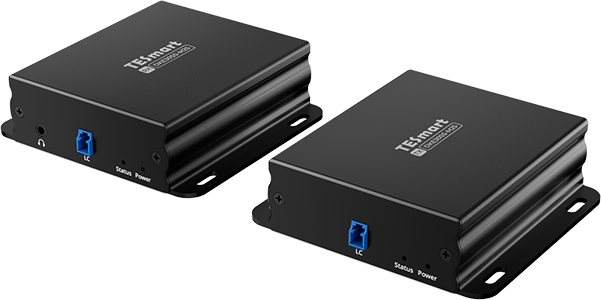
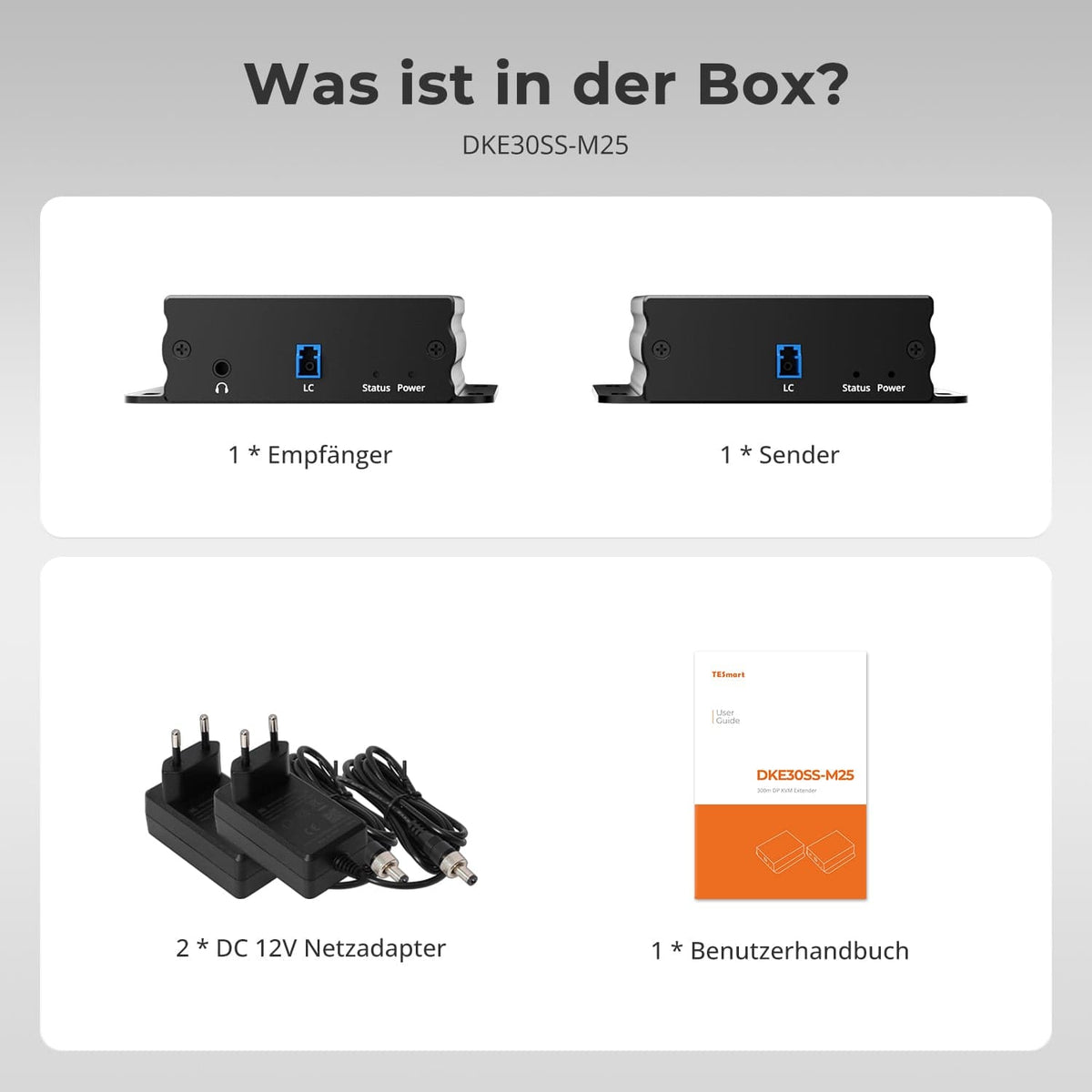
1 × DKE30SS-M25 transmitter + receiver
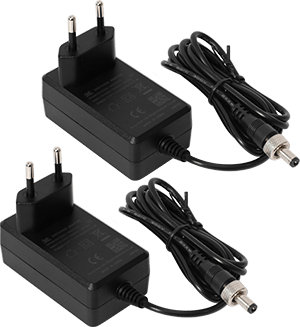
2 × 12V DC power supplies
1×User manual
Compare suitable models
Select the models in the menus to compare computer connections, distance, image output, and installation requirements.

Model
DKE30SS-M25
Model
HKE10SS-PD25
Model
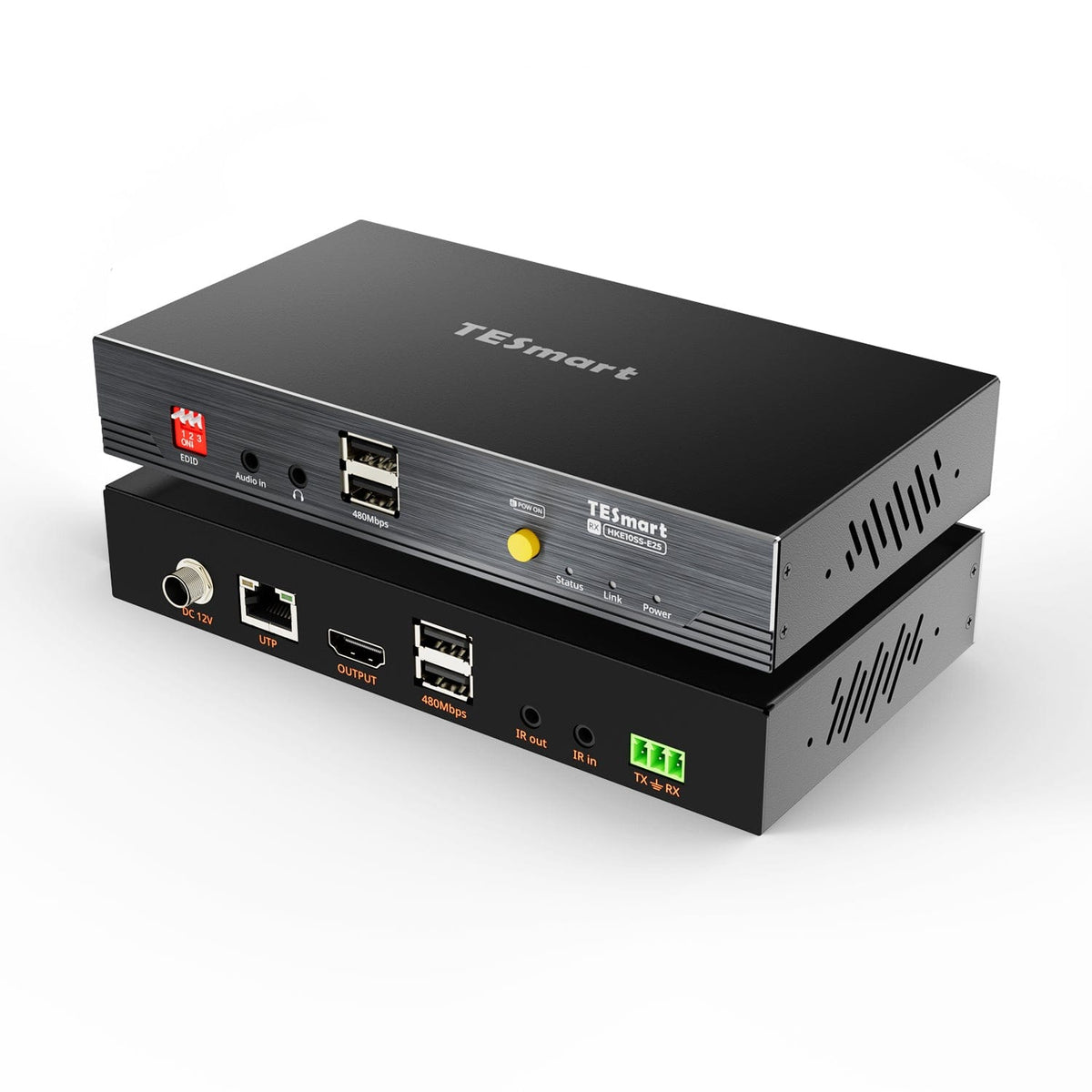
HKE10SS-E25
Computer connection
DisplayPort 1.4 + USB
Computer connection
USB-A computer port with USB 3.2 Gen 1 or higher
Computer connection
HDMI + USB
Monitor outputs
1 × DisplayPort
Monitor outputs
2 × HDMI
Monitor outputs
1 × HDMI
Image output
8K60/4K144
Image output
Dual 4K60
Image output
4K30
Transmission medium
OM4 multimode duplex fiber, LC-LC
Transmission medium
23AWG Cat6a or higher, S/FTP
Transmission medium
23AWG Cat6 or higher, S/FTP
Maximum distance
300 m/984 ft
Maximum distance
100 m/328 ft
Maximum distance
100 m/328 ft
Connection establishment
Direct point-to-point connection
Connection establishment
Direct point-to-point connection
Connection establishment
Direct point-to-point connection
USB at the remote workplace
USB 2.0 keyboard and mouse
USB at the remote workplace
USB 3.2 Gen 1/5 Gbit/s
USB at the remote workplace
USB 2.0/up to 480 Mbit/s
Software requirements
No TESmart software required
Software requirements
DisplayLink driver required
Software requirements
Video connection via hardware
Power supply
2 × 12V DC power supplies
Power supply
2 × 12V DC power supplies
Power supply
12V DC power supply to transmitter or receiver
Installation requirements
Direct fiber optic connection; without a switch, splitter, or media converter.
Installation requirements
Direct TX-RX connection; HDCP videos under macOS are subject to DisplayLink limitations.
Installation requirements
A continuous shielded cable; without an Ethernet switch or router.
Frequently asked questions
You can find further answers in our Help Center.
[Compatibility] Which devices does the DKE30SS-M25 support?
Connect a computer or other source with a DisplayPort output to a DisplayPort display. Windows, macOS, and Linux are supported. For remote control, the source also requires a USB connection for the USB-A to USB-B cable to the transmitter. The GPU, operating system, display, and cable must all support the desired video format.
[Compatibility] Which fiber optic cable do I need and how far will the connection reach?
Use a continuous OM4 multimode duplex cable with LC-LC connectors conforming to IEC 60793-2-10. Connect the transmitter and receiver directly over a maximum distance of 300 m. Do not place fiber optic switches, media converters, optical splitters, or other active network devices in between. Keep the LC connectors clean and avoid tight bends.
[Compatibility] What are the maximum possible resolution and refresh rate?
Maximum resolution 7680×4320 at 60 Hz. Supported lower resolutions include 3840×2160 at 60, 120, 144, and 240 Hz. Performance depends on the GPU, operating system, display, DisplayPort cables, fiber optic connection, HDCP, and the negotiated capabilities of the entire connection.
[Compatibility] Does the extender require drivers or software?
No. The DKE30SS-M25 extends DisplayPort and USB directly via hardware and requires neither DisplayLink drivers nor TESmart control software. Standard graphics, USB, and device drivers may still be required.
[Functions] How does automatic display recognition work?
The extender automatically transmits the display's capabilities to the source. This model does not have an EDID DIP switch or manual EDID mode. If possible, connect and power on both the receiver and display before starting the source. If the resolution is incorrect, restart the extender and display, and then reconnect or restart the source.
[Connections] Which USB devices are supported?
The USB ports on the receiver are designed for USB 2.0 keyboards and mice, including compatible wireless receivers. Storage devices, webcams, printers, and audio interfaces are not confirmed in the documentation. Connect these directly to the computer unless their compatibility has been verified.
[Connections] How does the stereo audio output work?
Connect speakers or headphones to the receiver's stereo output. In your computer's playback settings, select the DisplayPort display or the corresponding digital audio device. This connection only provides stereo output; it does not support microphone input or two-way analog audio.
[Connections] Do both the transmitter and receiver require power?
Yes. Connect one of the supplied 12V power supplies to the transmitter and one to the receiver. The 5.5 x 2.1 mm DC connectors must be fully inserted and locked. Use only the supplied power supplies or replacements with the correct voltage, polarity, connector size, and current rating.
[Functions] What do the power and video ads mean?
The red power indicator signals a 12V supply, the blue video indicator an active video signal. If the red light is off, check the power supply, wall outlet, and locking DC connector. If the red light is on on both devices but the blue light is off, check the DP output, DP cable, fiber optic cable, and display input.
[Furnishings] How do I connect the transmitter and receiver?
Connect the computer's DisplayPort output and USB port to the transmitter. Connect the transmitter and receiver directly using OM4 multimode duplex fiber optic cable with LC-LC connectors. Connect a DisplayPort display, keyboard, mouse, and optionally speakers or headphones to the receiver. Power both devices with the included 12V power supplies and check the red power and blue video indicators.
[Furnishings] Why does no image appear or why does the video not display?
Check both power indicators and whether the powered-on source is outputting an image via the connected DP port. Reconnect the DP and Duplex LC connectors and select the correct display input. Use a direct OM4 connection without any unsupported intermediate devices. First, test short, working DP and OM4 cables at 1920×1080@60Hz.
[Furnishings] Why are 8K, HDR, or high refresh rates unavailable or unstable?
The GPU output, display input, DP cable, and display mode must all support the desired format. Update your graphics driver, try a lower resolution or refresh rate, and use short DP 1.4 cables at both ends. The OM4 connection must not exceed 300 m in length. Protected content requires HDCP 2.2 on all components.
[Furnishings] Why aren't the keyboard, mouse, or audio working?
Check if the computer is connected to the transmitter via DisplayPort and USB. Reconnect the input devices, test them directly on the computer, and try a different computer.
