

Monitorkonfiguration
Max. Auflösung
Gerätekonfiguration
Stabile Anzeige
USB-Geschwindigkeit

Gemeinsames Netzwerk
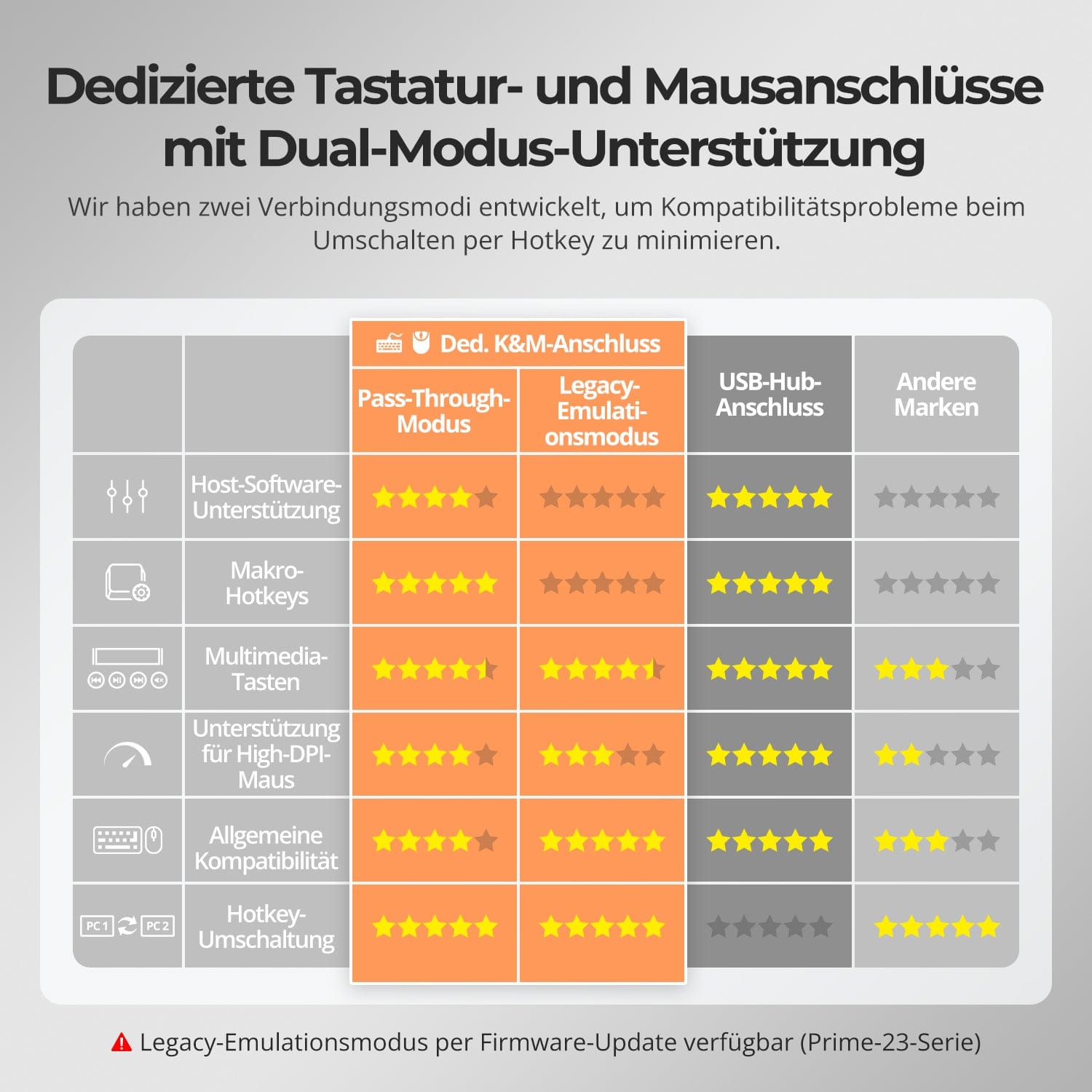
Tastatur und Maus
2×4 HDMI+DP KVM | 4K60, EDID & USB hub
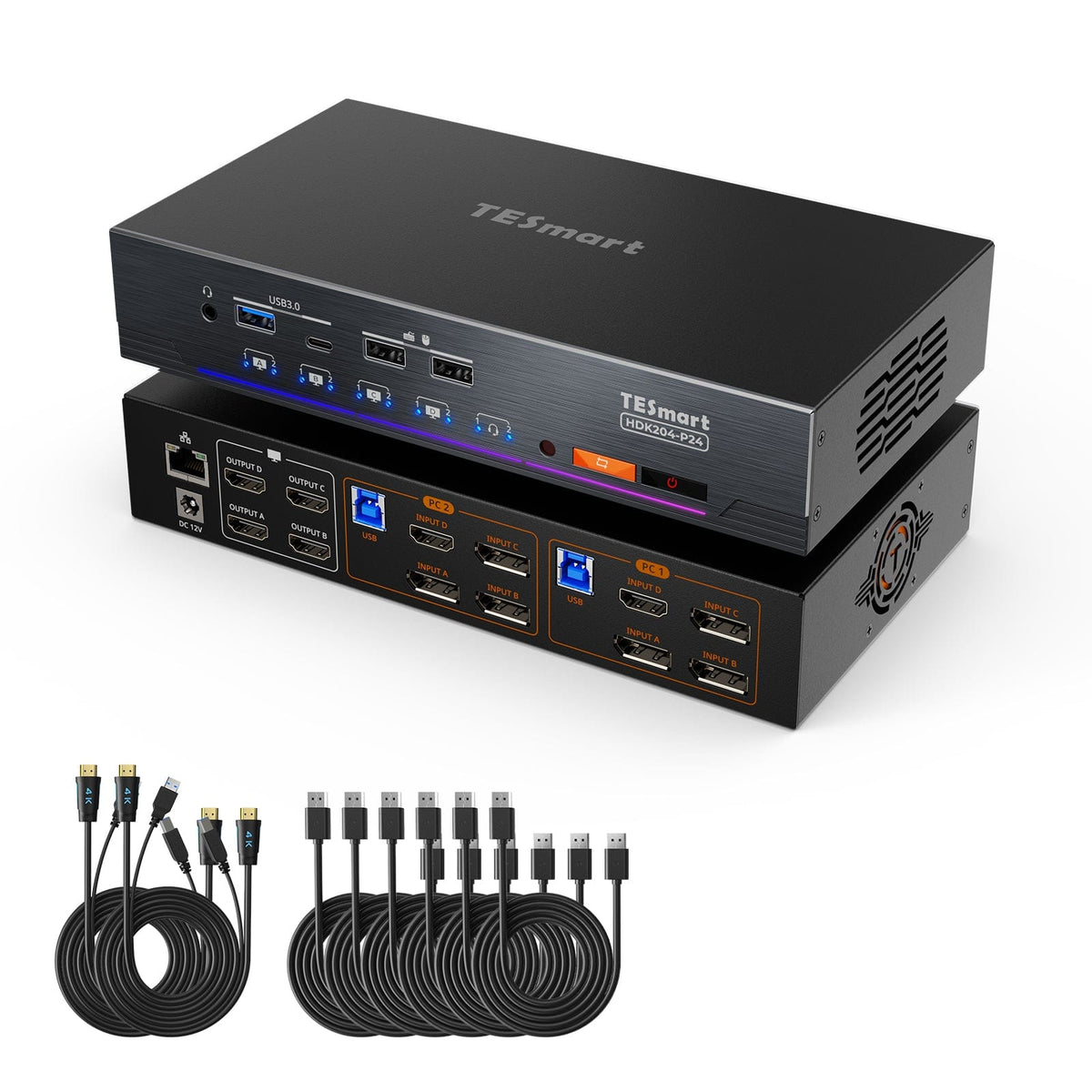
HDK204-P24 connects two PCs with four HDMI monitors. Share keyboard, mouse, USB devices and Gigabit Ethernet - with up to 4K60 and EDID.
Monitorkonfiguration
Max. Auflösung
Gerätekonfiguration
Stabile Anzeige
USB-Geschwindigkeit
Gemeinsames Netzwerk
Tastatur und Maus
2×4 HDMI+DP KVM | 4K60, EDID & USB hub
Why HDK204-P24?
Overview
01
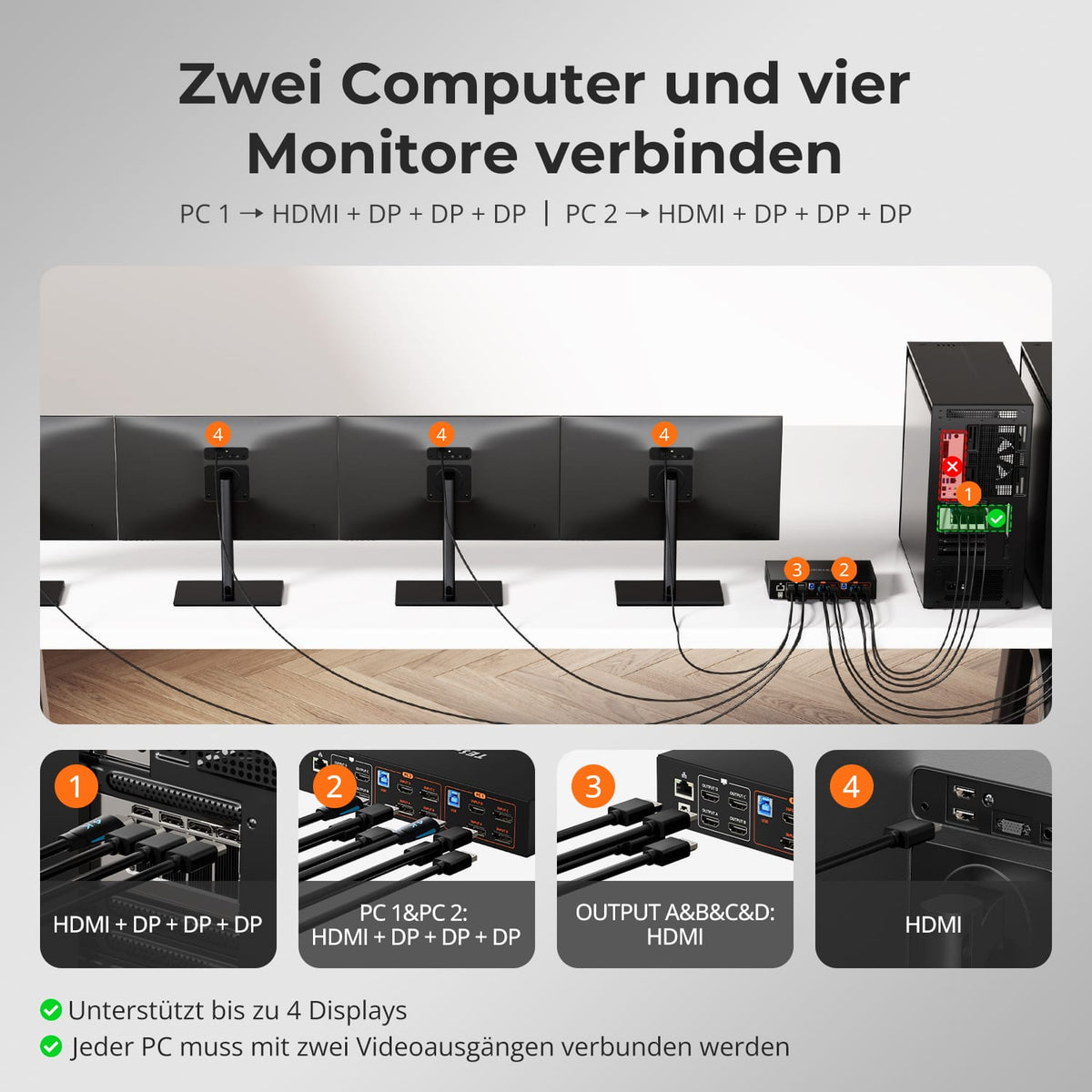
Four times 4K60 for two computers
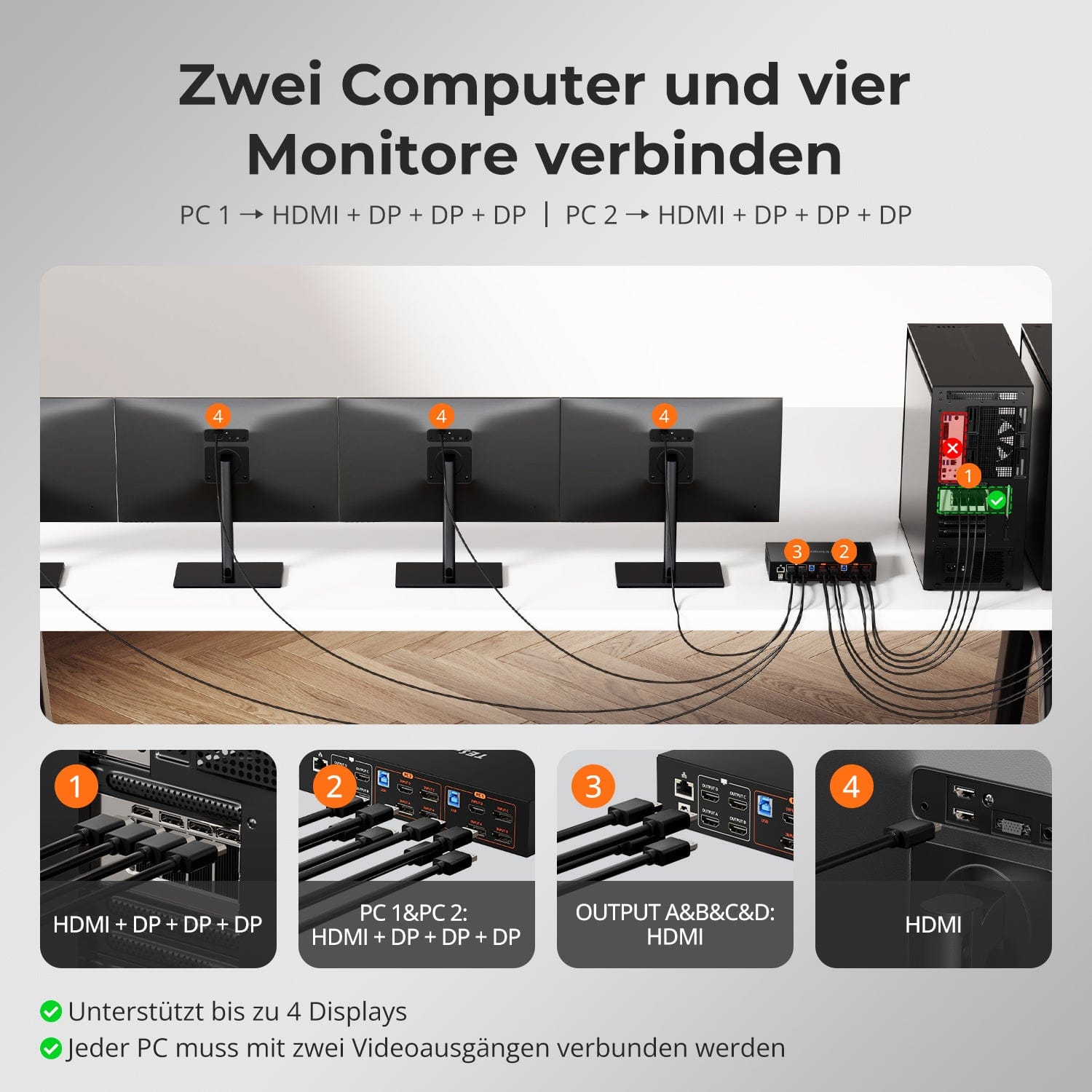
Operate two computers on four HDMI monitors with up to 4K@60Hz. JedeThe computer requires one HDMI and three DisplayPort video inputs. Keyboard, mouse, and devices can be used together.
02
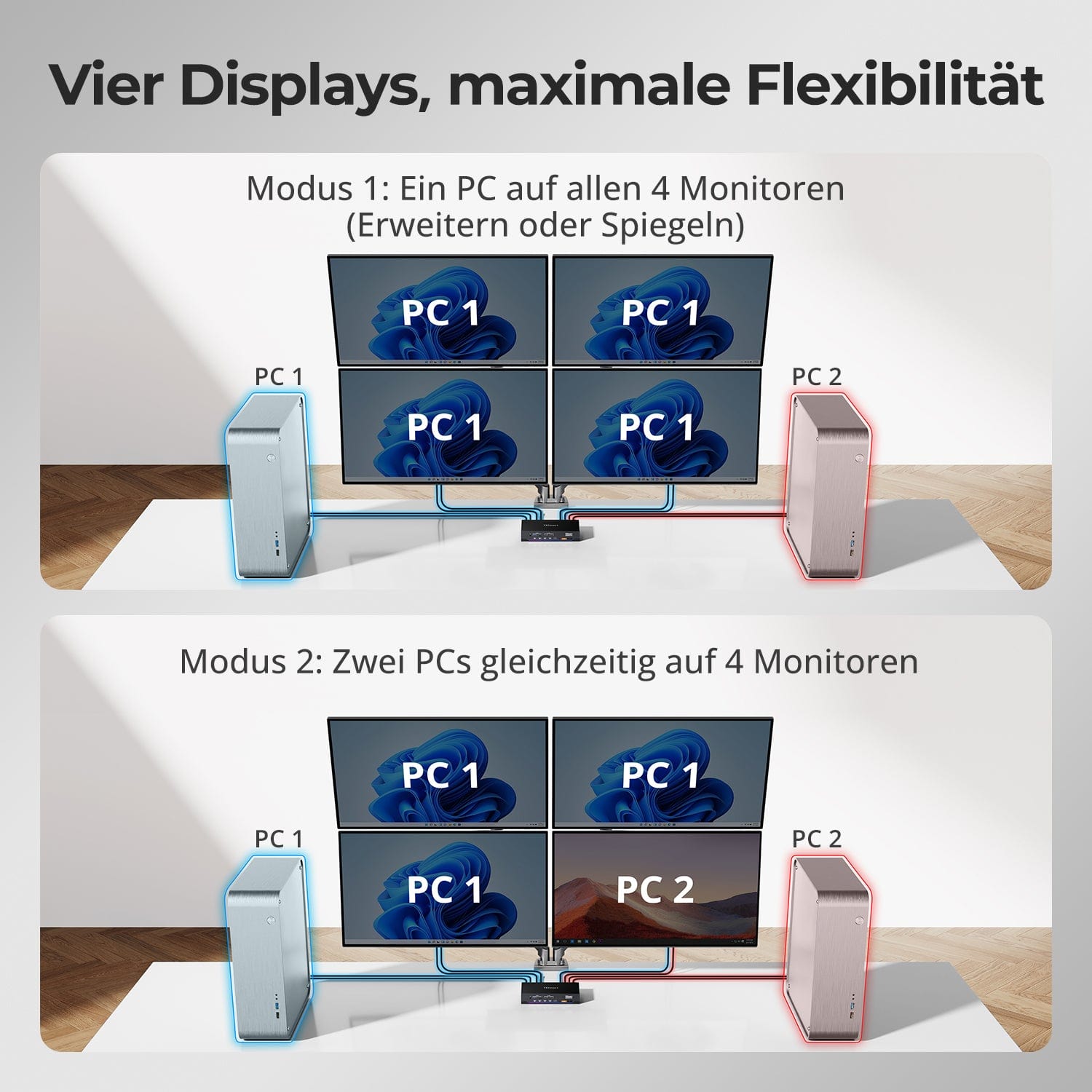
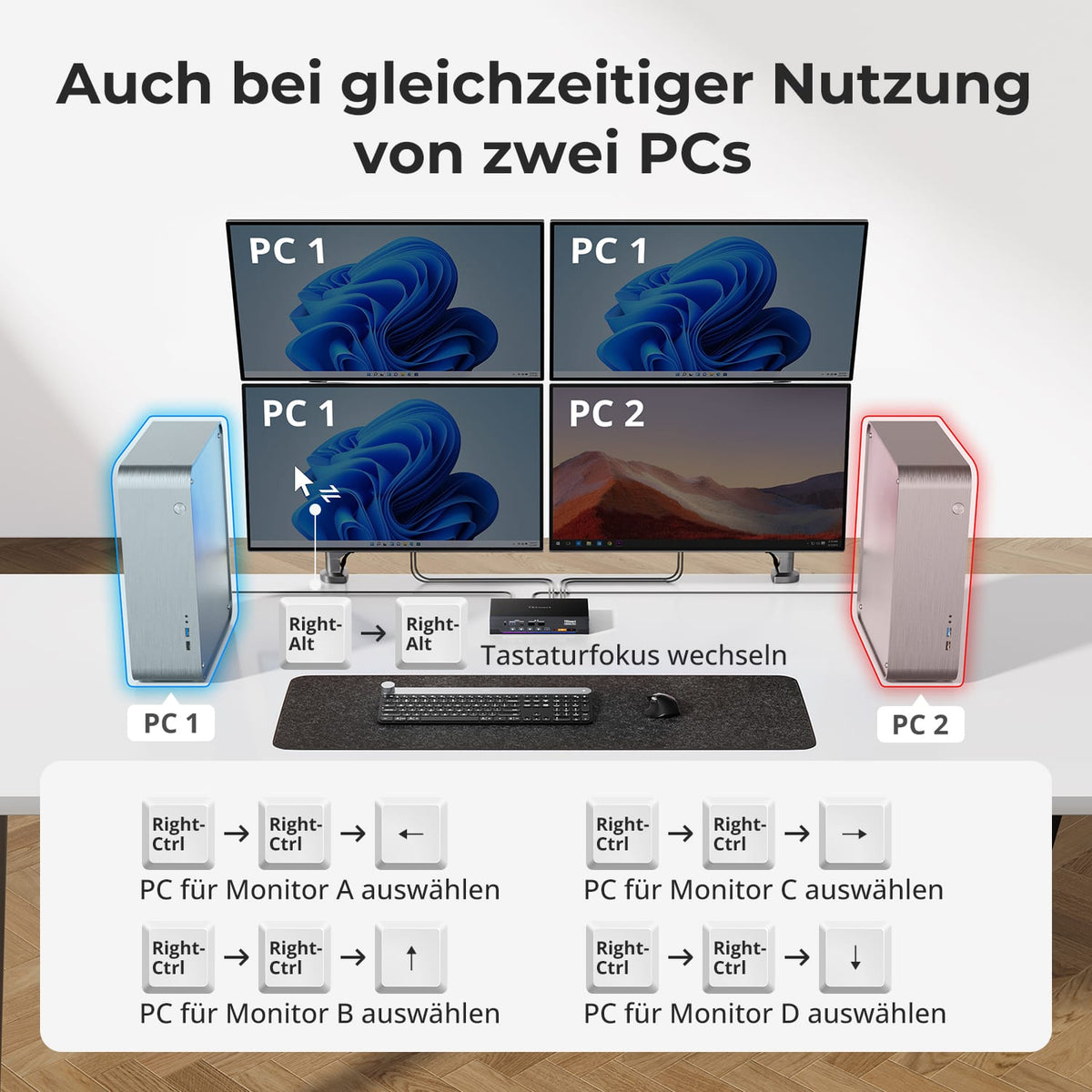
Four displays, flexibly assigned
Use all four displays with one computer or display content from both computers simultaneously – for monitoring and multitasking.
03
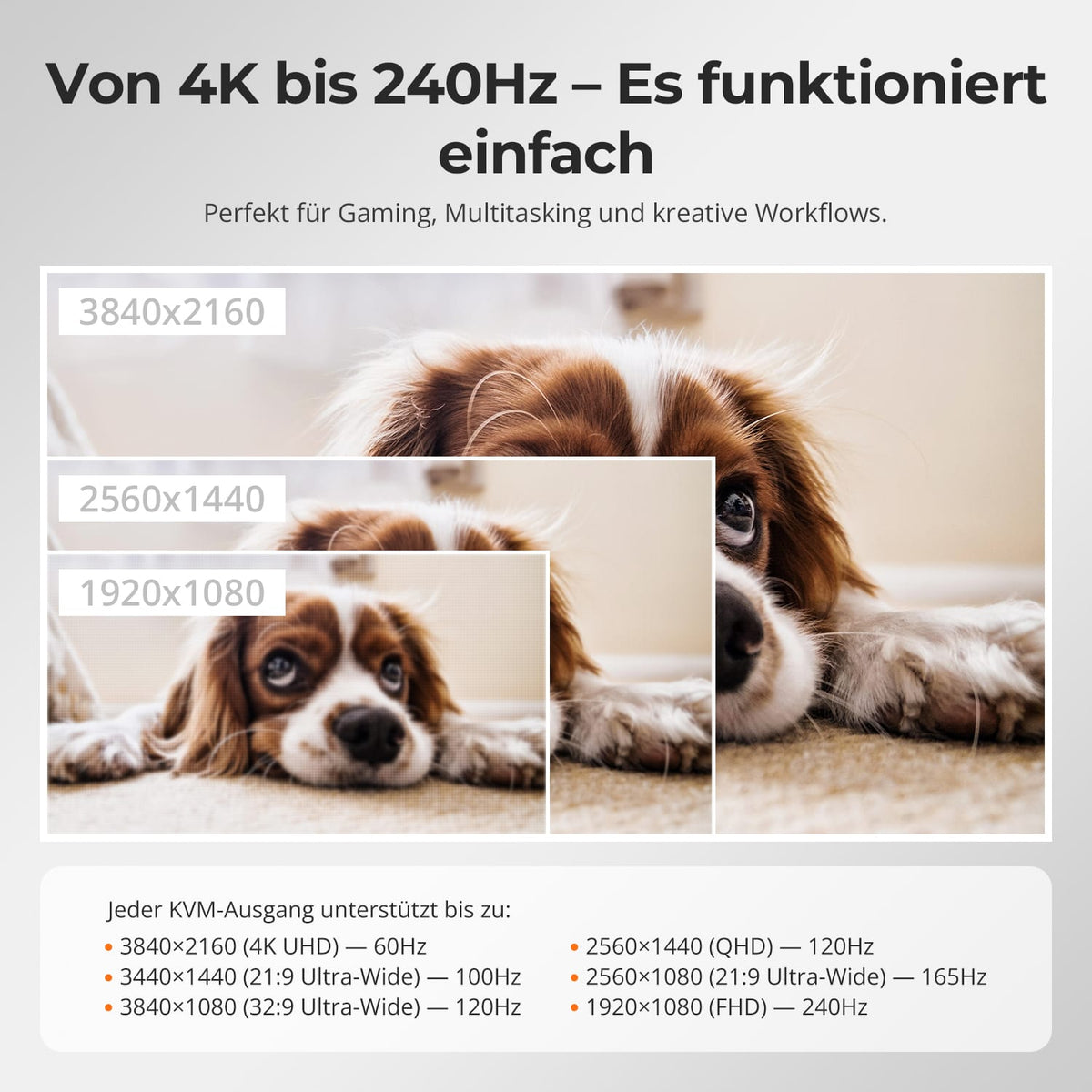
From 4K-Details up to 240 Hz
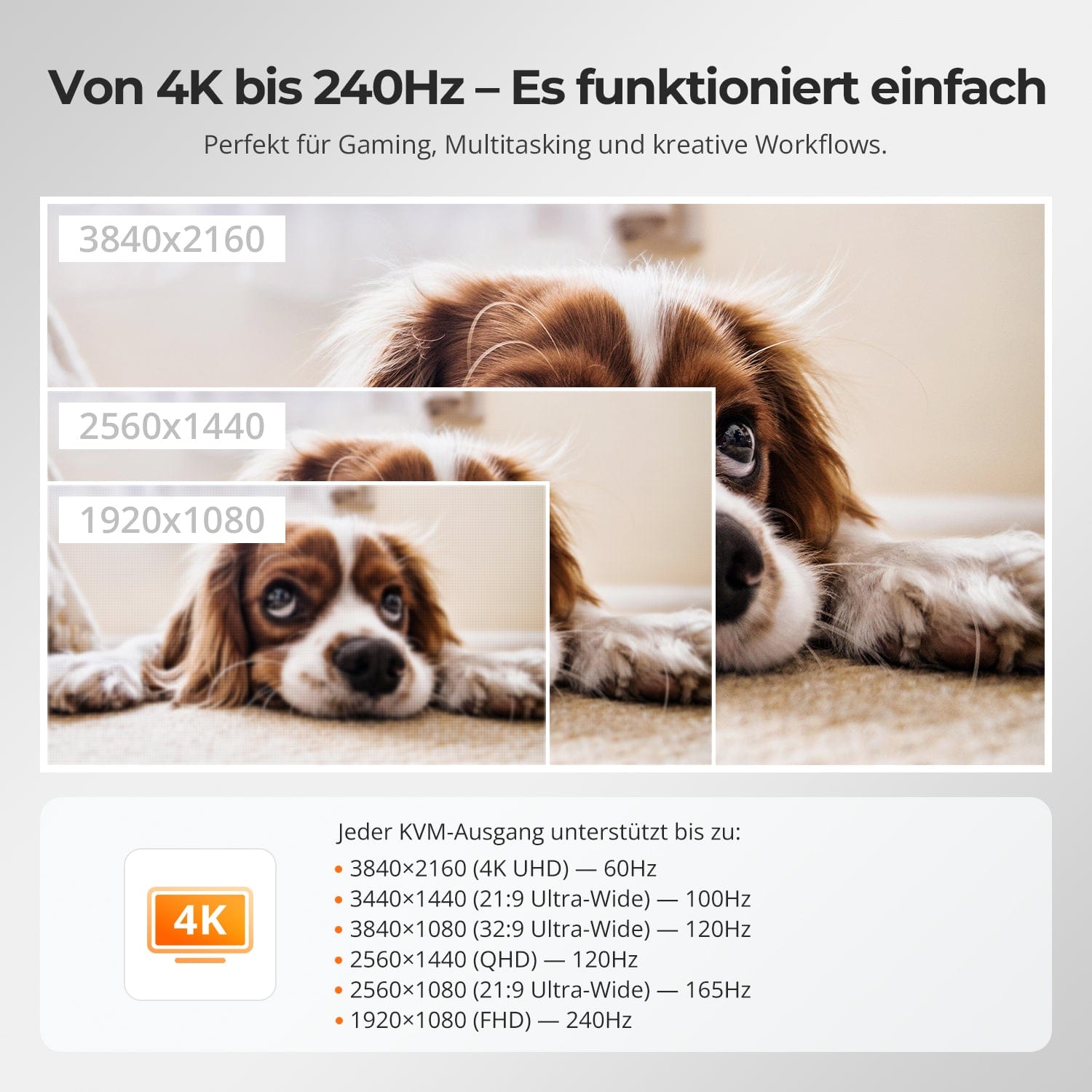
Each KVM port supports up to 4K@60Hz oder 1080p@240Hz sowiand other ultrawide and high-refresh formats for work, gaming and creative tasks.
04
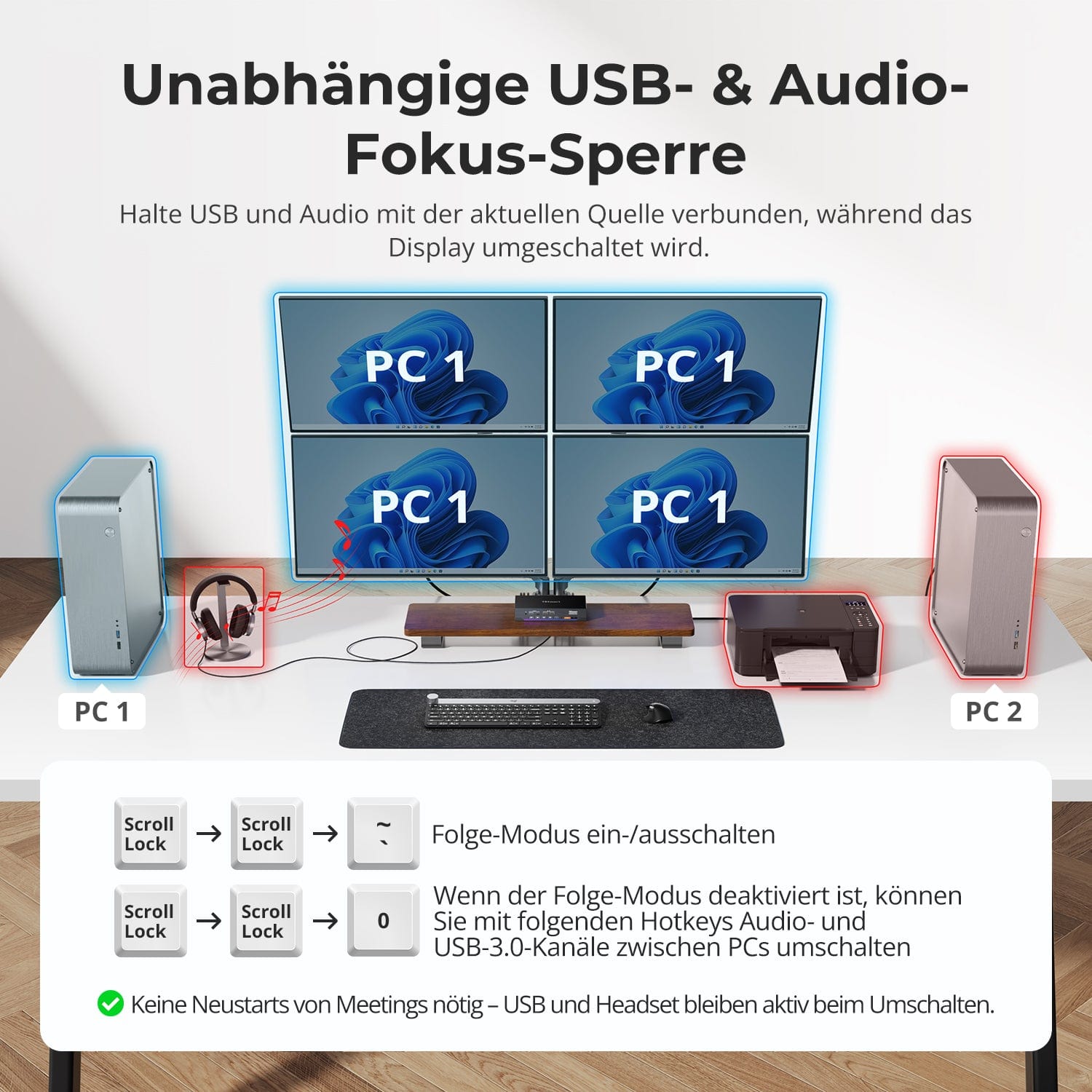
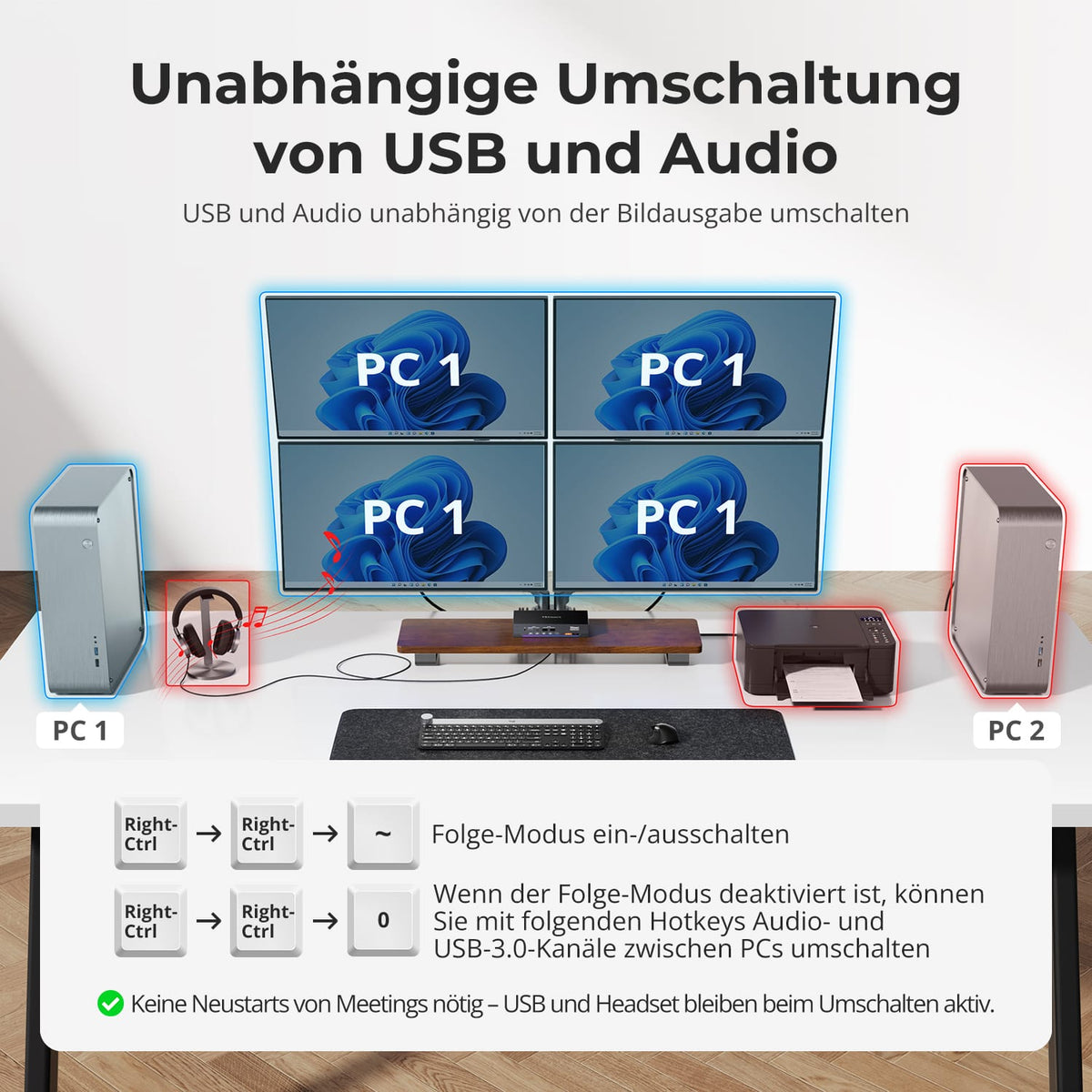
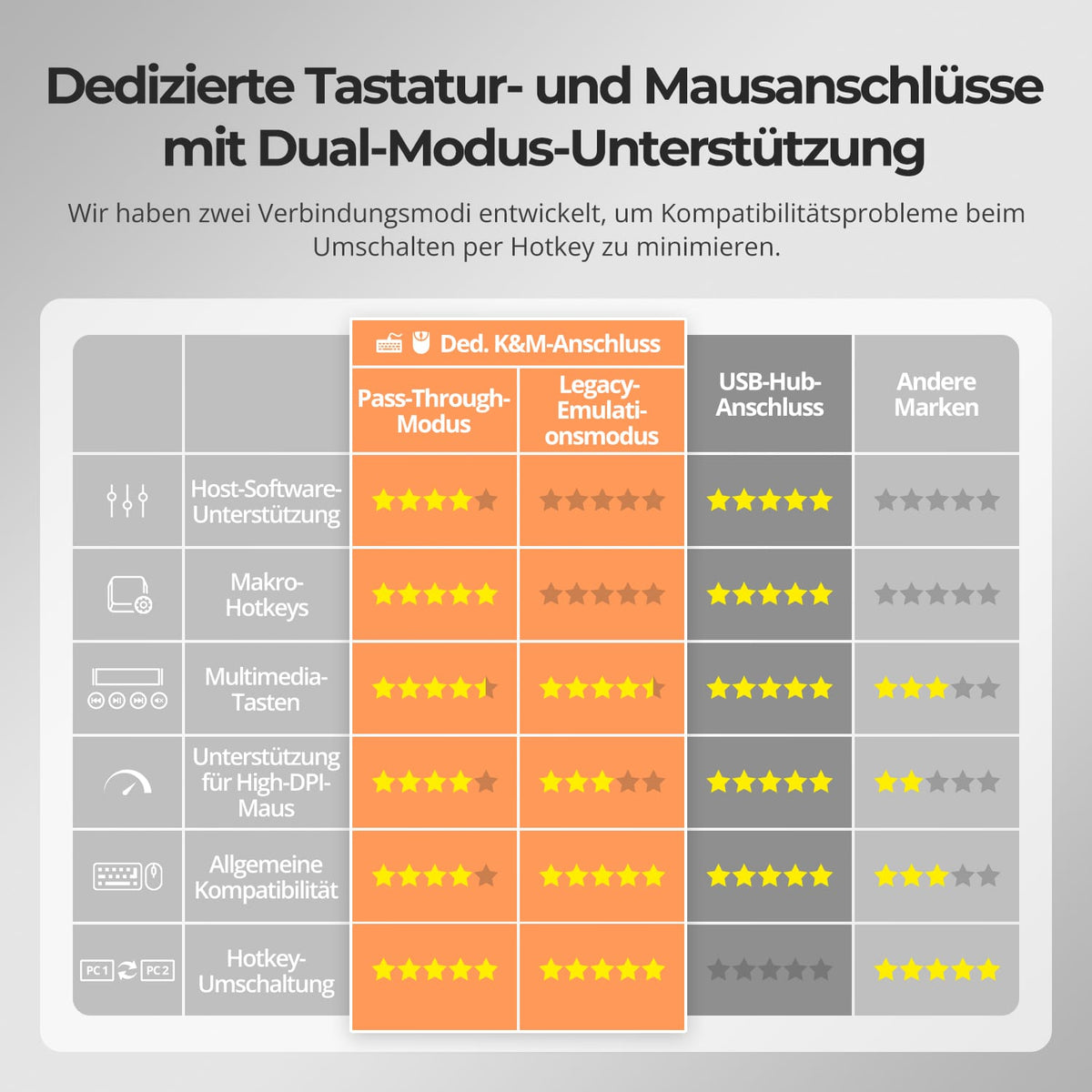
USB & Audio at the desired computer
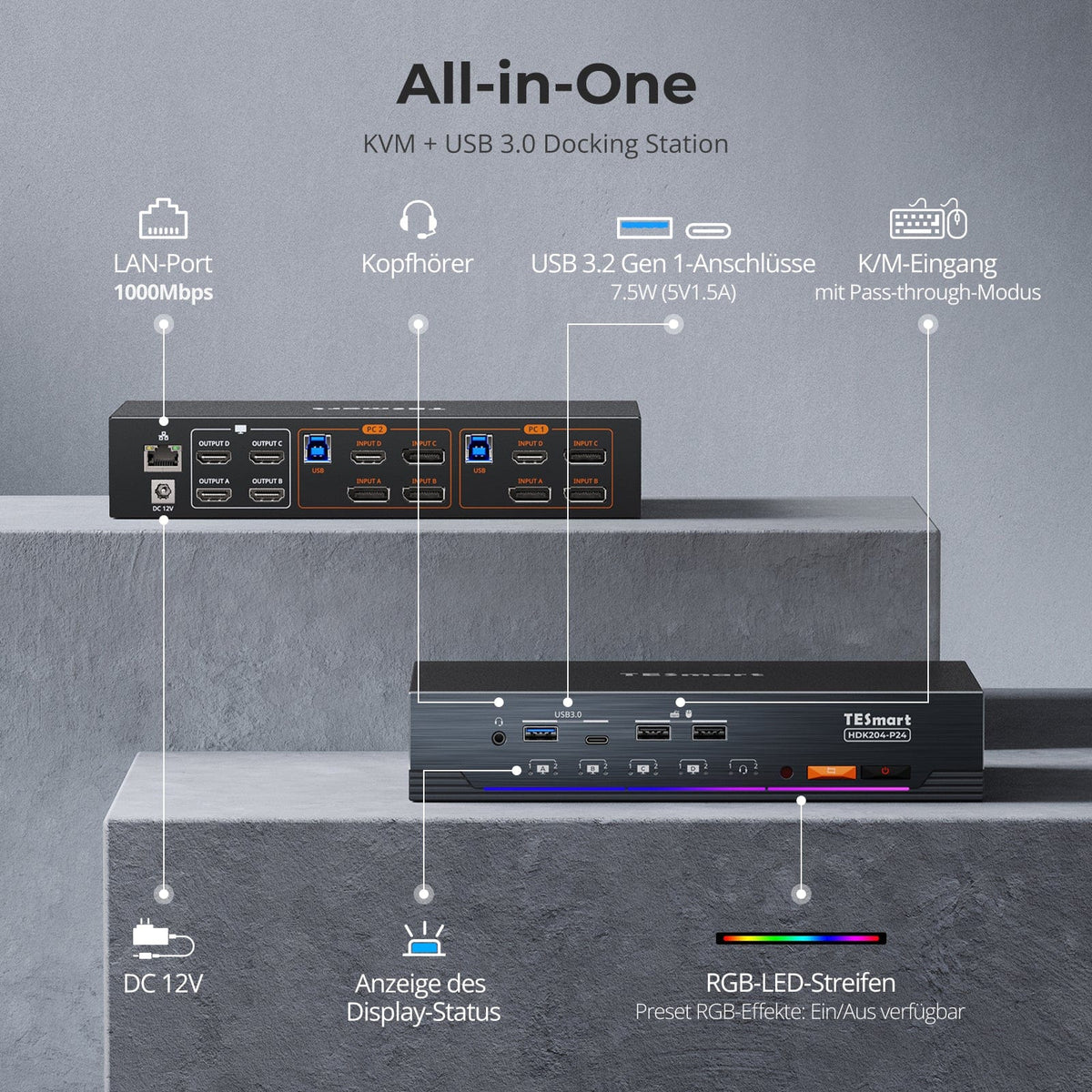
Keep supported USB devices and audio connected to one computer while independently switching displays, keyboard, or mouse. This ensures that devices like headsets, calls, or USB devices remain active on the required system.
05
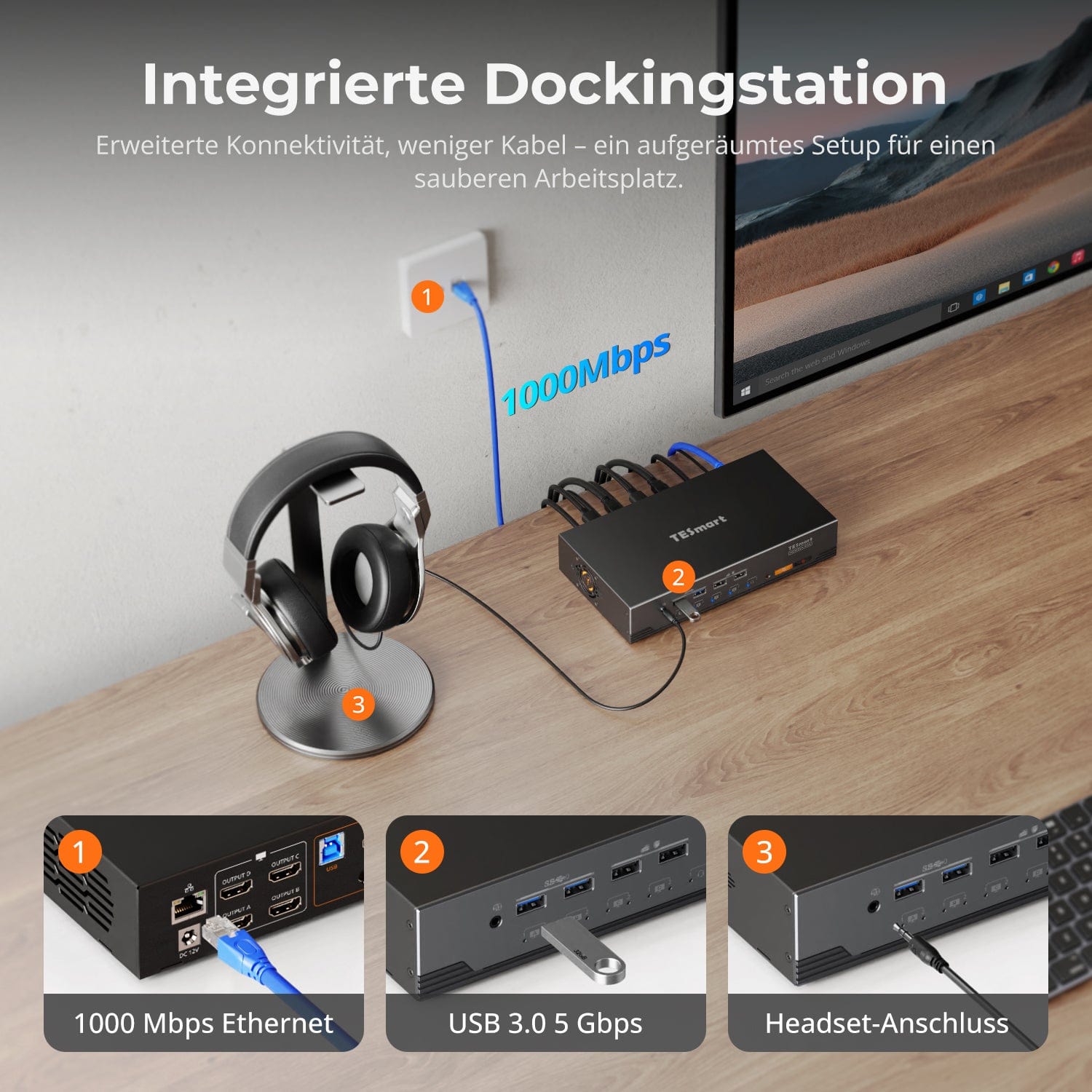
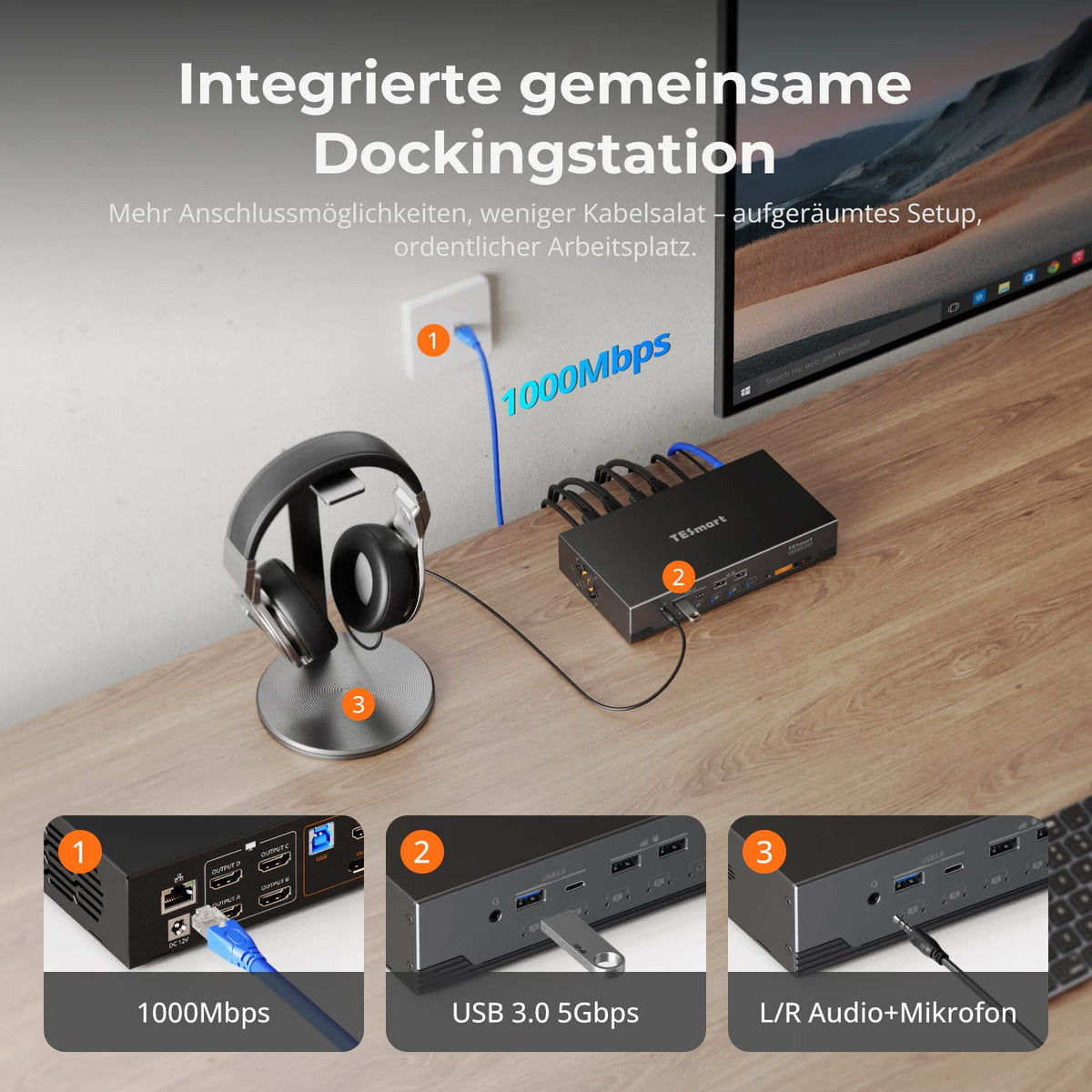
KVM and shared dock in a device
Share USB 3.0 devices, Gigabit Ethernet, and audio through a single device. Fewer adapters and cables – no separate dock or network switch required.
06
07
08
Data & Support
Compatibility & Connections
Technical data
Instructions & Downloads
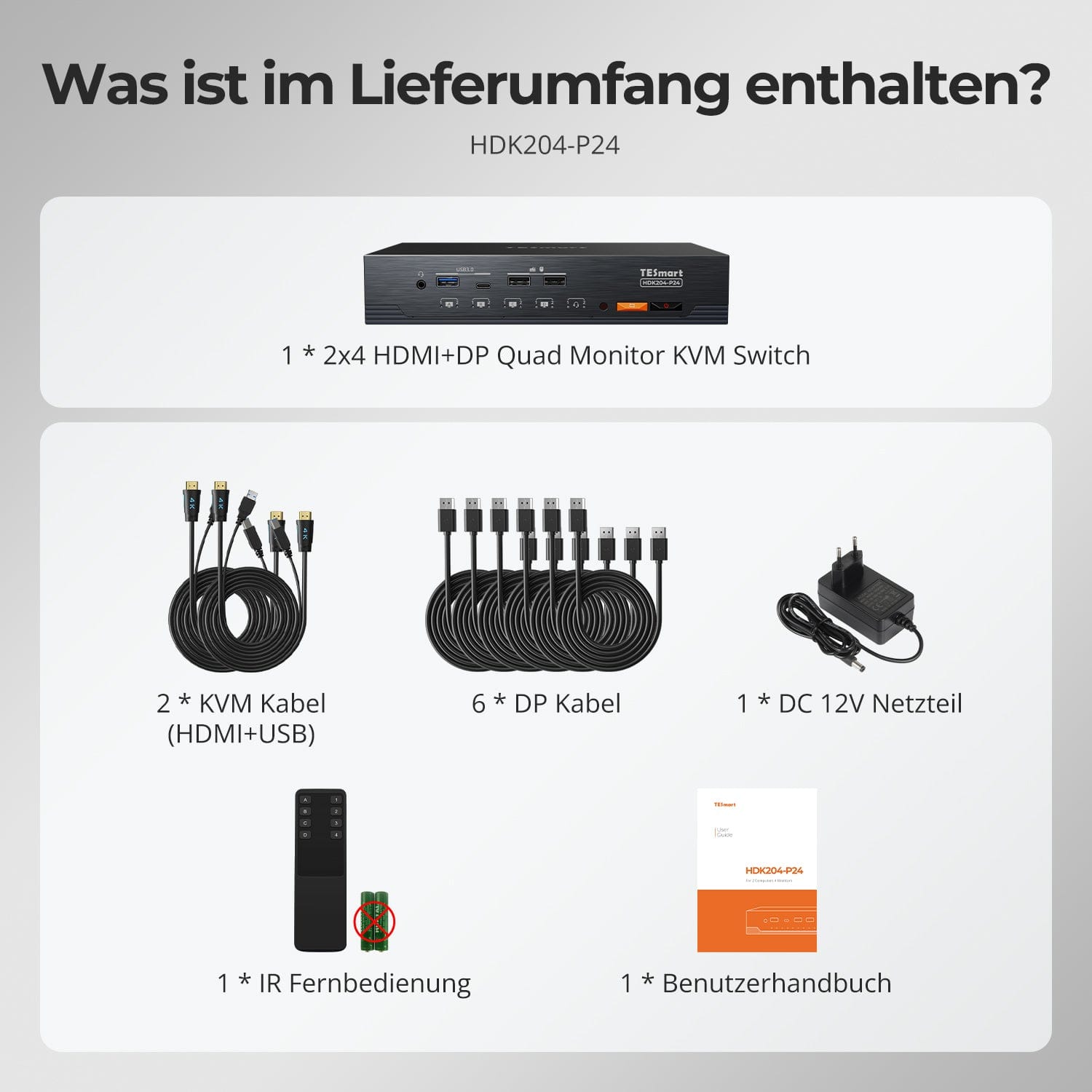
Scope of delivery
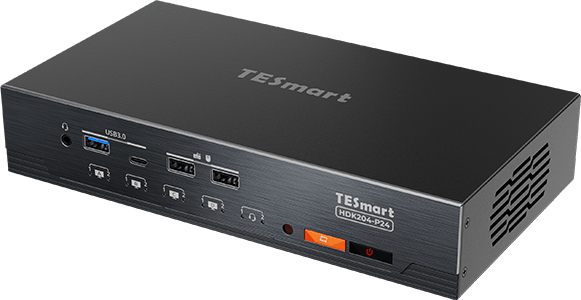
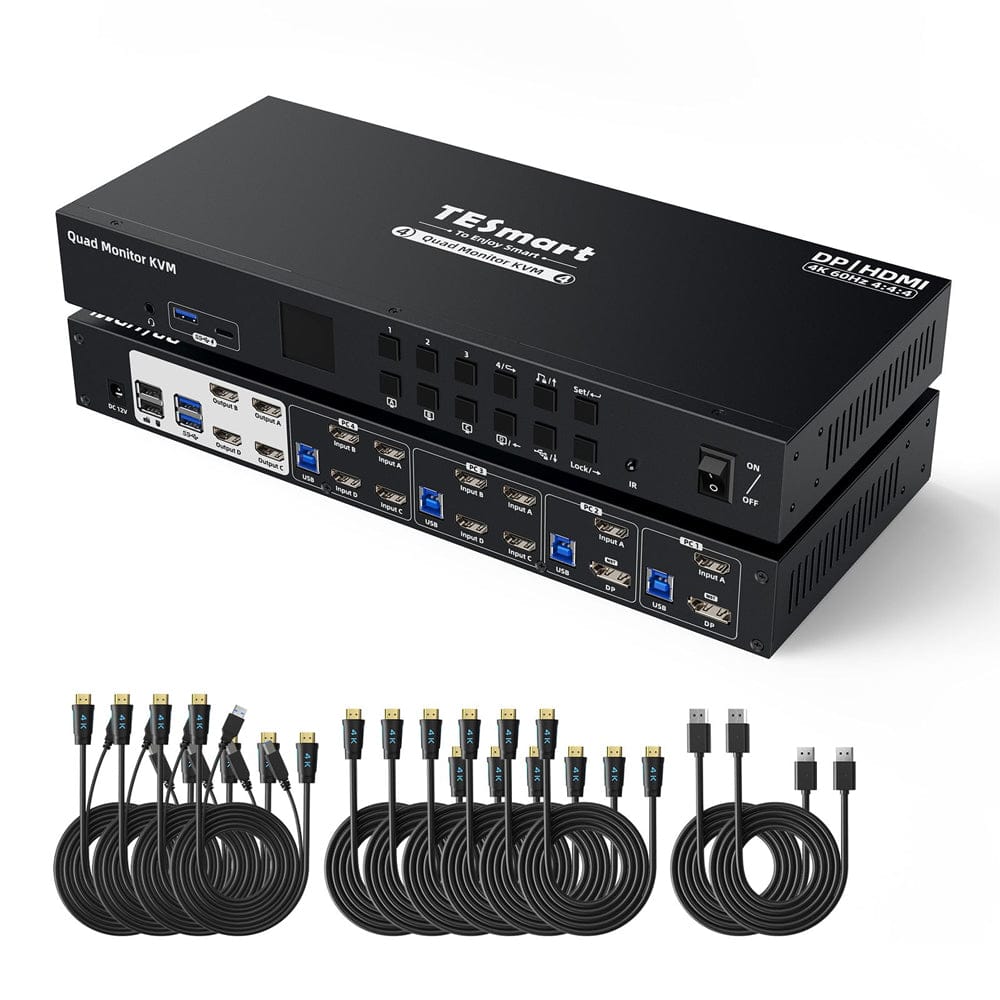
1 × HDK204-P24 KVM Switch
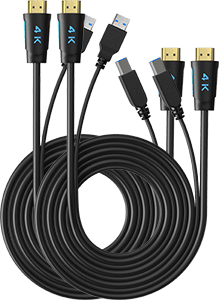
2 × KVM cable (HDMI+USB)
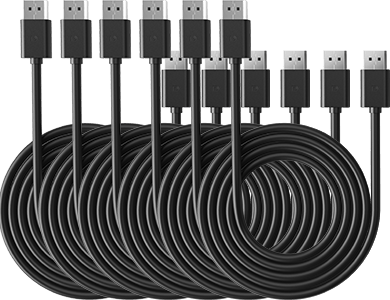
4 × DP cable
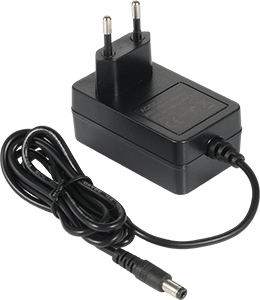
1 × 20V DC power supply
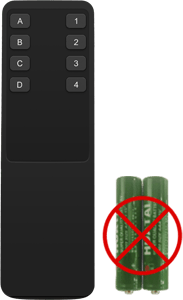
1 × IR Remote Control
1×User manual
Compare suitable models
Compare connections, image output, and sharing features for your workplace.
Model
HDK204-P24
Model
HDK404-P23
Computer count
2 computers
Computer count
4 computers
Computer connections
Per PC: HDMI + 3 × DisplayPort + USB
Computer connections
PC1-2: HDMI + DP MST + USB; PC3-4: 4×HDMI+USB
Monitor outputs
4 × HDMI
Monitor outputs
4 × HDMI
Image output
4K60
Image output
4K60
Shared USB devices
USB 3.0/5 Gbit/s
Shared USB devices
USB 3.0/5 Gbit/s
Shared network access
1000 Mbit/s
Shared network access
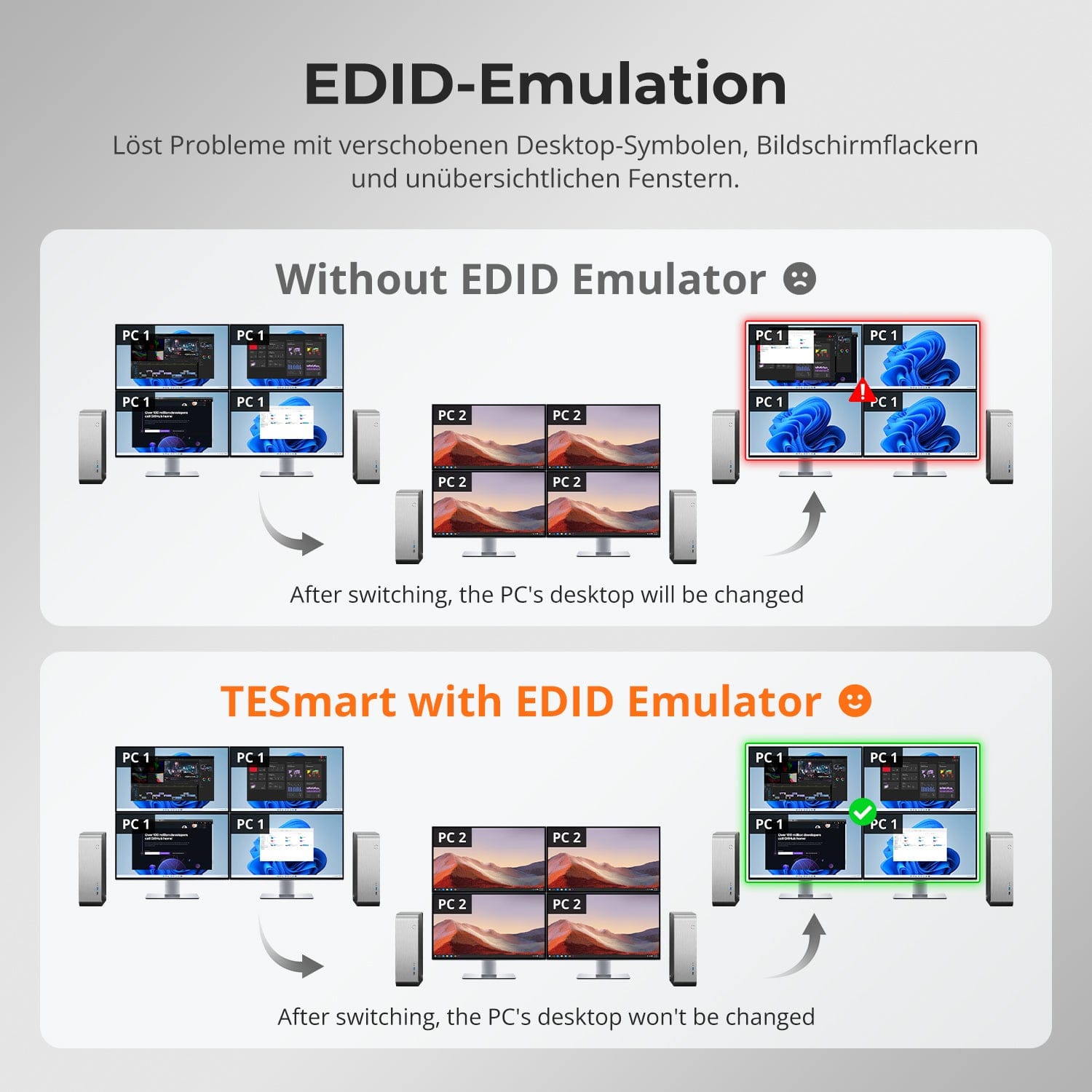
EDID emulation
EDID emulation
Multi-monitor operation
Separate video outputs on each computer
Multi-monitor operation
MST connection for PC1–2: 2 × 4K60 + 1 × 4K30 on monitors B/C/D
Monitor requirements
Each computer must be able to drive 4 monitors.
Monitor requirements
PC1–2 require Windows with MST; PC3–4 require four active HDMI outputs.
Frequently asked questions
You can find further answers in our Help Center.
[Compatibility] Which computers and monitors does HDK204-P24 support?
Connect two computers and up to four HDMI monitors. Each computer needs one HDMI output, three DisplayPort outputs, and one USB port for all four monitors.
[Compatibility] What resolution does HDK204-P24 support?
HDK204-P24 supports up to 3840×2160@60Hz in 4:4:4 at the HDMI outputs. The actual resolution depends on the computer, graphics card, monitor, and cables.
[Compatibility] Which operating systems are supported?
Windows, macOS, and Linux, including Raspberry Pi, Ubuntu, and Debian, are supported. Extended or mirrored layouts also depend on the operating system and graphics hardware.
[Functions] Can I view both computers simultaneously?
Yes. In mixed mode, monitor groups can display different computers. Alternatively, one computer can display its desktop on all four displays.
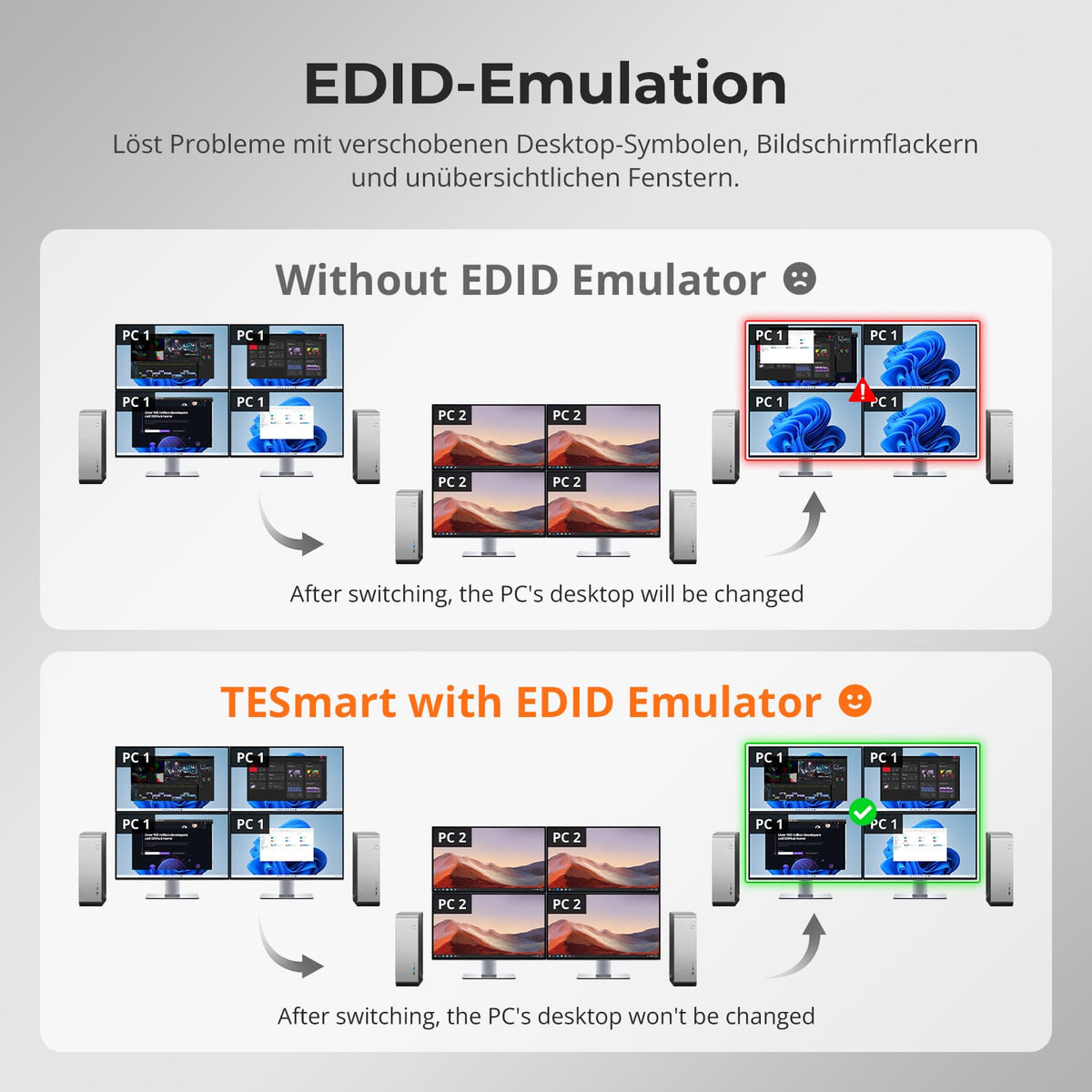
[Functions] Will my desktop layout be preserved when I switch between desktops?
Yes. EDID emulators keep display information available and reduce the displacement of icons and windows when switching.
[Connections] Which devices can both computers share?
Keyboard, mouse, USB 3.2 Gen 1 devices and integrated audio. The front USB-A/USB-C ports transfer data and charge compatible mobile devices.
[Connections] Can both computers use a network connection?
Yes. Connect your LAN to a router or network switch. The integrated USB Ethernet adapter shares Gigabit Ethernet at speeds up to 1000 Mbps.
[Furnishings] How do I connect each computer?
Connect each computer to its input group via HDMI, three DisplayPort cables, and USB. Connect four HDMI monitors, as well as a shared keyboard, mouse, and other devices.
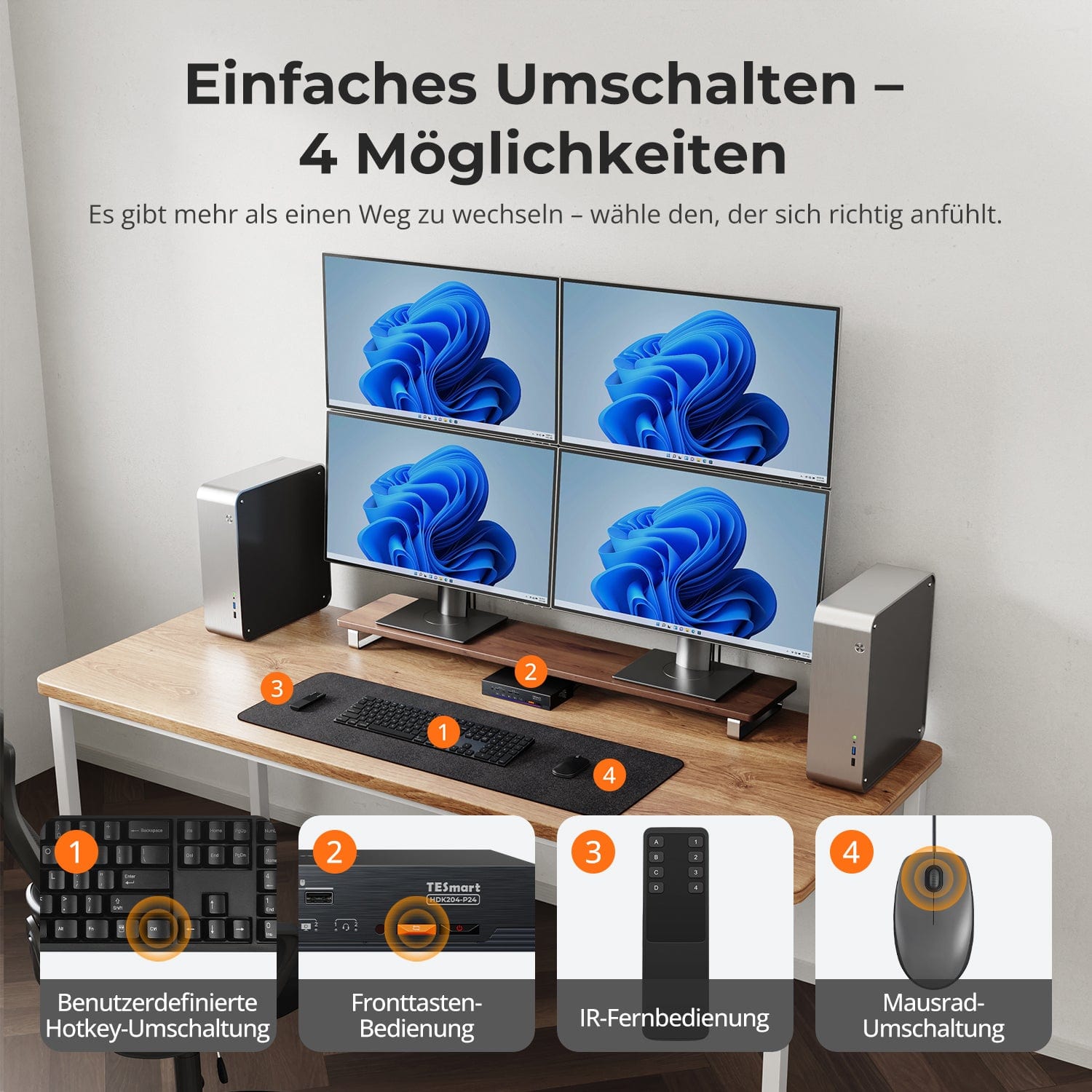
[Switch] How do I switch between computers?
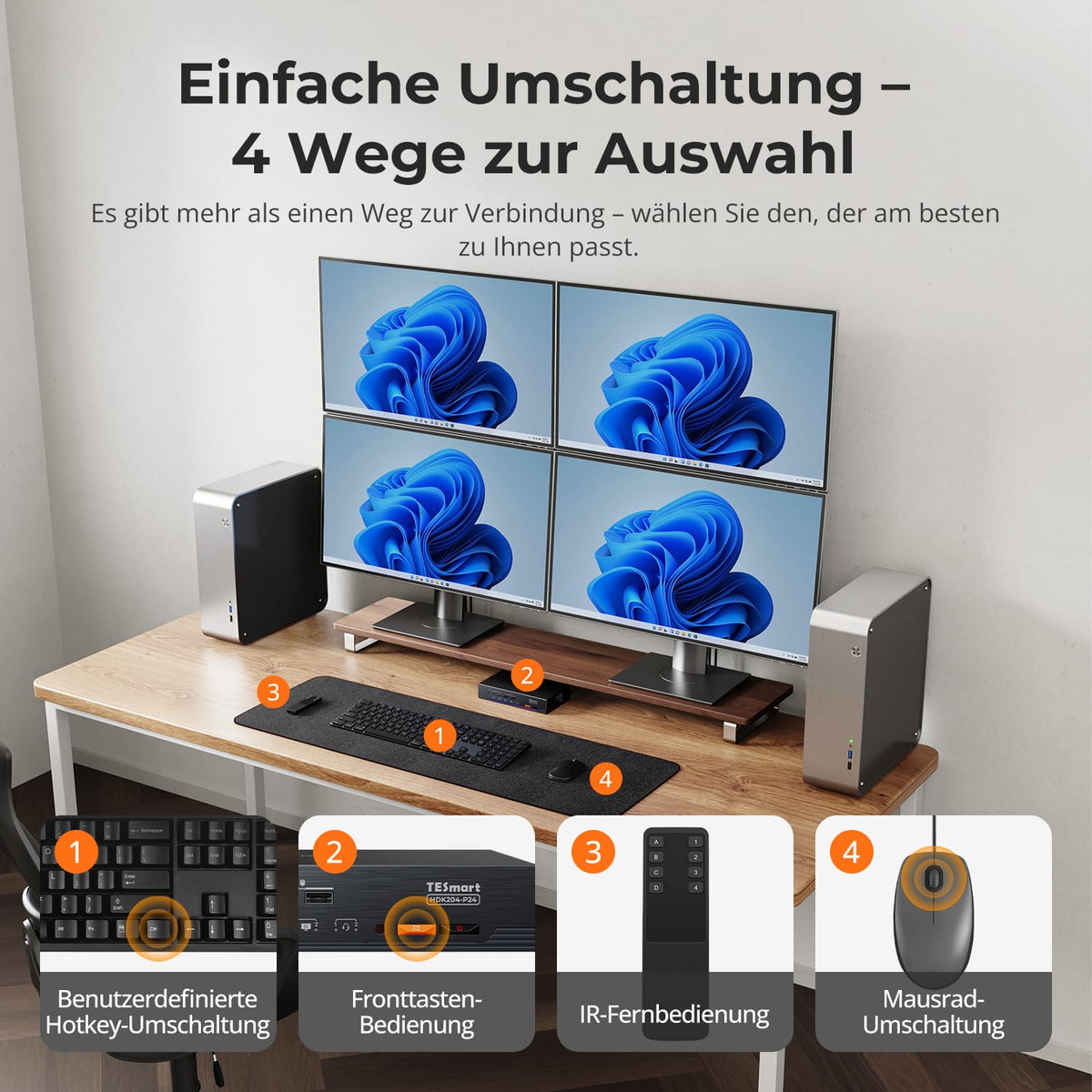
Via control panel, IR remote control, hotkeys, or mouse wheel. Activate the mouse wheel function, which is disabled by default, before use with the corresponding hotkey.
[Switch] How do I switch keyboard/mouse controls in mixed mode?
Press the right Alt key twice to switch keyboard/mouse control between the two displayed computers.
[Functions] Can the network adapter, fan, and buzzer be disabled?
Yes. The manual includes hotkeys for the network adapter, fan, and buzzer. The fan also offers four operating modes.