

Table of contents
- Introduction
- Why gaming handhelds are becoming docked desktop devices
- Dock vs. KVM: What is the actual difference?
- The real problem: One desk, too many gaming and work devices.
- How to build a docked gaming handheld setup using a KVM
- When an HDMI KVM like HKS201 or HKS202 makes sense
- When a USB-C/HDMI KVM like the CKS202-P23 makes sense
- What you should check before buying a KVM for a gaming handheld
- Common setup methods
- Concluding thoughts
- FAQ
Introduction
A handheld gaming device is easy to understand as long as it stays in your hand. The setup becomes more complicated when you place it on your desk, connect it to a monitor or TV, add a keyboard and mouse, and then want to use the same display with a work laptop or gaming PC as well.
This is precisely where many users encounter the real problem. The question is no longer simply whether a ROG Xbox Ally, ROG Xbox Ally X, Steam Deck, Lenovo Legion Go, MSI Claw, or any other handheld gaming PC can output video. The more difficult question is how to seamlessly integrate the device into a multi-device desktop setup.
A USB-C dock can help a handheld connect to a display. A KVM switch helps multiple devices share the same display, keyboard, mouse, and selected USB peripherals. For users who want a ROG Xbox Ally KVM-Setup, a Steam Deck KVM Setup or when setting up a mixed work and gaming desk, this difference is crucial.
This guide explains when a dock is sufficient, when a KVM makes more sense, and how TESmart HDMI and USB-C/HDMI KVM solutions can fit into a docked gaming handheld setup without turning the desk into a cable swapping station.
Why gaming handhelds are becoming docked desktop devices
Gaming handhelds are no longer just portable devices for short gaming sessions. A modern handheld gaming PC can be docked, connected to an external monitor or TV, use a controller, and behave more like a compact gaming system or a second Windows gaming PC.
The ROG Xbox Ally and ROG Xbox Ally X clearly demonstrate this trend. Current platform updates focus on docked play, behavior with external TVs and monitors, display settings, controller pairing, and gaming workflows on larger screens. The bigger picture is clear: handheld gaming PCs are increasingly moving towards desktop and living room use.
Steam Deck users have been following this pattern for years. Many gamers already connect their Steam Deck to a monitor, keyboard, mouse, TV, controller, capture device, or headset. The same applies to other Windows handhelds like the Lenovo Legion Go and MSI Claw.
Once a handheld device becomes part of the desk, it competes for the same resources as all other devices:
- a monitor or TV input
- Keyboard and mouse control
- USB headset, microphone or wireless receiver
- Desk space next to work laptop or gaming PC
- HDMI, USB-C and power ports
Therefore, a Gaming handheld docked setup often leads to a multi-device switching problem and not just a simple docking problem.

Dock vs.KVM: What is the actual difference?
A USB-C dock and a KVM switch solve different problems.
A USB-C dock It expands the capabilities of a single device. It can provide HDMI, DisplayPort, USB-A, Ethernet, audio, charging, or SD card access for a handheld or laptop. If your only goal is to connect a handheld to a monitor, a dock may suffice.
A KVM switch KVM connects multiple source devices to a shared desktop environment. KVM stands for Keyboard, Video, and Mouse. In practice, a KVM can help switch a monitor, keyboard, mouse, and selected USB peripherals between a handheld device, laptop, desktop PC, or console-like HDMI source.
The difference becomes important when users ask questions like:
- How can I Share monitor, keyboard and mouse between handheld and PC?
- Can I use the same display for Steam Deck, work laptop, and gaming desktop?
- Can my headset receiver remain plugged in instead of being switched between devices?
- Can I stop having to manually switch the monitor input every time I change devices?
A dock answers the question: "How do I connect this handheld to more ports?" A KVM answers the question: "How do I switch my entire desktop between devices?"
| Device type | Main purpose | Best suited for |
|---|---|---|
| USB-C dock | Adds extra ports to a handheld or laptop | A handheld device is connected to a monitor or TV. |
| HDMI switch | Switches only video sources | Multiple HDMI devices share one display without keyboard and mouse sharing. |
| KVM switch | Switches display, keyboard, mouse and selected USB peripherals | Handheld devices, laptops, and PCs share a desktop setup. |
The real problem: One desk, too many gaming and work devices.
The typical user of a docked handheld doesn't own just one device. A real-world desk setup might include a work laptop for meetings and documents, a gaming PC for demanding games, and a handheld for couch gaming, travel, or lighter desktop gaming.
Without KVM, several daily points of friction arise.
Manual switching of the display input
Many monitors and TVs have multiple inputs, but switching between them via the on-screen menu can be slow. It becomes even more annoying when one device uses HDMI, another USB-C via a dock, and yet another a different HDMI port.
Repeated unplugging and plugging in of USB devices
A keyboard, mouse, headset receiver, microphone, or controller dongle may need to be switched between devices. Repeatedly unplugging and plugging it back in is inconvenient and can also cause detection delays, especially with USB audio devices or wireless receivers.
Cable chaos around the dock
A handheld dock already requires power, video output, and USB connections. Add a work laptop and a gaming PC, and your desk quickly becomes a jumble of HDMI cables, USB-C adapters, USB-A receivers, audio cables, and chargers.
Different devices behave differently.
A Windows handheld, SteamOS device, work laptop, and gaming PC may not negotiate displays in exactly the same way. Resolution, refresh rate, HDR, audio output, and controller behavior can vary depending on the device, dock, KVM, cable, display, operating system, and game settings.
Therefore, one Handheld gaming PC desktop setup It should be planned as a complete signal chain, not just as a handheld plus dock.

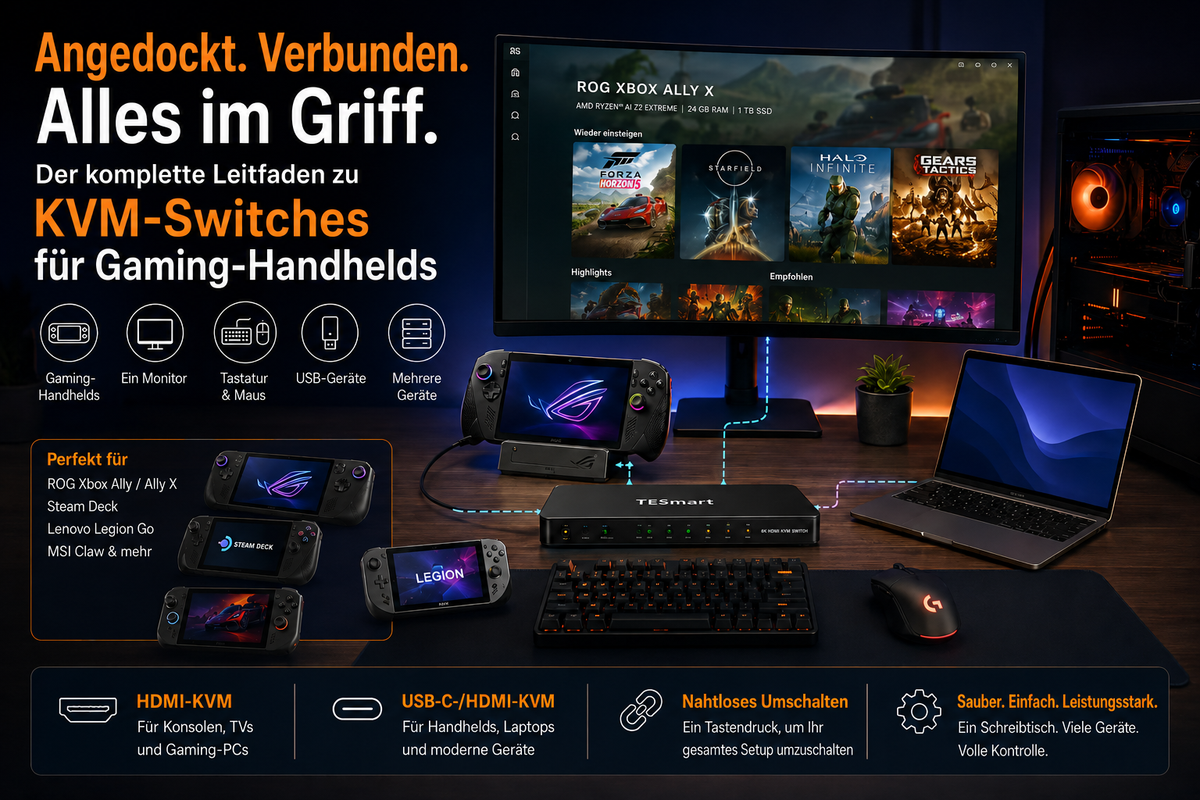
How to build a docked gaming handheld setup using a KVM
A practical KVM setup begins with deciding which device types should share the same desktop. The basic structure is simple:
- The gaming handheld is connected via a USB-C dock or adapter that provides HDMI or another supported video output.
- Depending on the KVM and the laptop's output capabilities, the work laptop is connected via USB-C, HDMI or a dock.
- The gaming PC is connected directly to the KVM via its GPU video output and a USB connection.
- The monitor or TV is connected to the KVM output.
- The keyboard, mouse, and selected USB peripherals are connected to the console or USB ports of the KVM.
When switching devices, the KVM switches the active display path and the USB control path simultaneously. This is precisely the main reason why a KVM is often used in a... Docked gaming handheld setup It feels cleaner than a simple video switch.
A typical example looks like this:
| Input device | Connection path | Shared via KVM |
|---|---|---|
| ROG Xbox Ally/Steam Deck | USB-C dock for HDMI input on the KVM | Monitor or TV, keyboard, mouse, selected USB devices |
| work laptop | USB-C, HDMI or laptop dock to KVM | The same monitor, keyboard, mouse, headset receiver or webcam, if supported. |
| Gaming PC | GPU HDMI output plus USB connection to the KVM | The same desktop control setup without changing cables |
The exact cabling depends on your KVM model, dock output, monitor input, and USB requirements. The most important principle is to assign the video and USB paths of each device to the same KVM input group.
When an HDMI KVM like HKS201 or HKS202 makes sense
An HDMI KVM is usually the more natural choice if the display side is a television, a regular HDMI gaming monitor, or a console-like entertainment setup.
HKS201 This is more suitable for users who want a simple two-device, single-monitor HDMI KVM setup. For example, a user might want to switch between a docked Steam Deck and a gaming PC connected to a single monitor while keeping a keyboard and mouse at their desk.
HKS202 This is more practical if the desk uses two monitors and both source devices can provide the necessary video outputs. This can suit users who want a dual-screen HDMI workflow between a gaming PC and another HDMI-enabled device, or who want to switch between a work system and a docked handheld setup, provided the dock and handheld support the desired output layout.
For a living room or TV-based setup, an HDMI KVM can also be useful if the handheld shares its display with a PC or console-like HDMI source. In this case, the goal is not only to display video but also to reduce the need to repeatedly switch cables for the keyboard, mouse, and USB accessories.
Don't assume that every HDMI KVM setup automatically supports every gaming feature. Resolution, refresh rate, HDR, VRR, ALLM, and audio behavior depend on the entire chain: handheld model, dock, KVM specification, HDMI cable, display input, firmware, operating system settings, and game settings.
For users looking for a HDMI KVM for gaming handhelds The safer approach is to start with your display goal. Decide if your daily priority is 1080p, 1440p, 4K, high refresh rate, HDR, TV gaming mode, or USB device sharing. Then, configure your KVM and dock accordingly.
When a USB-C/HDMI KVM like CKS202-P23 It makes sense
A USB-C/HDMI KVM switch is a better fit for mixed-use desktops where a laptop is part of the setup. Many users don't just switch between gaming devices; they switch between work, meetings, browsing, game launchers, file management, and desktop gaming.
CKS202-P23 This is more relevant if the desk setup includes a USB-C laptop workflow along with HDMI devices. This type of USB-C HDMI KVMThis setup can be useful for users who want to use a desk for both work and entertainment devices without having to reconfigure the cable layout every day.
For example, a user might want to:
- a USB-C work laptop for office tasks
- a gaming handheld via a USB-C dock with HDMI output
- a shared monitor or dual-monitor desk
- a keyboard and mouse
- a headset receiver, a microphone or other USB accessories, if supported
In such a setup, the KVM does not replace the handheld dock. The dock may still be required to convert the handheld's USB-C output to HDMI and USB. The KVM then manages the switching between the handheld, laptop, and other source devices.
At TESmart, we view docked handheld gaming as part of a larger multi-device desktop workflow. Our USB-C/HDMI KVM solutions are designed for users who switch between work, gaming, and entertainment devices and want their monitor, keyboard, mouse, and selected USB peripherals to follow the active device more predictably.
What you should check before buying a KVM for a gaming handheld
The most reliable KVM setup starts with the entire signal chain. A KVM cannot create display capabilities that a handheld device, dock, cable, or monitor does not support.
1. Does the handheld support video output via USB-C?
Not all USB-C ports behave the same. Some only transfer charging and data. Others support video output. Before you buy one... ROG Xbox Ally Docked Desktop Setup or to set up a Steam Deck desktop layout, check the handheld's external display capability and the required dock type.
2. What output does the dock produce?
Check if the dock offers HDMI, DisplayPort, USB-A, Ethernet, audio, or charging. If the KVM is HDMI-based, the dock must provide a compatible HDMI output. If the KVM is a mixed USB-C/HDMI setup, confirm which device should use which input path.
3.What does the monitor or television actually support?
A display can support different resolutions and refresh rates on different ports. Some TVs only activate gaming mode, HDR, or low-latency features on certain HDMI inputs or only after activating specific settings.
4. Are the cables compatible with the target resolution and refresh rate?
High-refresh and HDR setups are more sensitive to cable quality and length. If the display drops to a lower refresh rate or shows a black screen, first test with a shorter certified cable and a lower resolution before assuming the KVM is the only cause.
5. Which USB devices should follow the active system?
Keyboard and mouse sharing is usually the core requirement. Headsets, webcams, microphones, capture cards, external drives, and wireless receivers can behave differently depending on USB bandwidth, device class, power requirements, and KVM USB mode.
6. How should audio be processed?
Audio can be routed via HDMI, USB headset, 3.5 mm output, Bluetooth, or the display itself. A well-organized desktop setup should define where game audio, voice chat, and meeting audio should be routed when switching between devices.
7. What display performance do you really need?
A handheld might be able to connect to a 4K display, but that doesn't mean every game should run in 4K. For many handheld users, 1080p or 1440p on an external monitor is more practical than forcing a higher resolution. Always adjust your expectations based on the handheld's GPU, dock, KVM, display, and game settings.
Common setup methods
The easiest way to decide whether you need a KVM is to determine the number of devices and the extent of sharing you want.
| scenario | Probably a better solution | Reason |
|---|---|---|
| A handheld device is connected to a monitor | USB-C dock | They primarily need connection expansion, not device switching. |
| Handheld and work laptop share a monitor and keyboard/mouse | USB-C/HDMI KVM | Display and USB control need to switch between work and gaming devices. |
| Handheld plus gaming PC plus work laptop | KVM-based desktop switching setup | The benefits of KVM increase when more devices share the same desk. |
| Living room TV plus handheld plus console-like HDMI sources | HDMI KVM or HDMI switching workflow | HDMI is usually the common path for TVs and entertainment devices. |
| Dual-monitor work and gaming desk | Dual-monitor KVM, if both devices can output the required display signals | Each display typically requires a valid video path from each source device. |
If your setup consists of just a handheld and a screen, start with a dock. If your setup includes a handheld, work laptop, gaming PC, and shared peripherals, a KVM switch becomes significantly more useful.
Final thoughts: Docked handheld gaming needs a cleaner switching workflow.
Docked handheld gaming is becoming increasingly convenient, but the desktop experience depends on more than just the handheld itself. The real challenge often lies in the shared environment surrounding it: monitor, TV, keyboard, mouse, headset, microphone, controller receiver, laptop, and gaming PC.
A USB-C dock brings the handheld to the desk. A KVM switch helps the handheld function in a multi-device setup.
For a simple HDMI monitor or TV setup, TESmart HKS201 and HKS202 Worth considering if you plan to share display and desktop control across HDMI-based devices. It's also suitable for mixed USB-C laptop and HDMI source device workflows. CKS202-P23 better suited for users who need a cleaner work and gaming switching path.
Before selecting a KVM, check the handheld's video output, dock specifications, monitor or TV input limits, cable quality, USB device requirements, and the realistic target for resolution or refresh rate.
Build a cleaner docked gaming handheld setup with TESmart
If your desk includes a ROG Xbox Ally, Steam Deck, work laptop, gaming PC or a TV-based gaming setup, discover TESmart HDMI and USB-C/HDMI KVM solutions to share monitor, keyboard, mouse and selected USB peripherals with fewer cable changes.
Recommendations: HKS201 for single-monitor HDMI switching, HKS202 for dual-monitor HDMI workflows, and CKS202-P23 For mixed USB-C/HDMI work and gaming setups.
FAQ
Do I need a KVM for ROG Xbox Ally or Steam Deck?
You might not need a KVM switch if you're only connecting a handheld device to a monitor. A USB-C dock might suffice. A KVM switch becomes more useful if the handheld device needs to share a monitor, keyboard, mouse, headset receiver, or other USB devices with a laptop or gaming PC.
Can I use one monitor, keyboard, and mouse for a handheld device, laptop, and gaming PC?
Yes, that's precisely one of the main reasons for using a KVM. The handheld device is typically connected via a dock or adapter, while laptops and gaming PCs are connected via the KVM's supported inputs. The monitor, keyboard, mouse, and selected USB devices remain connected to the KVM.
Is a USB-C dock the same as a KVM?
No. A USB-C dock adds extra ports to a device. A KVM switch allows multiple devices to share the same desktop hardware and switch between them. In many handheld gaming setups, the dock and KVM switch work together, rather than replacing each other.
Can a KVM improve docked play on a handheld device?
A KVM switch doesn't increase the handheld's gaming performance. Its value lies in workflow improvement. It reduces cable changes, facilitates sharing monitors and peripherals, and helps the handheld fit into a desk that already houses a laptop or PC.
What should I check before connecting a gaming handheld to a KVM?
Check the handheld's USB-C video output capability, the dock's output specification, the KVM input type, the monitor or TV's resolution and refresh rate support, HDMI cable quality, power delivery requirements, USB peripheral behavior, and audio routing. The final experience depends on the entire chain.
Which TESmart KVM should I consider for a docked gaming handheld setup?
For a single HDMI monitor or TV setup, the HKS201 may be suitable. For dual-monitor HDMI workflows, the HKS202 might be more appropriate if each source device can provide the necessary video outputs. For a mixed USB-C laptop and HDMI device setup, the CKS202-P23 is more relevant for users who switch between work and gaming devices at the same desk.

Share:
HDMI 2.2 explained: Should you wait for an HDMI 2.2 KVM or buy an HDMI 2.1 KVM switch for 4K 120Hz, 4K 144Hz and 8K 60Hz?
Nintendo Switch 2 Monitor-Setup: Wann reicht ein HDMI-Switch und wann lohnt sich ein KVM-Switch?