




HKS201-P23-V2-EUBK
2-port KVM switch kit HDMI 4K60Hz with USB 3.0 docking station, 2 PCs 1 monitor
- Regular price
-
€143,20 - Regular price
-
€143,20 - Sale price
-
€143,20
Couldn't load pickup availability
Overview & Highlights
TESmart with you. Evolving for you!
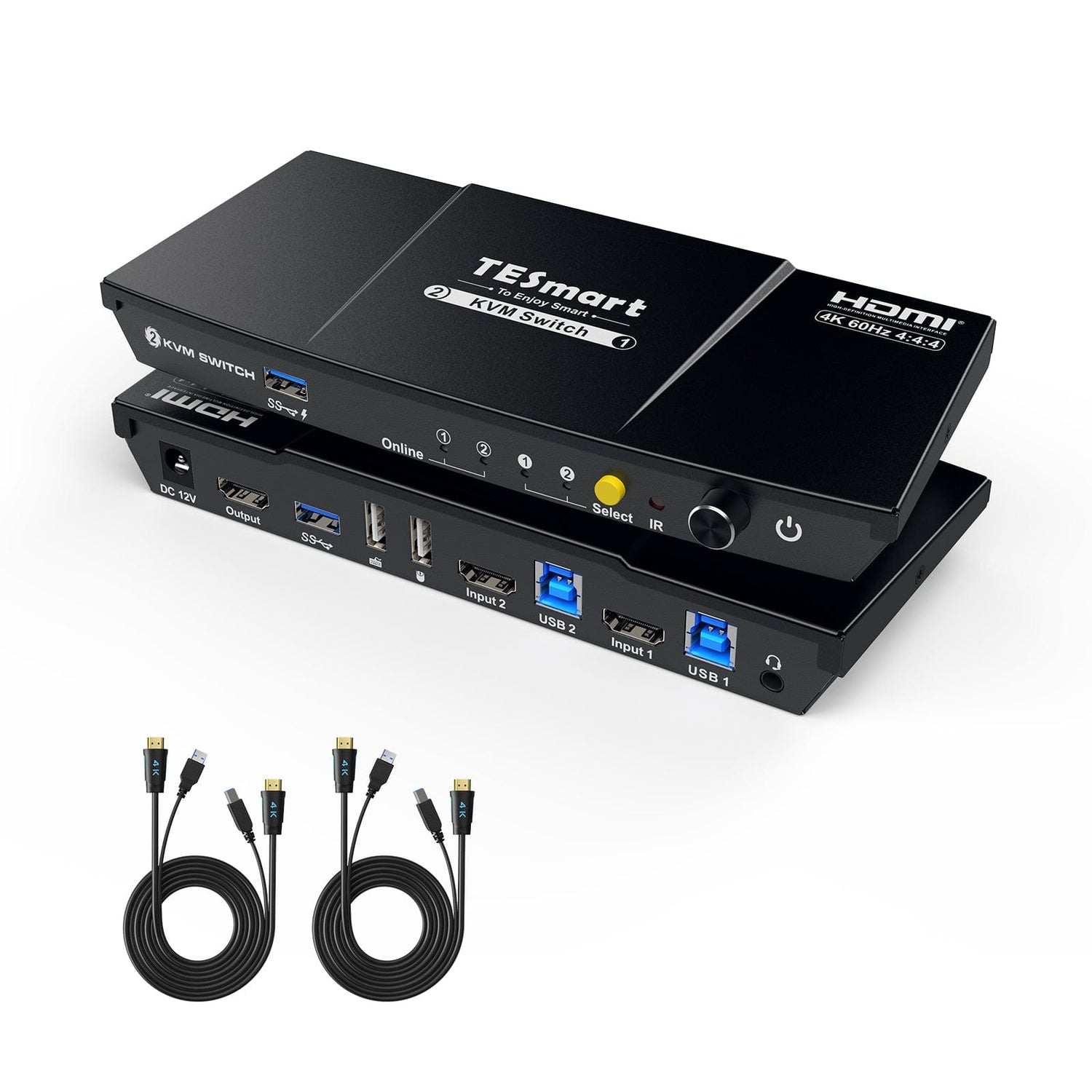
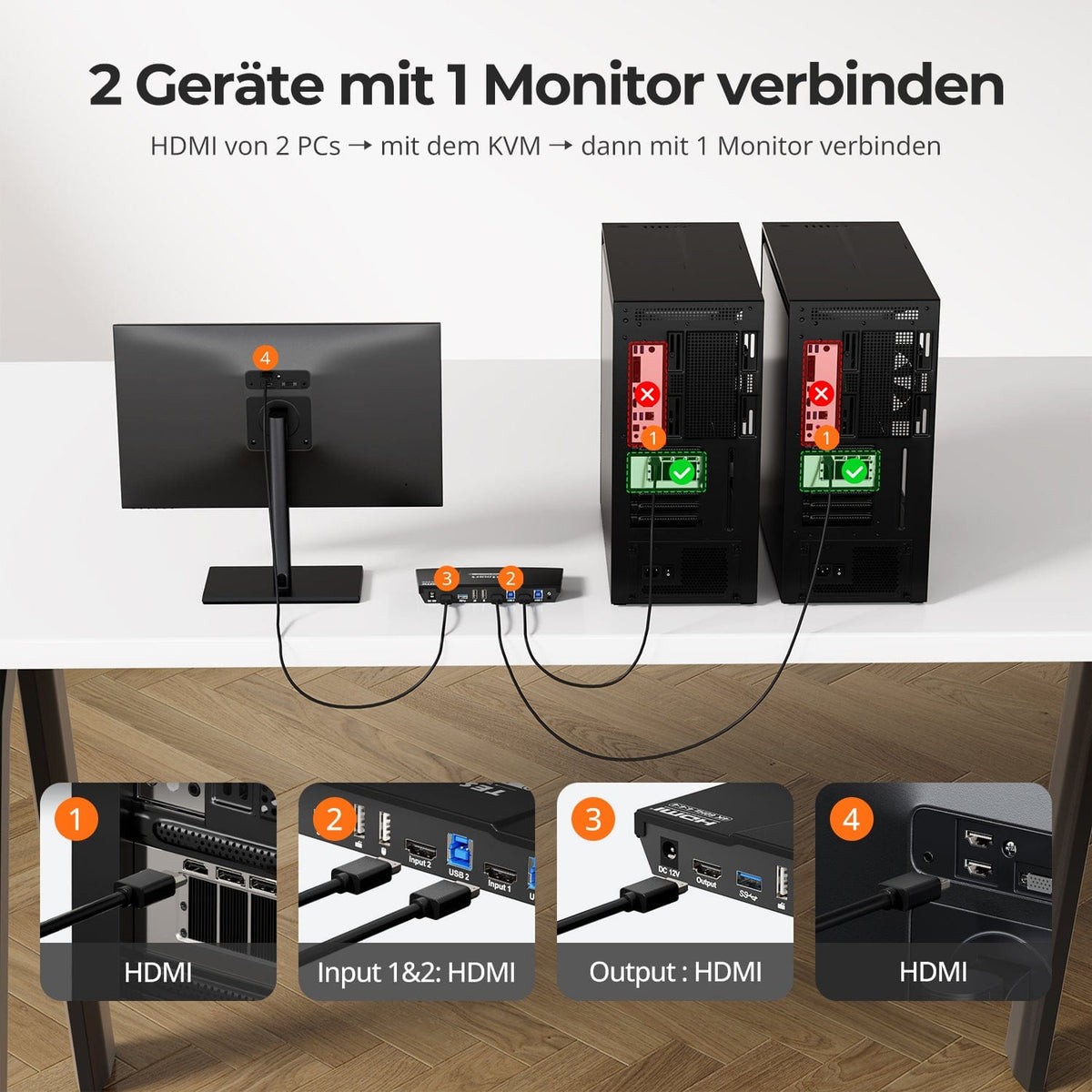
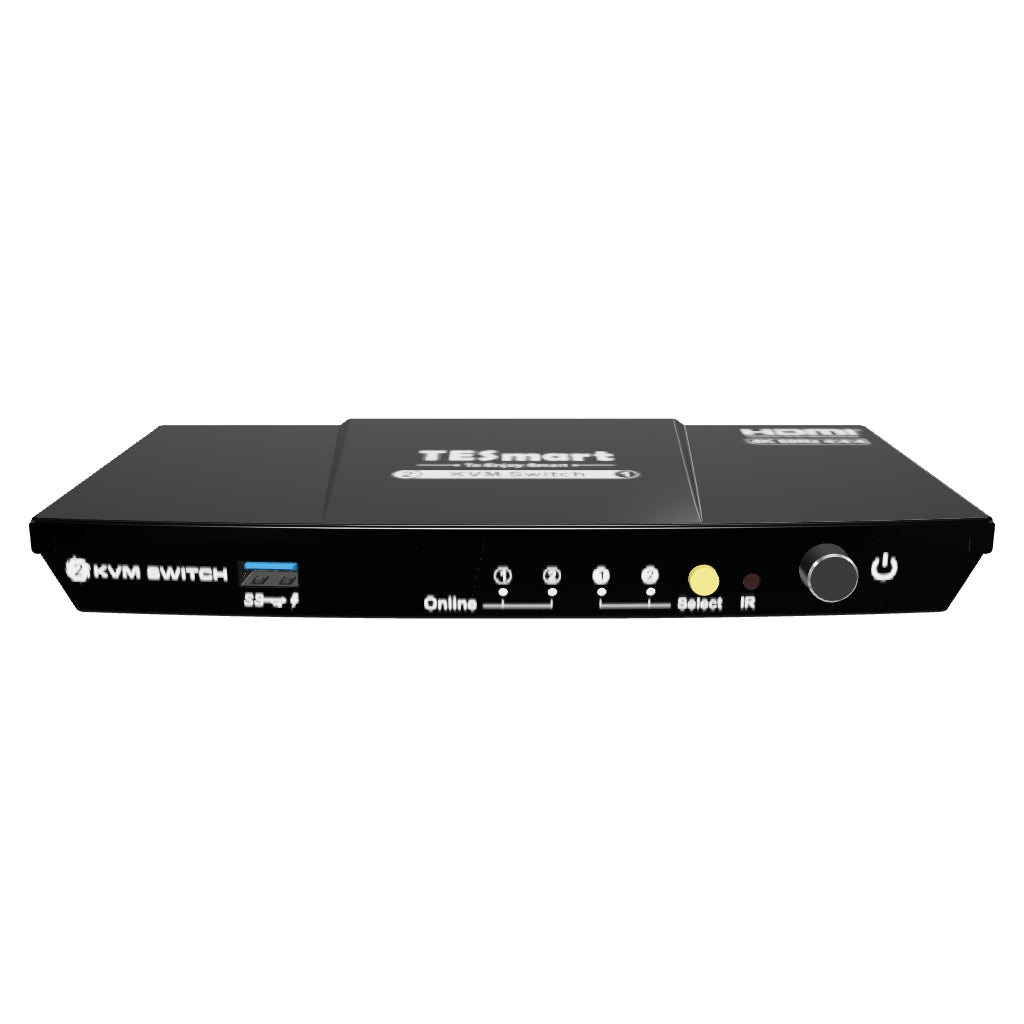
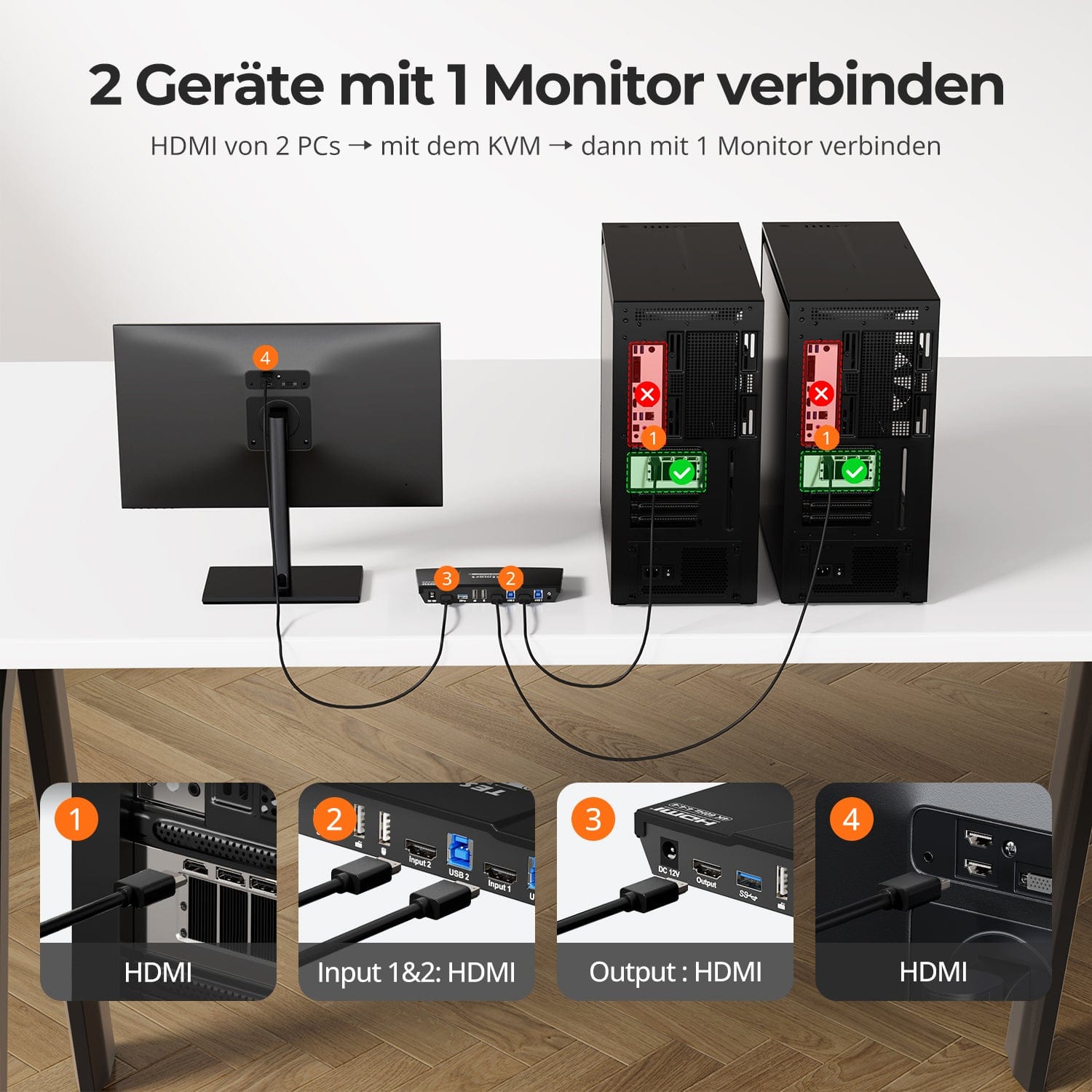
The HKS201-P23 allows you to control two computers and one monitor with a single keyboard and mouse. It supports HDMI 2.0. 4K@60Hz, USB 3.0 and offers industry-leading EDID simulation technology as well as an automatic scan function. Ideal for professionals seeking stability and lightweight, high-resolution visuals.
Why you'll love him:
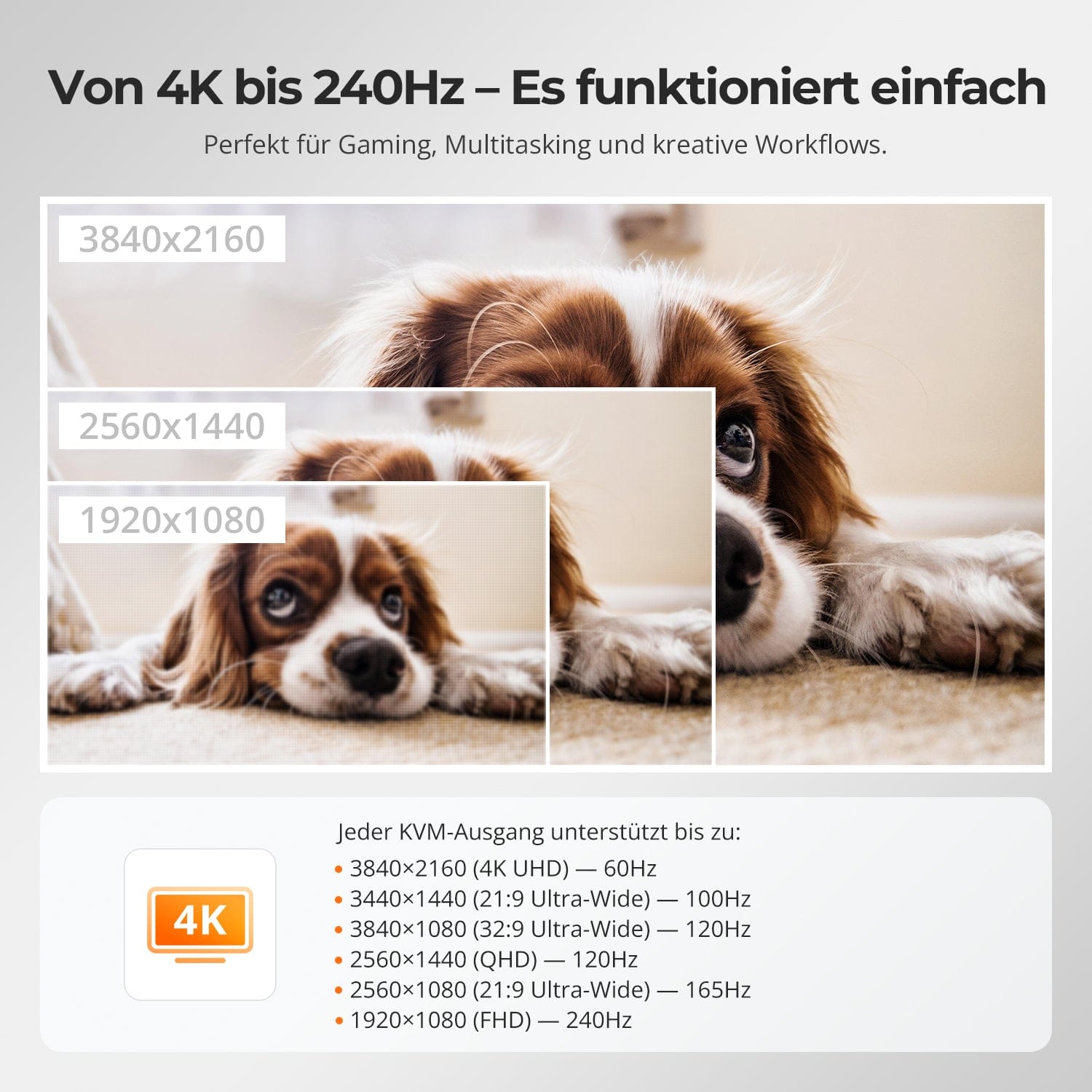
•Supports up to 3840×2160@60Hz, compatible with 3440×1440@100Hz, 2560×1440@120Hz, 1920×1080@240Hz.
• USB 3.0 and audio integration: High-speed data transmission for connecting peripheral devices, headphones and storage media.
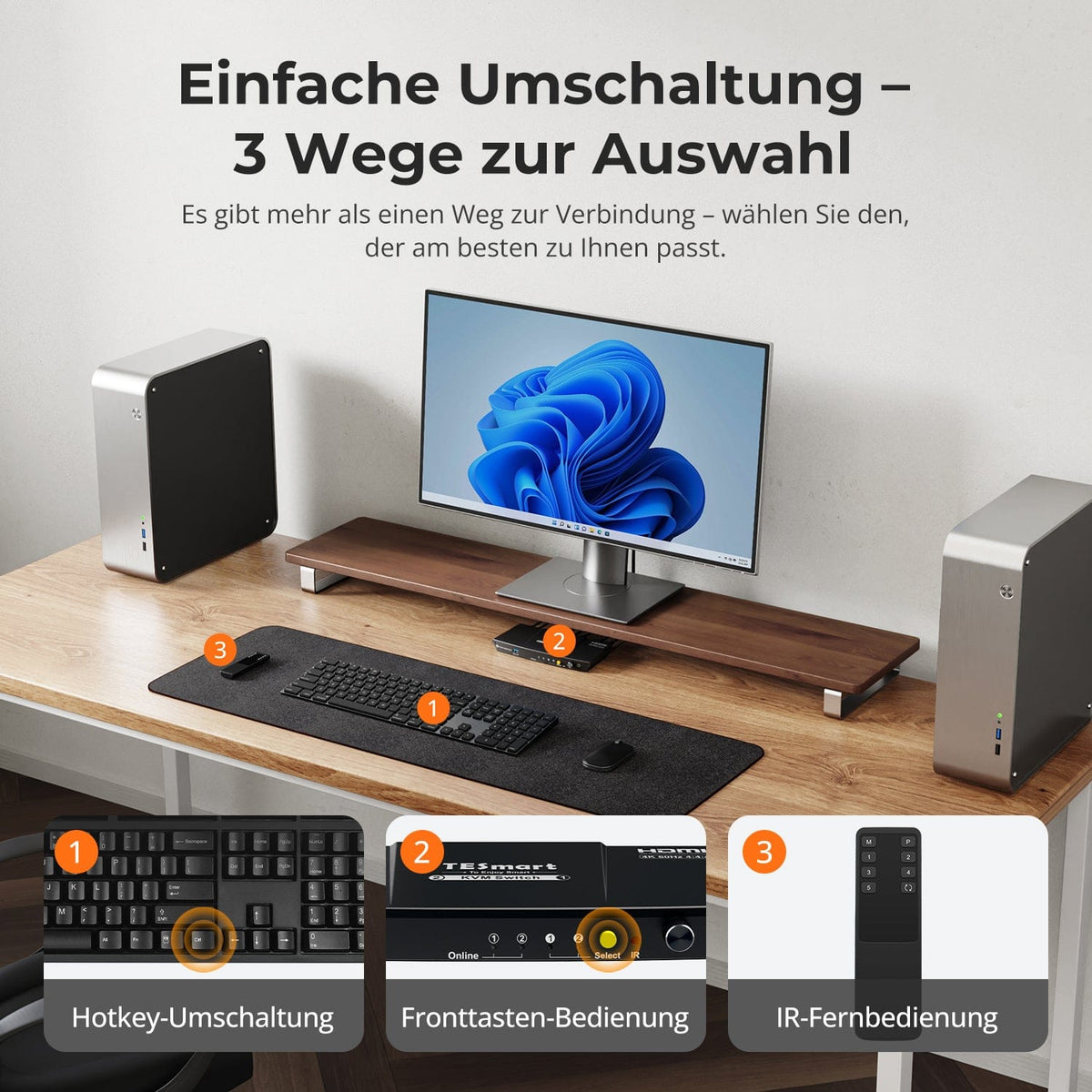
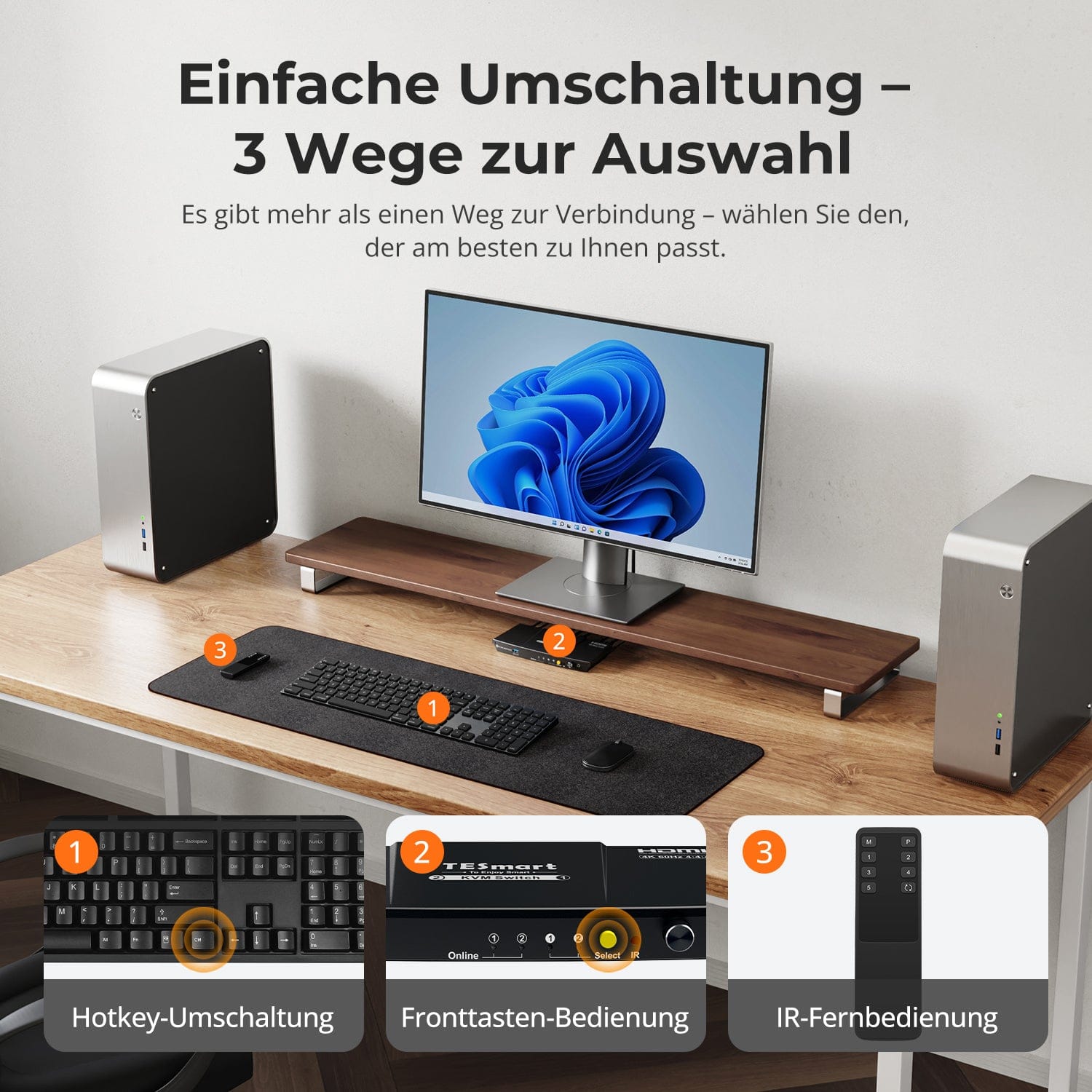
•Four switching methods: Keyboard hotkeys, mouse wheel, front buttons or infrared signal.
•The pass-through mode is compatible with many mechanical and gaming keyboards.
•Automatic scanning: Automatically switches between connected input devices when the KVM is turned on.
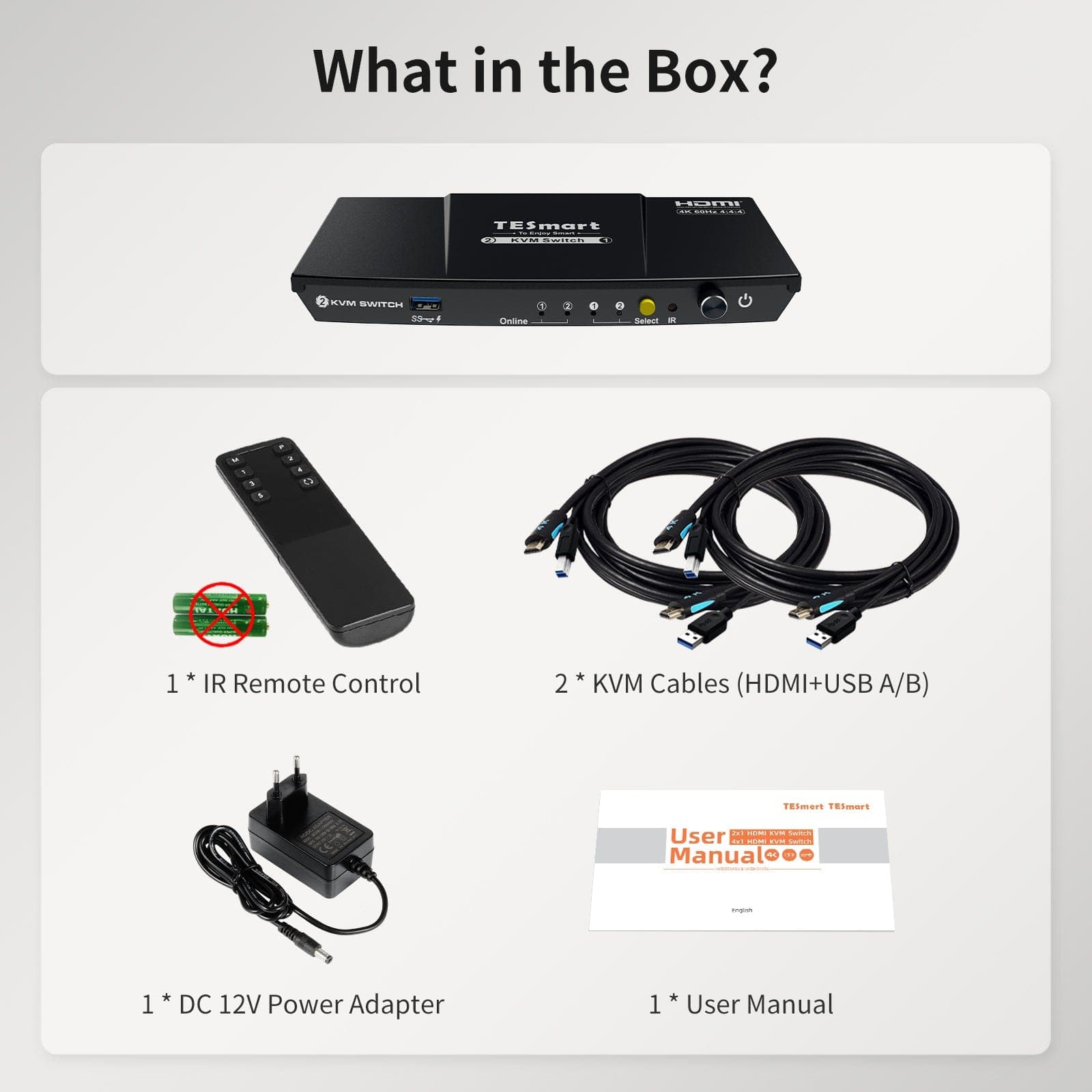
Scope of delivery
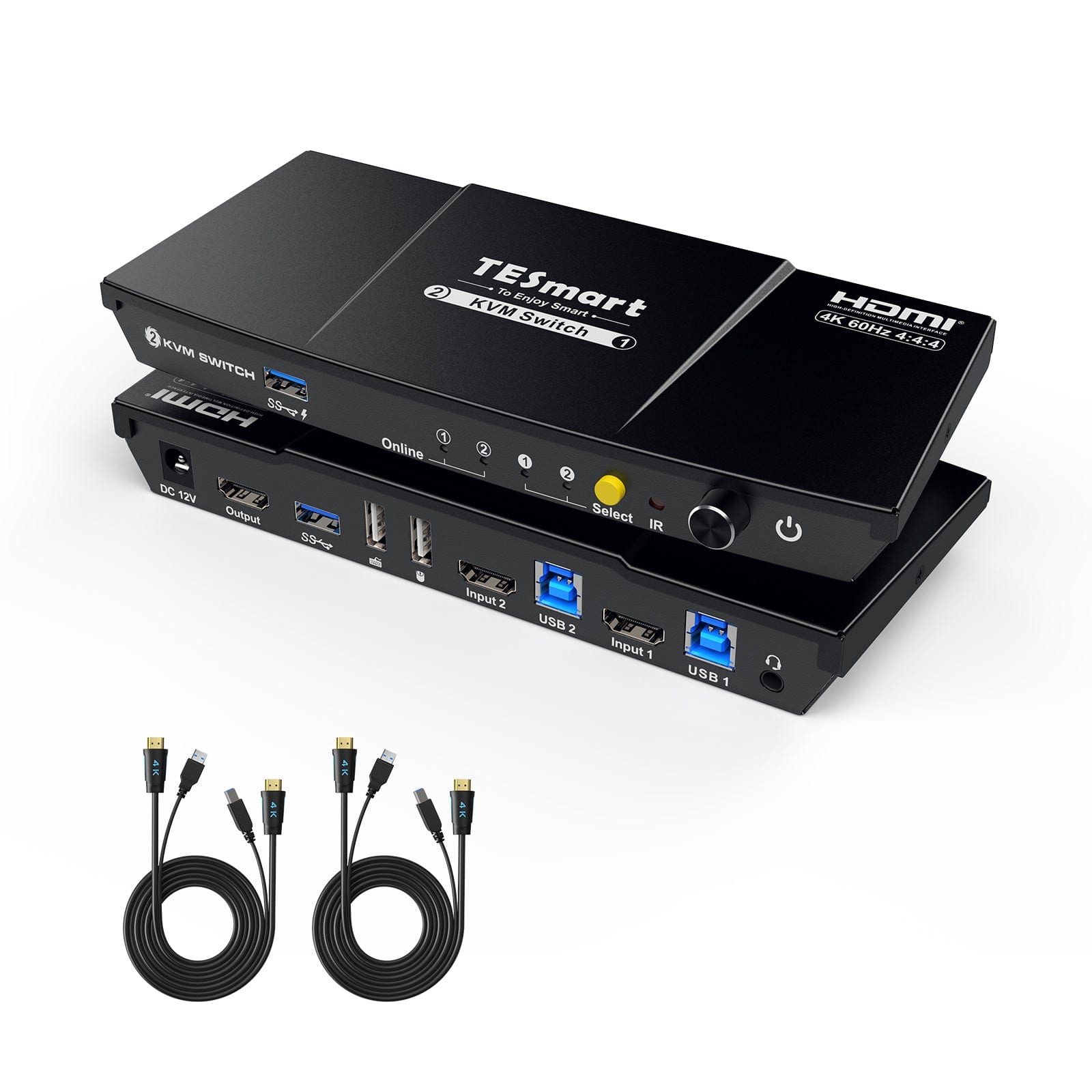
- 1 * 2x1 HDMI KVM switch
- 2 * KVM cables
- 1 * IR remote control
- 1 * DC-12V power supply
- 1 * User manual
Downloads & User manual


Our shipping policy consists of the following 7 sections:
Order processing time (shipping lead time)
- Shipping costs & Delivery time
- Order tracking
- Delayed shipments
- Order cancellations
- Steer & Customs duties
- Contact us
1. Order processing time
The order processing time refers to the period from the time of the order until the order is handed over to the shipping service provider.
• Orders are usually shipped within 1-2 working days after confirmation/payment.
• Orders placed on weekends may be subject to delays.
• Our warehouse operates Monday to Friday during regular business hours (excluding public holidays). In such cases, we will make every effort to minimize shipping delays.
We have warehouses in Germany and other regions. Your order will be shipped directly from the nearest warehouse, depending on your delivery address. If the nearest warehouse does not have the product in stock, we will ship your order from another nearby warehouse to ensure you receive it as quickly as possible.
Shipping to the United Kingdom 🇬🇧
To ensure smooth delivery and correct customs clearance, orders from the United Kingdom are processed through our US shop.
Orders to UK addresses cannot be shipped via our EU shop.
2. Shipping costs & Delivery time
| Country or region | Estimated delivery time | Shipping costs | Logistics service provider |
| Germany | 3 working days | Free Shipping | DHL |
| Other EU countries | 3-7 working days | Free Shipping | DHL/DPD |
| Non-EU countries | 5-12 working days | From 60 euros | UPS |
3. Order tracking
4.Delayed shipments
5. Order Cancellation
6. Taxes & Customs duties
7. Contact us
- TESmart orders are processed automatically. Once shipped, they cannot be canceled or changed, including address changes.
- If you wish to return or request a refund, please contact us within 30 days of receiving the product at service@tesmart.de.
- Returns are only possible if the product is unused, complete and in its original packaging.
- For returns not due to quality issues, the customer bears the return shipping costs.
- TESmart will cover the return shipping costs for returns or refunds due to quality issues.
- Products that are searched for 30 days and within 2 years Items exhibiting problems cannot be returned, but depending on inspection, they can be repaired or replaced (same model only, replacements preferred for members).
- Between the 2nd and 3rd. No return or refund service is offered this year. Members can after 3 months A discount of [amount] will be granted from the date of purchase as part of the trade-in policy. up to 50% You will receive a refund of the original product price towards the purchase of a new product. For detailed terms and conditions, please visit: https://tesmart.de/pages/tesmart-id-trade-in
- Refunds will be processed within 5 working days of the goods being received at the warehouse.
For questions: service@tesmart.de
Full guidelines:

Technical data
| Produkattribute | |
|---|---|
Modell (SKU) |
HKS201-P23-V2-EUBK
|
Kompatibles Setup |
|
Max Resolution |
|
Supported Resolutions |
|
VRR (Variable Bildwiederholfrequenz) |
—
|
MST (Multi-Stream Transport) |
|
Laptop-Aufladung |
|
Netzwerkanschluss |
|
Independent Audio Focus Switching |
—
|
Independent Audio Focus Locking |
—
|
Thunderbolt 4 Ports |
—
|
EDID Emulation |
|
Umschaltmethoden |
|
Belegbare Hotkeys |
|
Legacy-Emulationsmodus |
|
Input Ports |
|
Output Ports |
|
Docking Ports |
|
Anzeigemodi |
|
Handbuch (PDF) |
|
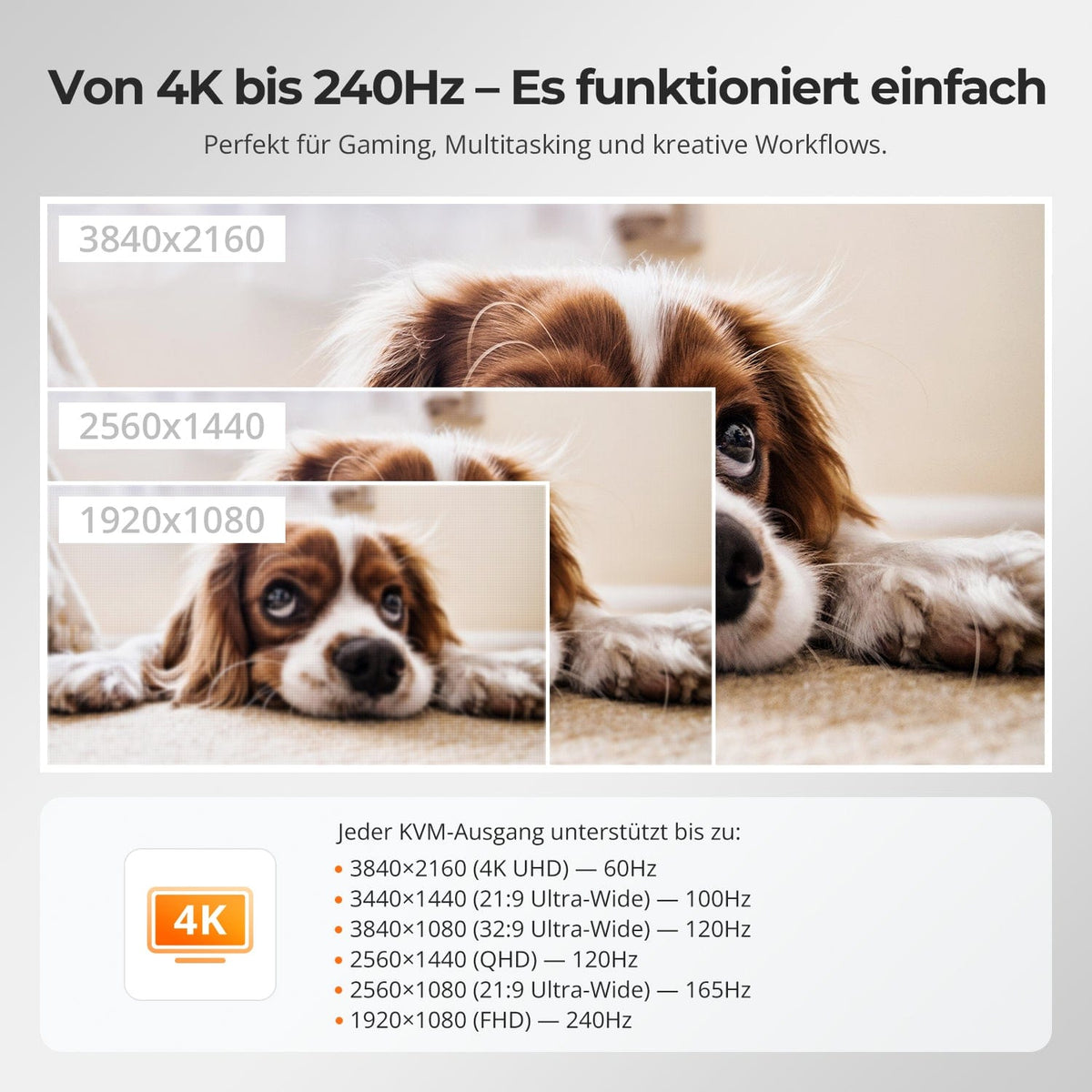
From 4K to 240Hz – It just works
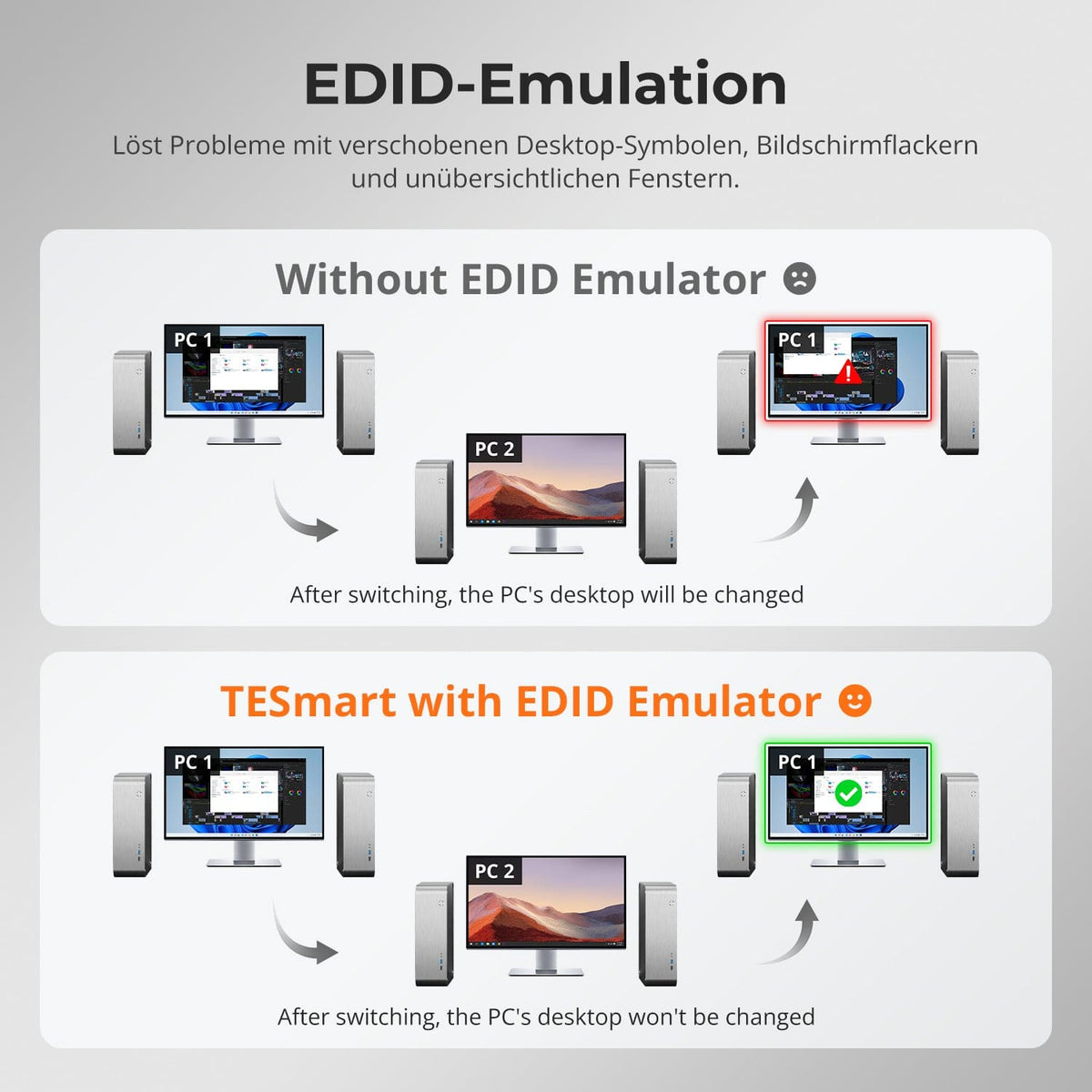
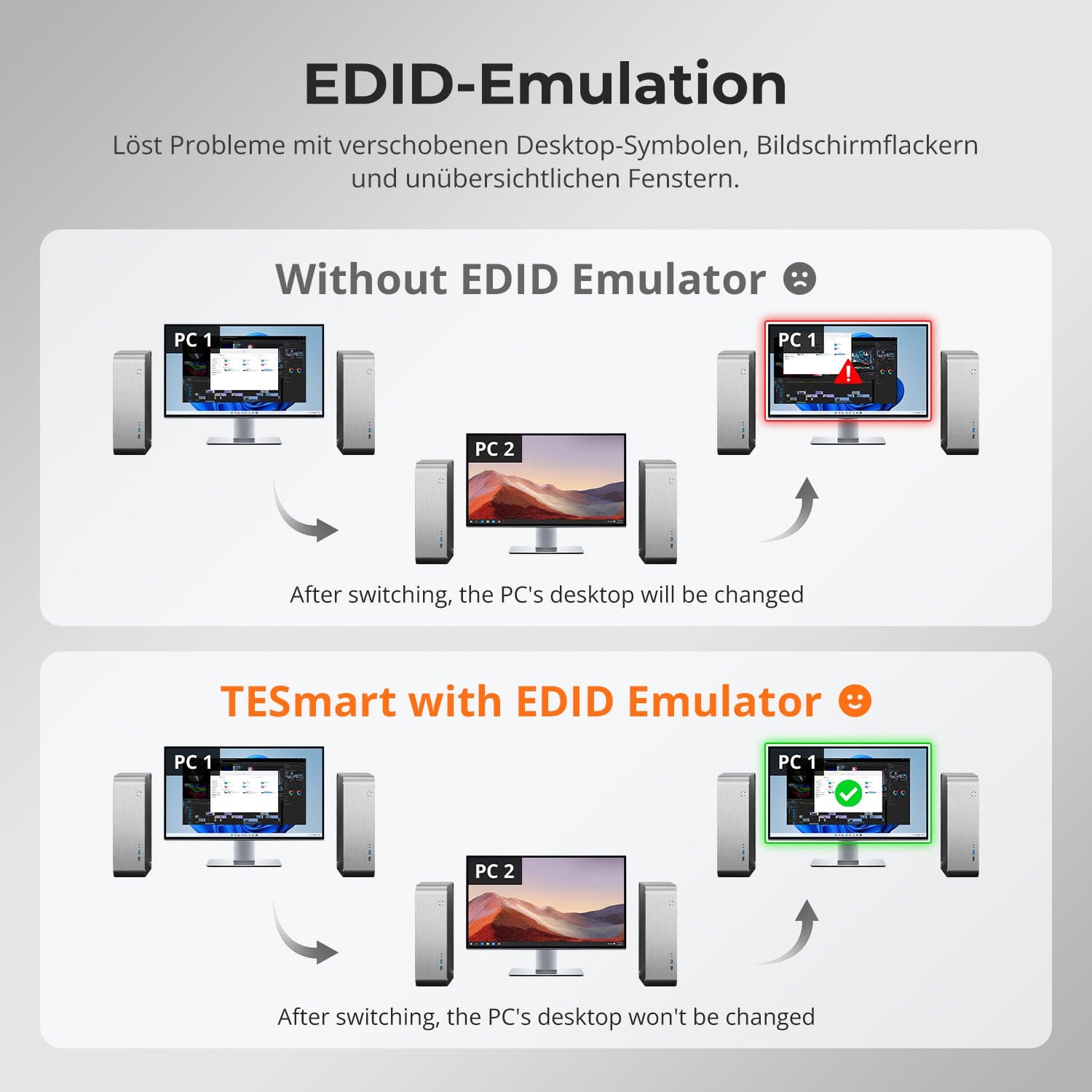
EDID Emulation – Stable screens, no surprises
One switch, endless possibilities. Whether for gaming, content creation, or multi-window workflows – our KVM effortlessly handles a wide range of resolutions and refresh rates.
Each KVM output supports up to:
• 3840×2160 (4K UHD) — 60Hz
• 3440×1440 (21:9 Ultra-Wide) — 100 Hz
• 3840×1080 (32:9 Ultra Wide) — 120 Hz
• 2560×1440 (QHD) — 120Hz
• 2560×1080 (21:9 Ultra-Wide) — 165 Hz
• 1920×1080 (FHD) — 240Hz
Switching between displays shouldn't mess up your desktop. Our integrated EDID emulator ensures your layout stays exactly as you left it.
• No more misplaced symbols
Retains the position of desktop icons and the size of open windows when switching inputs.
• Flicker-free switching
Prevents screen dropouts and flickering caused by re-initializing the display.
• Smoother multitasking
Maintains visual consistency between workstations and monitor setups.
✅ With TESmart EDID emulation: Your display remains stable and unchanged – even after switching channels.
⚠️ Without EDID emulation: icons move, window sizes change, and the screen flickers after each change.


Easy switching – 3 ways to choose from
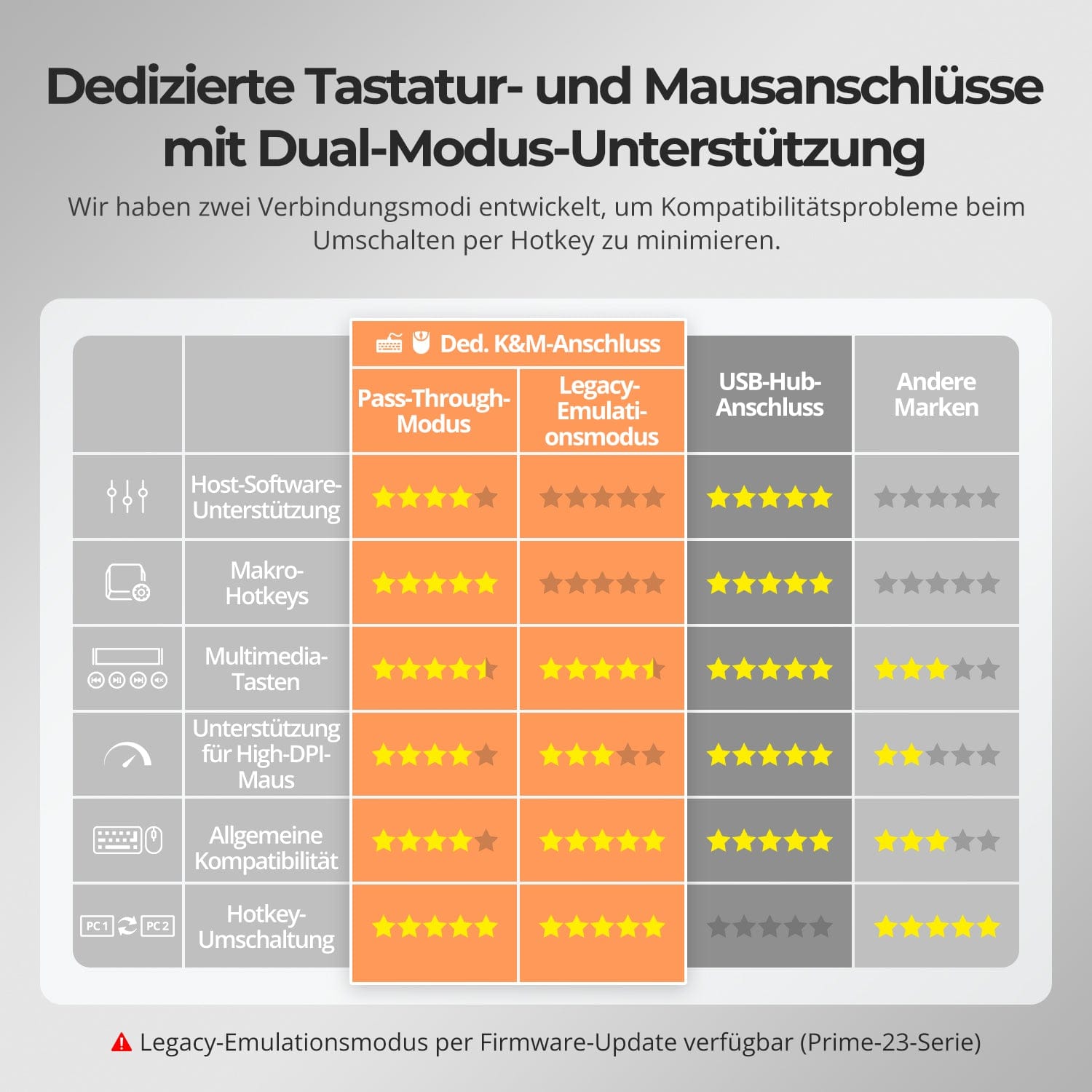
Dedicated K&M-Ports with dual-mode support
Switching shouldn't slow you down – we offer three seamless methods to suit every setup and habit:
• Hotkey switching – Fixed key combinations for quick source switching
• Front button operation – Direct access, anytime and easily
• IR remote control – Convenient control from your desk
Whether at work, gaming, or giving presentations – choose the method that suits you best.
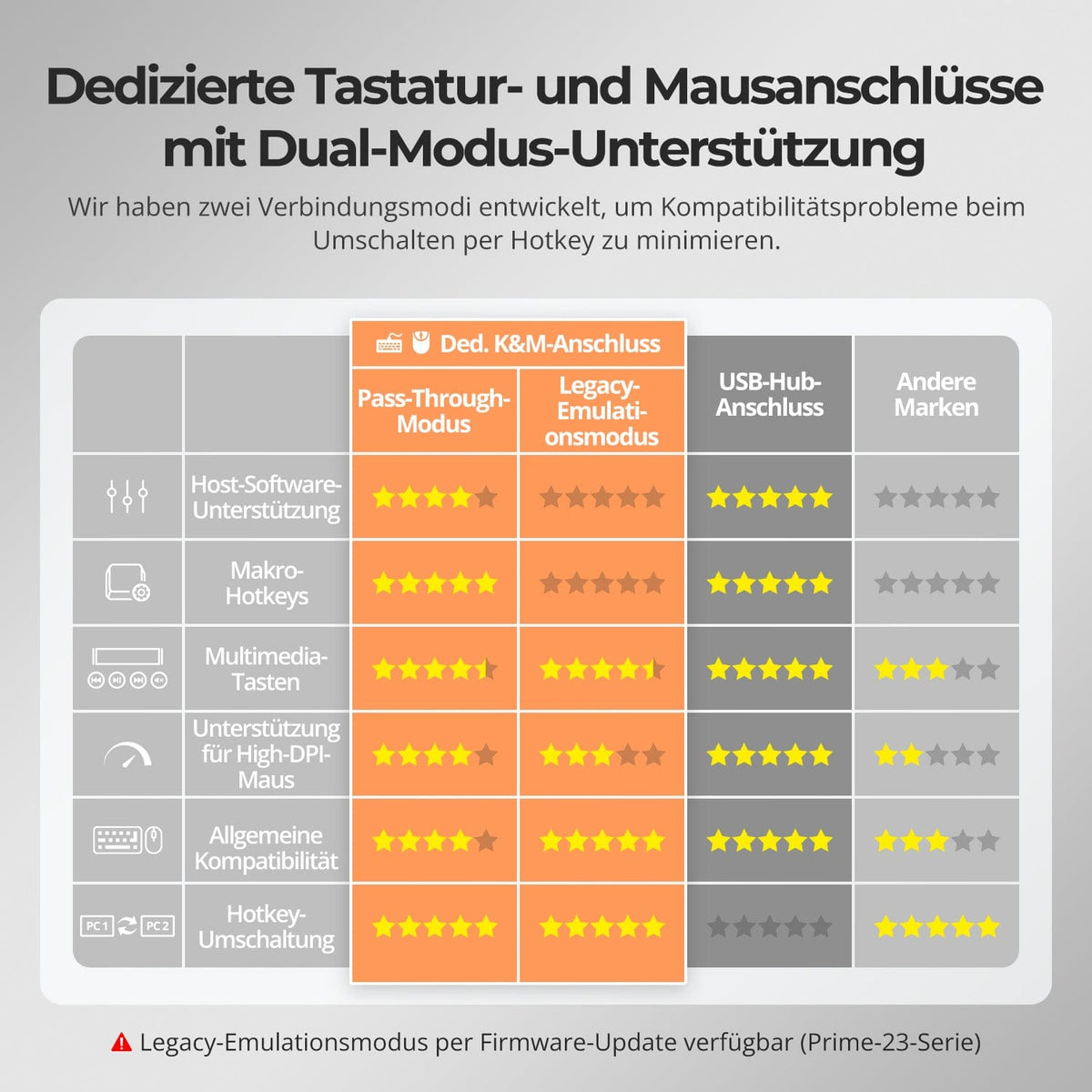
To improve keyboard and mouse compatibility – especially when switching hotkeys – we have developed two special connection modes:
• Pass-through mode (recommended)
Direct routing to the PC. Supports advanced drivers, macros, high-DPI mice, and multifunctional input devices. Ideal for gaming, design, and professional workflows.
• Legacy emulation mode
Ensures universal compatibility and stable hotkey functionality on most systems. Best suited for office use or when experiencing driver issues.
✅ Hotkey commands only work if your keyboard is connected to the dedicated K&M-Port is connected.
⚠️ In emulation mode, driver-based software and advanced features are disabled.
⚠️ Bluetooth keyboards and mice are not supported.
⚠️ Legacy emulation mode is available via firmware update (Prime-23 series).


FAQs
Why can't I switch between PCs using the mouse wheel?
Mouse wheel function conflict: Ensure the mouse wheel is set to its default function (middle click) and has not been reassigned to keyboard shortcuts, media controls, or other functions in the control software. Function not enabled: Use the keyboard shortcut [Right Ctrl] + [Right Ctrl] + F6 to enable or disable the KVM switch's scroll wheel toggle function. If the problem persists, please contact our technical support team at support@tesmart.com for further diagnosis and guidance.
My keyboard and mouse stopped working after upgrading to macOS Sequoia – what should I do?
The macOS version Sequoia uses a proprietary protocol that can cause compatibility issues with KVM switches, resulting in keyboard and mouse not being recognized. This problem can usually be resolved with a firmware update. Please contact our technical support team at support@tesmart.com, to obtain the firmware package compatible with Sequoia, and follow the provided instructions to perform the update.
Does the KVM switch support firmware updates?
Yes, TESmart KVM switches support official firmware updates designed to fix common issues and improve compatibility. Important note: Firmware updates carry inherent risks. Installing the wrong version or performing the process incorrectly can lead to device malfunctions. Therefore, it is strongly advised against performing a firmware update yourself if your device is working normally. If an update is necessary, please contact our technical support team for: the correct firmware version for your specific model, step-by-step update instructions, and technical support throughout the entire process.
Why are my keyboard and mouse not working properly?
Common symptoms: Keyboard shortcuts (hotkeys) don't work, keyboard input is unresponsive or delayed, keystrokes get stuck or are registered twice, mouse movements are jerky or laggy. Please contact our technical support team at support@tesmart.com, to receive support in troubleshooting and resolving the issue.
Why are my USB peripherals not working?
Connection requirements: USB data transfer for the KVM switch occurs via the USB1/2 input ports. Ensure that your computer is securely connected to these two ports.
Port restrictions: USB ports marked with keyboard/mouse symbols are exclusively for these devices. Other USB peripherals (e.g., printers, webcams, flash drives) must be connected to the dedicated USB 3.0 ports on the KVM switch.
Bandwidth limitations: The KVM switch acts as a USB hub, meaning all connected peripherals share the same USB bandwidth. If the total bandwidth requirement exceeds the KVM's capacity, devices may become unresponsive or fail.
Power supply problems: Some high-power USB devices may not receive enough power from the KVM switch. Recommended workaround: Connect high-power USB devices directly to your PC whenever possible. For improved stability, use a powered USB hub between the KVM switch and the device.
USB hub cascading limitations: The USB architecture supports a maximum of 7 cascading levels, including: host controller + up to 5 USB hubs + 1 device level. Exceeding this limit can result in unrecognized or malfunctioning devices. Example of a USB chain: PC → Docking station → KVM switch → USB hub (→ additional USB hub) → Peripheral device. Recommended solutions: Bypass docking stations: Connect the PC's USB-A port directly to the KVM switch. Minimize cascading: Connect peripheral devices directly to the KVM switch whenever possible to avoid excessive USB hub levels.
Why is my audio device not working?
Connection requirements: The audio functionality of the KVM switch relies on data transmission via the USB1/2 input ports. Ensure your computer is securely connected to these ports.
Sound settings on your computer: For 3.5 mm jack connections: In your computer's sound settings, select "USB Audio" as the default output device. For USB 3.0 connections: Select the appropriate USB audio output, such as "USB Audio Device" or "USB Headset," depending on your system's display. If no sound is output via the 3.5 mm jack even after correct configuration, we recommend using a USB sound card (USB-to-3.5 mm adapter) to improve compatibility and ensure proper audio output.
-
Free Shipping
DE: 3 working days · EU: 3–7 working days
-
30 days free returns
Hassle-free returns & Purchase guarantee
-
Extended warranty: 1+2 years
Register and receive 2 additional years of warranty
-
TESmart+ members
Trade-in with 30% discount + lifetime technical support
