


Monitorkonfiguration
Max. Auflösung
Farbdarstellung

Gaming

Stabile Anzeige

Gemeinsames Netzwerk

USB-Geschwindigkeit
2×2 HDMI 2.1 KVM | 8K60/4K144 & EDID
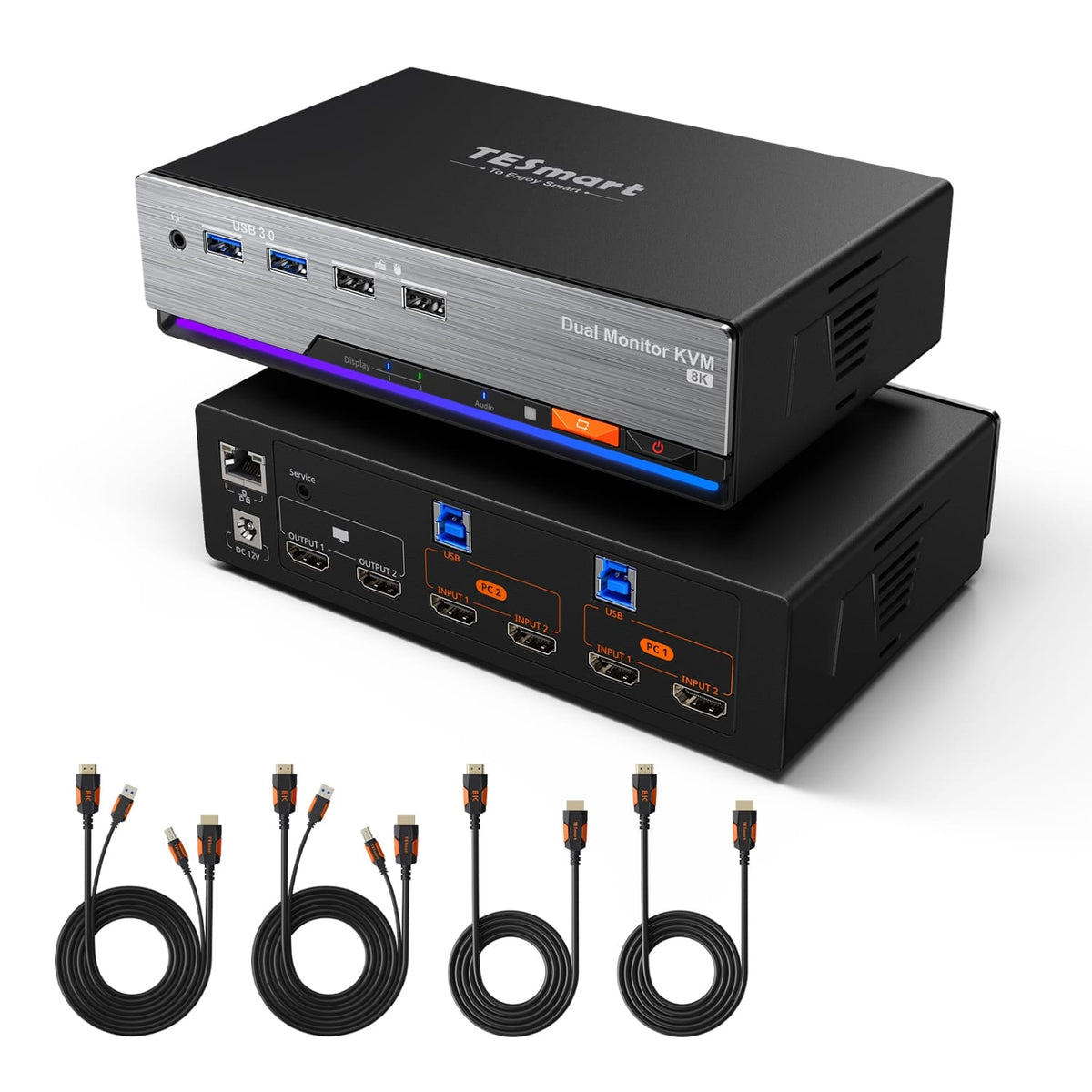
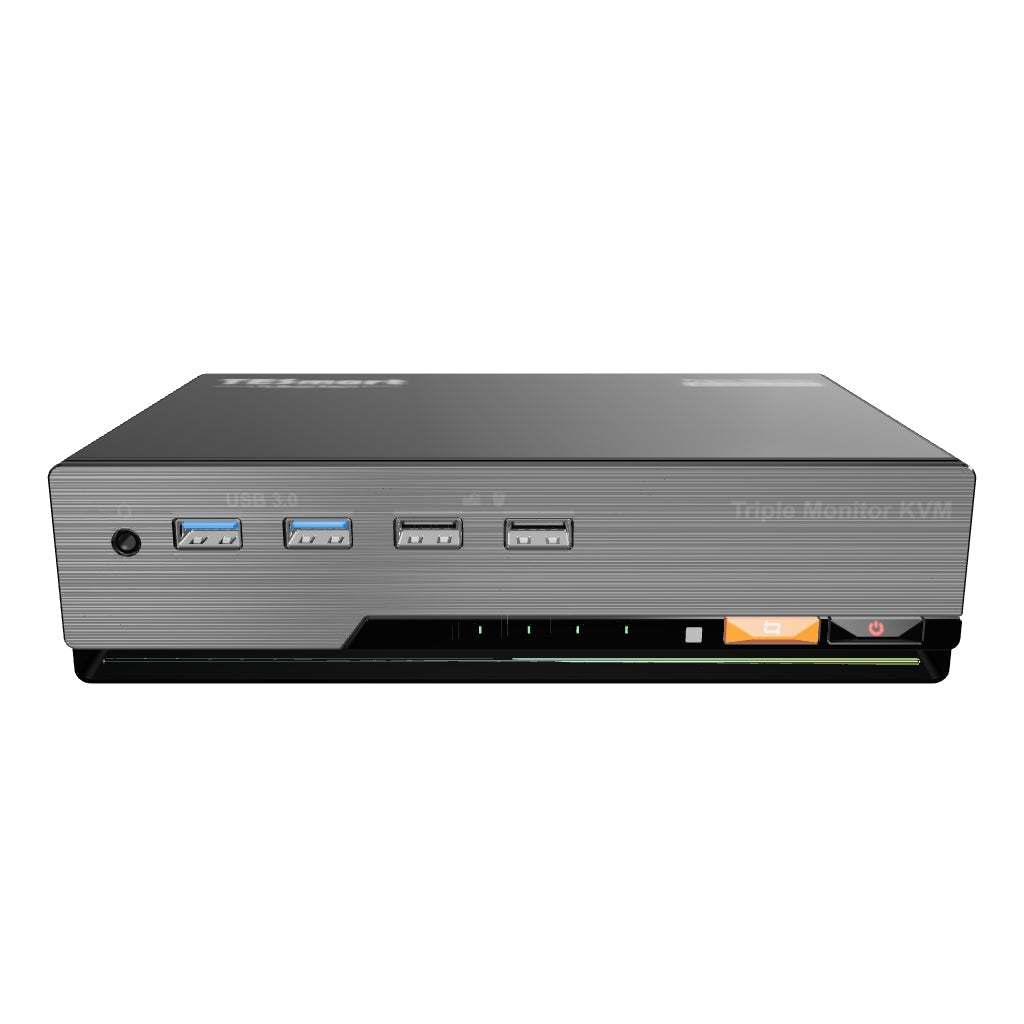
HKS202-M24 connects two PCs with two HDMI monitors. Up to 8K60/4K144, EDID and USB hub support high-resolution work and smooth gaming.
Monitorkonfiguration
Max. Auflösung
Farbdarstellung
Gaming
Stabile Anzeige
Gemeinsames Netzwerk
USB-Geschwindigkeit
2×2 HDMI 2.1 KVM | 8K60/4K144 & EDID
Why HKS202-M24-V2?
Overview
01
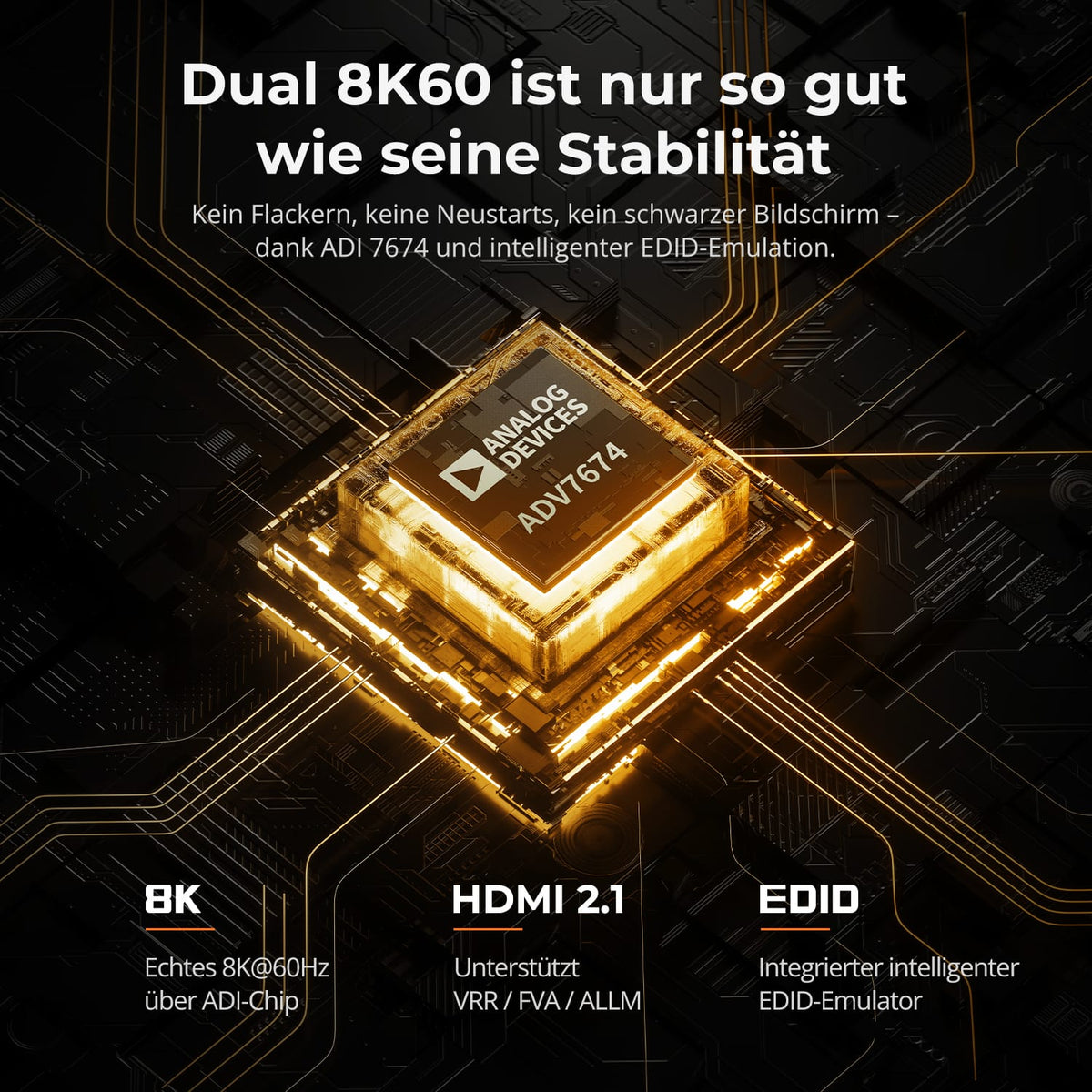
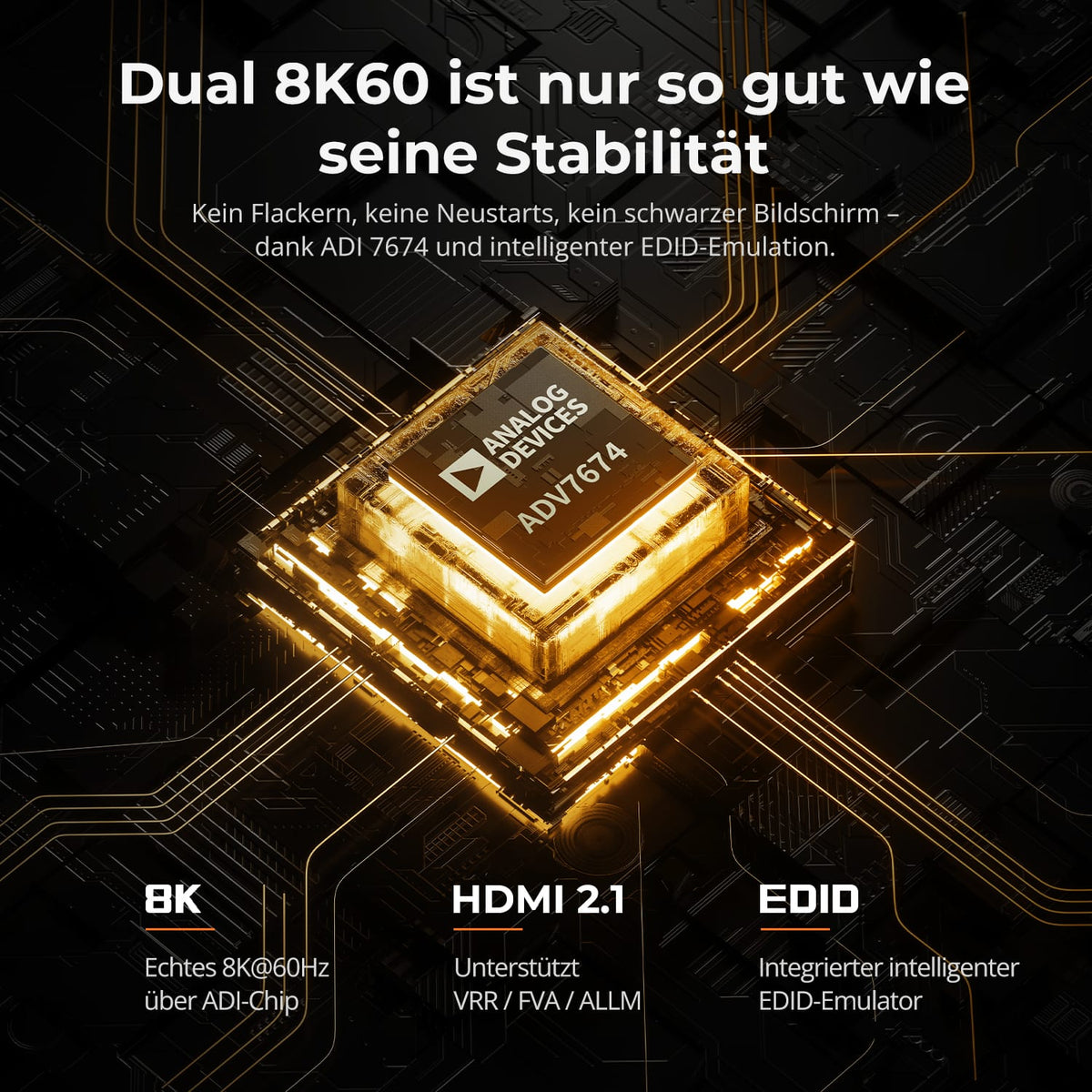
Stable switching with two 8K60s
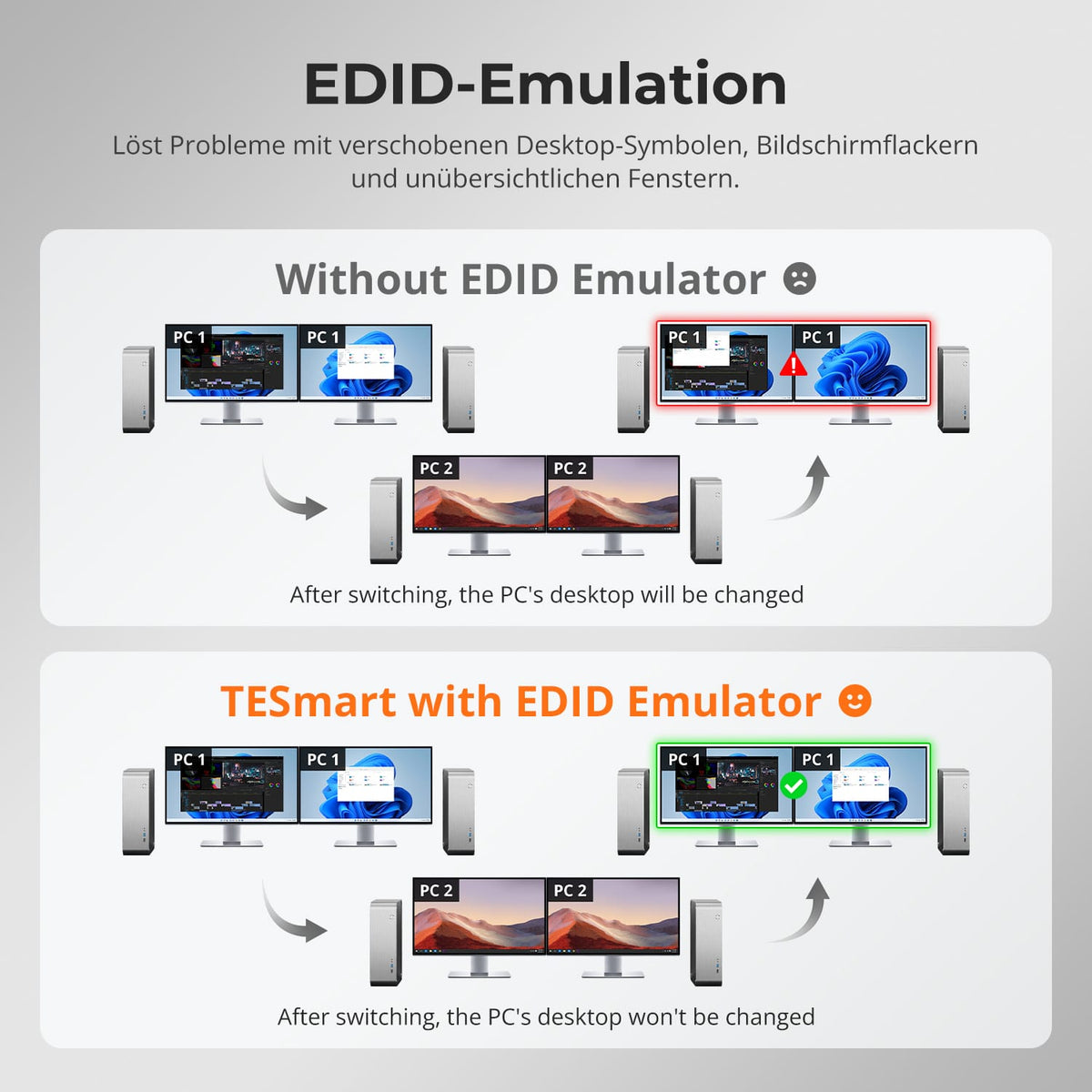
Two HDMI 2.1 connections support up to 8K@60Hz in 4:4:4. EDID keeps the monitor information available for both computers so that high-resolution desktops remain as stable as possible when switching.
02
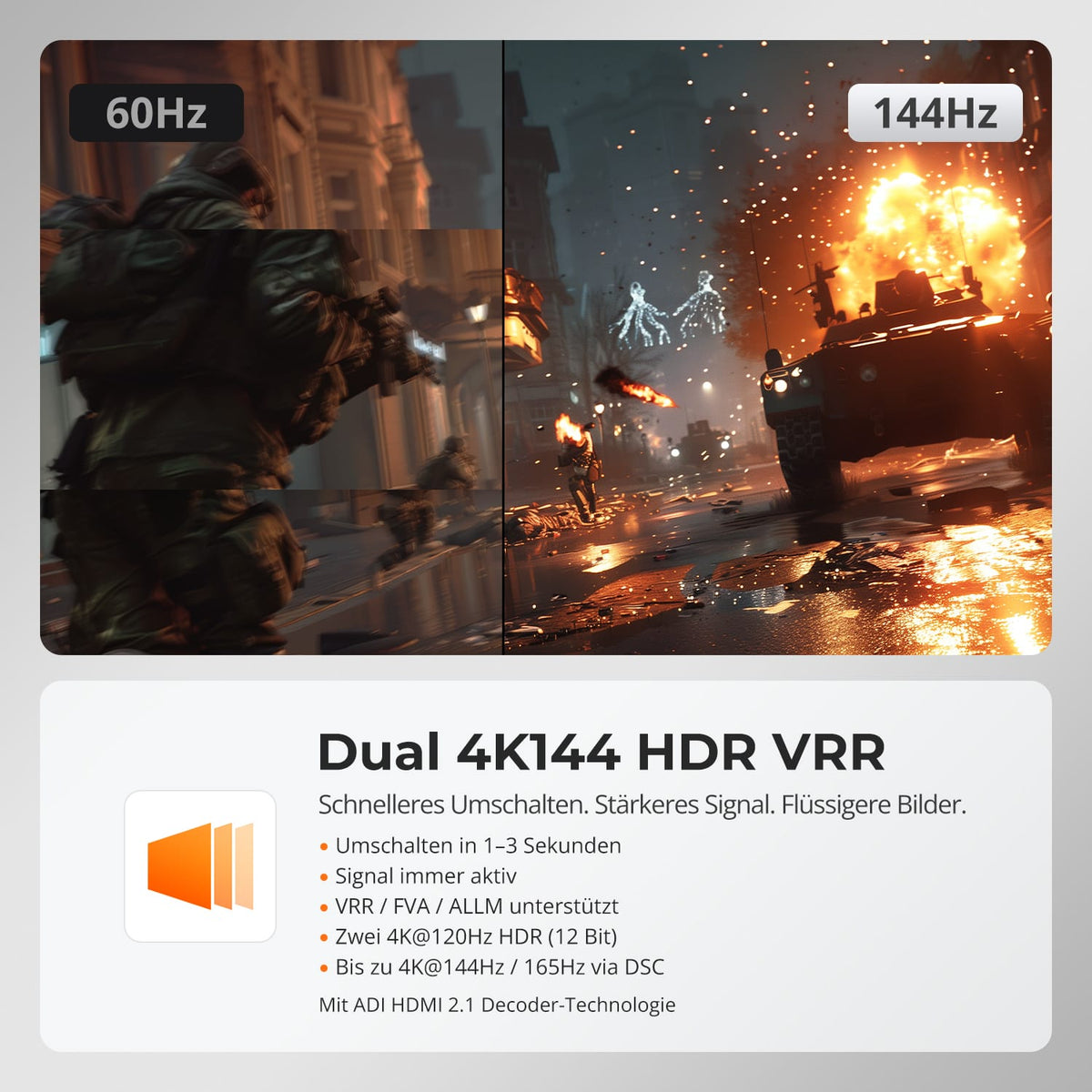
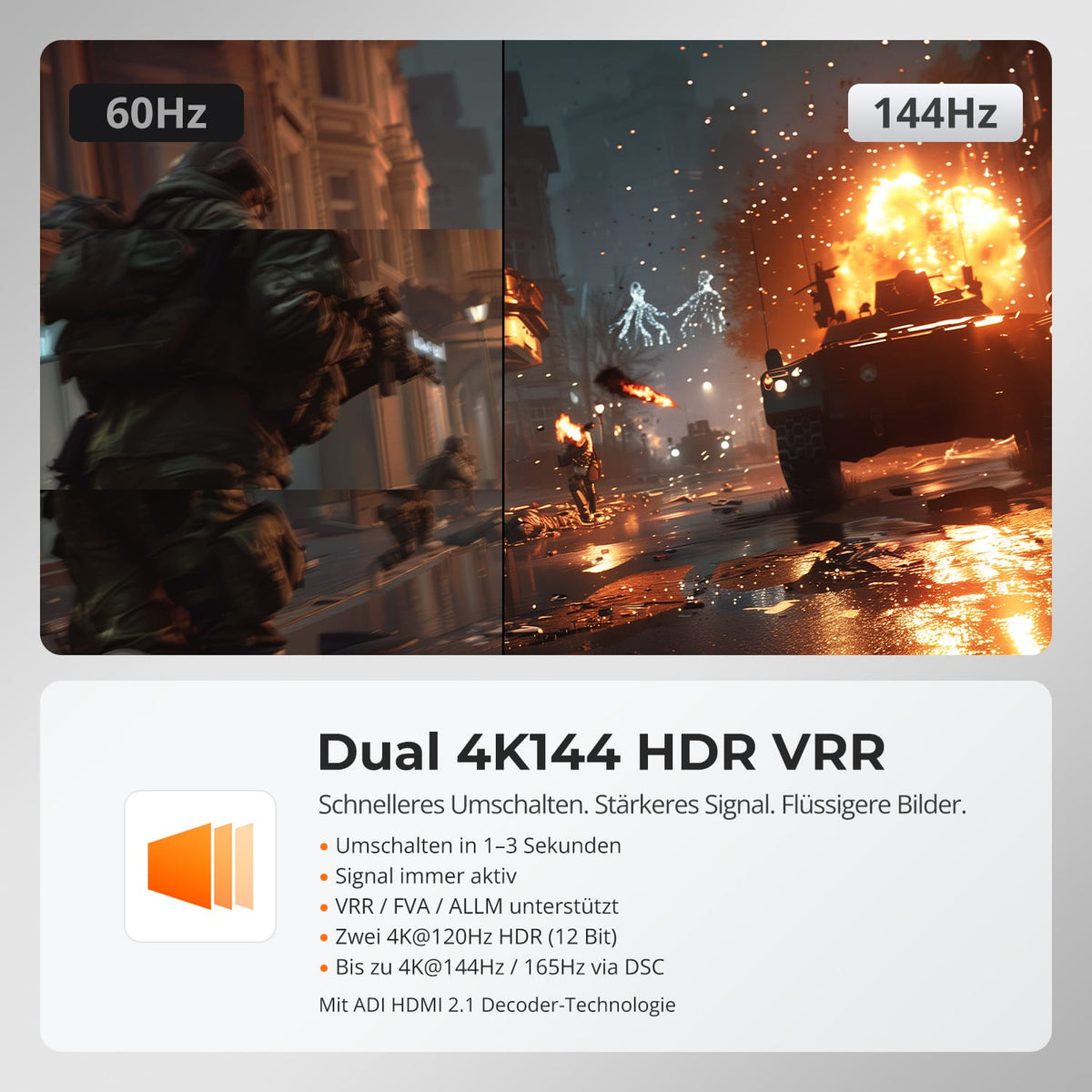
Two 4K144 channels for smooth images
Compatible gaming and creative systems utilize 4K@120/144Hz with HDR, VRR, FVA, and ALLM. The 48 Gbps HDMI 2.1 connection supports smooth motion and high image quality on both displays.
03
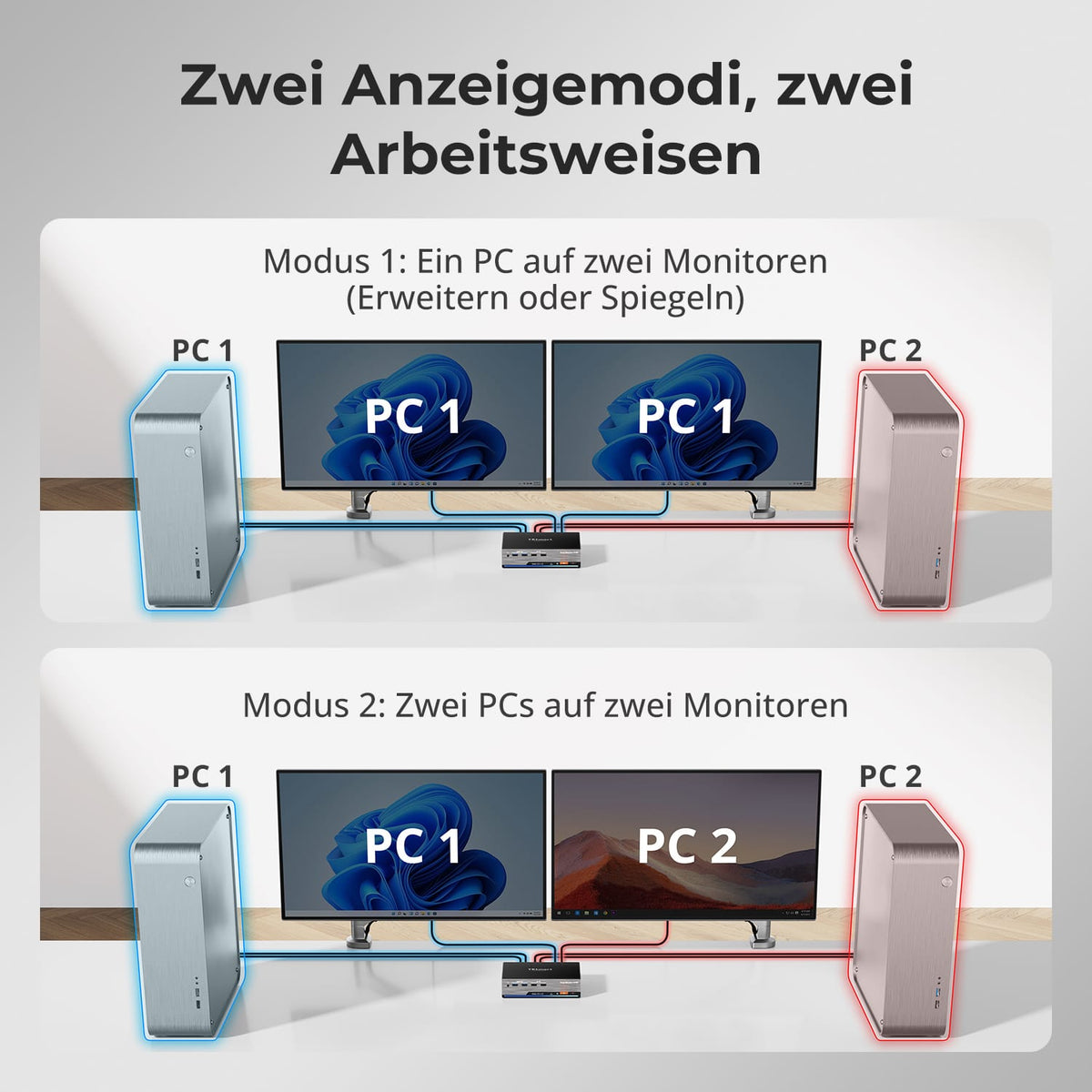
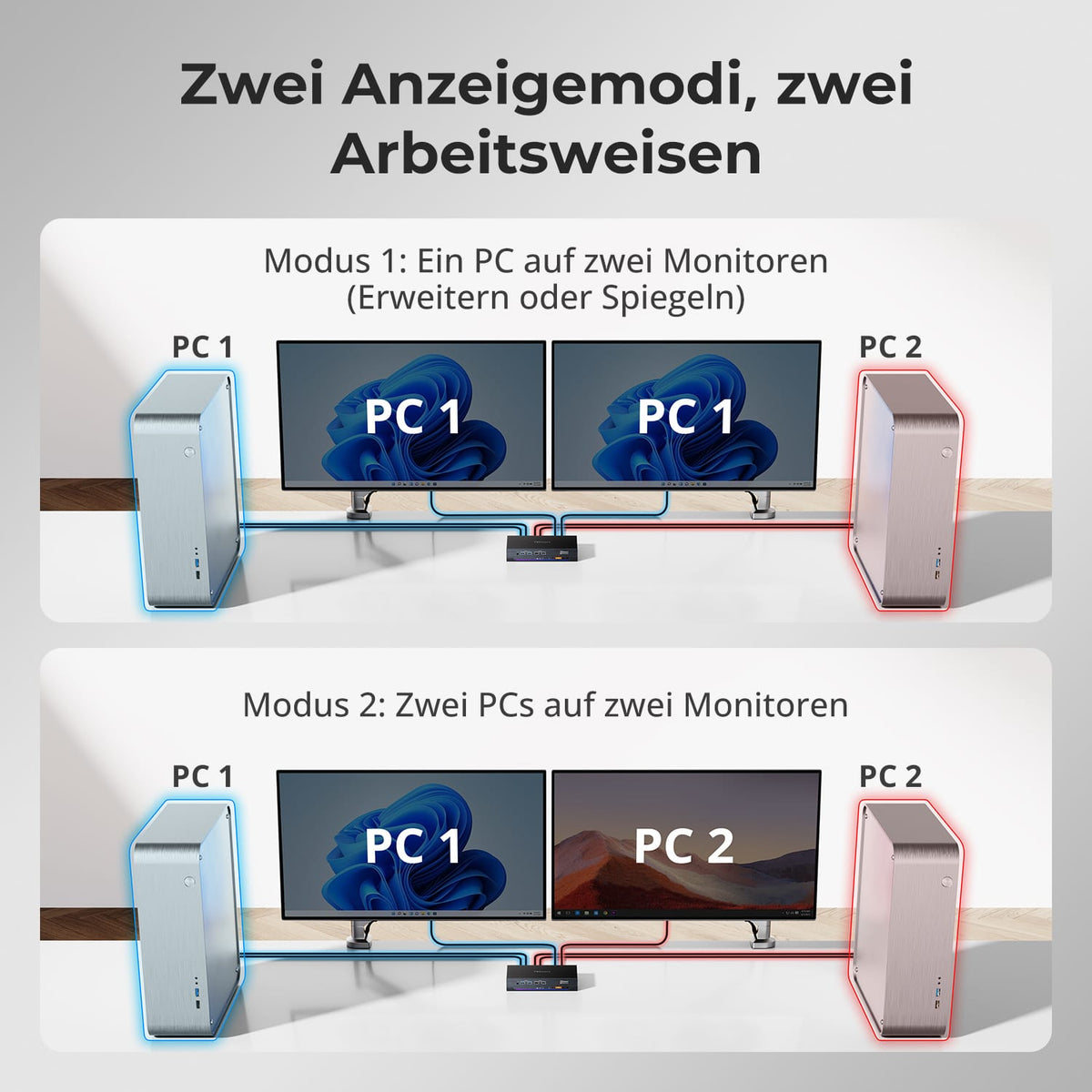
Two monitors, two ways of working
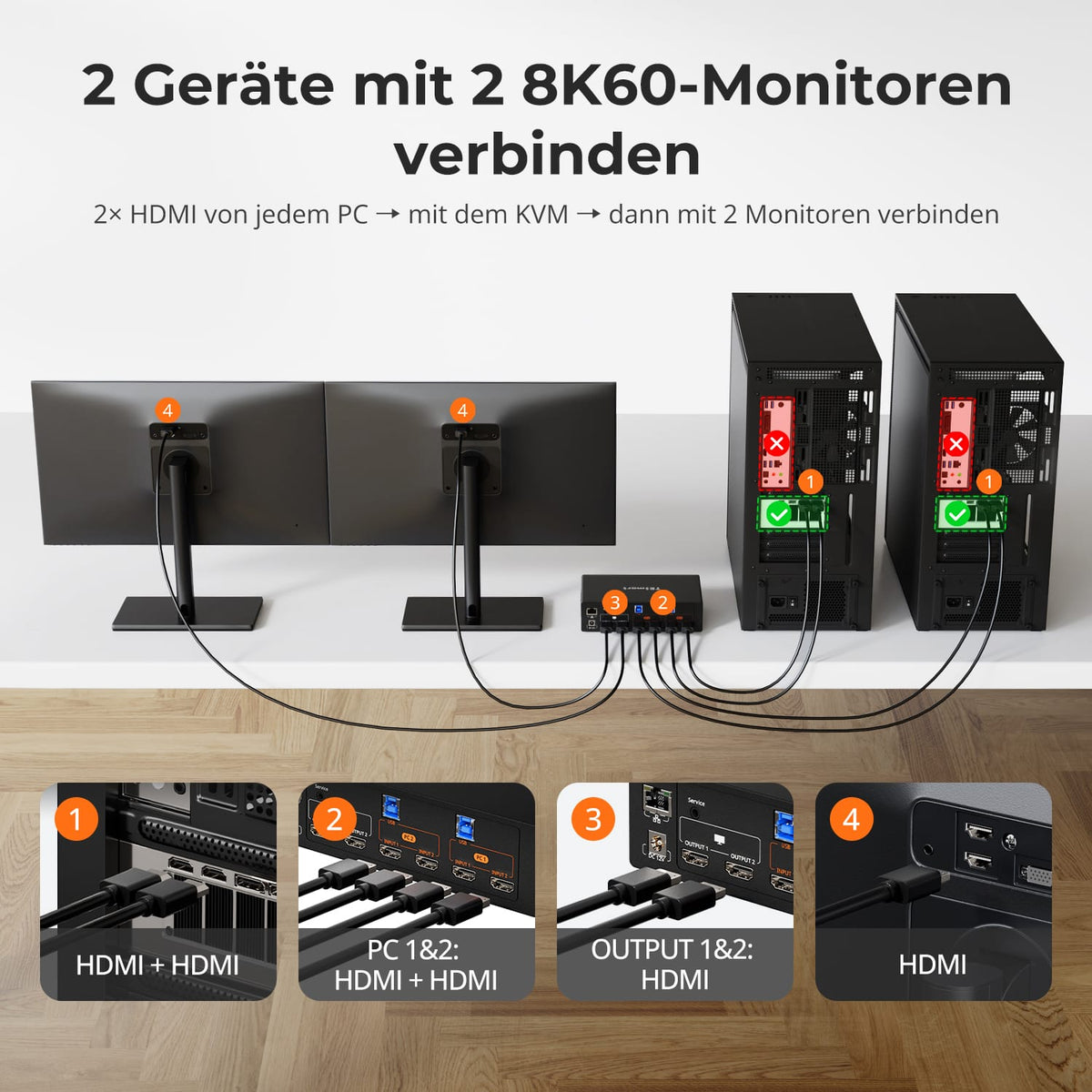
Use both monitors with one computer in extended or mirrored mode. Alternatively, display one computer on each monitor and switch keyboard and mouse control between them.
04
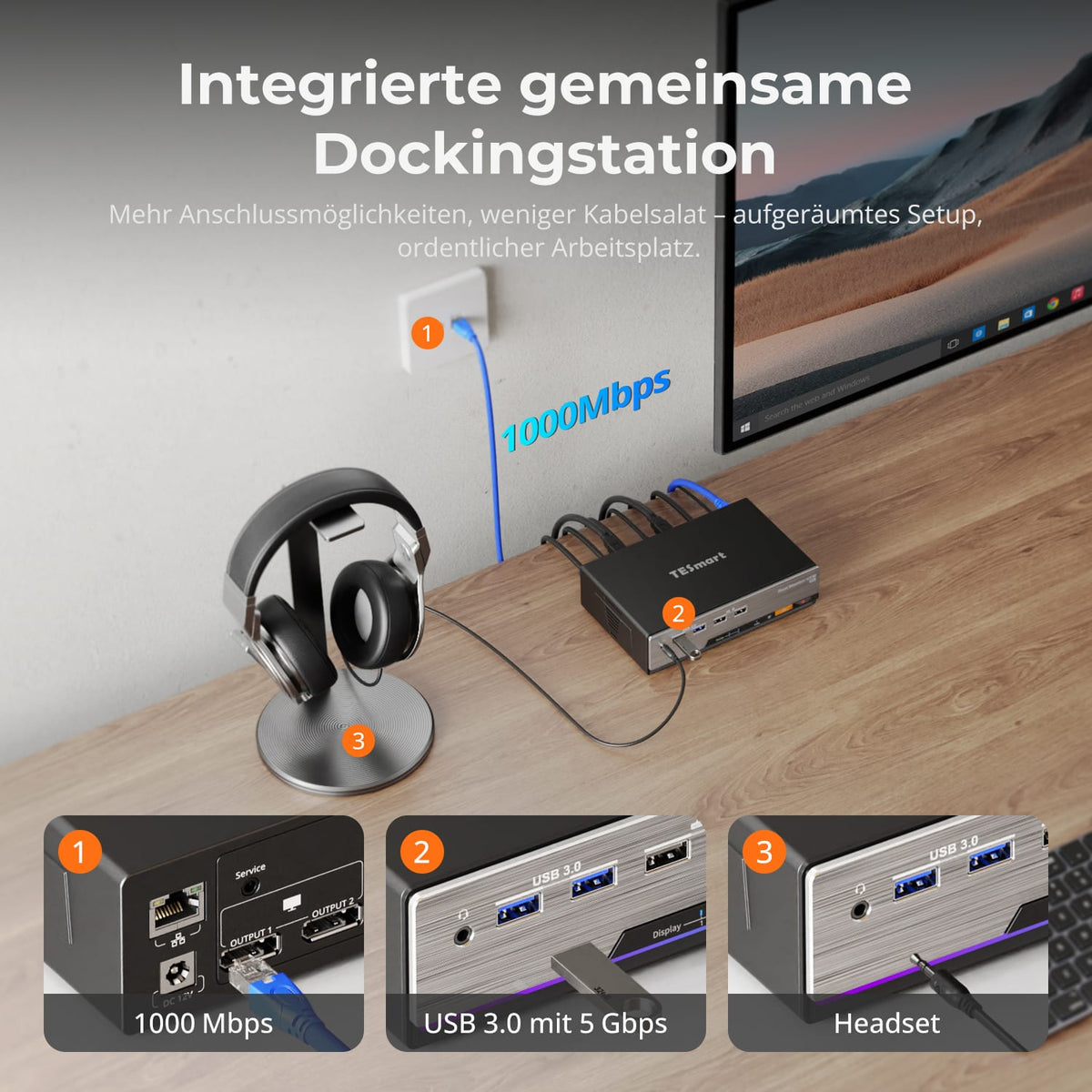
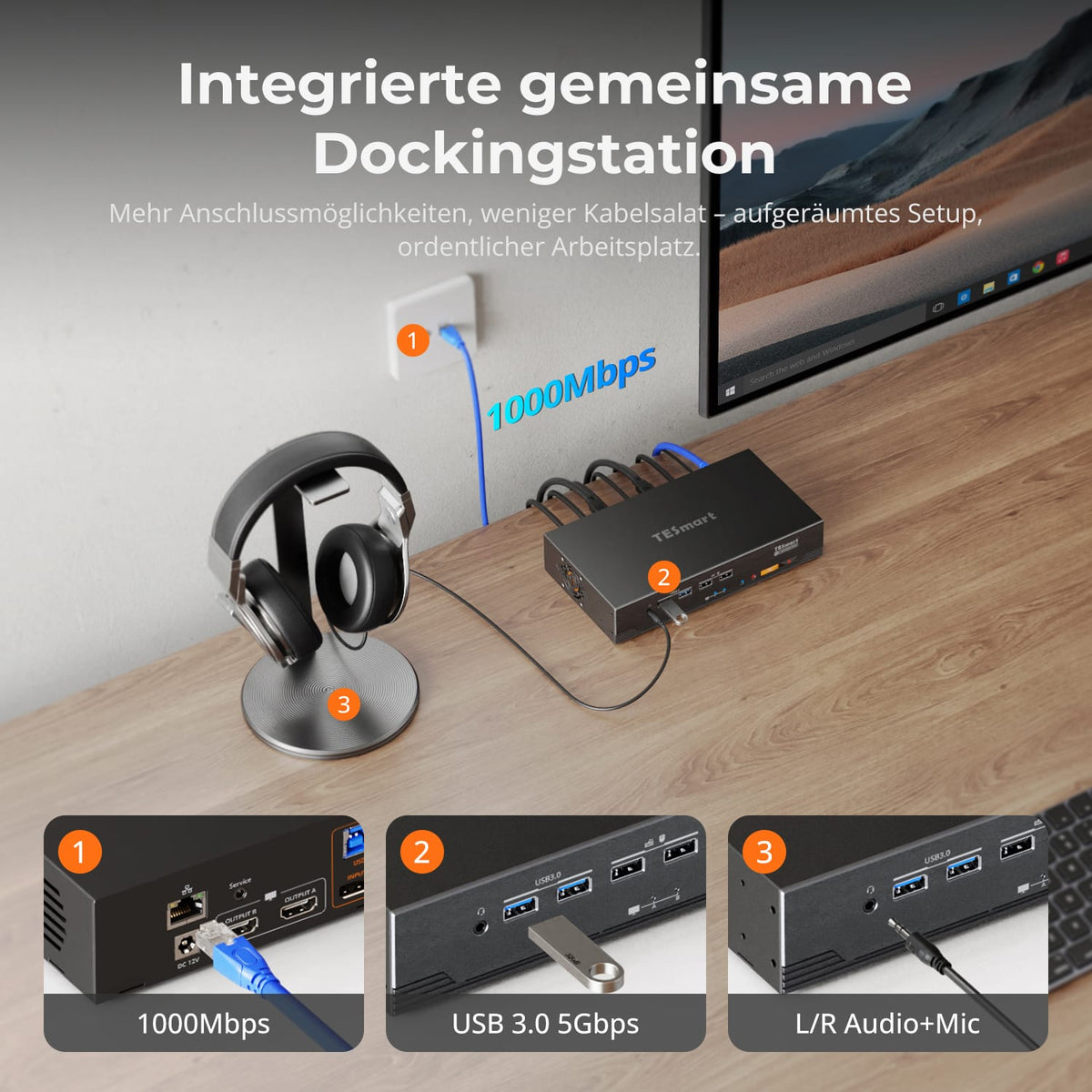
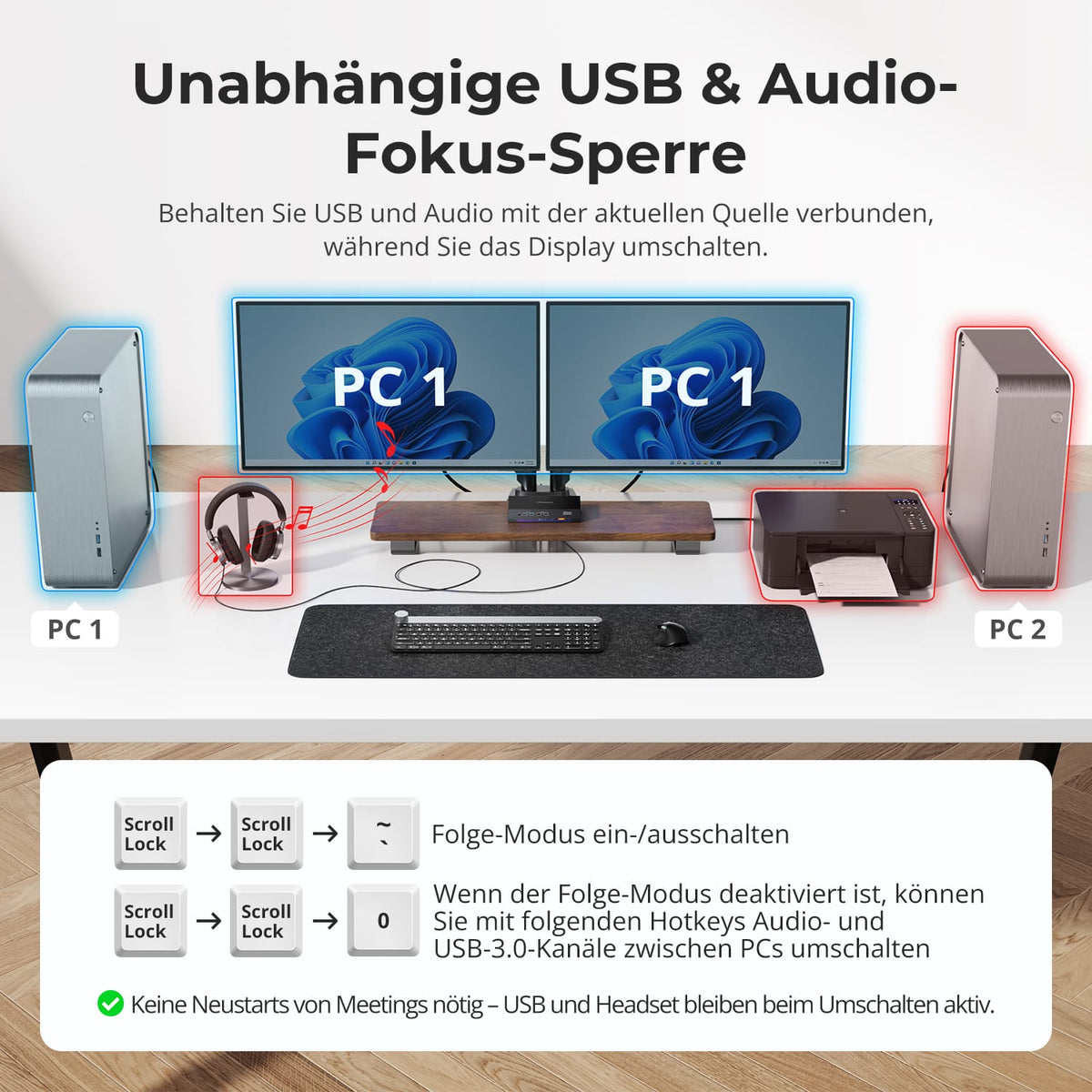
Shared dock integrated into KVM
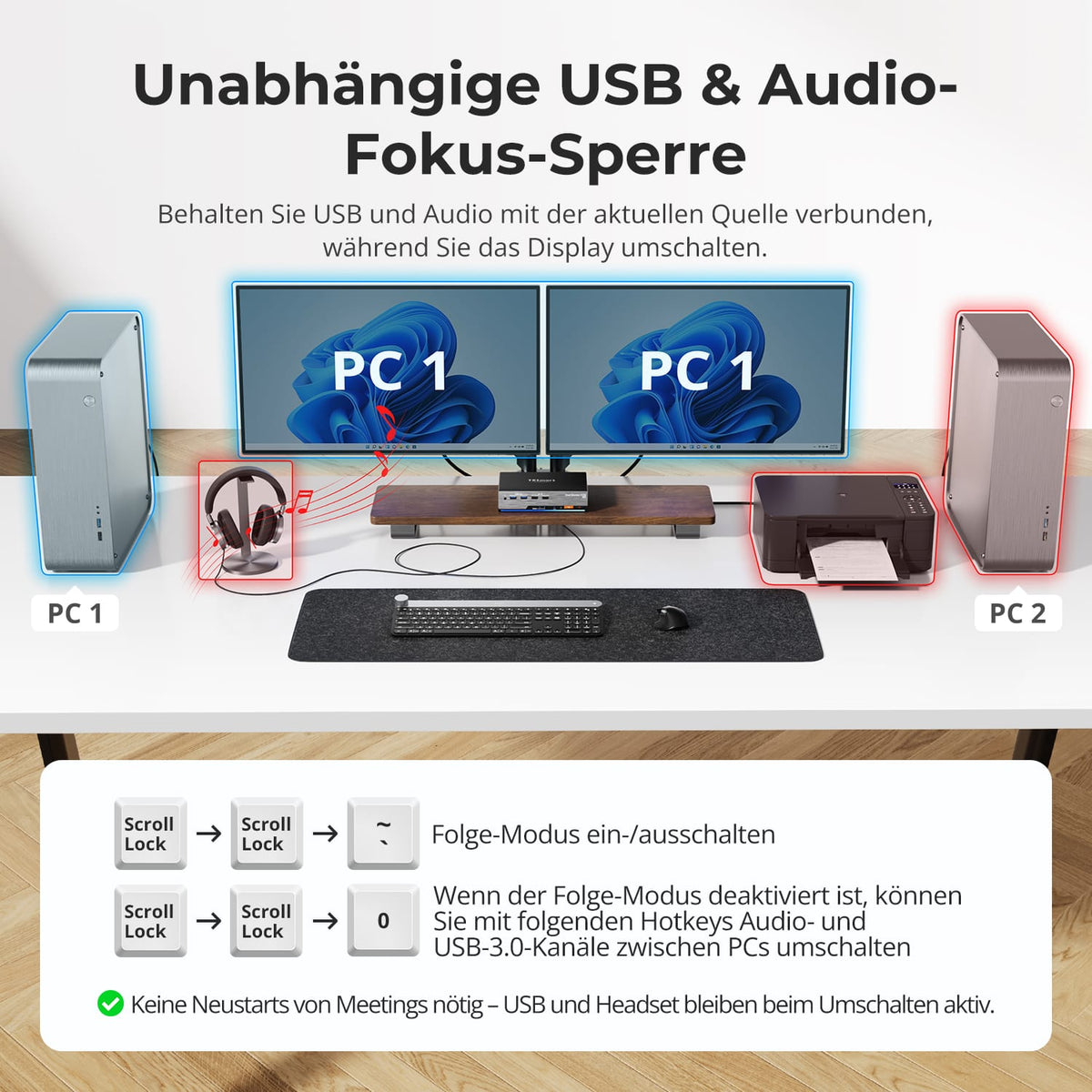
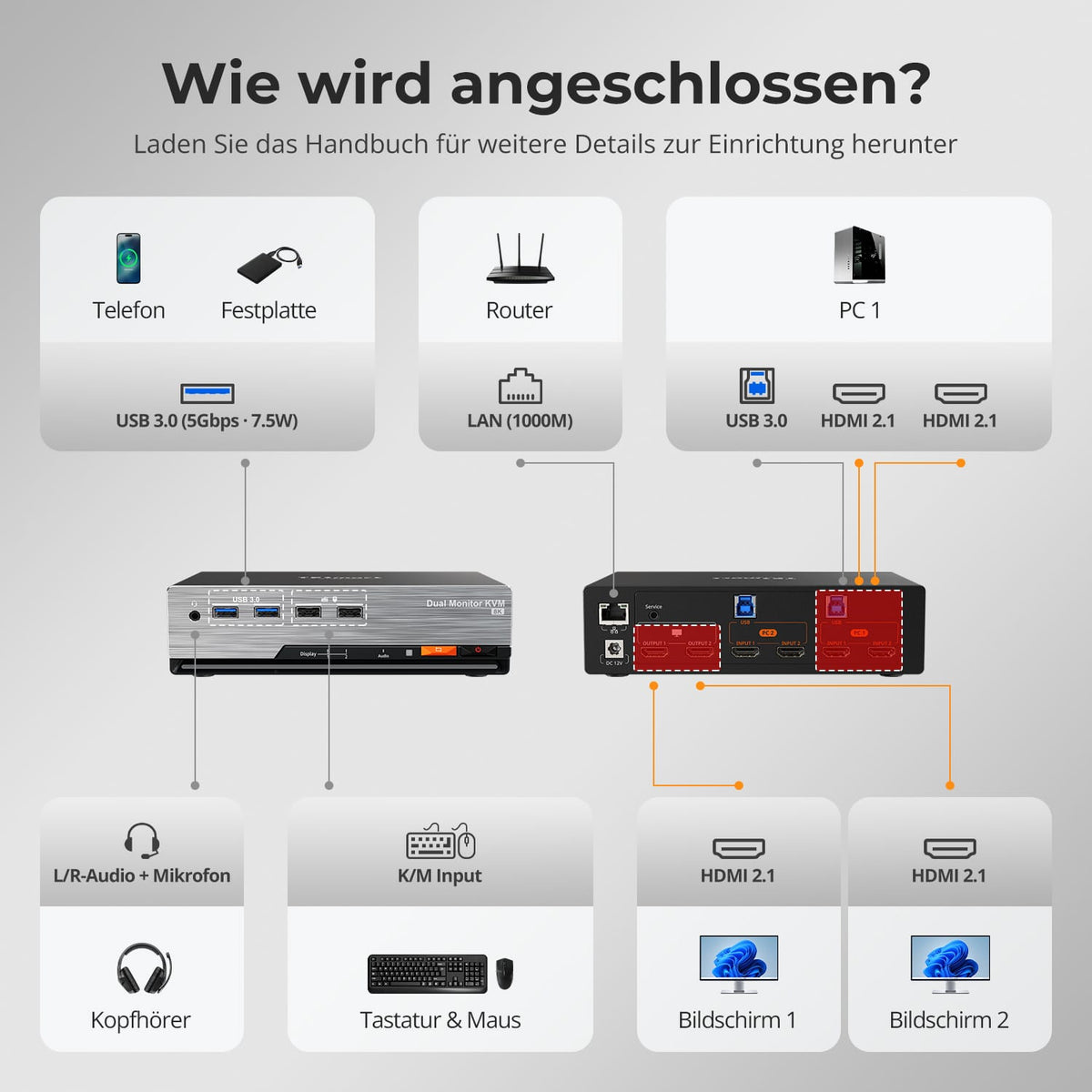
Share Gigabit Ethernet, USB 3.2 Gen 1 devices, and 3.5 mm audio through a single hub. This eliminates the need for separate switches and adapters in a dual-computer setup.
05
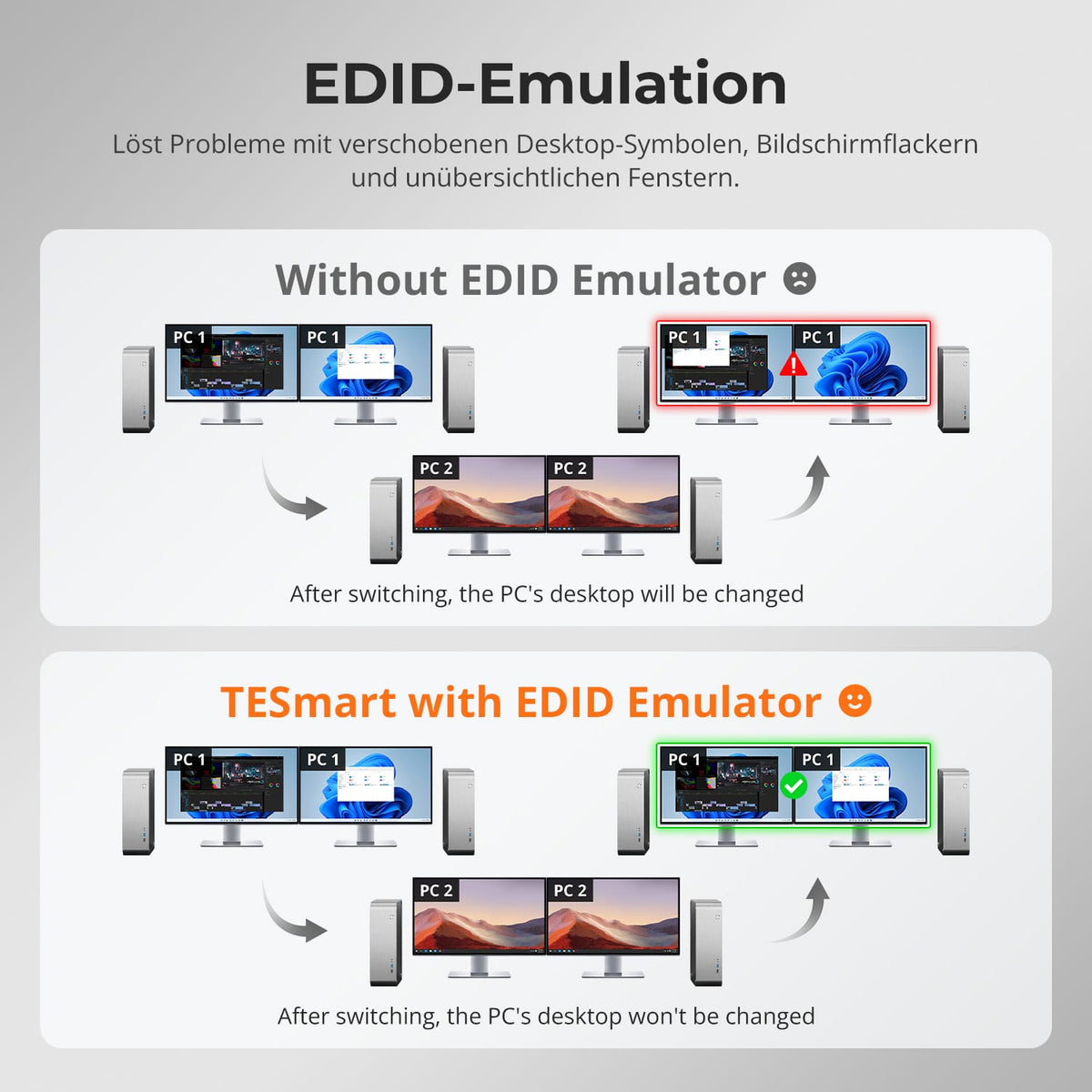
Your windows stay in place
EDID emulation keeps the display information available for both computers. This reduces the need for re-monitor detection, resolution changes, and window relocation when switching between monitors.
06
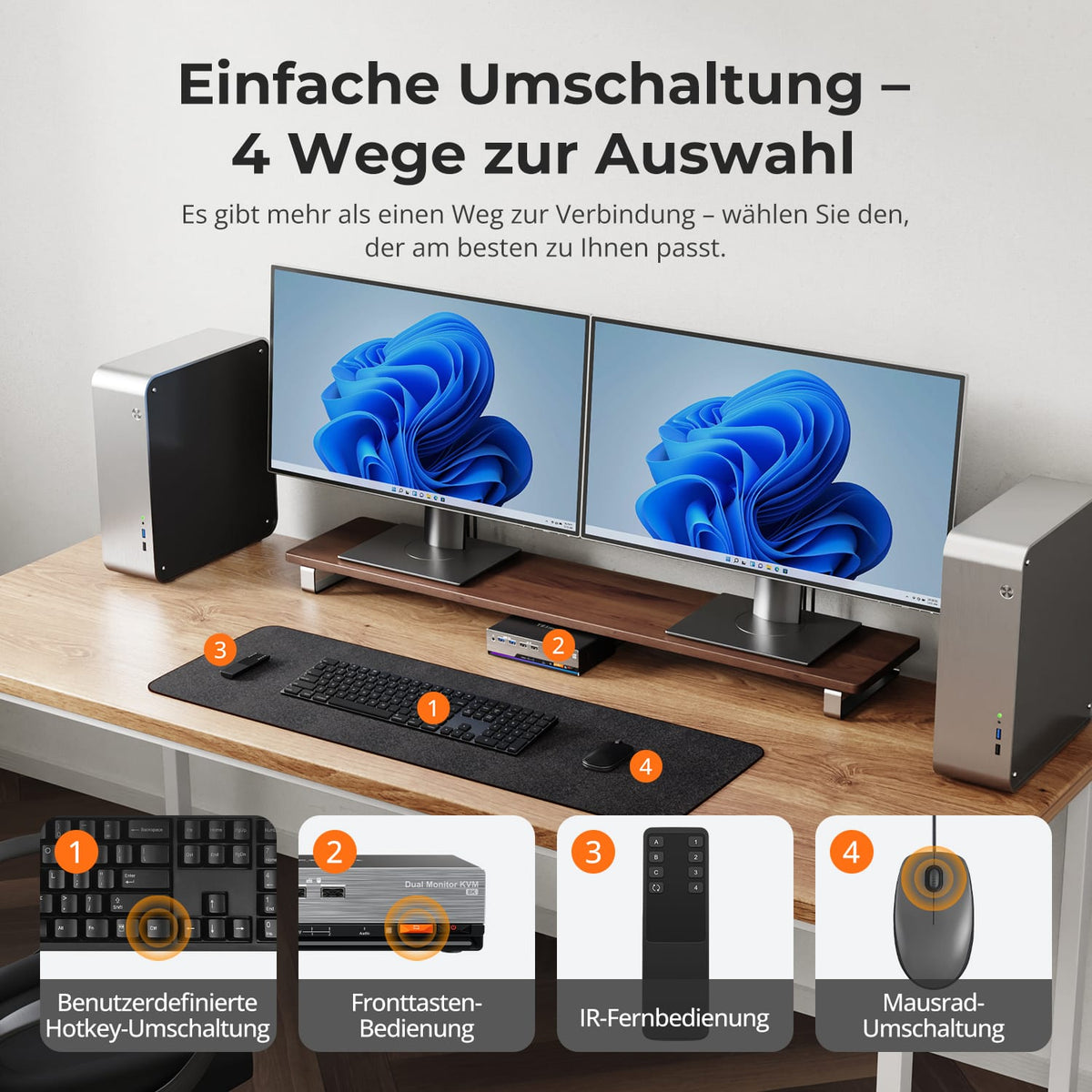
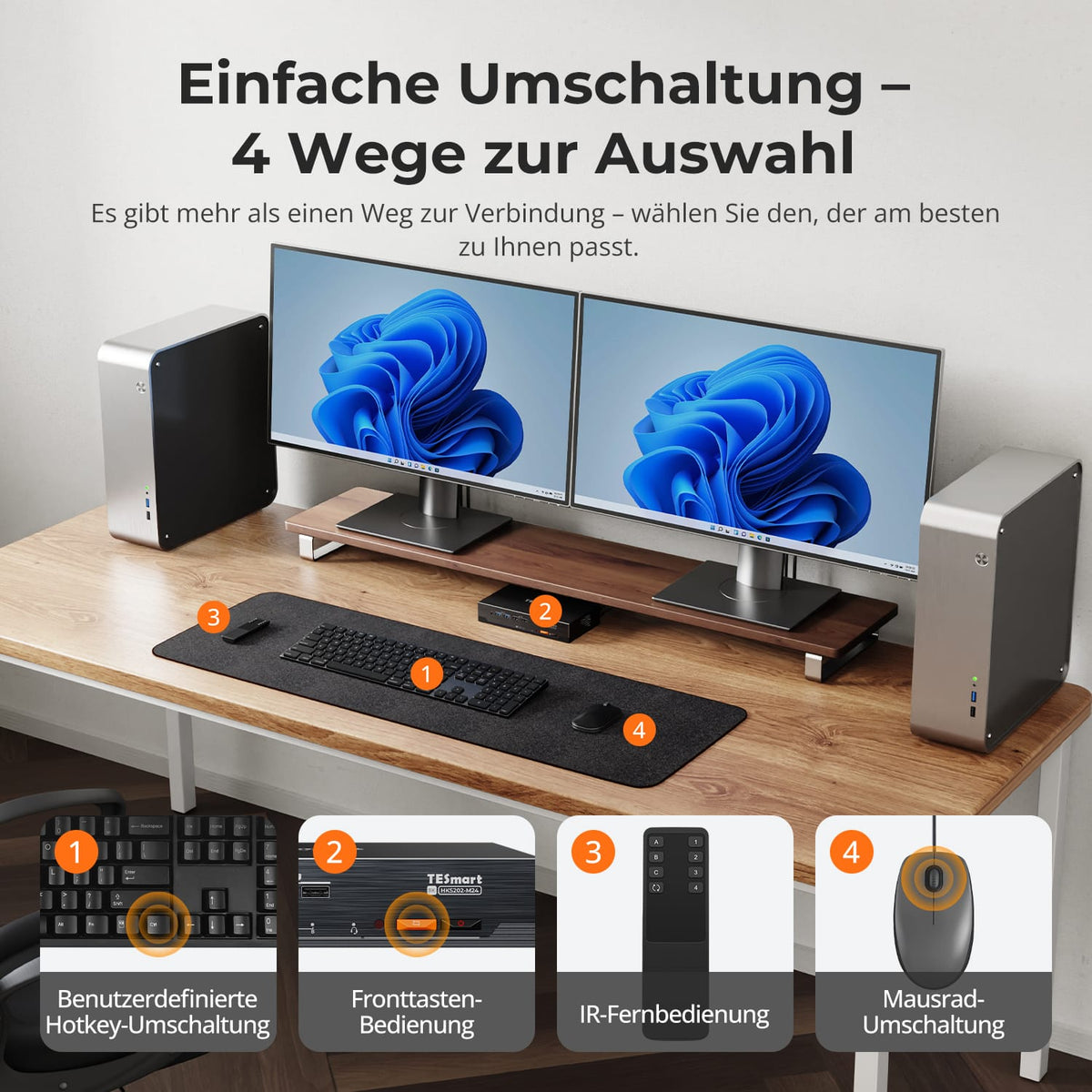
Switch it up as it suits you
Switch between the two computers using the control panel, IR remote control, keyboard hotkeys or mouse wheel, without having to unplug and replug the display cable.
07
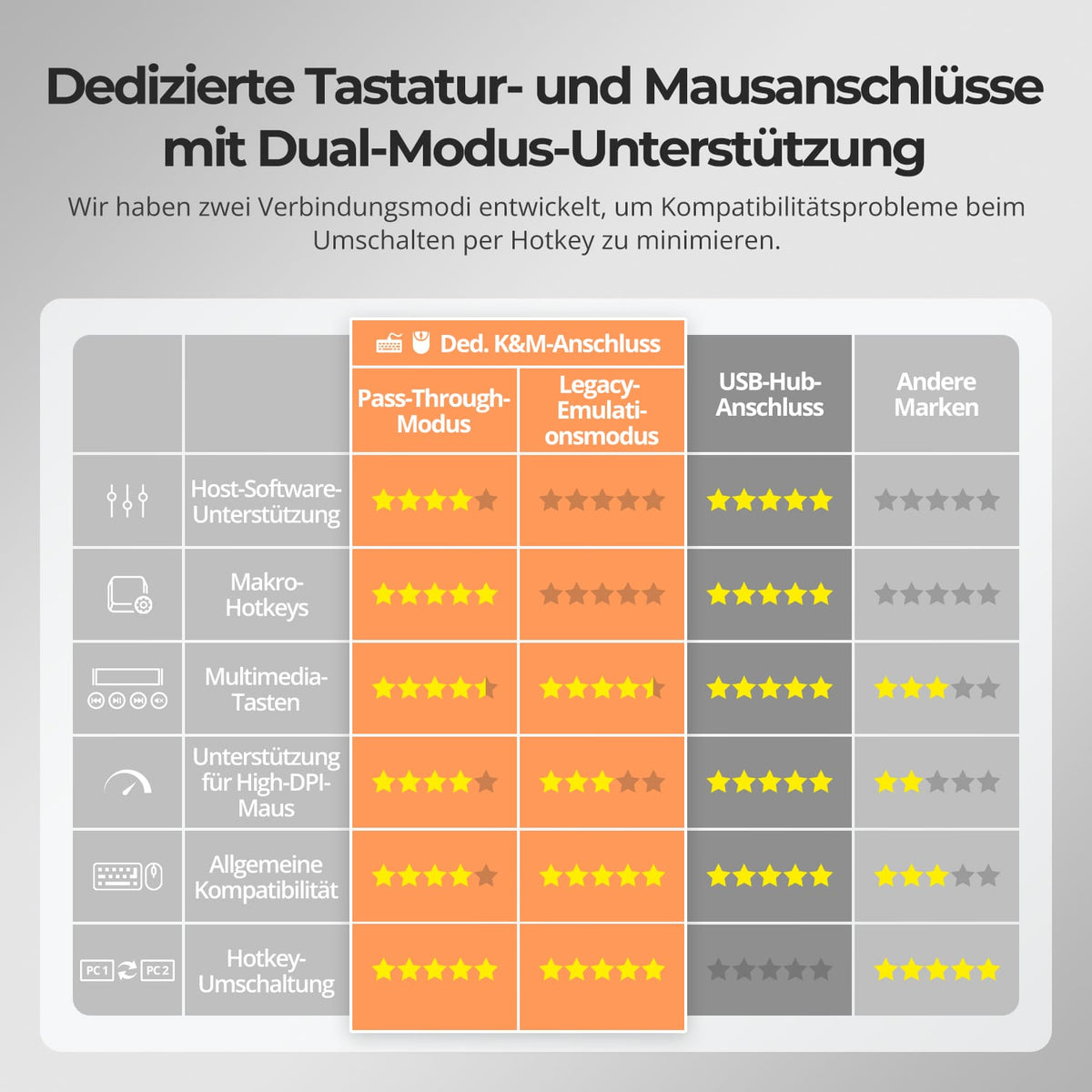
Two keyboard and mouse modes
Pass-through is suitable for modern devices. If needed, legacy emulation offers an alternative for basic keyboard, mouse, and hotkey compatibility.
Data & Support
Compatibility & Connections
Technical data
Instructions & Downloads
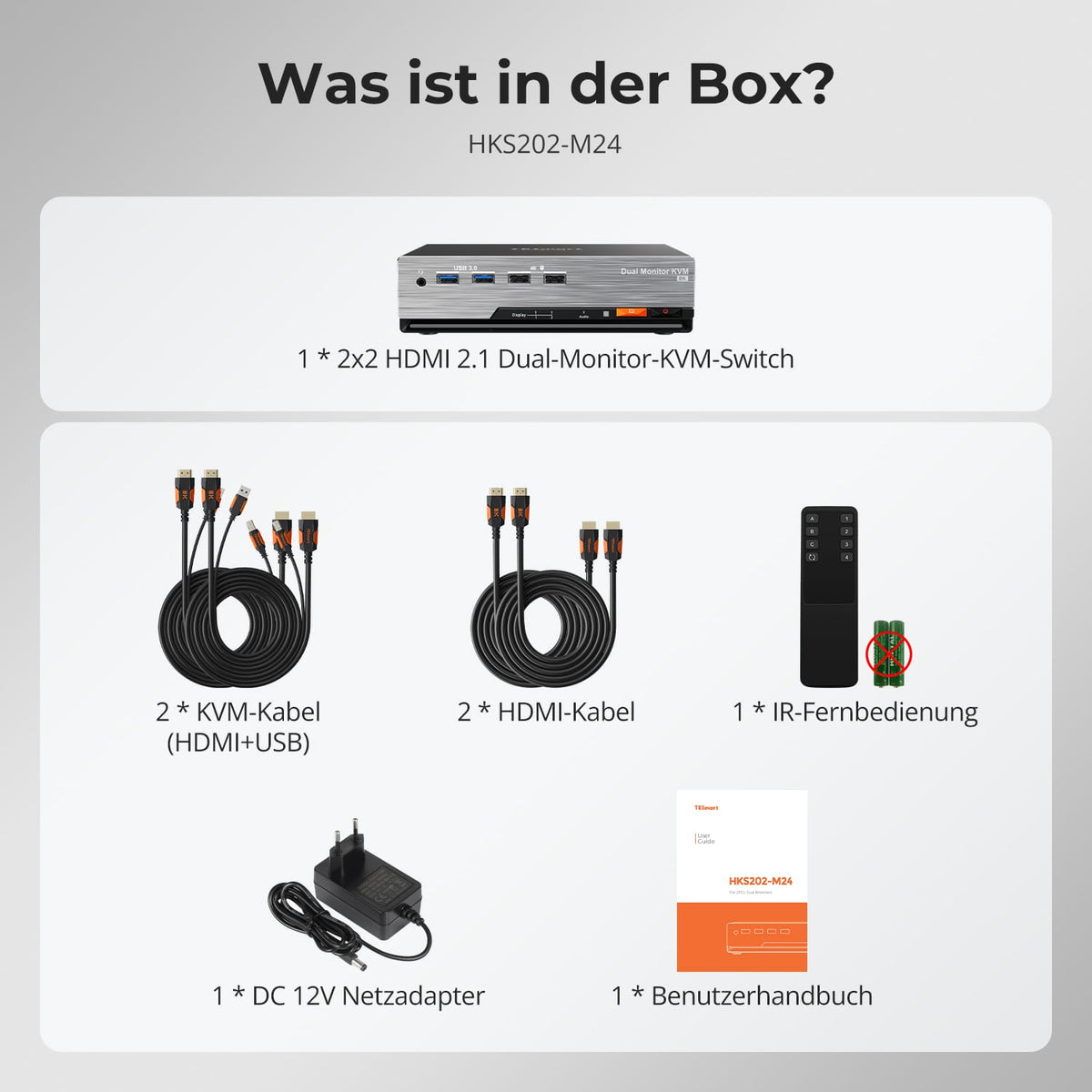
Scope of delivery
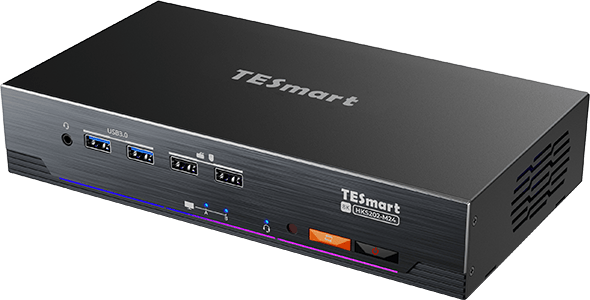
1×2×2 HDMI 2.1 KVM Switch
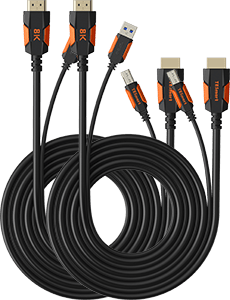
2 × KVM cables
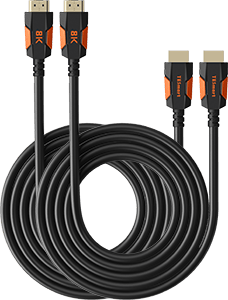
2 × HDMI Cable
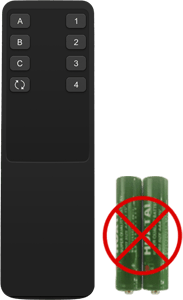
1 × IR Remote Control

1 × 12V DC power supply
1×User manual

Compare suitable models
Select the models in the menus to compare connections, image output, and shareable features.
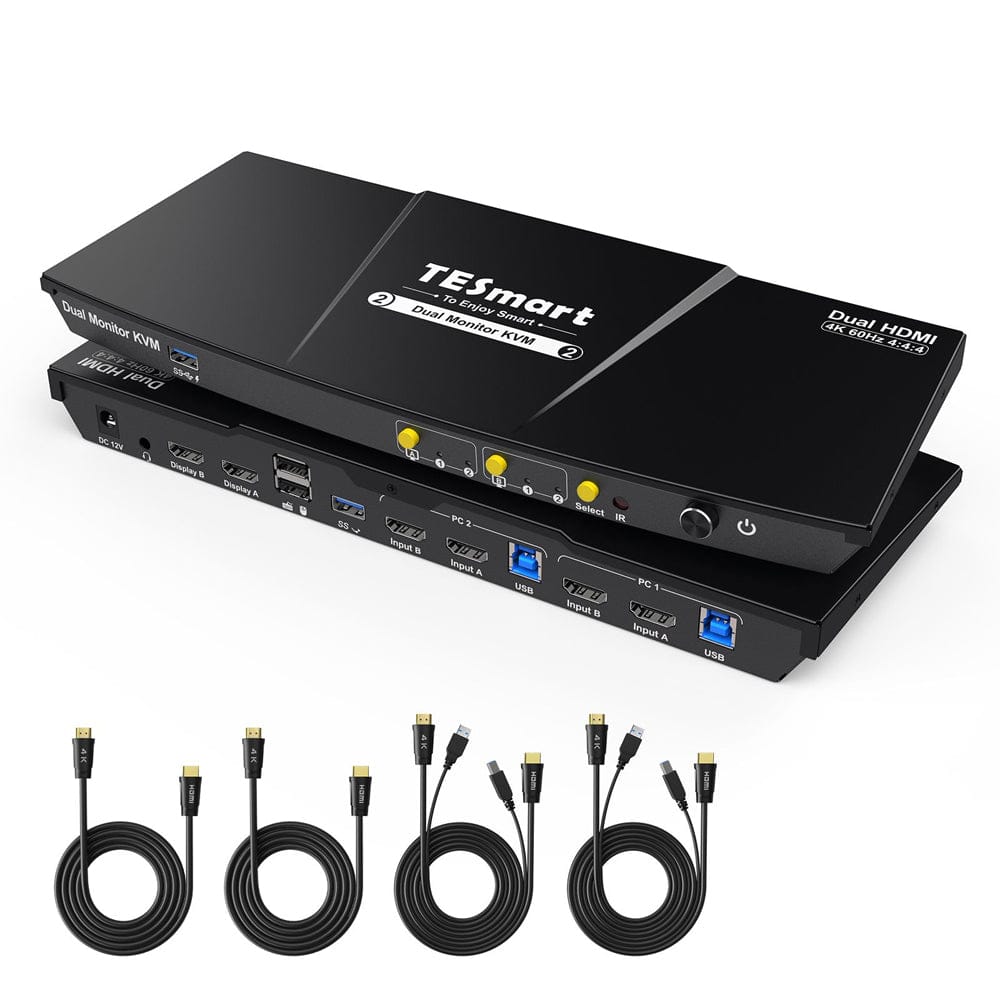
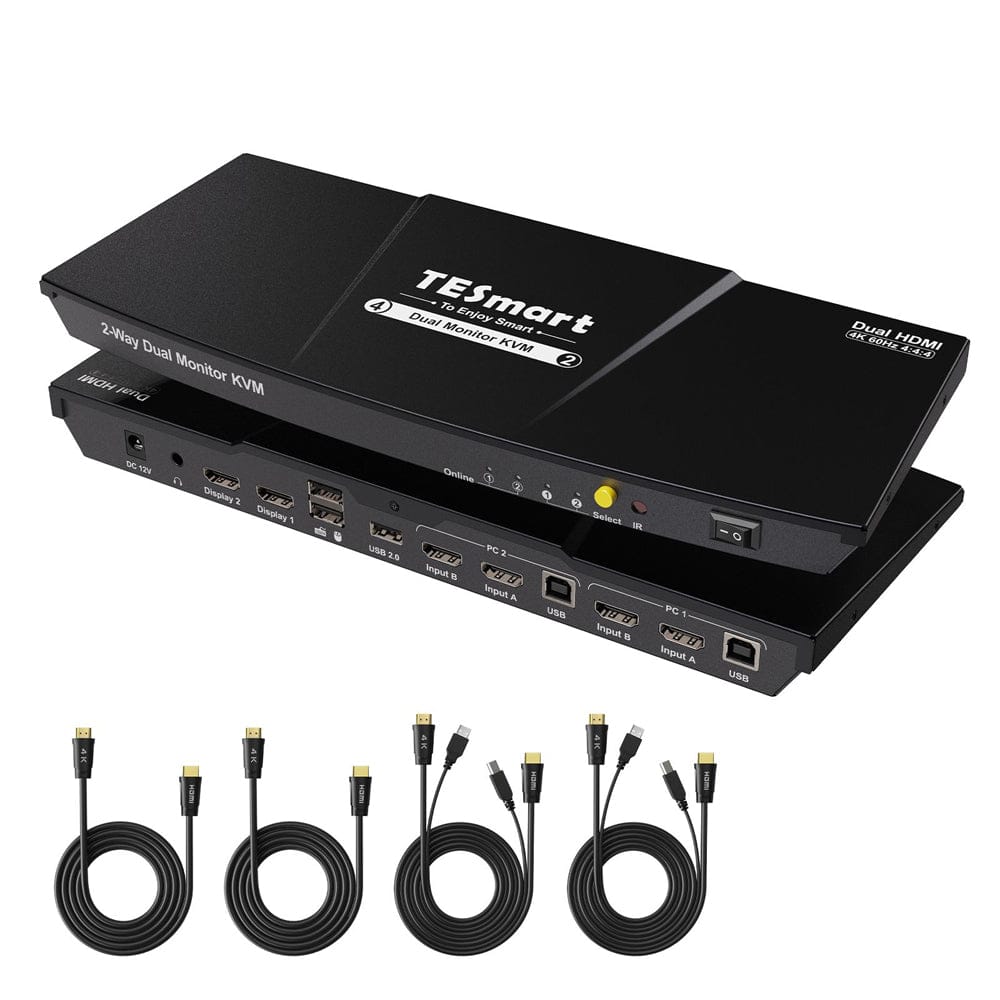
Model
HKS202-M24
Model
HKS202-P23-V2
Model
HKS202-E23
Computer count
2 computers
Computer count
2 computers
Computer count
2 computers
Computer connections
Per PC: 2 × HDMI + USB
Computer connections
Per PC: 2 × HDMI + USB
Computer connections
Per PC: 2 × HDMI + USB
Monitor outputs
2 × HDMI
Monitor outputs
2 × HDMI
Monitor outputs
2 × HDMI
Image output
8K60/4K144
Image output
4K60
Image output
4K60
Shared USB devices
USB 3.0/5 Gbit/s
Shared USB devices
USB 3.0/5 Gbit/s
Shared USB devices
USB 2.0
Charge laptop
Charge laptop
Charge laptop
Shared network access
1000 Mbit/s
Shared network access
Shared network access
EDID emulation
EDID emulation
Only in display mode 1
EDID emulation
Only in display mode 1
Multi-monitor operation
Separate video outputs on each computer
Multi-monitor operation
Separate video outputs on each computer
Multi-monitor operation
Separate video outputs on each computer
Monitor requirements
Every computer must be able to drive 2 monitors.
Monitor requirements
Every computer must be able to drive 2 monitors.
Monitor requirements
Every computer must be able to drive 2 monitors.
Frequently asked questions
You can find further answers in our Help Center.
[Compatibility] Which computers does the HKS202-M24-V2 support?
Connect two computers. Each computer requires two HDMI video outputs and a USB connection for full dual-monitor KVM functionality.
[Compatibility] What is the maximum supported resolution?
According to the instructions, up to 8K@60Hz in 4:4:4, backward compatible with 4K@60/120/144Hz. GPU, displays, cables, and video format determine the output.
[Compatibility] What is required for VRR or high refresh rates in 4K?
The GPU, both HDMI cables, and the monitor must support HDMI 2.1 functionality and refresh rate. VRR, FVA, ALLM, and DSC require support along the entire connection.
[Functions] What display modes are available?
Display a computer on both screens in extended or mirrored mode. Alternatively, keep a different system visible on each monitor while you switch keyboard and mouse controls.
[Functions] Does the HKS202-M24-V2 support EDID emulation?
Yes. EDID emulation keeps the monitor information available for both computers and reduces the need for re-detection of displays and window movement when switching.
[Connections] Can both computers share Ethernet and USB devices?
Yes. The KVM offers shared Gigabit Ethernet and USB 3.2 Gen 1 ports for compatible devices.
[Functions] What are Pass-Through Mode and Legacy Emulation Mode?
Pass-through is compatible with most modern keyboards and mice. In case of problems, legacy emulation offers an alternative for basic keyboard, mouse, and hotkey functions.
[Furnishings] How do I switch between computers?
Via control panel, IR remote control, keyboard hotkeys or mouse wheel.
[Furnishings] Do I need software for the KVM?
No special switching software is required for normal KVM operation. Connected USB devices may still require their own drivers.
