

Table of contents
- Introduction
- What a sports commentary setup really needs
- Why an HDMI switch or the Enter key on the monitor isn't always enough
- How a multi-monitor KVM solution helps a live production desk
- Practical workstation examples for sports commentary and live streaming
- How to choose the right KVM switch for live streaming
- Where TESmart multi-monitor KVM solutions fit
- Setup tips for cleaner broadcast workflows
- FAQ
- Conclusion
Introduction
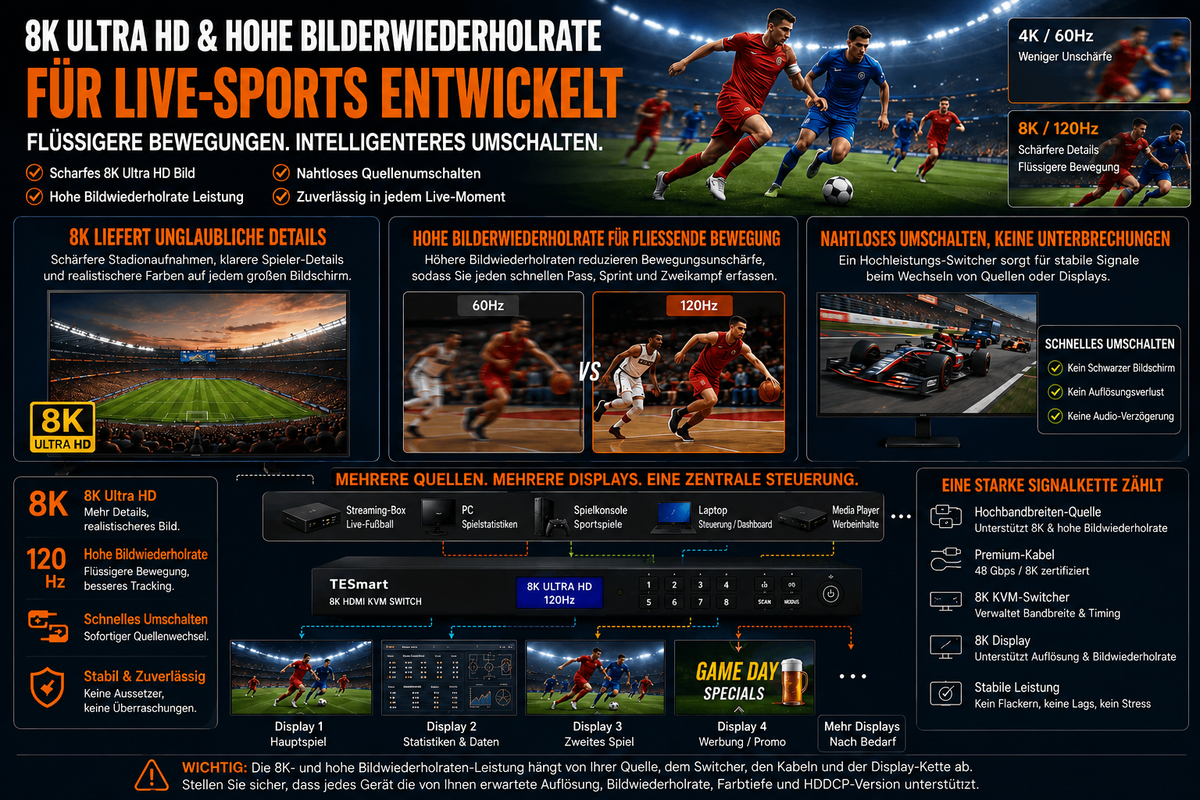
A sports commentary desk rarely runs with just a computer and a monitor. A typical live production desk setup can include a streaming PC running OBS, vMix, or Streamlabs, a laptop for live scores and social media, a backup system for recordings, and one or more HDMI sources for game footage, replay content, or reference videos.
The challenge isn't just getting video onto the monitors. The real problem is the control. During a live game, the commentator or producer might need to switch from the streaming PC to the data laptop, check a replay folder on another system, adjust audio routing, or manage a backup stream, all without having to switch between keyboards, mice, and USB devices.
This is precisely where a difference lies. Multi-monitor KVM solution from a simple HDMI switch. A KVM does not replace a capture card, production switcher, encoder, or streaming software. Instead, it helps manage multiple computers, multiple displays, keyboard and mouse control, and selected USB peripherals from a central control point.
What a sports commentary setup really needs
In one Multi-PC live broadcast workstation Each computer typically has its own specific task. Keeping these tasks separate can make production more stable and easier to operate.
Typical device tasks in a multi-computer broadcast setup
The main streaming PC often handles OBS, vMix, Streamlabs, scene changes, overlays, alerts, and the final program output. This system should not be interrupted during the broadcast by unnecessary browsing, file transfers, or other irrelevant tasks.
A second laptop can be used for game statistics, live scores, team lineups, social media comments, YouTube Studio, Twitch chat, or sponsor notes. This computer is information-intensive but may not need to run the stream itself.
A third system can serve as a backup recorder, replay material station, graphics system, or emergency streaming device. In a small sports broadcast workstation, this backup role often prevents a minor software problem from halting the entire broadcast.
Multiple monitors help to visually separate these roles. For example, one display can show the OBS preview and program output, another data and chat, and a third replay content or the status of the backup stream.

Why control is more important than the number of screens
Adding more monitors is easy enough. Managing control across multiple computers is where the workflow becomes confusing.
Without a central switching system, users often end up with two or three keyboards, multiple mice, duplicate USB microphones, additional hubs, and a tangle of cables behind the desk.During a live broadcast, this increases the likelihood of operating the wrong computer or wasting time when a quick adjustment is needed.
A KVM switch for live streaming This is useful when the operator needs a keyboard, mouse and selected USB peripherals that follow the active computer, while the monitors display the correct sources for the production task.
Why an HDMI switch or the Enter key on the monitor isn't always enough
For a simple viewing setup, an HDMI switch may suffice. If you only need to select whether a monitor displays a console, a laptop, or a streaming PC, a simple video switch can solve this single problem.
A live commentary desk is different because the operator typically needs to switch video and control devices simultaneously.
An HDMI switch only covers part of the workflow.
A HDMI KVM switch A standard HDMI switch and a regular HDMI switch do not belong to the same device category. A regular HDMI switch routes video from multiple sources to a single display. It does not typically manage keyboard, mouse, USB focus, or multi-monitor workstation behavior.
This is crucial during a live production. If the screen switches to the statistics laptop, but the keyboard remains connected to the streaming PC, the workstation hasn't actually switched. Only the video feed has changed.
Monitor input switching becomes slow in multi-screen setups.
Using the Enter key on each monitor can work for occasional switching. However, it becomes cumbersome when two or three displays need to be switched between computers simultaneously.
A dual-monitor sports commentary setup, for example, might require both displays to follow the streaming PC during setup, and then one display to show the data laptop during gameplay. Manually switching monitor inputs can be distracting for the operator, especially if the display menus are slow or inconsistent.
Manually switching cables during a live stream is risky.
Unplugging and replugging HDMI, DisplayPort, USB, or USB-C cables during a broadcast can trigger display renegotiation, resolution changes, USB reconnection, or temporary signal loss. It also increases wear and tear on ports and makes troubleshooting more difficult.
The goal of live streaming is not to complicate your desk setup. The goal is to reduce unnecessary movements during the broadcast.
How a multi-monitor KVM solution helps a live production desk
One Multi-monitor KVM solution It is designed for users who need to switch control between computers and keep multiple displays and shared peripherals organized.
Shared keyboard and mouse control
The main value of a KVM lies in its control switching capability. Instead of having separate keyboards and mice for a streaming PC, data laptop, and backup system, the operator can control the selected computer from a single keyboard and mouse position.
For a commentator, this reduces desk clutter. For a producer, it reduces the likelihood of typing on the wrong system when adjusting scenes, checking a score feed, or opening replay files.
Multi-monitor display management
A Dual-monitor KVM or Triple monitor KVM This can be helpful if each computer needs access to more than one display.This is common in broadcast workflows because one screen is rarely sufficient for preview, control, chat, and monitoring.
It's important to note that multi-monitor KVM setups typically require each computer to provide the necessary number of video outputs. A dual-monitor KVM usually requires two video connections from each computer. A triple-monitor KVM typically requires three. The KVM manages the switching but does not automatically create additional independent GPU outputs.
Share USB peripherals
Many live production desks use USB devices such as keyboards, mice, audio interfaces, control pads, capture accessories, webcams, stream controllers, or external storage. A KVM switch can help centralize selected USB peripherals, eliminating the need to manually move them between systems.
This doesn't mean that every USB device behaves identically in every chain. Some capture cards, audio interfaces, or control surfaces can be sensitive to USB bandwidth, drivers, or reconnection behavior. Therefore, for critical broadcast equipment, it's still advisable to test the entire setup before a live event.
Display stability and EDID behavior
In multi-display workstations, switching between computers can cause windows to shift, resolutions to reset, or monitors to be re-detected. This often depends on how the computer interprets the display information during the switch.
Stable display behavior is crucial for a sports broadcast workstation because the operator may rely on fixed window positions: OBS on one monitor, chat on another, and score data on a third. A KVM with robust display management can reduce unnecessary interruptions; however, users should still fine-tune resolution, refresh rate, cable quality, and monitor settings across the entire signal chain.

Practical workstation examples for sports commentary and live streaming
Solo sports commentator desk
A single YouTube or Twitch commentator might use a main PC for OBS and a laptop for live stats, game notes, or chat. In this case, a dual-monitor setup is often sufficient.
One monitor can display the live production software, while the second monitor shows data, comments, or browser-based control panels. Dual-monitor KVM This is useful if the user wants to use both computers with the same keyboard, mouse and USB peripherals without constantly having to unplug and replug cables.
Small studio or sports show in podcast style
A small studio might include a production PC, a laptop for guest calls or research, a backup recorder, and an HDMI source from a console, set-top box, or camera feed. The operator may need to quickly test different systems while maintaining a stable program output.
In this case, the KVM should be selected based on how many computers require keyboard and mouse control, not just the number of HDMI sources. If some sources only provide video, an HDMI matrix or production switcher may still be necessary in addition to the KVM.
Esports commentary and tournament desk
Esports production often requires game capture, observer tools, Discord or team communication, stream overlays, live chat, sponsor assets, and replay clips. A multi-monitor layout helps separate these tasks, but the operator still needs quick access to multiple systems.
A DisplayPort KVM switch It may be better suited if the workstation uses high-refresh-rate PC monitors. HDMI KVM switch This might be more suitable if the setup includes consoles, HDMI capture workflows, or broadcast monitors.
Content operation in sports bars or event venues
Sports bars, clubs, and small venues may operate multiple PCs or media sources for live games, menu boards, scoreboards, social feeds, and local commentary. These environments often combine AV routing with computer control.
A KVM switch is helpful for controlling computers from an operator station. A matrix switch or AV distribution system may still be necessary if many video sources need to be routed to many displays throughout the venue.

How to choose the right KVM switch for live streaming
The right KVM switch depends on the workstation setup. Before selecting a product, map your workstation in four steps: number of computers, number of monitors, video interface type, and USB peripheral requirements.
1. Count the computers that need to be controlled.
Don't count every HDMI source as a computer. A game console, camera output, or set-top box can deliver video but may not require keyboard and mouse control.
If you only need to control two computers, a 2-PC KVM switch may suffice. However, if your workstation includes a streaming PC, a statistics laptop, a backup/recording PC, and a graphics system, a 4-PC KVM switch might be more practical.
2. Decide between dual-monitor and triple-monitor workflows
A dual-monitor layout works well for many solo streamers and commentators. It typically separates production software from data, chat, or browser tools.
A triple-monitor layout is better if the operator needs dedicated screens for program monitoring, control panels, replay assets, score data, or the backup stream status. Triple monitor KVM is more demanding because each controlled computer must support the required number of display outputs.
3. Align workflows with HDMI, DisplayPort, USB-C, or Thunderbolt compatible technologies.
Use a HDMI KVM switch, when the workflow is based on HDMI monitors, consoles, capture devices, or standard AV equipment.
Use a DisplayPort KVM switch, when the workstation depends on DisplayPort monitors, higher refresh rates, or graphics card-based PC setups.
Use a USB-C KVM switch, When laptops require video, USB data, and convenient desktop integration via USB-C connections, always confirm that the USB-C port supports video output, as USB-C describes the connector's shape, not every supported signal.
For laptops with Thunderbolt-enabled ports or Thunderbolt-compatible display workflows, you should choose a solution that functions as Compatible with Thunderbolt 4 devices or Designed for Thunderbolt 4 laptop workflows As described. Compatibility and official certification are not the same thing, therefore users should check the product page and compatibility information before setting up a critical production environment.
4. Check resolution, refresh rate, and cable quality.
A KVM should be selected based on the highest resolution and refresh rate required by the actual monitors.A 1080p60 scoreboard screen, a 4K60 production monitor, and a 144Hz esports monitor have very different signal requirements.
The entire chain matters: GPU output, laptop adapter, dock, KVM, cables, monitor input, and operating system settings must all support the target format. A high-refresh-rate KVM cannot compensate for a weak cable, an undersized adapter, or a monitor input that doesn't support the desired mode.
5. Test critical USB devices before live use
USB microphones, audio interfaces, capture cards, and control surfaces can behave differently than simple keyboards and mice. Before using a KVM switch in a paid broadcast or live commentary show, test switching behavior, device reconnection, audio routing, and software detection under real-world production conditions.
For critical audio or capture hardware, some teams prefer to keep these devices permanently connected to the streaming PC and only share the keyboard, mouse, and general USB peripherals via the KVM.
Where TESmart multi-monitor KVM solutions fit
At TESmart, we develop KVM systems for cleaner multi-device workstations, where users need to manage multiple computers and displays from a central control position.
For sports commentary, esports production, small studios and content creator desks, a TESmart Multi-Monitor KVM This is particularly useful when the problem is not just video switching, but also keyboard, mouse and USB peripheral sharing, as well as multi-display organization.
Dual-monitor KVM for streamers and commentators
A dual-monitor KVM is ideal for a two-computer desktop: a streaming PC and a data or production laptop. This setup helps the user keep OBS or vMix on one screen while simultaneously checking live results, comments, or backend dashboards on another.
For users setting up such a desk, TESmart's dual-monitor KVM collection is a practical starting point: TESmart Dual Monitor KVM Switches.
Triple-monitor KVM for denser production desks
A triple-monitor KVM is better suited for production desks that separate program monitoring, data, chat, and replay or graphics control. This is often the case when one person is both a commentator and producer, or when a small team needs a compact control position.
The key requirement is planning. Every controlled computer must be able to output three displays via the required interface type, whether HDMI, DisplayPort, USB-C with video output, or an adapter-based chain.
High-refresh-rate KVM for esports and fast motion tracking
For esports commentary or gaming-related streams, the refresh rate can be more important than in a standard sports talk show. A high-refresh-rate KVM should be matched to the monitor's target mode and the computer's GPU outputs.
If the setup depends on high refresh rates, avoid weak adapters, long passive cables, and unreliable monitor inputs. The KVM switch is only one part of the display path.
HDMI, DisplayPort and USB-C product paths
TESmart HDMI KVM products are generally a better fit for HDMI-based broadcast monitors, consoles, capture workflows, and AV desks.
TESmart DisplayPort KVM products are better suited for PC workstations, high-refresh monitors, and GPU-controlled multi-display layouts.
TESmart USB-C KVM products are useful when laptops are central to the workflow, especially if the user wants fewer cables on their desk. For USB-C and Thunderbolt-enabled laptops, users should check video output capabilities, charging requirements, and display compatibility before finalizing the setup.
Setup tips for cleaner broadcast workflows
Separate video routing from computer control
A KVM is not a production switcher. It does not replace OBS, vMix, Streamlabs, a capture card, an encoder, or an HDMI matrix.
Think of the KVM as the control layer for computers and workstation displays. Think of the production switcher, capture chain, and streaming software as the broadcast signal layer. Clearly separating these roles helps avoid buying the wrong device for the wrong problem.
Label every cable and every computer roll
Label the streaming PC, data laptop, backup recorder, replay machine, and each monitor input. In a live environment, troubleshooting is significantly faster when every cable has a known function.
This is especially important for multi-monitor KVM setups because each computer may require two or three separate video cables plus USB control connections.
Avoid unnecessary adapter levels
Every adapter, dock, hub, or converter adds another point of negotiation. This can affect resolution, refresh rate, USB behavior, or display detection.
If possible, use direct HDMI-to-HDMI, DisplayPort-to-DisplayPort, or validated USB-C video connections. If adapters are required, test them before the live show at the target resolution and refresh rate.
Create a sample profile
Before using a KVM switch in a real match-day workflow, conduct a full test. Switch between computers, open the same software used during the show, test USB devices, check the audio device selection, and confirm that window positions remain usable after switching.
Such a test is more useful than checking specifications alone because live streaming desks combine software, operating systems, USB devices, displays, and human timing.
FAQ
Do I need a KVM switch for live streaming if I already have an HDMI switch?
If you're only switching one video source to one monitor, you might not need a KVM. You should consider a KVM if you need to control multiple computers with one keyboard and mouse, share USB peripherals, and manage multiple displays from the same desk.
Can a KVM replace OBS, vMix, Streamlabs, or a video switcher?
No. A KVM switch does not replace streaming software, capture cards, production switchers, encoders, or video mixers. It primarily assists with computer control, display switching, keyboard and mouse sharing, and the management of selected USB peripherals.
Is a dual-monitor KVM sufficient for a sports commentary setup?
For many solo commentators and small creator desks: yes. A dual-monitor KVM can support a practical layout with one screen for production software and another for data, chat, or monitoring. A triple-monitor KVM is better if replay, backup stream status, or dedicated program monitoring require their own screen.
Should I choose an HDMI KVM switch or a DisplayPort KVM switch?
Select HDMI if your setup relies on HDMI monitors, consoles, capture workflows, or AV equipment. Select DisplayPort if your workstation depends on PC graphics cards, DisplayPort monitors, or display paths with higher refresh rates.
Can I use a USB-C KVM switch with a laptop for live streaming?
Yes, if the laptop's USB-C port supports video output and the KVM switch supports the required display mode. USB-C is only the port type, so users should confirm whether the port supports DisplayPort Alt Mode, USB data transfer, charging capabilities, and the required monitor resolution.
What about Thunderbolt-enabled laptops?
For Thunderbolt-enabled laptops, look for solutions described as compatible with Thunderbolt 4 devices or designed for Thunderbolt 4 laptop workflows. Don't assume that every USB-C KVM switch supports every Thunderbolt-compatible display chain. Check product requirements, certification status, and tested workflow guidance before deploying it in a production environment.
Conclusion
Setting up a multi-PC sports commentary setup isn't difficult because it involves multiple screens. The difficulty arises because multiple computers, video paths, USB devices, and control tasks must work together under live conditions.
An HDMI switch or the input button on the monitor can solve basic image switching, but not complete workstation control. For creators, commentators, esports producers, AV operators, and small studios that need cleaner control over multiple computers and displays, a TESmart Multi-Monitor KVM a more suitable basis.
Start by identifying your computers, monitors, interfaces, USB devices, and target resolution. Then, choose the KVM based on your actual workflow: dual monitors for streamlined commentary desks, triple monitors for denser production layouts, HDMI for AV-heavy setups, DisplayPort for high-refresh-rate PC workstations, and USB-C or Thunderbolt-compatible paths for modern laptop-based desks.
To find options for your next Sports Broadcast Workstation To discover, visit TESmart Multi-Monitor KVM Solutions and choose based on the number of computers, displays, and interfaces that your live production desk actually needs.

Share:
Control live sports on multiple displays: No more screen switching chaos thanks to the TESmart KVM switch
USB-C vs. Thunderbolt 4: What's the difference?