

Table of contents
- Introduction
- Why many MacBook users need more screen space
- What a multi-monitor setup with MacBook really requires
- How to choose the right setup for your workflow
- When a dock is sufficient – and when a KVM makes more sense
- Recommended TESmart solutions for shared workstations
- Frequently Asked Questions (FAQ)
- Conclusion
Introduction
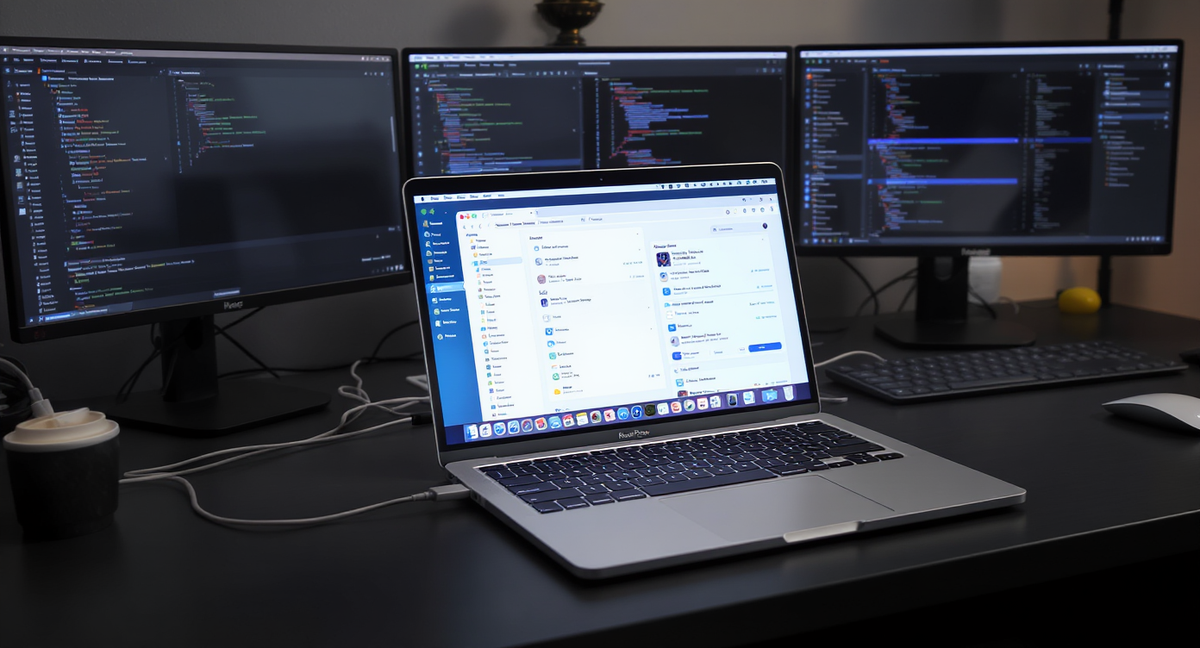
Many users want to transform their MacBook into a more powerful desktop workstation. For developers, creatives, remote professionals, and multi-device users, a single laptop screen is often insufficient for everyday work. More screen space facilitates multitasking, improves window management, and creates a more efficient desk setup.
That's why topics like MacBook with two monitors, MacBook docking solution and MacBook workstation setup It continues to generate significant interest. Users aren't just looking for more screen space. They're also looking for a setup that is clean, practical, and reliable in the long run.
Why many MacBook users need more screen space
A typical situation looks like this: A user already owns a MacBook and one or two external monitors, but the setup still doesn't feel complete. The laptop works well on its own, but the desktop remains limited when multiple apps, documents, or devices need to be visible simultaneously.
For some users, pure productivity is paramount. One screen is used for the main task, while the other keeps emails, chat, or reference material open. For others, the MacBook is part of a shared workspace that also includes a desktop PC, a work laptop, or other peripherals.
In both cases, it's not just about connecting more displays. It's about building a workstation that supports the user's actual way of working.
What a multi-monitor setup with MacBook really requires
Connecting multiple monitors to a MacBook sounds simple, but the end result depends on several factors. The MacBook model, the available ports, the monitor inputs, and the chosen connection method all affect how well the setup works.
In many cases, users start with a dock or adapter because it seems like the quickest way to expand connectivity. This can work well for a single-device setup. However, as soon as more peripherals and displays are added, the overall system becomes more important than any single accessory.
Therefore, it helps to think of your desk as a complete signal path, rather than a collection of individual components. A well-planned setup usually feels more stable, is easier to manage, and is better suited for long-term use. For readers planning a larger workspace with multiple displays and devices, the more detailed guide may be helpful. MacBook Multi-Monitor Setup Guide a helpful next step.
How to choose the right setup for your workflow
The best approach starts with the workflow.
If the MacBook is the only computer on the desk, a dock-based setup can be the most practical choice. It simplifies charging, USB connections, and monitor output, while also creating a tidier workspace.
When a workstation includes more than one computer, the setup usually requires more than just simple port expansion. A shared workspace benefits more from a system that manages displays and peripherals collectively, rather than forcing users to constantly unplug and replug devices.
Users should consider how many monitors they need, whether another computer shares the same desk, and which devices need to remain connected daily. Once these questions are answered, defining the right setup becomes much easier.
When a dock is sufficient – and when a KVM makes more sense
A dock works well if the goal is to transform a MacBook into a more convenient desktop environment. It helps reduce cable clutter and makes connecting displays and accessories easier through a simpler setup.
A KVM switch makes more sense if the workstation includes a second computer. In this situation, the user is no longer just extending a single device. The workstation then also needs a practical way to switch monitors, keyboard, mouse, and other peripherals between multiple systems.
That's precisely the key difference. A dock extends a laptop. A KVM helps organize a shared workspace. For users who want to compare these two approaches in more detail, Best KVM Switch for MacBook Dual Monitor Setup a useful further reading.
Recommended TESmart solutions for shared workstations
For Mac users setting up a dual-monitor workstation, the choice of the right KVM depends on the display requirements, the desktop structure, and whether the setup is designed for everyday productivity or a more advanced workstation environment.
For typical dual-monitor workflows, HDC202-P23 and CKS202-P23 Both are practical options. These models are well-suited for users who want to share two monitors, a keyboard, and a mouse more neatly and efficiently between a MacBook and another computer. They are suitable for typical desktop scenarios such as office work, remote work, programming, and general multitasking.
For users who want a more advanced dual-monitor setup with higher performance requirements, HDC202-X24 The stronger choice. It is better suited for users building a higher-end MacBook workstation with higher display requirements and a more upgrade-oriented work environment.
For users who only need an expansion for a single device, a dock can still be the right starting point. For a more complete solution... MacBook workstation setup, However, especially when it is shared between a MacBook and another system, a TESmart dual-monitor KVM usually offers a more flexible long-term solution.
Frequently Asked Questions (FAQ)
Q1: Can a MacBook be used with two external monitors?
Yes, many users set up a MacBook dual-monitor setup for work, content creation, and multitasking. The exact result depends on the MacBook model, display support, and connection method.
Q2: Is one dock sufficient for a MacBook desk with two monitors?
A docking station may suffice if the MacBook is the only computer on the desk. If the workspace includes another computer, a KVM switch is usually more practical.
Q3: What is the difference between a MacBook docking solution and a KVM setup?
A docking solution expands the connectivity for a single MacBook.A KVM setup is intended for a shared workspace where monitors and peripherals need to be switched between multiple computers.
Q4: When should you choose a dual-monitor KVM instead of adapters?
A dual-monitor KVM makes more sense if the desk includes two computers and the goal is to share monitors, keyboard, mouse, and peripherals in an organized setup.
Conclusion
Connecting multiple monitors to a MacBook isn't just about adding extra screens. It's about creating a workspace that feels more efficient, comfortable, and better suited for real work.
The right solution depends on how the desk is used. For a simple single-device setup, a dock might suffice. For users who need a more complete multi-monitor workstation, especially one shared with another computer, a TESmart KVM might be the smarter long-term choice.
A well-designed setup helps the MacBook do far more than just function as a laptop. It becomes the centerpiece of a more powerful workstation.

Split:
How to Connect PS5 or Nintendo Switch to Apple Studio Display (Without a Mac Bridge)
Best KVM switch for a MacBook dual monitor setup