

Table of contents
- Introduction
- Why Thunderbolt displays cannot accept HDMI signals
- Can the PS5 work with Apple Studio Display?
- The traditional Mac Bridge workaround
- Why Capture-Based Workflows Fail for Gaming
- Hybrid Thunderbolt KVM architecture
- Use of the TESmart THK401-X4
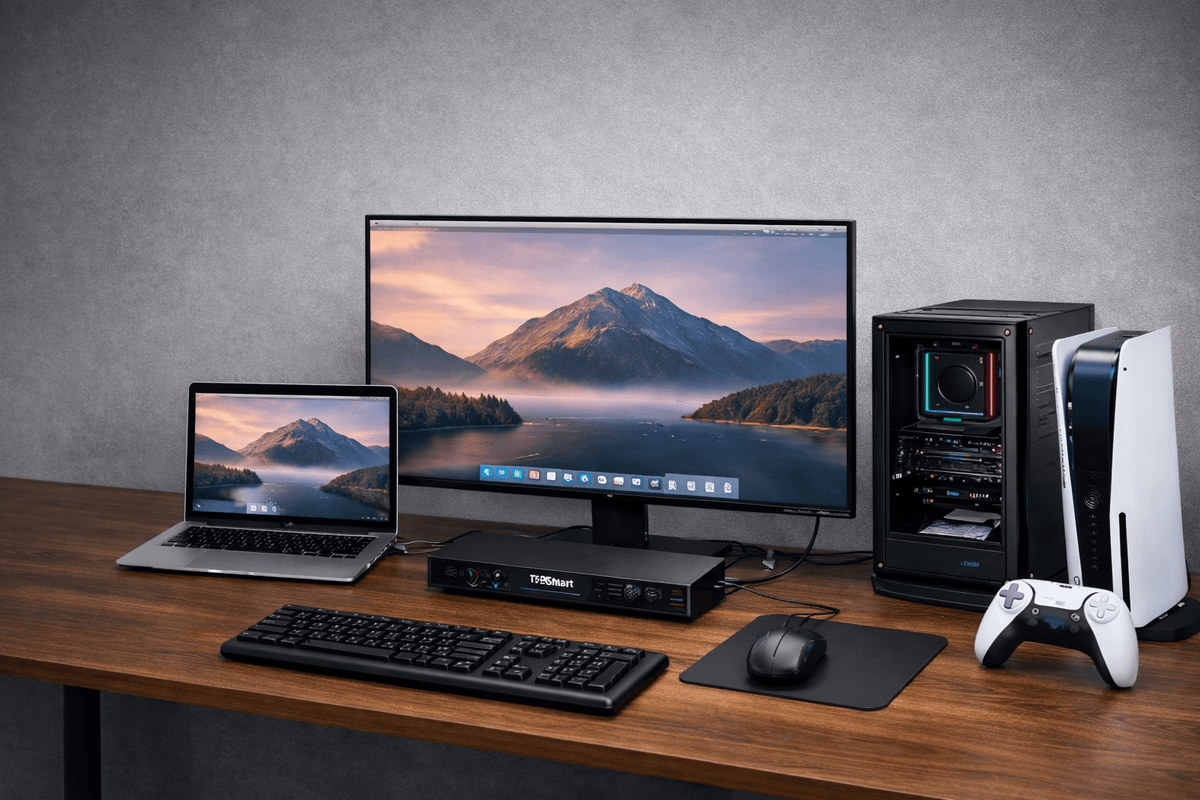
- Example of a multi-device desk setup
- Advantages of hardware-based switching
- When this type of setup makes sense
- Conclusion
- FAQ
Introduction
High-quality Thunderbolt displays such as Apple Studio Display and LG UltraFine 5K are frequently used in professional work environments thanks to their excellent image quality, color accuracy, and clean single-cable design.
However, many users eventually encounter a frustrating limitation:
Can game consoles like the PS5 or Nintendo Switch be connected to a Thunderbolt display?
Unlike traditional monitors, Thunderbolt displays do not accept a standard HDMI input signal. Therefore, connecting consoles, PCs, and Macs to a single Thunderbolt display has historically required complex workarounds.
For years, the most common solution was to use a Mac as a bridge along with a capture card. While technically possible, this resulted in latency, audio synchronization problems, and unstable resolution.
Hybrid switching solutions such as the TESmart THK401-X4 They offer an alternative at the hardware level, allowing consoles, PCs and Macs to share a Thunderbolt display without relying on capture devices or software-based processing.
This guide explains why Thunderbolt displays traditionally do not work with consoles, why workarounds are problematic, and how hybrid KVM architectures solve the problem.
Why Thunderbolt displays cannot accept HDMI signals
Displays like the Apple Studio Display and LG UltraFine 5K are available around the clock. Thunderbolt ecosystem built, not around classic monitor connections.
Unlike most monitors, they function as Thunderbolt endpoint devices.
The display provides the following via a single Thunderbolt cable:
- High-resolution video output
- USB hub connectivity
- Integrated camera, speaker and microphone
- Audio input and output
- Power supply for laptops
Because of this architecture, the display expects communication with a Thunderbolt host device and not just a raw HDMI video signal.
However, game consoles only output HDMI.
Examples include:
- PlayStation 5
- Xbox Series X
- Nintendo Switch
Since Apple Studio Display does not have HDMI inputs, these devices cannot be connected directly.
Can the PS5 work with Apple Studio Display?
Not directly.
The PlayStation 5 gives video about HDMI out, while Apple Studio Display a Thunderbolt host connection needed.
Without a device that can bridge or implement this connection architecture, the console cannot establish communication with the display.
This limitation is the reason why many users find that simple HDMI-to-USB-C adapters don't work when searching for solutions.
Adapters only convert the physical connection um, not that underlying protocol, and therefore cannot generate the Thunderbolt communication required by the display.
The traditional Mac Bridge workaround
Before dedicated hardware solutions existed, users often resorted to a workaround using a Mac as an intermediary.
Traditional setup
console
→ HDMI capture card
→ Mac (USB input)
→ Thunderbolt Display
In this workflow:
- The console's HDMI signal is captured by a USB capture device.
- The Mac receives the signal as a video stream.
- Software renders the video under macOS
- The Mac outputs the image to the Thunderbolt Display.
This method works technically, but it has several significant disadvantages.
Why Capture-Based Workflows Fail for Gaming
Additional latency
Capture devices convert HDMI signals into USB video streams.
The Mac then has to decode and render the video using software before it can be displayed. This process causes a noticeable delay and makes the setup unsuitable for gaming or real-time interaction.
Complexity in audio routing
Audio must be routed through macOS, which often requires the following:
- virtual audio devices
- manual output configuration
- Troubleshooting synchronization problems
Even with careful setup, audio delays or lip-sync problems can occur.
Instability in resolution and HDR
Capture workflows often cause problems such as:
- Resolution reverts to 1080p
- Disabling HDR after switching
- HDCP-protected content will not be displayed.
In short: These systems simulate a display via software, instead of providing a native hardware connection.
Hybrid Thunderbolt KVM architecture
A more reliable approach is to use a hybrid Thunderbolt KVM switches.
Instead of recording and re-rendering video using software, hybrid KVM systems introduce a new approach. direct hardware-based switching between different device types.
Typical signal flow:
Consoles/PC/Mac
→ KVM switch
→ Thunderbolt Display
In this design:
- HDMI devices are connected via HDMI inputs.
- Thunderbolt computers are connected via Thunderbolt.
- The display remains connected via a Thunderbolt output.
This allows the display to remain part of a Thunderbolt environment while still integrating HDMI-based devices.
Use of the TESmart THK401-X4
The THK401-X4 was designed for mixed environments where consoles, PCs and Macs share a single Thunderbolt display.
Its hybrid architecture combines HDMI switching with Thunderbolt Display connectivity.
Typical input configuration:
| Entrance | Device type | Description |
|---|---|---|
| Entrance 1 | Game console | HDMI input for PS5, Xbox or Switch |
| Entrance 2 | Game console | Additional HDMI device |
| Entrance 3 | PC | HDMI + USB for keyboard and mouse control |
| Entrance 4 | Mac | Native Thunderbolt signal |
This structure allows each type of device to use its designated connection method.
Consoles will remain simple HDMI devices, while Macs will retain their native Thunderbolt connectivity.
The Thunderbolt output connects directly to Apple Studio Display or other Thunderbolt monitors.
Example of a multi-device desk setup
A typical modern workstation can include multiple systems:
- PlayStation 5
- Nintendo Switch
- Windows PC
- MacBook Pro
With a hybrid KVM setup, all devices can share:
- a Thunderbolt display
- a keyboard and a mouse
- a central workplace
Switching between systems can be done via front buttons, hotkeys or remote control.
The display behaves as if it were directly connected to the currently active device.
Advantages of hardware-based switching
Virtually no additional latency
Since the signal is not converted into USB video streams or rendered by software, the switching occurs at the hardware level with minimal delay.
This makes the setup suitable for gaming and real-time interaction.
Native audio handling
Audio is passed directly from the source device to the display or to connected audio devices.
Neither operating system audio routing nor virtual devices are required.
Stable resolution and HDCP compatibility
Hardware-based switching maintains a consistent display profile for connected devices.
This helps to avoid problems such as:
- Relapse of the resolution
- Disabling HDR after switching
- HDCP playback error
When this type of setup makes sense
A hybrid Thunderbolt KVM setup is particularly useful when a workstation multiple device types includes.
Examples include:
Mixed productivity environments
MacBook + Windows PC + console tests
Creator workstations
Mac Studio + Capture Devices + Console
Home office setups
Laptop and game console share one display
In these situations, a hybrid switching architecture simplifies the workplace while preserving the capabilities of a high-quality Thunderbolt display.
Conclusion
Thunderbolt displays like Apple Studio Display offer excellent image quality and powerful integrated features, but their pure Thunderbolt design prevents direct connections from HDMI devices such as game consoles.
Traditional workarounds using capture cards and software can work, but introduce latency, audio complexity, and unstable display behavior.
Hybrid switching solutions offer a cleaner alternative.
By combining HDMI device inputs with Thunderbolt Display connectivity, devices like the TESmart THK401-X4 It is possible to share a Thunderbolt display between consoles, PCs and Macs without relying on software bridges.
For users who want both a professional Thunderbolt workstation and a flexible multi-device setup, this architecture offers a practical and stable solution.
FAQ
Q1: Does the THK401-X4 cause input latency on game consoles?
No. The device switches at the hardware level, instead of using capture or software rendering. This makes the additional latency minimal compared to capture-based workflows.
Q2: Do I need a Mac, drivers, or software to connect consoles?
No. The system works independently of the operating system and requires neither capture software nor drivers or background applications.
Q3: Can Apple Studio Display be directly connected to PS5?
No. The display only accepts Thunderbolt connections. Consoles require an intermediary device that can bridge HDMI sources to a Thunderbolt Display environment.
Q4: Can consoles share a keyboard and mouse via KVM?
The sharing of keyboard and mouse generally applies to connected computers.
Game consoles typically use their own controllers, so their connection via KVM is typically established. only as a video signal via HDMI.
Split:
Best Thunderbolt KVM Switch for Apple Studio Display
How to connect multiple monitors to a MacBook