

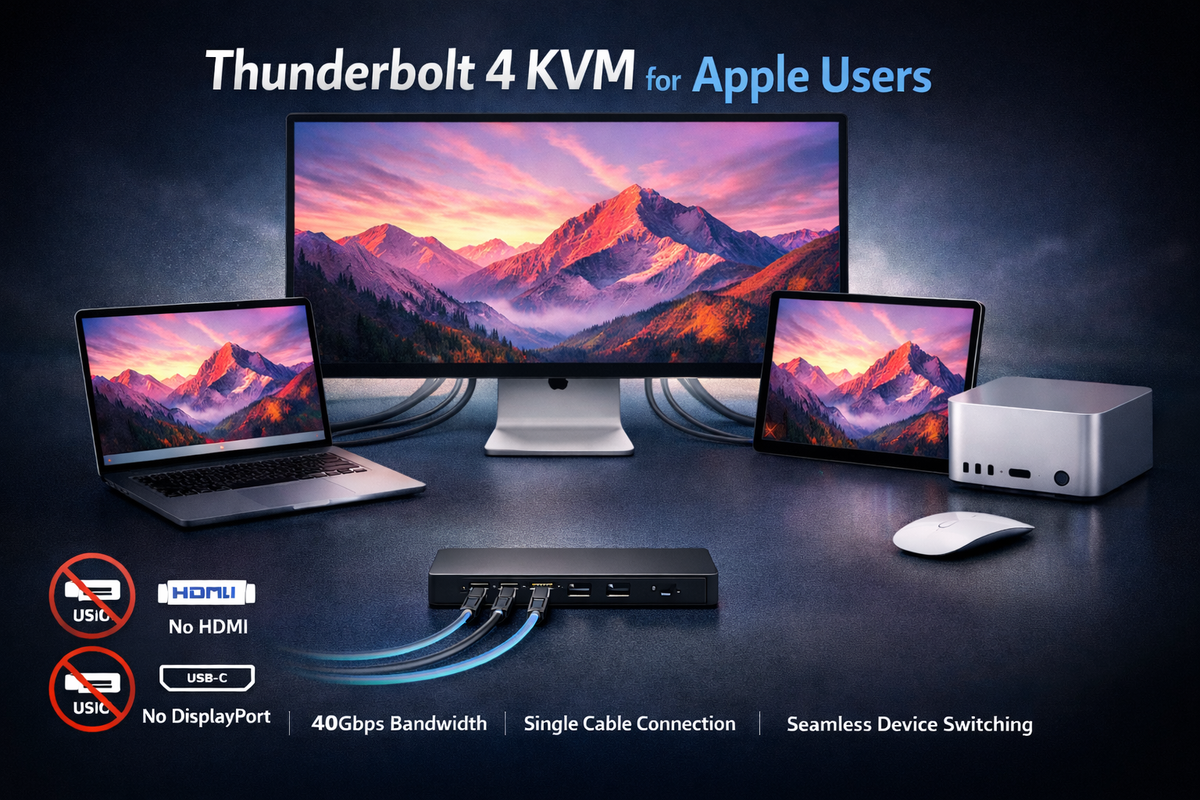
Thunderbolt KVM Switch for Apple Studio Display: A Practical Guide for Multi-Computer Workstations
Table of contents
- Introduction
- Common multi-computer workflows for Apple Studio Display
- What makes a Thunderbolt KVM special
- Using TKS202-X4 with Apple Thunderbolt Displays
- Advantages of using TKS202-X4 in a Thunderbolt workstation
- Comparison of Thunderbolt KVM options
- When a Thunderbolt KVM is the right choice
- Related guides
- FAQ
Introduction
Apple Studio Display and Pro Display XDR are designed around the Thunderbolt ecosystem, not for traditional HDMI or DisplayPort connections. Unlike most monitors, these displays function as complete Thunderbolt devices, integrating video, USB data, audio, and power over a single cable.
Because of this architecture, many conventional KVM switches are incompatible with Apple Thunderbolt displays. While HDMI or DisplayPort KVM switches support high resolutions, they cannot establish the Thunderbolt connection required by the display.
For users who want to share an Apple Thunderbolt Display between multiple computers, the solution is a Thunderbolt KVM switch, which maintains native Thunderbolt connectivity.
This article explains how Thunderbolt KVM switches work, what to look for when choosing one, and how solutions like the TESmart TKS202-X4 fit into modern multi-computer workstation setups.
Common multi-computer workflows for Apple Studio Display
Many Apple users want to connect multiple computers to a single Thunderbolt display. This often happens in professional work environments where switching between systems is part of the daily workflow.
MacBook and desktop Mac setup
A common configuration involves using a MacBook for mobile work while keeping a Mac mini or Mac Studio permanently connected to the desk. Both computers require access to the same display, keyboard, mouse, and USB peripherals.
Switching between these systems without unplugging cables helps to maintain a clean and efficient workplace.
Mac and Windows dual system setup
Some professionals regularly work across different systems. Developers, engineers, and IT specialists may use macOS for development and Windows for testing or specialized software.
Using the same Thunderbolt display and peripherals on both systems simplifies the workflow and reduces duplicate hardware.
Workstations for creatives and production
Creative professionals often work with multiple machines for editing, rendering, or testing. A shared workstation allows them to manage different systems while maintaining a single, high-quality display environment.
In such scenarios, a Thunderbolt KVM switch becomes the central device that connects everything.
What makes a Thunderbolt KVM special
The most important difference between a Thunderbolt KVM and conventional KVM switches lies in how the display connection is handled.
Most KVM switches output HDMI or DisplayPort signals.However, Apple Studio Display requires a Thunderbolt connection, which supports both video and device communication.
A Thunderbolt KVM maintains the Thunderbolt protocol between the computer and the display. This allows the display to behave exactly as if it were directly connected to the computer.
This means the display continues to provide the following:
High-resolution video output
USB hub connectivity
Display audio devices
Integrated peripherals such as camera and speakers
Power supply for connected computers
Without Thunderbolt support on the display side, these functions cannot work correctly.
Using TKS202-X4 with Apple Thunderbolt Displays
The TKS202-X4 Thunderbolt 4 KVM Switch TESmart was designed for workstation environments that rely on Thunderbolt connectivity.
Instead of converting the display output to HDMI or DisplayPort, the switch maintains the Thunderbolt connection between the computer and the display. This allows Apple Studio Display and other Thunderbolt monitors to continue working normally when switching between systems.
Typical Thunderbolt workstation KVM setups include:
Sharing a Thunderbolt display between two computers
Sharing USB peripherals between systems
Maintain a single keyboard and mouse for multiple devices
Switch computers using keys, hotkeys or remote control
Because the Thunderbolt protocol remains intact, the display continues to behave like a full Thunderbolt device throughout the entire switching process.
Advantages of using TKS202-X4 in a Thunderbolt workstation
While many Thunderbolt KVM switches focus on basic display switching, workstation environments often require more flexible configurations. The TKS202-X4 offers several practical features that can improve everyday workflows.
Independent dual-monitor switching
A useful feature in multi-system environments is the ability to operate displays independently of each other.
The TKS202-X4 supports Independent switching of two displays, which allows each monitor to display a different computer simultaneously.
For example:
Display 1 → PC1
Display 2 → PC2
This feature is especially useful for developers, engineers, and system administrators who need to monitor multiple systems simultaneously. Users can observe logs or processes on one system while actively working on another.
If needed, both displays can also be switched to the same computer, so that the workstation functions like a conventional dual-monitor setup.
Laptop charging via Thunderbolt
Another important advantage of Thunderbolt workstation devices is the power supply.
When a laptop is connected via Thunderbolt, the same cable can be used. Charging current provide and simultaneously transmit video and data signals.
This often eliminates the need for a separate charger, and simplifies the workplace.
The importance of this feature is growing as manufacturers increasingly opt for minimalist packaging and fewer included accessories. Apple, for example, is increasingly promoting USB-C and Thunderbolt charging workflows and has removed chargers from certain regional product packages.
In such situations, a Thunderbolt KVM workstation can serve as both a display connection and a power source for the laptop.
A workstation experience with just one cable
The combination of display switching, USB device sharing, and laptop charging creates a simplified workstation environment.
Instead of connecting multiple cables, users can connect a single Thunderbolt cable and immediately gain access to:
the shared display environment
Keyboard and mouse
connected USB devices
Laptop charging
This type of single-cable workstation helps to keep the desk cleaner and makes switching between computers easier.
Comparison of Thunderbolt KVM options
Thunderbolt KVM switches are still a relatively new hardware category, and several manufacturers have introduced products for Thunderbolt environments. One frequently discussed example is the Sabrent Thunderbolt KVM switch.
Instead of focusing solely on technical specifications, it is often more useful to compare what these devices are intended for.
Design focus
Some Thunderbolt KVM devices primarily focus on switching a display between computers.
Other designs are intended for workstation environments where multiple computers share displays, peripherals, and other workplace hardware.
The TKS202-X4 It was developed with precisely this workstation model in mind, allowing users to switch between systems while maintaining a consistent set of peripherals and displays.
Integration of peripheral devices
Many professional setups involve more than just switching displays. Users often share devices such as external storage drives, webcams, audio interfaces, and other USB devices.
Workstation-oriented KVM switches are designed to manage these peripherals along with display switching, so users don't have to reconnect devices every time they change computers.
Compatibility with Thunderbolt displays
Thunderbolt displays behave differently than conventional monitors because they function as complete Thunderbolt devices.
Any switching device used with such displays must have the Thunderbolt protocol on the display side so that the built-in USB hub, audio devices and other functions of the display remain available.
Selection based on workflow
Choosing the right Thunderbolt KVM often depends on the type of workflow being supported.
Several Thunderbolt solutions may be suitable for easily switching displays between two computers.
For setups where multiple computers share peripherals and operate as part of a unified workstation, a design that combines display switching with peripheral management can provide a smoother experience.
When a Thunderbolt KVM is the right choice
A Thunderbolt KVM switch is recommended if your setup includes the following:
Apple Studio Display or Pro Display XDR
Thunderbolt 3 or Thunderbolt 4 monitors
Multiple computers sharing a Thunderbolt display
USB peripherals connected via the display or workstation
If your monitors use HDMI or DisplayPort inputs instead, a conventional KVM switch may still suffice.
However, for Thunderbolt displays, it is crucial to maintain the Thunderbolt protocol.
Related guides
If you are building a multi-computer setup around Apple Thunderbolt Displays, these guides might also be helpful.
Apple Studio Display KVM Guide: Why Most KVM Switches Don't Work
How to Connect PS5 or Nintendo Switch to Apple Studio Display
Thunderbolt vs USB-C: Understanding the Difference
FAQ
Q1: Can Apple Studio Display be shared between two computers?
Yes. With a Thunderbolt-compatible KVM switch, Apple Studio Display can be shared between multiple computers while retaining the full functionality of the display.
Q2: Does a Thunderbolt KVM affect the display resolution?
No. Since the Thunderbolt connection remains active, the display continues to operate at its supported resolution and refresh rate.
Q3: Can a Thunderbolt KVM work with both Mac and Windows systems?
Yes. As long as the Windows computer supports Thunderbolt 3 or Thunderbolt 4, it can be integrated into the same switching setup.

Split:
Apple Studio Display KVM Guide: Why Most KVM Switches Don't Work - and Why Thunderbolt is the Right Solution
How to Connect PS5 or Nintendo Switch to Apple Studio Display (Without a Mac Bridge)