

Table of contents
- Introduction
- Why Apple display features are not just a matter of video signal
- Camera, speaker, microphone and USB: What data path do they require?
- Why ordinary HDMI or DisplayPort KVM switches are usually not sufficient
- What should you actually test?
- Who really needs this solution?
- Where does the TESmart THK401-X4 fit into this workflow?
- Compatibility notes for Apple Studio Display with Windows PC
- FAQ
- Conclusion
Introduction
Apple Studio Display is more than just a screen. It also includes a camera, speakers, microphones, and USB-C downstream ports. This changes the way users should think about KVM switching.
If a display only requires a video signal, an HDMI or DisplayPort KVM switch can often handle the task without any problems. However, with the Apple Studio Display, a different question arises: After switching modes, can the connected computer still recognize the display as a video device, audio device, camera, microphone, and USB hub?
Therefore, a practical test shouldn't end with the question "Does an image appear?". A true Apple Studio Display KVM workflow must verify that the data path remains sufficiently intact so that the host system can recognize the display's integrated devices.
Why Apple display features are not just a matter of video signal
With a conventional monitor, the main requirement is simple: the video signal must be transmitted from the computer to the screen. While audio can be carried via HDMI or DisplayPort, the monitor is still primarily treated as a display endpoint.
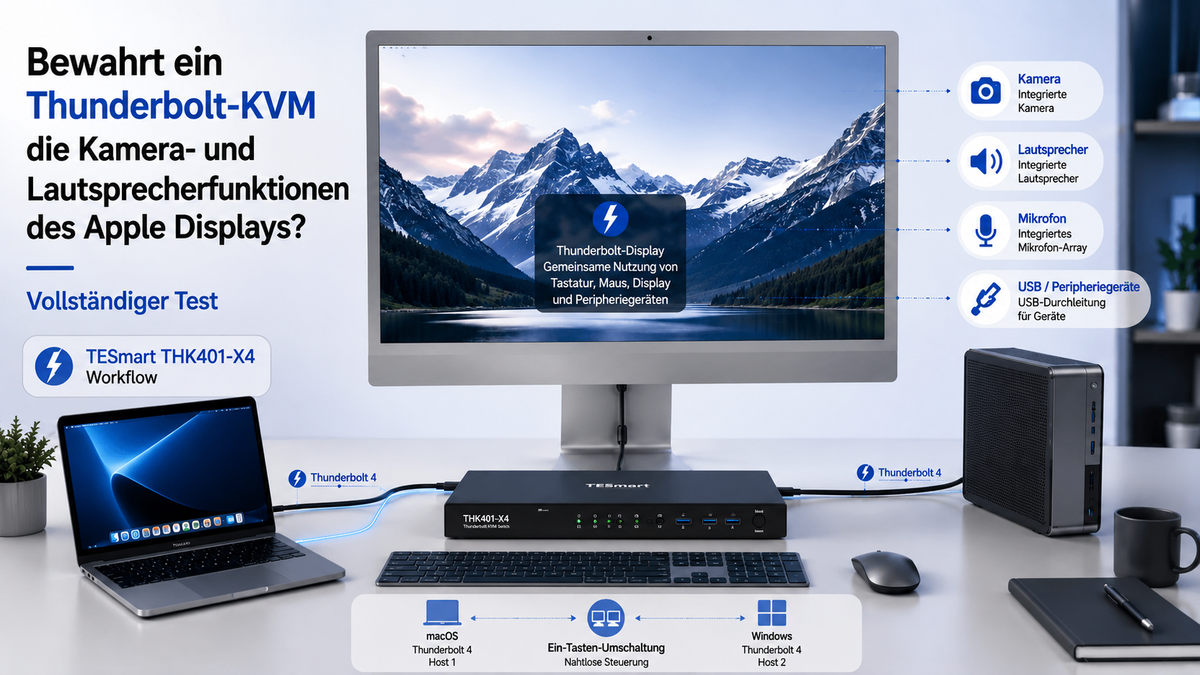
Apple Studio Display works differently. The integrated camera, speaker system, microphone array, and USB-C ports rely on device communication between the display and the host computer. In other words, these functions are not transmitted solely via HDMI video.
This is precisely the point many users overlook when comparing a Thunderbolt KVM, a Thunderbolt-compatible KVM switch, a USB-C hub, and a standard HDMI KVM. A visible image does not automatically mean that the Apple Display Camera, Apple Studio Display Speakers, Apple Studio Display Microphone, or USB accessories will also work.

Camera, speaker, microphone and USB: What data path do they require?
The integrated functions of the Apple Studio Display are based on more than just one signal type. Video, USB data, audio device detection, and peripheral communication all play a role.
| User requests | What must be preserved | Why the data path is important |
|---|---|---|
| Image display | video signal | HDMI/DP/USB-C/TB video path |
| camera | USB data channel | The camera is not solely transmitted via HDMI video. |
| Speakers | Recognition as audio device | The host must recognize the display as an audio device. |
| microphone | USB audio input | Requires correct USB/TB communication |
| USB accessories | Downstream USB data | Requires a common data path, not just display switching. |
Therefore, Thunderbolt display sharing is more complex than simply switching a monitor. The KVM path must be designed for the complete device relationship between the computer and the display, not just the screen image.
Why ordinary HDMI or DisplayPort KVM switches are usually not sufficient
A standard HDMI or DisplayPort KVM switch isn't a bad solution. It's simply designed for a different type of display workflow.
For a standard HDMI or DisplayPort monitor, a traditional KVM switch can switch video and share basic USB devices such as a keyboard, mouse, webcam, or USB drive that are directly connected to the KVM. This is suitable for many PC, console, and office setups.
However, Apple Studio Display has different requirements. The integrated camera, speakers, microphone, and USB-C ports are part of the display's own device architecture. A pure video path cannot fully represent these devices to the host computer.
This means that a standard HDMI KVM switch might be able to display an image if the signal is converted correctly. However, it shouldn't be expected to fully replicate the single-cable experience of an Apple display. The missing element is usually the data path the host needs to recognize the display's internal USB and audio devices.

What should you actually test?
A "full test" should be practical and not claim that every computer, cable, operating system, and firmware version will behave identically. The correct approach is to test each function in an actual desktop setup.
1. Image display
Verify that the Apple Studio Display is receiving a video signal from each connected host. Confirm the resolution, refresh rate, wake-up behavior, and whether the display reconnects correctly after switching.
2. Apple Display Camera
On each host, open a video app or the system device list and check if the Apple Display Camera is listed as an available camera. Repeat this test after establishing a new connection and again after switching between computers.
3. Apple Studio Display Speaker
Check the host system's audio output list. It's not just a matter of whether sound is playing, but whether the system recognizes the display as an audio output device after switching.
4. Apple Studio Display Microphone
Check the audio input list and make a short test recording. The microphone behavior depends on whether the host can correctly detect the display's USB audio input.
5. USB accessories connected via the display
If accessories are connected to the display's downstream USB-C ports, check if they are following the active host.This allows you to confirm whether the shared data path is working and not just the video path.
6. Restoration after switching
Switch between hosts several times. A useful practical test is to check whether the camera, speakers, microphone, and USB devices reconnect without having to repeatedly unplug and replug cables.
The expected behavior in a properly planned Thunderbolt-compatible workflow is that the host should be able to detect the display and its supported devices again after switching. However, the exact results depend on host support, operating system behavior, cable quality, and the display's compatibility with the specific host.
Who really needs this solution?
You are more likely to need a Thunderbolt-compatible KVM switch if the Apple Studio Display is the centerpiece of your desk and you want to share more than just the image.
Mac + Mac users
When switching between a MacBook Pro and a Mac Studio or Mac mini, the primary goal is usually to avoid unplugging the display cable, keyboard, mouse, audio device, and USB accessories. A Thunderbolt-compatible KVM switch is more practical than a simple video switch if the Apple Studio Display's built-in devices are important.
Mac and PC desktop setup
In a Mac and PC desktop setup, the value lies primarily in organization. While a KVM switch won't make Windows function like macOS, it can provide a cleaner switching path for display, USB, audio, and input devices if the connected host supports these features.
Developers, creatives and technical users
Users who switch between coding, testing, editing, rendering, or IT administration often require a high-quality display environment shared by multiple machines. For them, the real advantage lies in reducing cable changes and making the workstation more predictable.
Who might not need this solution
If you simply want to switch a standard HDMI monitor, keyboard, and mouse between two desktop PCs, a traditional HDMI or DisplayPort KVM switch might be more suitable. A Thunderbolt-compatible workflow is primarily relevant if the display itself also handles USB, camera, audio, and peripheral functions.
Where TESmart THK401-X4 This workflow fits
For users who set up a mixed Apple display and multi-device desktop, TESmart THK401-X4 developed around a practical problem: How can a current Thunderbolt display sharing workflow be organized together with additional HDMI source devices?
At TESmart, we focus on the actual switching problem: not just changing the screen, but organizing display, USB, audio and control paths across multiple devices.
THK401-X4 This is especially suitable if your setup includes the following:
- Apple Studio Display Sharing across multiple host devices
- A Thunderbolt-compatible laptop workflow
- Desktop setups with Mac + PC + HDMI sources
- Reduction of repeated Thunderbolt cable swapping
- Display, USB, audio, and input device switching in a scheduled path
The crucial point is, THK401-X4 This should not be considered a universal promise that every Apple display feature will work identically on every computer.A more precise assessment is: Can your host devices, cables, display, and operating systems support the data and device paths you want to share?
For users who want an Apple Studio Display KVM workflow instead of a simple video switch, THK401-X4 Worth considering because it is designed for desktops where Thunderbolt display sharing, USB device behavior, audio detection, and mixed-source switching need to be considered together.
Compatibility notes for Apple Studio Display with Windows PC
Using an Apple Studio Display with a Windows PC can be useful, but users should manage their expectations carefully. Windows may recognize the display as a monitor and, depending on the host, connection path, drivers, and system support, may detect some USB or audio functions.
However, Apple-specific features should not automatically be expected to function as they do on macOS. A KVM switch can help organize the connection path, but it cannot override every host-side limitation or operating system behavior.
For the best evaluation, you should first test the Windows PC directly with the Apple Studio Display. Then test the same functions via the KVM path. This will allow you to better distinguish between host compatibility and switching path behavior.
Thunderbolt compatibility note
THK401-X4 It is designed for workflows compatible with Thunderbolt™ 4 devices and has been tested in common Thunderbolt laptop and display sharing scenarios. It is not currently Intel® Thunderbolt™ certified; certification is pending. Compatibility should be verified using the actual host device, operating system, display, and cabling environment.
FAQ
1. Does the Apple Studio Display camera work via a KVM switch?
This depends on whether the KVM workflow receives the necessary USB data path and whether the active host recognizes the camera. A simple HDMI video path is insufficient for the Apple Display Camera.
2. Are the speakers of the Apple Studio Display switched with the computer?
They can be switched when the active host detects the display as an audio output device via the correct data path. Users should check the system's audio output list after each switch.
3. Does the microphone on the Apple Studio Display work under Windows?
In some setups, it may work if Windows recognizes the display's USB audio input. However, this should be tested on the specific PC. Apple ecosystem features should not automatically be expected to be identical to macOS.
4. Why can't I use a regular HDMI KVM for all the functions of the Apple Studio Display?
A standard HDMI KVM switch primarily handles video and selected USB peripherals directly connected to the KVM. The Apple Studio Display's integrated camera, microphone, speakers, and USB-C ports require device communication that HDMI video alone cannot provide.
5. Is a USB-C hub the same as a KVM switch?
No. A hub expands the ports of a single host. A KVM switch is designed to switch control, display, USB, and sometimes audio paths between multiple hosts. If you want to share a display and peripherals across multiple computers, a hub alone typically won't solve the switching problem.
6. Do I need a Thunderbolt-compatible KVM switch for every Mac setup?
No.If your monitor is a standard HDMI or DisplayPort display and you only want to share a keyboard and mouse, a traditional KVM switch may suffice. A Thunderbolt-compatible KVM switch becomes more relevant if the display itself relies on Thunderbolt or USB-C device communication.
7. Can THK401-X4 Can every Apple display function be guaranteed on every device?
No KVM switch should be evaluated in this way. The THK401-X4 is designed for Thunderbolt-compatible display sharing and mixed-device workflows, but camera, speaker, microphone, and USB behavior still depend on the host device, operating system support, cables, and display compatibility.
Conclusion
The most important finding from a practical Apple Studio Display KVM test is simple: Don't judge the setup solely on whether the screen turns on.
The camera, speakers, microphone, and USB ports of the Apple Studio Display depend on data communication between the display and the host. Therefore, ordinary HDMI or DisplayPort KVM switches are often suitable for standard monitors but insufficient for users who want the more comprehensive Apple display experience.
A Thunderbolt-compatible KVM workflow is particularly useful when the goal is to reduce cable changes and organize display, USB, audio, and control device switching across multiple hosts.
For users who want to set up an Apple Studio Display KVM workflow with Mac, PC and HDMI source devices, it offers TESmart THK401-X4 A focused approach to evaluation. Examine your host support, cabling requirements, and device behavior, and then consider the THK401-X4 as a practical option for a cleaner Thunderbolt display sharing desktop setup.
Split:
Why traditional KVMs fail with Apple Studio Display and Pro Display XDR: The complete solution for 2026
The best multi-screen solution for the 2026 World Cup | HDMI Matrix, KVM & 4K Setup Guide