

Table of contents
- Introduction
- DisplayPort vs. HDMI: The fundamental difference
- Why version numbers are more important than the connector type
- DisplayPort vs. HDMI for gaming
- DisplayPort vs. HDMI for work and multi-monitor desks
- DisplayPort vs. HDMI comparison chart
- What should you choose for your setup?
- DP-KVM or HDMI-KVM: What changes in a KVM setup?
- What you should check before buying cables, monitors, or a KVM switch
- How TESmart DP-KVM and HDMI-KVM solutions fit in
- FAQ
- Conclusion
Introduction
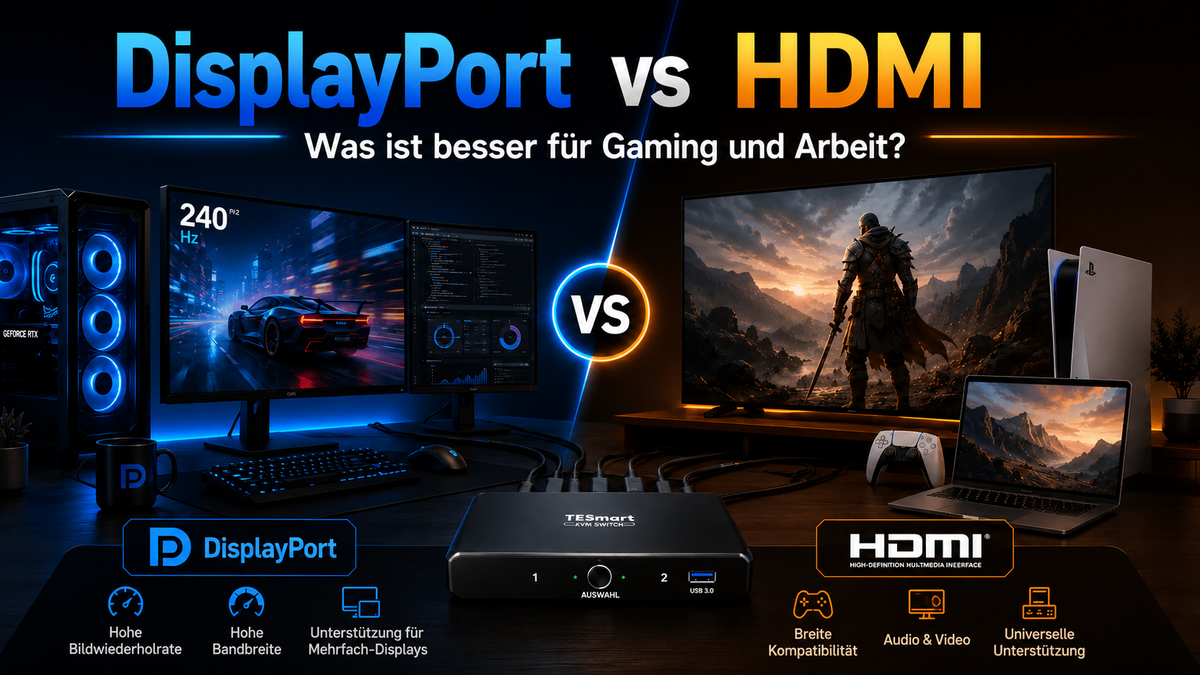
The choice between DisplayPort and HDMI rarely depends on which connection is "better" in every situation. The real question is whether your entire video chain is compatible with your devices, monitors, desired refresh rate, and switching requirements.
A gaming PC with a high-refresh-rate DisplayPort monitor, a PS5 connected to a TV, a dual-monitor office workstation, and a mixed gaming and work setup all place different demands on the display connection. The port name alone is not enough.
This guide explains DisplayPort vs. HDMI From a practical desktop perspective: gaming, work, creative tasks, multi-monitor setups, and KVM switching. He also explains why even a high-end monitor or a powerful graphics card still needs the right cable, the right KVM, a correct USB device path, and the right display settings to deliver the expected experience.
DisplayPort vs. HDMI: The fundamental difference
DisplayPort DisplayPort is most commonly found in PC monitors, dedicated graphics cards, professional workstations, and multi-monitor desktop setups. Designed as a PC display interface, VESA describes it as a scalable display standard with features like multi-stream transport for multiple displays over a single source connection.
This PC-oriented background is the reason why many high-refresh-rate gaming monitors and workstation displays offer DisplayPort inputs. If your main system is a Windows gaming PC or a GPU-based workstation, DisplayPort is often the first port you should check.
HDMI HDMI is commonly found in televisions, game consoles, media players, projectors, AV receivers, and consumer electronics. It is also frequently used in laptops and monitors, but its greatest advantage lies in its broad device compatibility.
For console gaming and home entertainment, HDMI is generally the practical choice because the PS5, Xbox Series X, TVs, soundbars, and AV systems are all designed for HDMI. HDMI 2.1 also introduced features important for modern gaming and media, including higher resolutions and faster refresh rates such as 4K120 and 8K60, depending on the devices and cables used.

Why version numbers are more important than the connector type
"DisplayPort" and "HDMI" are not fixed performance levels. A DisplayPort 1.2 connection, a DisplayPort 1.4 connection, an HDMI 2.0 connection, and an HDMI 2.1 connection can behave very differently.
This is exactly where many purchasing mistakes happen.A monitor may have both HDMI and DisplayPort, but not every port on that monitor necessarily supports the same maximum resolution, refresh rate, color depth, HDR mode, VRR behavior, or bandwidth.
DisplayPort 1.2 vs DisplayPort 1.4
DisplayPort 1.2 remains common in office setups and older gaming setups. Depending on the monitor and system, it can be sufficient for many 1080p, 1440p, and 4K60 workflows.
DisplayPort 1.4 is more relevant for higher-end gaming and workstation displays because it supports higher link rates than DP 1.2 and can utilize Display Stream Compression in supported device chains. VESA's DisplayPort 1.4 announcement specifically highlights DSC and HDR-related improvements.
In real-world setups, this doesn't mean that every DP 1.4 device can automatically deliver every combination of high resolution, high refresh rate, and HDR. The GPU, monitor, cable, KVM, and system settings must all support the target mode.

HDMI 2.0 vs. HDMI 2.1
HDMI 2.0 is widely used and remains suitable for many 4K60 displays, office monitors and AV devices.
HDMI 2.1 becomes more important when the setup includes 4K120 console gaming, modern gaming TVs, VRR, ALLM, or higher bandwidth media workflows. The HDMI Forum lists HDMI 2.1 features such as 4K120, 8K60, Dynamic HDR, VRR, and ALLM, but actual support still depends on the source device, display, cable, and firmware.
Therefore, "HDMI 2.1" should be carefully checked on a data sheet. Some devices only support certain HDMI 2.1 features, and some TVs only offer full gaming functionality on specific HDMI ports.

DisplayPort vs. HDMI for gaming
At DisplayPort vs. HDMI for gaming The correct answer depends on whether you are playing on a PC monitor, a gaming TV, or a console.
Gaming PC with high refresh monitor
For a desktop gaming PC connected to a high-refresh-rate monitor, DisplayPort is often the cleaner solution. Many graphics cards and gaming monitors deliver their highest PC-oriented refresh rates via DisplayPort, especially in 144Hz, 165Hz, ultrawide, or multi-monitor setups.
DisplayPort is also common in GPU-intensive desktop setups where users run two or three monitors via a single graphics card. In this environment, the display path is usually based on GPU outputs, monitor inputs, and stable refresh rates rather than TV or AV compatibility.
However, DisplayPort isn't automatically better. If your monitor supports the desired refresh rate and resolution via HDMI 2.1, HDMI can also be a strong option for PC gaming.
PS5, Xbox and console gaming
For PS5, Xbox Series X, and most living room gaming setups, HDMI is the standard connection. Sony states that the PS5 supports HDMI 2.1 and 4K 120Hz video output, while Microsoft provides guidance for 4K gaming at 120Hz on the Xbox Series X.
The Xbox documentation also links HDMI 2.1 with gaming features such as 4K120, VRR and ALLM on compatible displays.
However, this doesn't mean that every HDMI connection will deliver 4K120 or VRR. The console, TV or monitor, HDMI port, cable, firmware, and game settings all need to be compatible.
VRR, HDR and DSC in real gaming setups
VRR, HDR, and DSC are not solely determined by the cable name. They depend on support from the source, monitor, interface version, bandwidth, and sometimes firmware behavior.
A high refresh rate mode, for example, might require DSC in a DisplayPort chain. A console might need an HDMI 2.1 input on the TV for 4K120. HDR might work at one refresh rate but require reduced color settings at another. These limitations illustrate why the entire signal path is important.

DisplayPort vs. HDMI for work and multi-monitor desks
At DisplayPort vs. HDMI for work The decision usually begins with the structure of the computer and monitor.
Office and productivity work
For typical office work, both HDMI and DisplayPort can function perfectly well. A single 1080p or 4K60 monitor usually doesn't require the most advanced interface.
More importantly, your laptop or desktop must have the correct native output. Many office laptops offer HDMI or USB-C video output, while many desktop GPUs provide multiple DisplayPort outputs.
If you're using a MacBook, you should carefully consider the output path. Many Mac models use USB-C or Thunderbolt-compatible ports instead of native DisplayPort outputs, so a DisplayPort KVM setup might require a USB-C to DisplayPort cable, docking station, or adapter. This additional conversion layer should be factored in before purchasing any KVM switch or cables.
Creative work and color-critical displays
For design, video editing, CAD and production work, the interface decision should be based on the monitor's supported modes: resolution, refresh rate, color depth, HDR behavior and the specific input used.
A creative display may support its best mode via DisplayPort, HDMI, USB-C, or a specific combination. Don't assume that every input on the same monitor is equivalent.
Dual monitor and triple monitor workstations
DisplayPort is often preferred in PC multi-monitor workstations because graphics cards typically offer multiple DP outputs and DisplayPort supports PC-oriented multi-display workflows such as MST.
However, MST support is not universal across all operating systems and devices. A Windows PC may handle certain MST workflows differently than a Mac. For a KVM setup, it's usually safer to plan for a reliable video path for each monitor, rather than assuming that a single cable will solve every multi-screen problem.
HDMI may also be the better option if the desk includes TVs, consoles, capture devices, AV receivers, or laptops that already offer HDMI outputs.

DisplayPort vs. HDMI comparison chart
| category | DisplayPort | HDMI |
|---|---|---|
| DisplayPort | Best known for PC monitors, graphics cards, high-refresh desktop displays and multi-monitor workstations. | Less common on televisions and consoles; not usually the main interface for home entertainment devices. |
| HDMI | Available on some monitors and GPUs, but not the standard connection for many PC-oriented multi-monitor desks. | Best known for televisions, consoles, AV receivers, media players, projectors and broad compatibility with consumer electronics. |
| Best for gaming | Often stronger for high-refresh PC gaming monitors, especially when the monitor's best mode is available via DP. | Often more powerful for PS5, Xbox, gaming TVs and living room setups where HDMI 2.0 is used.1-functions can be important. |
| Best for office work | Good for desktop PCs, docking workflows and multi-monitor productivity setups. | Good for laptops, meeting rooms, standard monitors and desks where broad compatibility is more important than maximum PC display bandwidth. |
| Best for multi-monitor setups | Often preferred for PC workstations because GPUs frequently offer multiple DP outputs and DP supports PC multi-display workflows. | Useful when displays or computers are HDMI-based, especially in mixed office, console, and AV environments. |
| Best for KVM switching | Ideally, computers and monitors should be DP-based, especially for high-refresh PC desks and multi-monitor workstations. | Ideally, your setup should include HDMI laptops, consoles, televisions, capture devices, or mixed gaming and entertainment equipment. |
What should you choose for your setup?
| scenario | Better starting point | Why | KVM direction |
|---|---|---|---|
| Gaming PC with high refresh monitor | DisplayPort | Many PC gaming monitors and GPUs provide high-refresh modes via DP, especially in 144Hz, 165Hz, ultrawide, or multi-monitor setups. | Choose a DP-KVM or High-Refresh-Rate KVM that matches the monitor resolution and target refresh rate. |
| PS5/Xbox/Console Gaming | HDMI | Consoles and televisions are designed for HDMI, and HDMI 2.1 is the usual way to achieve 4K120 and related gaming features on compatible displays. | Only select an HDMI KVM switch after you have confirmed that the console, display, and KVM support the target mode. |
| Mac or Windows office workstation | Depends on the output ports. | Windows desktops often offer DP over GPUs; laptops and MacBooks may use HDMI, USB-C, or adapters. | Match the KVM input type to the computer outputs instead of forcing unnecessary adapters. |
| Dual-monitor or triple-monitor desk | DisplayPort for PC-oriented desktops; HDMI for HDMI-based devices | Multi-monitor switching depends on how many independent video outputs each computer can provide. | Use a multi-monitor KVM switch that matches the number of computers and monitors. |
| Mixed gaming and work setup | Depends on the main display and primary gaming device. | A PC gaming monitor may prefer DP, while a console or TV-based setup usually prefers HDMI. | Choose a DP-KVM or HDMI-KVM based on the most demanding device in the chain. |
| Home entertainment setup | HDMI | Televisions, AV receivers, soundbars, streaming devices and consoles are usually HDMI-based. | An HDMI KVM or HDMI switching setup is usually more practical than DP. |
DP-KVM or HDMI-KVM: What changes in a KVM setup?
A KVM switch is not just a video switch. In a true KVM switch, it's a video switch. Gaming and work setup It also manages the keyboard, mouse, USB peripherals, and the switching behavior between multiple computers.
This is important because a high-refresh display chain is only one part of the desk.You may also want your mechanical keyboard, mouse, webcam, USB headset, audio device, storage device or controller to follow the active computer.
When a DP-KVM makes more sense
A DP-KVM This is generally a better fit if your main systems are desktop PCs or workstations with DisplayPort outputs, especially if the monitors are high-refresh PC displays.
This type of setup is common among developers, engineers, traders, creatives, and gamers who want to switch a desk between gaming PC and work PC without having to reconnect monitors and USB devices.
A DisplayPort KVM switch This becomes particularly relevant if you need dual-monitor setups, triple-monitor setups, high refresh rates, or EDID stability across multiple computers.
When an HDMI KVM makes more sense
A HDMI KVM This is usually more practical if your setup includes HDMI laptops, consoles, televisions, capture cards, projectors or AV equipment.
A HDMI KVM switch It may also be a better fit for users who work on a laptop during the day and use a console or media device on the same display after work.
The key is to check the actual HDMI version and feature support across the entire path. For example, a console gaming setup targeting 4K120 should not be evaluated the same way as a 4K60 office desk.
Why multi-monitor KVM switching requires additional planning
A Multi-monitor KVM switch A KVM typically requires one video connection per monitor from each computer. A dual-monitor KVM often requires two video outputs from each PC. A triple-monitor KVM frequently requires three.
Users often encounter unexpected problems here. A laptop might only support one external monitor. A docking station might behave differently under Windows and macOS. A USB-C port might support charging but not video output. A DisplayPort adapter might limit the refresh rate.
Before selecting a KVM, map out the desktop as a complete system: computers, outputs, displays, resolution, refresh rate, USB devices, cable lengths, and switching method.
What you should check before buying cables, monitors, or a KVM switch
Don't choose DisplayPort or HDMI based solely on the port name. Use this checklist before buying a monitor, cable, adapter, or KVM switch:
1. Check the exact interface version.
Confirm whether the devices support DP 1.2, DP 1.4, HDMI 2.0, HDMI 2.1, or another version. The connection type does not guarantee the performance level.
2. Check the monitor's connection-specific limits.
Some monitors support different maximum modes via HDMI and DisplayPort. The same monitor can support a different refresh rate via DP than via HDMI.
3. Check cable quality and cable length
High refresh rates, HDR, 4K, 8K, and long cable runs are more sensitive to cable quality. If the signal drops to a lower refresh rate, flickers, or displays no video, a shorter, certified cable is often one of the first things to test.
4. Check DSC, VRR, HDR and color settings.
DSC, VRR, HDR, 10-bit color, and high refresh rates can place higher bandwidth demands or cause compatibility limitations. Confirm support across source, display, KVM, and cable.
5.Check USB and peripheral requirements
If your desk includes a keyboard, mouse, webcam, headset, DAC, USB storage, or controllers, video switching alone isn't enough. A KVM switch should match both the display path and the USB device path.
6. Check the output behavior of the Mac and laptop.
MacBook and USB-C laptop setups require special attention. A USB-C port can support video, charging, data, or a combination of these functions. A Mac connected to a DP KVM switch may require a USB-C to DisplayPort adapter, and this adapter becomes part of the signal chain.
How TESmart DP-KVM and HDMI-KVM solutions fit in
At TESmart we develop DP-KVM- and HDMI KVM-Solutions for users who need to manage multiple computers, displays, and USB devices from one desk.
The value of a KVM switch becomes most apparent when your setup is no longer just "one computer connected to one monitor." Once you have a gaming PC, a work laptop, a development workstation, two or three monitors, and shared USB devices, constantly switching cables becomes a bottleneck.
TESmart DP-KVM solutions
TESmart DisplayPort KVM solutions are better suited for PC-oriented desktops where DisplayPort is already the primary display path. These setups often include high-refresh-rate monitors, multiple graphics card outputs, dual- or triple-monitor workstations, and users who require stable switching between computers.
For example, a developer might use a work PC during the day and a gaming PC after work on the same dual-monitor desk. A DP-based KVM path helps to keep the monitor setup consistent with the GPU and display inputs.
TESmart HDMI KVM solutions
TESmart HDMI KVM solutions are better suited for HDMI-based desktops, especially when laptops, consoles, televisions, AV equipment, or general office monitors are involved.
This type of setup is typical for users who want to switch between work laptop, personal desktop, game console or media device without swapping cables or setting up peripherals twice.
Considerations regarding high-refresh-rate KVMs
A High-refresh-rate KVM The selection should be based on the actual target mode: resolution, refresh rate, color depth, HDR behavior, cable length and number of monitors.
Purchasing a high-refresh-rate monitor or a premium graphics card is only the first step. The KVM switch, cables, adapters, display input, and source output must all support the same goal. Otherwise, the setup may drop to a lower refresh rate or exhibit unstable video behavior.
FAQ
Is DisplayPort better than HDMI for gaming?
DisplayPort is often better for high-refresh-rate PC gaming monitors, especially if the monitor's best mode is available via DP. HDMI is usually better for console gaming, gaming TVs, and AV-based setups. The better choice depends on the source device, display, interface version, and target refresh rate.
Is HDMI 2.1 always better than DisplayPort 1.4?
No. HDMI 2.1 can support important gaming features like 4K120, VRR, and ALLM on compatible devices, but that doesn't automatically make it better for every PC monitor or workstation. DisplayPort 1.4 remains highly relevant for PC gaming monitors and multi-monitor setups, especially when DSC is supported across the entire chain.
Should I use DisplayPort or HDMI for office work?
Both can work for normal office work.The better choice is usually the one that your computer and monitor natively support. For desktop workstations with multiple monitors, DisplayPort is often practical. For laptops, meeting rooms, TVs, or broad device compatibility, HDMI can be simpler.
Do I need a DP KVM or an HDMI KVM?
Choose a DP-KVM if your computers and monitors are primarily DisplayPort-based, especially for high-refresh-rate PCs or multi-monitor workstations. Choose an HDMI-KVM if your setup includes HDMI laptops, consoles, TVs, media devices, or AV equipment.
Can a KVM switch support high refresh rates?
Yes, but only if the entire chain supports the target mode. Computer output, KVM, cables, monitor input, resolution, refresh rate, color settings, HDR mode, and sometimes DSC or VRR support must all be compatible.
Why does my monitor drop from 144Hz to 60Hz via a KVM switch?
This usually means that part of the signal chain cannot support the selected mode. Common causes include an incorrect connector type, a cable bandwidth limitation, an adapter, a docking station, a KVM switch that does not support the required mode, or display settings that are reset after switching.
Is HDMI better for PS5 and Xbox?
Yes, HDMI is the standard connection for PS5 and Xbox. For 4K120 gaming, you need a console, a display, an HDMI port, a cable, and settings that all support the required mode.
Conclusion
The best answer to DisplayPort vs. HDMI There is no universal winner. DisplayPort is typically the stronger starting point for PC gaming monitors, graphics card-based workstations, and multi-monitor setups. HDMI is usually a better fit for consoles, TVs, AV equipment, and offers broader compatibility with consumer electronics.
For a simple single-computer desk, the right cable might suffice. For a mixed gaming and work setup with multiple computers, multiple monitors, and shared USB devices, the better question is how the entire desk is managed.
Discover TESmart DP-KVM- and HDMI KVM-Solutions to create a cleaner switching path for your computers, monitors and USB devices — whether your setup is based on a high-refresh gaming PC, a multi-monitor workstation or a mixed gaming and work desk.

Share:
USB-C vs. Thunderbolt 4: What's the difference?
Display Stream Compression explains: Why DSC is crucial for 8K displays