

Table of contents
- Introduction
- The real question is: Can a desktop computer handle both Mac and Windows?
- Why Thunderbolt displays differ from HDMI or DisplayPort monitors
- Mac and Windows compatibility test: What you actually need to check
- Common sources of error in mixed Mac and Windows KVM setups
- Where the TESmart THK401-X4 fits into a multi-device workflow
- Who would benefit from a Thunderbolt™-compatible KVM for Mac and Windows?
- FAQ
- Conclusion
Introduction
Running a Mac and a Windows PC at the same desk sounds simple at first – until the monitor isn't a standard HDMI screen. If your display relies on USB-C or Thunderbolt™-based connections, it often transmits more than just video signals. Frequently, it also handles USB data, audio devices, webcam access, power delivery, and communication with the display itself.
Therefore, many users who are looking for a Thunderbolt KVM for Studio Display or a Apple Studio Display KVM Searching, one quickly realizes that a standard HDMI switch isn't enough. The challenge isn't just switching the screen. It's about keeping the entire work environment usable between macOS and Windows.
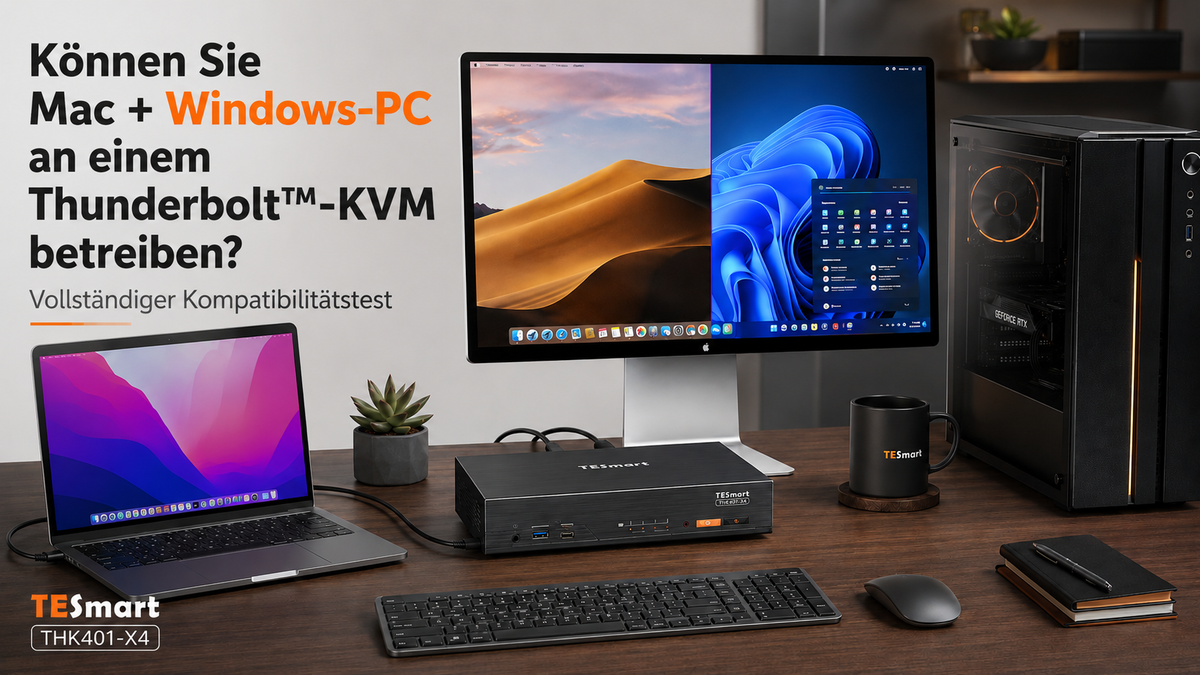
This article explains whether you can operate a Mac and a Windows PC on a Thunderbolt™-compatible KVM, which compatibility factors are important, and how the TESmart THK401-X4 which can help to create a tidier multi-device workspace.
The real question is: Can a desktop computer handle both Mac and Windows?
Yes, a Mac and a Windows PC can share a workstation via a KVM switch. However, the answer depends on what "share" means in your specific setup.
If you simply want to switch between a standard HDMI or DisplayPort monitor, keyboard, and mouse, a classic KVM switch is often sufficient. However, if you're dealing with an Apple Studio Display, a USB-C monitor, or any other display that behaves like a full USB-C/Thunderbolt™ device, the setup becomes significantly more complex.
A MacBook might use USB-C or Thunderbolt™ ports. A Windows desktop PC might use HDMI or DisplayPort via the graphics card. A gaming PC prioritizes high refresh rates. A work laptop might need USB-C for data transfer and power delivery. These devices don't always provide the same signal path, even if the ports look identical.
The practical test is therefore: Can each computer send the correct video signal, the appropriate USB data path, and the necessary control signals to the KVM so that the monitor and peripheral devices function correctly?

Why Thunderbolt displays differ from HDMI or DisplayPort monitors
A standard HDMI or DisplayPort monitor is primarily a video endpoint. The computer sends a video signal, and the monitor displays it. Some models also include a USB hub, but the video and USB paths are usually clearly separate.
A Thunderbolt™ display works differently. Displays like the Apple Studio Display are based on a single-cable concept, where video, USB data, camera, speakers, microphone, and other device functions can all run over the same highly integrated connection.
Therefore, a simple HDMI switch cannot automatically be considered an Apple Studio Display KVM. Even if it passes through a video signal, it may not maintain the display's behavior, which is crucial for use in a Mac work environment.
Anyone who Share Apple Studio Display between Mac and PC Therefore, anyone wanting to choose a KVM switch shouldn't base their decision solely on resolution or frame rate. The key question is whether the switch is designed for Thunderbolt™-compatible display workflows and whether both Mac and Windows PCs correctly support this workflow.
Mac and Windows compatibility test: What you actually need to check
A reliable Mac/Windows KVM setup begins with a thorough compatibility test. This involves not only checking whether a cable physically fits, but also the entire connection chain from the computer to the display.
1. Check the output options of each computer
On the Mac side, you should check whether your MacBook, Mac mini, or Mac Studio supports the desired number of external displays. Some models differ in terms of the number of external monitors supported and the available connection types, such as USB-C, Thunderbolt™, HDMI, or adapter solutions.
On the Windows side, you should determine whether the video output is via the graphics card, a USB-C port on the motherboard, or a dedicated expansion card. A USB-C port on a Windows PC does not automatically mean that it supports display output or Thunderbolt™ compatible functions.
2. Determine the monitor type
If the monitor is an HDMI or DisplayPort model, a standard video signal path is usually sufficient. However, with an Apple Studio Display or another USB-C/Thunderbolt™ display, the KVM switch must be considered as part of a comprehensive display and device workflow.
This distinction is important because the display can provide more than just an image. It often also includes a webcam, speakers, microphone, USB hub, and other functions that should switch between the currently active computer.
3. Confirm USB and peripheral switching
A KVM switch isn't just for video switching. In a real Mac/Windows workstation, users usually expect the keyboard, mouse, webcam, headset, USB storage, and sometimes even network or audio devices to switch along with the active system.
Therefore, before buying, check which USB ports are provided for keyboard and mouse, which ports support high-speed devices, and whether certain devices require special drivers under macOS or Windows.
4. Test the switching behavior
The most noticeable problems often only appear after switching devices. Does the display reactivate correctly? Does macOS still recognize the monitor? Is the desired resolution maintained in Windows? Do windows shift? Are the keyboard and mouse quickly reconnected?
These questions are particularly important in mixed operating system environments, as macOS and Windows handle display detection, power saving states, and USB resumption differently.
Common sources of error in mixed Mac and Windows KVM setups
The most common mistake is assuming that Thunderbolt™, USB-C, HDMI, and DisplayPort are interchangeable simply because adapters exist. While adapters do solve mechanical connection problems, they can introduce additional negotiation processes that compromise stability.
A MacBook via a docking station, a Windows PC via HDMI, and a USB-C display via a KVM can each function individually.However, this does not automatically mean that the entire chain works reliably together.
USB-C does not automatically mean video
USB-C only describes the physical form factor of the connector, not its functionality. Some USB-C ports only transfer data. Others support DisplayPort Alt Mode. Still others offer Thunderbolt™ functionality. In a mixed Mac/Windows setup, the actual capabilities of each port must be verified.
Docks and hubs introduce additional variables into the game.
A docking station can be helpful when expanding a single computer, but it often makes a KVM setup more complex. Each additional dock or hub adds another layer for video, USB, power, and device activation.
The display detection may change after switching.
If the display is not consistently detected, windows may shift, wake-up may be delayed, or resolutions may change. This is particularly noticeable when switching between macOS and Windows, as both systems manage the display status differently.
Peripheral devices behave differently under macOS and Windows.
Webcams, audio interfaces, external drives, and USB receivers may reconnect differently under the two operating systems. Therefore, a proper compatibility test should include all peripherals actually used – not just the keyboard and mouse.
Where the TESmart THK401-X4 fits into a multi-device workflow
Our THK401-X4 It was designed for users who need a Thunderbolt™-compatible KVM workflow across multiple devices – not just a simple dock for a single computer. It is particularly relevant when the workplace includes a Mac, a Windows PC, HDMI source devices, or a display workflow based on USB-C or Thunderbolt™-like connectivity.
The value of the THK401-X4 The advantage isn't that every device suddenly works the same. The real benefit is that users can organize a mixed workspace around a hardware-based switching point, instead of constantly unplugging and replugging cables between devices.
For a Studio display workflow with Mac and PC is the THK401-X4 This is particularly useful when the setup has been planned around compatible host outputs, suitable cables, and the expected display behavior. It can help users achieve a cleaner workstation where display access, USB peripherals, and control devices are centrally managed.
This is important for developers who test between macOS and Windows, for creatives who use a Mac studio and a Windows workstation, and for users who want a high-quality workspace for both productivity and entertainment.

Compatibility note for Thunderbolt™ workflows
Compatible with Thunderbolt™ 4 devices — transparent and tested.
The THK401-X4 It was designed for use with Thunderbolt™ 4 laptops and common Thunderbolt display workflows, including MacBook Pro and mixed Mac/Windows desktop setups. It has been tested in real-world configurations to support stable display and peripheral behavior in compatible workflows.
The THK401-X4 is not yet Intel®-certified for Thunderbolt™. We are validating compatibility through practical workstation testing; certification is currently underway.
Who would benefit from a Thunderbolt™-compatible KVM for Mac and Windows?
A Thunderbolt™-compatible KVM makes sense if your problem is not: "I need more ports on one computer," but rather: "I need multiple computers at a shared workstation."
This includes users who want to operate a MacBook and a Windows PC with one monitor, share an Apple Studio Display between Mac and PC, use a Mac Studio and a PC workstation at the same desk, or combine a work laptop with HDMI source devices and shared USB peripherals.
For users with only one Mac and one display, such a solution may not be necessary. In this case, a dock or hub might be simpler. Similarly, it may not be required if all devices use standard HDMI or DisplayPort monitors and no USB-C or Thunderbolt™-based display behavior is needed.
The best choice depends on the entire connection chain: computer output, display input, USB requirements, operating system behavior, cables, adapters, and the specific peripherals you want to switch.
FAQ
Can I operate a Mac and a Windows PC on a Thunderbolt™-compatible KVM?
Yes, provided both computers can provide the necessary display and USB paths for the KVM and monitor. The setup should be tested as a complete connection chain, especially when using an Apple Studio Display or another USB-C/Thunderbolt™-enabled display.
Is an Apple Studio Display the same as a regular HDMI monitor?
No. The Apple Studio Display is based on a USB-C/Thunderbolt™-enabled workflow. Video, USB data, camera, speakers, microphone, and device communication can all pass through the same connection path. Therefore, simple HDMI switching is not suitable for many studio display workflows.
Can I share an Apple Studio Display between a Mac and a PC?
In a compatible workflow, this may be possible. However, the Windows PC must support the required output path, and the KVM switch must be compatible with the expected display behavior. The shape of the connector alone is not sufficient to confirm compatibility.
Do I need a dock if I already have the THK401-X4 use?
Not always. A dock extends a single computer, while a KVM switches shared devices between multiple computers. Some setups still use a dock on the host side, but any additional dock or hub should be considered part of the compatibility chain.
Is the THK401-X4 A Thunderbolt 5 KVM?
No. The THK401-X4 should not be described as a Thunderbolt 5 KVM. A more accurate description is: a Thunderbolt™-compatible KVM solution designed for mixed display workflows with multiple device types.
Conclusion
A Mac and Windows KVM setup is not judged by a single specification. What matters is whether the entire workstation functions correctly after switching: display signal, USB control, audio, webcam, external devices, and operating system behavior.
For a standard HDMI or DisplayPort monitor, a classic KVM switch may suffice. However, with Apple Studio Displays, USB-C monitors, and Thunderbolt™-enabled display workflows, users need to think beyond simple video switching.
This is exactly where it fits. TESmart THK401-X4 into the picture.We have the THK401-X4 Designed for users who want to cleanly manage Mac, Windows PC, HDMI source devices and compatible Thunderbolt Display workflows from a single workstation.
Learn more about the TESmart THK401-X4 and see how it can fit into your mixed Mac and Windows desktop setup.
Split:
How to Connect a Windows PC to Apple Studio Display – The Complete Guide to Thunderbolt™ Compatible Setups
Best Thunderbolt™ 4 Compatible KVM for Mac Users 2026: Single or Dual Monitor Setup