



USB-C KVM 2 Computer 3 Monitore mit DisplayLink – 4K60, 65W PD | TESmart
Drei 4K@60Hz-Displays für Mac und PC an einem Dock. DisplayLink ermöglicht zusätzliche Displays unter macOS, ergänzt durch 100-W-Laden und EDID für stabiles Umschalten.
USB-C KVM 2 Computer 3 Monitore mit DisplayLink – 4K60, 65W PD | TESmart
Why HDC203-PM24?
Overview
01
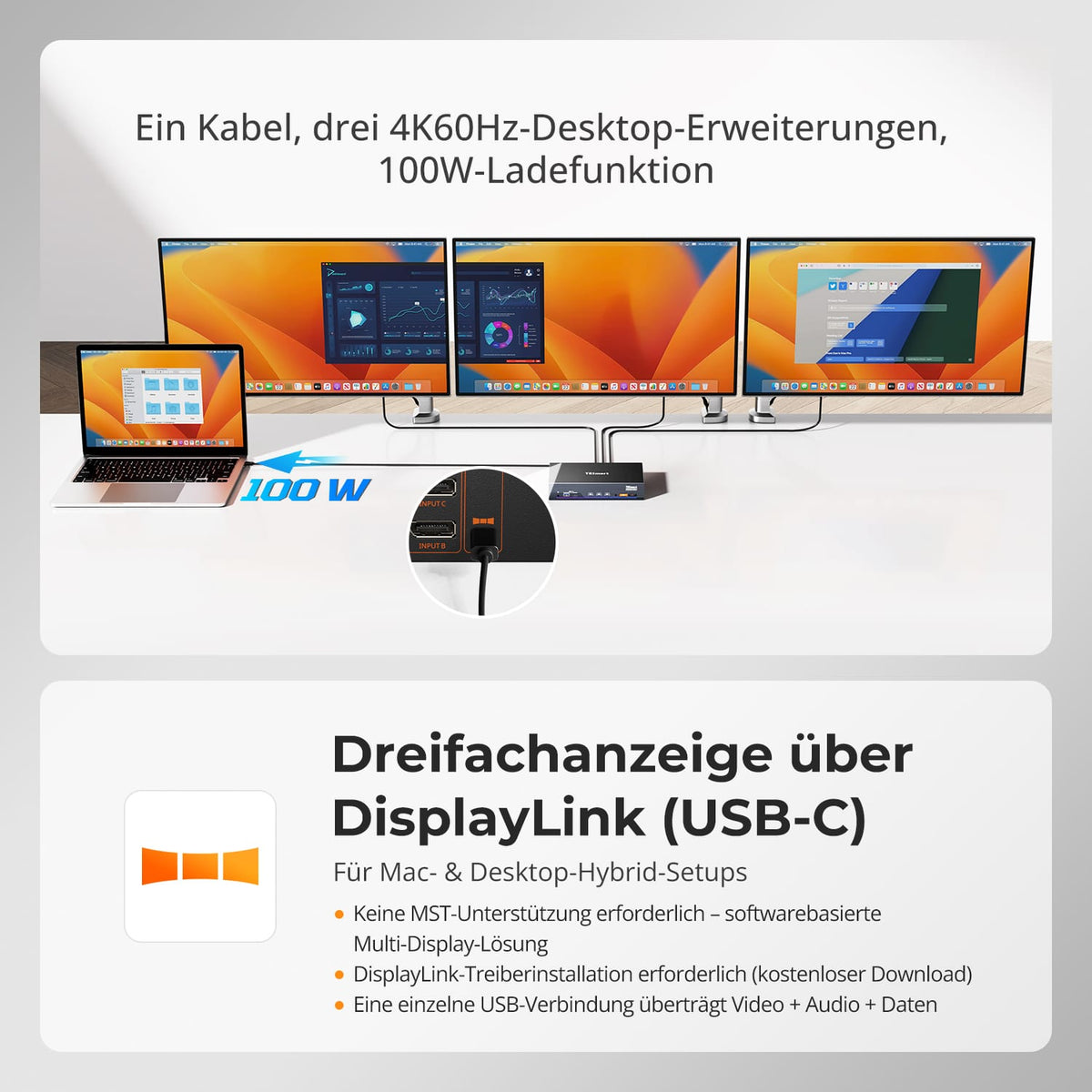
One cable. Three times 4K60. 100W charging.
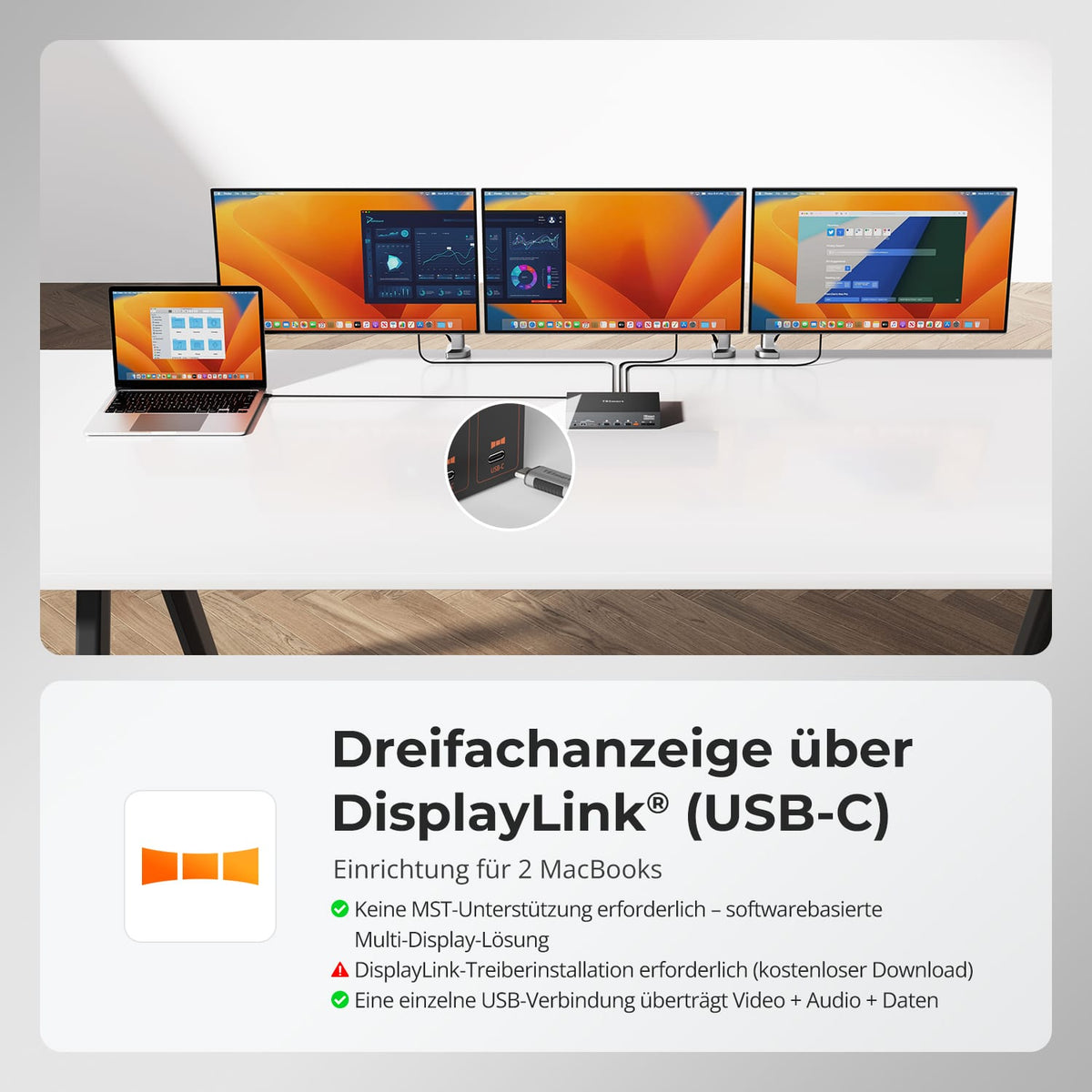
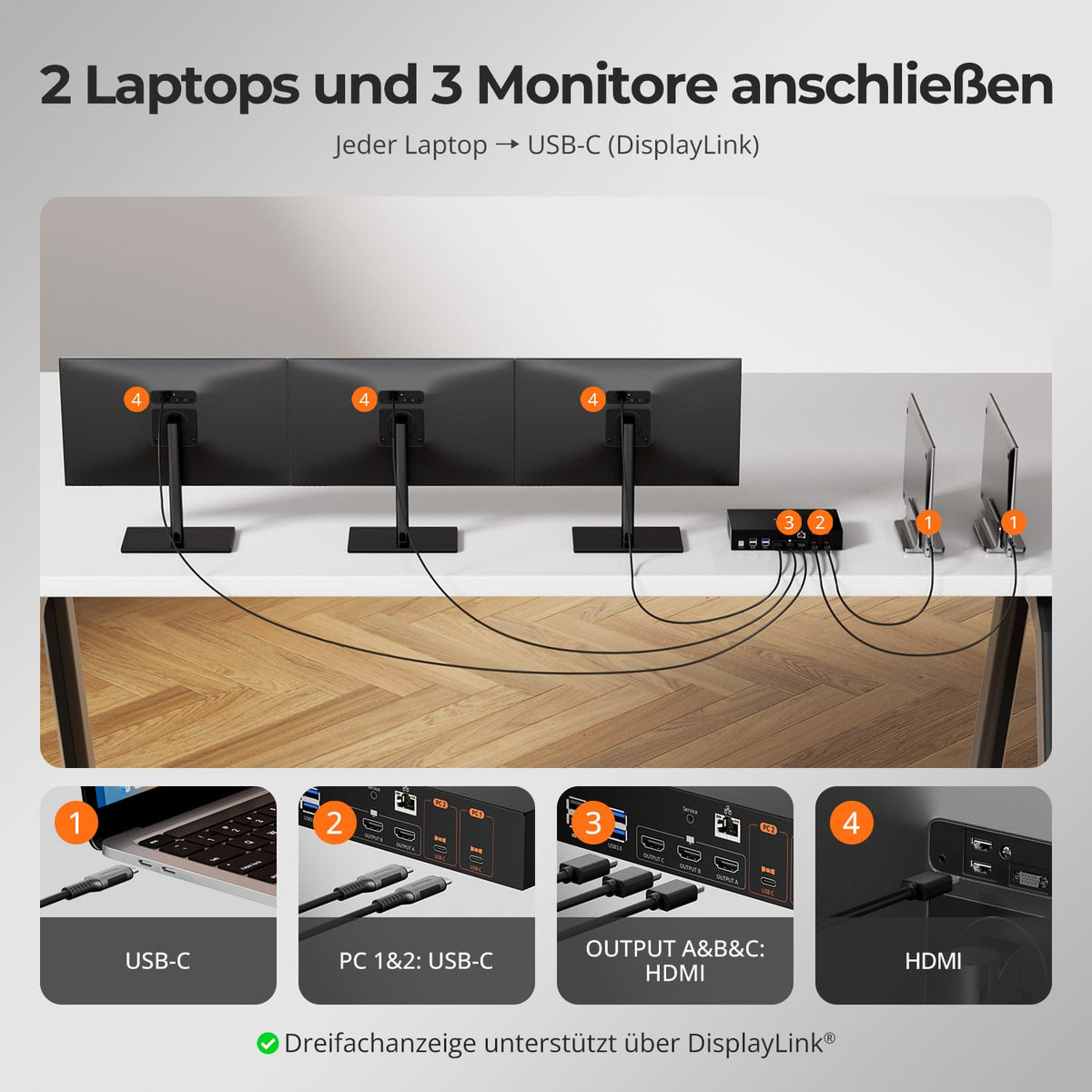
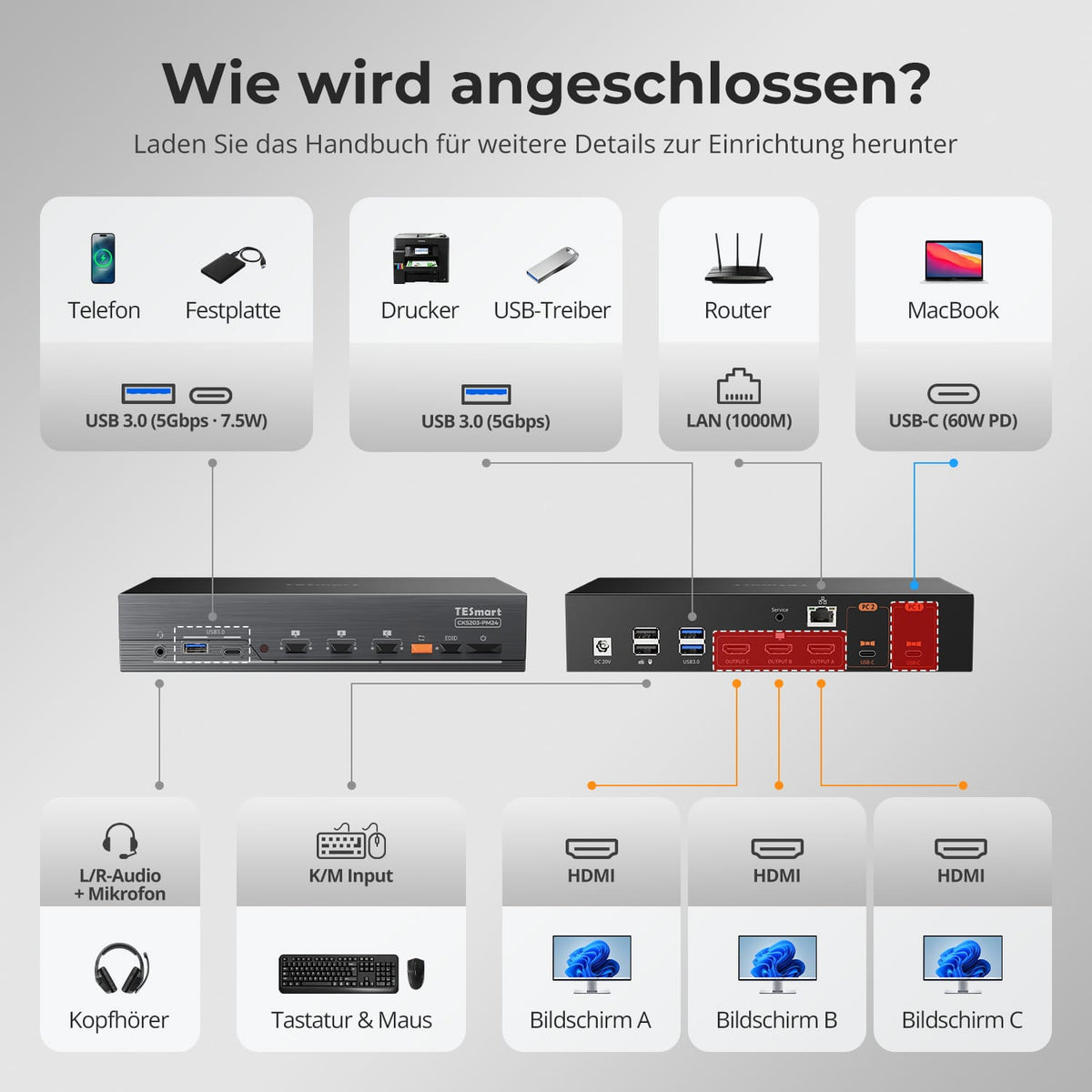
A USB-C cable connects the laptop to three extended ports. 4K@60Hz-Displays via DisplayLink, USB data and up to 100W charging power. PC1 requires the DisplayLink driver.
02
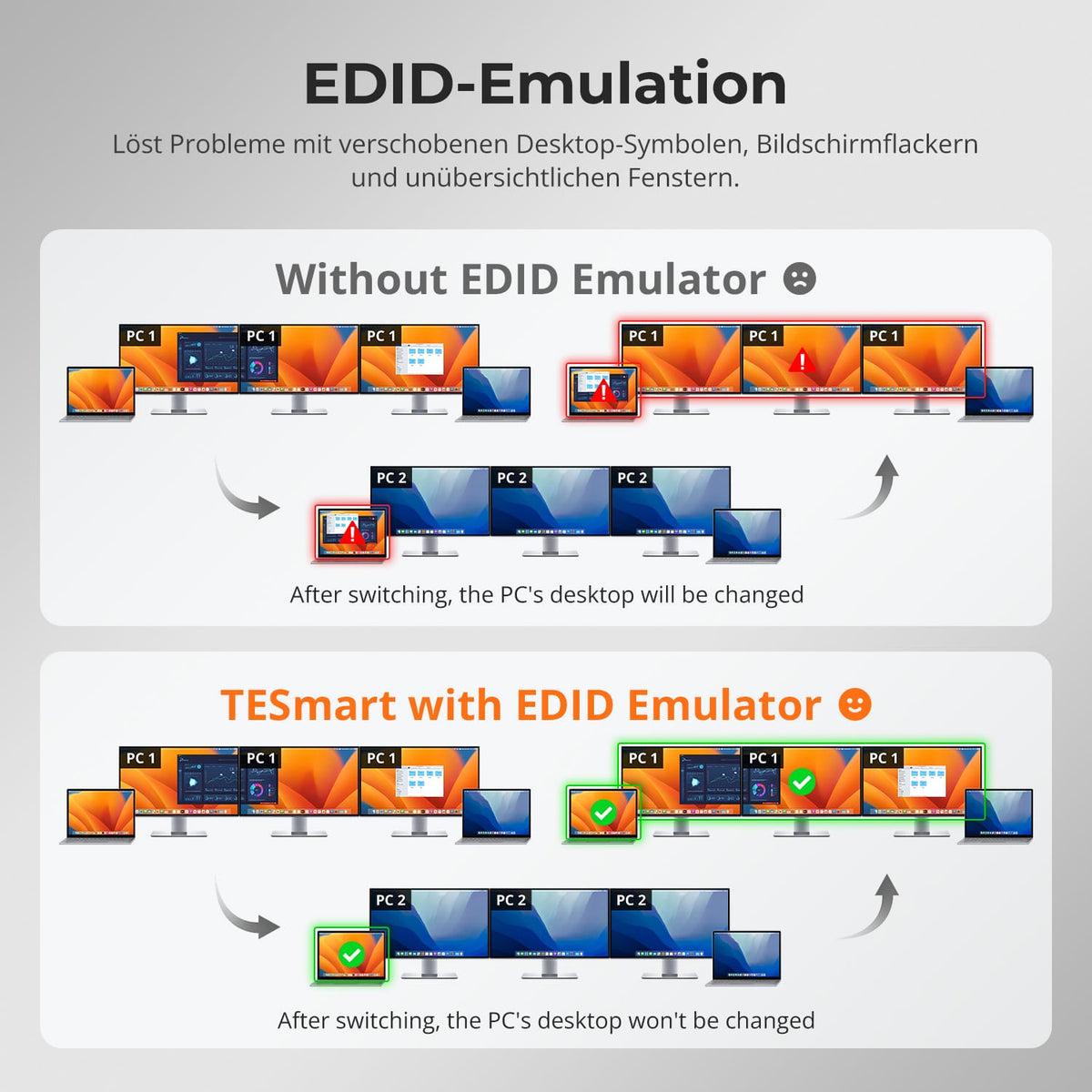
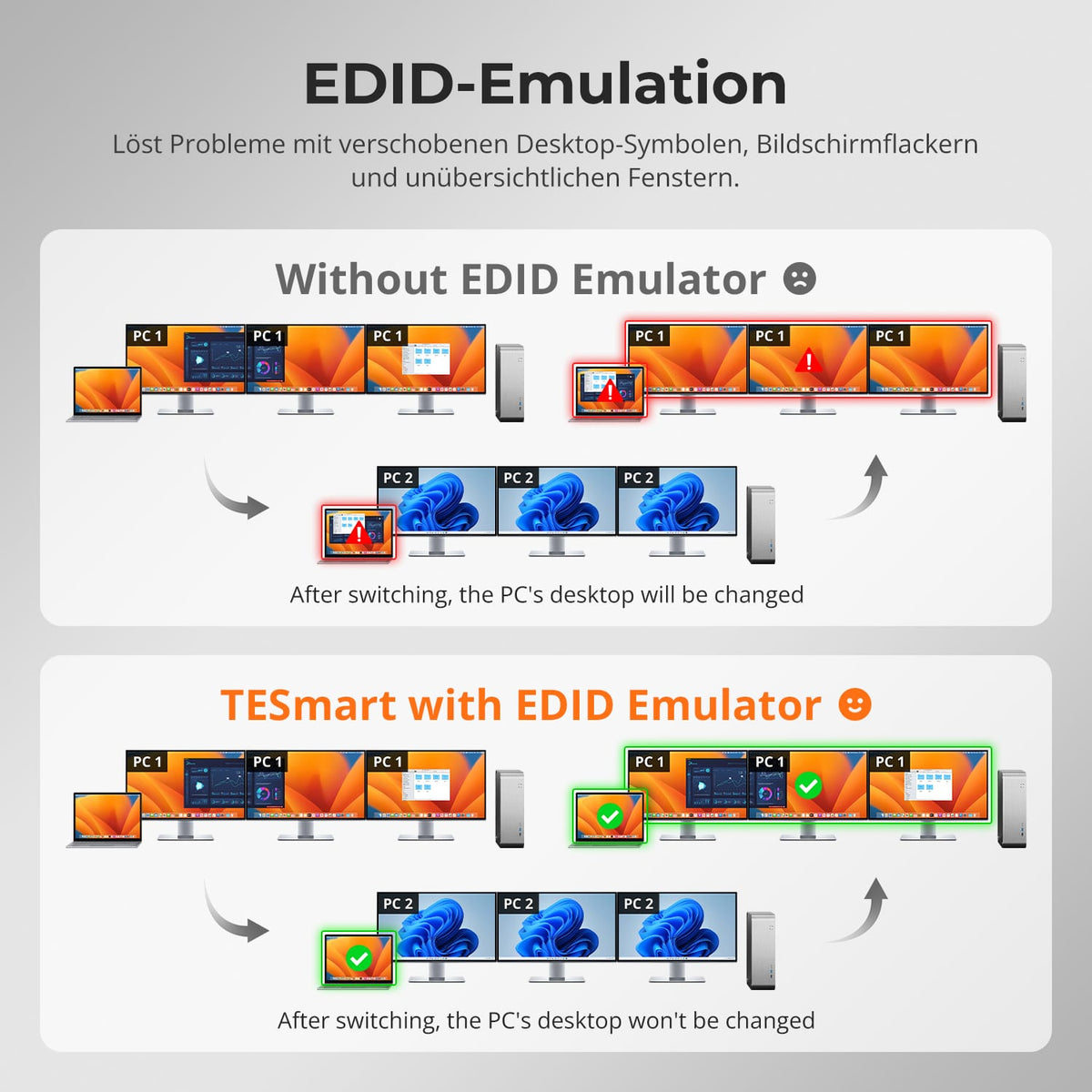
EDID emulation for stable desktops
Integrated EDID emulation keeps the settings of all three monitors stable when switching between them. This reduces resolution changes, shifted icons, flickering, and rearranged windows.
03
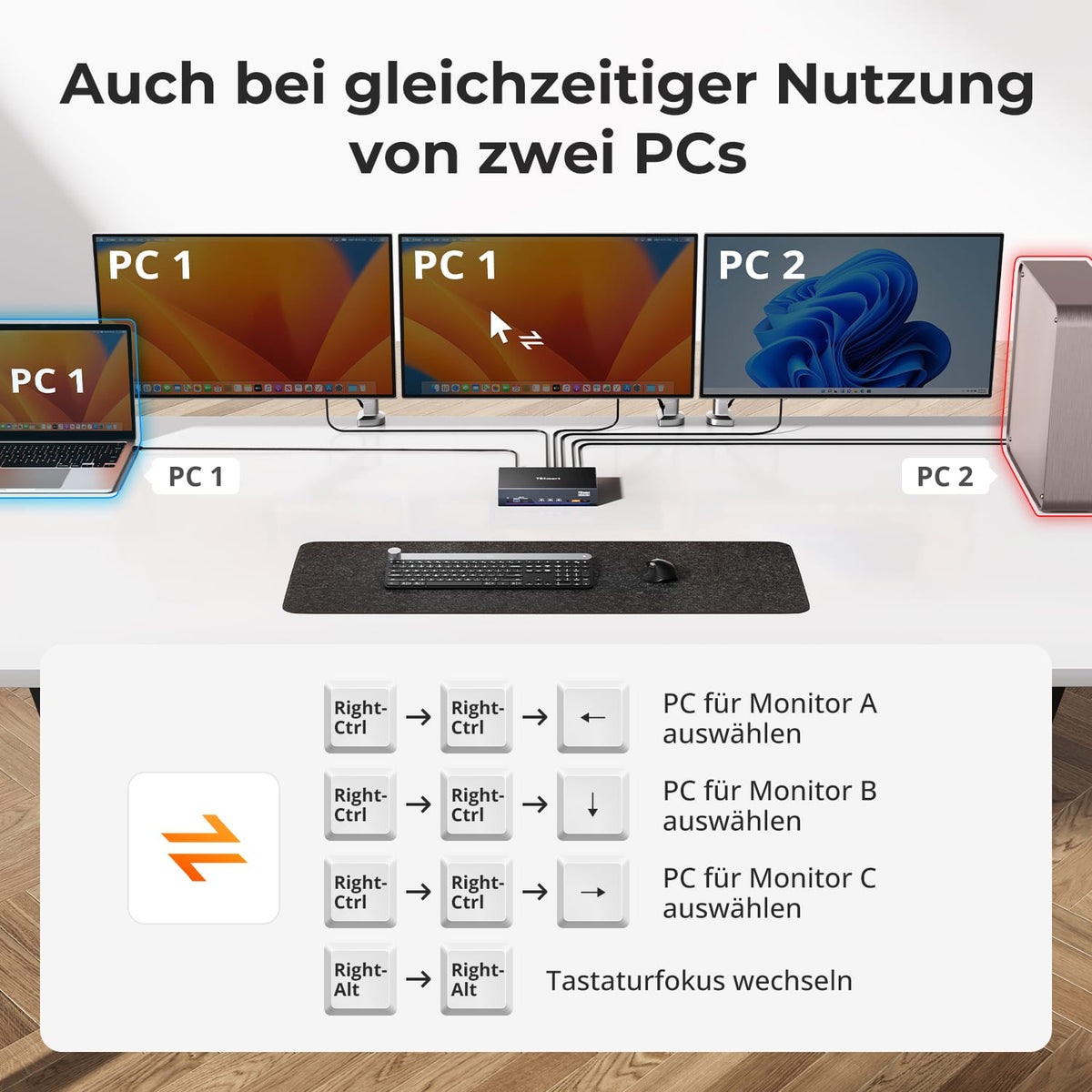
3 monitors. Flexible assignment.
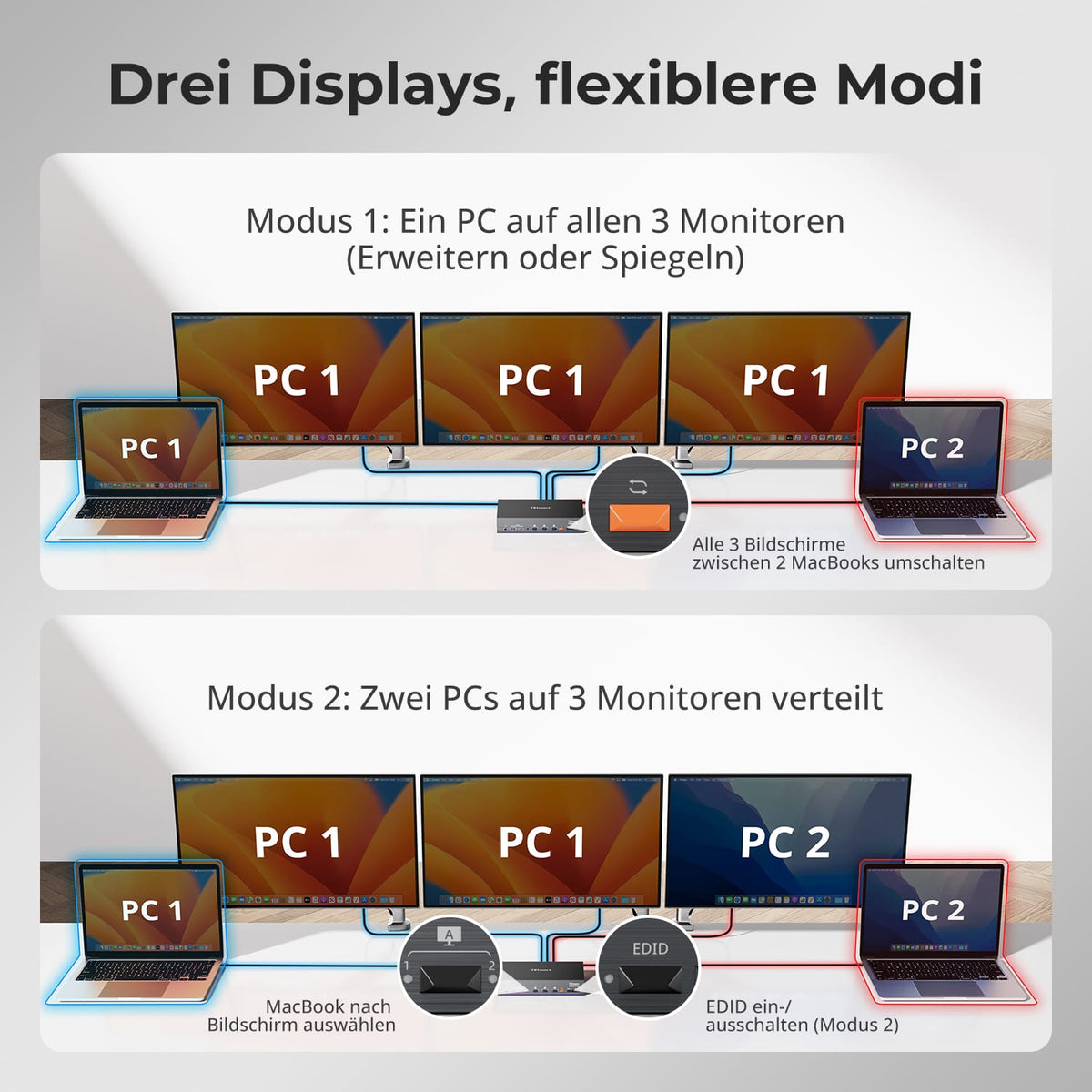
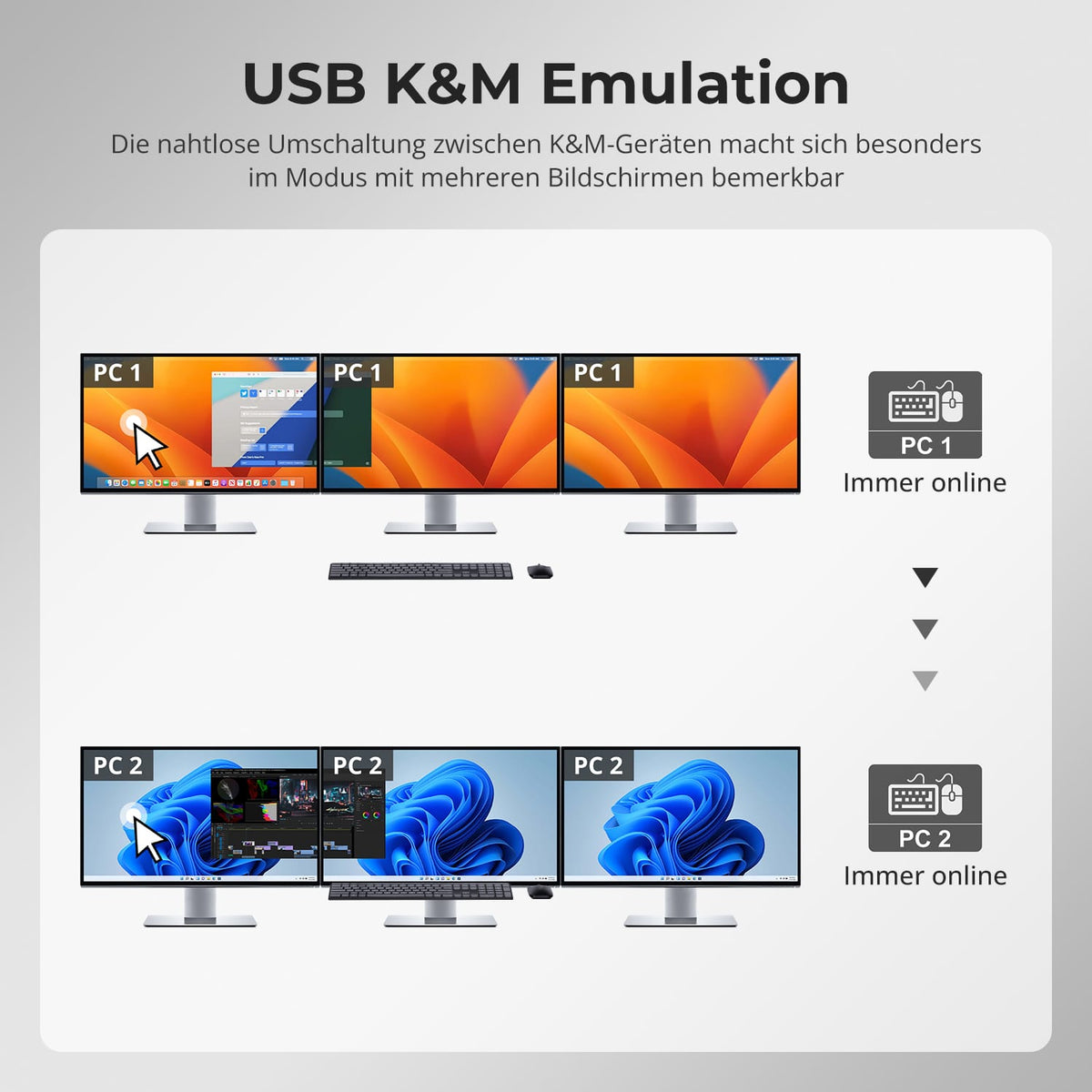
Display one computer across all three monitors, or assign different computers to individual monitors, if supported. A single keyboard and mouse control the selected computer.
04
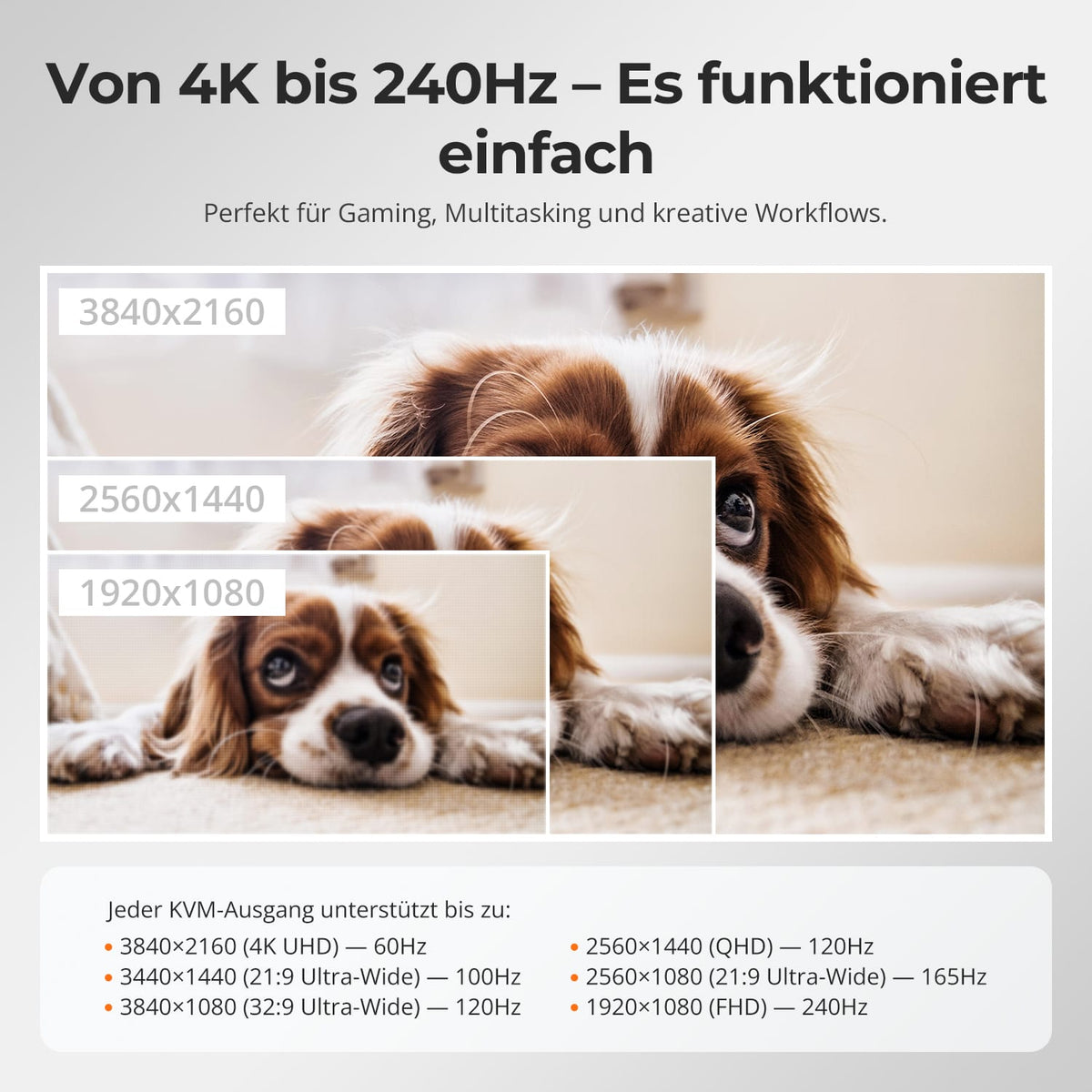
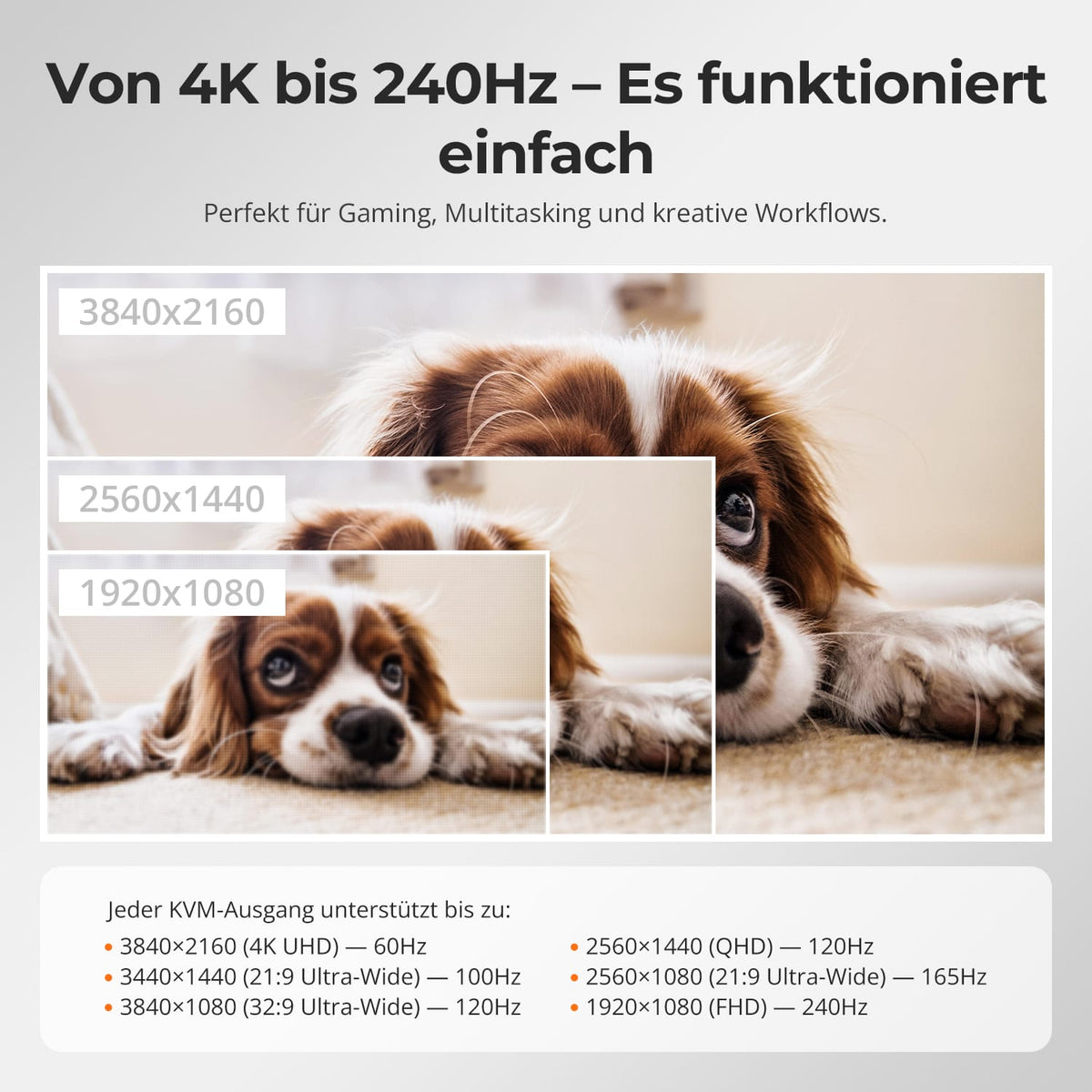
From 4K@60Hz bis 1080p@240Hz
The HDMI outputs support up to 4K@60Hz. For high refresh rate gaming, use the native video outputs of PC2. The DisplayLink outputs of PC1 are designed for office work, multitasking, and creative tasks; actual output depends on the computer, display, cable, and mode.
05
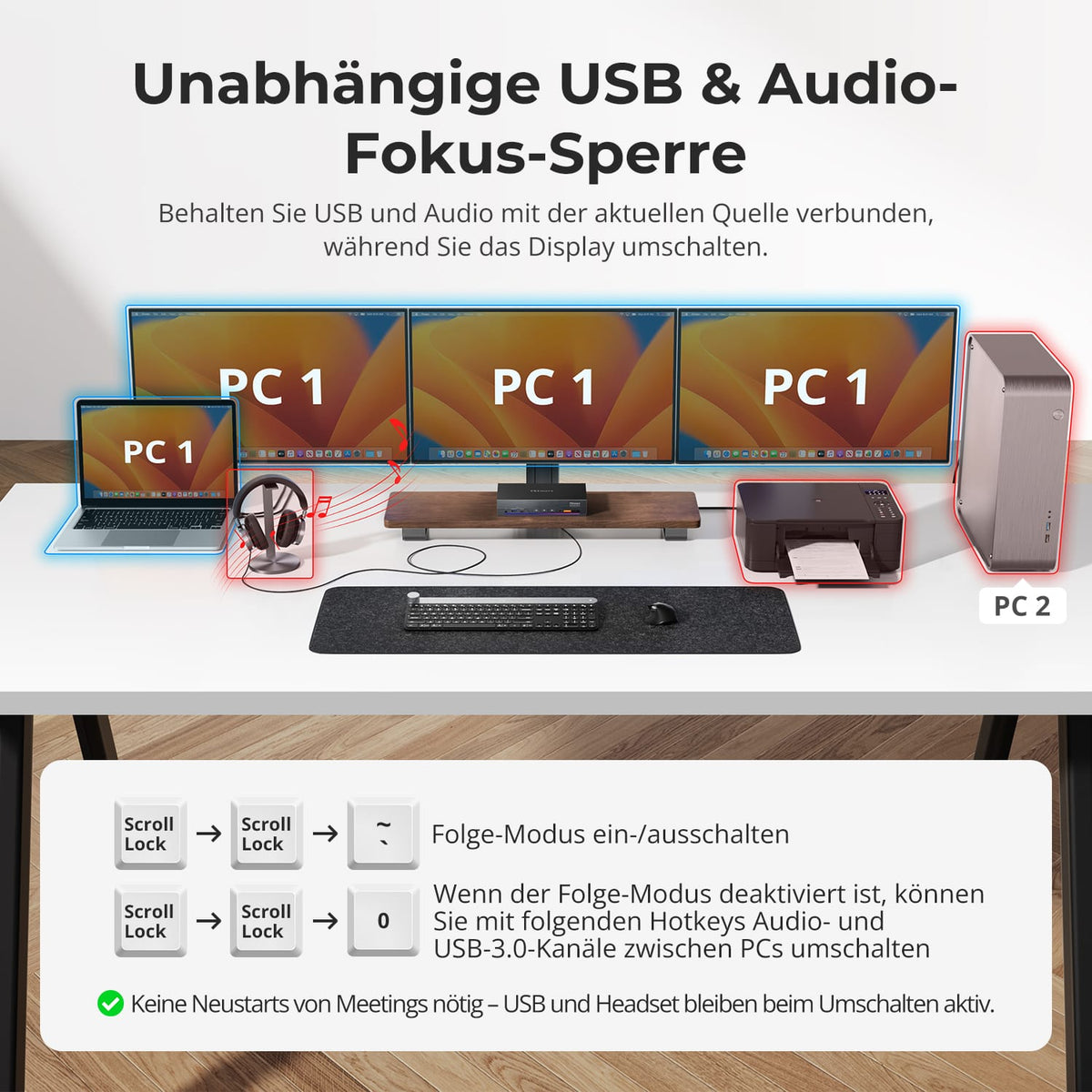
USB & Audio independent assign
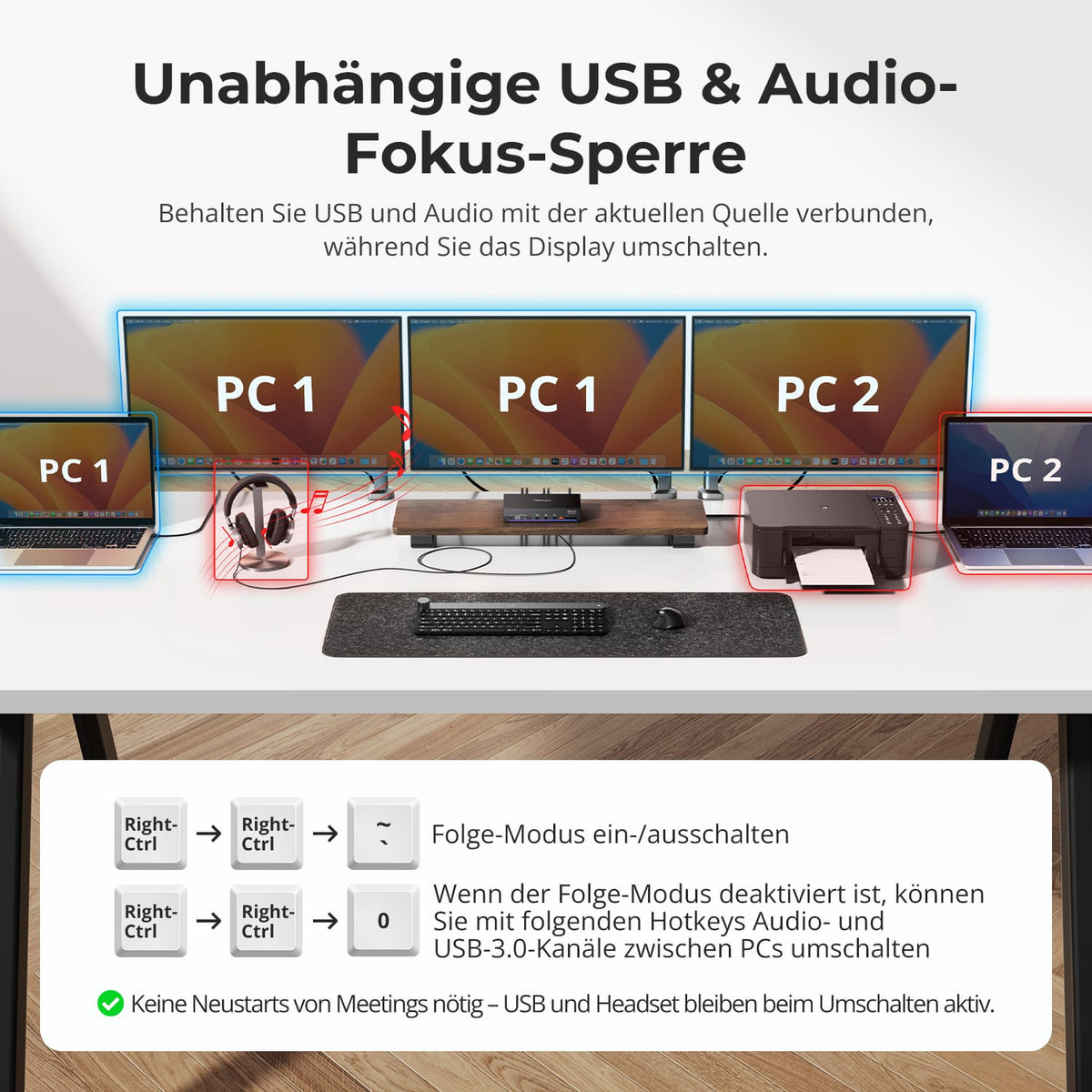
USB and audio can remain on the current source when switching displays. Deactivate Follow Mode via hotkey to switch USB and audio independently. This way, calls and devices remain active on the desired system.
06
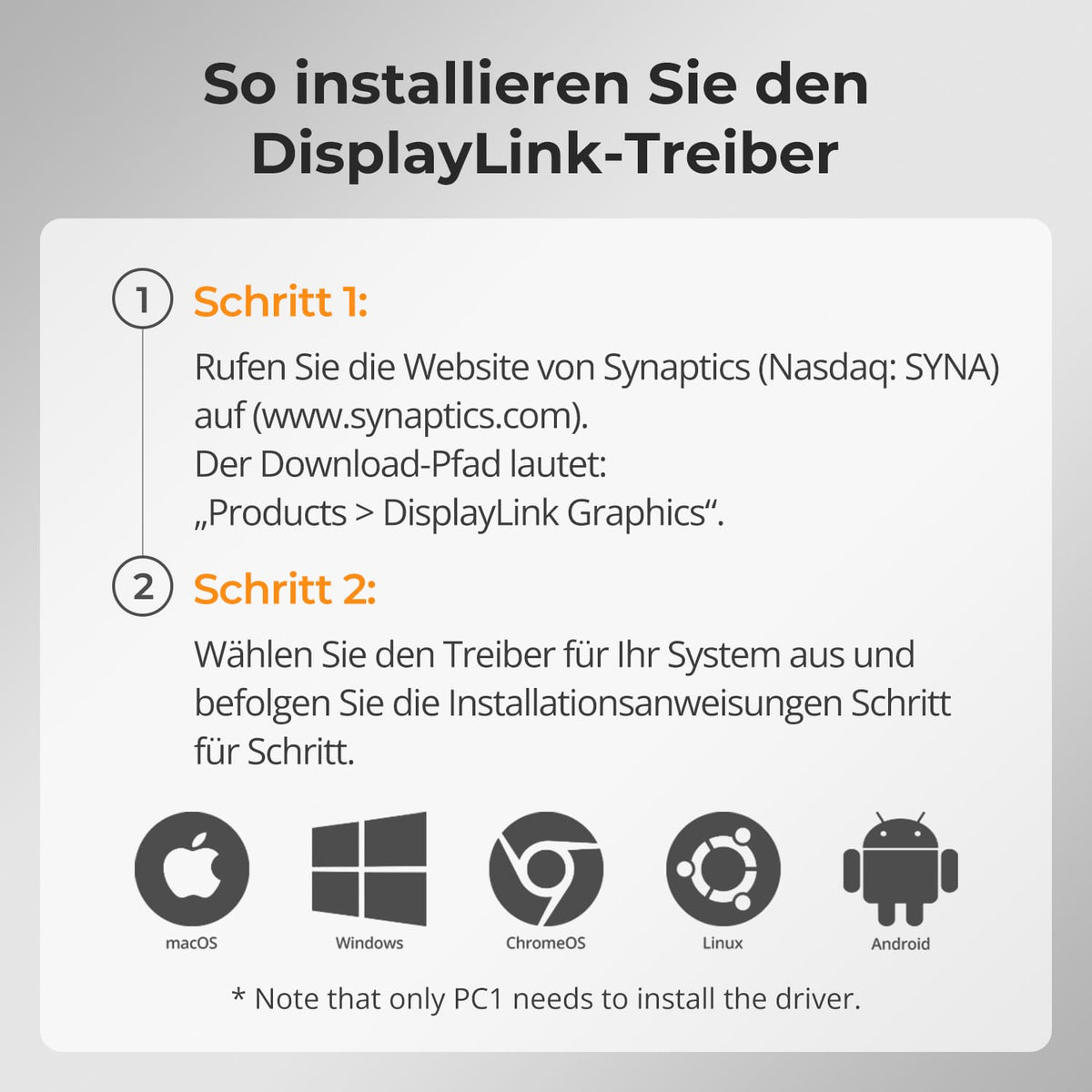
DisplayLink driver install quickly
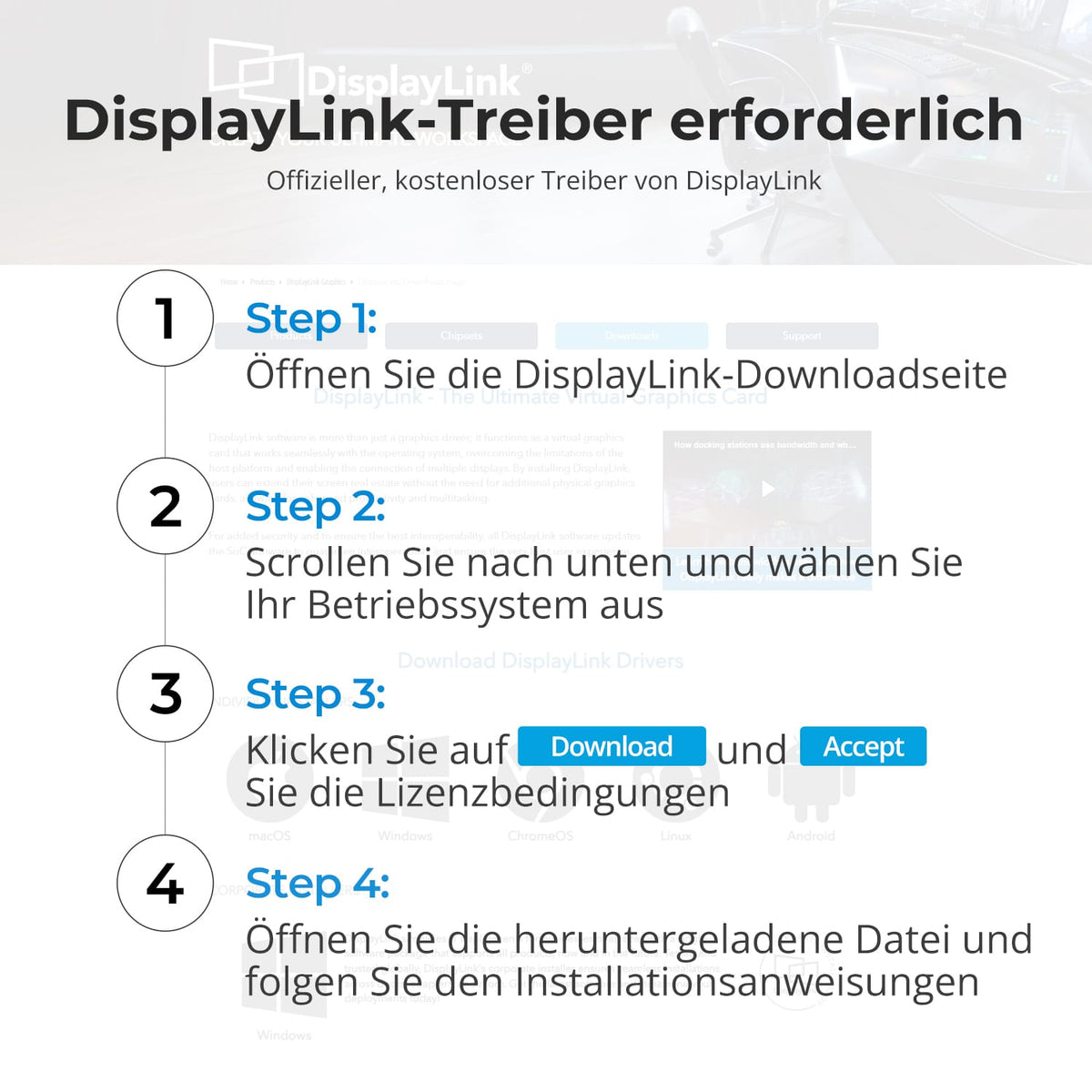
Download and install the free DisplayLink driver from Synaptics for your operating system. Only PC1 requires the driver. A restart may be necessary.
07
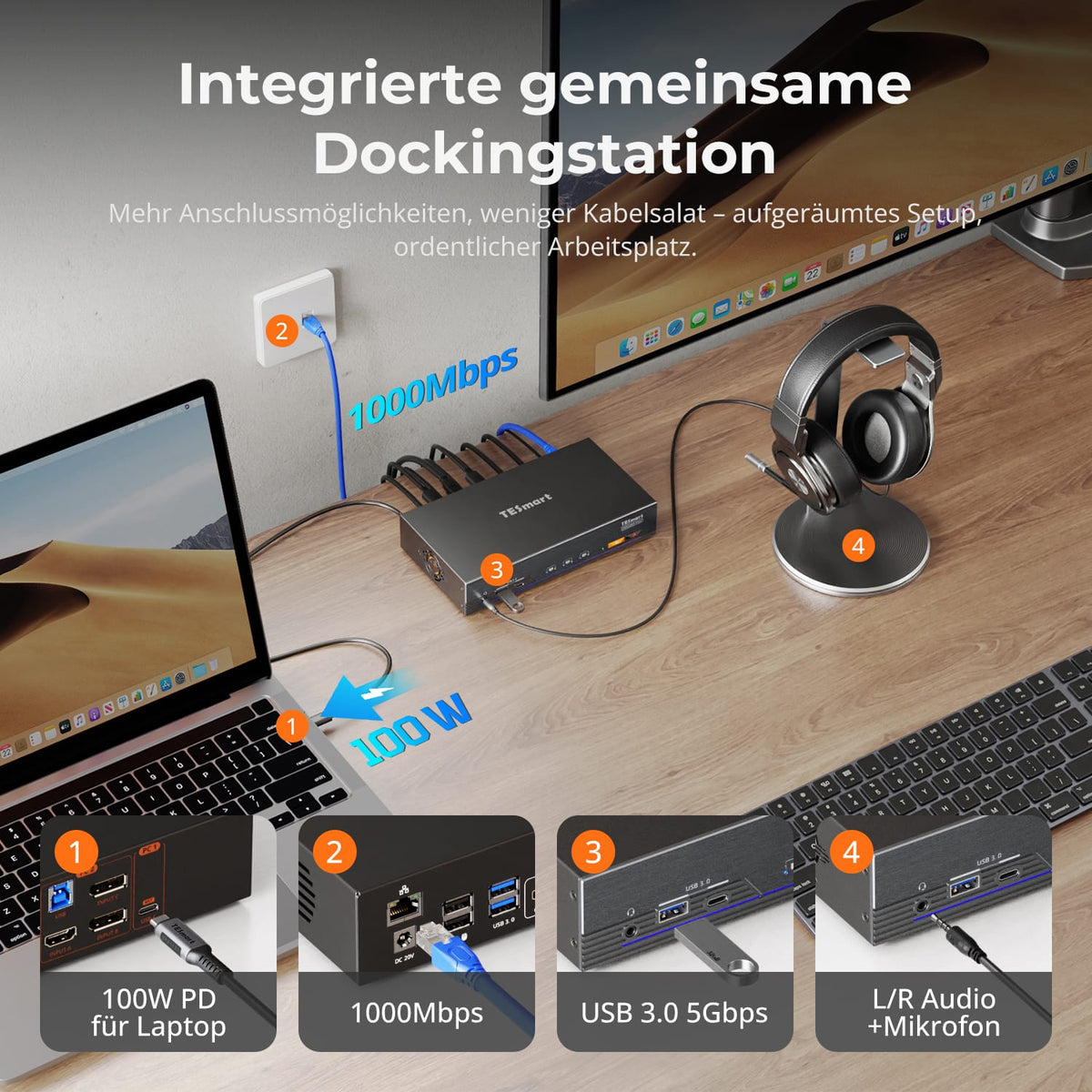
KVM and shared dock in a device
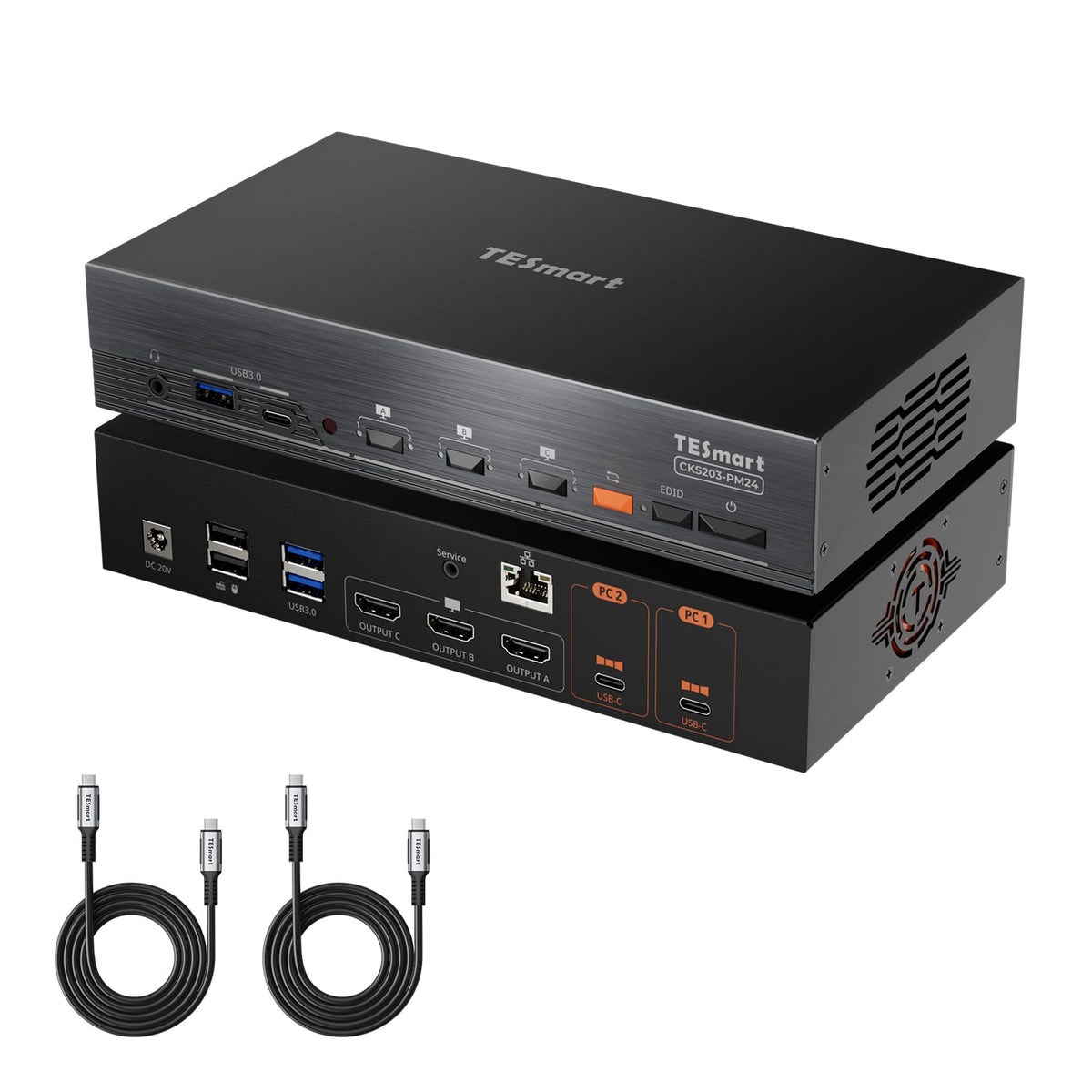
A dock for 100W laptop charging, Gigabit Ethernet, USB 3.0 and shared audio. This means you need fewer separate chargers, hubs and network adapters.
08
09
10
Data & Support
Technical data
Instructions & Downloads
Scope of delivery
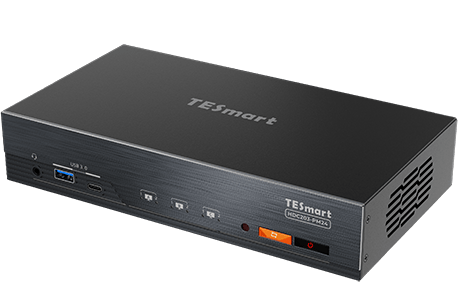
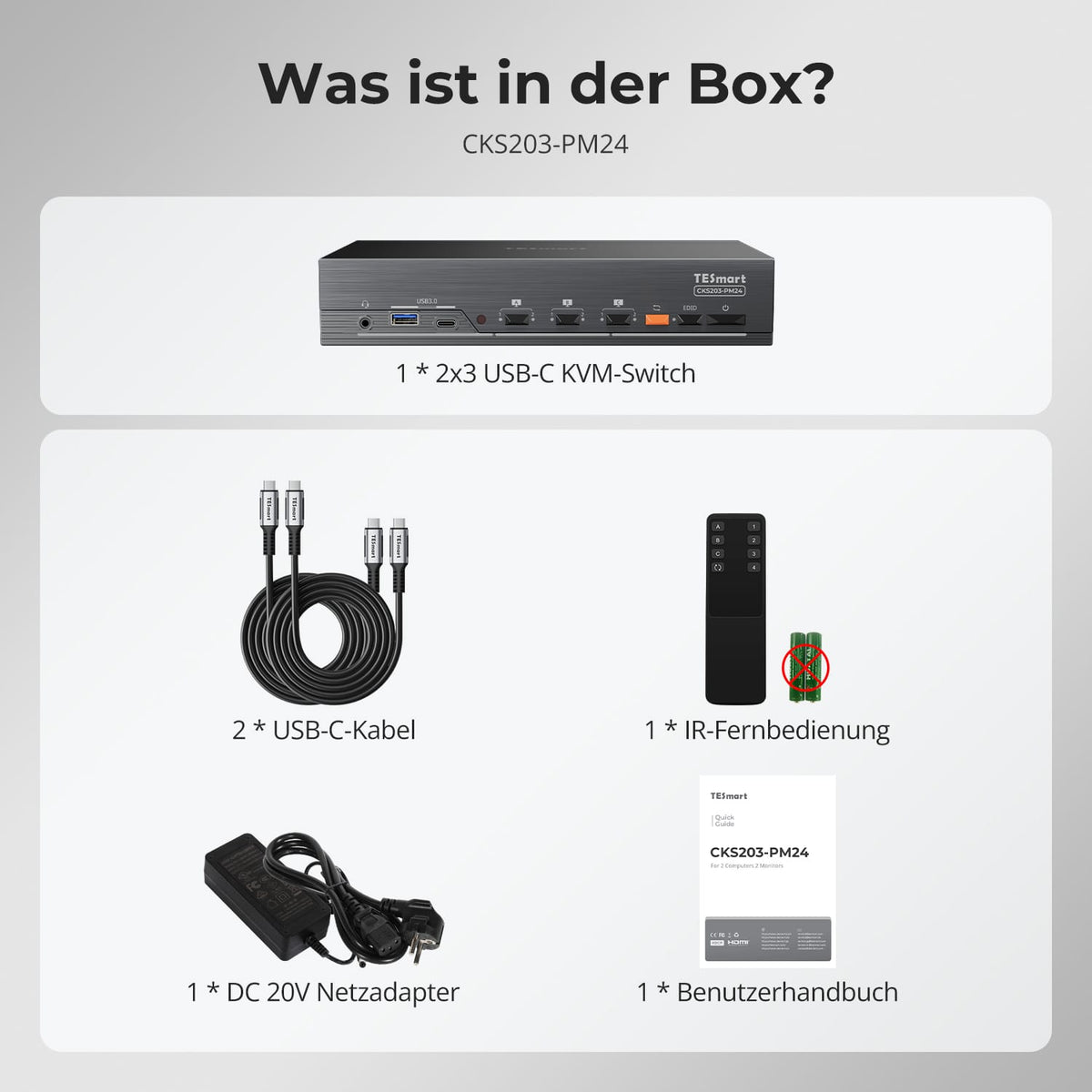
1 × HDC203-PM24 KVM Switch
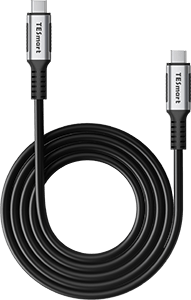
1 × USB-C Cable
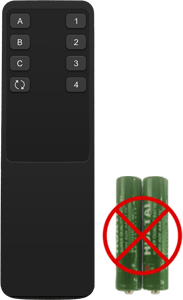
1 × IR Remote Control
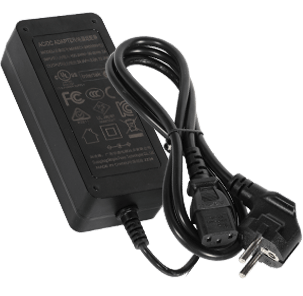
1 × 20V DC power supply
Compare suitable models
Select the models in the menus to compare connections, image output, and shareable features.
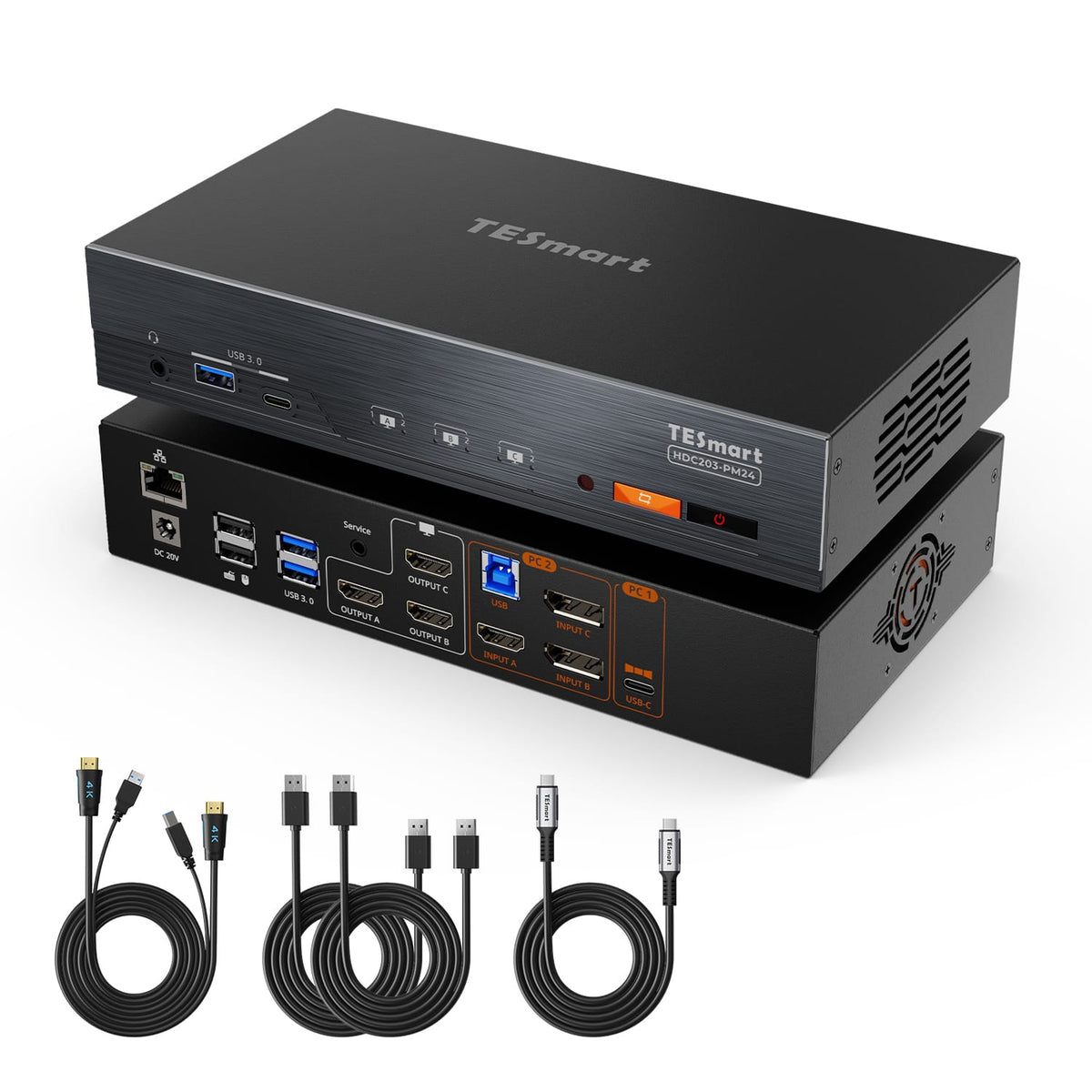
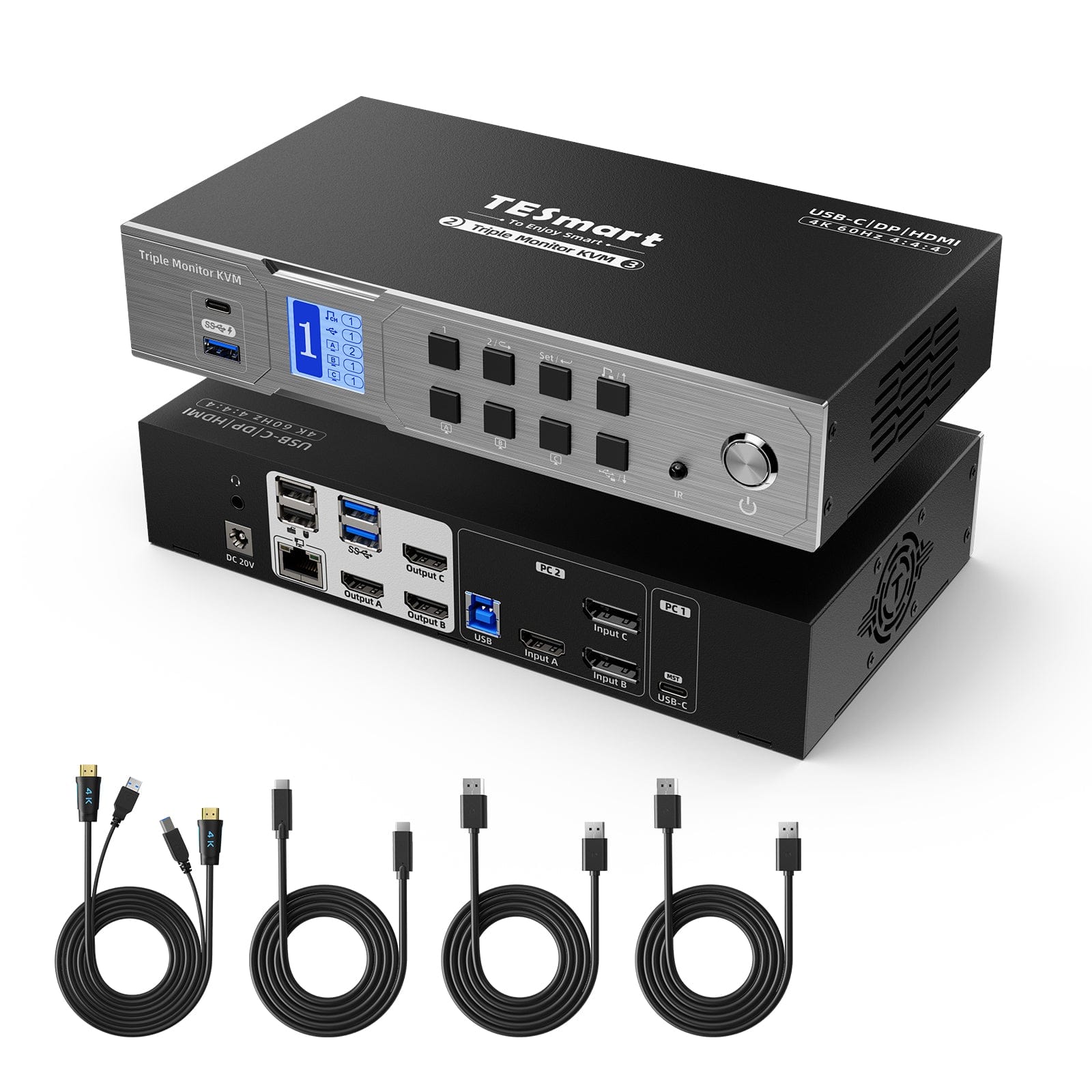
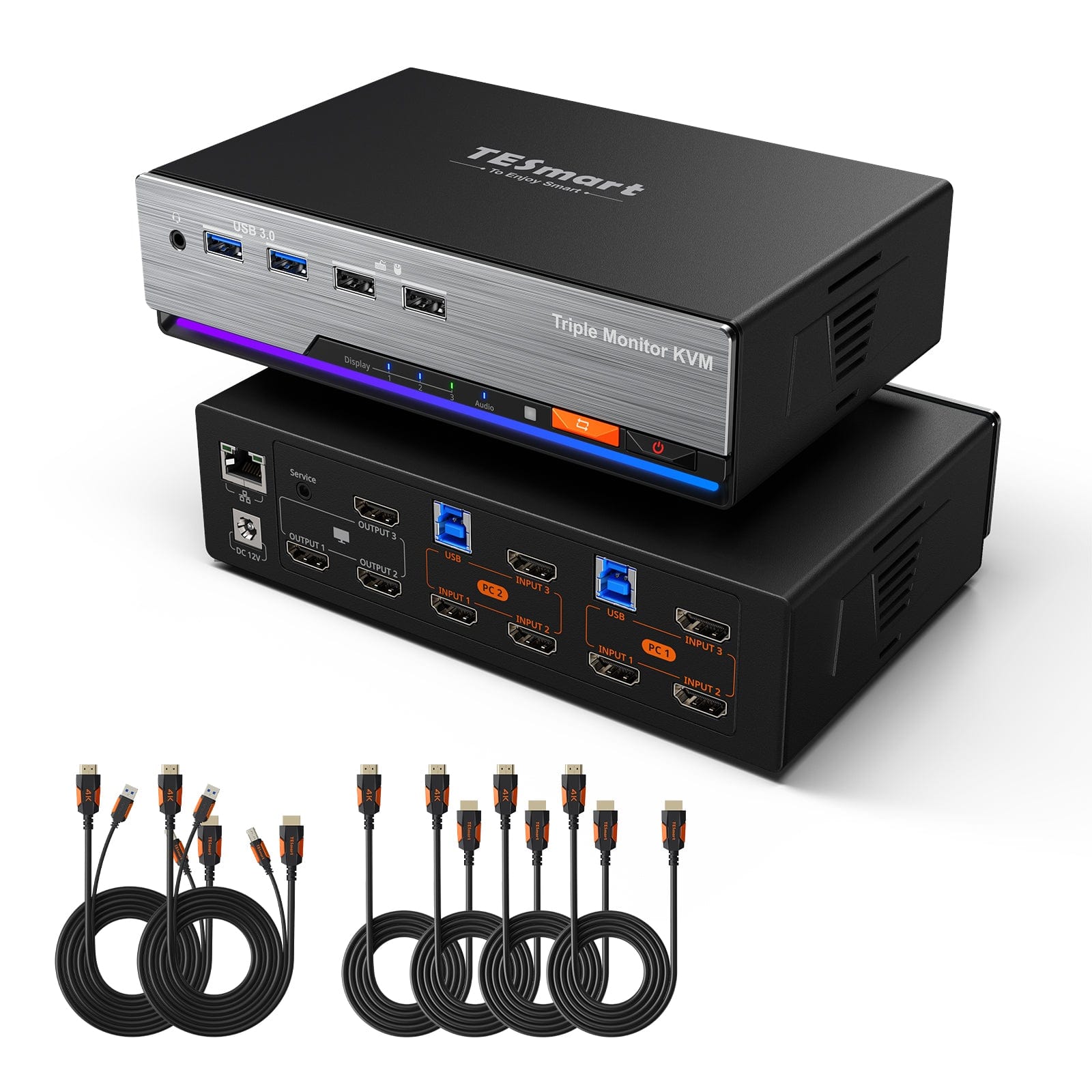
Model
HDC203-PM24
Model
HDC203-P24
Model
HKS203-P24
Computer count
1 desktop PC + 1 laptop
Computer count
1 desktop PC + 1 laptop
Computer count
2 computers
Computer connections
Laptop: 1 × USB-C; Desktop PC: HDMI + 2 × DP + USB
Computeranschlüsse
Laptop: 1 × USB-C; Desktop-PC: HDMI + 2 × DP + USB
Computer connections
Per PC: 3 × HDMI + USB
Monitor outputs
3 × HDMI
Monitorausgänge
3 × HDMI
Monitor outputs
3 × HDMI
Image output
4K60
Bildausgabe
4K60
Image output
4K60
Shared USB devices
USB 3.0/5 Gbit/s
Gemeinsame USB-Geräte
USB 3.0 / 5 Gbit/s
Shared USB devices
USB 3.0/5 Gbit/s
Charge laptop
Up to 100 W at the laptop input
Laptop laden
Up to 60 W at the laptop input
Charge laptop
Shared network access
1000 Mbit/s
Shared network access
1000 Mbit/s
Shared network access
1000 Mbit/s
EDID emulation
EDID emulation
EDID emulation
Multi-monitor operation
DisplayLink at the laptop input
Multi-monitor operation
MST at laptop input: 2 × 4K60 + 1 × 4K30
Multi-monitor operation
Separate video outputs on each computer
Monitor requirements
DisplayLink driver required on laptop; supports extended monitors on compatible Macs
Monitor requirements
Extending three monitors over one cable requires Windows with MST; macOS does not support extension via MST.
Monitor requirements
Each computer must be able to drive 3 monitors.
Frequently asked questions
You can find further answers in our Help Center.
[Compatibility] Which operating systems does the HDC203-PM24 support?
Windows 10/11; macOS Ventura 13, Sonoma 14, Sequoia 15 and Tahoe 26; Android 5.0 and later; ChromeOS R51 and later; Ubuntu 20.04, 22.04, 23.04 and 24.04. PC1 requires the free DisplayLink driver and a USB-C port with DP Alt Mode for all three displays.
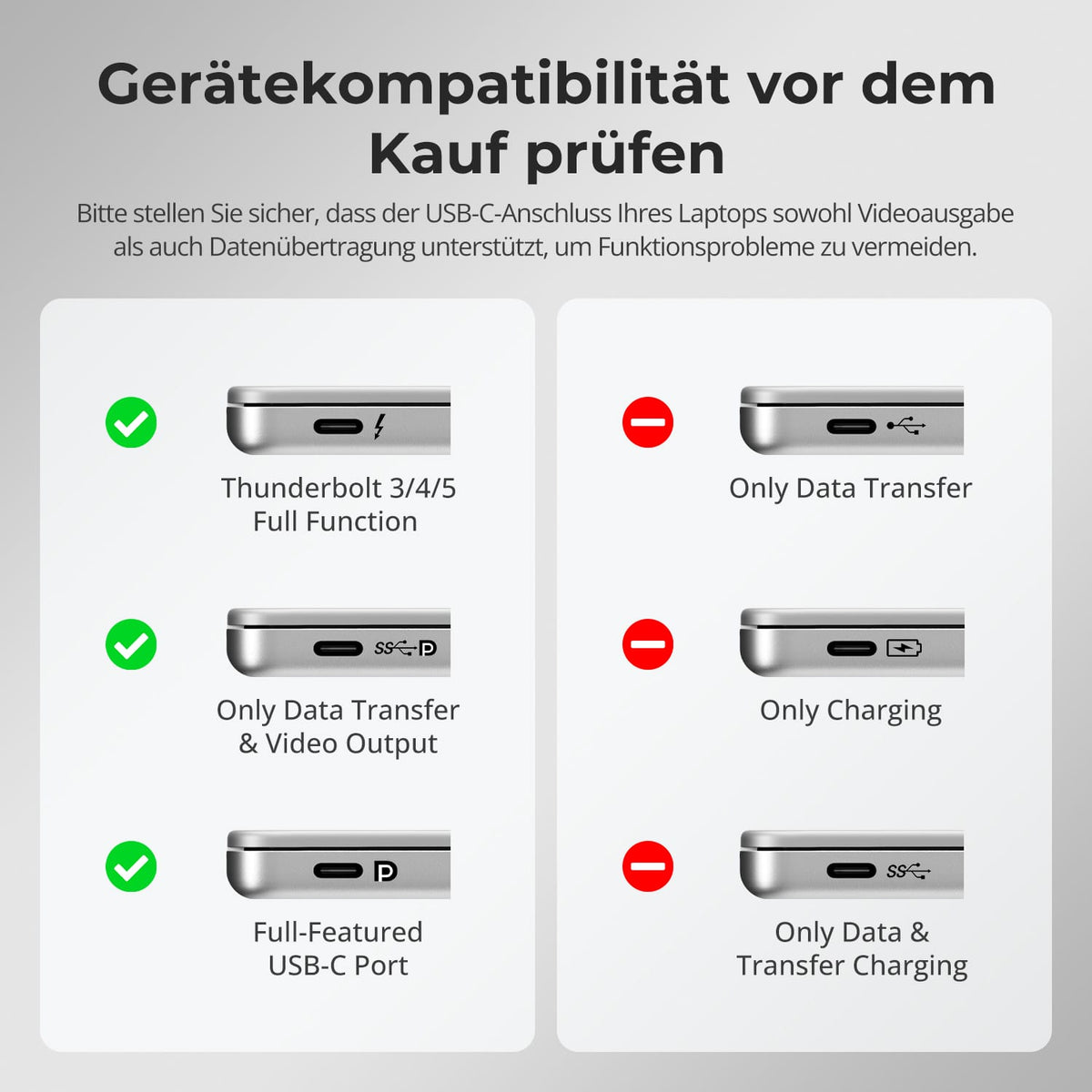
[Compatibility] Does the USB-C port need to support DP Alt Mode?
All three displays on PC1 require DP Alt Mode and DisplayLink drivers. Native DP video output supplies OUTPUT C; DisplayLink supplies OUTPUT A/B. With DP Alt Mode enabled but without drivers, only C works. Without DP Alt Mode, but with drivers enabled, A/B work. Without both, no image appears. PC2 uses native HDMI/DP connections without DisplayLink.
[Compatibility] Is there an image displayed before the DisplayLink driver starts?
Yes, provided the USB-C port supports DP Alt Mode.
PC 1 combines a DisplayLink channel, a native DP 1.2 video channel, and a USB 3.0 data channel. Therefore, OUTPUT C displays the native DP signal even when the DisplayLink driver is not running—for example, during startup or login on macOS, or before driver installation. As soon as the driver starts, OUTPUT A and B become active, and all three monitors are available. On macOS, the driver only starts after login. Therefore, connect a monitor to OUTPUT C if you want to see the startup screen.
[Compatibility] Do Netflix, Prime Video, or Disney+ work via DisplayLink on macOS?
No. With the DisplayLink driver active, macOS cannot complete the required HDCP check for these streaming services. The video window remains black. This is a known limitation of macOS with DisplayLink, not a hardware defect.
[Furnishings] Where can I get the DisplayLink driver?
Only PC1 needs the free driver: DisplayLink downloads at Synaptics. Select your operating system and install the driver; a restart may be required. From macOS 10.15 onwards, "Screen Recording" must be enabled; the screen will not be recorded. Keep the driver up to date and use a USB 3.0 or higher cable. PC2 does not require a DisplayLink driver.
[Functions] What is the maximum supported resolution?
All three HDMI 2.0 outputs support up to 4K@60Hz. NiedMore stringent formats include 3440×1440 at 100 Hz, 3840×1080 at 120 Hz, QHD@120Hz und 1080p@240Hz. Die Actual output depends on computer, display, cables, and display mode.
[Functions] Which display modes does the HDC203-PM24 support?
Mode 1 displays one PC across all three monitors as an extended or mirrored desktop. Mode 2 distributes the two PCs across the monitors. Pressing the right Alt key twice switches the keyboard/mouse controls.
[Functions] Is DisplayLink suitable for gaming and does it maintain image quality?
DisplayLink transmits compressed video over USB and is particularly suitable for office work, multitasking, and creative tasks. Slight latency and color variations are possible. For the lowest possible latency and high refresh rates, use PC2 with a native, uncompressed HDMI/DP connection.
[Load] Can HDC203-PM24 charge my laptop?
Yes. PC1 provides up to 100W at 20V/5A via USB-C PD, sufficient for many laptops, including MacBook Pro and Air, in everyday work. For power requirements exceeding 100W, use the original power adapter. Ensure adequate ventilation during sustained high loads and switch off the KVM switch when not in use for extended periods.
[Functions] What does EDID emulation do?
Each input has an EDID emulator. When switching between inputs, each PC still recognizes the display as connected. This helps to preserve icons and window positions, and prevents resizing and flickering.
[Functions] Can USB and audio remain connected to a computer when switching between devices?
By default, USB 3.0 devices and audio follow keyboard/mouse control in Follow Mode. Right Ctrl → Right Ctrl → ~ disables the mode. Right Ctrl → Right Ctrl → 0 toggles USB 3.0 and audio independently between the two computers.
[Switch] How do I switch between connected devices?
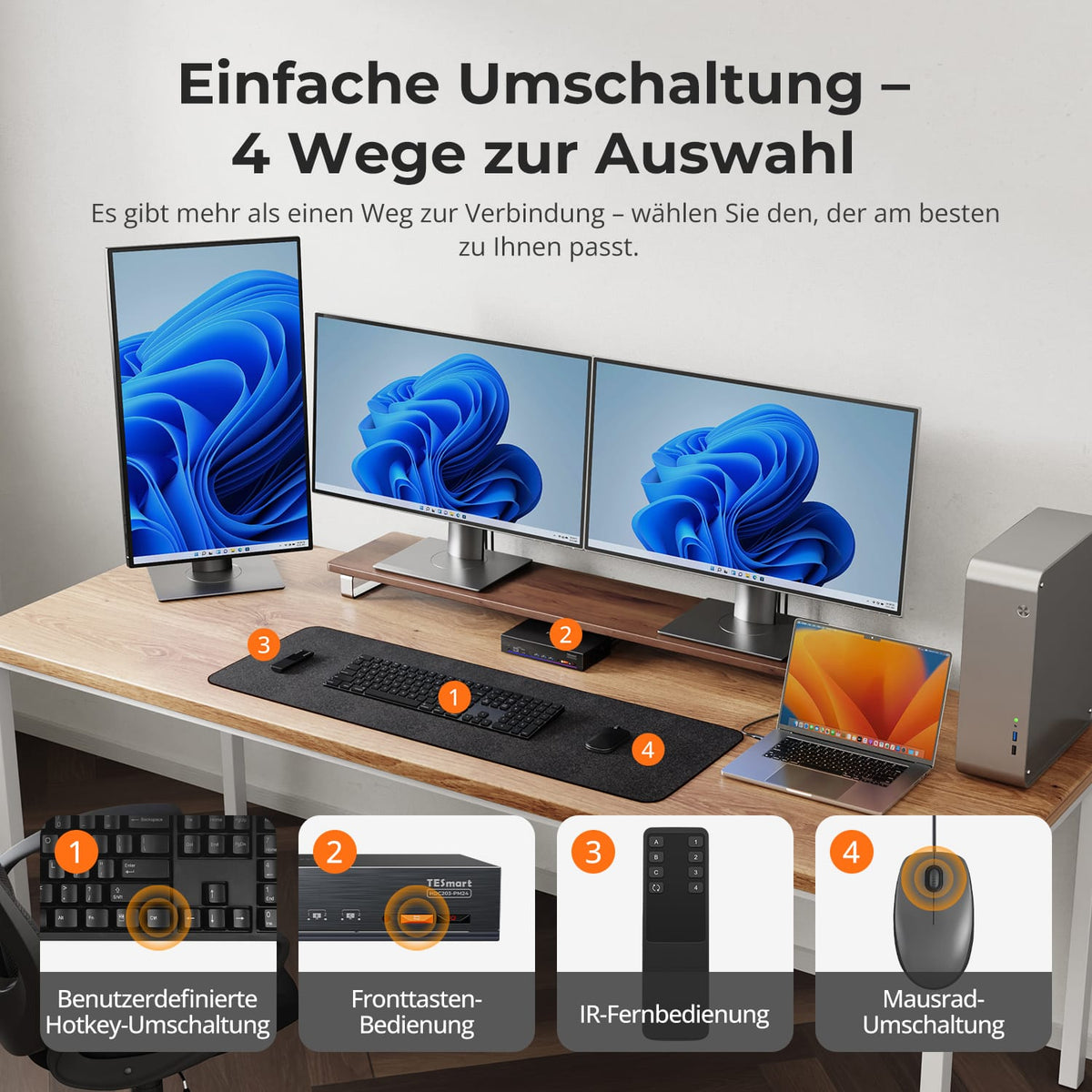
The HDC203-PM24 features a control panel with an LCD, IR remote control, hotkeys, and a mouse wheel for switching between computers. The mouse wheel function is disabled by default and must be activated via a hotkey. A double-click of the mouse wheel switches to the next computer.
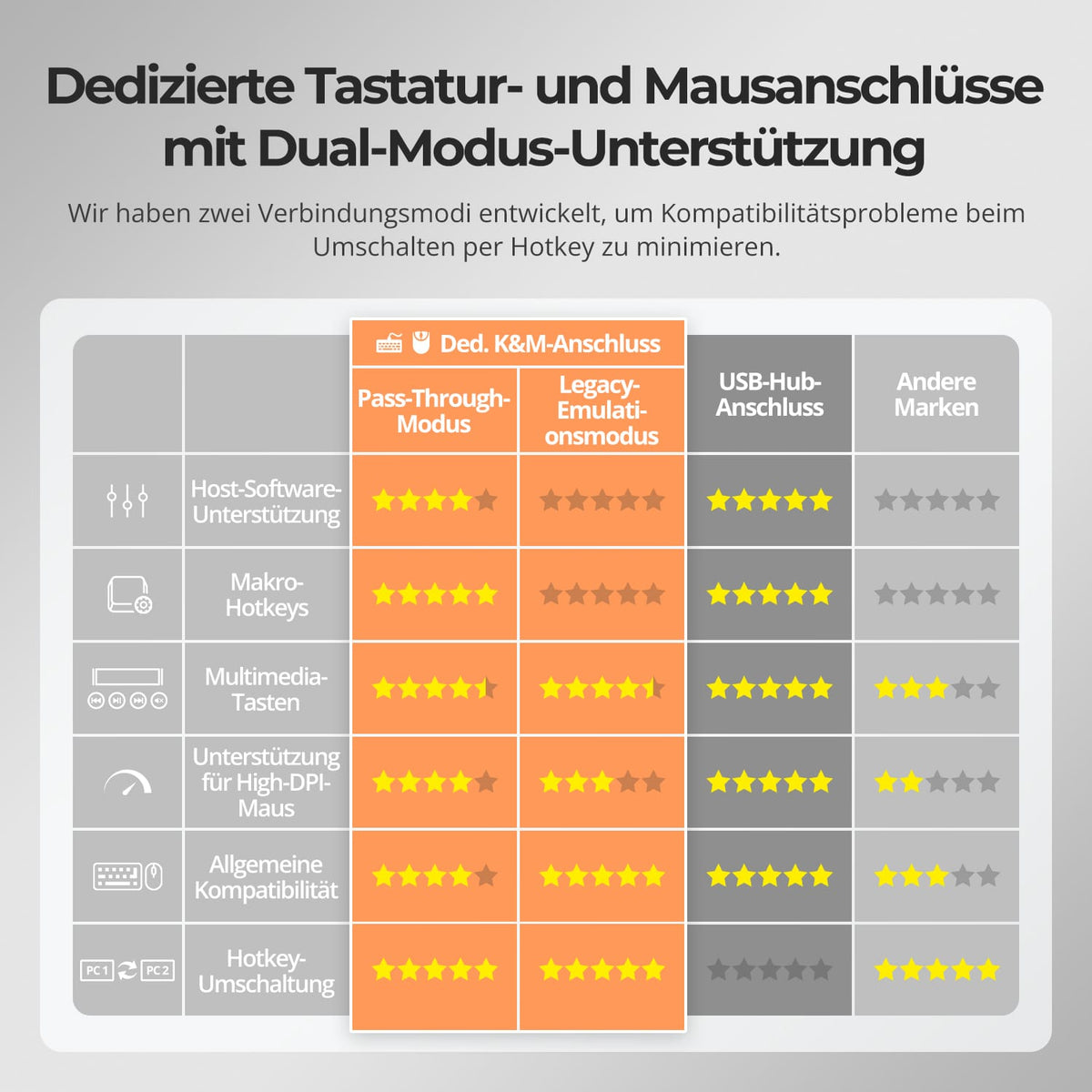
[Functions] What are Pass-Through Mode and Legacy Emulation Mode?
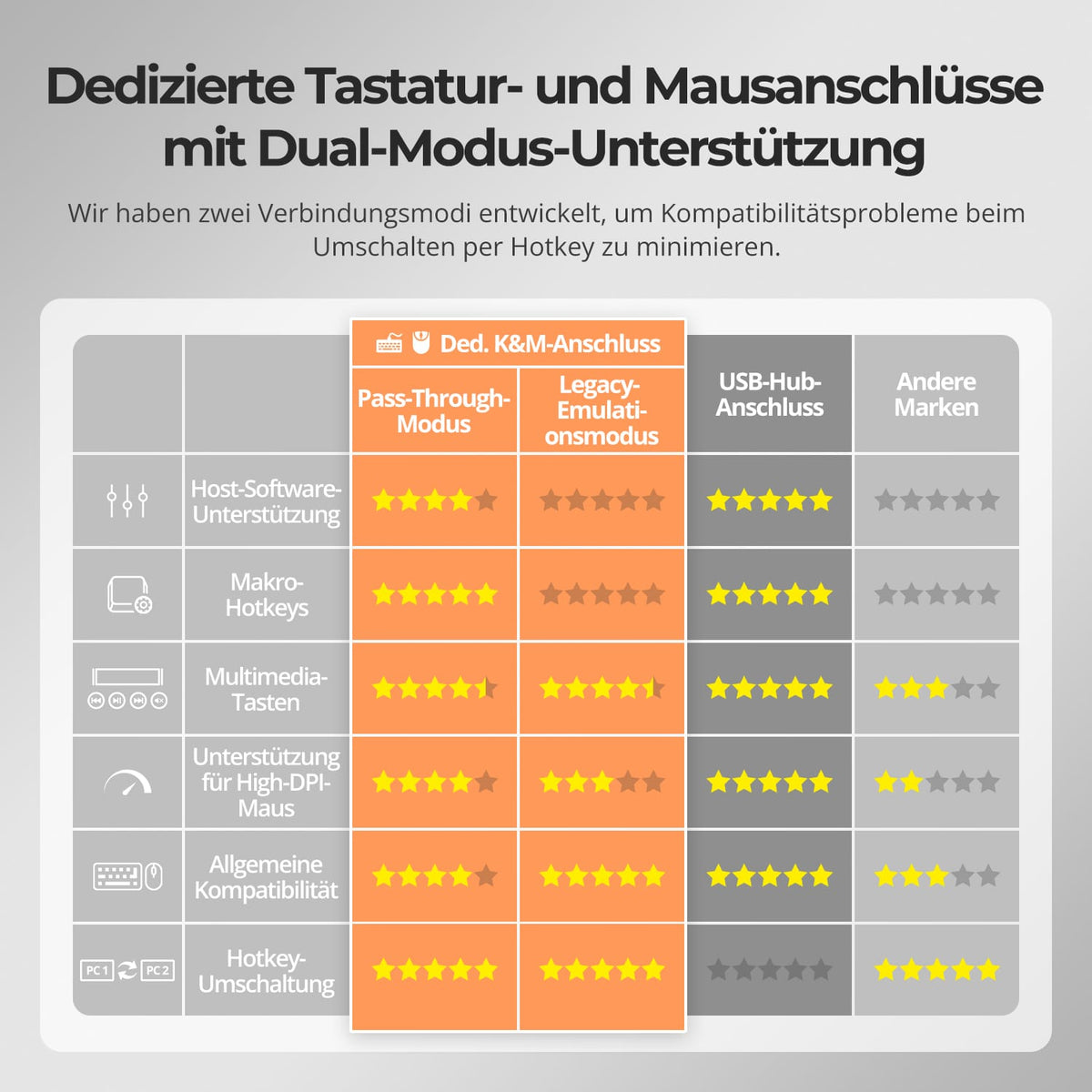
Pass-through mode connects modern keyboards and mice directly to the computer and supports many additional functions. In case of problems, legacy emulation mode offers basic keyboard, mouse, and hotkey compatibility. Driver-dependent or programmable additional functions may not be available in this mode.
[Furnishings] Do I need drivers or switching software?
No special switching software is required for normal display switching, keyboard, mouse, and basic KVM functions. Connected devices may require their own drivers or applications.
