




Monitorkonfiguration

Max. Auflösung
Thunderbolt-Controller

Kompatibilität

Laptop laden
Netzwerksteuerung

Dock-Kompatibilität
2×2 KVM for Apple Studio Displays | Up to 5K120/Dual 6K60, Thunderbolt™ 4 compatible
Share two Apple Studio displays, a keyboard and a mouse with two computers - or show one computer on each display if you need both systems at the same time.
Monitorkonfiguration
Max. Auflösung
Thunderbolt-Controller
Kompatibilität
Laptop laden
Netzwerksteuerung
Dock-Kompatibilität
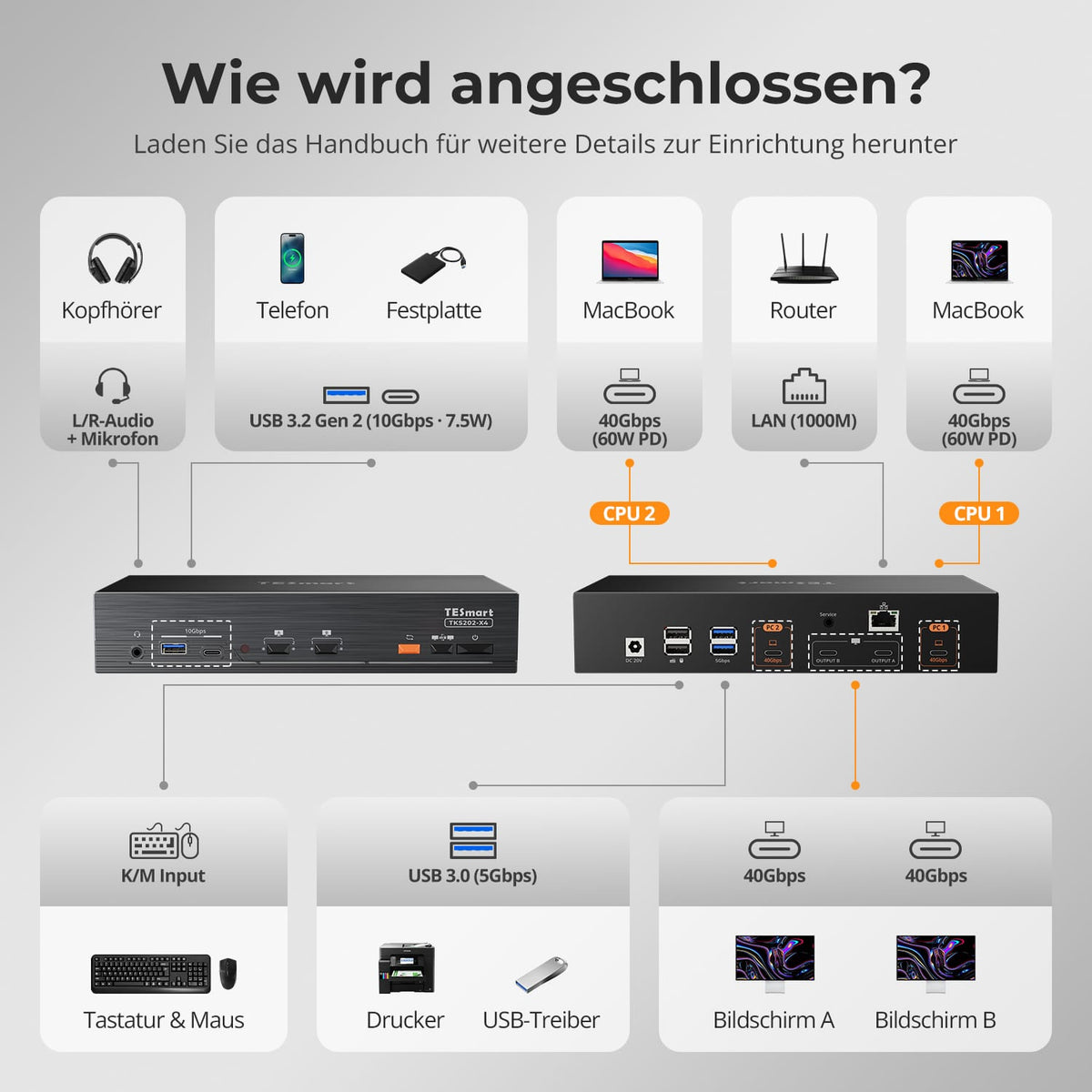
- Plug type:
- EU plug
Why TKS202-X4?
Overview
01
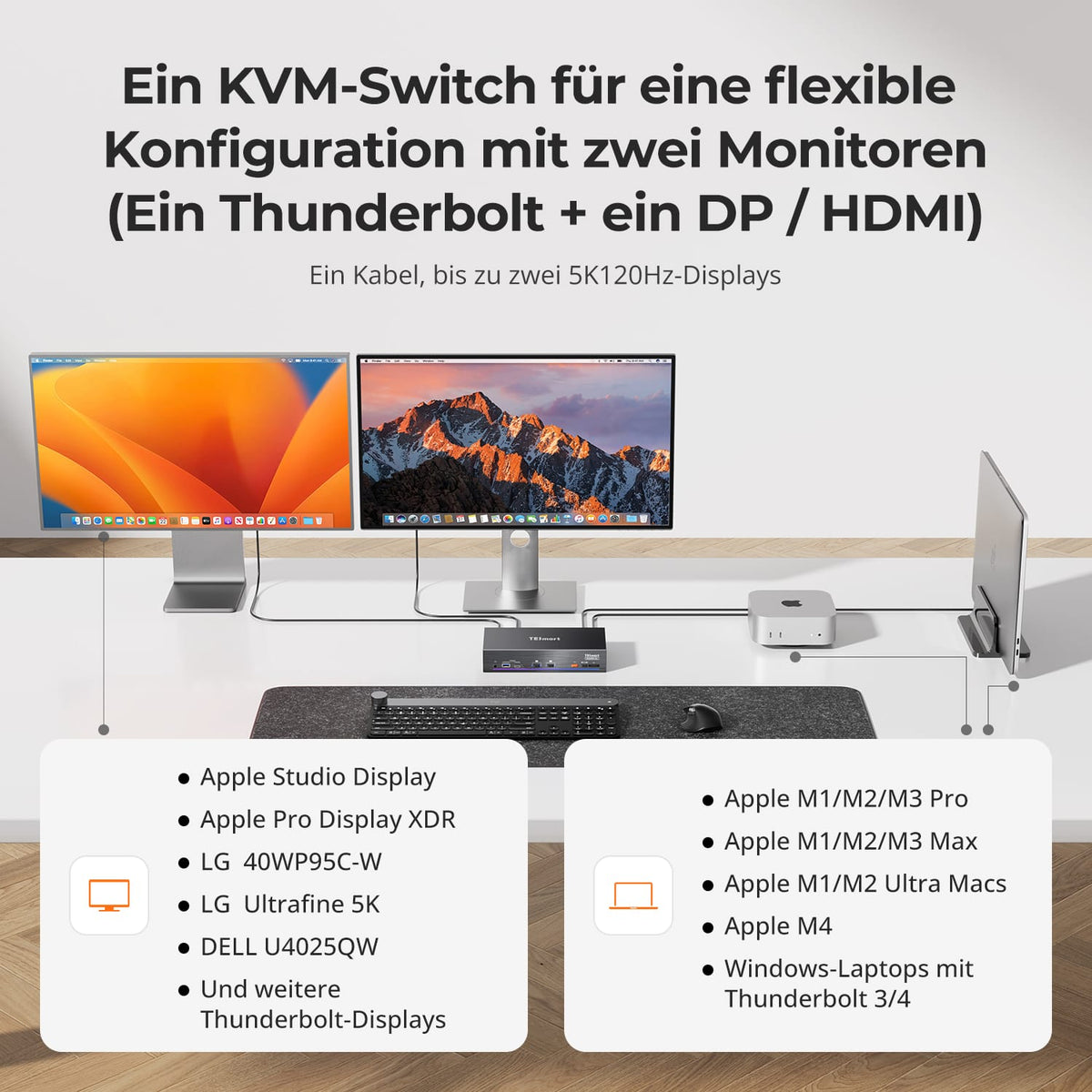
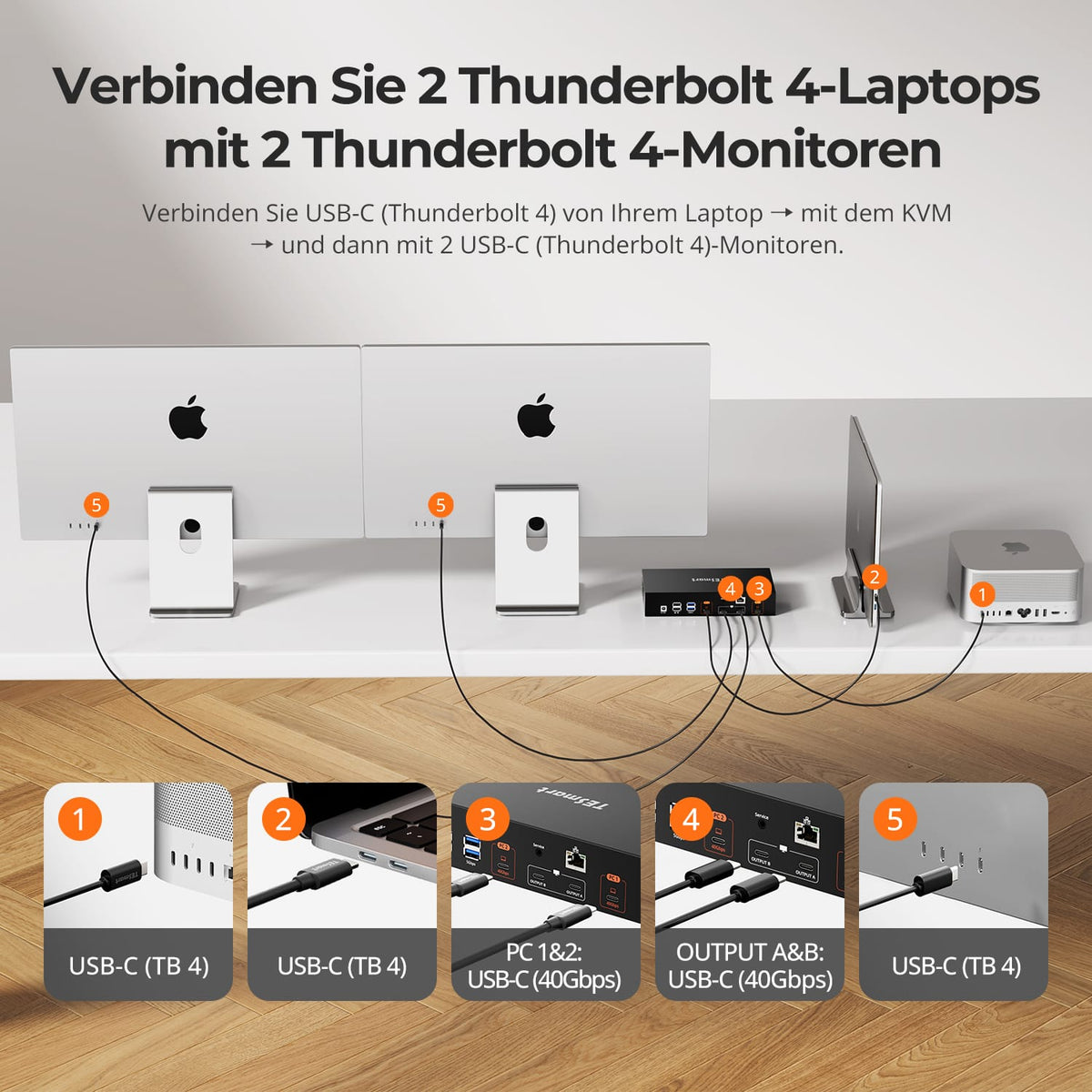
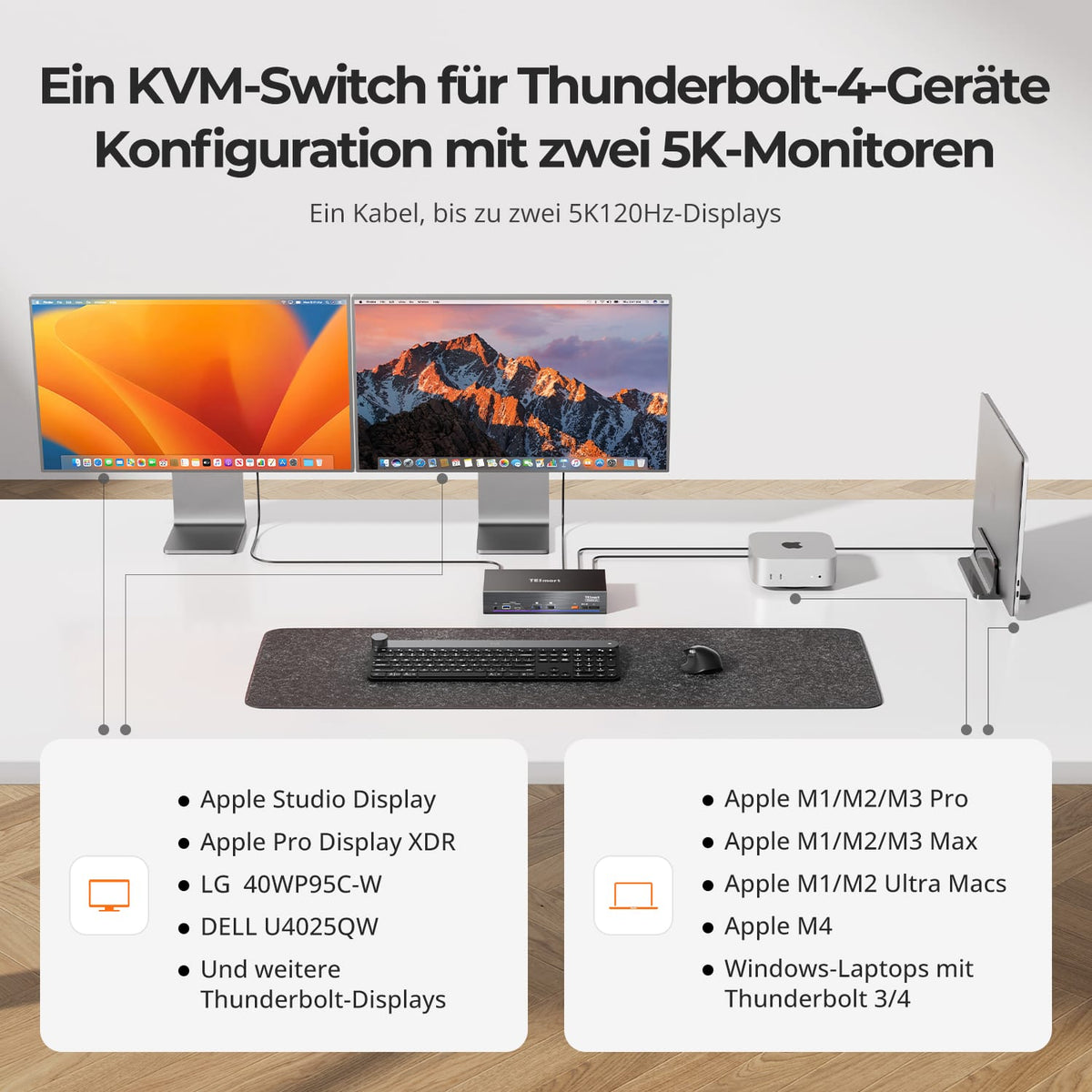
Two Macs and two 6K Thunderbolt displays
Use two compatible Thunderbolt displays – Apple Studio Display, Pro Display XDR, LG, or Dell – with up to 5K120/6K60 resolution and a single cable per computer. Switch monitors, keyboard, mouse, and USB devices at the touch of a button.
02
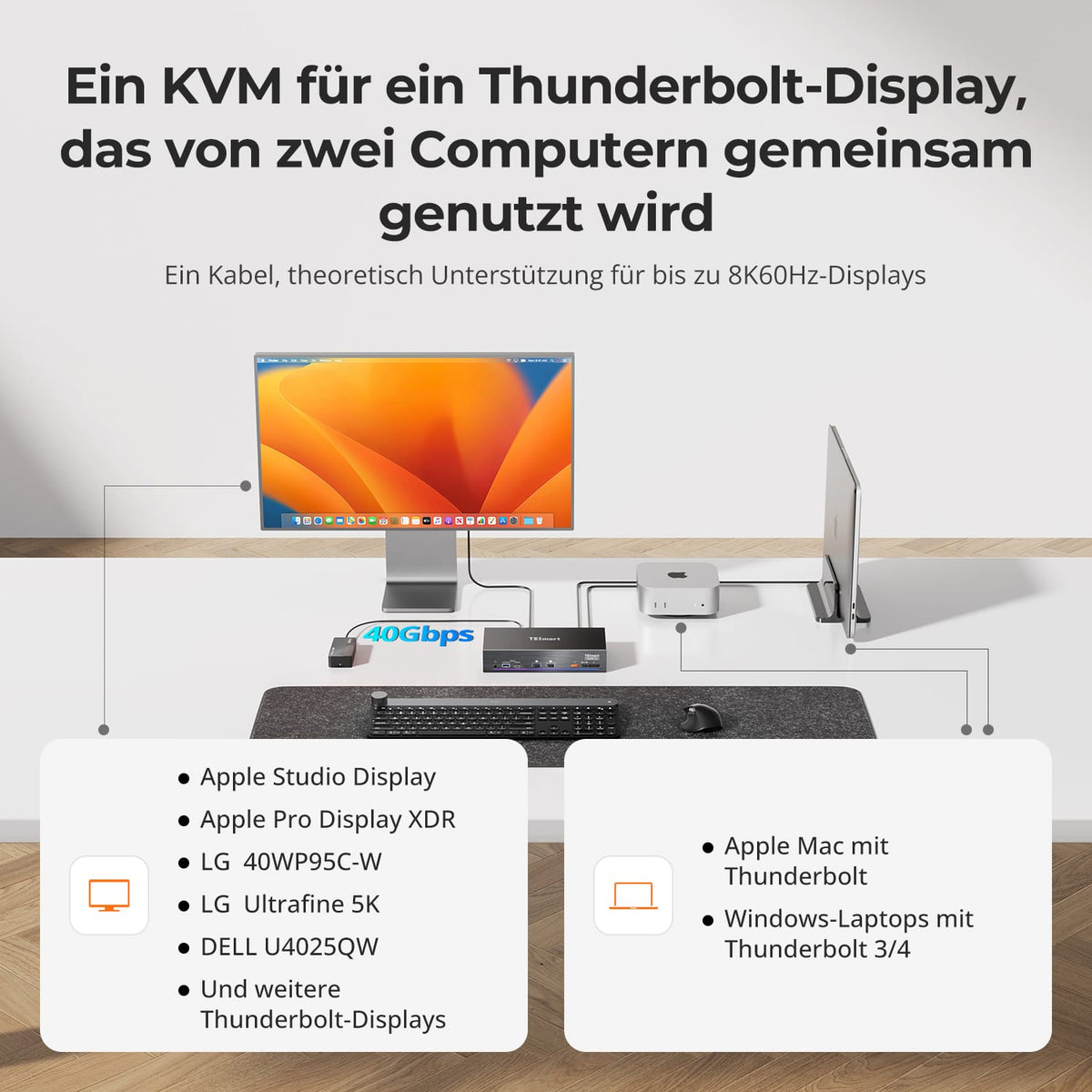
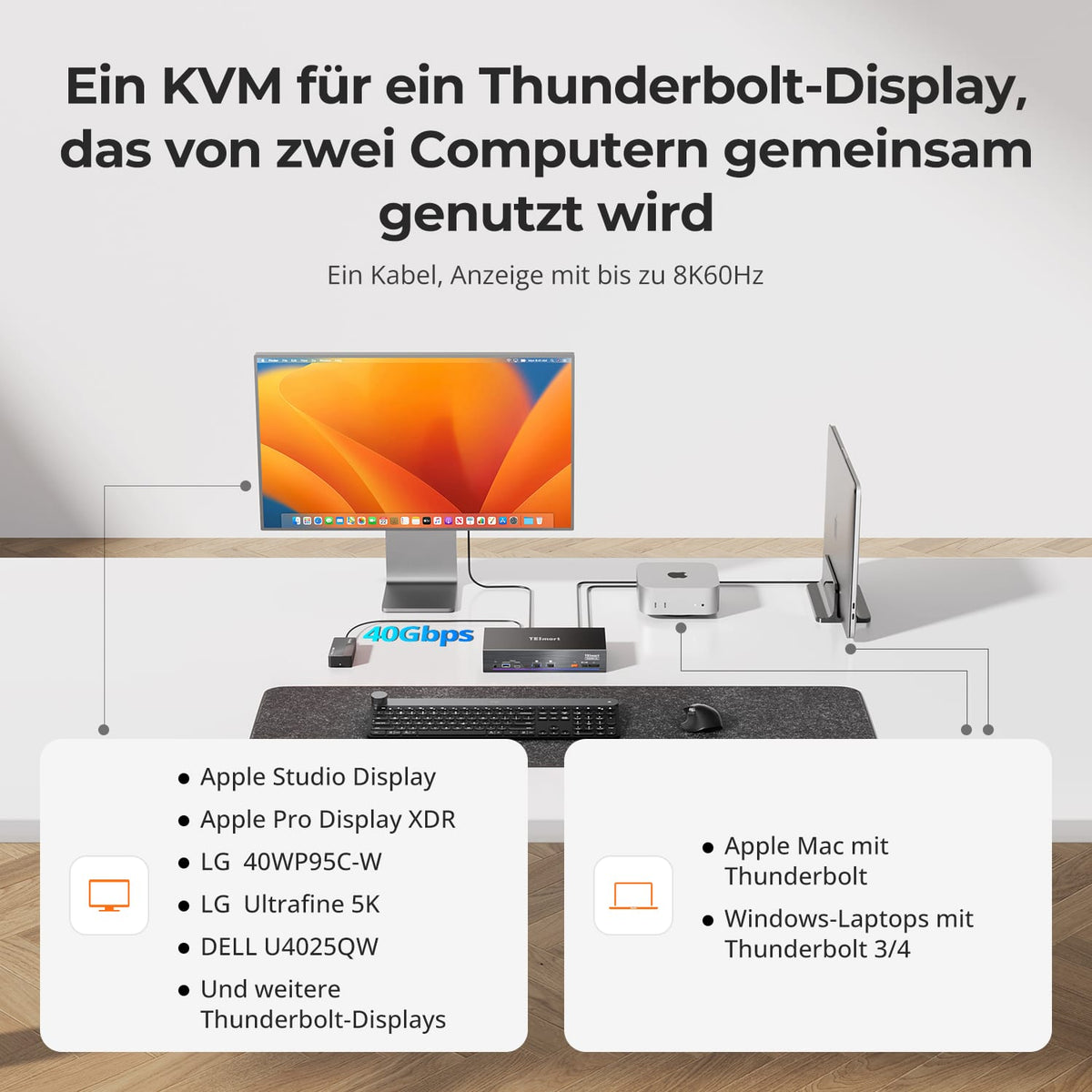
Two Macs and a Thunderbolt Display
Share a Thunderbolt Display with up to 5K@120Hz oder 6K@60Hz zwisOne Mac and one second computer. One cable per system – no need to unplug and replug.
03
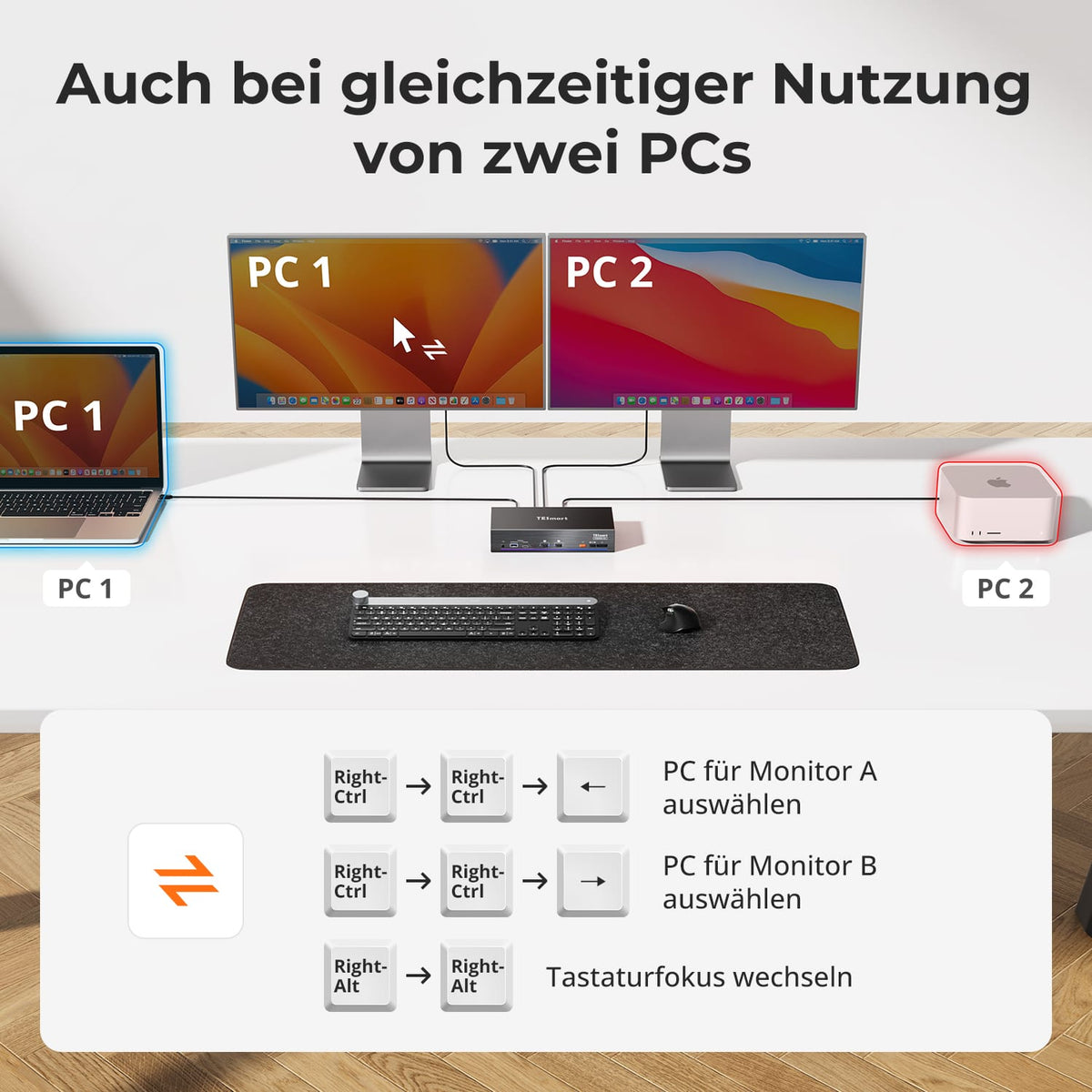
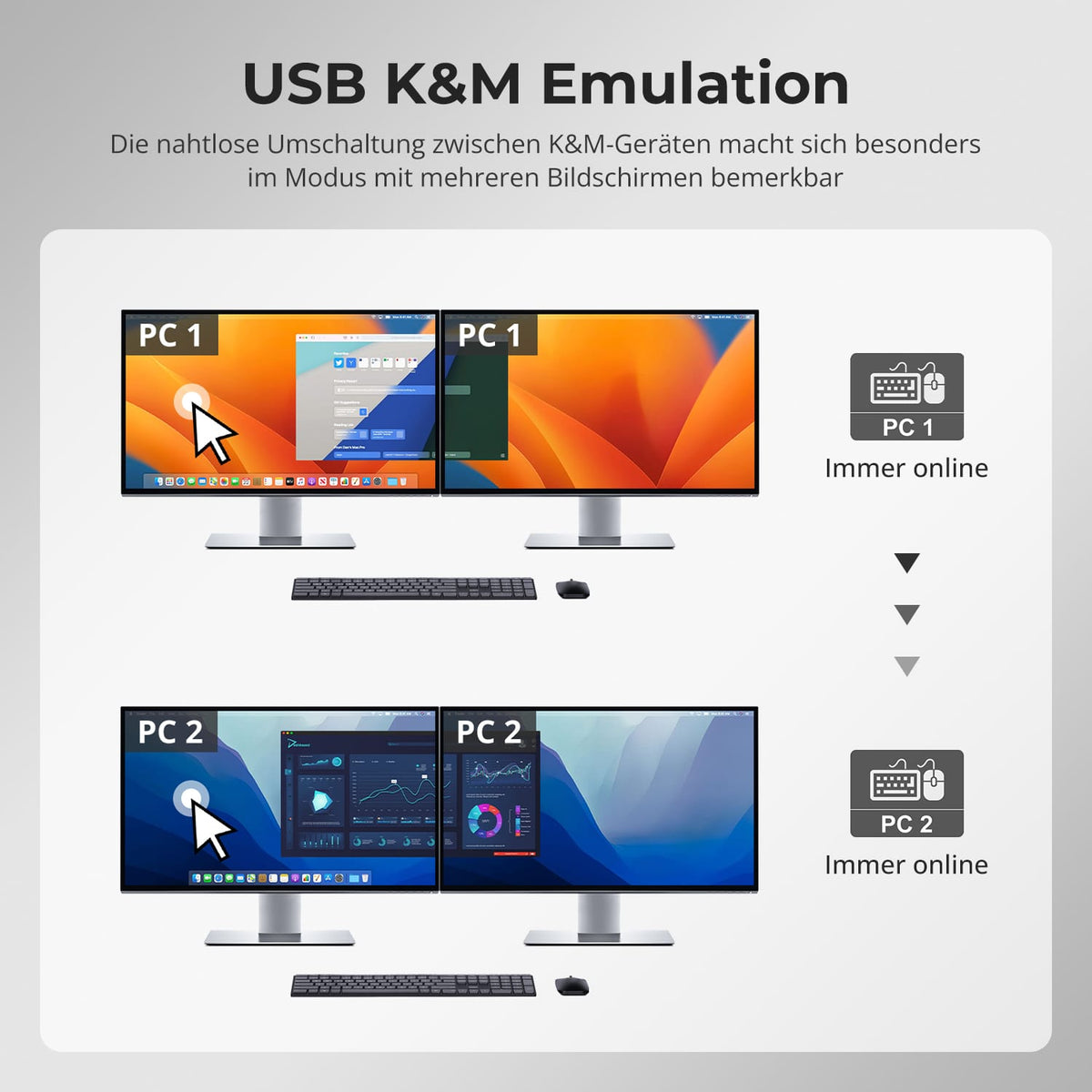
Two display modes. A keyboard and mouse.
Use both displays with one computer or assign a display to each computer. Switch keyboard and mouse controls between the two simultaneously visible systems.
04
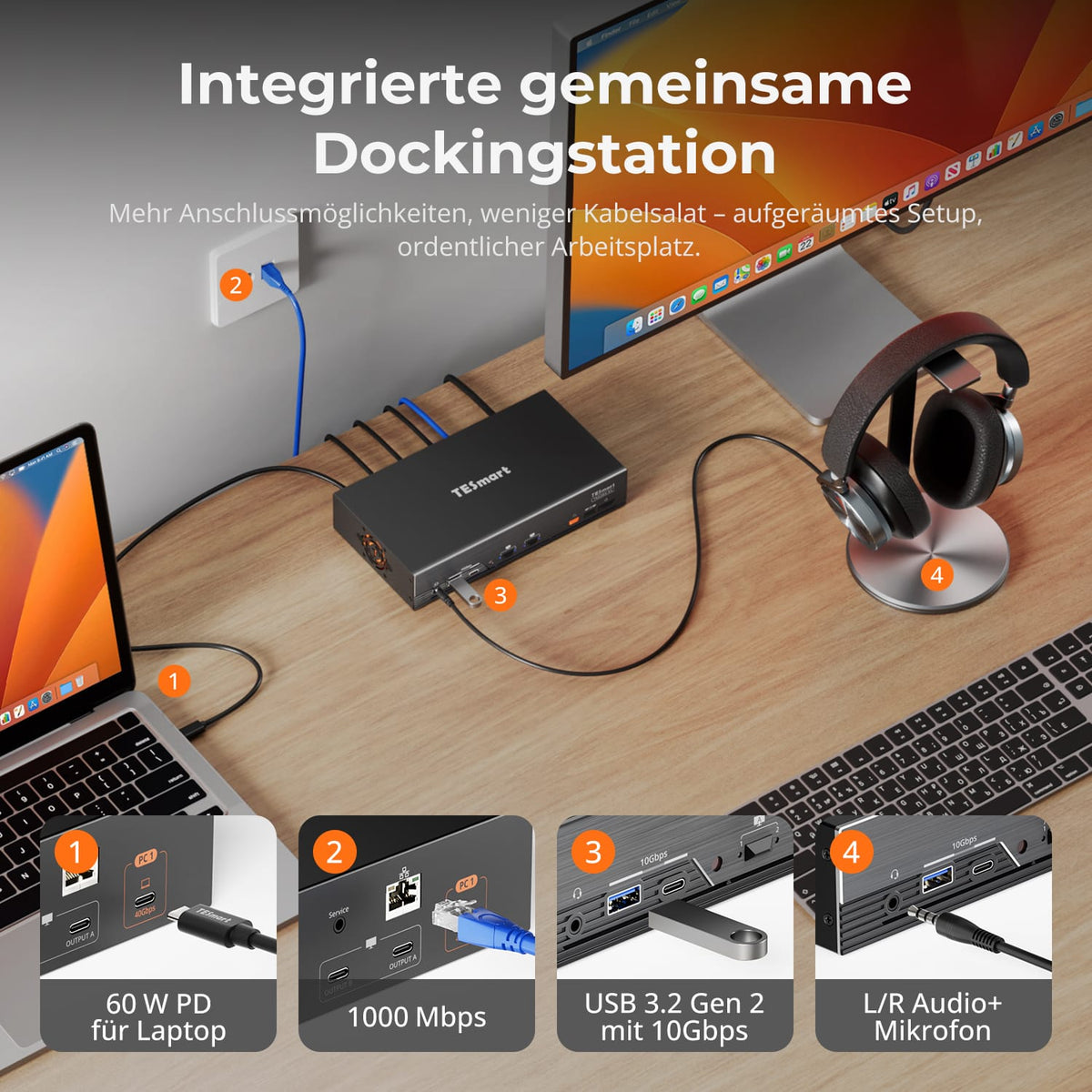
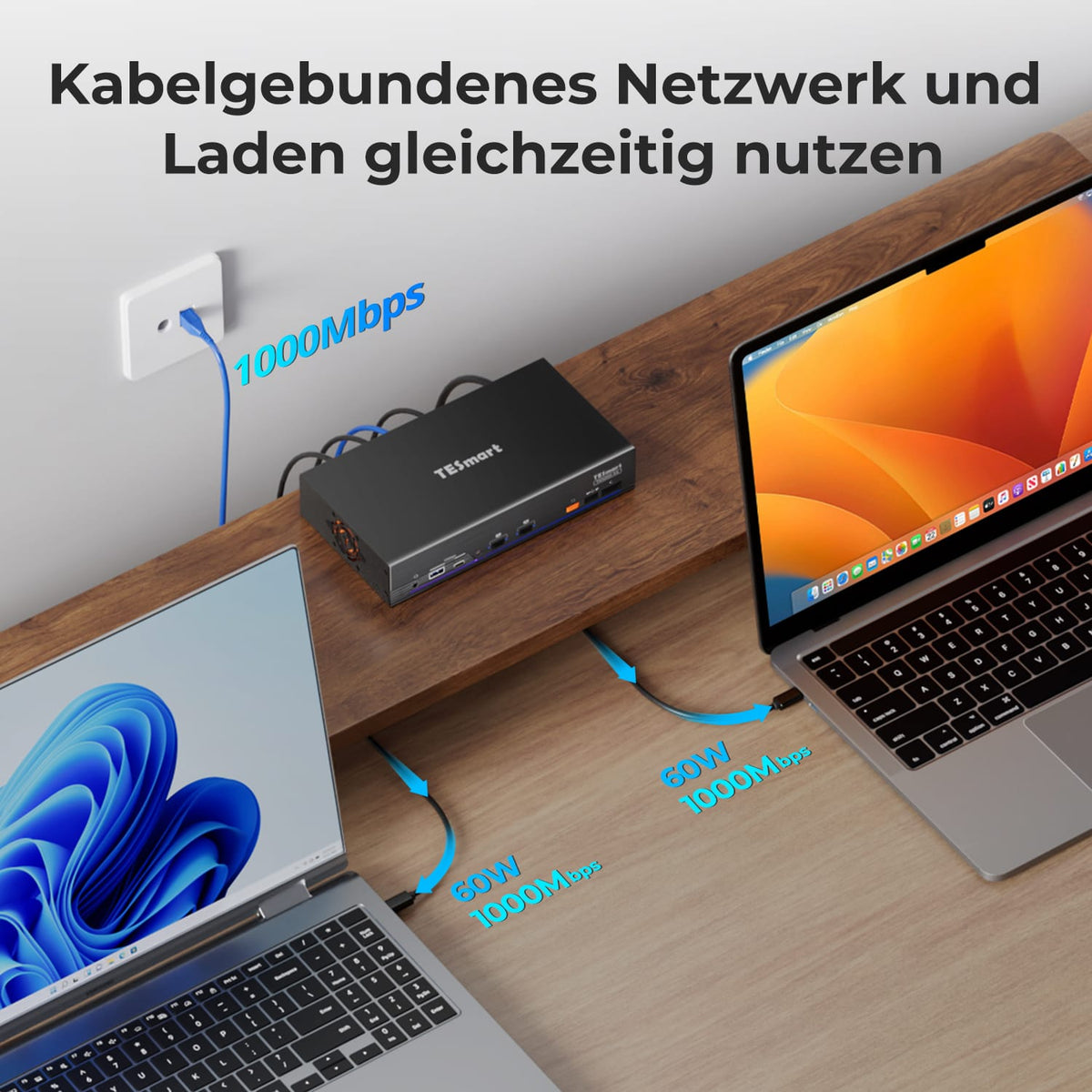
Both computers load. Gigabit Ethernet split.
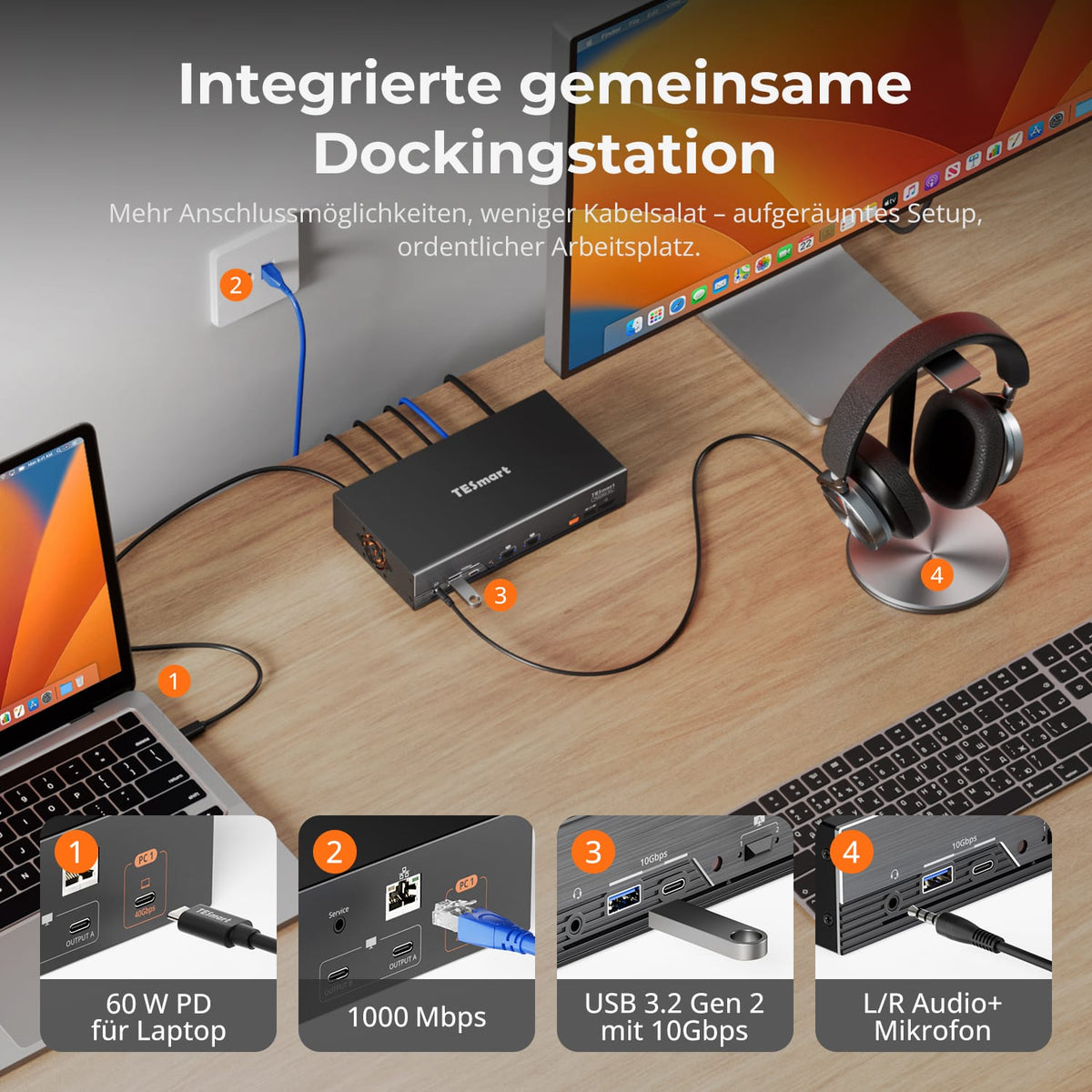
Supply both compatible computers with up to [amount] each. 60 W Charging power. At the same time, they share the Gigabit Ethernet port of the KVM. Fewer chargers and network adapters create more space on the desk.
05
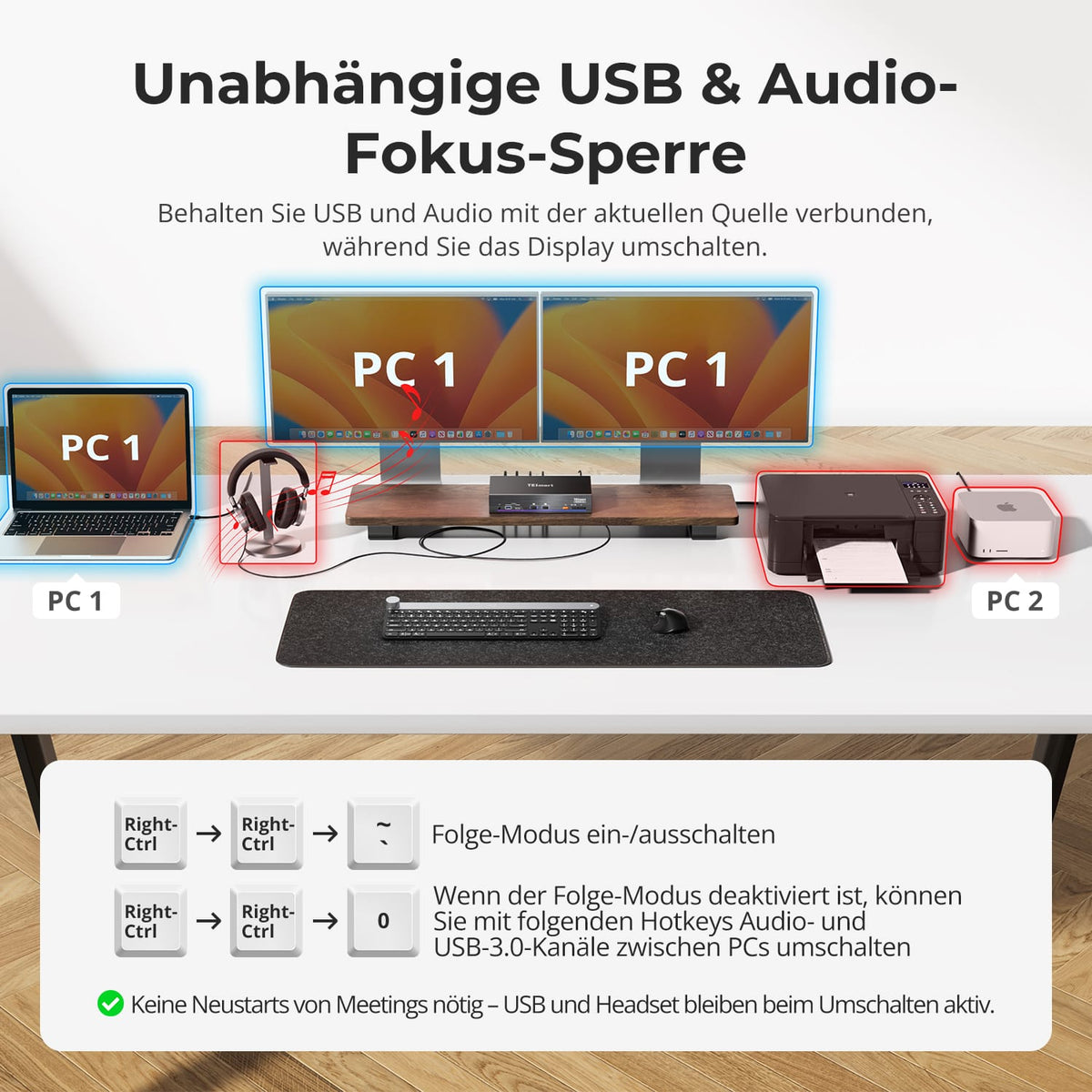
USB & Audio at the desired computer
Keep supported USB devices and audio connected to one computer while independently switching displays, keyboard, or mouse. This ensures that devices like headsets, calls, or USB devices remain active on the required system.
06
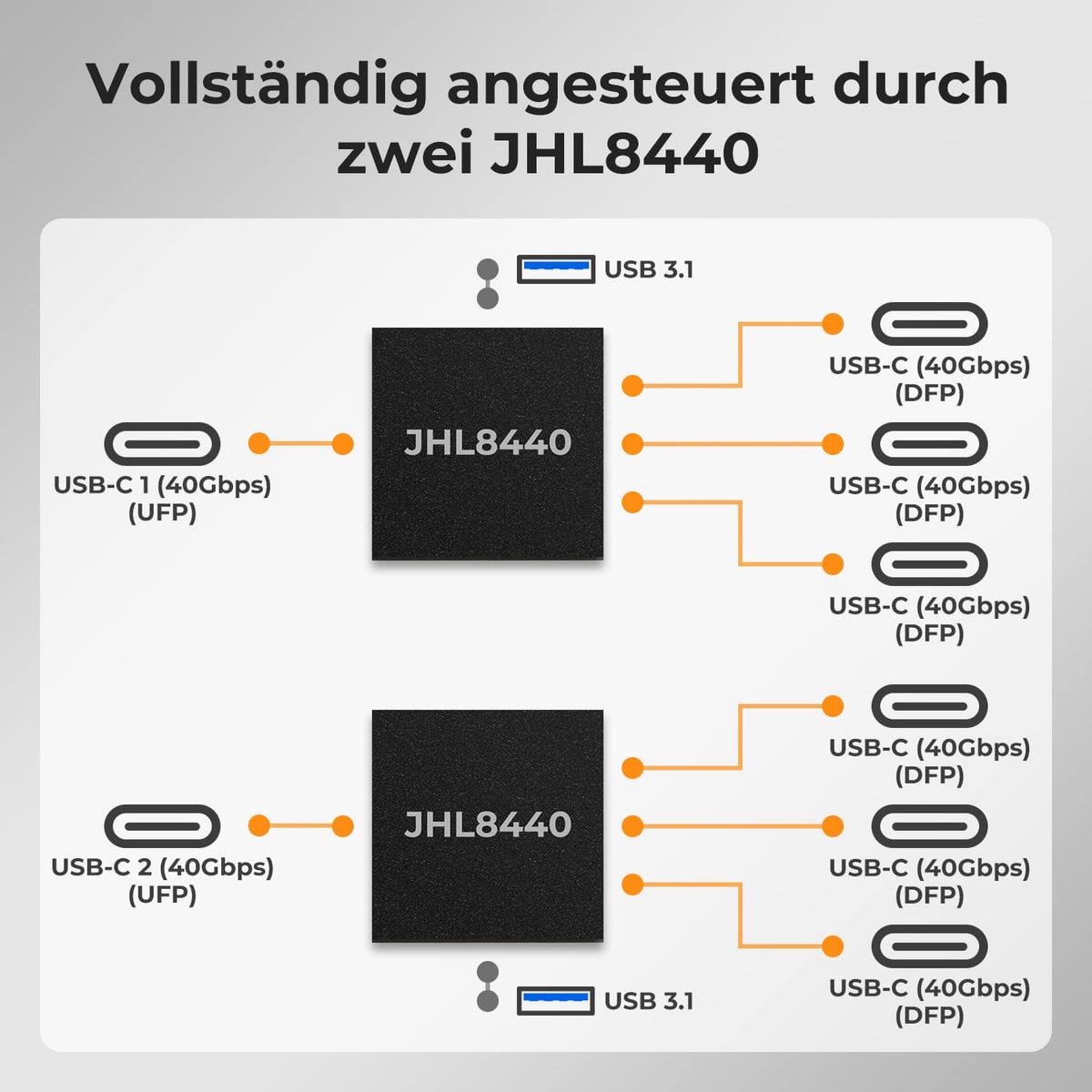
With two Intel JHL8440
Two Intel JHL8440 controllers in the TKS202-X4 create a dedicated Thunderbolt path for each computer. Three separate areas support the stable operation of complex workstations:
Resources – Dedicated bandwidth for each computer.
Thunderbolt domains – No mutual influence when switching.
• Connection paths – An error on one path does not affect the other.
07
KVM and shared dock in a device
The TKS202-X4 lets you share displays, keyboards, mice, high-speed USB devices, Gigabit Ethernet, and audio between two computers. This reduces the need for separate docks, USB switches, and network adapters.
08
09
10
Data & Support
Compatibility & Connections
Technical data
Instructions & Downloads
Scope of delivery
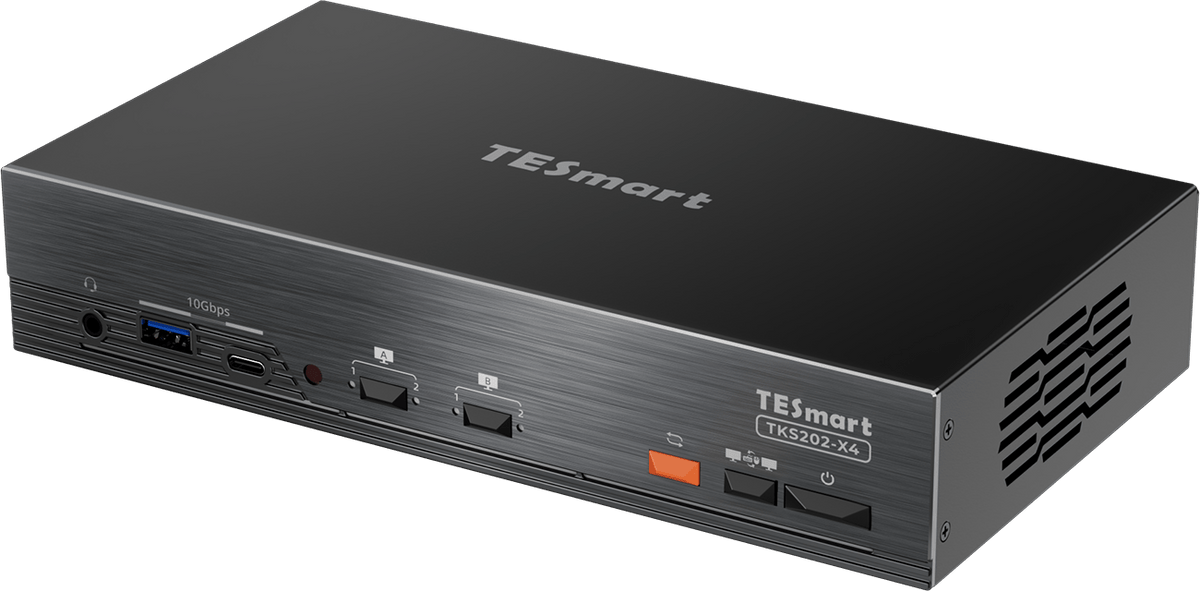
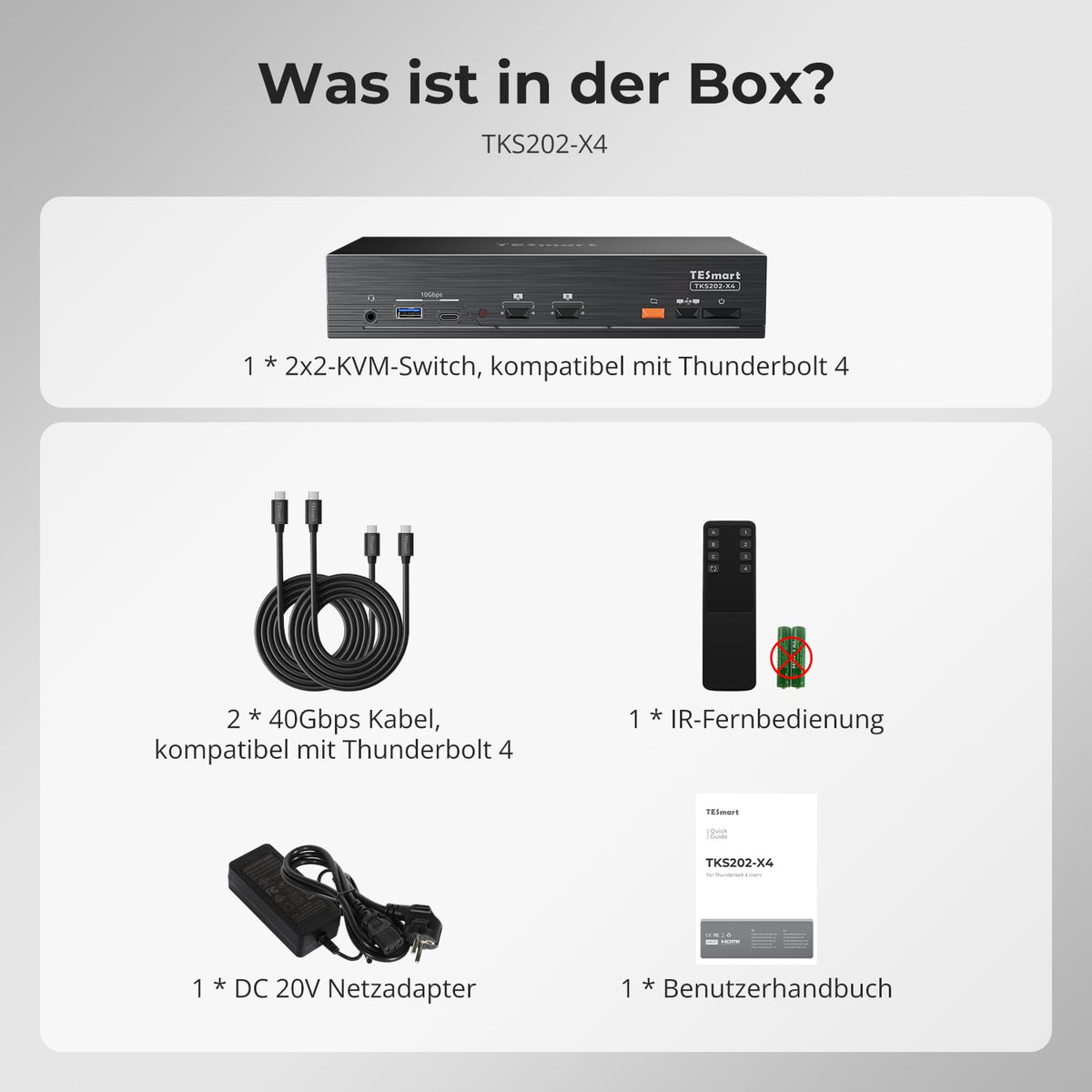
1 × TKS202-X4 KVM Switch
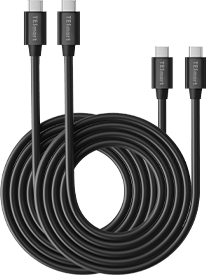
2 × USB-C cables (40 Gbit/s)
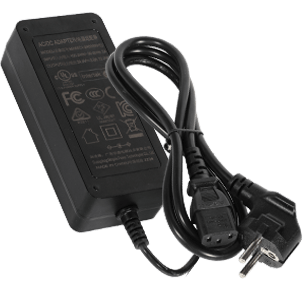
1 × 20V DC power supply

1 × IR Remote Control
1×User manual

Product comparison


Sources
2 × PCs (Thunderbolt™ 4)
Sources
1× Mac (Thunderbolt™ 4)
1× Windows PC
2x HDMI sources
Sources
1× Laptop (Thunderbolt™ 4)
1× HDMI/DP desktop PC
Display setup
2 × Apple Studio Displays
Display setup
1 × Apple Studio Display
Display setup
2× HDMI monitors
Max. display output
Up to 6K@60Hz / 5K@120Hz
Max. display output
Entrance 1: 6K@60Hz / 5K@120Hz
Max. display output
2× 4K@60Hz
Charge laptop
2 × 60W
Charge laptop
1 × 60W
Charge laptop
1 × 60W
Ideal for
Two Macs or Windows laptops with Thunderbolt 4 sharing two Apple Studio Displays
Ideal for
Mac, desktop PC and HDMI devices connected to one Apple Studio Display
Ideal for
Mac and desktop PC connected to two conventional monitors
Frequently asked questions
You can find further answers in our Help Center.
[Compatibility] Which devices does the TKS202-X4 support?
The TKS202-X4 connects two compatible computers to one or two Apple Studio Displays or other supported Thunderbolt displays. It is compatible with select MacBook Air/Pro, Mac mini, Mac Studio, Mac Pro, and Windows systems. Please check native support for your desired display configuration beforehand.
[Compatibility] How do I test my computer for TKS202-X4?
It requires a compatible, full-fledged Thunderbolt port. Supported setups include Thunderbolt 3/4/5 and tested USB4 systems from the compatibility list. A USB-C connector alone is not sufficient; charging/data-only ports or limited video output do not offer full KVM functionality. If you are unsure, please contact support before purchasing.
[Compatibility] Does the TKS202-X4 work with other displays?
In addition to Apple Studio Display, select Thunderbolt displays are supported, including the Pro Display XDR and listed LG/Dell models. Standard USB-C displays are not guaranteed. HDMI/DP monitors may work via suitable USB-C adapters; stability depends on the overall setup. Check the list or contact support before purchasing.
[Compatibility] Which one fits: TKS202-X4 or THK401-X4?
The TKS202-X4 is suitable for two computers and two compatible displays, especially two Apple Studio Displays. The THK401-X4 shares one Studio Display between two computers and two additional HDMI sources such as a console or media player.
[Compatibility] Is the Intel TKS202-X4 certified for Thunderbolt?
The TKS202-X4 is not yet certified by Intel for Thunderbolt. It is designed for Thunderbolt 4-compatible computers and has been tested in common setups for video output, data connection, and device switching. Certification is in progress.
[Functions] What is the maximum supported resolution?
The TKS202-X4 supports high-resolution displays up to... 5K@120Hz oder 6K@60Hz. CompThe actual output depends on the device, display, operating system, cable, and display mode.
[Functions] How can I use the two display outputs?
One display: share between two computers. Two displays on one computer: extended or mirrored, depending on the operating system. One display per computer: PC1 and PC2 remain visible while you switch keyboard/mouse controls.
[Connections] Can both computers share a keyboard, mouse, and USB devices?
Yes. PC1 and PC2 share the keyboard, mouse, and supported USB devices on the KVM. Switch between controllers without reconnecting.
[Functions] Do USB and audio always follow the display switch?
No. In Follow Mode, USB and audio follow the active computer. With USB & Audio Focus Lock, they remain on one system while you switch displays or keyboard/mouse separately – for active headsets, calls, and devices.
[Connections] Can both computers charge and use Gigabit Ethernet?
Yes. Each compatible computer receives up to 60W of Power Delivery. Both share Gigabit Ethernet with speeds up to 1000 Mbps. Charging and network access are available simultaneously – requiring fewer separate chargers and adapters.
[Furnishings] How do I switch between computers?
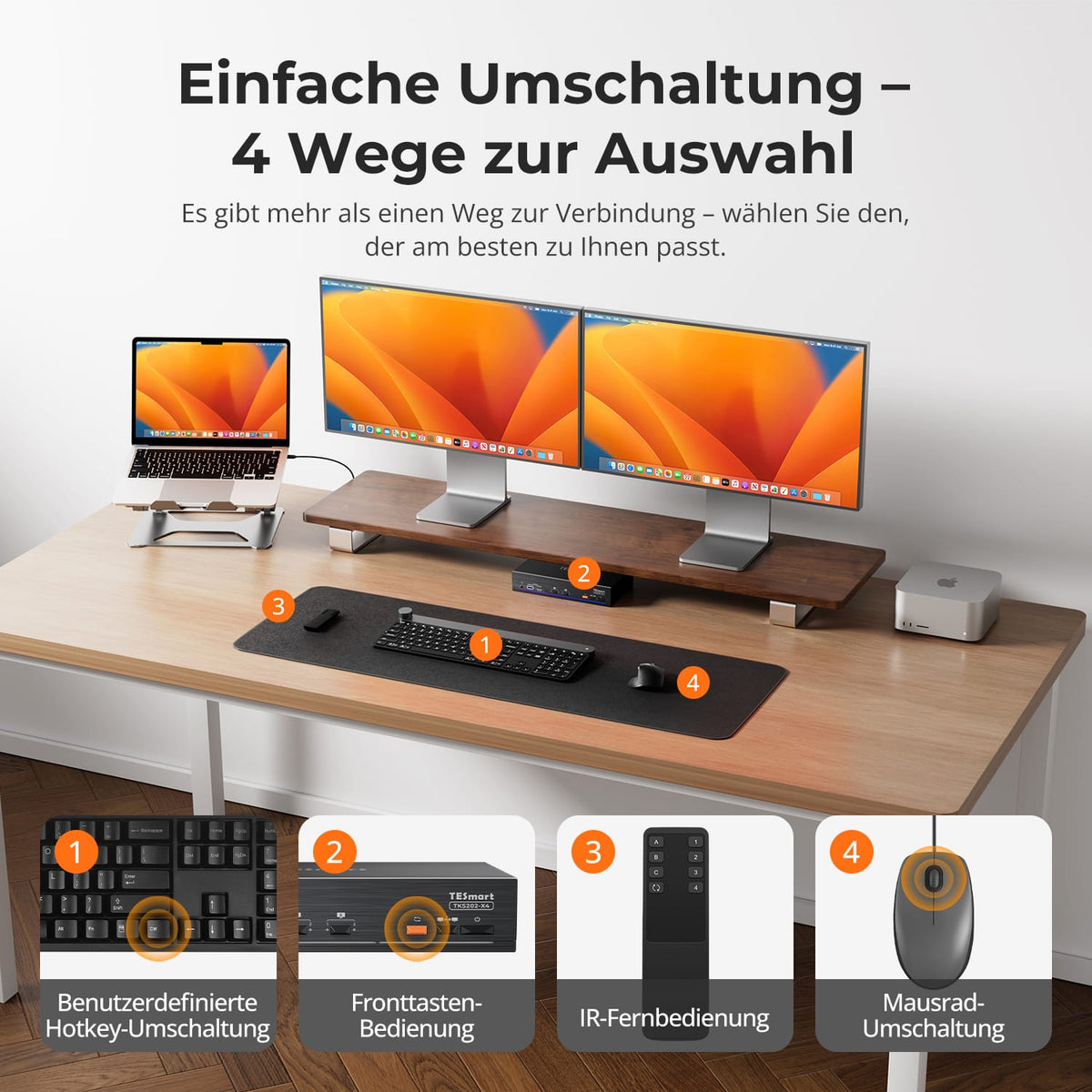
The TKS202-X4 features a control panel, IR remote control, hotkeys, and a mouse wheel for switching between functions. The mouse wheel function must be activated.
[Furnishings] Does the TKS202-X4 support keyboard hotkeys?
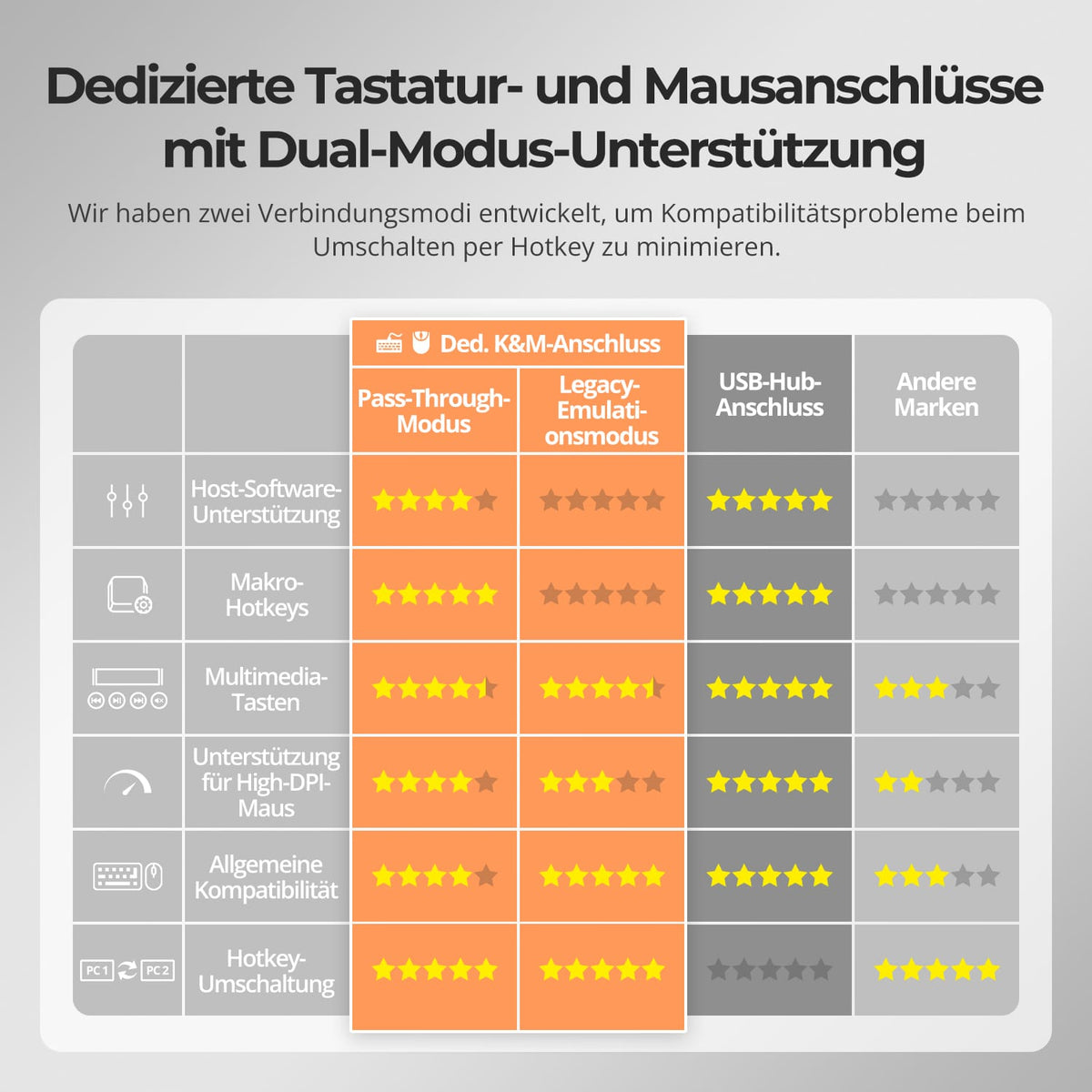
Yes. Connect a compatible wired USB keyboard to the designated keyboard port. Hotkeys may not work with Bluetooth keyboards, standard USB hubs, or some wireless receivers.
[Functions] What are Pass-Through Mode and Legacy Emulation Mode?
Pass-through mode connects modern keyboards and mice directly to the computer and supports many additional functions. In case of problems, legacy emulation mode offers basic keyboard, mouse, and hotkey compatibility. Driver-dependent or programmable additional functions may not be available in this mode.
[Furnishings] Do I need drivers or switching software?
No special switching software is required for normal display switching, keyboard, mouse, and basic KVM functions. Connected devices may require their own drivers or applications.
