







Monitorkonfiguration

Max. Auflösung
Thunderbolt-Controller

Anschlüsse

Kompatibilität

Laptop laden

Gemeinsames Netzwerk
2×2 KVM for Laptop & Desktop | Dual 4K60, Thunderbolt™ 4 compatible
Share twice 4K60, keyboard, mouse, USB and Ethernet between Thunderbolt laptop and desktop PC. With 60W charging and EDID for stable work with both systems.
Monitorkonfiguration
Max. Auflösung
Thunderbolt-Controller
Anschlüsse
Kompatibilität
Laptop laden
Gemeinsames Netzwerk
2×2 KVM for Laptop & Desktop | Dual 4K60, Thunderbolt™ 4 compatible
Why HDC202-X24?
Overview

01
One cable: two 4K60 outputs and 60W charging.
Connect your Thunderbolt 4 laptop via one cable for two extended ports. 4K@60Hz-Displays, 40 Gbps data transfer and up to 60 W charging power. Ideal for mixed Mac and Windows setups.

02
Expansion port with 40 Gbit/s
An additional Thunderbolt 4 downstream port connects external SSDs, docks, or studio displays at speeds of up to 40 Gbps. This ensures that your laptop's bandwidth remains available even when using a KVM switch.
03
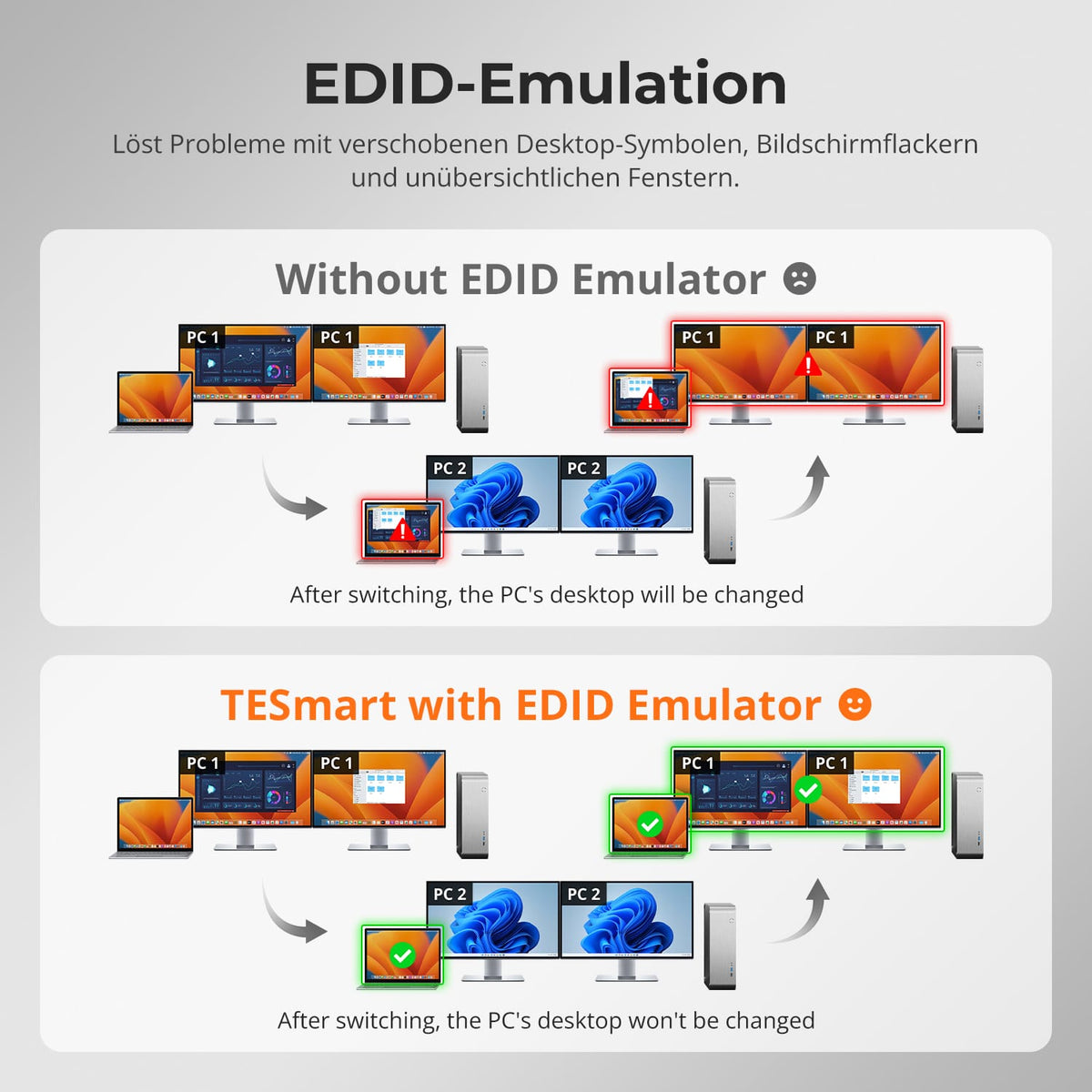
EDID emulation for stable desktops
Integrated EDID emulators keep the display information of each PC readily available. This helps to maintain resolution, icons, and window positions when switching displays and reduces flickering.
05
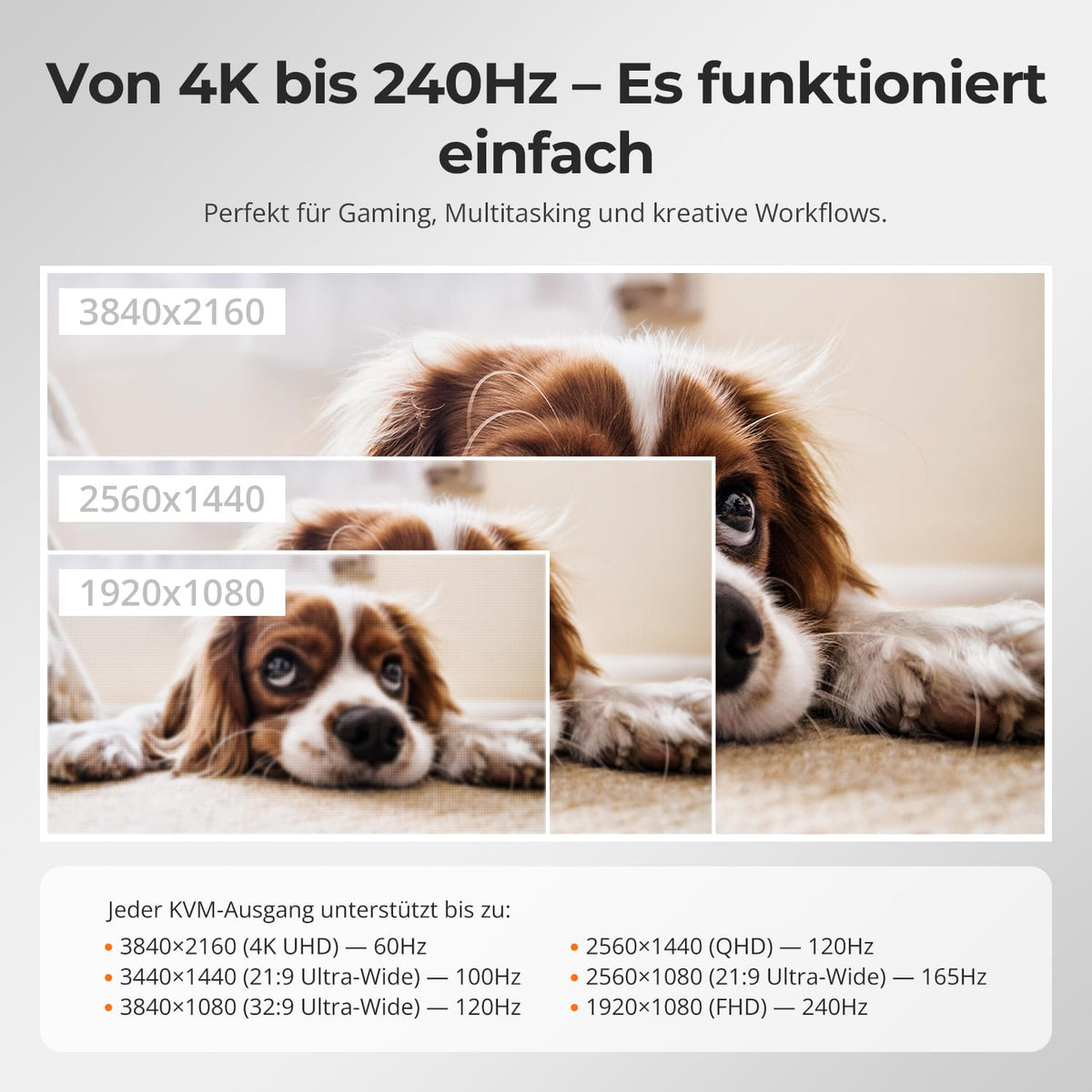
From 4K@60Hz bis 1080p@240Hz
Each HDMI output supports up to 3840×2160@60Hz in 4:4:4, 3440×1440@100Hz for ultrawide and 1920×1080@240Hz For gaming. A KVM for creative work, productivity, and e-sports.
04
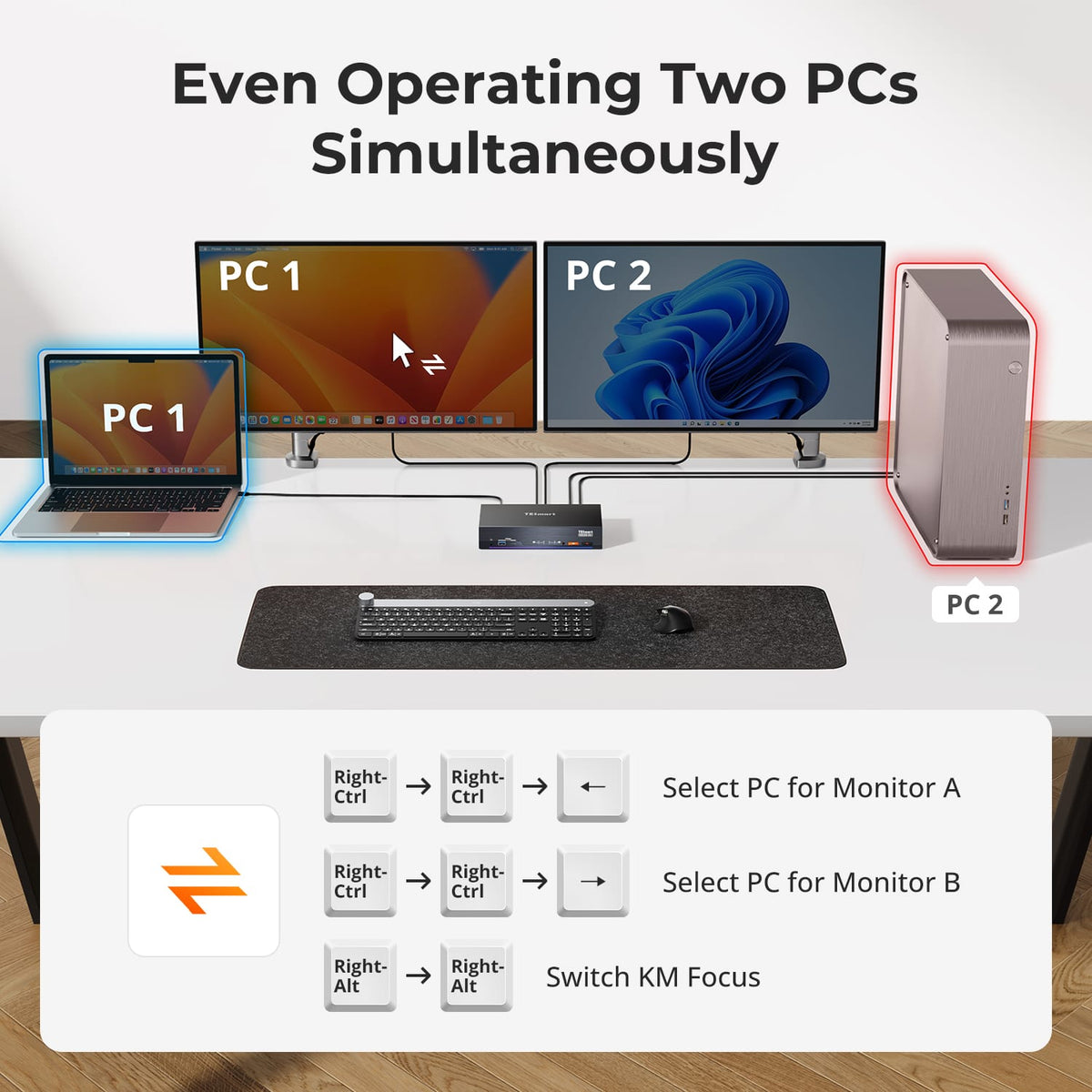
Two PCs simultaneously serve
Display mode 2 shows PC 1 and PC 2 simultaneously on separate monitors. Assign the displays using the right Ctrl key and switch keyboard/mouse controls by pressing the right Alt key twice.

06
With Intel JHL8440
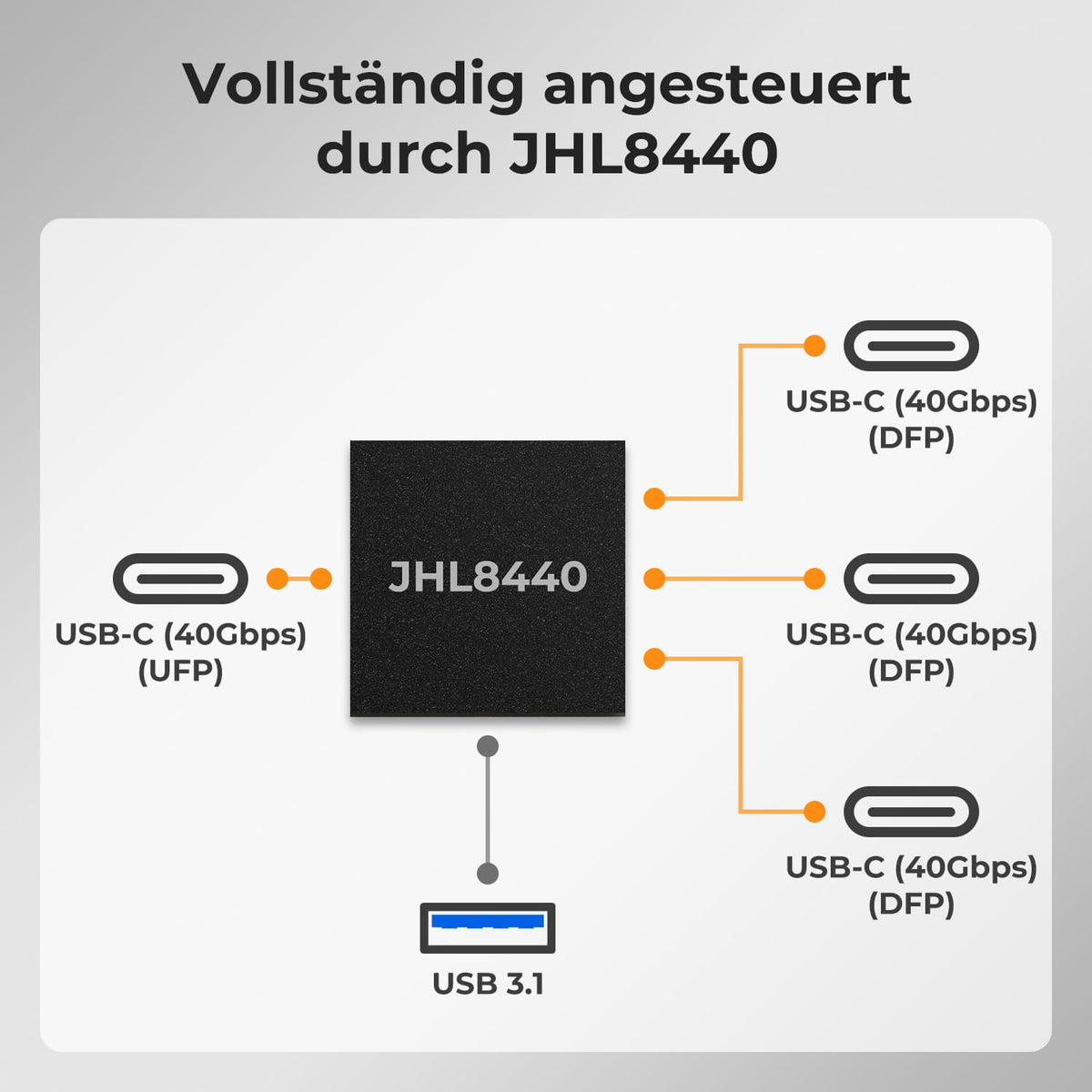
The Intel JHL8440 Thunderbolt 4 controller distributes a 40 Gbps connection from the laptop to three USB-C downstream ports with 40 Gbps and USB 3.1 – for stable video output and fast device connections.
07
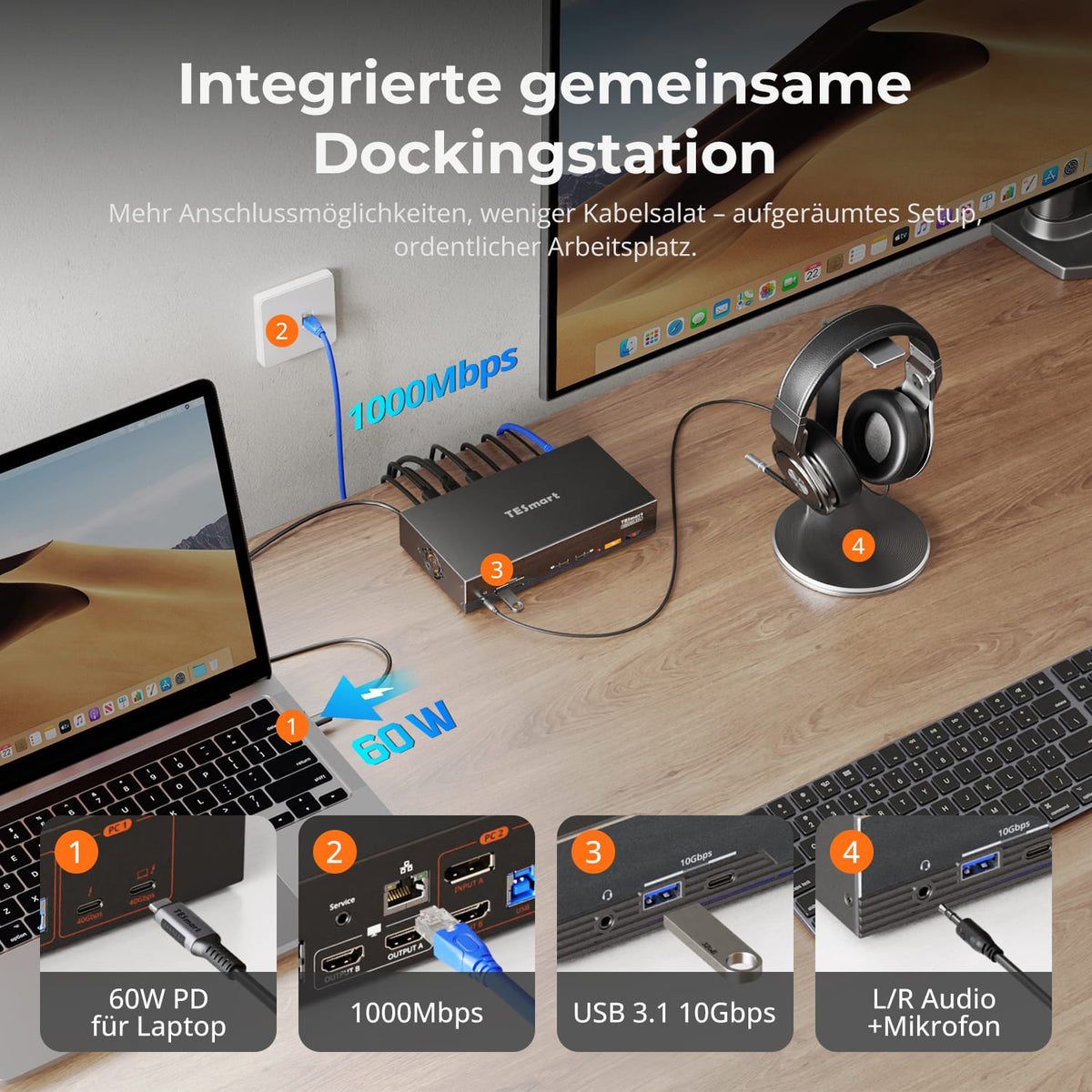
Shared Dock integrated
One dock for both computers: 60W PD charging for the laptop, shared Gigabit Ethernet via a single network cable, 10Gbps USB, and stereo audio and microphone. More ports, fewer cables.

08

09
10
Data & Support
Compatibility & Connections
Technical data
Instructions & Downloads
Scope of delivery

1 × HDC202-X24 KVM Switch
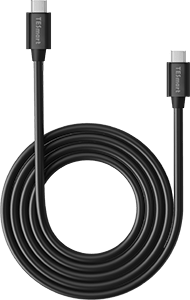
1 × USB-C cable (40 Gbit/s)
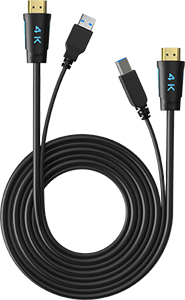
1 × KVM cable (HDMI + USB)

1 × DisplayPort Cable
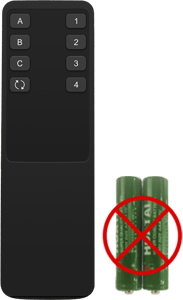
1 × IR Remote Control

1 × 20V DC power supply

1×User manual


Product comparison
Vergleichen Sie Computeranschlüsse, Monitorausgänge und Ladeleistung und wählen Sie in jedem Menü ein Modell.
DisplayLink-Modelle benötigen auf jedem Computer, der die DisplayLink-Verbindung nutzt, einen kompatiblen Treiber. CKS203-PM24 benötigt an jedem Laptop einen videofähigen USB-C-Anschluss. Prüfen Sie Mac-Kompatibilität und Monitoranschlüsse auf der Produktseite.


Modell
HDC202-X24
Modell
TKS202-X4
Modell
THK401-X4-V3
Angeschlossene Geräte
1× Laptop (Thunderbolt™ 4)
1× HDMI-/DP-Desktop-PC
Angeschlossene Geräte
2 × PCs (Thunderbolt™ 4)
Angeschlossene Geräte
1 × Mac (Thunderbolt™ 4)
1 × Windows-PC
2 × HDMI-Quellen
Monitoranzahl
2× HDMI-Monitore
Monitoranzahl
2 × Apple Studio Displays
Monitoranzahl
1 × Apple Studio Display
Videoauflösung
Zweimal 4K@60Hz
Videoauflösung
Bis zu 6K@60Hz / 5K@120Hz
Videoauflösung
Eingang 1: 6K@60Hz / 5K@120Hz
HDMI: 4K@60Hz
Laptop laden
1 × 60W
Laptop laden
2 × 60W
Laptop laden
1 × 60W
Displaytechnologie / Software
Thunderbolt-kompatibler Laptop-Eingang + HDMI-/DP-Desktop-Eingänge
Displaytechnologie / Software
Thunderbolt-kompatible Videoausgabe; Unterstützung externer Displays am Computer prüfen
Displaytechnologie / Software
Thunderbolt-kompatibler Mac-Eingang + HDMI-Eingänge
Ideal für
Mac und Desktop-PC an zwei herkömmlichen Monitoren
Ideal für
Zwei Macs oder Windows-Laptops mit Thunderbolt 4, die zwei Apple Studio Displays teilen
Ideal für
Mac, Desktop-PC und HDMI-Geräte an einem Apple Studio Display
Frequently asked questions
You can find further answers in our Help Center.
[Compatibility] Which devices does the HDC202-X24 support?
PC1 of the HDC202-X24 connects a Thunderbolt 3/4/5 computer. PC2 connects a second computer via DisplayPort or HDMI and USB-B. This allows, for example, a MacBook or Windows Thunderbolt laptop and a desktop PC to use two HDMI displays with one keyboard and mouse.
[Compatibility] Can my Mac use two extended displays?
The output depends on the Mac's native display support. According to product information, the M4, as well as M1/M2/M3/M4 Pro, Max, Ultra, and Intel Macs, support two displays. Base M1/M2/M3 models are limited to one external display via Thunderbolt. macOS version and display configuration can also affect this behavior.
[Compatibility] Is Intel's HDC202-X24 certified for Thunderbolt?
The HDC202-X24 is not yet certified by Intel for Thunderbolt. It is designed for Thunderbolt 4-compatible computers and has been tested in common setups for video output, data connectivity, and device switching. Certification is in progress.
[Compatibility] Which one fits: HDC202-X24, THK401-X4 or TKS202-X4?
The HDC202-X24 connects a Thunderbolt laptop and a DP/HDMI desktop PC to two HDMI displays. It features integrated 60W charging, Gigabit Ethernet, and 10Gbps USB. The THK401-X4 shares an Apple Studio Display between two computers and two additional HDMI sources. The TKS202-X4 is suitable for two Thunderbolt 4-compatible computers and two Thunderbolt displays.
[Connections] Do both PC inputs offer the same functions?
No. PC1 provides dual displays, USB data, networking, up to 60W charging, and a 40Gbps expansion port for Thunderbolt-equipped computers. PC2 uses DisplayPort or HDMI for video and USB-B for shared devices. PC2 does not offer laptop charging or an expansion port.
[Functions] What is the maximum supported resolution?
Each HDMI output supports up to 3840×2160@60Hz in 4:4:4 and 2560×1440@120Hz und 1920×1080@240Hz. Die Actual output depends on computer, display, operating system, cable, and display mode.
[Functions] How can I use the two display outputs?
Mode 1 displays one PC on both monitors, either extended or mirrored depending on the operating system. Mode 2 displays PC1 on one monitor and PC2 on the other. Pressing the right Alt key twice switches between keyboard and mouse controls.
[Connections] What is the 40 Gbps expansion port?
The USB-C downstream port extends PC1 for an external SSD, dock, or display with speeds up to 40 Gbps. It is exclusively for PC1. Devices connected to this port will not switch between computers.
[Connections] Can both PCs use Gigabit Ethernet?
Yes. The integrated network switch shares Gigabit Ethernet at speeds up to 1000 Mbps with both PCs. This function can be enabled or disabled via a hotkey.
[Functions] Do USB and audio always follow the display switch?
No. In Follow Mode, which is enabled by default, USB and audio follow the active computer. Disable this mode to switch between both channels independently using a hotkey. This allows you to keep your headset or a call active on the desired system.
[Switch] How do I switch between connected devices?
The HDC202-X24 offers a button on the device itself, an IR remote control, keyboard hotkeys, and a mouse wheel for switching between functions. The mouse wheel function must first be activated.
[Furnishings] Does the HDC202-X24 support keyboard hotkeys?
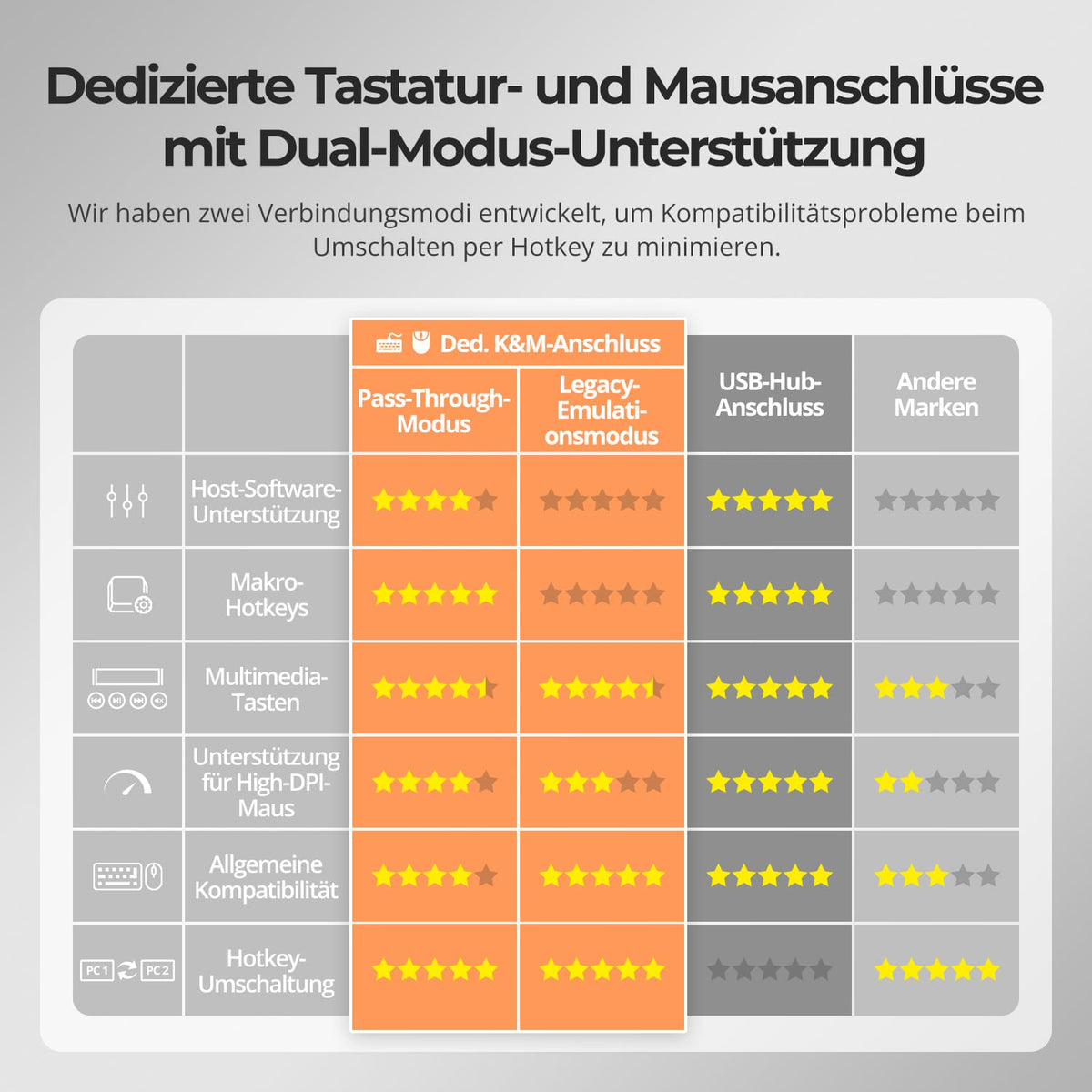
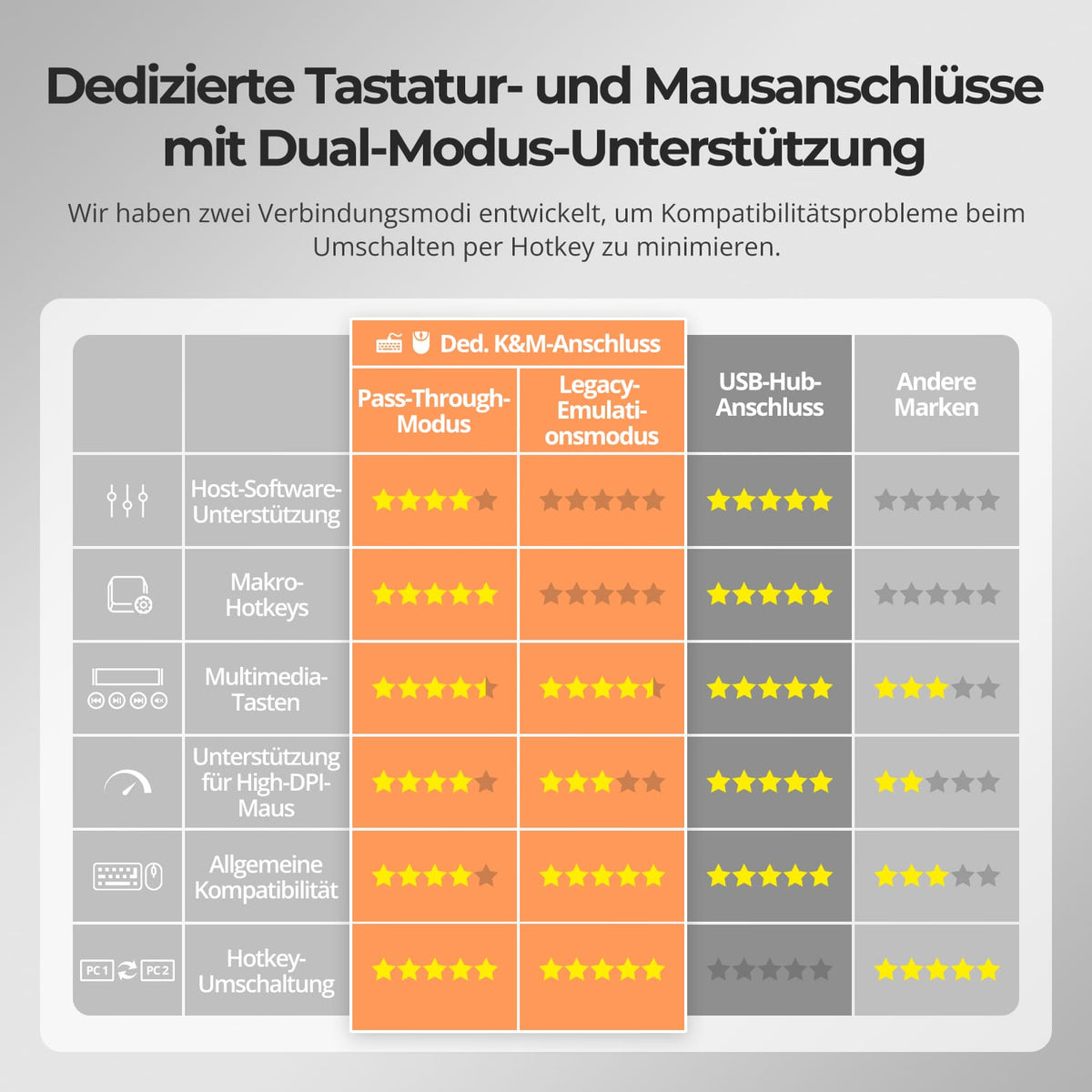
Yes. Connect a compatible wired USB keyboard to the designated keyboard port. Hotkeys may not work with Bluetooth keyboards, standard USB hubs, or some wireless receivers.
[Functions] What are Pass-Through Mode and Legacy Emulation Mode?
Pass-through mode is recommended for modern keyboards and mice and supports many additional functions. In case of problems, legacy emulation mode improves basic keyboard, mouse, and hotkey compatibility. However, some software-dependent additional functions will then be unavailable.
[Furnishings] Do I need drivers or switching software?
Basic display and source switching requires no special software. Connected keyboards, mice, and other USB devices may require their own drivers or applications.
