



Monitorkonfiguration

Max. Auflösung

Stabile Anzeige

USB-Geräte gemeinsam nutzen

Automatische Signalerkennung

Automatischer Eingangsscan

Steuerung über RJ45
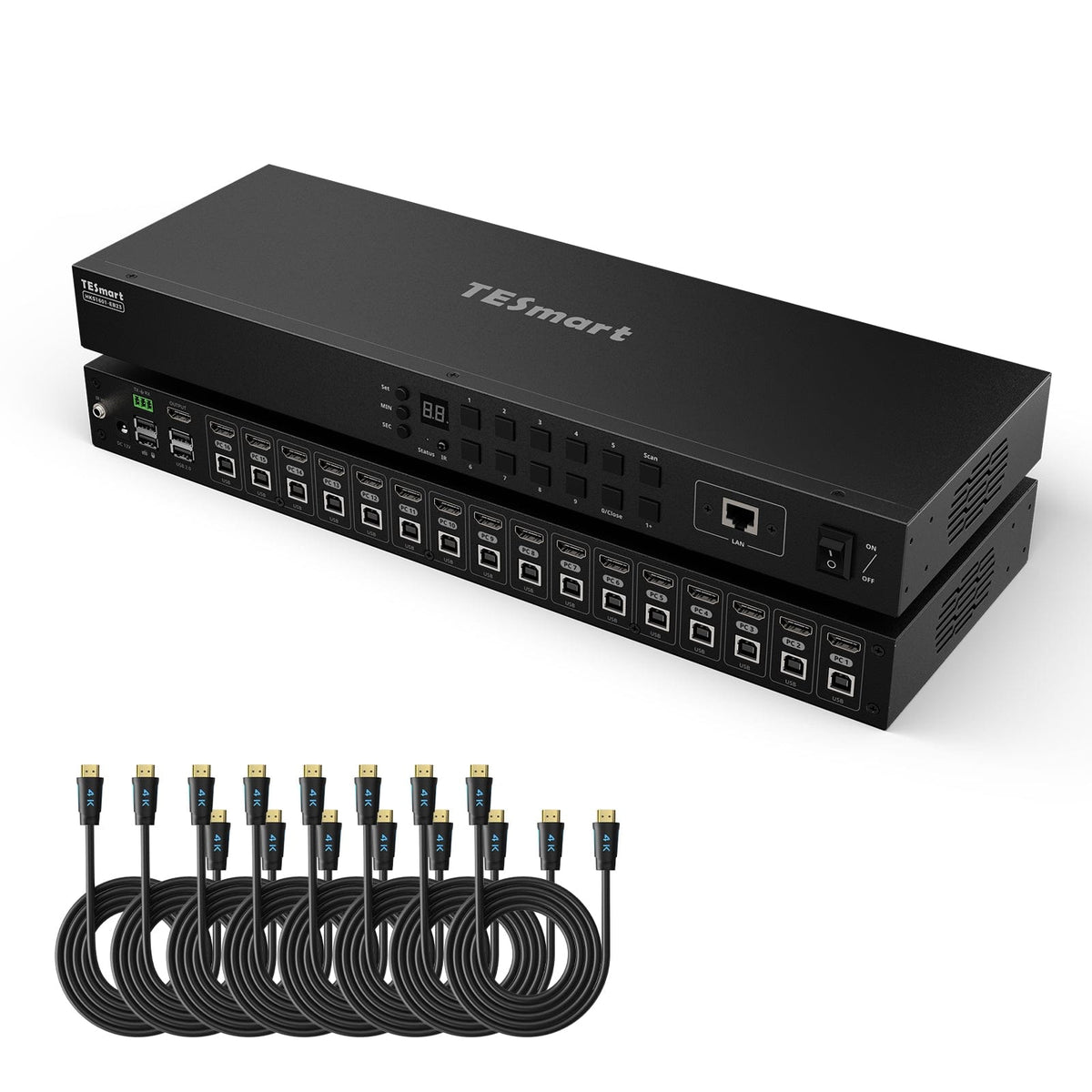
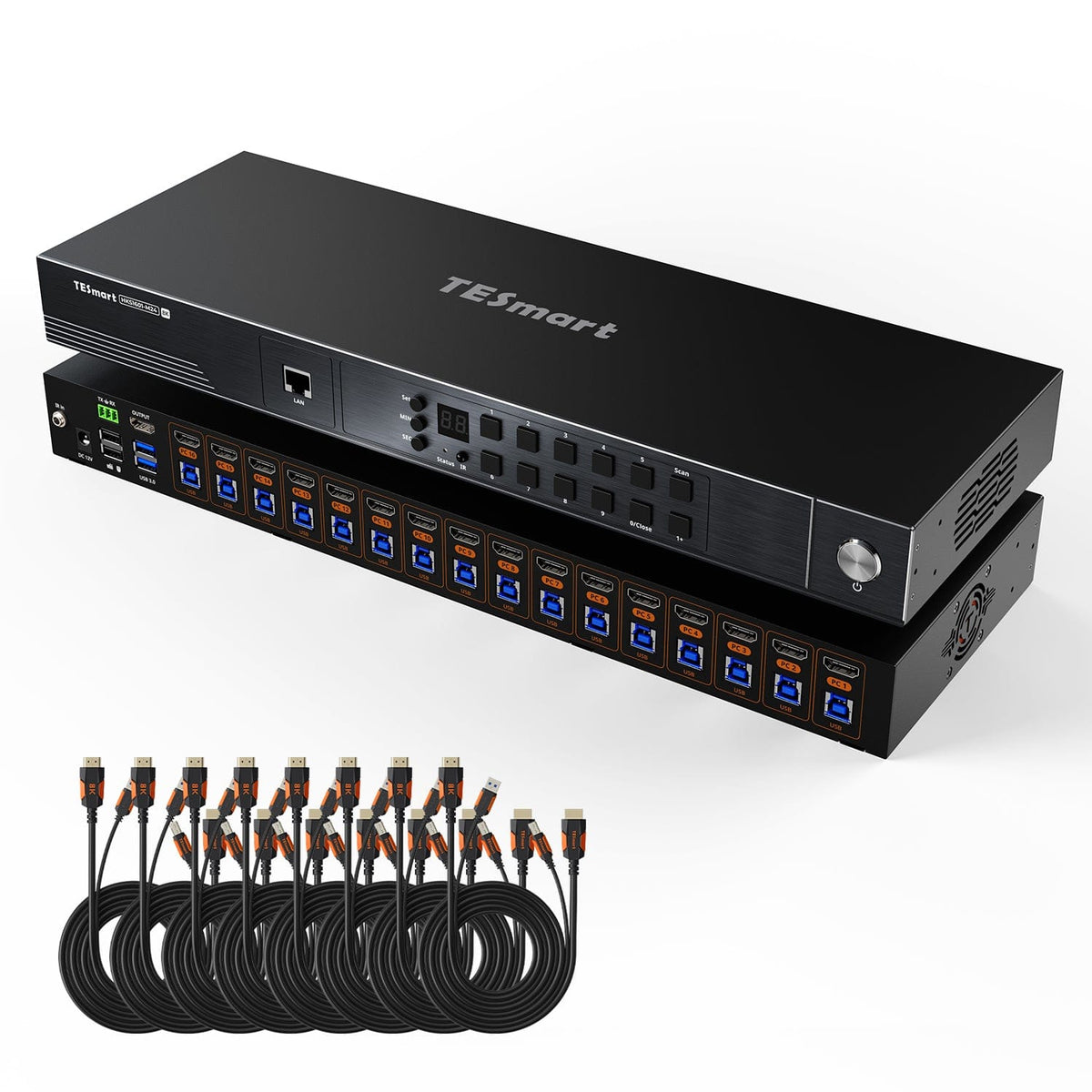
16×1 HDMI KVM | 4K30, EDID & USB 2.0
HKS1601-EB23: 16 HDMI computers share a monitor, keyboard and mouse - with up to 4K30, EDID and USB 2.0. Auto scan and automatic source detection support monitoring.
Monitorkonfiguration
Max. Auflösung
Stabile Anzeige
USB-Geräte gemeinsam nutzen
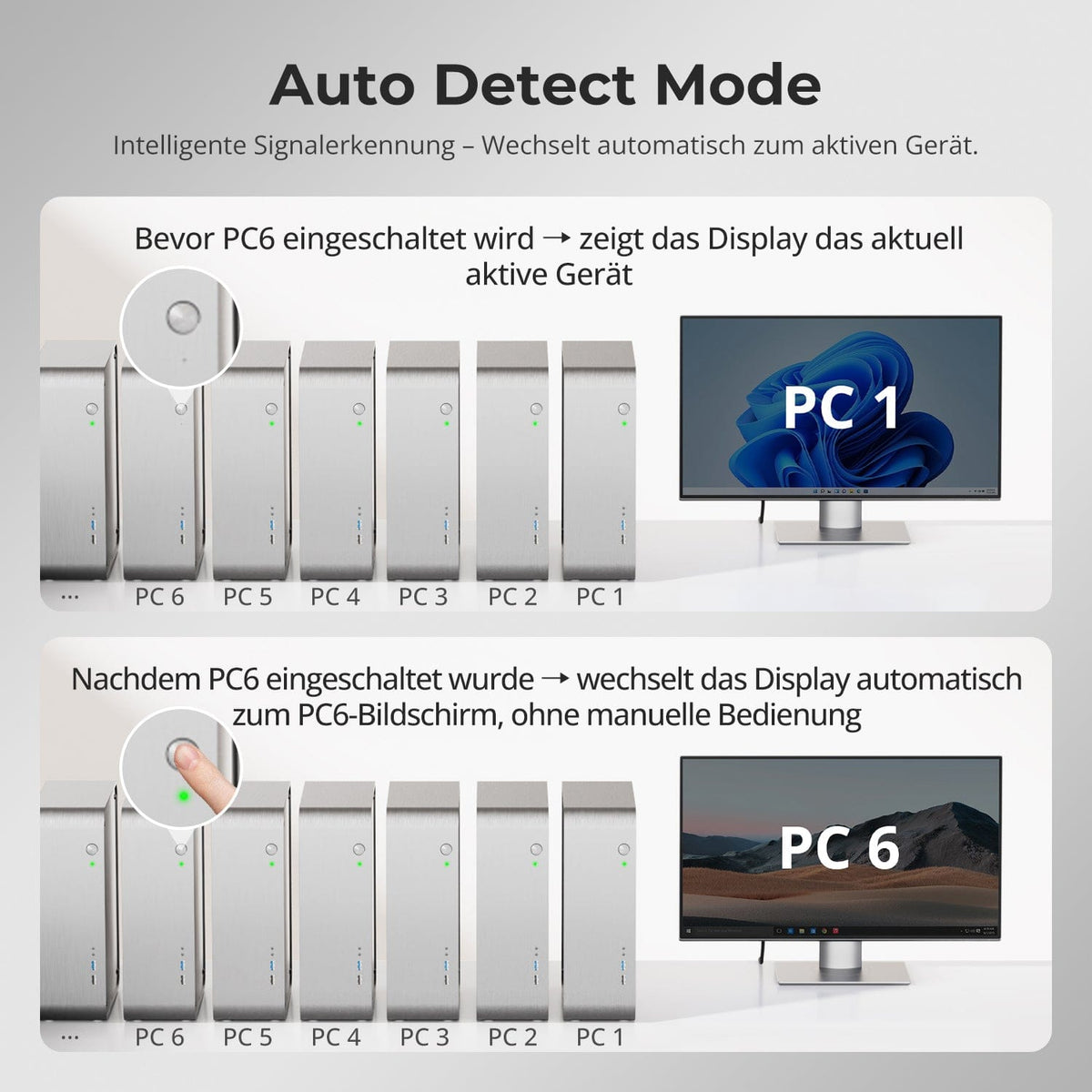
Automatische Signalerkennung
Automatischer Eingangsscan
Steuerung über RJ45
- version:
- Updated
- Plug Type:
- EU Plug
Why HKS1601-EB23?
Overview

01
4K30 for multiple HDMI computers
The manual specifies a resolution of up to 3840 × 2160 at 30 Hz. Connect the computers via HDMI and USB and use a single HDMI monitor.
02
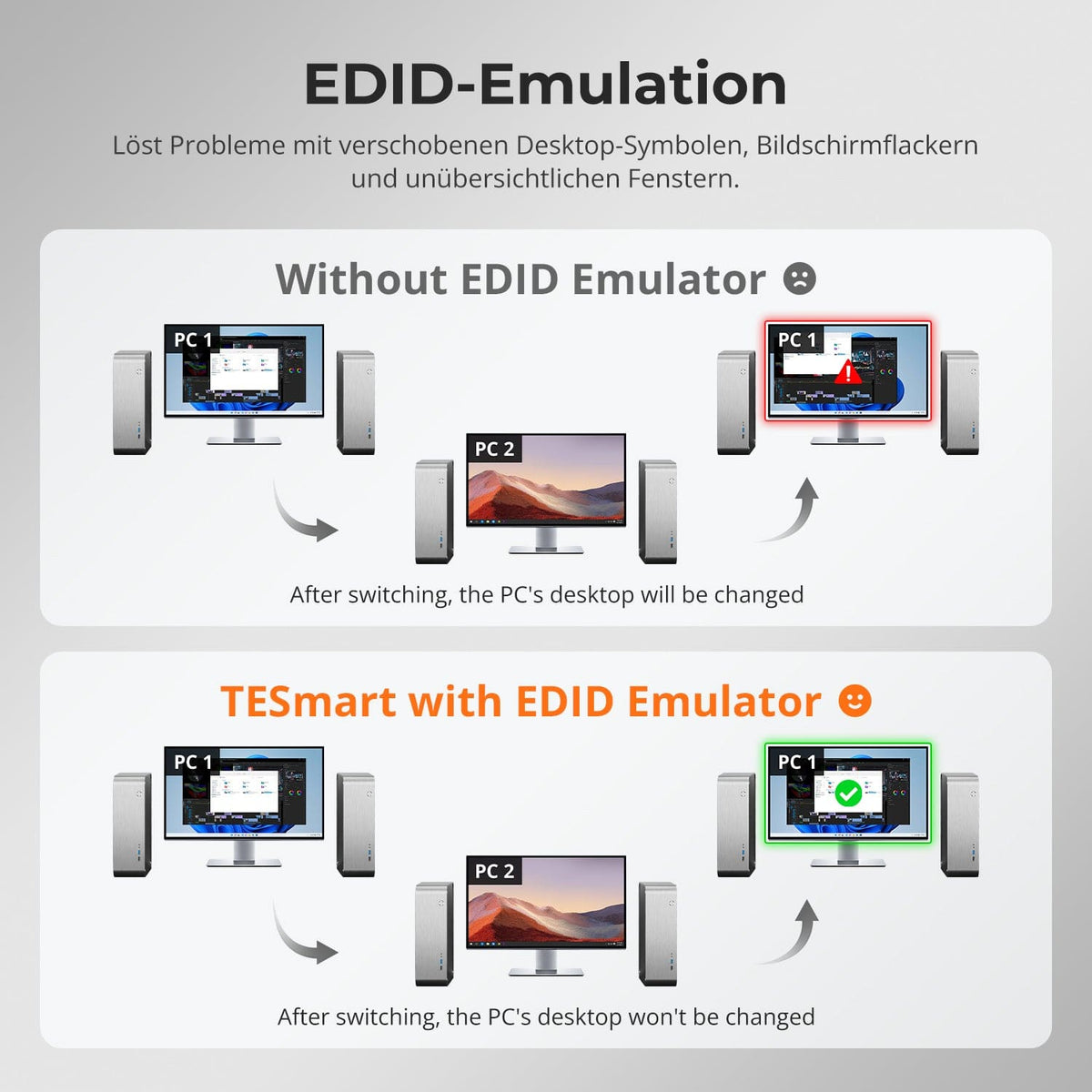
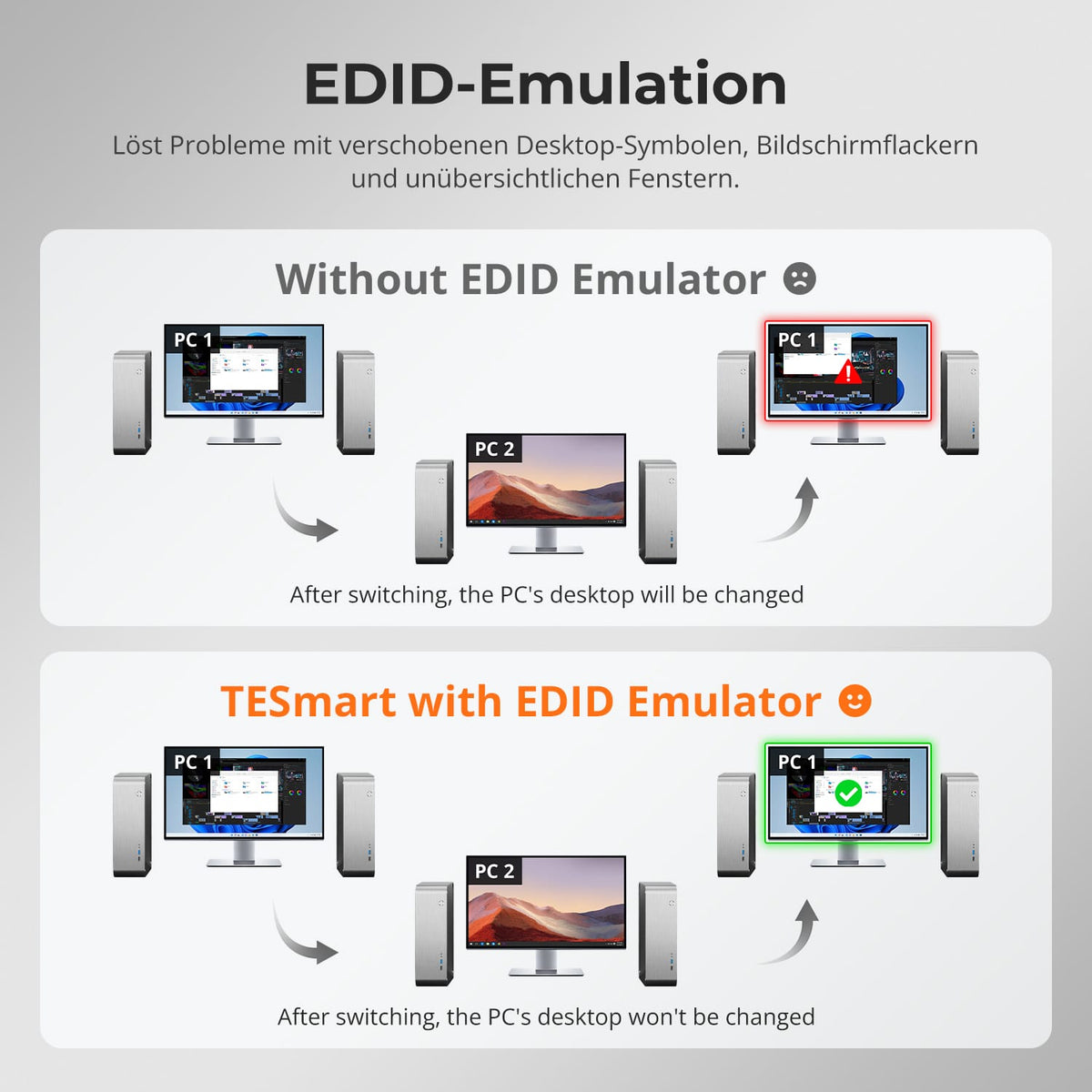
EDID is available on every computer
EDID emulation on each input keeps monitor information available during switching, reducing reordered desktops, flickering, and re-initialization.
03
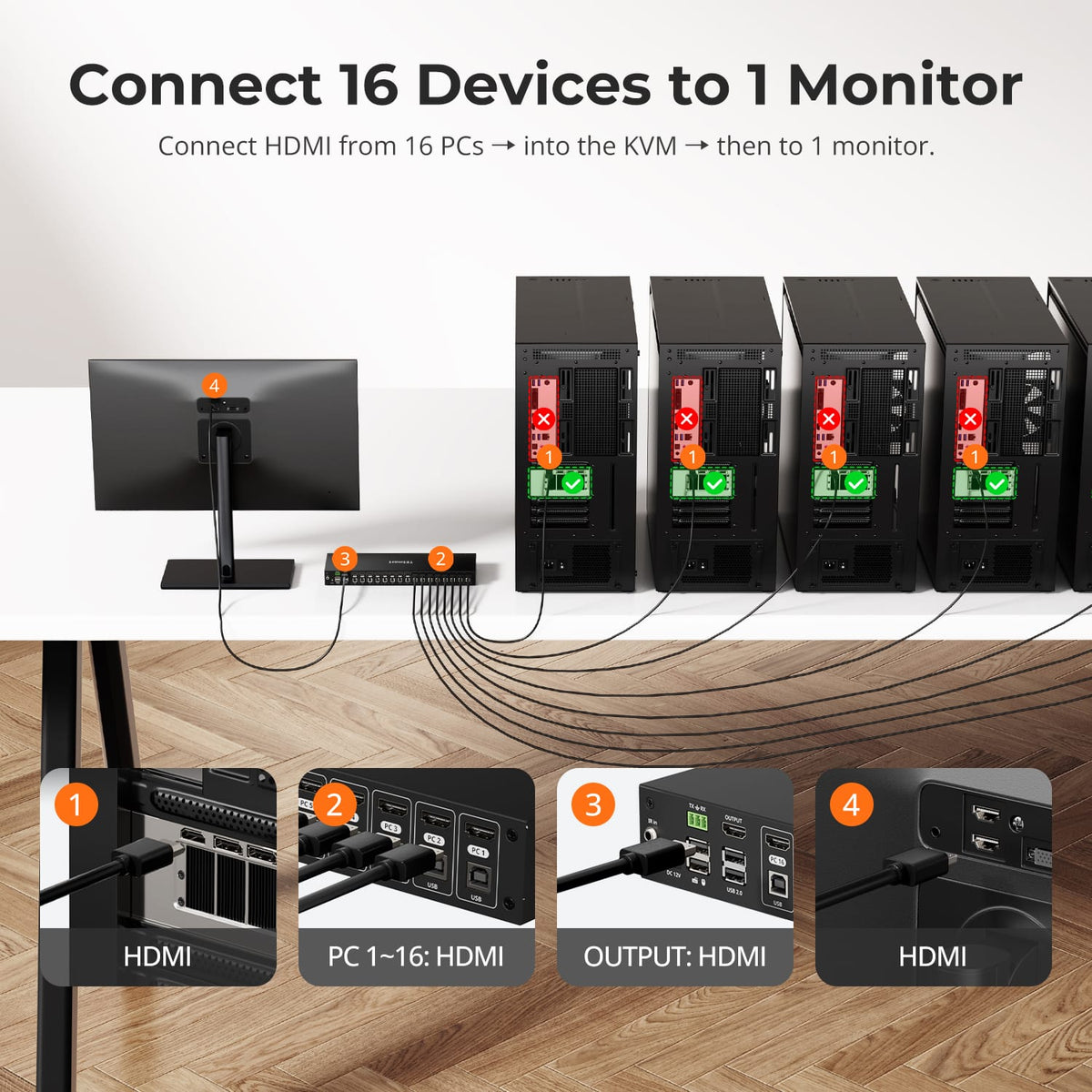
One monitor for multiple computers
HKS1601-EB23: 16 HDMI computers share one monitor, keyboard, and mouse – with up to 4K30, EDID, and USB 2.0. Auto scan and automatic source detection support monitoring.

05
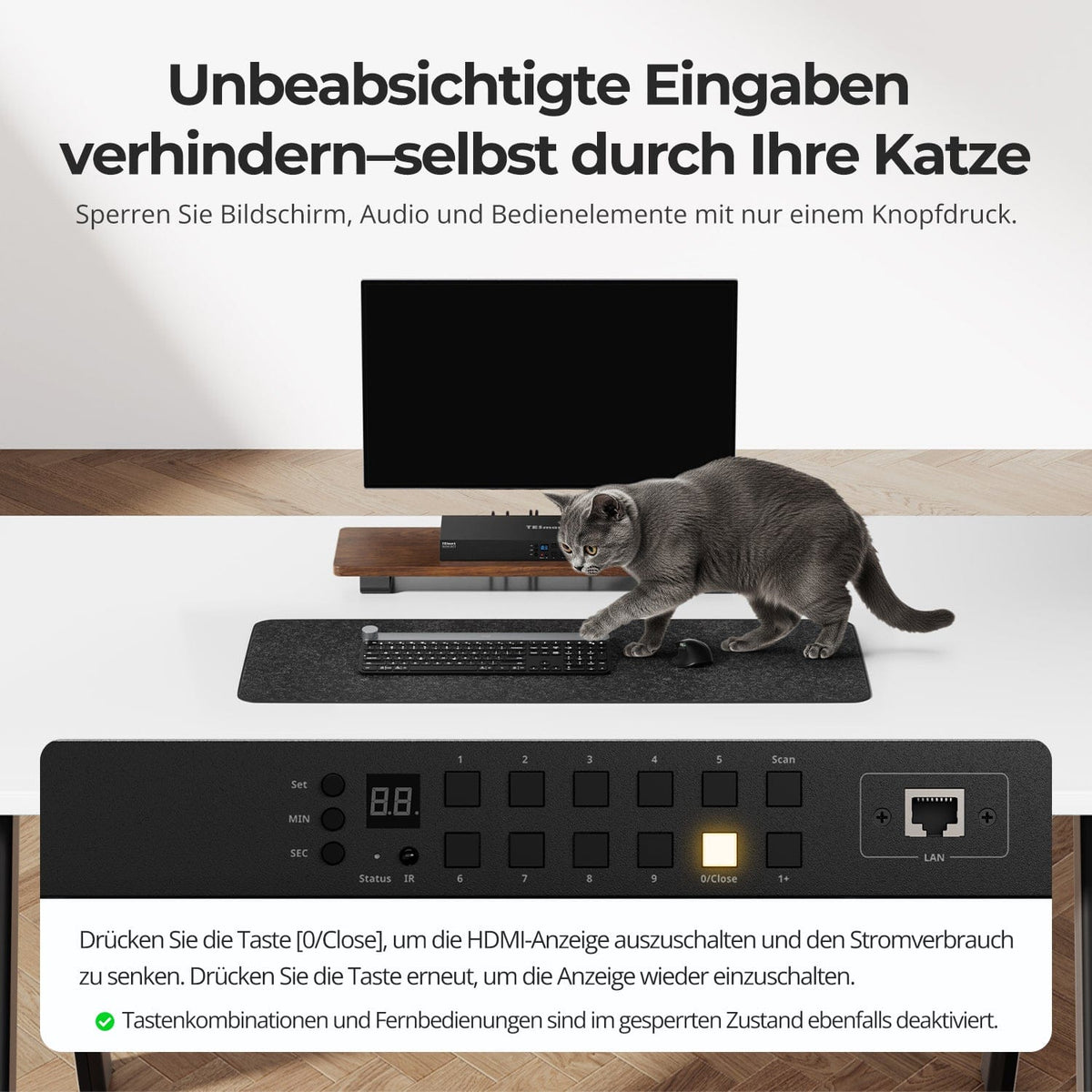
Turn off display, leave KVM on
Pressing 0/Close disables HDMI output and reduces power consumption. Pressing it again restores output.
05
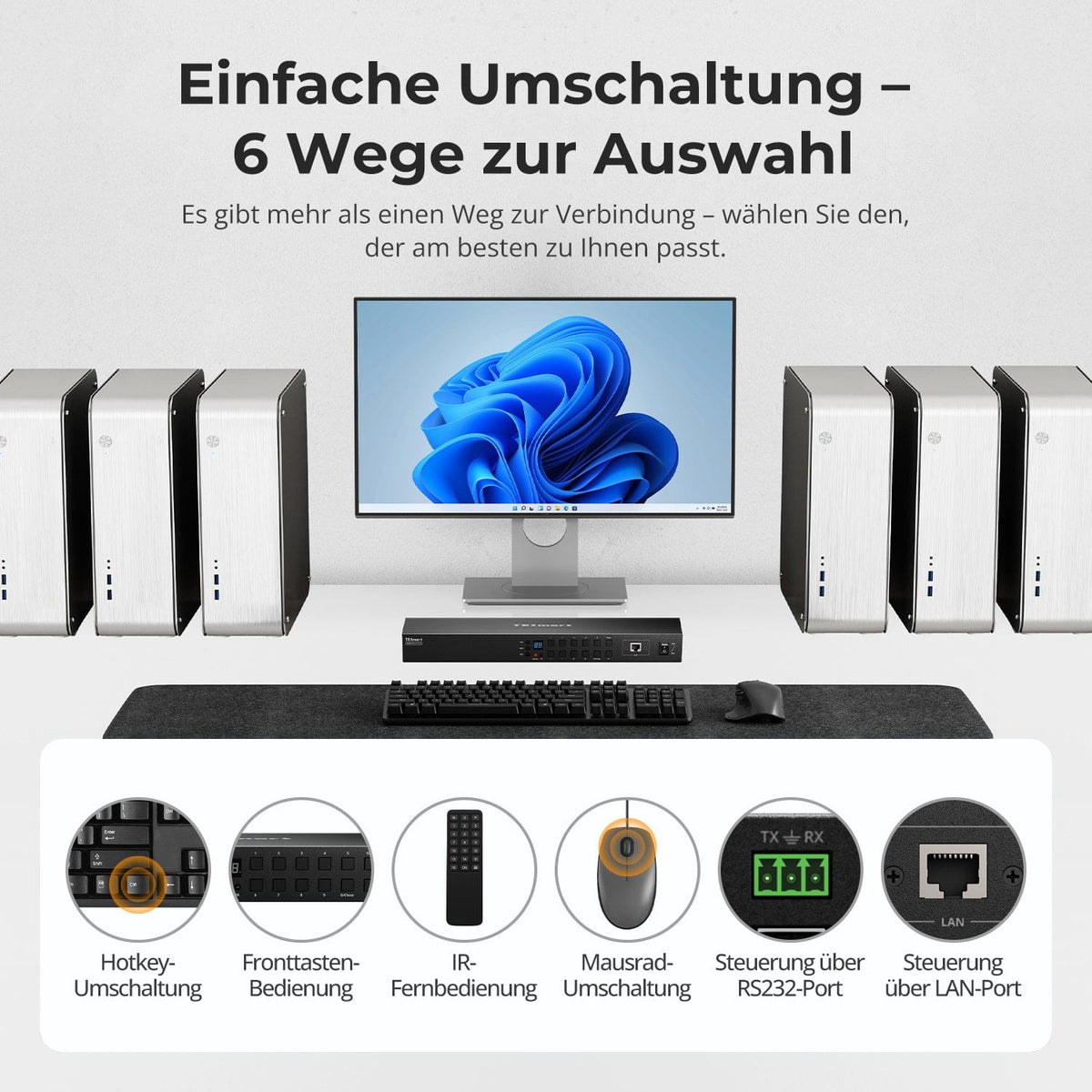
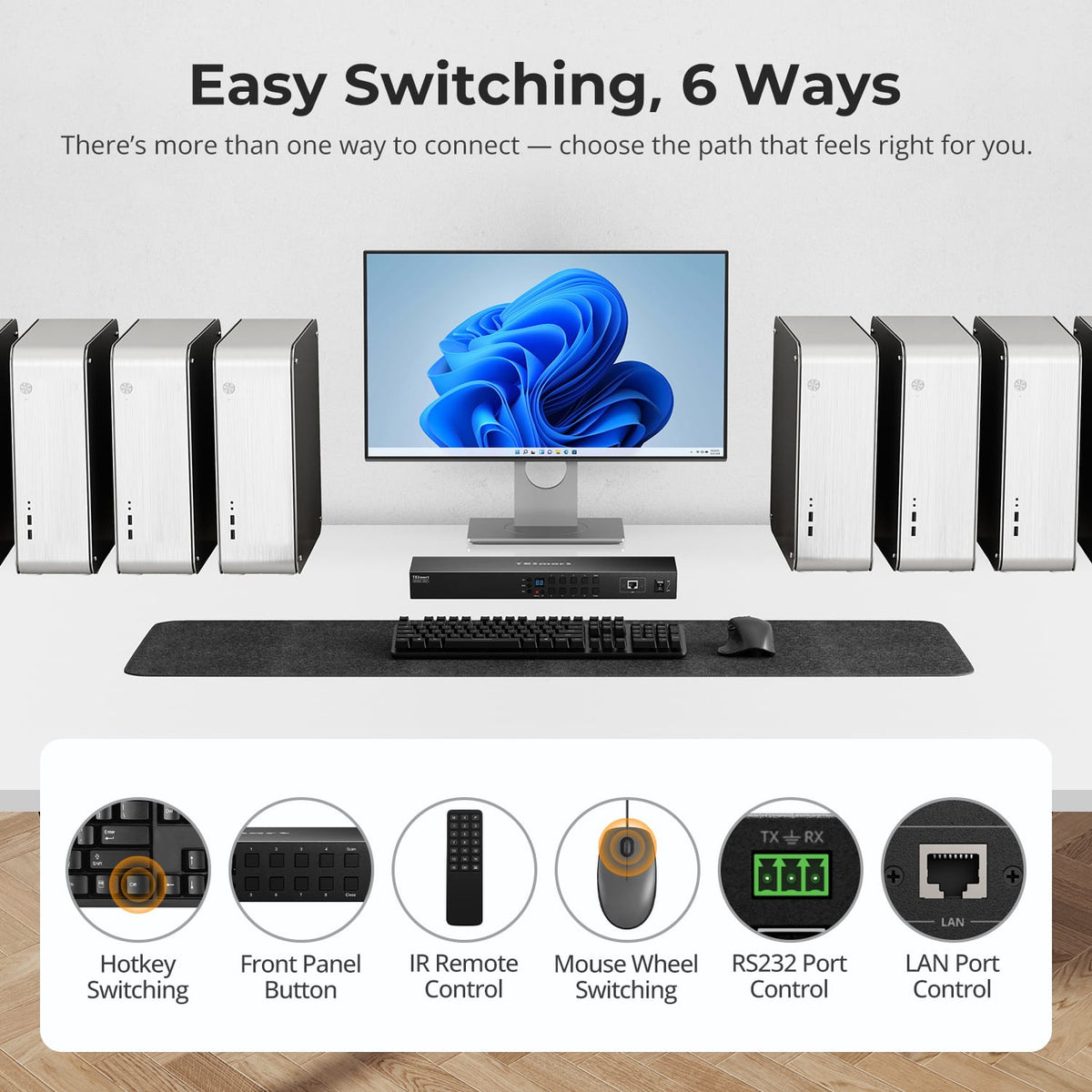
6 Möglichkeiten zum Umschalten
Wechseln Sie zwischen Computern mit Tastatur-Hotkeys, Fronttasten, IR-Fernbedienung, Mausrad, RS232 oder LAN-Steuerung.
06
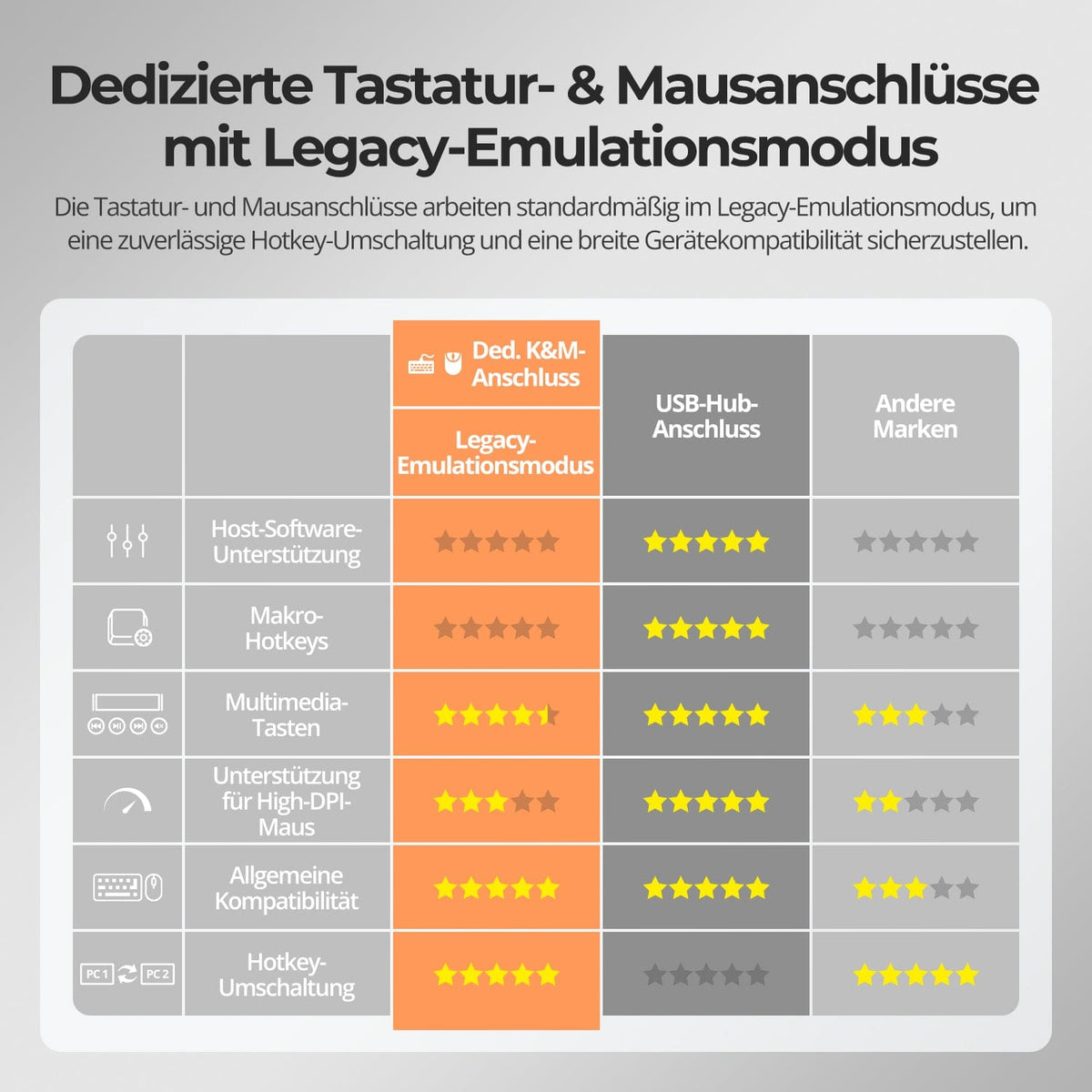
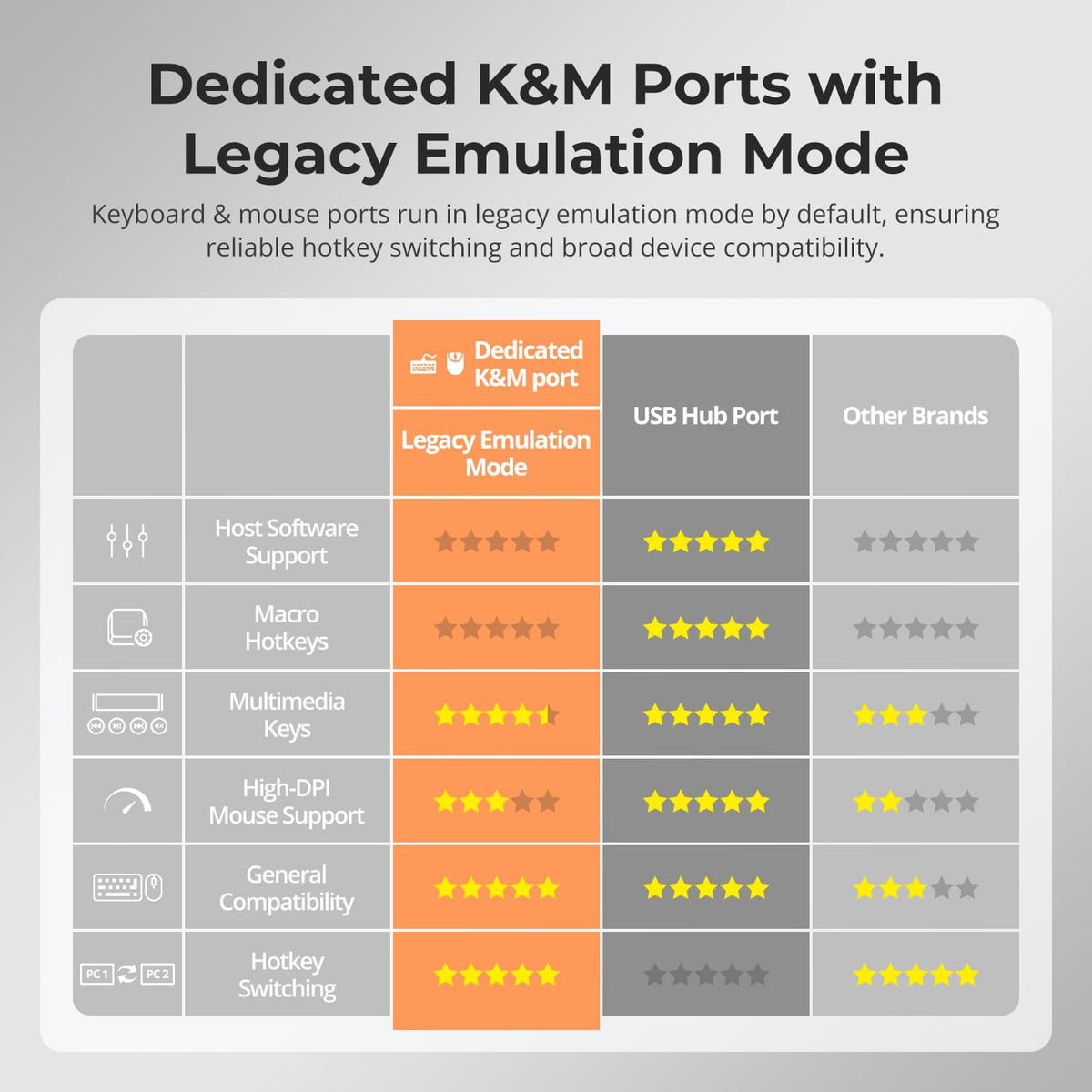
Separate Tastatur- und Mausanschlüsse
Der Legacy-Emulationsmodus ist standardmäßig aktiviert und ermöglicht zuverlässiges Umschalten per Hotkey sowie breite Tastatur- und Mauskompatibilität.
Data & Support
Compatibility & Connections
Technical data
Instructions & Downloads
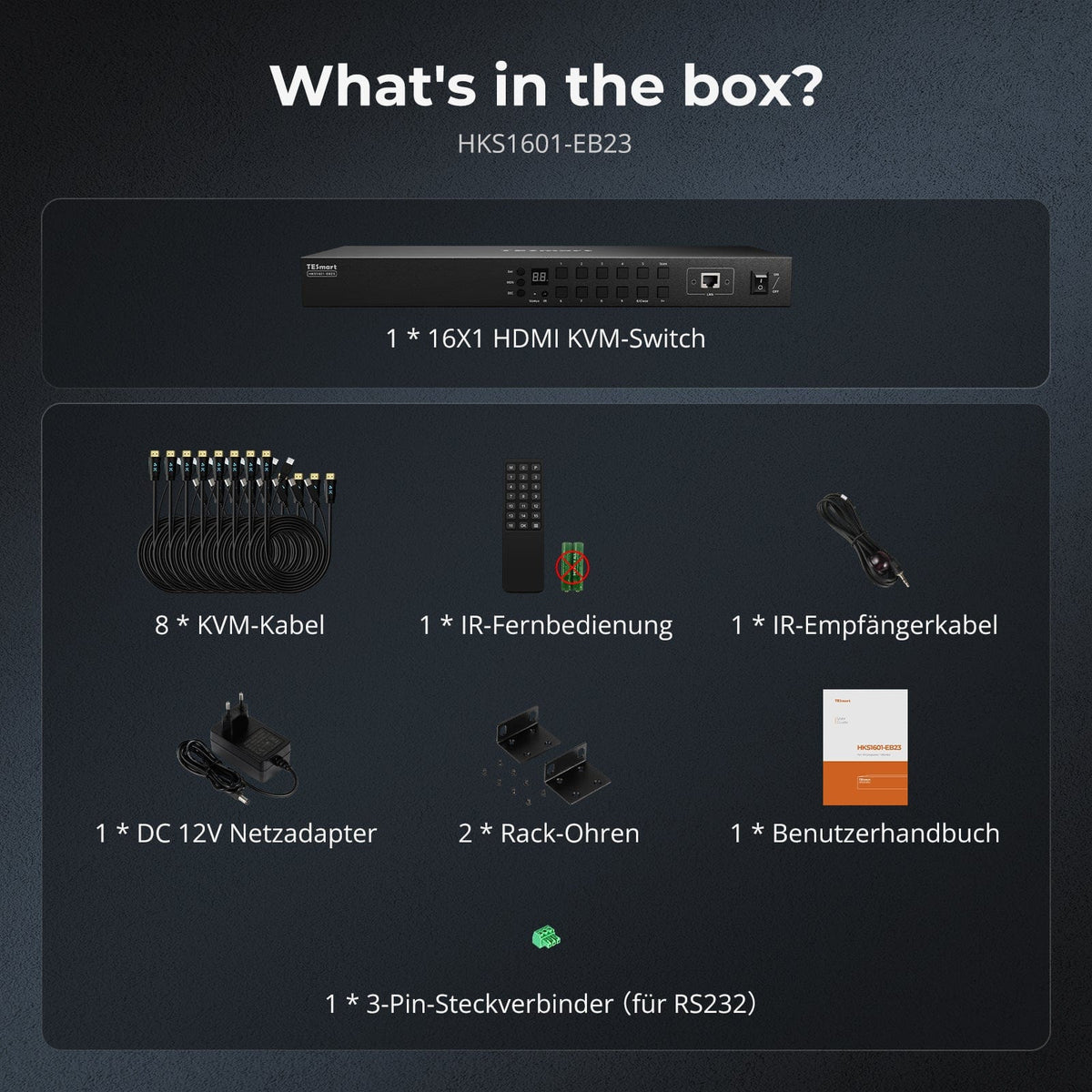
Scope of delivery

1 × HKS1601-EB23 KVM Switch

8 × KVM cable (HDMI + USB)

1 × IR Receiver Cable

1 × IR Remote Control

1 × 12V DC power supply

1 × 3-pin RS232 connector

2 × Rack Angle

1×User manual


Compare suitable models
Select the models in the menus to compare connections, image output, and shareable features.

Model
HKS1601-EB23
Model
HKS1601-P23
Model
HKS1601-M24
Computer count
16 computers
Computer count
16 computers
Computer count
16 computers
Computer connections
Per PC: 1 × HDMI + USB
Computer connections
Per PC: 1 × HDMI + USB
Computer connections
Per PC: 1 × HDMI + USB
Monitor outputs
1 × HDMI
Monitor outputs
1 × HDMI
Monitor outputs
1 × HDMI
Image output
4K30
Image output
4K60
Image output
8K60/4K144
Shared USB devices
USB 2.0
Shared USB devices
USB 3.0/5 Gbit/s
Shared USB devices
USB 3.0/5 Gbit/s
EDID emulation
EDID emulation
EDID emulation
Network control
LAN/TCP/IP + RS232
Network control
LAN/TCP/IP + RS232
Network control
LAN/TCP/IP + RS232
Frequently asked questions
You can find further answers in our Help Center.
[Compatibility] Does the KVM support Mac and Windows?
Yes. The HKS1601-EB23 supports Windows, macOS, Unix, Raspberry Pi OS, and Linux, including Debian, Ubuntu, Fedora, and Raspbian. PS5 and Nintendo Switch can be connected as HDMI sources.
[Compatibility] Which computers and displays does the HKS1601-EB23 support?
Up to 16 HDMI computers and one HDMI monitor. Each computer requires a USB connection to the KVM for keyboard, mouse, and shared USB devices.
[Compatibility] Does DVI work with this KVM switch?
Yes. DVI-D single-link sources and displays work with suitable HDMI-to-DVI adapters.
[Functions] Can I control the KVM switch via computer software?
Yes. TESmart offers Windows tax software and log documentation for compatible third-party or proprietary tools. You can obtain the latest downloads from TESmart or their support team.
[Functions] What does EDID emulation do?
Monitor information remains available for all computers. This reduces re-detection, flickering, and rearranged desktops when switching.
[Connections] Can the computers share USB devices?
Yes. A compatible device connected to the shared USB port will follow the selected computer.
[Connections] What are LAN and RS232 used for?
LAN accepts TCP/IP control commands, RS232 uses the documented serial protocol. LAN does not provide shared network access for computers.
[Connections] Why aren't my USB devices working?
Check the USB cable in the correct input group. The designated ports are only for keyboard/mouse; other devices should be connected to the shared USB port. High-performance devices require a powered hub or a direct connection to the computer.
[Furnishings] How do I connect each computer?
Connect each computer to its input group via HDMI and USB. Connect monitor, keyboard, mouse, shared devices, optional IR receiver, and 12V power supply.
[Switch] How do I switch between computers?
Control is possible via control panel, IR remote control, hotkeys, mouse wheel, RS232, Windows software, or TCP/IP over LAN. The mouse wheel function must first be activated.
[Switch] Why does the KVM switch automatically to a new computer?
Auto Detect is enabled by default. This mode selects newly connected or switched-on sources, and for remote sources, it selects a different active input. Pressing M on the IR remote control toggles this mode.
[Functions] How do I set the auto-scan interval?
Activate Auto-Scan using the Scan button, by pressing right Ctrl and spacebar twice, or by pressing P on the remote control. MIN, SEC, and Set adjust from 5 seconds to 59 minutes 59 seconds; the default is 15 seconds. Hotkey adjustments with +/− only work when Auto-Scan is active.
[Furnishings] What to do if the screen flickers or goes black?
The source, KVM, display, and cable must all support the same resolution and refresh rate. Use the supplied input cables, keep the HDMI output cable under 3 meters, and remove any adapters or cascades. If problems persist, support will check EDID compatibility.
[Switch] Why does the switch to PC1 take a little longer?
The KVM switch pauses briefly to check if 1 is the first digit for ports 10–16. This is normal. Pressing control panel button 1 selects PC1 immediately.
[Compatibility] Which keyboard is suitable for hotkeys?
A wired full keyboard with its own Scroll Lock key connected to the designated keyboard port. The default trigger is the right Ctrl key.
