




Monitorkonfiguration
Max. Auflösung

Stabile Anzeige

Gaming

Gaming

USB-Geschwindigkeit
Automatisierung
16×1 HDMI KVM | 8K60/4K144, EDID & USB 3.2
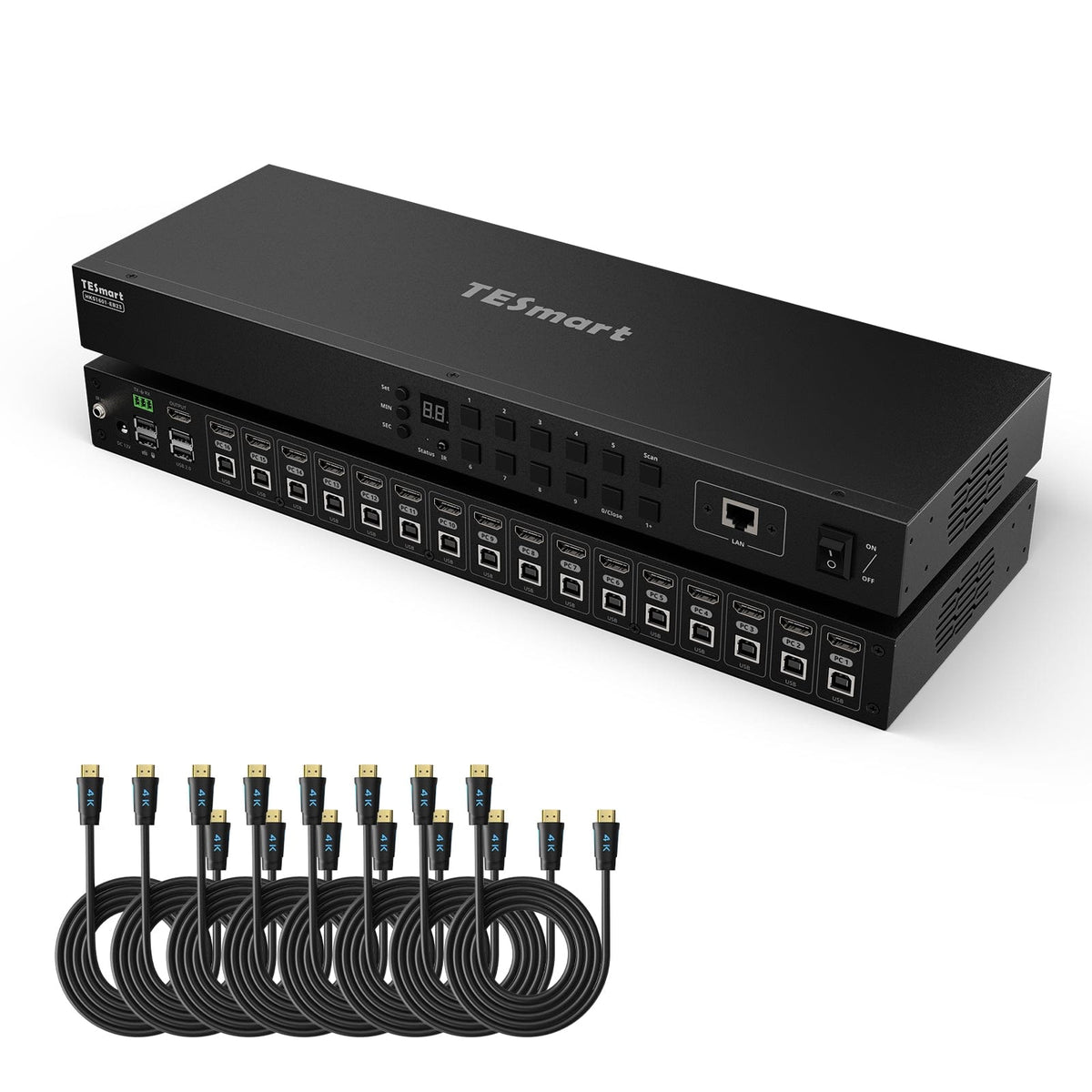
HKS1601-M24: 16 HDMI computers share a monitor, keyboard and mouse - with up to 8K60/4K144, EDID and USB 3.2. Auto scan and automatic source detection support monitoring.
Monitorkonfiguration
Max. Auflösung
Stabile Anzeige
Gaming
Gaming
USB-Geschwindigkeit
Automatisierung
16×1 HDMI KVM | 8K60/4K144, EDID & USB 3.2
Why HKS1601-M24?
Overview
01
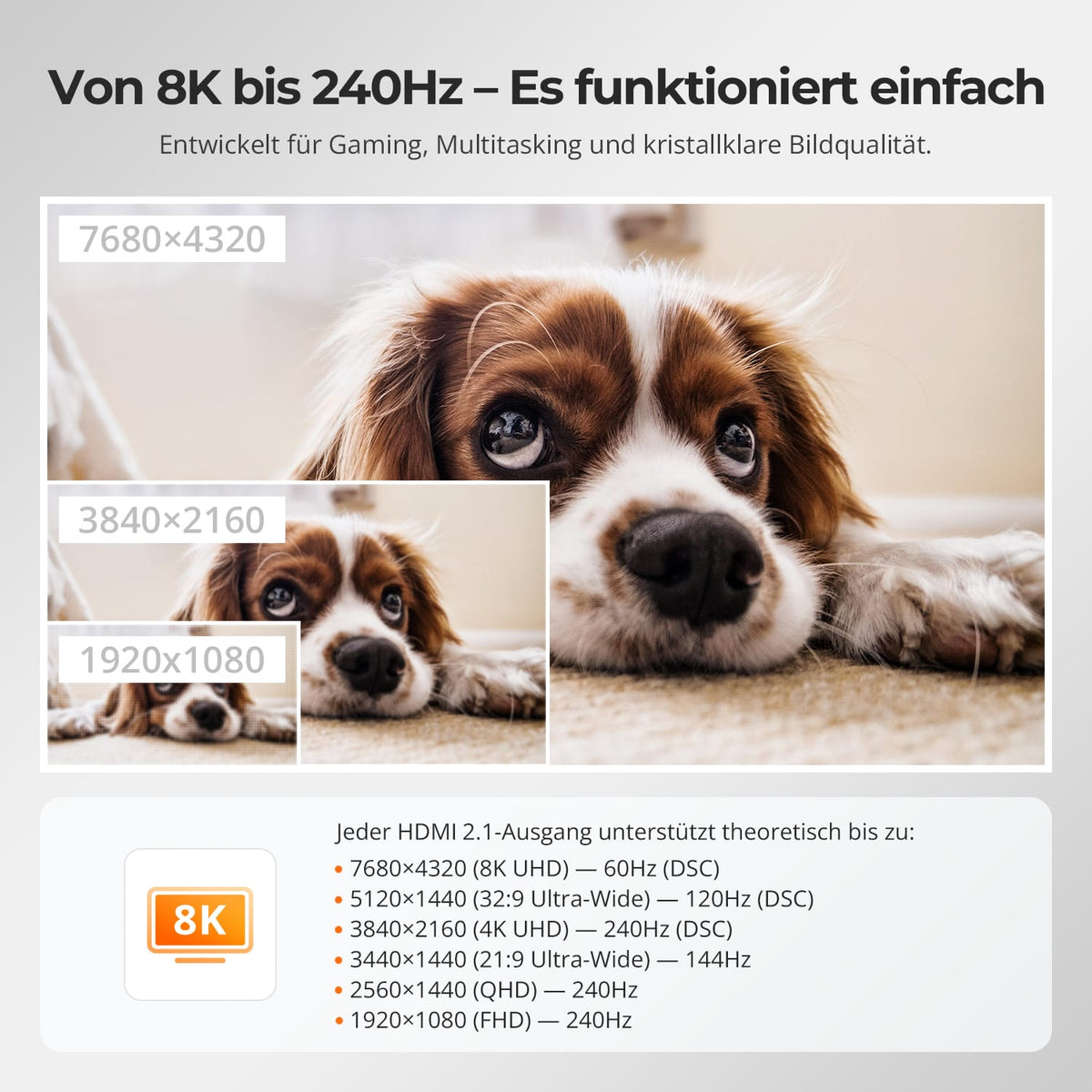
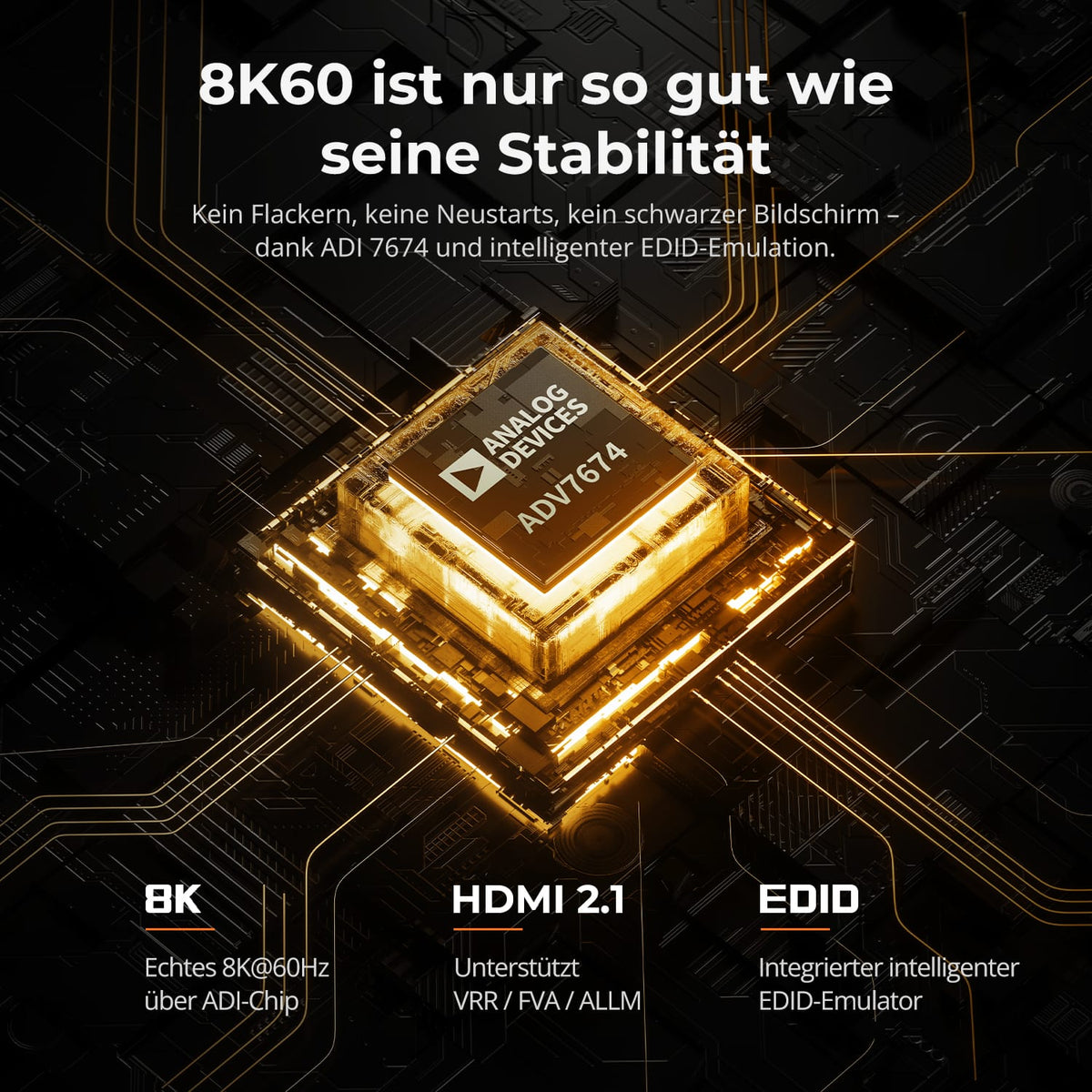
8K60 for detail. 4K with a high refresh rate.
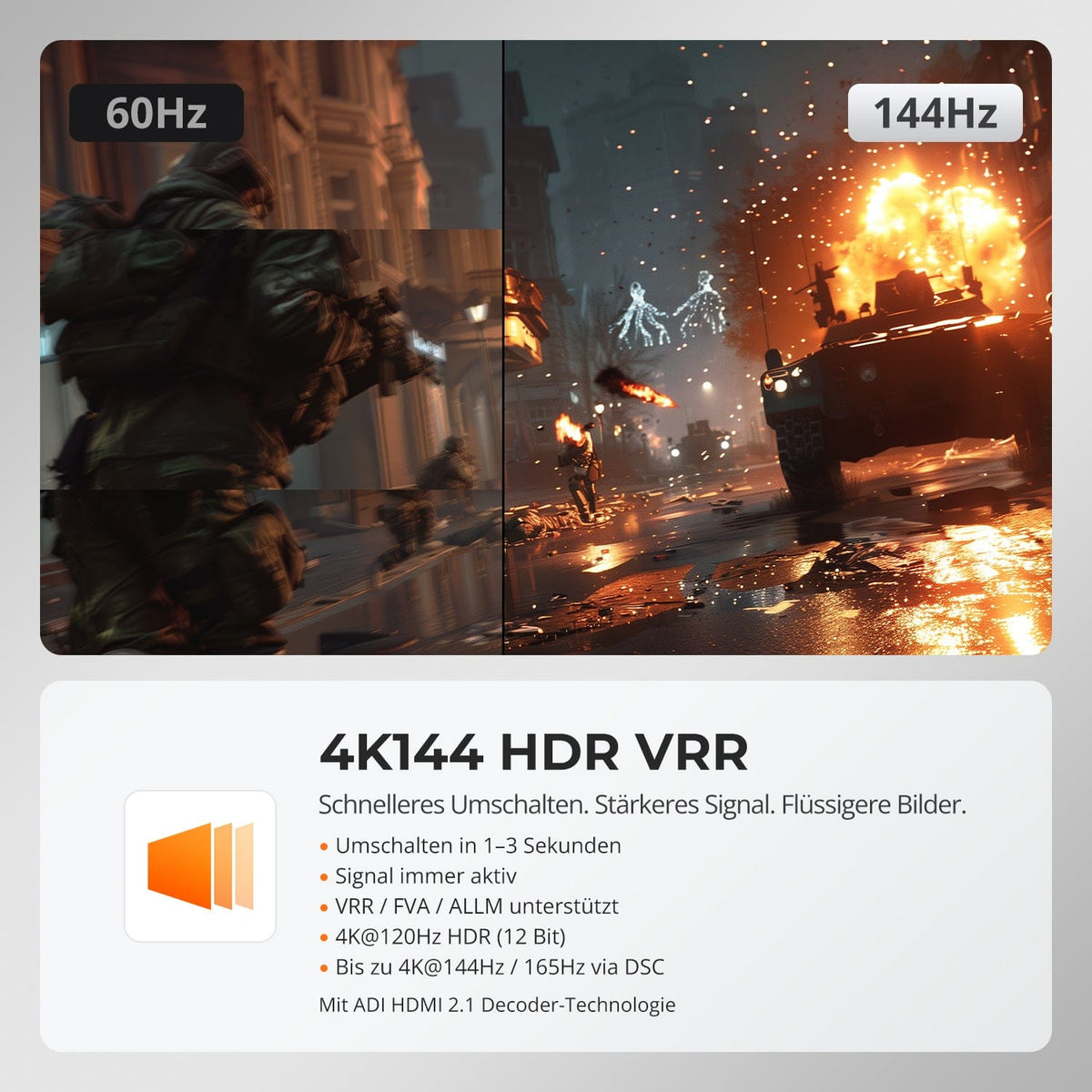
HDMI 2.1 offers 48 Gbit/s for up to 8K@60Hz in 4:4:4 and backward compatible formats up to 4K@144Hz. VRR, FVA, ALLM and DSC require compatible hardware.
02
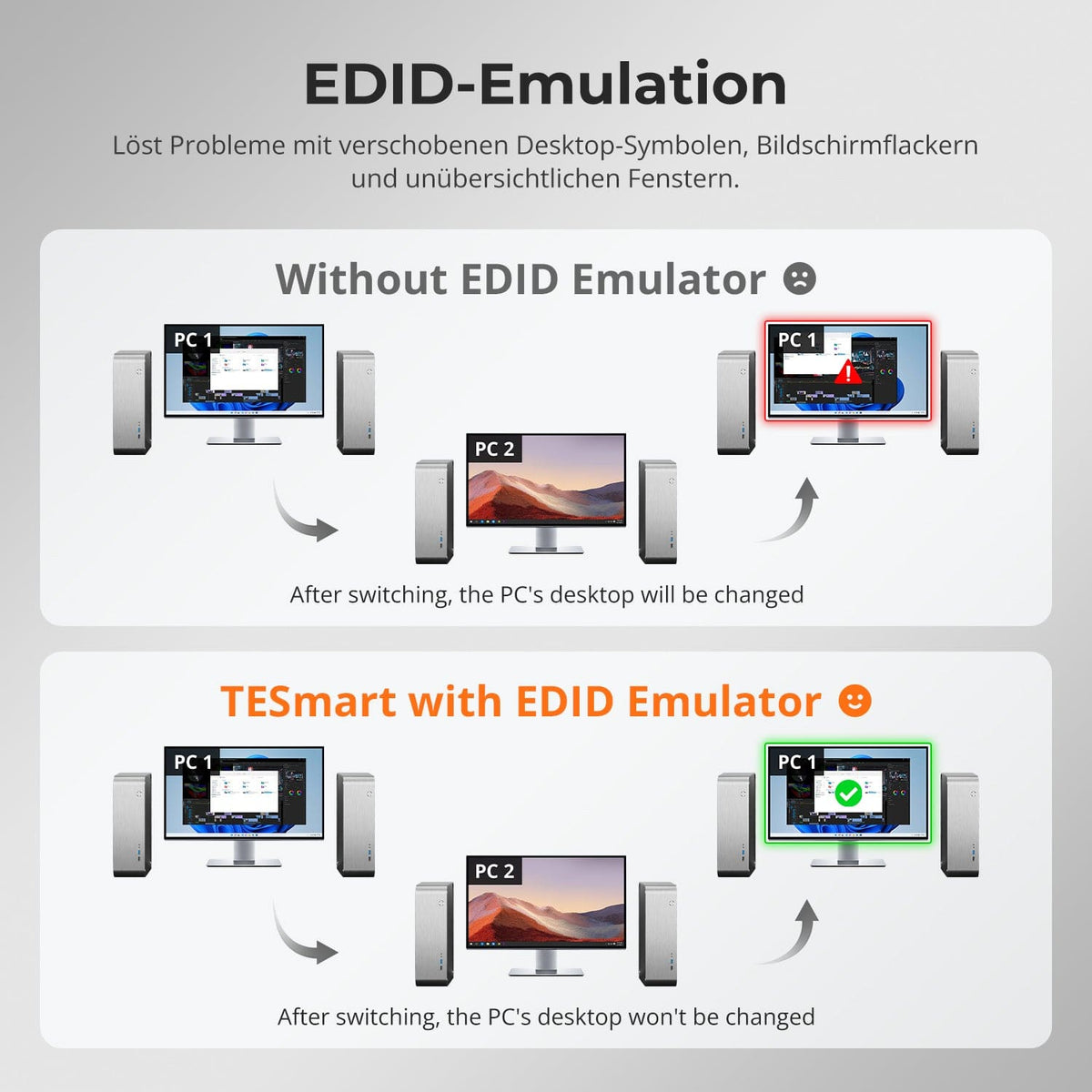
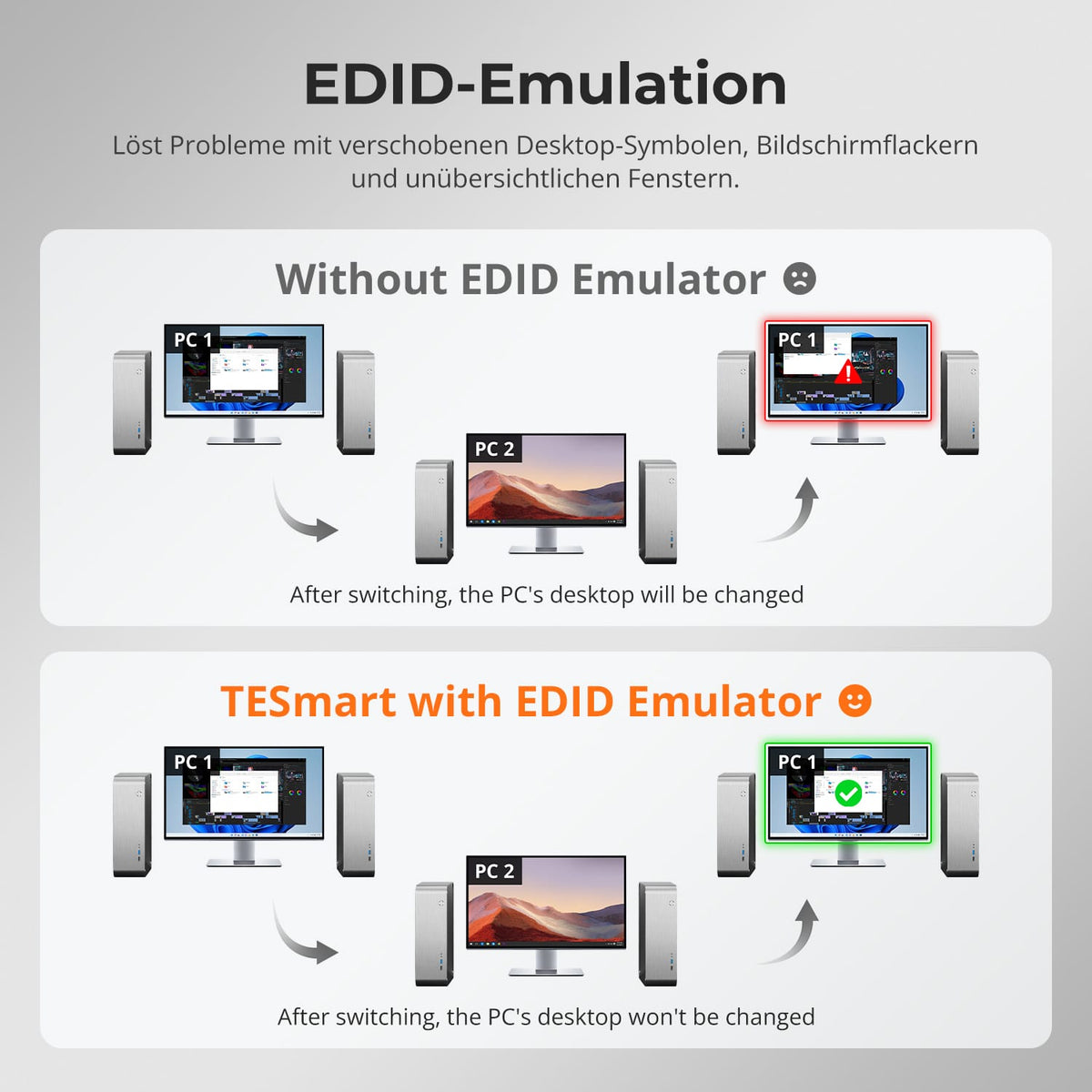
EDID keeps every PC display-ready
EDID emulation at the inputs keeps monitor information available for all systems and reduces resolution changes and re-detection when switching between many PCs.
03
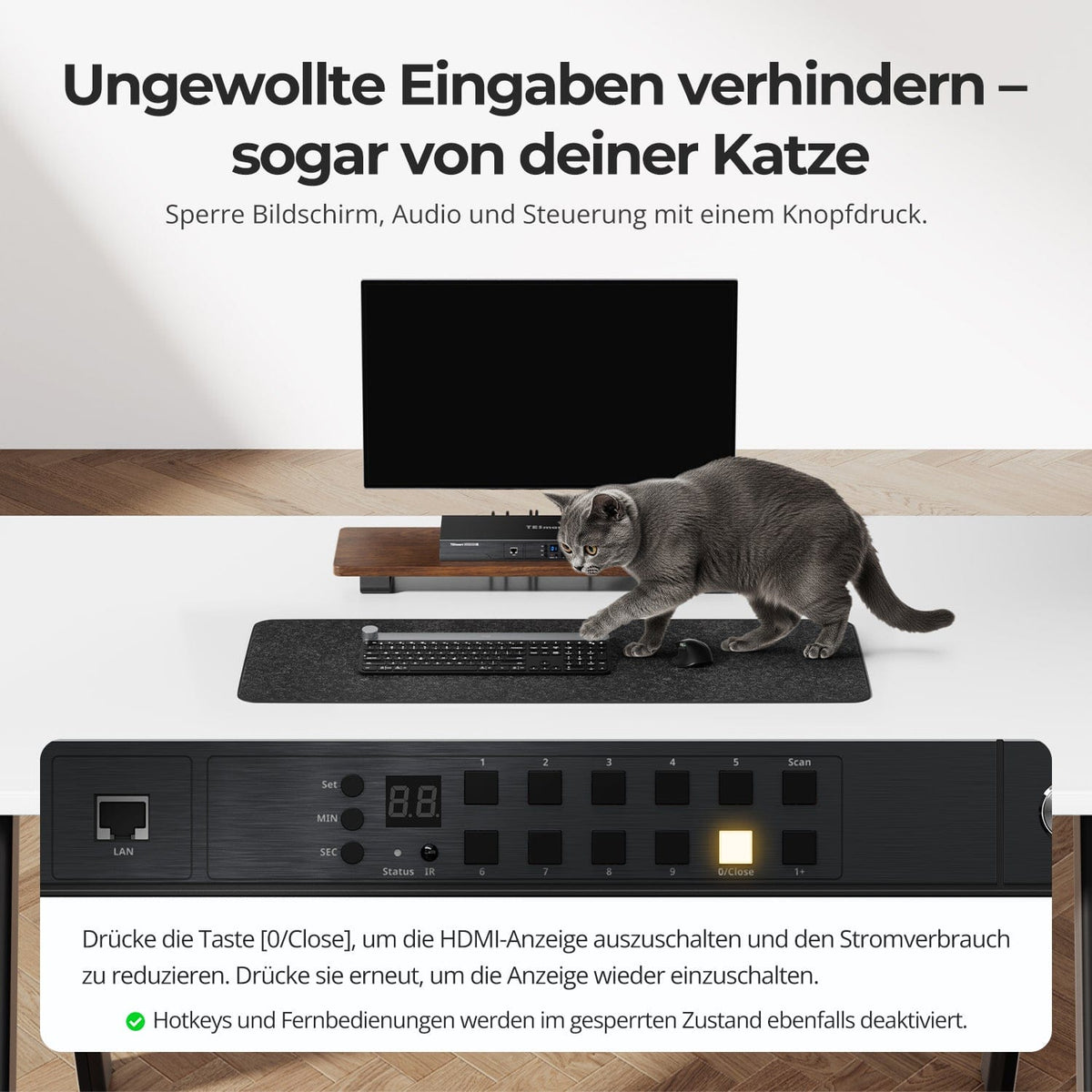
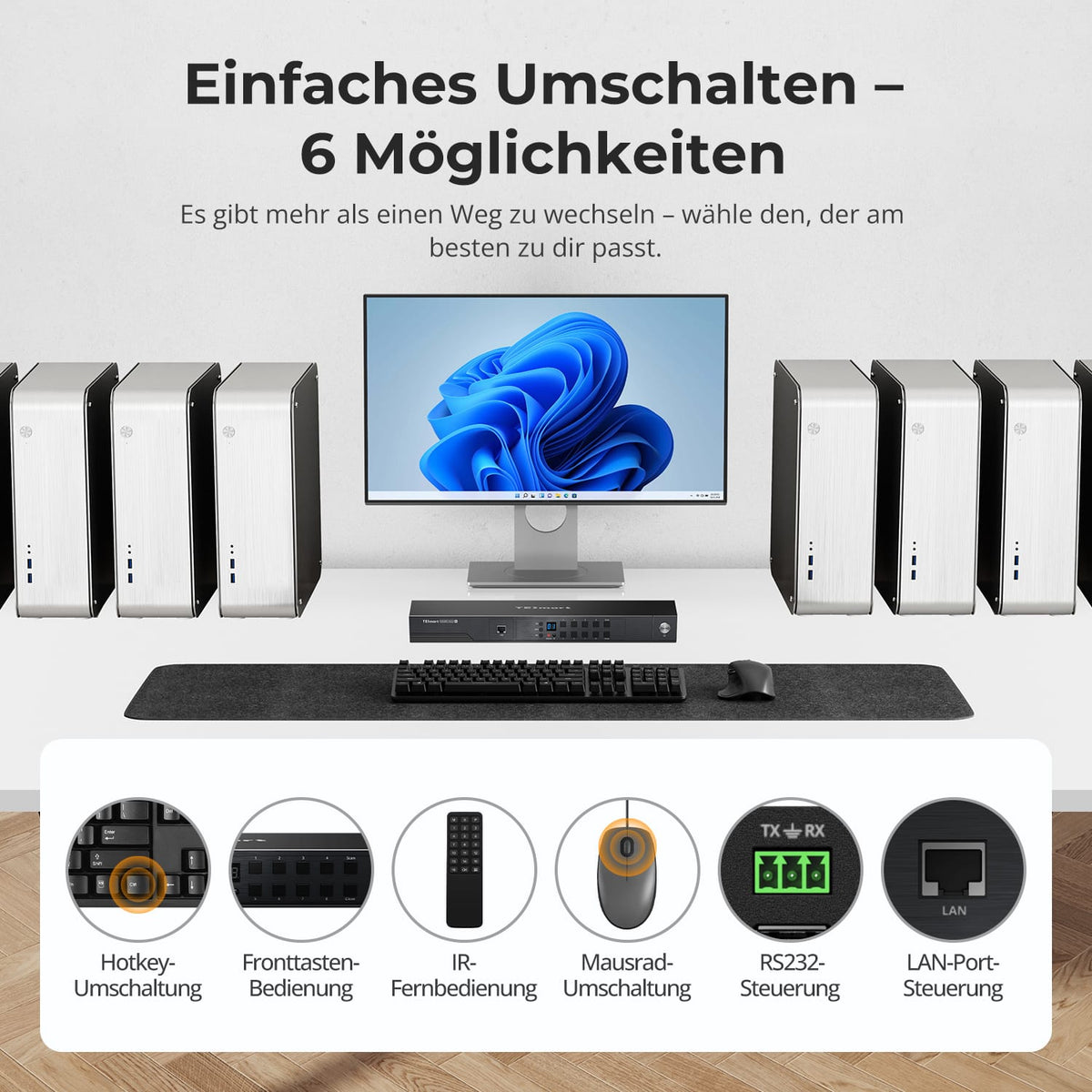
Control on-site or remotely
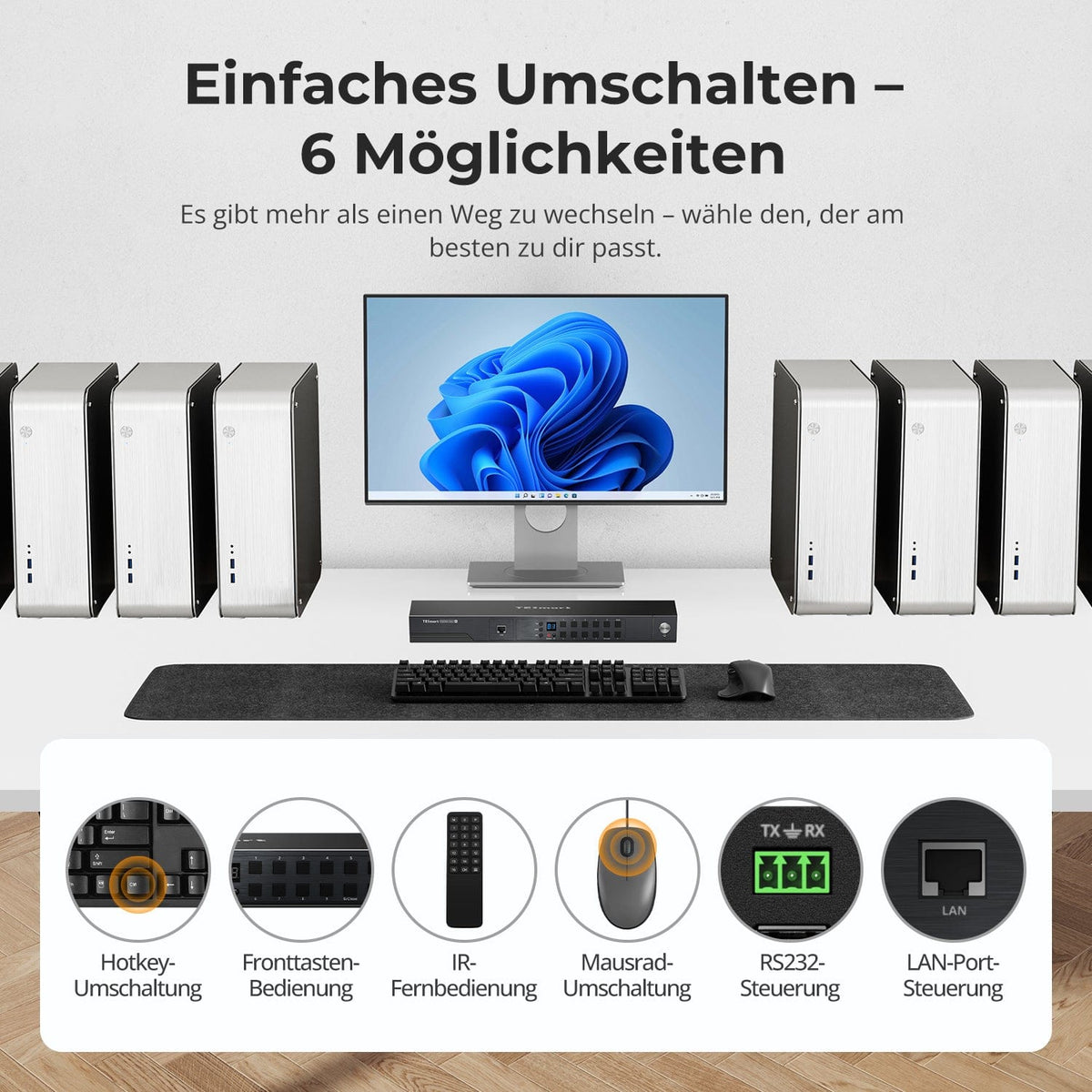
Control is possible via the control panel, IR remote control, hotkeys, or mouse wheel. LAN and RS232 support centralized or integrated control when the KVM is not directly accessible.
04
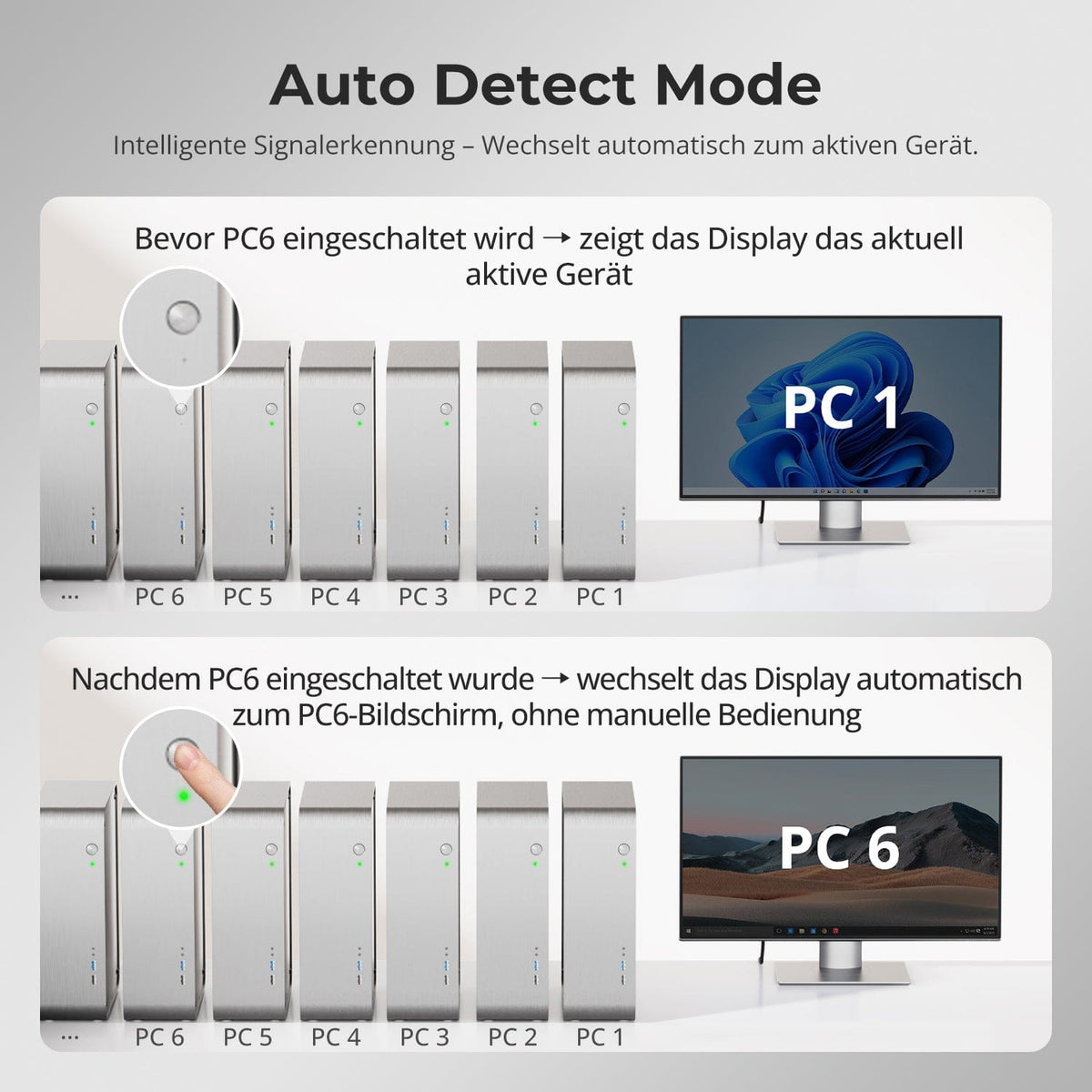
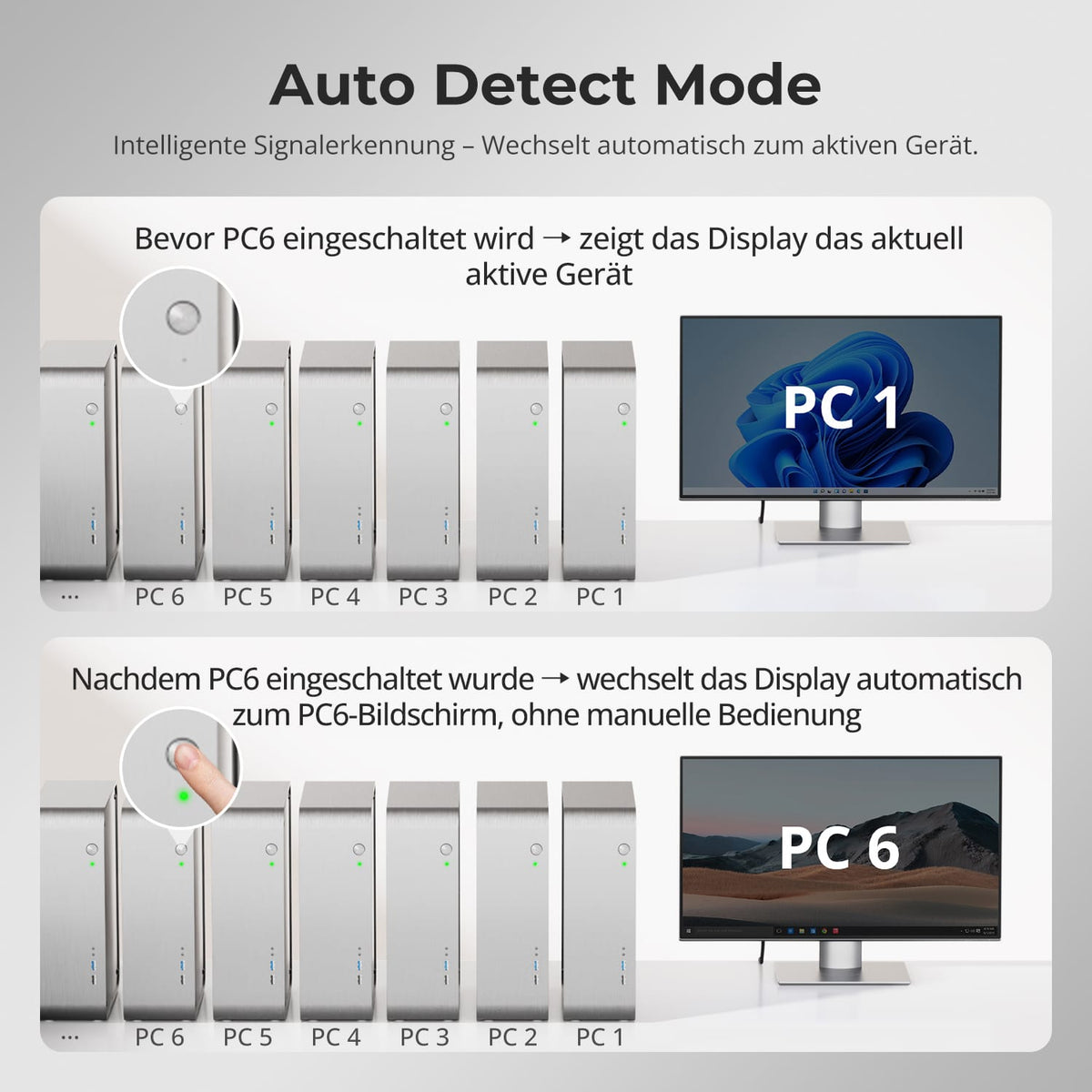
Automatically detect active sources
Auto Detect reacts to newly active or removed sources and reduces manual input selection.
05
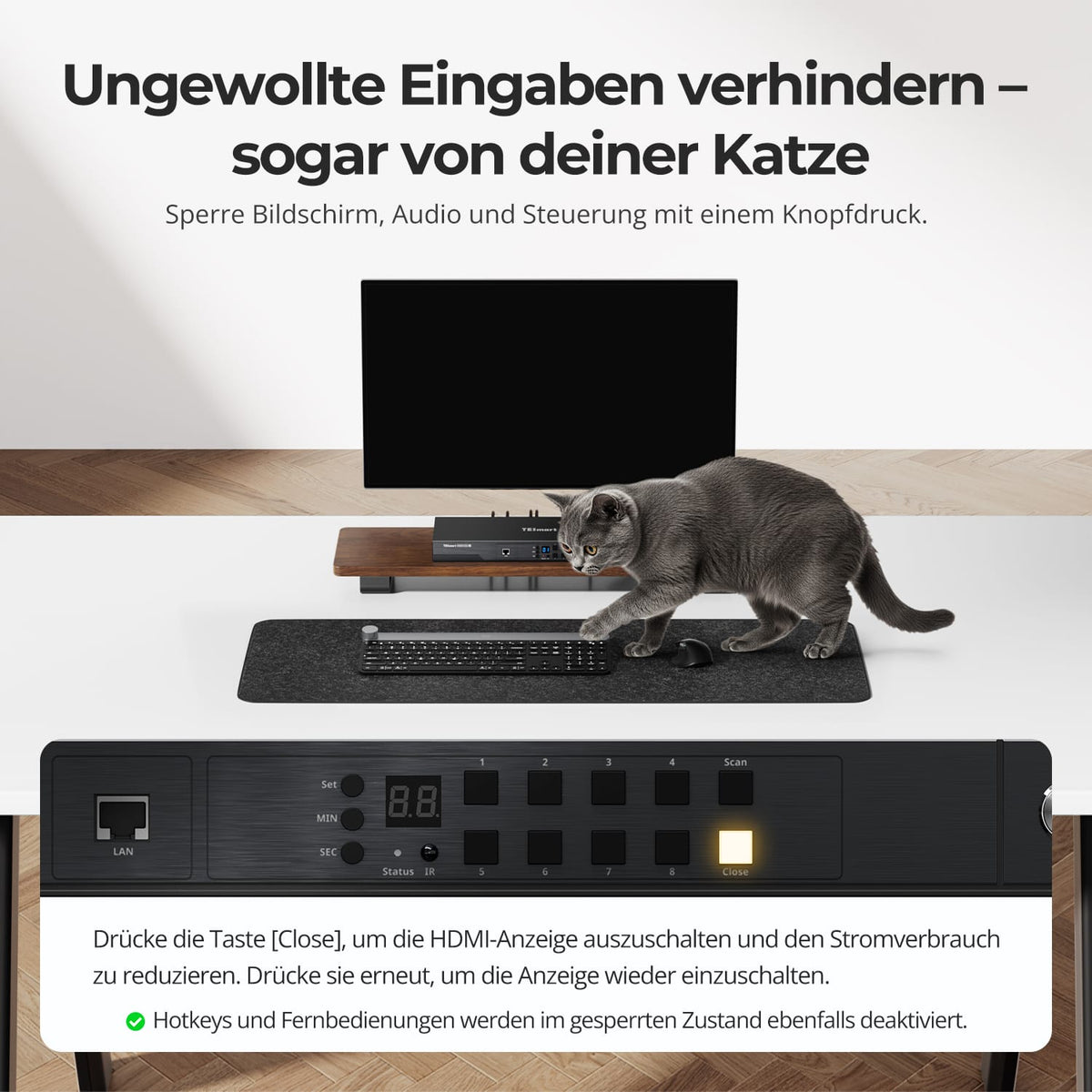
06
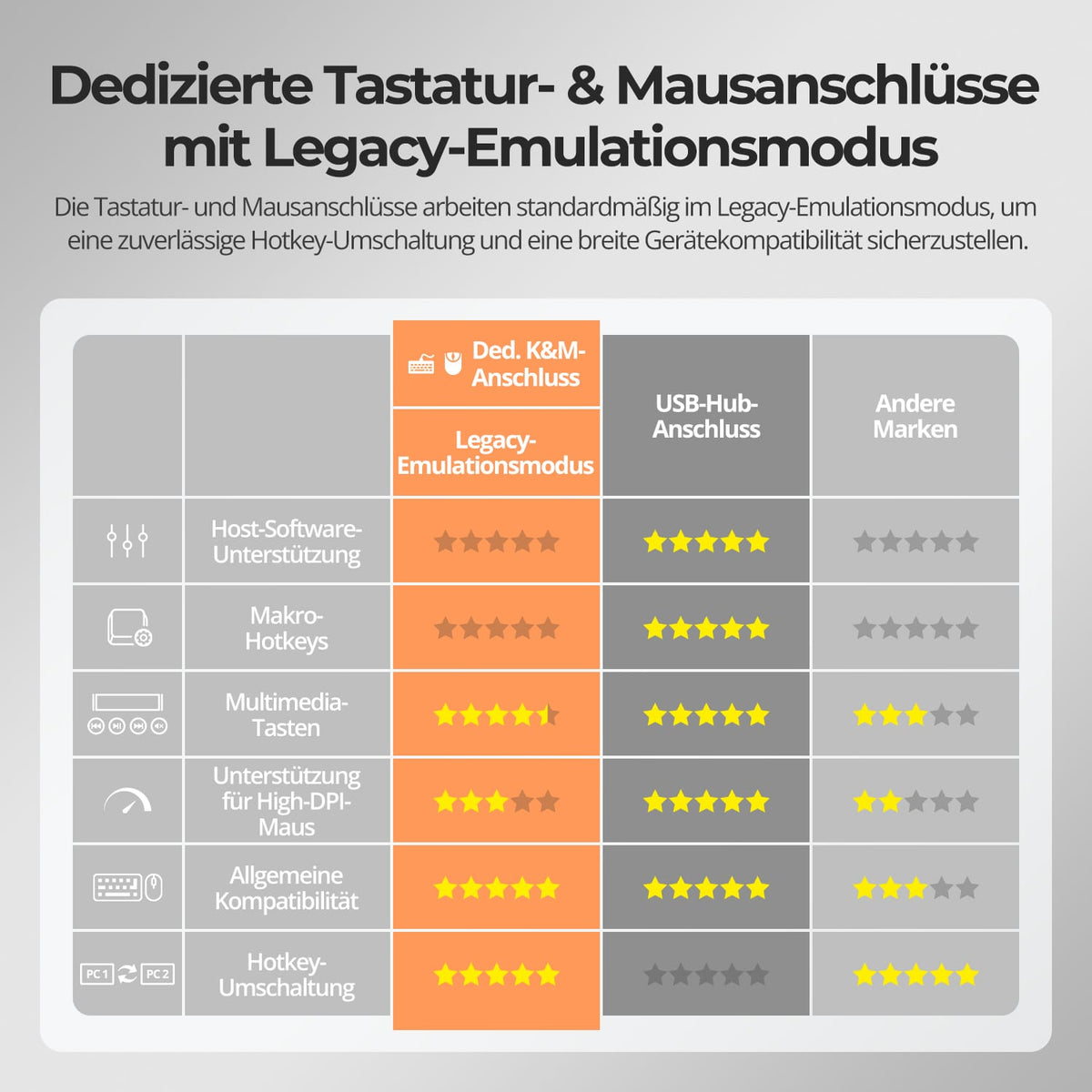
07
Data & Support
Compatibility & Connections
Technical data
Instructions & Downloads
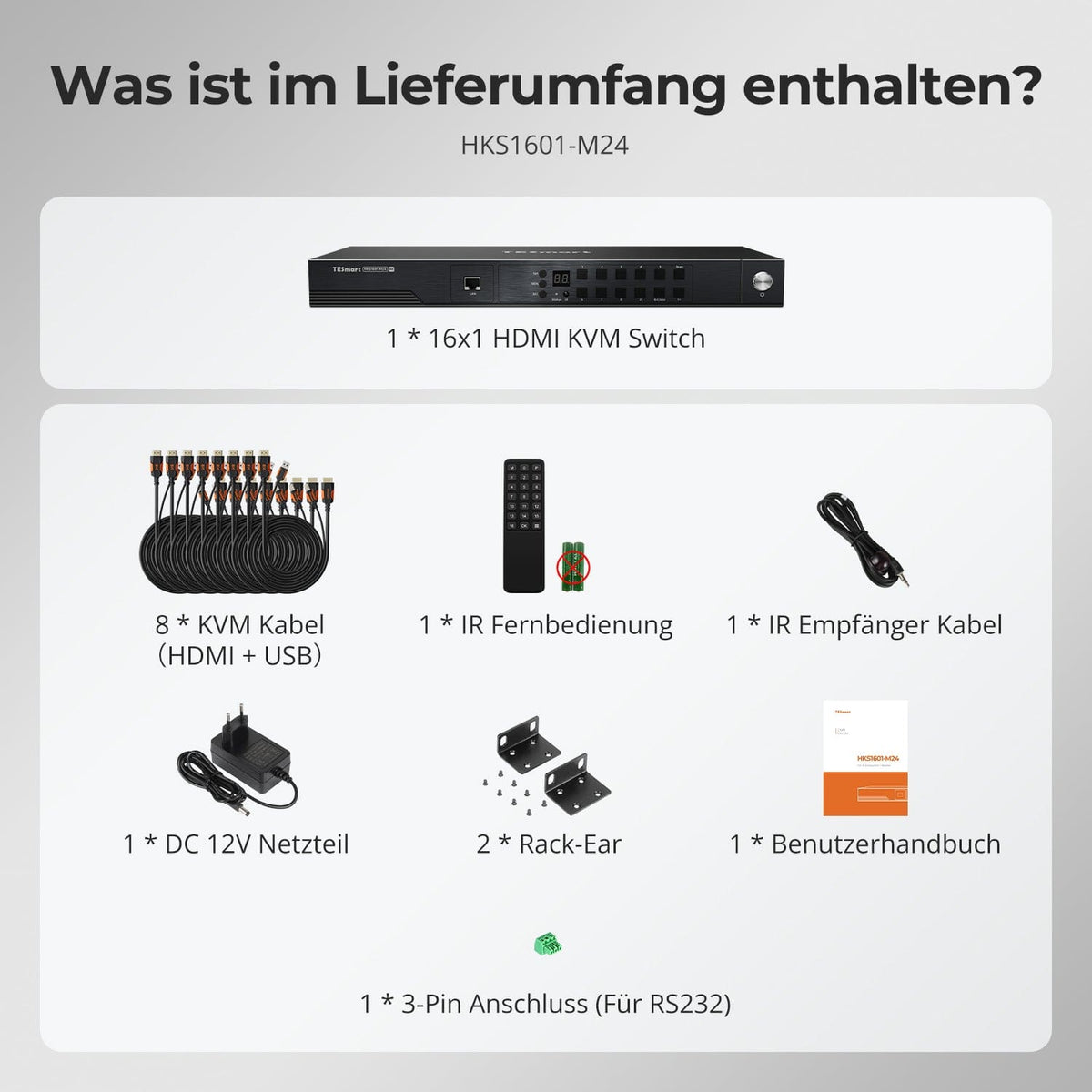
Scope of delivery
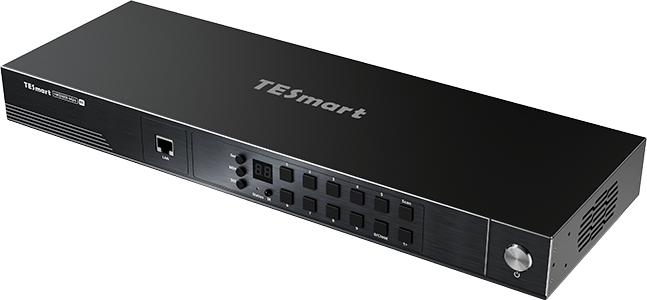
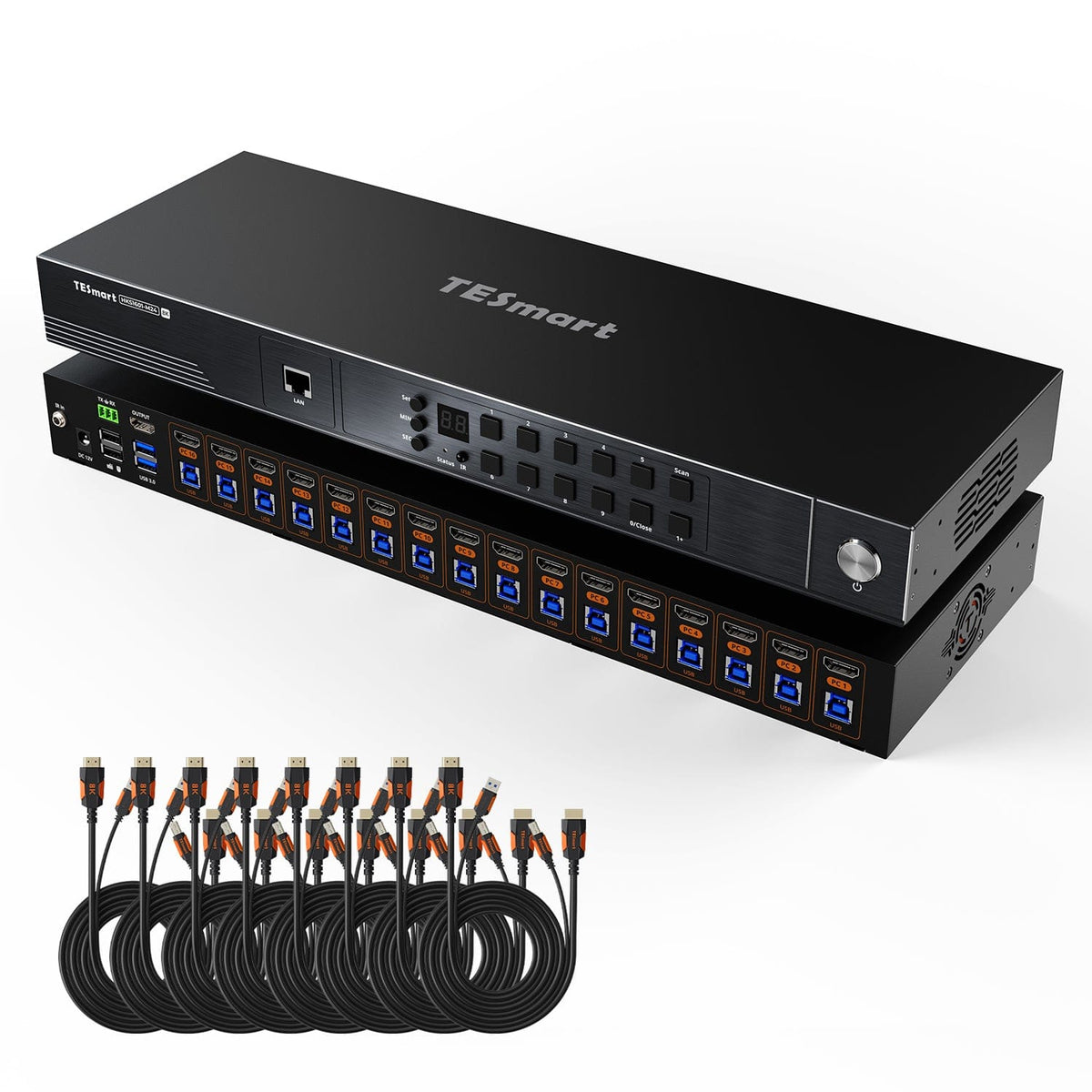
1×16×1 HDMI KVM Switch
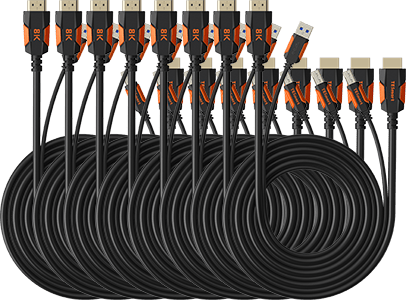
8 × HDMI + USB KVM cable
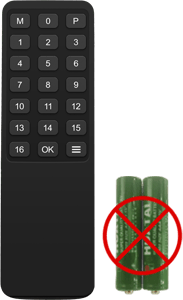
1 × IR Remote Control
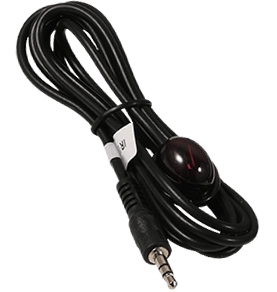
1 × IR Receiver Cable
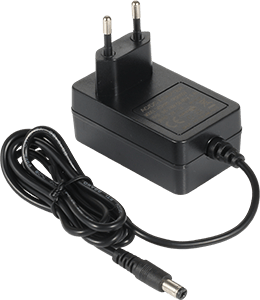
1 × 12V DC power supply
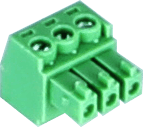
1 × 3-pin RS232 connector
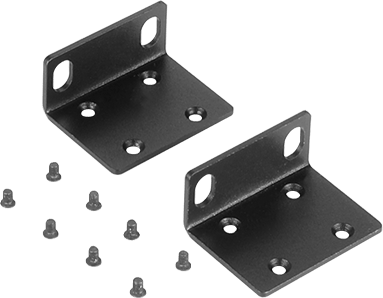
2 × Rack Angle
1×User manual
Compare suitable models
Select the models in the menus to compare connections, image output, and shareable features.

Model
HKS1601-M24
Model
HKS1601-P23
Model
HKS1601-EB23
Computer count
16 computers
Computer count
16 computers
Computer count
16 computers
Computer connections
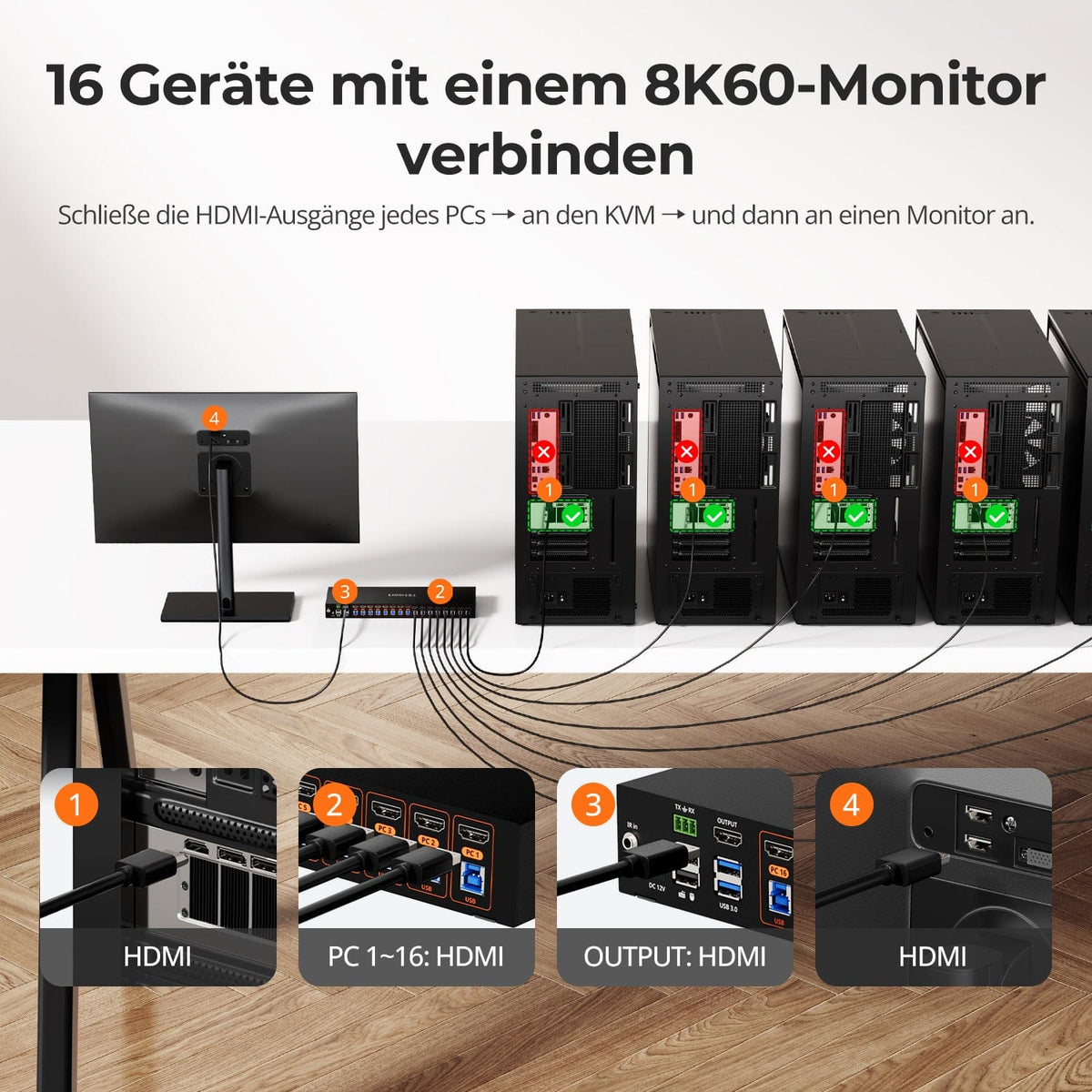
Per PC: 1 × HDMI + USB
Computer connections
Per PC: 1 × HDMI + USB
Computer connections
Per PC: 1 × HDMI + USB
Monitor outputs
1 × HDMI
Monitor outputs
1 × HDMI
Monitor outputs
1 × HDMI
Image output
8K60/4K144
Image output
4K60
Image output
4K30
Shared USB devices
USB 3.0/5 Gbit/s
Shared USB devices
USB 3.0/5 Gbit/s
Shared USB devices
USB 2.0
EDID emulation
EDID emulation
EDID emulation
Network control
LAN/TCP/IP + RS232
Network control
LAN/TCP/IP + RS232
Network control
LAN/TCP/IP + RS232
Frequently asked questions
You can find further answers in our Help Center.
[Compatibility] How many computers can fit on the HKS1601-M24?
Up to 16 HDMI computers can share one HDMI display, keyboard, and mouse.
[Compatibility] What is the maximum supported resolution?
According to the instructions, up to 8K@60Hz in 4:4:4, backwards compatible to 4K@144Hz. QuelThe device, display, and cable determine the actual output.
[Compatibility] What do I need for 8K60 or high 4K refresh rates?
The GPU, HDMI connection, display, and cable must support the required HDMI 2.1 bandwidth and video functionality.
[Functions] Does the HKS1601-M24 support EDID emulation?
Yes. EDID emulation keeps display information available for each computer and reduces re-detection and resolution changes when switching.
[Connections] What are LAN and RS232 used for?
LAN and RS232 are KVM control ports for network or serial commands. They do not share network access with the computers.
[Functions] What does Auto Detect do?
Auto Detect automatically switches to an available input when an active source is connected or the current source is removed.
[Functions] What does Auto-Scan do?
Auto-Scan switches between powered-on computers for monitoring at an adjustable interval.
[Switch] How do I switch HKS1601-M24?
Control via control panel, IR remote control, hotkeys or mouse wheel. LAN and RS232 enable remote control.
[Furnishings] Do I need special switching software?
Standard KVM functions and integrated control do not require any special software.
