







Monitorkonfiguration
Max. Auflösung

Stabile Anzeige
Gaming

Gaming

USB-Geschwindigkeit
Automatisierung
8×1 HDMI KVM | 8K60/4K144, EDID & USB 3.2
HKS801-M24: 8 HDMI computers share a monitor, keyboard and mouse - with up to 8K60/4K144, EDID and USB 3.2. Auto scan and automatic source detection support monitoring.
Monitorkonfiguration
Max. Auflösung
Stabile Anzeige
Gaming
Gaming
USB-Geschwindigkeit
Automatisierung
- Connection setup:
- For 8 PCs and 1 monitor (8K@60Hz)
Why HKS801-M24?
Overview
01
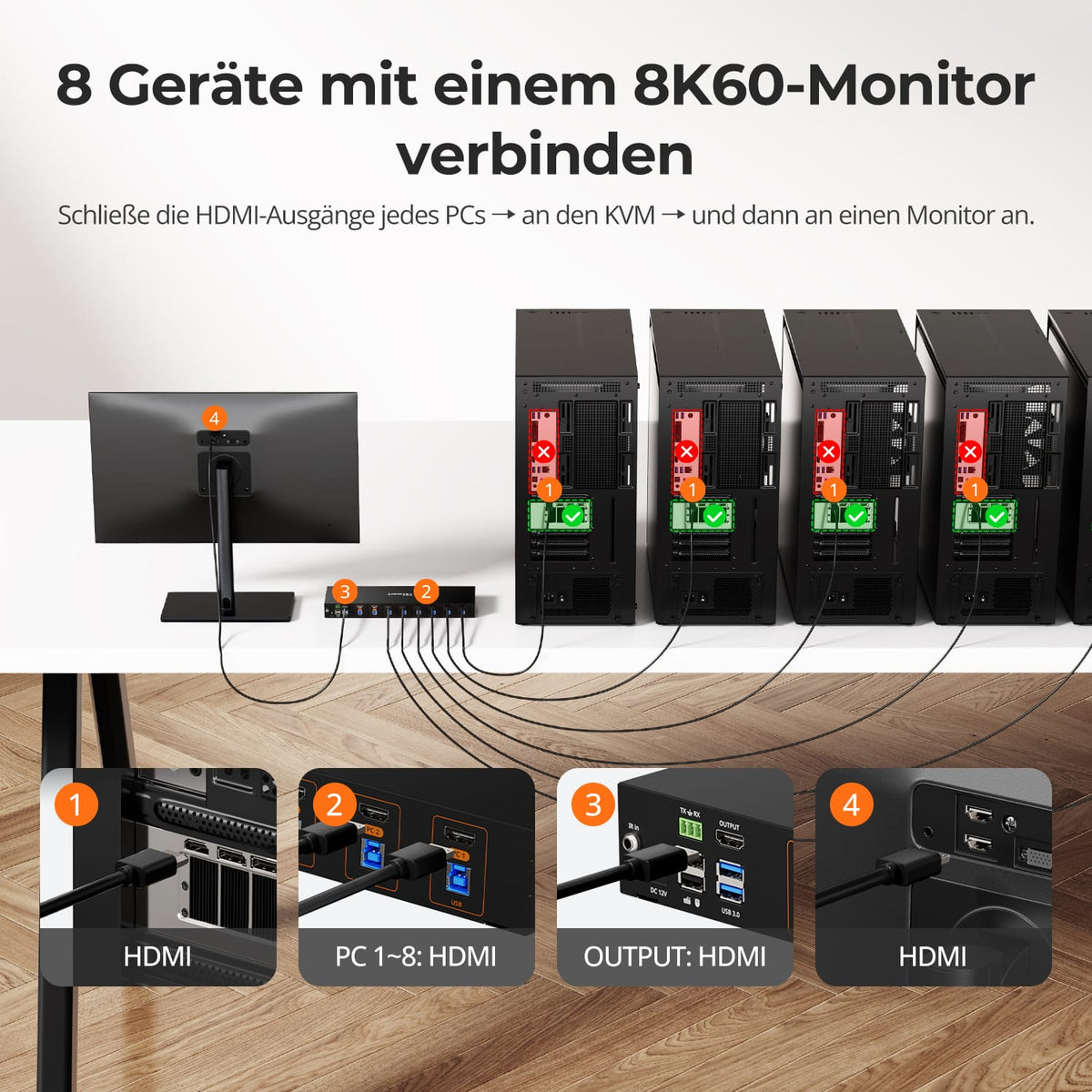
A workstation for eight HDMI computers
Up to eight HDMI computers can share an 8K display, keyboard and mouse – without constant unplugging or duplicate devices.
02
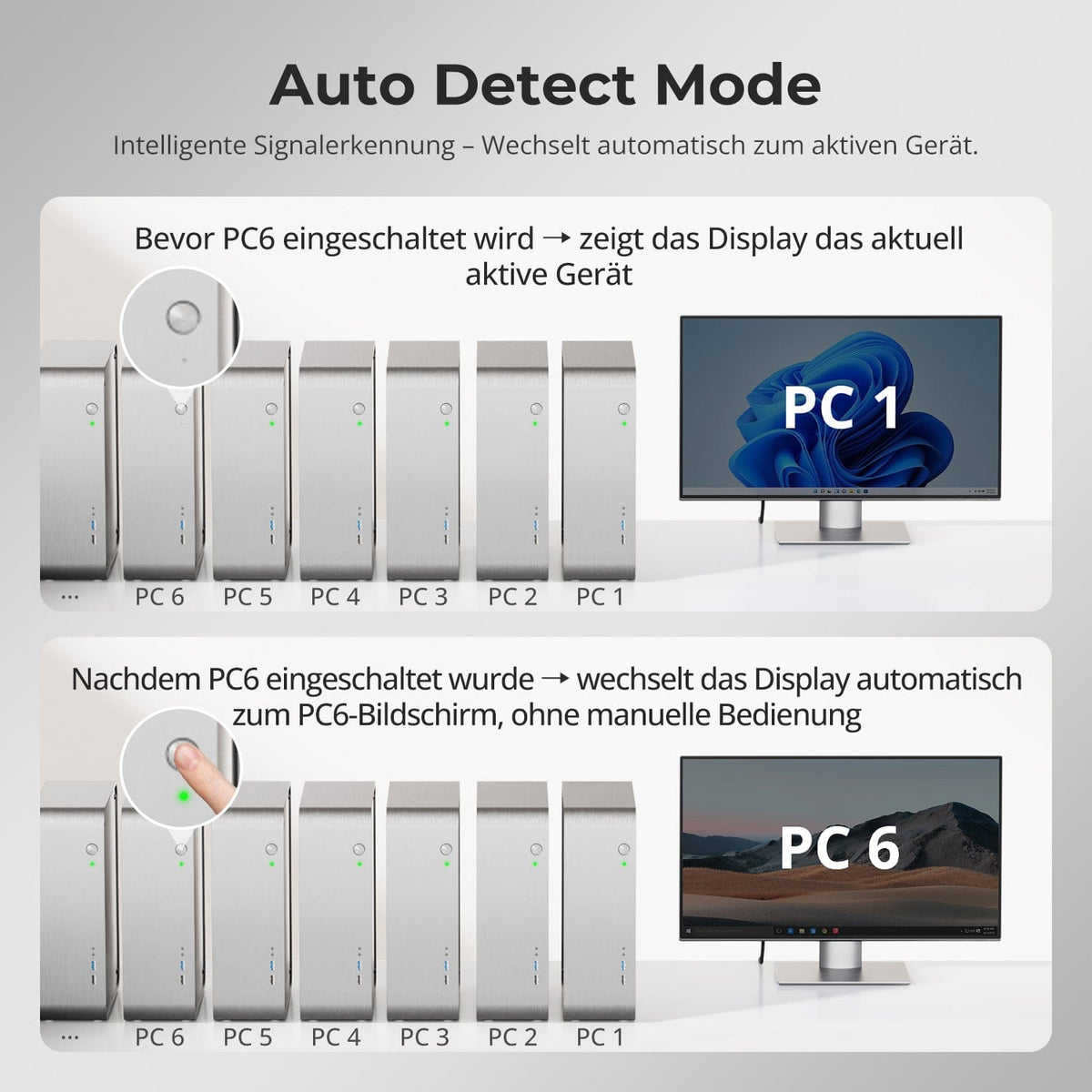
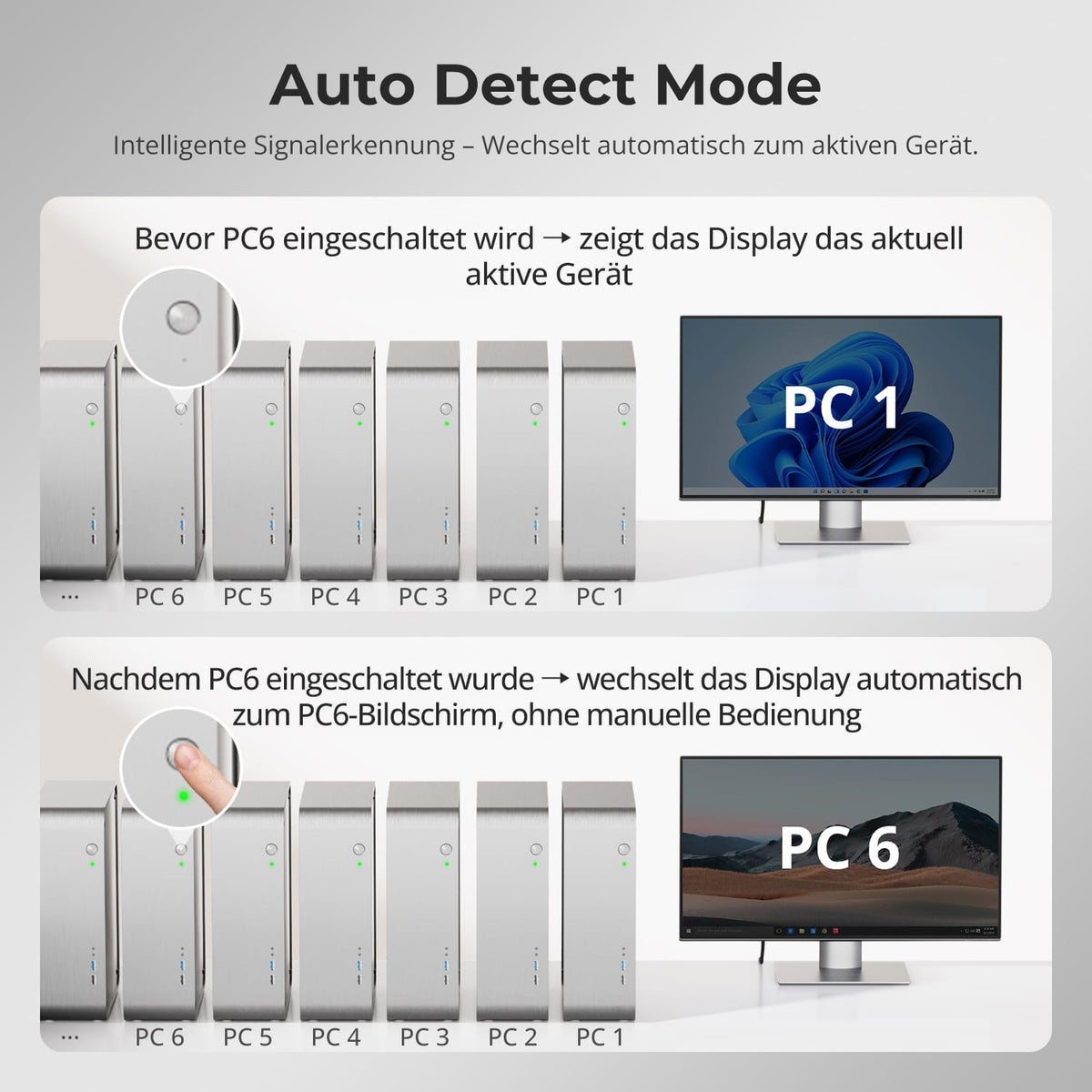
Automatically switch to the active computer
When a computer is switched on, Auto Detect can automatically switch to the newly active input.
03
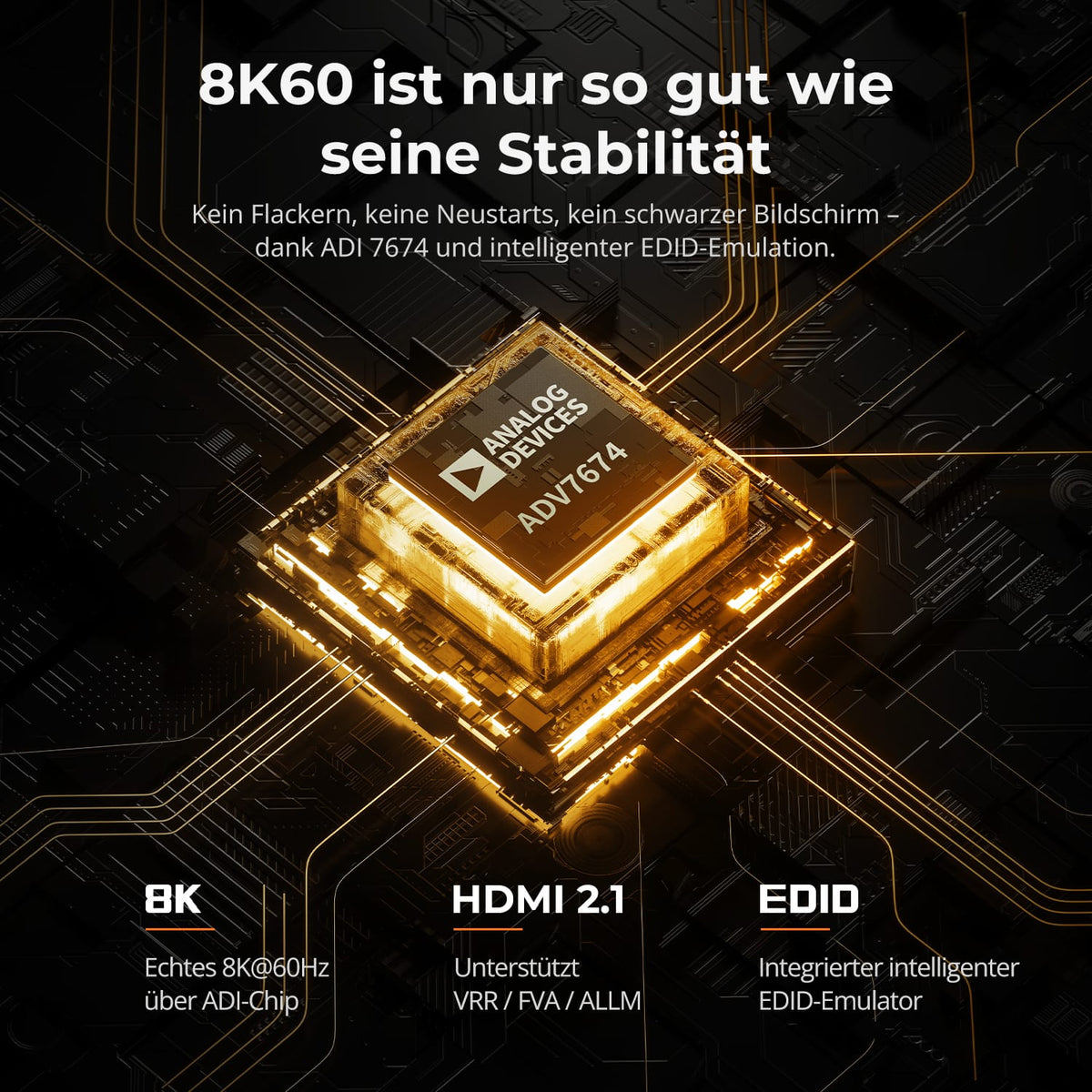
8K60 needs stable signals
ADV7674-Decoding and EDID emulation support stable output at high bandwidth:
• HDMI 2.1 signal processing with ADV7674
Smart EDID provides display information
• VRR, FVA and ALLM for smooth gaming
• For high frame rates and demanding creative tasks
04
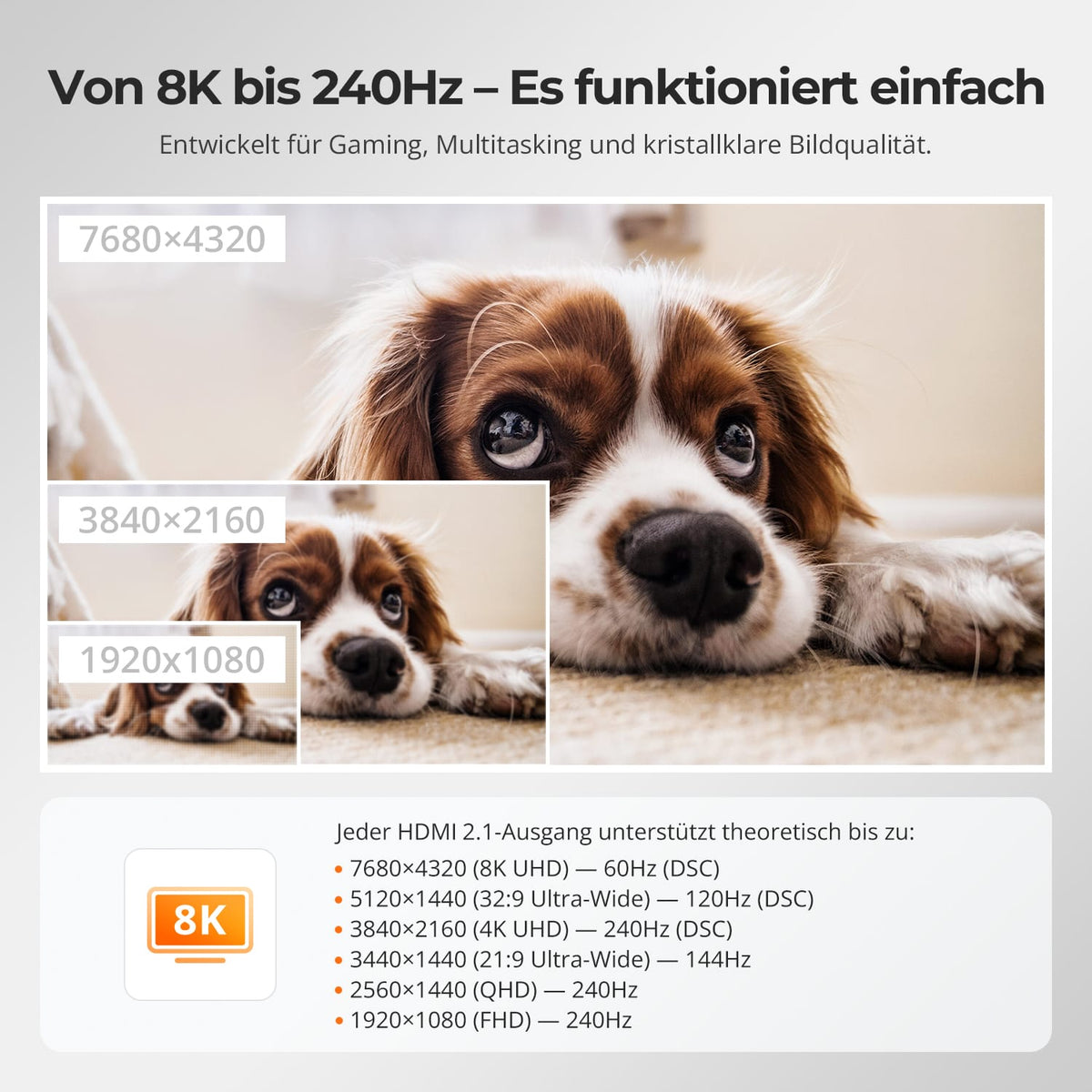
From 8K to 240Hz
HDMI 2.1 and DSC support high resolutions and refresh rates. Theoretically, per output:
7680×4320 (8K) – 60 Hz with DSC
• 5120×1440 (32:9) – 120 Hz with DSC
• 3840×2160 (4K) – 240 Hz with DSC
· 3440×1440 (21:9) – 144Hz
· 2560×1440 (QHD) – 240Hz
· 1920×1080 (Full HD) – 240Hz

05
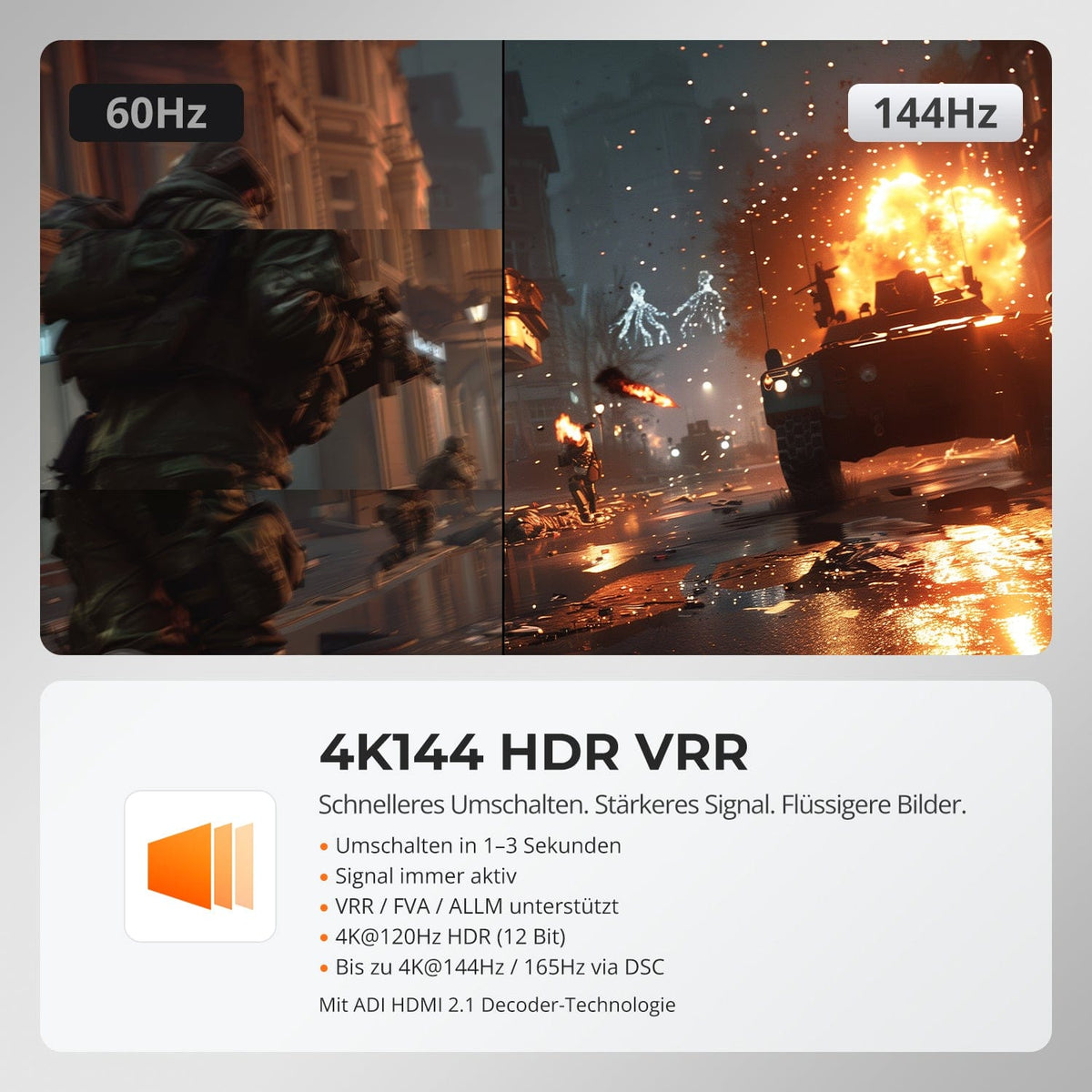
4K144 HDR VRR
Switching in 1–3 seconds
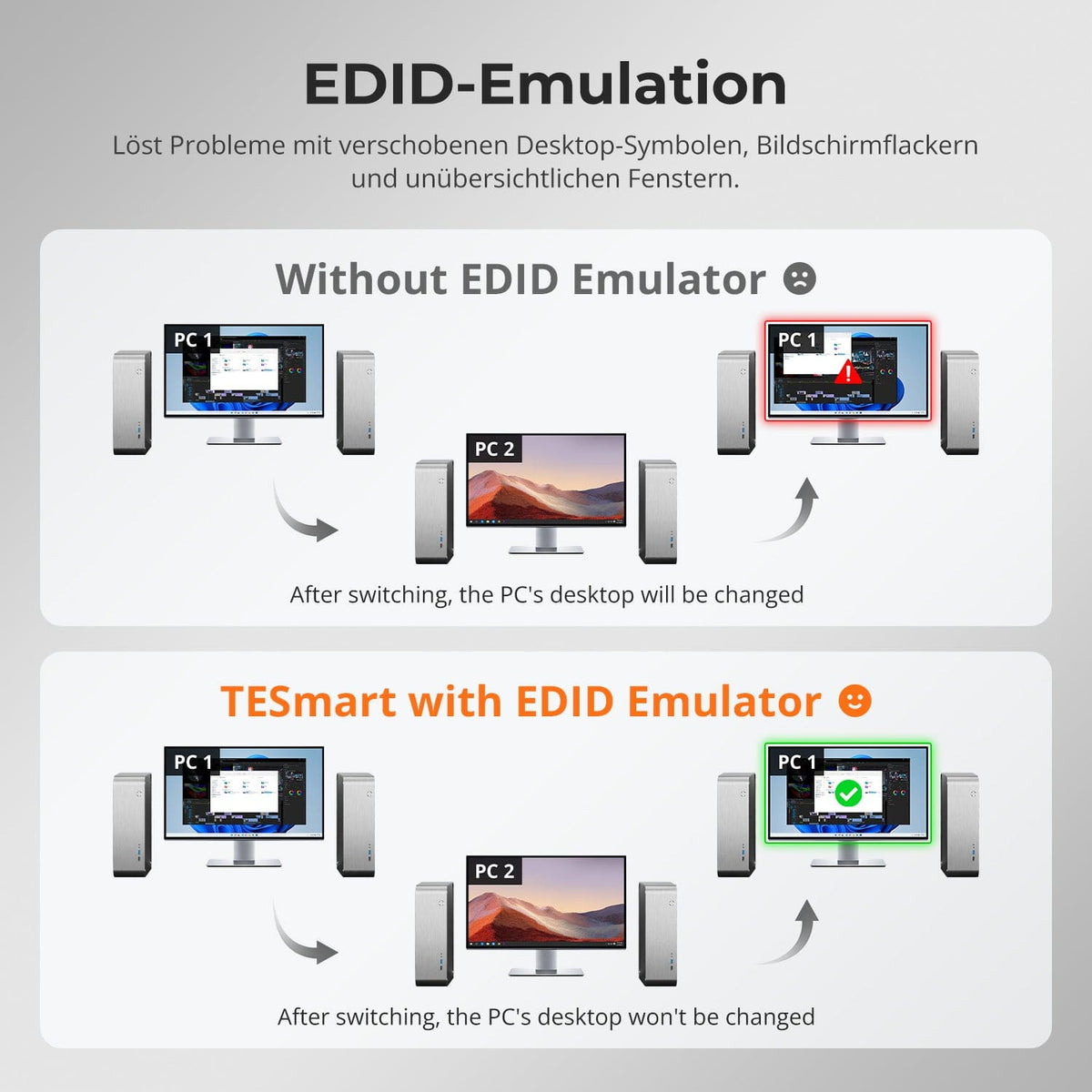
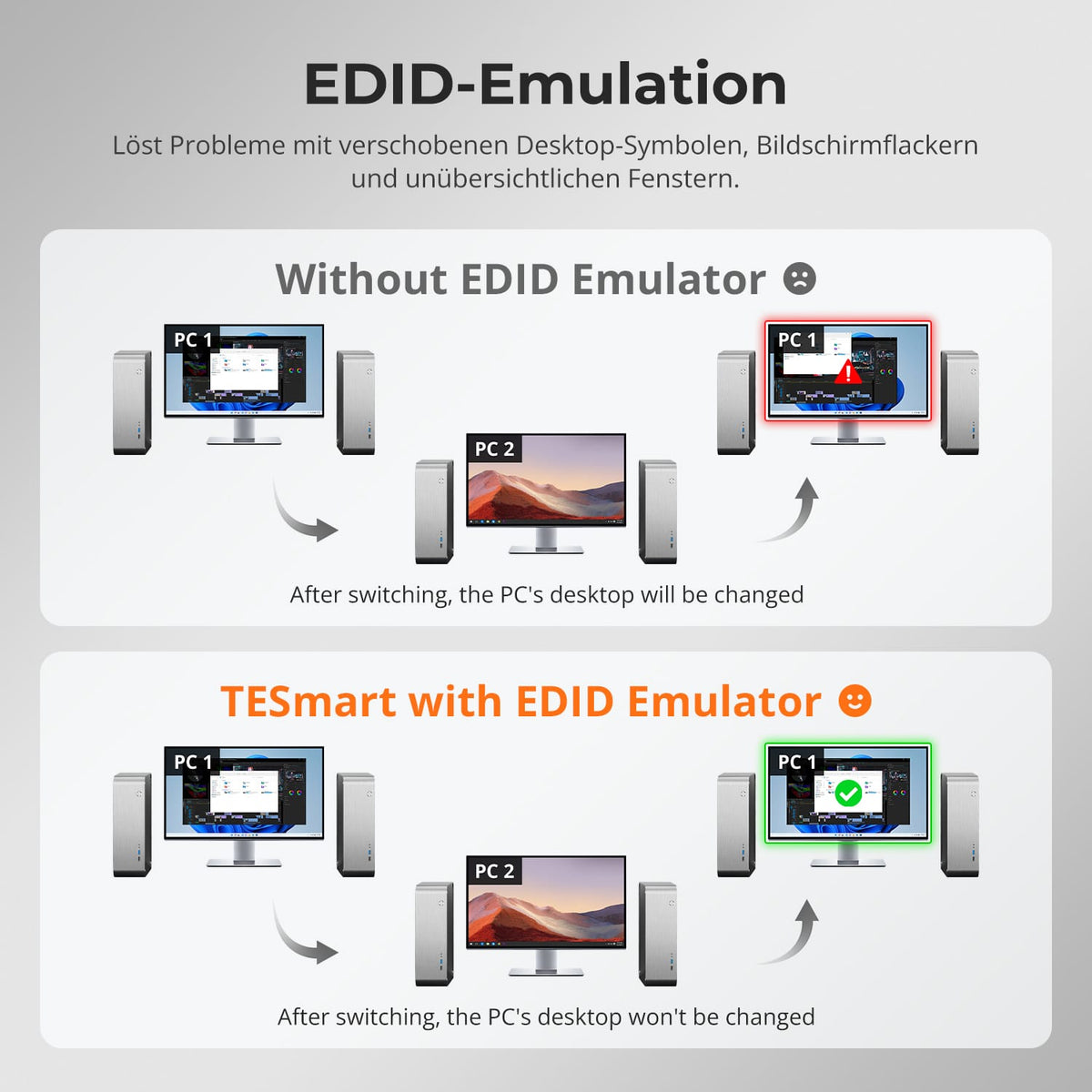
EDID maintains the display connection
• VRR, FVA and ALLM for smooth gaming
· 4K@120Hz HDR with 12 bits
· Up to 4K@144Hz/165Hz via DSC
ADI-HDMI-2.1 decoding amplifies weak signals and supports stable output at high bandwidth.
06
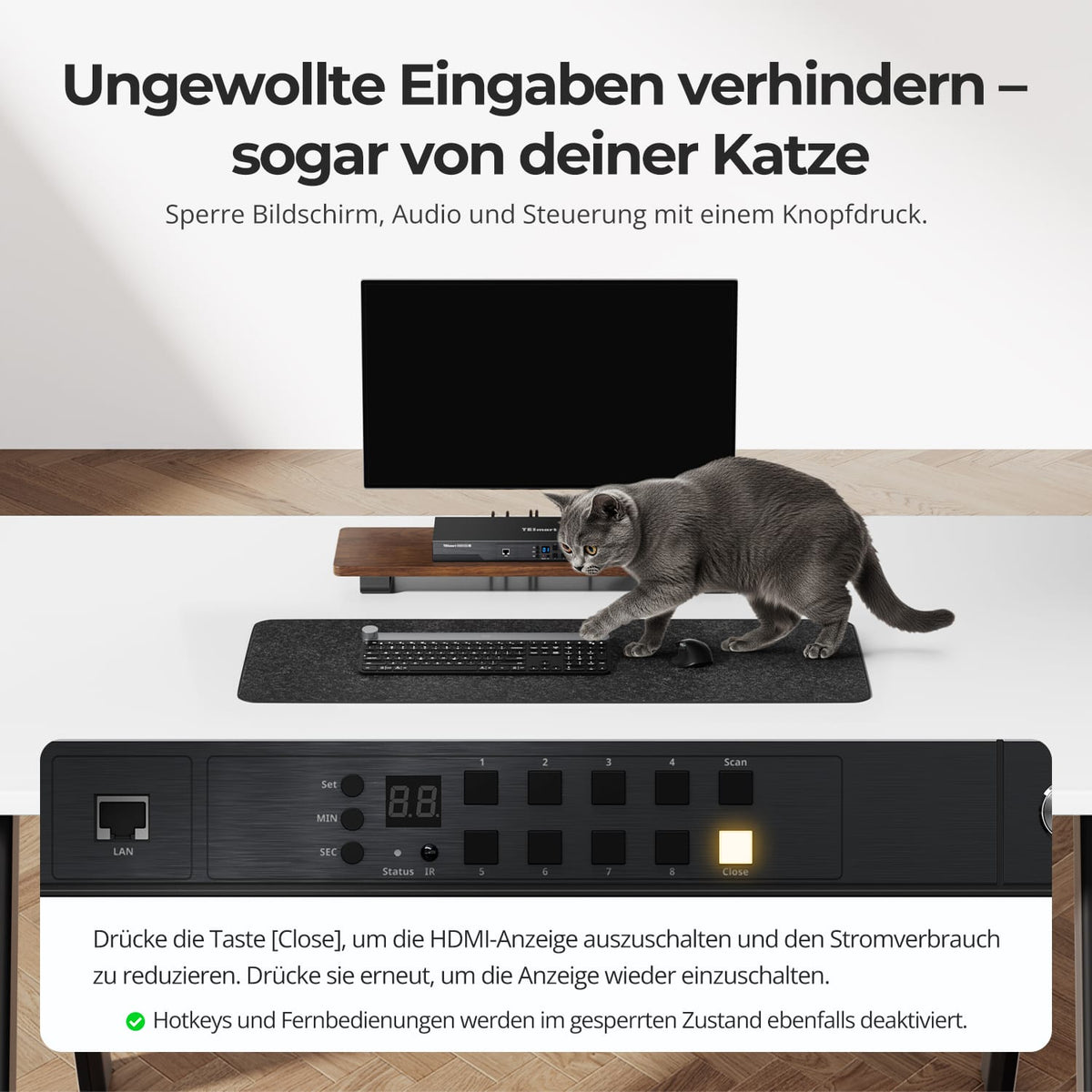
Prevent accidental switching using a button
Pressing Close disables the HDMI display and temporarily deactivates hotkeys and IR commands. Pressing it again resumes operation.
07
08
09
Data & Support
Compatibility & Connections
Technical data
Instructions & Downloads
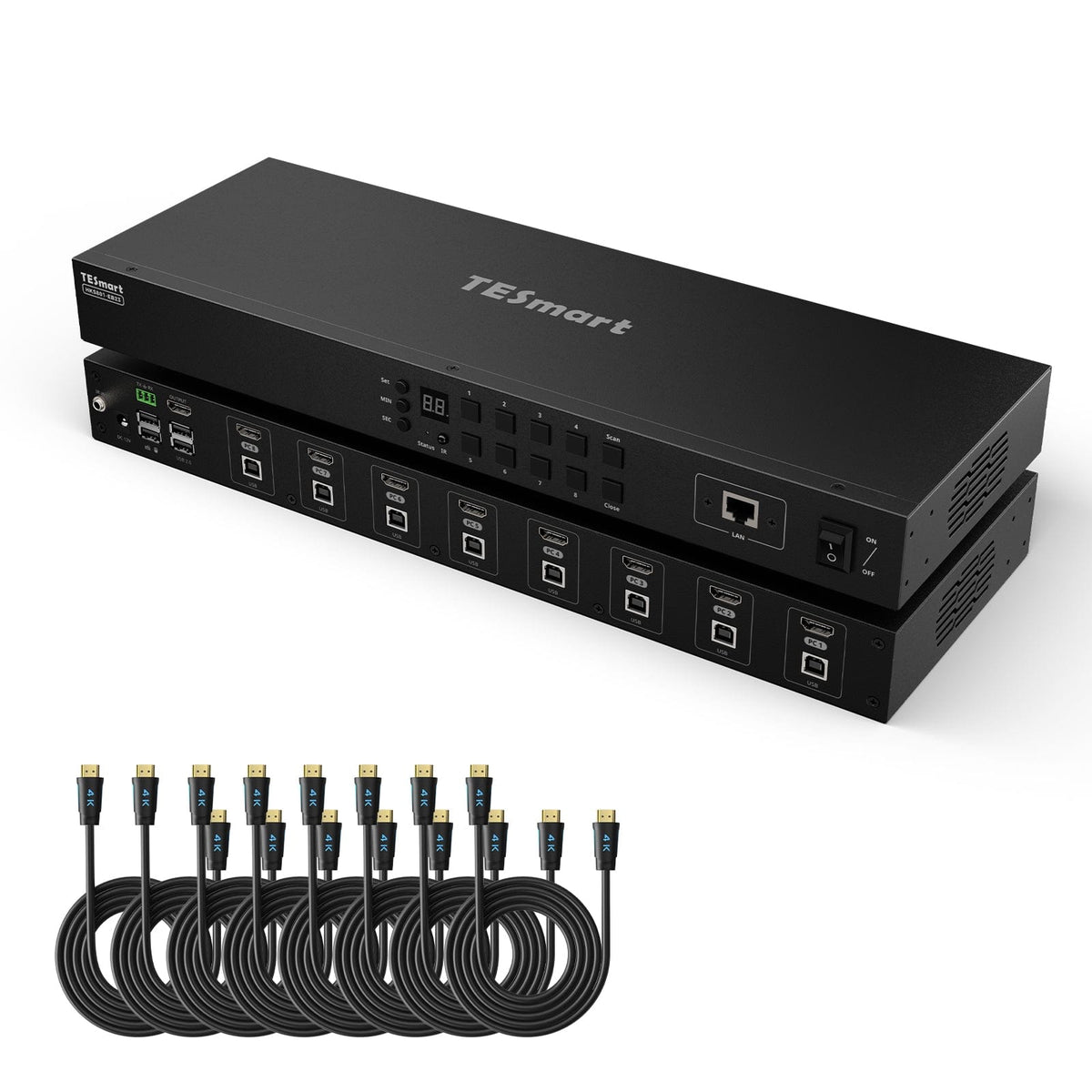
Scope of delivery
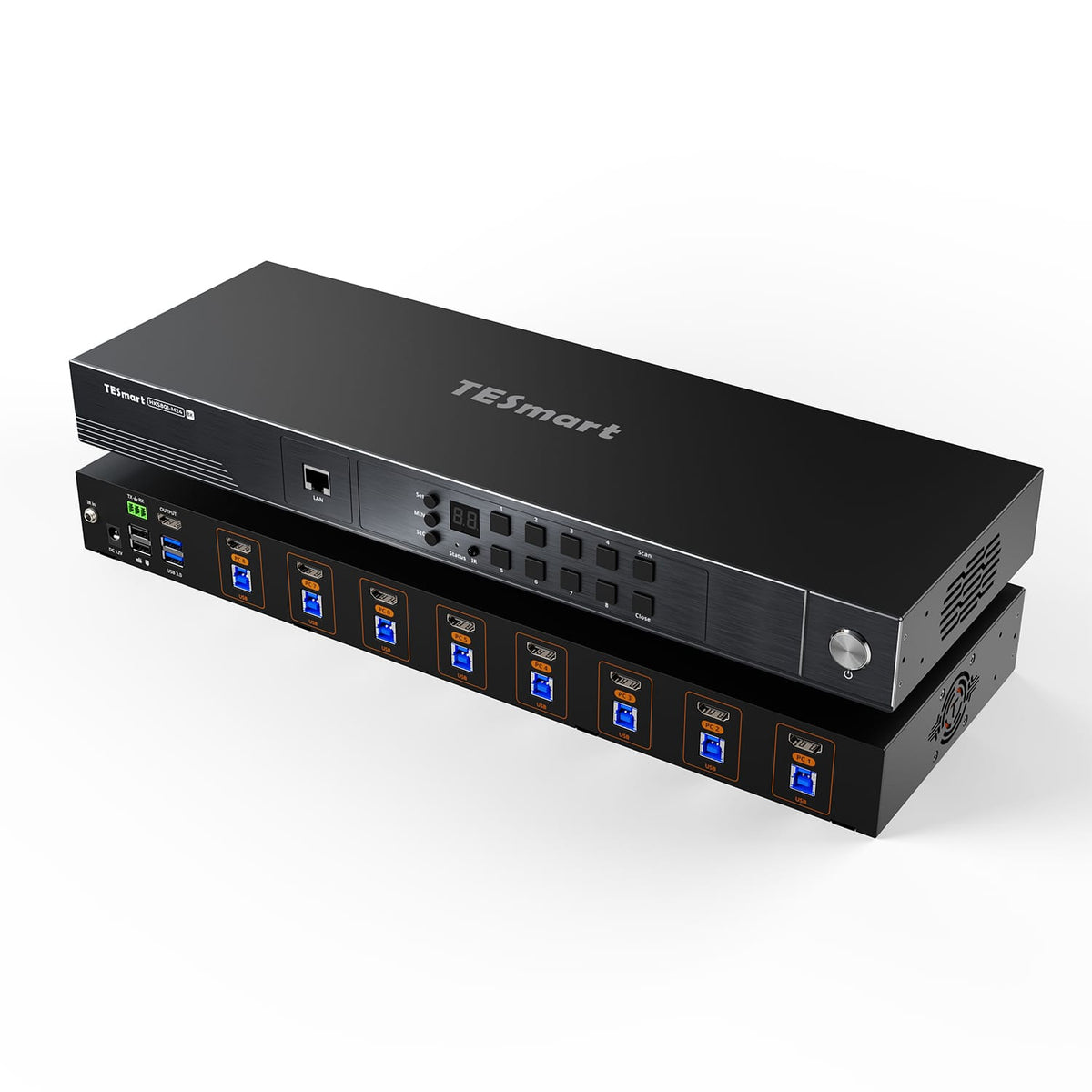
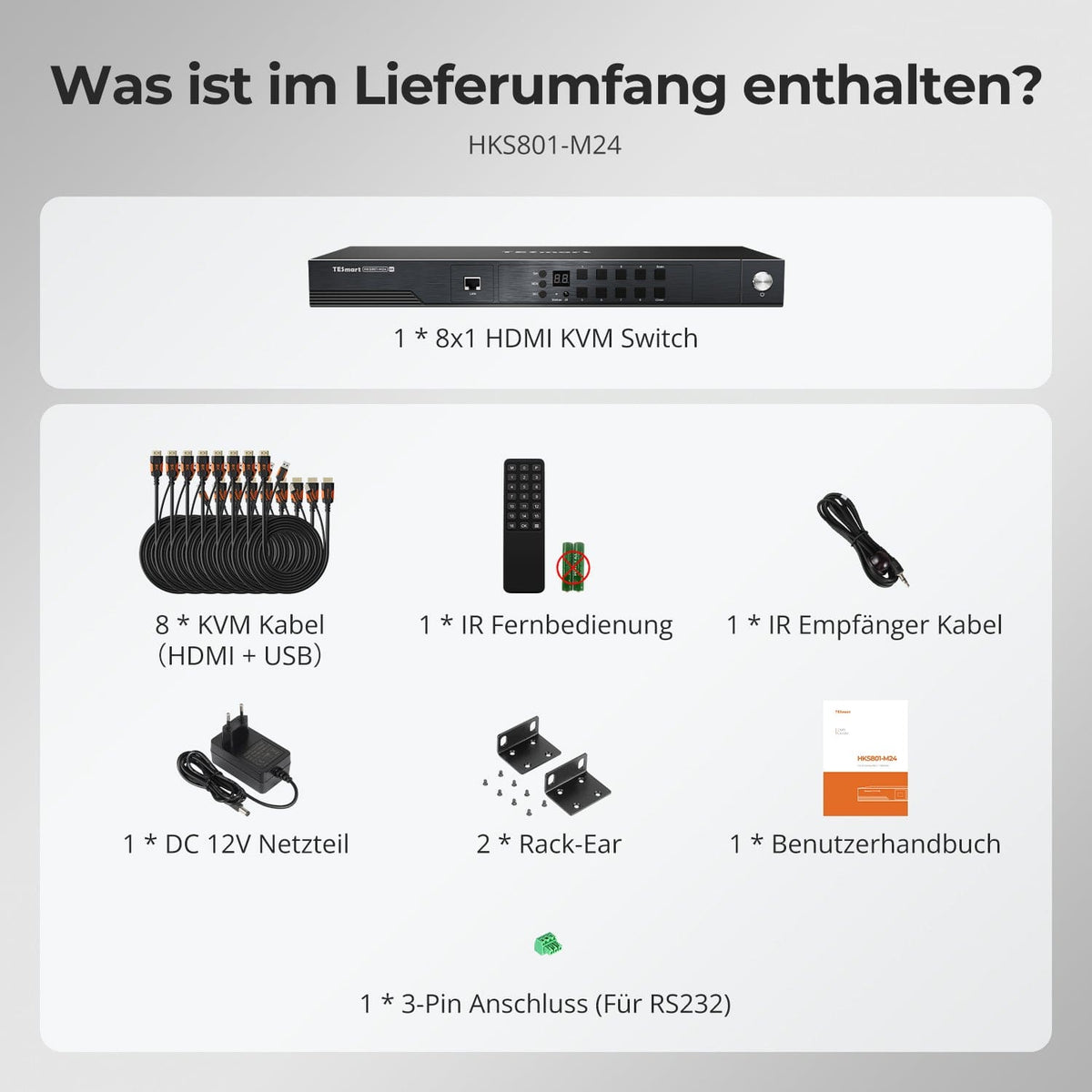
1 × HKS801-M24 KVM Switch
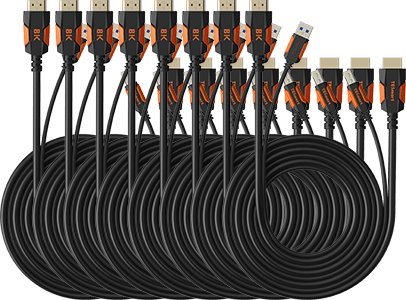
8 × KVM cable (HDMI + USB)
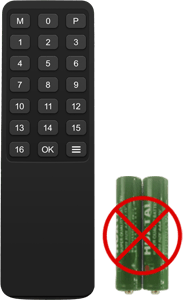
1 × IR Remote Control
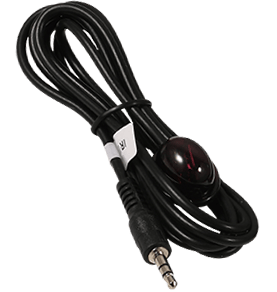
1 × IR Receiver Cable
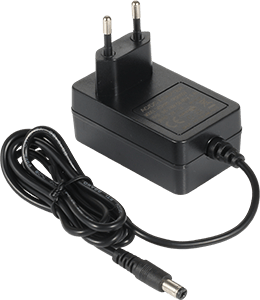
1 × 12V DC power supply
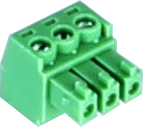
1 × 3-pin RS232 connector
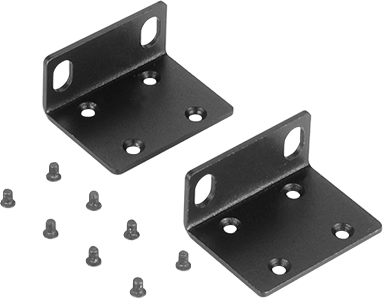
2 × Rack Angle
1×User manual
Compare suitable models
Select the models in the menus to compare connections, image output, and shareable features.

Model
HKS801-M24
Model
HKS801-P23
Model
HKS801-EB23
Computer count
8 computers
Computer count
8 computers
Computer count
8 computers
Computer connections
Per PC: 1 × HDMI + USB
Computer connections
Per PC: 1 × HDMI + USB
Computer connections
Per PC: 1 × HDMI + USB
Monitor outputs
1 × HDMI
Monitor outputs
1 × HDMI
Monitor outputs
1 × HDMI
Image output
8K60/4K144
Image output
4K60
Image output
4K30
Shared USB devices
USB 3.0/5 Gbit/s
Shared USB devices
USB 3.0/5 Gbit/s
Shared USB devices
USB 2.0
EDID emulation
EDID emulation
EDID emulation
Network control
LAN/TCP/IP + RS232
Network control
LAN/TCP/IP + RS232
Network control
LAN/TCP/IP + RS232
Frequently asked questions
You can find further answers in our Help Center.
[Compatibility] For which setup is the HKS801-M24 suitable?
Up to eight HDMI computers can share a display, keyboard, mouse, and USB devices. Only one computer is displayed at a time; multiple systems cannot appear on the screen simultaneously.
[Compatibility] Which computers and systems does the HKS801-M24 support?
Each computer requires HDMI and USB-A for data transfer. Windows, macOS, Linux, Raspberry Pi, and Unix are supported. One HDMI/USB KVM cable is included with each computer.
[Compatibility] Which display and cables do I need?
A monitor or TV with HDMI is required. Eight KVM cables for the computers are included; you will need an additional HDMI cable for the display. HDMI 2.1-compatible devices are required for 8K60 or 4K144.
[Compatibility] What resolutions does the HKS801-M24 support?
Up to 7680×4320 at 60 Hz and 3840×2160 at 144 Hz. The GPU, display, system settings, HDMI cable, and, if applicable, DSC determine the output.
[Compatibility] Does the HKS801-M24 support HDR and variable refresh rates?
Yes. HDR10, Dolby Vision, VRR, G-Sync, FreeSync, FVA and ALLM. The computer, GPU, display, content and HDMI cable must support and have the function enabled.
[Functions] What do the ADI chipset and EDID emulation offer?
The ADI 7674 processes high-bandwidth HDMI 2.1 signals. EDID keeps display information available for each computer. Together, they support stable resolutions and reduce re-detection issues, shifted windows, and icons.
[Connections] What can I connect to the shared USB 3.2 ports?
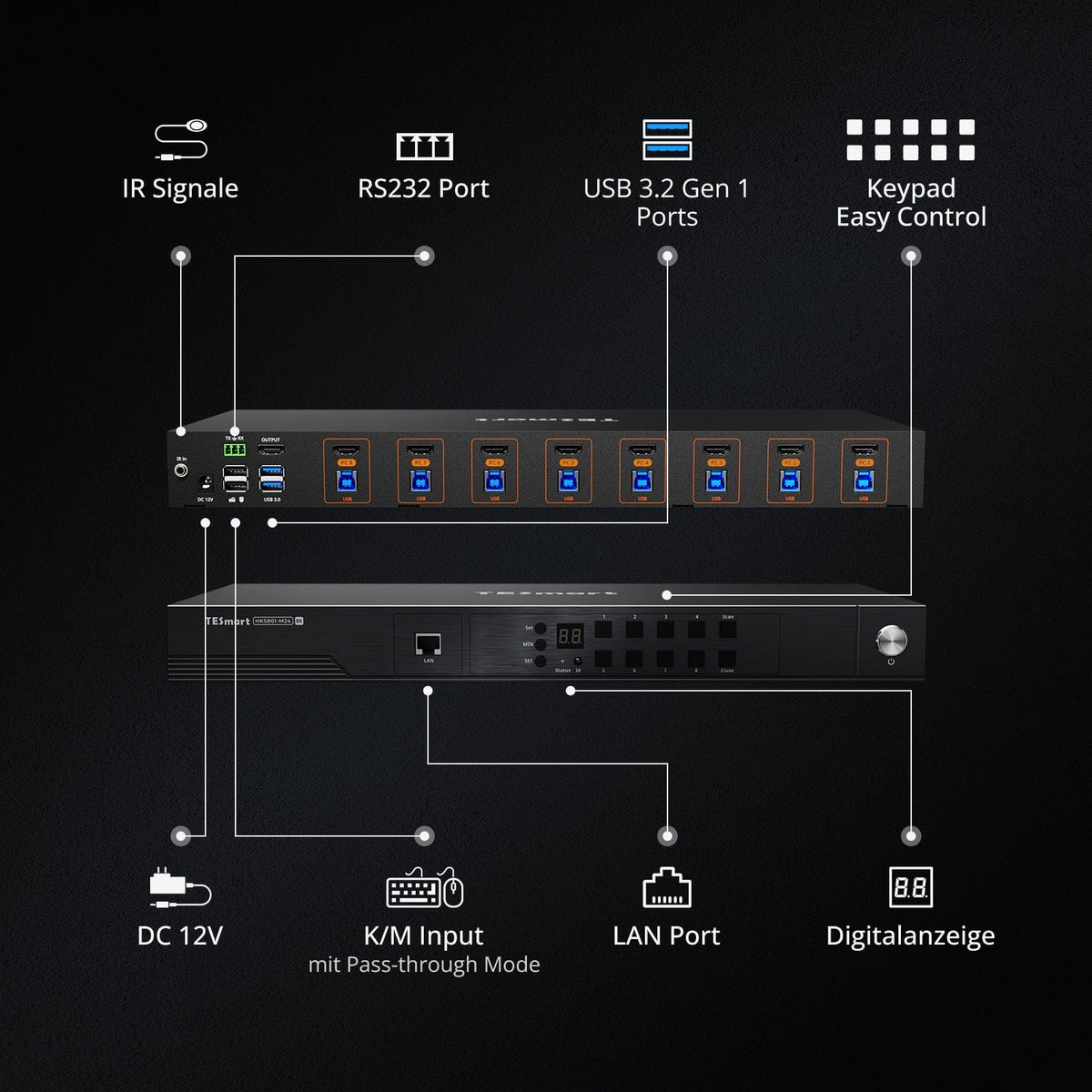
The two rear USB-A 3.2 Gen 1 ports share storage, printers, and other compatible devices at speeds of up to 5 Gbps. They follow the selected computer.
[Functions] What is the difference between Auto Detect and Auto-Scan?
Auto Detect selects newly active computers or, in the case of remote sources, a different active input. Auto Scan switches between powered-on computers at intervals ranging from 5 seconds to 1 hour.
[Functions] What does the Close button do?
It disables HDMI to save power and prevents accidental switching. Hotkeys and IR commands are also disabled. Pressing it again restores normal operation.
[Connections] What are LAN and RS232 used for?
LAN and RS232 enable remote control and automation. LAN uses TCP/IP in the local network, while RS232 uses serial commands. LAN does not share internet or Ethernet access with computers.
[Connections] Does the HKS801-M24 have a separate audio output?
No. Audio is routed via HDMI to the monitor or TV and follows the selected computer. Set your computer and display to HDMI audio.
[Switch] How do I control the HKS801-M24?
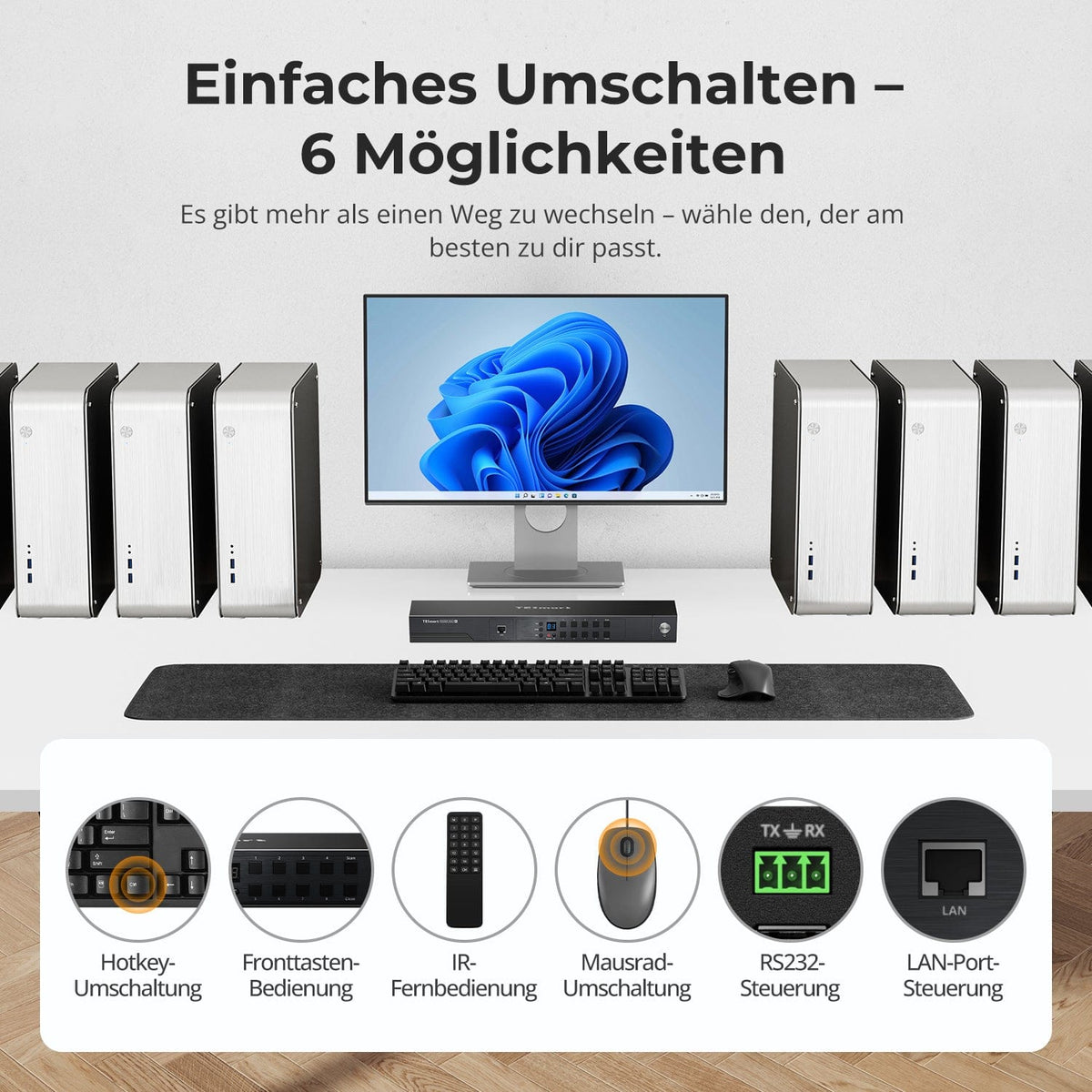
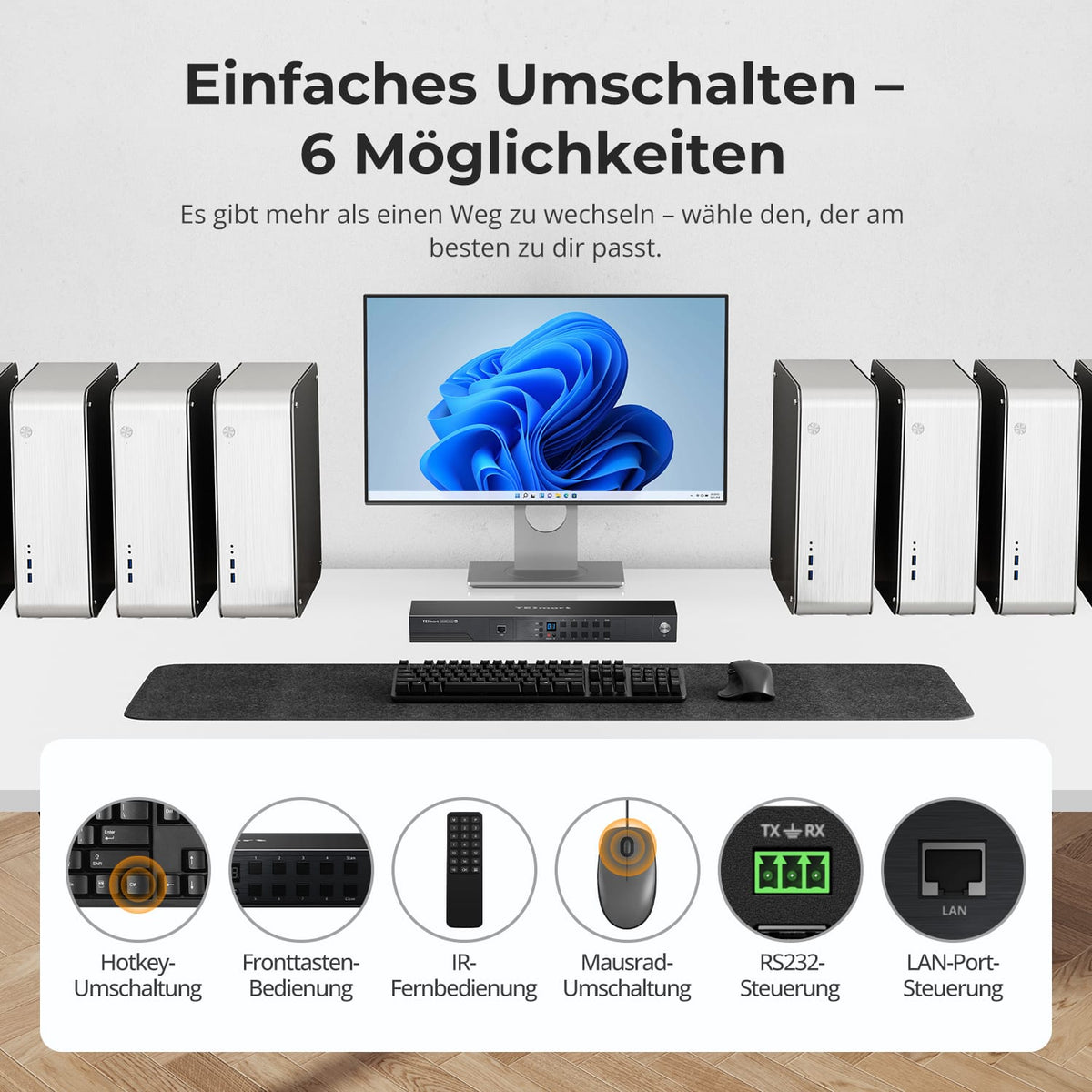
Control is possible via the control panel, IR remote control, hotkeys, or double-click of the mouse wheel. RS232 and TCP/IP over LAN are available for centralized control. The mouse wheel function must be enabled.
[Switch] How do hotkeys work and can the trigger key be changed?
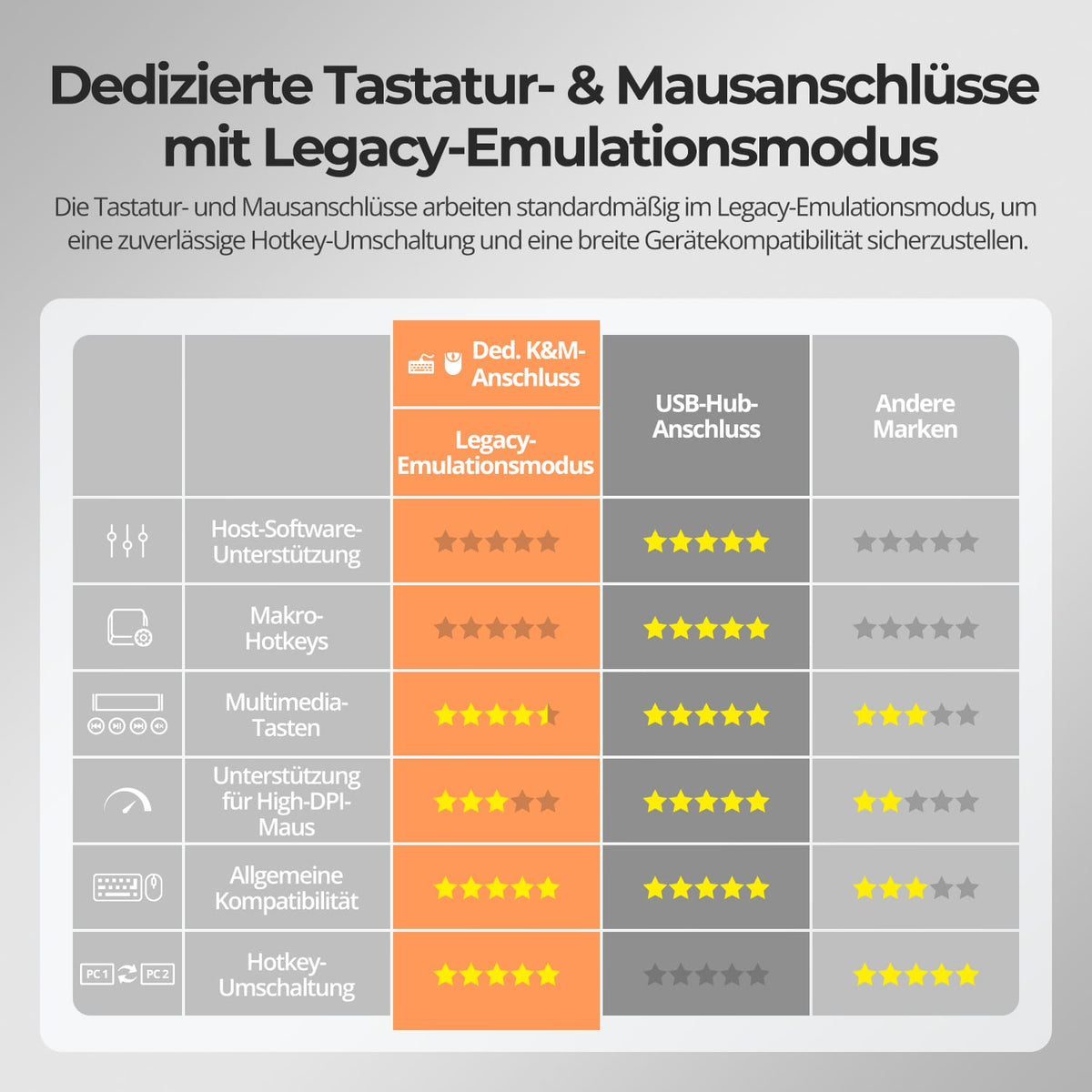
Use a wired USB keyboard connected to the designated port. Press right Ctrl twice within 2 seconds, then execute the command within 3 seconds. According to the instructions, the trigger key can be switched between right Ctrl and Scroll Lock.
[Functions] What are Pass-Through Mode and Legacy Emulation Mode?
Pass-through supports modern mechanical, multimedia, and gaming devices with many additional features. Legacy emulation prioritizes basic keyboard/mouse compatibility and hotkeys. Driver functions, macros, and other extras may be omitted.