

Table of contents
- Introduction
- What is DSC?
- Why 8K displays often rely on DSC
- Why DSC is important for 4K144Hz, 4K240Hz and multi-monitor workstations
- How DSC relates to HDMI 2.1, DisplayPort, USB-C DisplayPort Alt Mode and KVM switches
- Who really needs DSC?
- What DSC helps with — and what DSC doesn't solve
- Why the entire video chain remains important
- Where TESmart fits into 8K and high-refresh-rate KVM setups
- FAQ
- Conclusion
Introduction
When setting up an 8K display, a 4K144Hz gaming monitor, a 4K240Hz esports display, or a multi-monitor workstation, you may repeatedly encounter a technical term: DSC.
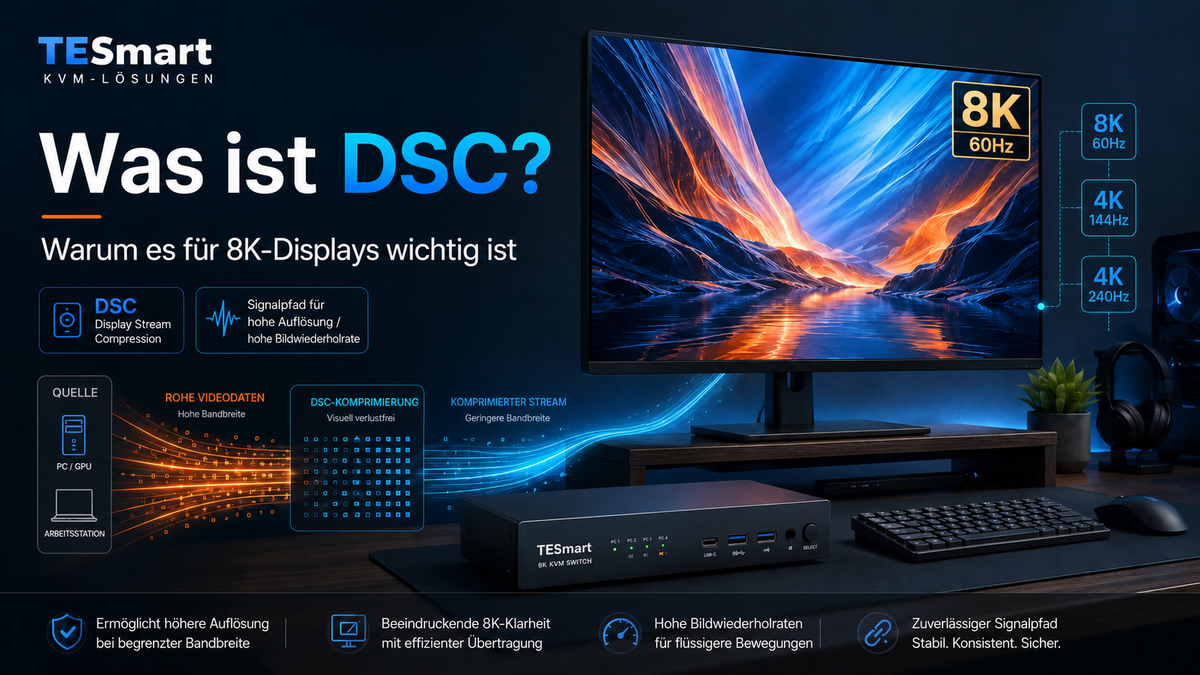
DSC stands for Display Stream Compression. The term is easily misunderstood because the word "compression" makes many users think of lower image quality, blurry video, or less detail. However, this is not the correct way to view DSC in modern display connections.
DSC is a display transport technology that helps transmit more pixel data over a limited video connection. In practical terms, this means that DSC enables high-resolution display modes with high refresh rates via interfaces such as DisplayPort 1.4, HDMI 2.1, and USB-C DisplayPort Alt Mode.
The important point is: DSC doesn't work in isolation. The GPU, laptop output, cables, KVM switch, video switch, and monitor input must all support the desired display mode. A single "8K" label on a device is not enough to guarantee 8K60Hz, 4K144Hz, or 4K240Hz.
What is DSC?
Display Stream Compression VESA is a compression technology for display signals developed by VESA. It reduces the amount of data that needs to be transmitted over a video connection while aiming to maintain visual quality under normal viewing conditions.
In display specifications, DSC is usually referred to as visually lossless, This is described as visually lossless. This means that the compression is designed so that users should not normally be able to perceive any visible difference from an uncompressed signal under typical viewing conditions.
This distinguishes DSC from the type of compression many people associate with low-bitrate online video. DSC is not used to reduce the size of a low-quality video stream. It is employed within the display pipeline to allow a source device to send high-bandwidth display modes over a physical interface with limited bandwidth.
An 8K display, for example, has four times as many pixels as a 4K display. Increasing the refresh rate, color depth, HDR requirements, or the number of monitors will again increase bandwidth demands. DSC helps reduce the load on the connection so that the display mode fits within the available bandwidth capacity.
Why 8K displays often rely on DSC
A 8K display It has a resolution of 7680 × 4320 pixels. At 60Hz, the display has to update more than 33 million pixels 60 times per second. Adding 10-bit color or HDR increases the bandwidth requirement even further.
Therefore 8K60Hz It's not just a monitor specification. It's a requirement for the entire signal chain.The source device must be able to output the mode, the cable must transmit it reliably, the display input must accept it, and every device in between — such as a 8K KVM switch — must process the signal correctly.
DSC is frequently used because it allows interfaces like DisplayPort 1.4 to support display modes that would otherwise exceed the practical bandwidth of the connection. Without DSC, some 8K or high-refresh-rate modes may require a reduced refresh rate, lower color depth, chroma subsampling, or a different connection standard.
For users, the result is simple: If a display mode depends on DSC, every active device in the chain must receive this DSC-enabled path. If any part of the chain does not support this, the monitor may fall back to a lower mode or fail to display the expected resolution and refresh rate.

Why DSC is important for 4K144Hz, 4K240Hz and multi-monitor workstations
DSC isn't only relevant for 8K. Many users encounter DSC much earlier when they... 4K144Hz, 4K240Hz, Want to operate ultrawide displays with high refresh rates or multi-display workstations.
A 4K display at 144Hz requires significantly more bandwidth than a 4K display at 60Hz. A 4K display at 240Hz puts an even greater strain on the connection. Enabling HDR or 10-bit color increases the data rate again. DSC can help enable these modes over DisplayPort or HDMI connections, provided DSC negotiation is supported.
In one Multi-monitor workstation The issue becomes more complex. Each display may require its own video signal. A dual- or triple-monitor setup doesn't simply "share" a bandwidth pool in a way users can ignore. Every source device, every cable path, and every monitor input must support the desired resolution and refresh rate.
This is especially important in a Mac and PC desktop setup. A Windows workstation with a dedicated GPU, a MacBook with USB-C DisplayPort Alt Mode, and a gaming PC with HDMI 2.1 can all provide different display modes, even when connected to the same monitor. DSC support can vary depending on the device, operating system behavior, adapter, dock, and display input.

How DSC relates to HDMI 2.1, DisplayPort, USB-C DisplayPort Alt Mode and KVM switches
DSC is not a cable type or a connector type. It is a display transport function that can be used by several interface standards.
DisplayPort 1.4 and DisplayPort 2.1
DisplayPort 1.4 is one of the most common areas where users see DSC mentioned. With DSC, DP 1.4 can support demanding modes like 8K60Hz or High-Refresh-4K, depending on the source, monitor, cable, and settings.
DisplayPort 2.1 offers more link bandwidth than previous DisplayPort generations, but DSC can still be important for very high resolution, high refresh rates, HDR, or multi-display applications. More bandwidth helps, but it doesn't replace testing the entire signal path.
HDMI 2.1
HDMI 2.1 increases the available bandwidth and is often associated with modes such as 4K120 and 8K60. Some high-bandwidth HDMI display modes can utilize DSC, depending on the devices and negotiated format.
When choosing a HDMI 2.1 KVM Users should not only check the HDMI version label. They should also confirm the supported resolution, refresh rate, color format, HDR behavior, cable requirements, and whether the desired display mode depends on DSC.
USB-C DisplayPort Alt Mode
USB-C DisplayPort Alt Mode It allows DisplayPort video to be transmitted via a USB-C connection. This is common in laptops, compact PCs, and some docking station setups.
The challenge is that USB-C doesn't automatically mean high-end video output. Some USB-C ports support display output, others don't. Some offer enough bandwidth for target mode, others require DSC or use reduced lane allocation when USB data is active at the same time.
For users connecting a laptop to a DisplayPort KVM or high-refresh-rate KVM, the USB-C to DisplayPort adapter or dock becomes part of the video chain. If this adapter does not support the required mode, DSC, or bandwidth, the final display may not achieve the expected resolution or refresh rate.
KVM switches
A KVM switch sits between the source devices and the monitors. This means it must correctly route or manage the video signal, rather than simply physically connecting the ports.
At a 8K KVM switch, DisplayPort KVM or High-refresh-rate KVM DSC support can affect whether the setup can maintain 8K60Hz, 4K144Hz, or other demanding modes. The KVM must be compatible with the interface type, bandwidth requirements, monitor architecture, and the behavior of the source devices.
Who really needs DSC?
You'll likely need DSC if your display mode goes beyond simple 4K60Hz. The more pixels, refresh rate, color depth, and monitors you add, the more likely DSC will become part of the solution.
Users who are likely to need DSC
You should pay attention to DSC if you are using or planning to use any of the following setups:
- An 8K display with 8K60Hz
- A 4K144Hz or 4K240Hz gaming monitor
- An ultrawide monitor with a high refresh rate
- A dual-monitor or triple-monitor workstation with high-resolution displays
- A USB-C laptop display setup with USB-C DisplayPort Alt Mode
- A Mac and PC desktop setup where both systems have to share the same high-end display.
- A DisplayPort KVM or HDMI 2.1 KVM with high-refresh-rate displays
Users who may not need DSC
You may not need to delve deeply into DSC if your setup is limited to 1080p60, 1440p60, or standard 4K60Hz with typical color settings. In these cases, bandwidth requirements are usually lower, and many conventional HDMI or DisplayPort paths can transmit the signal without DSC.

However, even in a 4K60Hz setup, cable quality, adapters, EDID behavior, and KVM compatibility can affect stability. DSC is not the only factor that matters.
What DSC helps with — and what DSC doesn't solve
| Where DSC helps | What DSC doesn't solve | Why the entire video chain remains important |
|---|---|---|
| Helps to transmit high bandwidth modes such as 8K60Hz, 4K144Hz and 4K240Hz within supported interface bandwidth. | An unsupported GPU, monitor, cable, or KVM does not suddenly enable it to process a mode it does not support. | The source, cable, switch, and monitor must all support the target mode and negotiate correctly. |
| Reduces the amount of video data transmitted over the display connection. | It does not replace proper cable quality and appropriate HDMI/DisplayPort version support. | A weak or incorrect cable can still cause black screens, flickering, or a drop to lower refresh rates. |
| Helps to maintain combinations of high resolution, refresh rate, and color depth in supported setups. | This does not guarantee that every adapter, dock, or USB-C hub will pass on the required signal. | Adapters and docks add another level of negotiation and can limit bandwidth or DSC behavior. |
| Can make compact laptop and multi-monitor setups more practical. | Does not overcome operating system limitations on displays or GPU output restrictions. | Mac, Windows, and GPU drivers can provide different display modes from the same physical monitor. |
| Can support cleaner, high-resolution KVM workflows if the KVM is designed for the required signal path. | This does not mean that every KVM with a high-resolution label will be compatible with every monitor and source combination. | A KVM switch must be selected according to interface type, resolution, refresh rate, number of monitors, and source device outputs. |
Why the entire video chain remains important
The most common mistake is checking only a single specification. A user might see "8K" on a monitor, "HDMI 2.1" on a laptop, or "DisplayPort 1.4" on a GPU and assume that the entire setup is running in the desired mode.
In practice, the display mode depends on the complete chain:
- Video output capability of GPU or laptop
- Operating system and driver behavior
- HDMI, DisplayPort or USB-C DisplayPort Alt Mode version
- Cable tape width and cable length
- Adapters, docks or hubs in the signal path
- KVM switch or video switch compatibility
- Monitor input capabilities and settings
- DSC support and negotiation across the entire chain
If any part of the chain is weaker than the target display mode requires, the result may be a lower refresh rate, a missing HDR option, a reduced color format, no signal, flickering, or an unstable switching experience.
Therefore, planning a high-resolution KVM setup should begin with the actual display target. "I want 8K60Hz on one monitor" is a different requirement than "I want to share two 4K144Hz monitors between two PCs." The right KVM depends on the exact number of computers, displays, video outputs per computer, interface type, and target refresh rate.
Where TESmart fits into 8K and high-refresh-rate KVM setups
At TESmart We're focusing on the entire signal path, not just the label next to a port. This is important because DSC, 8K, 4K144Hz, and 4K240Hz aren't isolated specifications. They depend on how the source device, cable, KVM, and monitor work together.
For users setting up an 8K or high-refresh-rate workstation, the right TESmart solution depends on the desk layout:
- Single-monitor users You should look for an 8K KVM switch that matches the output type of the source and the input type of the monitor.
- Dual-monitor users must confirm that each computer can provide two independent video outputs with the required resolution and frame rate.
- Triple-monitor or multi-monitor workstation users You should check the number of GPU outputs, monitor input type, EDID behavior, and cable quality before selecting a DisplayPort KVM or HDMI-based KVM.
- Users with Mac and PC desktop setups Pay particular attention to USB-C DisplayPort Alt Mode, adapters, docks, and whether the Mac can output the desired number of independent displays.
- Gaming and creative users They should not only check for 8K60Hz support, but also 4K144Hz, 4K240Hz, HDR, VRR and color format requirements, if relevant.
These setups require a High-refresh-rate KVM More than just a switching box, it becomes part of the display negotiation path. A well-configured KVM helps users share monitors, keyboards, mice, and USB devices without having to reconfigure their desk every time they switch between systems.
DSC can help enable demanding display modes, but it doesn't replace proper configuration. We recommend checking the source device, monitor input, cable specifications, and KVM capability together before finalizing an 8K or high-refresh-rate workstation.
FAQ
What is DSC in display technology?
DSC stands for Display Stream Compression. It is a compression technology for display signals designed to reduce bandwidth requirements while maintaining visual quality in supported display connections.
Does DSC reduce image quality?
DSC is designed to be visually lossless, so users in supported setups should not normally notice any image degradation. It should not be confused with inferior video compression used to reduce file size or streaming bandwidth.
Why do 8K displays often require DSC?
8K60Hz requires a very large amount of video data. DSC helps to transmit this signal within the supported HDMI, DisplayPort, or USB-C DisplayPort Alt Mode bandwidth limits, provided all devices in the chain support the required mode.
Do 4K144Hz and 4K240Hz monitors require DSC?
Some 4K144Hz and 4K240Hz modes can utilize DSC, depending on the interface, color depth, HDR settings, GPU, and monitor. Users should check the monitor manual, GPU specifications, and any KVM or adapter in the signal path.
Does a KVM switch need to support DSC?
If your target display mode depends on DSC, the KVM must be compatible with this signal path. Otherwise, the setup may fall back to a lower mode or not display correctly.
Is DSC only for DisplayPort?
No. DSC is often associated with DisplayPort, but it can also occur in other display standards, including HDMI-related high-bandwidth workflows. The crucial factor is whether the devices in your chain support the same display mode and compression behavior.
Does USB-C DisplayPort Alt Mode always support DSC?
No. USB-C only describes the connector type. Actual video capability depends on the laptop's port, GPU, USB-C controller, adapter or dock, cable, and monitor. Some USB-C display paths support DSC, others may not.
What happens if a device in the chain does not support DSC?
The display may run at a lower refresh rate, switch to a reduced color format, disable HDR, display no signal, or become unstable. Therefore, the entire video chain must be tested before setting up an 8K or high-refresh-rate system.
Conclusion
DSC is important because modern displays need to transmit more and more pixels, higher refresh rates, deeper colors, and more complex multi-monitor workflows over limited physical connections.
For 8K60Hz, 4K144Hz, 4K240Hz, and high-end multi-monitor workstations, DSC can enable demanding display modes. However, DSC is not a shortcut to compatibility. The source device, cable, adapter, KVM switch, and monitor must all support the required signal path.
If you're planning an 8K display setup, a DisplayPort KVM workstation, an HDMI 2.1 KVM gaming desk, or a Mac and PC desktop setup with high-refresh-rate displays, start by defining the exact display mode you want to achieve. Then, check every part of the chain.
To build a cleaner multi-computer workstation around 8K, 4K high refresh rate or multi-monitor switching, explore TESmart 8K and high-refresh-rate KVM solutions and choose the model that suits your source devices, number of displays, interface type and target refresh rate.
Split:
DisplayPort or HDMI: Which interface is better for gaming and work?
MST vs. DisplayLink: Which multi-monitor technology is better for Mac and Windows workflows?