

Table of contents
- Introduction
- Why Apple Studio Display and Pro Display XDR are different
- Why traditional KVMs fail
- Thunderbolt display sharing vs. normal video switching
- Comparison: Conventional KVM vs. requirements of Apple displays
- Who really needs such a solution?
- The complete solution for 2026: Choose the right workflow, not just any KVM
- Where the TESmart THK401-X4 comes into play
- Practical advice before buying
- FAQ
- Conclusion
Introduction
Apple Studio Display and Pro Display XDR are excellent monitors, but they don't function like ordinary HDMI or DisplayPort monitors. Many users only become aware of this issue when they try to share an Apple display between a MacBook, a desktop PC, a company laptop, or an HDMI source.
A standard HDMI or DisplayPort KVM switch can usually handle switching a conventional monitor without any issues. However, with an Apple Studio Display KVM setup, the real question isn't just whether an image is displayed. The bigger challenge is ensuring that the display, USB devices, audio, camera, microphone, and communication between the host and monitor continue to function reliably across different computers.
This is precisely where many standard KVM solutions reach their limits. They were designed for video signal switching. Workflows with Apple Studio Display and Pro Display XDR, on the other hand, often rely on a complete Thunderbolt or USB-C display chain.
Why Apple Studio Display and Pro Display XDR are different
Most monitors primarily function as video endpoints. They receive an HDMI or DisplayPort signal, display it, and may also offer a simple USB hub if a USB cable is connected.
The Apple Studio Display and Pro Display XDR function differently because they were designed around Apple's display ecosystem and Thunderbolt and USB-C host connections. The Apple Studio Display is a 27-inch 5K Retina display with an integrated camera, speakers, microphones, and USB-C ports. The Pro Display XDR uses a high-resolution 6K panel and has a Thunderbolt 3 uplink connection to the host system.
This means that the display doesn't just expect image data. It also requires active device communication between the host and the monitor. With a direct connection to a Mac, image data, USB devices, audio endpoints, camera access, brightness control, as well as charging and host functions can be transmitted – depending on the specific display and computer.
This is why the problem with Apple display KVMs is often misunderstood. Users look for an Apple Studio Display KVM or Pro Display XDR KVM because they want a cable connection that behaves like a direct connection. However, a conventional video KVM is not typically designed to maintain this full relationship between the host and the display.
Why traditional KVMs fail
Standard KVM switches don't fail due to poor design. They simply solve a different problem.
1. HDMI KVMs cannot create the display chain expected by Apple.
An HDMI KVM switch switches HDMI video signals as well as USB keyboard and mouse control. This works perfectly for many PCs, game consoles, and HDMI monitors. However, the Apple Studio Display does not have a native HDMI input.When users attempt to integrate an HDMI source into an Apple display workflow, additional converters are required – often with limitations or instabilities.
For users who want to connect an Apple Studio Display to a Windows PC, this is the first major hurdle. It's not just a matter of "HDMI versus USB-C". The crucial question is whether the source, adapter, switch, and display can collectively negotiate a signal path that the Apple display accepts.
2. DisplayPort KVMs switch video – not the entire device relationship.
DisplayPort KVMs are often excellent solutions for high refresh rate workstations and multi-monitor PC setups. They are frequently the right choice for traditional monitors. However, the Apple Studio Display and Pro Display XDR are not your average DP monitors.
While a DP-KVM can transmit the video signal, it doesn't automatically preserve Apple-specific features like the camera, speakers, microphone, USB hub, or communication between the host and display. An incomplete signal path often leads to an incomplete user experience.
3. A USB-C hub is not a KVM switch
Many users initially try a USB-C hub or a docking station. This is understandable, as a dock can transform a laptop into a desktop workstation. However, a dock is typically designed for a single host and doesn't manage active switching between multiple computers.
In a shared Mac and PC workstation, the user doesn't just want to extend a single MacBook. They want to be able to switch displays, keyboards, mice, USB devices, and sometimes even audio between multiple systems. This is a switching problem – not simply an expansion problem.
4. Camera, audio, and USB functions do not automatically follow the video signal.
With a regular monitor, a missing USB hub is annoying, but often tolerable. However, with the Apple Studio Display, the camera, speakers, microphones, and USB ports are all part of the overall experience.
If the video and USB/device paths are not managed together, an image may appear while the camera, audio, or USB devices do not function. This leads to the typical situation where the display "works," but the setup remains unusable for meetings or daily use.
5. Host compatibility is not symmetrical.
A MacBook, Mac mini, Windows PC, game console, or HDMI source doesn't all behave the same. Some have Thunderbolt or USB-C video output, others only HDMI. Some require separate USB data connections. Some can't fully utilize Apple display features even when the image is working.
Therefore, a Pro Display XDR KVM or Apple Studio Display KVM should not be judged solely on its connector type. Source, display requirements, protocols, and peripheral expectations all play an equally important role.

Thunderbolt display sharing vs. normal video switching
Normal video switching answers a simple question: Which computer sends the video signal to the monitor?
Thunderbolt Display Sharing poses a broader question: Which computer acts as the active host for a display that simultaneously functions as a USB, audio, camera, and peripheral device?
This difference is crucial for Apple displays. A traditional KVM switches HDMI or DisplayPort video and transmits keyboard and mouse control. A Thunderbolt-compatible KVM workflow, on the other hand, was designed for environments where the display connection carries far more than just image data.
When sharing an Apple Studio Display, the workflow should take the following into account:
- whether the display requires a Thunderbolt or USB-C host connection;
- whether the computer supports the required resolution and refresh rate;
- whether USB devices, camera, audio and display communication must follow the active host;
- whether HDMI sources should also be integrated;
- whether constantly switching cables impairs the workplace.
In other words, the solution is not simply "buy a more powerful KVM." What's crucial is a switching architecture that's compatible with the display type and source devices.
Comparison: Conventional KVM vs. requirements of Apple displays
| Conventional HDMI/DisplayPort KVM | Apple Studio Display/Pro Display XDR requirements | Why users need a different approach |
|---|---|---|
| Switches between standard HDMI or DisplayPort video signals. | Requires a host connection that can support Apple display behavior over Thunderbolt or USB-C display workflows. | The display is not just a passive video endpoint; it also relies on communication with host devices. |
| Often separates video switching from USB peripheral switching. | Camera, speakers, microphone, USB ports and display control may need to follow the active host. | A setup that only switches video output can render important Apple display features inaccessible. |
| Works best with monitors that have native HDMI or DP inputs. | Apple Studio Display and Pro Display XDR are built around USB-C/Thunderbolt-like host connections. | Adapter chains can cause compatibility limitations, black screens, or incomplete functional support. |
| Suitable for classic PC monitors, gaming monitors and office displays. | Requires careful coordination between Mac, PC, HDMI source, display resolution, and USB/device requirements. | The right solution depends on the entire workplace workflow, not just the monitor resolution. |
| May not retain Apple display-specific behavior. | Users often expect a clean switching path for display, USB, audio, and peripherals. | A Thunderbolt-compatible workflow reduces repeated unplugging and plugging and simplifies desk management. |
Who really needs such a solution?
Not every user needs a Thunderbolt-compatible KVM workflow. A traditional HDMI or DisplayPort KVM remains a practical choice if the monitor has standard HDMI/DP inputs and the user only needs to switch video, keyboard, and mouse.
You should consider a different approach if your setup resembles one of the following scenarios.
They are using a MacBook and a Windows PC with an Apple display.
This is one of the most common use cases. A MacBook naturally connects to the Apple Studio Display, while a Windows desktop might use HDMI, DisplayPort, USB-C, or an adapter-based output. The challenge isn't just getting Windows to display on the screen. It's about making the workspace usable without constantly switching cables.
You want to integrate an HDMI source into an Apple display workflow.
Some users need to connect a desktop PC, mini PC, test machine, capture system, or console-like HDMI source. Apple displays don't behave like regular HDMI monitors, so a workflow is required that considers both the HDMI and Apple display sides.
They rely on cameras, audio equipment, and USB devices.
If your Apple Studio Display is used for meetings, speakers, microphone input, USB accessories, or daily peripheral access, simple video switching is usually insufficient. The active computer needs to receive the correct device path, not just the correct video signal.
You want to avoid repeated unplugging and replugging.
Constantly unplugging and replugging Thunderbolt, USB-C, HDMI, audio, and USB cables works as a temporary workaround. However, it's not a good long-term workstation design. The more devices you add, the more likely you are to experience connection problems, worn-out ports, and inconsistent boot behavior.

The complete solution for 2026: Choose the right workflow, not just any KVM
The complete solution in 2026 is not to assume that every KVM can handle every display. The better approach is to first identify the display type and then plan the host connection paths.
Step 1: Identify the display type
If your monitor has native HDMI and DisplayPort inputs, a standard KVM switch may suffice. However, if it's an Apple Studio Display or Pro Display XDR, consider it as a display-plus-device endpoint, not just a monitor.
Step 2: Identify your host devices
A MacBook with a Thunderbolt/USB-C output, a Windows desktop with HDMI, and a mini PC with USB-C do not require the same signal path. Before selecting a switch, list each source device and its actual output port.
Step 3: Determine what needs to be switched.
Some users only need the display. Others want the keyboard, mouse, webcam, speakers, microphone, USB drives, capture devices, network adapters, or audio devices to follow the active computer. This difference determines what type of KVM workflow you need.
Step 4: Avoid unnecessary adapter chains
Each adapter adds another point of negotiation. HDMI-to-USB-C, DisplayPort-to-USB-C, docks, hubs, and converter boxes can all affect signal reliability. A clean path is generally more predictable than a chain of conversion devices.
Where the TESmart THK401-X4 comes into play
At TESmart, we focus on the real switching problem behind Apple display workflows: How do you switch between different computers without having to re-establish the desktop connection each time?
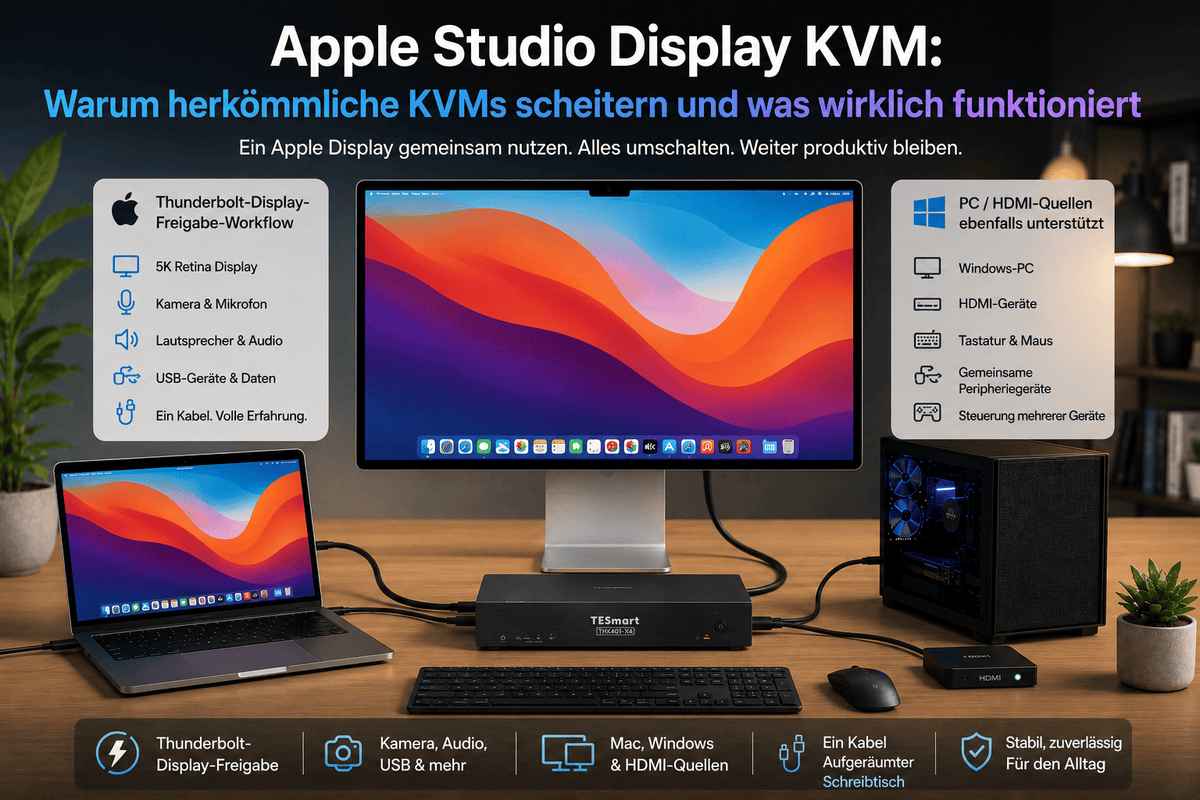
The TESmart THK401-X4 It was designed for users who need a convenient Apple Studio Display Sharing workflow across multiple devices. It is particularly relevant when a desk setup includes a MacBook or other Thunderbolt-enabled laptop along with HDMI-based computers or sources.
Instead of positioning the THK401-X4 as a universal Pro Display XDR KVM for any possible host, it should be better understood as a workflow device for mixed Apple display environments. It helps users reduce cable changes, manage Mac and PC desktop setups more efficiently, and unify Thunderbolt-compatible workflows with HDMI source switching.
This makes the THK401-X4 particularly suitable for users who need the following:
- Apple Studio Display Sharing between multiple devices;
- a Thunderbolt-compatible KVM workflow for a MacBook or compatible laptop;
- Integration of HDMI sources into a cleaner desktop switching setup;
- Sharing of keyboard, mouse and USB peripherals across a mixed workspace;
- Less repeated plugging and unplugging during daily work.
It would be inaccurate to promise that every Apple display feature will work on every host in every configuration. The host's capabilities remain crucial. Windows PC compatibility, display resolution, camera behavior, audio routing, and USB device access depend on the computer, operating system, cables, and connected display.
The more precise value of the THK401-X4 lies in providing Apple Studio Display users with a more realistic switching architecture than a conventional HDMI or DisplayPort KVM can provide.

Practical advice before buying
Apple Studio Display
Apple Studio Display is often better suited for this type of workflow, as many users want to share the display between a MacBook and another computer without cluttering their desk. The crucial point is to check whether your non-Mac source can provide a compatible signal path and whether the required features are supported in that host environment.
Pro Display XDR
Pro Display XDR brings with it stricter professional display requirements and a 6K workflow. Users should be especially careful when planning a Pro Display XDR KVM setup. Do not assume that every switch, adapter, or source can fully preserve every behavior of the display. Check host output capability, target resolution, cable quality, and expected peripheral behavior before building the setup.
Note regarding Windows PCs and HDMI sources
Using Apple Studio Display with Windows PC systems is possible in some workflows, but it shouldn't be treated like connecting a regular HDMI monitor. The path from the Windows source to the Apple display must be carefully planned. A standard HDMI KVM switch alone typically cannot meet the full requirements of an Apple display connection.
Note regarding cables and connections
Use the correct cable type for the intended connection path. Cable quality and compatibility are crucial in Apple display workflows. A cable that works for charging or basic USB data transfer might not support the display behavior you expect.
Thunderbolt™ compatibility notice
The THK401-X4 was designed for use with common Thunderbolt™ laptop workflows and Apple Studio Display sharing scenarios. Compatibility should be understood separately from official certification status. Do not assume Intel® Thunderbolt™ certification unless it is explicitly stated for the specific product and version.
For best results, you should check the exact host devices, display model, target resolution, cable type, and peripheral requirements before deployment.
FAQ
1. Can I use a regular HDMI KVM with the Apple Studio Display?
Normally, it doesn't behave as users expect. Apple Studio Display doesn't behave like a standard HDMI monitor.A standard HDMI KVM can work well with HDMI displays, but does not directly provide the full Apple Studio Display host connection and corresponding device behavior.
2. Can I use a DisplayPort KVM with a Pro Display XDR?
A DisplayPort KVM switch is not automatically a complete Pro Display XDR solution. Pro Display XDR relies on a specific high-resolution host connection path. Before using a switch or adapter, you should check the host output, resolution support, cable routing, and whether you need more than just video.
3. What is the difference between Thunderbolt display sharing and video switching?
Video switching transmits a display signal from a source to a monitor. Thunderbolt display sharing can additionally include USB devices, audio, camera access, host communication, and power management. Apple display workflows often require this broader consideration.
4. Does the THK401-X4 guarantee every Apple Studio Display function on every computer?
No. Functionality availability depends on the host device, operating system, cable, display model, and connection path. THK401-X4 It is supposed to support convenient Apple Studio Display sharing and Thunderbolt-compatible workflows, but users should check the specific features they need.
5. Is the THK401-X4 suitable for a Mac and PC desktop setup?
Yes, the THK401-X4 is particularly relevant for mixed setups where a MacBook or Thunderbolt-enabled laptop shares an Apple display environment with HDMI-based computers or sources. This differs from a simple PC monitor KVM setup.
6. Do I need a Thunderbolt-compatible KVM workflow if I'm only using regular HDMI monitors?
Probably not. If your monitors have standard HDMI or DisplayPort inputs and you only need to switch video, keyboard, and mouse, a regular TESmart HDMI or DisplayPort KVM switch might be a better option.
7. Why does my Apple display work directly, but not via a switch?
A direct connection provides a clean communication path between the computer and display. A switch, adapter, hub, or converter can interrupt part of this path. With Apple displays, the loss of part of the device connection can affect video, USB, audio, or integrated peripherals.
Conclusion
Traditional KVMs remain useful if the display is a standard HDMI or DisplayPort monitor. The problem arises when users apply the same logic to an Apple Studio Display or Pro Display XDR.
Apple displays require a more carefully planned workflow because the connection involves more than just video. It can also include USB data, audio, camera behavior, display communication, and host compatibility. Therefore, the best solution for 2026 isn't simply to buy any KVM switch with enough ports. What's crucial is a switching path that's tailored to the display, the source devices, and the actual functionality required.
For users who are setting up an Apple Studio Display KVM setup, a Mac and PC desk setup, or a mixed Thunderbolt display sharing workflow with HDMI sources, it offers TESmart THK401-X4 a more suitable direction than a conventional HDMI or DisplayPort KVM.
Discover TESmart THK401-X4, to build a cleaner Apple display sharing workflow with fewer cable changes and a more realistic approach to multi-device desktop switching.
Split:
KVM for Apple Studio Display and Pro Display XDR: Why normal KVM switches fail | Solution 2026
Apple Studio Display with Thunderbolt KVM: Do the camera, microphone, and speakers actually work? (2026 review)