

Table of contents
- Introduction
- What users actually want to solve
- Why this setup becomes more complicated with three monitors
- What MST is and when it makes sense
- What DisplayLink is and why it's important
- HDC203-P24 vs HDC203-PM24
- How to choose the right TESmart solution
- FAQ
Introduction
A workstation with a desktop PC, laptop, and three monitors sounds simple on paper: a fixed desk, three displays, one keyboard and mouse, and two computers sharing the same setup. In practice, switching between them is usually not even the most difficult part. The more challenging question is whether the laptop can actually support the desired three-monitor workflow.
That's precisely why the choice between HDC203-P24 and HDC203-PM24 This is not simply a comparison of two similar 3-monitor KVM switches. Both models are designed as 2-computer, 3-monitor KVMs with support for up to... 4K@60Hz positionated, but are based on different display extension paths. HDC203-P24 based on MST. HDC203-PM24 based on DisplayLink. This difference is significantly more important than the identical resolution specification in the datasheet.
When setting up a workstation with a desktop PC, a laptop, and three external displays, the real decision isn't whether you need a triple-monitor KVM. The real decision is whether your laptop should run on an MST-based or a DisplayLink-based extension path.
What users actually want to solve
Most users in this category don't just want to plug another computer into their desk. What they actually want is a stable workspace where a desktop PC and laptop can share three monitors, the same keyboard and mouse, and several USB devices used daily—without having to unplug and replug cables every time they switch between systems.
On the desktop side, it's usually straightforward. A desktop PC with the right GPU outputs can often drive three external displays without any problems. The laptop side is much less predictable. A laptop might have USB-C, HDMI, or Thunderbolt ports, but that doesn't automatically mean it supports the desired triple-monitor workflow.
This is the point many buyers underestimate. They assume that if a KVM switch supports three monitors, both connected computers will automatically function identically. In practice, this is rarely the case. In most real-world setups, the desktop PC is the easier part of the problem. The laptop determines whether the entire workflow feels clean and reliable—or becomes a chain of adapters, docks, and compromises.
The purchase decision should therefore not begin with "Which KVM switch has three outputs?". It should begin with "What type of display extension does my laptop actually support?".
Why this setup becomes more complicated with three monitors
Triple-monitor setups are more demanding than dual-monitor setups for one simple reason: Each additional screen increases the complexity of display negotiation, signal routing, and switching behavior. A setup that works flawlessly with two screens can become significantly more unpredictable with a third.
There are three practical reasons for this.First, a triple-monitor setup places higher demands on the laptop's native display pipeline. Second, such setups are more sensitive to conversion layers, docks, hubs, and adapter chains. Third, the two most common expansion paths in this area—MST and DisplayLink—behave differently at the operating system level.
That's precisely why we should HDC203-P24 and HDC203-PM24 They should not be considered interchangeable. Although they belong to the same product category, they were designed for different assumptions about how the laptop side of the workplace creates and manages multiple displays.
This difference becomes even more important in mixed-platform environments. A Windows laptop with strong native multi-display support often fits naturally into a specific triple-monitor KVM workflow. A MacBook, on the other hand, might require a completely different approach to achieve the same result.
What MST is and when it makes sense
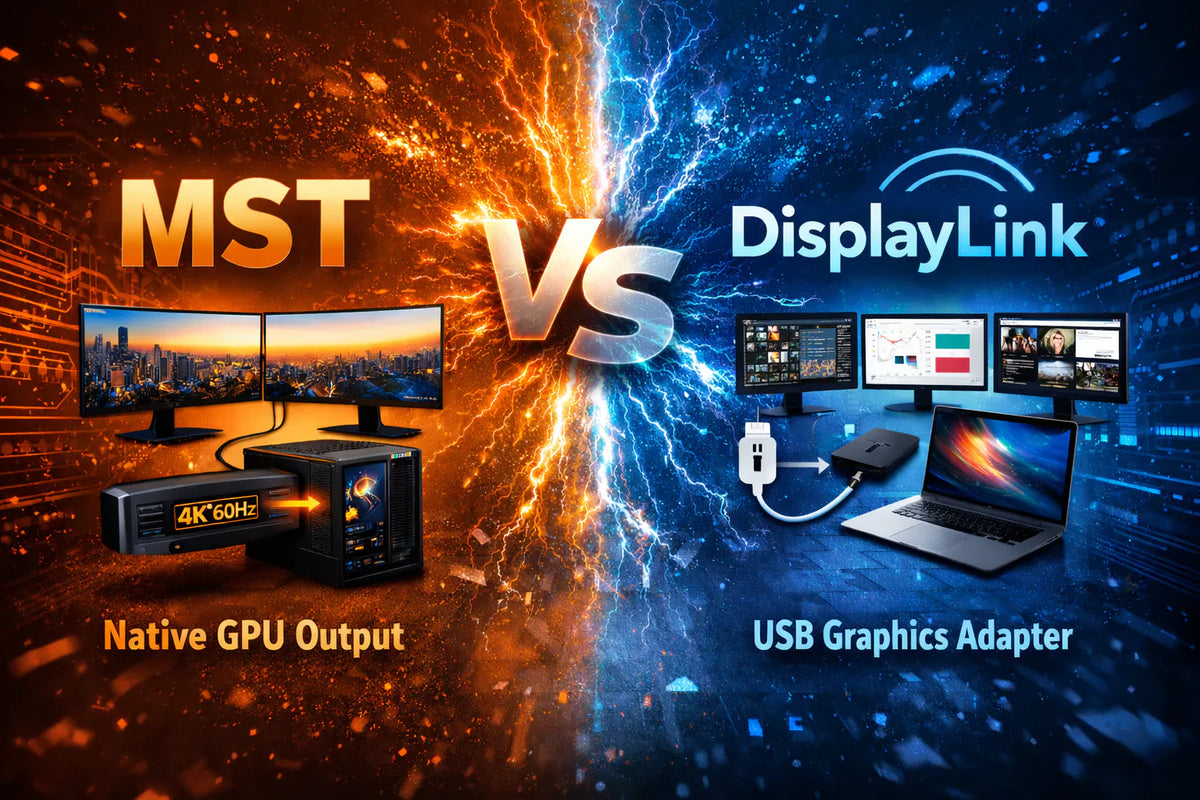
MST, so Multi-stream transport, MST is a DisplayPort feature that allows multiple independent display streams to be transmitted over a single DisplayPort connection. In practical terms, MST is one of the standard methods for extending multiple displays over a native GPU output path.
From a workstation perspective, MST remains part of the native display pipeline. The GPU outputs multiple display streams, and the operating system manages these screens like normal external monitors. Therefore, MST-based setups generally appear more native. They don't rely on an additional USB graphics layer to create more displays.
This makes MST particularly suitable for users whose systems already have strong native multi-display support. For example, if your workstation consists of a desktop PC and a Windows laptop with good external display support, MST is usually the cleaner solution. It is especially useful for workflows with stable multi-window layouts—such as software development, large spreadsheets, analytics dashboards, financial monitoring, or other desktop tasks where the displays should behave like normal GPU-controlled outputs.
However, one limitation must be clearly stated.
macOS does not support MST for advanced multi-display setups.
This isn't just a minor compatibility note. It's a pivotal purchasing decision. If your laptop is a MacBook, or your workplace requires macOS to support a switching workflow, MST shouldn't be considered the foundation of your triple-monitor setup. In other words, the question isn't whether macOS is less than ideal for MST. The answer is simpler: macOS doesn't support MST-based multi-display extension—therefore, MST isn't the right approach for this use case.
Therefore, MST should primarily be understood as a solution for systems that already possess good native multi-display output—especially Windows-based environments. It is not a workaround for limited laptop display capabilities, but rather an extension of existing platform functionality.
What DisplayLink is and why it's important
DisplayLink It solves a different problem. Instead of relying solely on the GPU's native multi-stream display pipeline, DisplayLink uses a USB-based graphics approach to transmit display data and create additional screens via software and dedicated hardware.
That's precisely why DisplayLink is so relevant in triple-monitor laptop setups.It offers an alternative way to provide additional displays when the laptop's native display pipeline is limited or the operating system doesn't support MST-based extension. In practical terms, this makes DisplayLink particularly interesting for Mac environments and ultrathin laptops where users still want a true three-monitor workstation.
This doesn't mean that DisplayLink is inherently better than MST. It simply means that it was designed for different needs. MST is cleaner if the platform already has strong native multi-display support. DisplayLink is more suitable if this isn't the case, or if users are looking for a practical way to set up a multi-monitor workstation without native MST support.
Therefore, DisplayLink makes particular sense in laptop-centric workstations. If your priority is not to keep everything as close as possible to the native GPU-display pipeline, but rather to reliably integrate the laptop into a triple-monitor setup, DisplayLink becomes significantly more relevant.
For office work, browser-based workflows, documents, communication tools, and general productivity, this compromise is often perfectly reasonable. The point is not that DisplayLink replaces MST in every situation. The point is that DisplayLink offers a convenient extension path when MST is either not supported or simply doesn't fit the setup.
HDC203-P24 vs HDC203-PM24
From a product positioning perspective, HDC203-P24 and HDC203-PM24 They are in the same category. Both are 2-PC, 3-monitor KVM switches with support for up to... 4K@60Hz. Der The real difference therefore lies not in the product class itself, but in the underlying display extension technology.
| Model | Display extension path | Best choice for | Typical use case |
|---|---|---|---|
| HDC203-P24 | MST | Users who prefer a more native multi-display path | Desktop + Windows laptop setups with strong native display support |
| HDC203-PM24 | DisplayLink | Users who need a more practical triple-monitor setup on the laptop side | Mac workflows and laptop-centric workplaces that should not depend on MST |
HDC203-P24 This is a better choice if your laptop already supports strong native multi-display output and you want a switching behavior that's closer to direct GPU-driven display output. Therefore, this model is usually the cleaner choice for desktop + Windows laptop workstations where the laptop isn't the limiting factor.
HDC203-PM24 DisplayLink makes more sense if your priority is reliably integrating a laptop into a triple-monitor setup—even if the platform's native display pipeline is limited. This is precisely where DisplayLink becomes more practical than MST, especially in Mac workflows or with office laptops that aren't ideal candidates for native triple-display expansion.
Although both models belong to the same KVM category, they don't solve the same problem. One is based on native Multi-Stream Transport (MST). The other uses a USB-based graphics path to make triple-monitor workflows more realistic on systems that shouldn't rely on MST.
How to choose the right TESmart solution
The most sensible way to choose between these two models is to answer three questions in sequence.
1. What does your laptop actually support?
If your laptop already supports robust native external display output, MST is likely the more natural choice. However, if it's a MacBook or if native multi-display support is limited, the answer changes immediately—because macOS doesn't support MST-based multi-display extension.
2. What is more important to you: native behavior or practical extension?
If your top priority is keeping the display behavior as close as possible to native GPU output, MST is the better solution—provided the platform supports it. If your top priority is reliably running a triple-monitor setup with a laptop that would otherwise struggle, DisplayLink is usually the more realistic answer.
3. What type of workload is running on this workstation?
For code, documents, spreadsheets, browser tabs, dashboards, communication tools, and general productivity, both approaches can be useful—depending on the platform. However, for Mac-based triple-monitor setups, the decision is much simpler: if MST isn't supported by the operating system, DisplayLink is the relevant extension path.
The practical rule is therefore simple.
Choose HDC203-P24, if you want native triple-display switching on systems that already support MST well.
Choose HDC203-PM24, if you need a convenient triple-monitor path for laptop workflows that shouldn't be based on MST — especially on macOS.
FAQ
Q1. Can a MacBook use MST for three extended external monitors?
No. macOS does not support MST for extended multi-display setups. If your workflow relies on extending your MacBook's display, MST should not be considered a standard solution for a triple-monitor workstation.
Q2. Does that automatically mean that HDC203-PM24 which is the better choice for Mac users?
For most triple-monitor Mac workstations, the HDC203-PM24 is the more relevant model, as it's based on DisplayLink rather than MST. This doesn't mean that every Mac workflow is identical—but it does mean that MST shouldn't be the basis for purchasing decisions under macOS.
Q3. Is MST better than DisplayLink?
Not necessarily. MST is cleaner if the platform already has strong native multi-display support. DisplayLink is more useful if this isn't the case, or if users need a convenient USB-based way to add additional displays. Both technologies solve different problems.
Q4. Belong HDC203-P24 and HDC203-PM24 same basic KVM category?
Yes. Both are 2-PC, 3-monitor KVM switches with support up to 4K@60Hz. Der The crucial difference lies not in the category itself, but in the display extension technology used.
Q5. What is the simplest buying rule for this setup?
If you want a more native display path on systems that already support MST well, choose HDC203-P24. If you need a more practical triple-monitor path for laptop workflows that shouldn't rely on MST—especially on macOS—choose HDC203-PM24.
Split:
Thunderbolt™ 4 vs. USB-C KVM: What Mac users should really pay attention to when choosing
Why HDMI KVM extenders over CAT5e/6 make sense in control rooms