

Table of contents
- Introduction
- Start with your workflow
- Common multi-monitor setup scenarios for MacBooks
- The three most common problems with setups
- What MacBook users should consider before buying
- Why the desk structure is important in a multi-device environment
- Dock vs. KVM: Which solution is a better fit?
- How to build a more efficient MacBook workstation
- Recommended TESmart solutions
- Frequently Asked Questions (FAQ)
- Conclusion
Introduction
Many users begin setting up a desktop workstation by simply adding an extra monitor to their MacBook. But as the setup grows, the challenge quickly becomes more than just adding another monitor port.
For developers, creatives, remote workers, and users with multiple devices, a MacBook is often just one part of their overall work workflow. Beyond the need for additional screen space, other practical questions quickly arise: How do you connect peripherals? Should you use a dock? How do you switch between two computers? And why does a workspace that technically functions still feel unstable in everyday use?
Therefore, topics such as MacBook workstation setup and MacBook multi-monitor setup Relevant. Most users don't want to build a workspace where they simply turn on the monitors. They want a workspace that feels efficient, stable, and practical in the long term.
This guide takes a more realistic approach to planning MacBook multi-monitor setups. Instead of simply explaining how to connect displays, it focuses on the underlying workspace structure, typical everyday problems, and when a dock or KVM switch is the more sensible solution.
Start with your workflow
Many workplace setups become more difficult to manage over time — not because of a single bad cable, but because the workflow was never clearly defined from the start.
Some users simply want to expand a MacBook into a dual-monitor workstation. Others require significantly more complex solutions: a shared workspace where a MacBook, a desktop PC, or a second notebook can share the same monitors, keyboards, mice, and USB devices.
All these scenarios can be considered MacBook multi-monitor setup However, in practice they are completely different.
Therefore, the first sensible decision is not to choose a dock or a KVM. First, it should be clearly defined what kind of workspace is being set up:
- a single-device workstation centered around a MacBook
- a shared workspace with two or more systems
This single distinction influences almost every subsequent decision.
Common multi-monitor setup scenarios for MacBooks
In practice, most MacBook multi-monitor setups can be divided into three typical scenarios.
1. MacBook + external monitor for a simple productivity workstation
This is the simplest type of setup. The goal is usually to free up more space for daily tasks—for example, by using one screen for main work and the other for emails, chats, documents, or reference material.
Such jobs usually revolve more around basic expansion and better organization than complex switching between devices.
2. MacBook + Dock + two monitors for a single-device workstation
This setup is typical for users who want to combine charging, USB ports, video output and general workplace convenience via a simplified connection path.
It is particularly suitable if the MacBook is the only main computer in the workplace and the goal is to simply sit down at the desk and be able to work immediately.
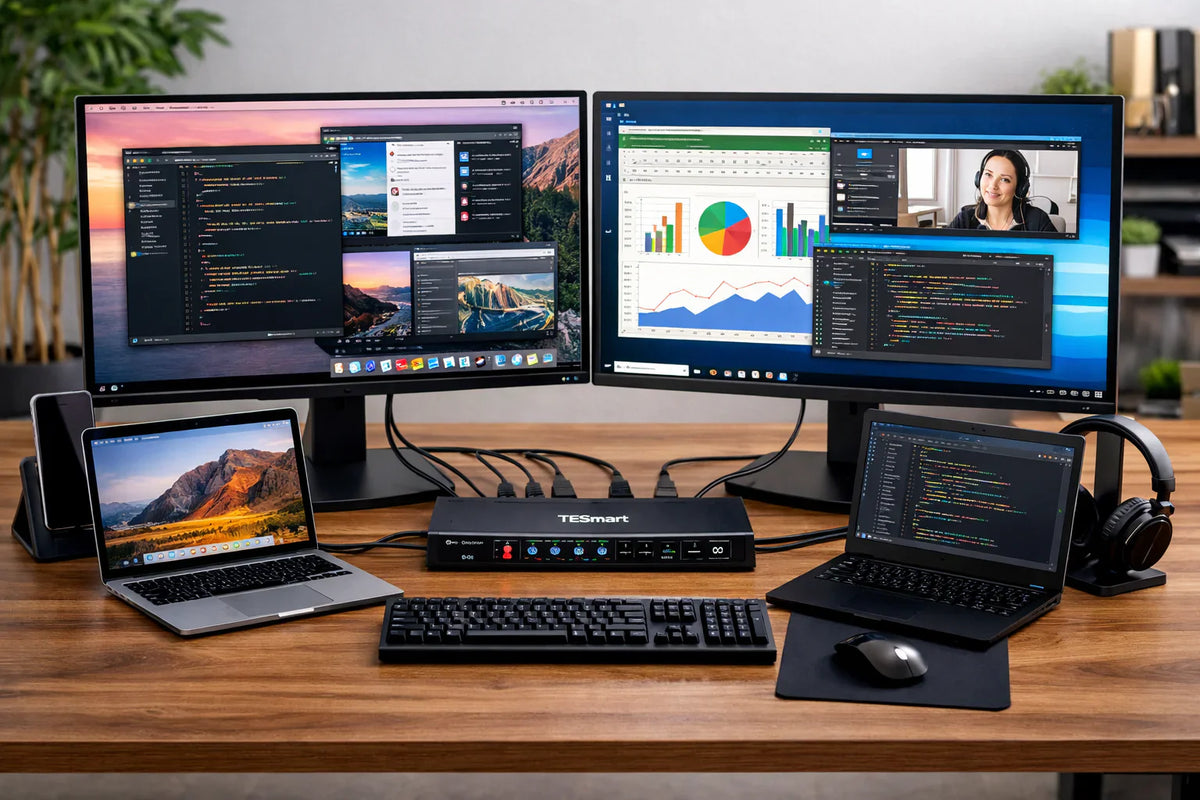
3. MacBook + second computer + two monitors for a shared workspace
Here, the problem transforms from a simple monitor connection into a complete workstation planning.
This scenario is particularly common in development, creative work, remote work, and multi-device environments, for example:
- a MacBook for main tasks and a desktop PC for local processing or testing
- a personal MacBook and a company laptop at the same workplace
- a MacBook plus another workstation with shared monitors and peripherals
In this scenario, the real question is no longer how to connect a monitor. The crucial question is rather how the entire workspace can be shared efficiently.
If you are looking for more detailed instructions on how to connect the display, you can start with How to Connect Multiple Monitors to a MacBook continue.
The three most common problems with setups
Many MacBook multi-monitor setups don't fail because one device is faulty. They become frustrating because the entire setup was never planned as a complete system.
1. The connecting chain is too long
This is one of the most common problems in real-world workplace setups.
A user might start with a MacBook and a dock, later adding a video adapter, then a KVM switch, followed by more monitors and additional USB devices. Over time, this develops into a chain like:
MacBook → Dock/Hub → Video Conversion → KVM → Monitor
Each individual layer may seem useful, but the longer the signal path becomes, the more difficult it is to keep the entire system stable.
2. The displays work, but the workspace still feels incomplete.
Many users focus solely on whether the screens are working. But a truly usable workspace depends on far more than just video output.
The real problems often arise in everyday life in the following areas:
- Keyboard and mouse switching
- USB device detection
- Webcams, audio devices and microphones
- whether accessories need to be reconnected after switching
Therefore, a setup should not be evaluated solely on whether the monitors are turned on.
3. The workplace is built around connections — not around the workflow.
Another common problem is selecting hardware port by port.
Users often ask if a specific port can be connected to another, and then add adapters until the setup works technically. This isn't inherently wrong, but it often leads to workstations that function on paper but are impractical in everyday use.
A better workplace is usually not the one with the most adapters, but the one with the clearest workflow.
What MacBook users should consider before buying
Before selecting a dock, a KVM or other connection hardware, MacBook users should first clarify a few practical points.
1. The exact MacBook model and the available ports
This is one of the most important starting points. Different MacBook models do not always offer the same signal paths.
Most MacBooks primarily rely on USB-C or Thunderbolt. Some models also have HDMI, but native DisplayPort outputs are not typically included on the MacBook itself. This means that some setups require video conversion or a dock if the signal path relies on other input types.
2. Number of monitors and desired display target
Users should decide early:
- whether one or two monitors are needed
- whether resolution or refresh rate is more important
- whether the workplace is primarily intended for office work or more demanding visual tasks
These decisions affect the entire hardware path.
3. Whether the workplace includes a second computer
This is often the actual dividing line between a dock-based and a KVM-based setup.
If the workstation is only used by one MacBook, a dock is often sufficient. However, if a second computer needs to be integrated and both systems need to share monitors and peripherals, a KVM switch is usually the more sensible solution.
4. Whether the setup uses too many intermediate layers
If the final plan depends heavily on the following components:
- a dock
- Video adapters
- multiple conversion layers
- additional USB expansions
Then the setup often becomes more difficult to maintain and diagnose later on. In MacBook multi-monitor environments, it's often less about whether something works technically, but rather about how much additional complexity it creates.
Why the desk structure is important in a multi-device environment
A workplace with multiple monitors usually feels much better when its structure is clearly defined.
If the workspace is built around a single MacBook, the structure often remains relatively simple. However, as soon as the workspace includes the following:
- a MacBook
- a second computer
- two monitors
- Keyboard and mouse
- shared USB devices
- Audio or network accessories
Then it's no longer just a cable or connection problem. It becomes a question of the entire system design.
A clearer workplace structure usually means:
- a shorter signal path
- fewer conversion layers
- clearer roles for individual devices
- easier maintenance
- Easier troubleshooting of changes
In contrast, a chaotic workplace structure may work initially, but usually becomes significantly more difficult to manage as displays are replaced, devices are upgraded, or the switching requirements become more complex.
Dock vs. KVM: Which solution is a better fit?
This is one of the most important decisions when planning a MacBook workstation setup.
When a dock makes more sense
A dock is usually the better choice if:
- the workspace is set up around a single MacBook
- The main goals are charging, USB expansion, and video output.
- No switching between two computers is required.
- A simple single-cable solution is more important than sharing devices.
For this type of workflow, a dock keeps the setup compact and organized.
When a KVM switch is more useful
A KVM switch is usually the better choice if:
- The workplace includes two computers.
- two monitors are to be used together
- Keyboard, mouse and USB devices must also be shared.
- A smoother switching between systems is desired.
This is the fundamental difference: A dock extends a single computer, while a KVM helps to organize an entire shared workspace.
If it's clear from the outset that the workplace will permanently contain two systems, it's usually more sensible to plan the structure directly as a shared workspace, rather than retrofitting the setup later with additional adapters and devices. For users who want to take this approach, [the following is a list of resources/services]. Best KVM Switch for MacBook Dual Monitor Setup a more detailed guide to selecting the appropriate solution.
How to build a more efficient MacBook workstation
A more efficient MacBook workstation is usually not achieved by adding more and more accessories. It is achieved by reducing unnecessary complexity.
In practice, this often means making some sensible decisions early on:
- decide whether the workspace is intended for one or more computers
- decide whether one or two monitors are actually needed
- decide whether peripheral devices should be shared
- Choose a dock or KVM based on the workflow — not just the connector type.
- Avoid unnecessary adapter and conversion layers as much as possible.
Planning the setup in this way not only creates more screen space, but also a workspace that is clearer, more stable, and more pleasant to use in the long run.
Recommended TESmart solutions
For users who share a common MacBook workstation When building a workplace, TESmart KVM solutions are particularly useful if they help simplify the workplace structure rather than adding additional complexity.
For classic shared workspaces with two monitors, a dual-monitor KVM that supports typical office, development, and productivity workflows is often the most practical entry point.
For more demanding workstation environments — especially when higher display performance, more complex workplace layouts or future expansions are important — a more powerful dual-monitor KVM is usually the better choice.
The product itself is important, but the more crucial question is whether it truly fits the workplace structure. A good KVM switch shouldn't complicate the setup. It should bring order to a workplace that would otherwise become increasingly difficult to manage over time.
Frequently Asked Questions (FAQ)
Q1: Which part of a MacBook multi-monitor setup is most often overlooked?
The most frequently overlooked problem is usually not a single cable or device. It's the structure of the entire setup.Many problems arise from too many adapter layers, an excessively long signal path, or from the fact that the workplace was never clearly defined as a single-device or multi-device environment.
Q2: Why do some setups work technically, but still feel frustrating in everyday use?
Because turning on the displays is only one part of the overall user experience. Keyboard and mouse switching, USB stability, accessory compatibility, and general everyday reliability significantly influence how comfortable a workplace actually feels.
Q3: Is a dock or a KVM switch better for MacBook users?
A dock is usually better suited if the workstation is set up around a single MacBook. A KVM switch is generally more practical if a second computer is integrated and both systems need to share monitors and peripherals.
Q4: Why do many workplace setups become more difficult to manage over time?
Because many users try to solve individual problems one after the other by adding more and more accessories. Over time, this creates a long chain of connections that is more difficult to switch, more difficult to maintain, and more difficult to diagnose.
Conclusion
The most difficult part of a MacBook multi-monitor setup is rarely just connecting another screen. The real challenge lies in creating a workspace that remains clear, stable, and comfortable to use in the long run.
If the workstation is set up around a single MacBook, a dock is often sufficient. However, as soon as a second computer is integrated and displays, peripherals, and accessories need to be shared, the problem becomes more a question of workstation layout than simply display extension.
A better MacBook workstation isn't created by simply adding more hardware to the desk. It's created by first planning the workflow and then selecting the connection path that best supports that workflow.
Split:
Complete analysis of USB protocols: bandwidth evolution and technical differences from USB 2.0 to USB 3.2 Gen 2x2
How the THK401-X4 fits perfectly into real MacBook and desktop workspaces