

Table of contents
- Introduction
- Why Apple Studio Display cannot directly accept standard HDMI signals
- Can the PS5 be used with the Apple Studio Display?
- The classic Mac Bridge workaround
- Why capture-based workflows are unsuitable for gaming
- A hybrid KVM architecture for Apple Studio Display workflows
- Using the TESmart THK401-X4
- Example of a multi-device desk setup
- Advantages of hardware switching
- When such a setup makes sense
- Compatibility note
- Conclusion
- FAQ
Introduction
High-quality Apple displays such as the Apple Studio Display and the LG UltraFine 5K are frequently used in professional work environments thanks to their excellent image quality, precise color reproduction and tidy single-cable setup.
However, many users encounter a frustrating limitation sooner or later:
Can game consoles like the PS5 or Nintendo Switch be used with the Apple Studio Display?
Unlike traditional monitors, the Apple Studio Display does not directly accept standard HDMI inputs. This has previously required complicated workarounds for sharing consoles, PCs, and Macs with a single Apple display.
For years, the most common solution was to use a Mac as a bridge in combination with a capture card. While technically possible, such workflows cause latency, audio synchronization problems, and unstable resolution behavior.
Hybrid switching solutions such as the TESmart THK401-X4 They offer a hardware-based alternative for users who want to set up a shared workspace around the Apple Studio Display and different types of devices. This allows consoles, PCs, and Macs to share a single display without relying on capture devices or software-based signal processing.
This guide explains why the Apple Studio Display traditionally does not work directly with consoles, why workaround solutions are problematic, and how a hybrid switching architecture offers a more practical solution.
Why Apple Studio Display cannot directly accept standard HDMI signals
Displays such as the Apple Studio Display and the LG UltraFine 5K are based on a different connection logic than conventional HDMI monitors.
Unlike most monitors, they were designed as part of a more integrated display ecosystem and not simply as video displays.
The display can provide the following via a single cable connection:
- High-resolution video output
- USB hub connectivity
- Integrated camera, speaker and microphone
- Audio input and output
- Power Delivery for Laptops
Because of this design, the display requires a different connection path than a classic HDMI monitor.
However, game consoles only output HDMI signals.
Examples include:
- PlayStation 5
- Xbox Series X
- Nintendo Switch
Since the Apple Studio Display does not have HDMI inputs, these devices cannot be connected directly like a normal monitor.
Can the PS5 be used with the Apple Studio Display?
Not directly.
The PlayStation 5 transmits video signals via HDMI out, while the Apple Studio Display is not designed to function like a classic HDMI monitor.
Without an intermediate hardware solution for mixed device environments, the console cannot use the display correctly.
This limitation leads to many users finding that simple HDMI-to-USB-C adapters do not solve the problem when searching for a solution.
While adapters change the physical connection, they do not automatically transform the console into a source that the Apple Studio Display can work with correctly.
The classic Mac Bridge workaround
Before dedicated hardware solutions existed, users often resorted to a workaround where a Mac acted as an intermediary.
Traditional setup
console
→ HDMI capture card
→ Mac (USB input)
→ Apple Studio Display
In this workflow:
- The console's HDMI signal is captured by a USB capture device.
- The Mac receives the signal as a video stream.
- Software renders the video under macOS.
- The Mac sends the image to the display
Although this approach works technically, it has several significant disadvantages.
Why capture-based workflows are unsuitable for gaming
Additional latency
Capture devices convert HDMI signals into USB video streams.
The Mac then needs to decode and render the video using software before it can be displayed. This process causes noticeable delays and makes the setup unsuitable for gaming or real-time interactions.
Complex audio routing
The audio signal must be processed via macOS, which often requires the following:
- virtual audio devices
- manual audio output configuration
- Troubleshooting synchronization problems
Even with careful setup, audio delays or lip-sync problems can occur.
Unstable resolution and HDR problems
Capture-based workflows often cause problems such as:
- Revert to 1080p resolution
- Disabling HDR after switching
- Missing playback of HDCP-protected content
In short, these systems simulate a display path via software, rather than providing true hardware-based switching.
A hybrid KVM architecture for Apple Studio Display workflows
A more reliable approach is to use a hybrid KVM solution specifically designed for Apple Studio Display and mixed device environments.
Instead of capturing and re-rendering video signals using software, such a setup uses direct hardware-based switching between different types of devices.
Typical signal flow:
Consoles/PC/Mac
→ KVM switch
→ Apple Studio Display
In this design:
- HDMI devices are connected via HDMI inputs.
- Laptop-centric workflows utilize the appropriate host path.
- The display remains connected via the output path specifically designed for Apple displays.
This allows the display to remain part of its intended working environment while supporting a significantly cleaner shared-desk setup for HDMI-based devices.
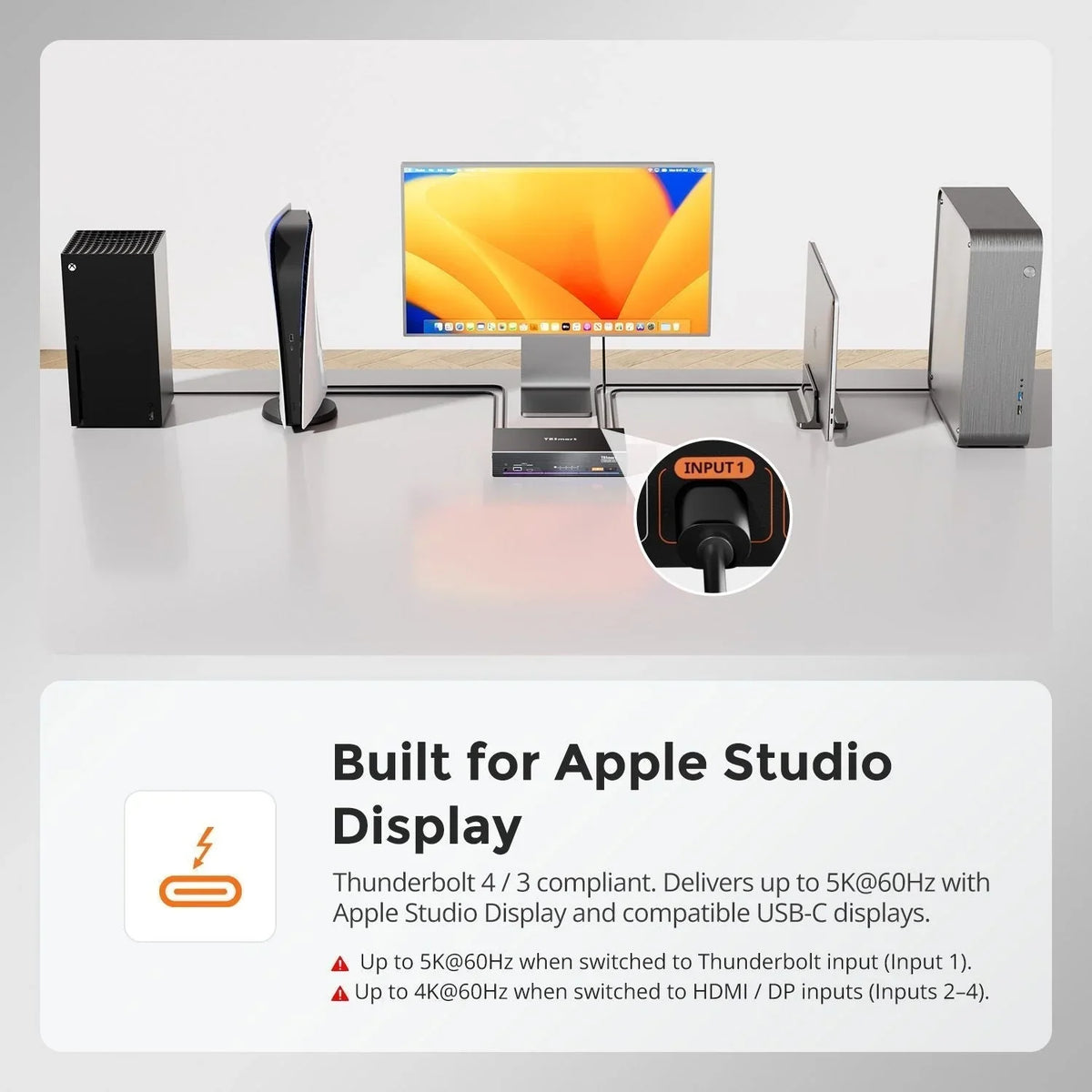
Using the TESmart THK401-X4
The THK401-X4 was designed for mixed environments where consoles, PCs and Macs share a single Apple display.
Its hybrid architecture combines HDMI-based device switching with a signal path specifically designed for Apple display workflows.
Typical input configuration:
| Entrance | Device type | Description |
|---|---|---|
| Entrance 1 | Game console | HDMI input for PS5, Xbox or Switch |
| Entrance 2 | Game console | Additional HDMI device |
| Entrance 3 | PC | HDMI + USB for keyboard and mouse control |
| Entrance 4 | Mac | Native high-speed connection for laptop workflows |
This structure allows each type of device to use the connection method appropriate for its role.
Consoles remain simple HDMI devices, while Macs continue to offer the direct connection path that users expect from a premium desktop setup.
The display remains connected via the output path specifically designed for Apple Studio Display workflows.
Example of a multi-device desk setup
A modern workplace often includes several systems:
- PlayStation 5
- Nintendo Switch
- Windows PC
- MacBook Pro
With a hybrid KVM setup, all devices can share:
- an Apple display
- a keyboard and mouse
- a centralized workplace
Switching between systems is done via front buttons, hotkeys or remote control.
This makes the entire workplace significantly cleaner and more practical than with a capture-based solution.
Advantages of hardware switching
Minimal additional latency
Since the signal is not converted into USB video streams or rendered in software, switching occurs at the hardware level with significantly less delay than with capture-based workflows.
This makes the setup much better suited for gaming and real-time interactions.
Cleaner audio processing
Audio is transmitted more directly via the hardware path, instead of relying on operating system routing or virtual devices.
This avoids many typical audio problems of capture-based setups.
More stable display behavior
Hardware switching helps to maintain a more consistent signal path for connected devices.
This reduces the likelihood of the following problems:
- Relapse into dissolution
- HDR deactivation after switching
- HDCP playback error
When such a setup makes sense
A hybrid KVM setup is particularly useful when a workstation several different types of devices includes.
Examples:
Mixed productivity environments
MacBook + Windows PC + console tests
Creator workstations
Mac Studio + Capture Devices + Console
Home office setups
Laptop and game console share one display
In these scenarios, a hybrid switching architecture simplifies the workplace while retaining the added value of a high-quality Apple display.
Compatibility note
This solution was designed for compatibility with Apple Studio Display workflows and mixed device environments.
It is designed to help users integrate HDMI-based devices such as consoles more conveniently into a common Apple display environment.
The product is not yet Intel® certified for Thunderbolt, but the certification process is already underway.
Thunderbolt and the Thunderbolt logo are trademarks of Intel Corporation or its subsidiaries.
Conclusion
The Apple Studio Display offers excellent image quality and powerful built-in features, but does not support direct connections from HDMI devices such as game consoles.
Traditional workarounds using capture cards and software do work in principle, but cause latency, complex audio routing, and unstable display behavior.
Hybrid switching solutions offer a significantly cleaner alternative.
By combining HDMI device inputs with a signal path specifically designed for Apple Studio Display workflows, devices like the TESmart THK401-X4 Sharing a display between consoles, PCs and Macs — entirely without software-based bridges.
For users who want both a high-quality Apple display workstation and a flexible multi-device setup, this hybrid switching architecture offers a much more practical and stable solution.
FAQ
Q1: Does the THK401-X4 cause noticeable input lag on game consoles?
No. The device performs the switching at the hardware level, without using capture or software rendering. This results in significantly lower additional latency compared to capture-based workflows.
Q2: Do I need a Mac, drivers, or software to connect consoles?
No. The system is designed as a hardware-based switching solution and does not require any capture software, drivers, or background applications for the console path.
Q3: Can the Apple Studio Display be directly connected to a PS5?
No. The Apple Studio Display was not designed to function like a traditional HDMI monitor. Therefore, consoles cannot be connected directly without a suitable hardware adapter.
Q4: Can consoles share a keyboard and mouse via KVM?
The sharing of keyboard and mouse generally applies to connected computers.
Game consoles typically use their own controllers, so their connection via the KVM is typically established. video-based via HDMI.
Split:
Why 8-port and 16-port 8K KVM switches are so difficult to develop: The technical challenges behind scalable 8K KVM architectures
Complete analysis of USB protocols: bandwidth evolution and technical differences from USB 2.0 to USB 3.2 Gen 2x2