

Table of contents
- Introduction
- “144Hz monitor” does not always mean “144Hz via HDMI”
- Why resolution changes HDMI 144Hz requirements
- How to check the entire HDMI signal chain
- Why you might still be limited to 60Hz
- Who really needs this information?
- What happens when you add a KVM switch, a dock, an adapter, or a capture device?
- How TESmart views high-refresh-rate HDMI workflows
- FAQ
- Conclusion
Introduction
If your monitor supports 144Hz, it's reasonable to expect that 144Hz would also be available in Windows, macOS, or your game console's settings. However, many users connect a 144Hz monitor via HDMI and only see 60Hz, 75Hz, or 120Hz as selectable options.
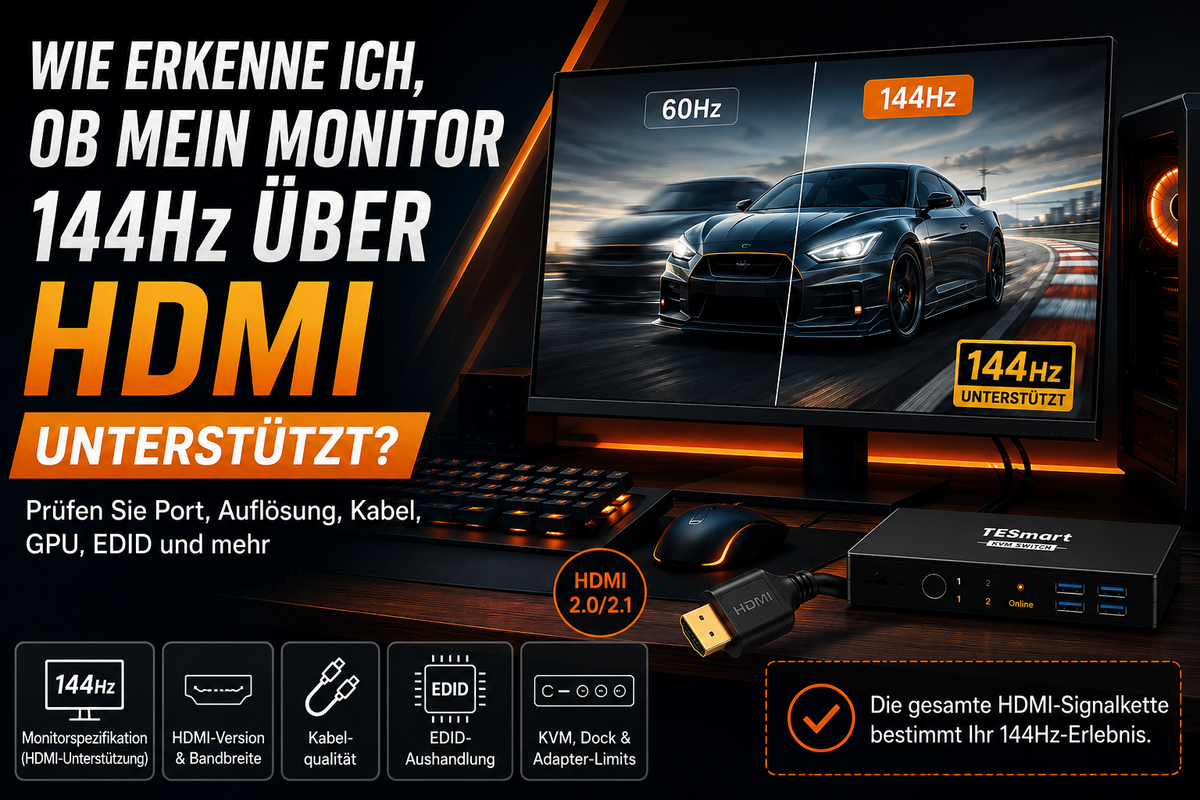
The reason for this is that Support for 144Hz over HDMI depends on the entire video signal chain.. The monitor panel is only one part of this chain. The monitor's HDMI input, the computer's or console's HDMI output, the cable, the selected resolution, the color format, the system settings, the EDID negotiation, and every device in between can affect whether HDMI at 144Hz is actually available.
This is especially important for users who are setting up a gaming monitor KVM setup, a shared Mac and PC workstation, or a shared workstation with a high-frequency monitor for multiple devices.
“144Hz monitor” does not always mean “144Hz via HDMI”
A monitor's product page may state "144Hz", but this often refers to the maximum refresh rate of the panel and not to each individual input of the monitor.
Some monitors support 144Hz exclusively via DisplayPort. Others support 144Hz via HDMI, but only at 1080p. Some allow 1440p at 144Hz via HDMI 2.0, while 4K at 144Hz may require HDMI 2.1, Display Stream Compression (DSC), or a specific HDMI port on the monitor.
To determine if your monitor supports 144Hz over HDMI, check the manual or specifications table for information such as:
HDMI: 1920 × 1080 @ 144Hz
HDMI 2.0: 2560×1440@144Hz
HDMI 2.1: 3840 × 2160 @ 120Hz/144Hz

If the manual only lists 144Hz for DisplayPort, the monitor may not support 144Hz over HDMI, even though the panel itself is a 144Hz panel.
| What the monitor specifications say | What the HDMI connection must support | Why users may still be limited to 60Hz |
|---|---|---|
| The panel can refresh at 144Hz. | The HDMI input in question must support 144Hz at the desired resolution. | The monitor may reserve 144Hz only for DisplayPort or a specific HDMI port. |
| The monitor has an HDMI port. | The version and bandwidth of the HDMI port must match the resolution and refresh rate. | Older HDMI inputs may be limited to 60Hz or 120Hz depending on the monitor design. |
| The computer or console has an HDMI output. | The GPU, laptop port, or console must support the same HDMI mode. | A laptop's HDMI port may be connected to an older controller or restricted by the firmware. |
| The cable fits into the connector. | The cable must provide sufficient bandwidth for the selected mode. | A low-quality or very long cable may work at 1080p60, but fail at HDMI 144Hz. |
| A KVM switch, dock, adapter, or capture device is connected. | Every device between the source and the monitor must support the same mode and EDID negotiation. | The intermediate device may only report 60Hz to the computer. |
Why resolution changes HDMI 144Hz requirements
HDMI at 144Hz is not a fixed requirement. The bandwidth required for 1080p at 144Hz differs significantly from 1440p at 144Hz or 4K at 144Hz.
1080p at 144Hz via HDMI
Many 1080p 144Hz monitors can display 144Hz over HDMI, especially if both the monitor's HDMI input and the source's HDMI output support the necessary timings. Some HDMI 1.4 implementations support 1080p at 144Hz, but this isn't guaranteed for all monitors.
If your 1080p 144Hz monitor only displays 60Hz via HDMI, check whether the manual lists 144Hz under HDMI or only under DisplayPort.
1440p at 144Hz via HDMI
1440p at 144Hz requires significantly more bandwidth than 1080p at 144Hz. In most practical scenarios, this results in... HDMI 2.0 with 144Hz The typical basis for 2560 × 1440 at 144Hz, provided color depth, chroma settings, GPU output and monitor input are compatible.
This often leads to misunderstandings. A monitor might support 1440p at 144Hz via DisplayPort, while its HDMI input may be limited to 1440p60, 100Hz, or 120Hz.
4K at 144Hz via HDMI
4K at 144Hz places significantly higher demands on the system. For modern HDMI workflows with high refresh rates, HDMI 2.1 with 144Hz This is particularly important because the required data rate is significantly higher than with 4K60.
However, HDMI 2.1 is not the only factor. The monitor, GPU, cable, and all intermediate devices must also support the desired 4K high-frequency mode. Some configurations require DSC, reduced color resolution, 8-bit color, or specific firmware settings.

FAQ
Q1: How can I tell if my monitor supports 144Hz via HDMI?
Check the monitor's manual or specifications table. Look for specific details like 1920 × 1080 @ 144Hz or 2560 × 1440 @ 144Hz under HDMI. If 144Hz is only listed under DisplayPort, HDMI may not support this refresh rate.
Q2: Does HDMI support 144Hz?
Yes. HDMI can support 144Hz. However, the result depends on the HDMI version, resolution, color settings, monitor input, source device, cable, and EDID negotiation.
Q3: Is HDMI 2.0 sufficient for 144Hz?
HDMI 2.0 often supports 1080p144 and frequently also 1440p144, provided both the monitor and source support the corresponding mode. 4K144 typically requires HDMI 2.1 bandwidth or compression.
Q4: Do I need HDMI 2.1 for 144Hz?
Not necessarily. HDMI 2.1 is often not required for 1080p144 or 1440p144. However, it becomes significantly more important for 4K120, 4K144, and other bandwidth-intensive gaming scenarios.
Q5: Why does my 144Hz monitor only display 60Hz via HDMI?
Common causes include a limited HDMI input on the monitor, an older GPU or laptop HDMI output, an unsuitable cable, a dock or adapter in the signal chain, or EDID data that does not correctly report 144Hz to the source device.
Conclusion
To determine if your monitor supports 144Hz over HDMI, don't rely solely on the panel's refresh rate. Check the entire HDMI signal chain: the monitor's HDMI port, target resolution, GPU or laptop output, HDMI cable, adapters, docks, KVM switch, EDID negotiation, and system settings.
An HDMI 144Hz setup works reliably if every component in the signal chain supports the same mode. Problems arise if a device is only designed for 60Hz, reports limited EDID data, or does not provide enough bandwidth for the desired resolution.
When setting up a shared gaming, work, or Mac/PC desk, you should consider TESmart's high refresh rate HDMI KVM solutions and make your selection based on the entire signal chain – not a single Hertz specification.
Split:
HDMI ARC vs. eARC explained: Soundbars, TVs, Dolby Atmos and HDMI switches
TESmart DisplayLink Hybrid-KVM-Dockingstation für Mac und PC: Triple 4K60Hz Multi-Monitor-Setup