

A complete technical guide to design, use, and compatibility
Hotkey switching is one of the most efficient control mechanisms on TESmart KVM switches. For users managing multiple computers, displays, and peripherals, hotkeys enable fast, uninterrupted switching directly from the keyboard.
Since the behavior of hotkeys is closely linked to hardware design and model generation, this article explains, how TESmart hotkeys are designed, how they differ between product generations and how users can reliably use them in real-world workflows.
1. Why TESmart KVM switches use hotkey switching
TESmart KVM switches support multiple switching methods, including:
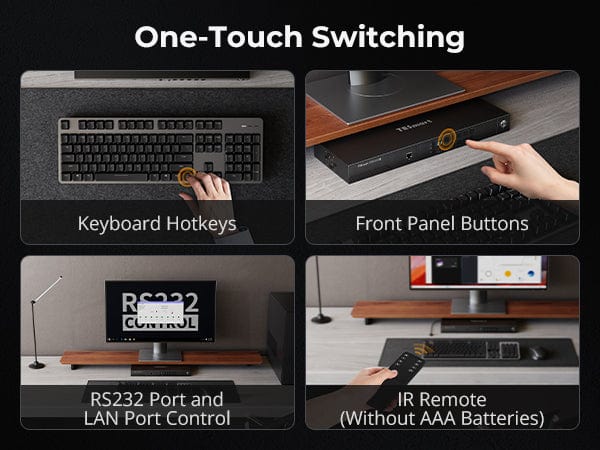
- Keyboard hotkeys
- Front panel buttons
- Mouse-based switching (middle mouse button, supported models)
Hotkey switching is aimed at users who value the following:
- Speed and efficiency
- Hands-on keyboard workflows
- Operating system-independent control, including BIOS and login screens
For developers, engineers, traders, and professional workstation users, hotkeys often offer the most consistent and fastest switching experience.
2. Core design logic of the TESmart hotkey system
To understand how hotkeys work, it is crucial to... where they are processed to understand.
2.1 Dedicated keyboard and mouse ports
TESmart KVM switches feature dedicated keyboard and mouse ports, which are separate from the standard USB ports.
- Hotkey commands must be detected before Signals are forwarded to the connected computer.
- Dedicated ports allow the KVM controller to intercept and interpret keyboard input in real time.
- Standard USB ports operate in passthrough mode and are not involved in hotkey detection.
Important technical principle:
Hotkey detection occurs at the controller level, not at the hub level.
For reliable hotkey functionality, keyboards must always be connected to the dedicated keyboard port.
2.2 Why TESmart uses a “dual shutter + command button” structure
TESmart hotkeys use a two-stage sequence:
- Press the trigger button twice
- Pressing a command key within a short time window
This design:
- Prevents accidental activations during normal typing.
- Avoids conflicts with operating system shortcuts
- Works consistently on Windows, macOS, Linux, BIOS and UEFI
This structure prioritizes Predictability and cross-platform reliability about minimal keystrokes.
3. Trigger system explained
3.1 Development of the standard trigger button
Early TESmart KVM models used Scroll Lock as the standard trigger button, since it is rarely used in modern operating systems and offers stable HID behavior.
Later generations switched to Right Ctrl as the default trigger button because:
- It better suits typical keyboard habits
- It is rarely used in OS shortcuts
- The ergonomics are improved when frequently switching between devices.
This change reflects TESmart's evolution from traditional IT applications to modern productivity workflows.
3.2 Trigger button configuration across generations
The behavior of the trigger button varies depending on the product generation:
- Earlier models allowed switching between: Scroll Lock, Left Ctrl, Right Ctrl
- Newer models support custom trigger buttons, so that users can define a key that fits their keyboard layout and usage.
The configuration of the trigger button is a hardware function and model-dependent.
Always read the official support documentation for your specific model.
4. Hotkey Function Categories
TESmart hotkeys fall into several function categories. Not all functions are supported by all models.
4.1 Input switching hotkeys
These hotkeys control the switching between connected computers:
- Direct switching to a specific input (PC1/PC2/PC3/PC4)
- Sequential switching of available inputs
- Forward or reverse cycle
Input switching hotkeys are the most reliable and fastest because they do not depend on the video synchronization status.
4.2 Control Panel Hotkeys (model dependent)
Depending on the KVM model, hotkeys can control system-wide functions such as:
- Buzzer on/off
- Automatic scan mode
- USB network interface on/off
- EDID emulation on/off
- USB switching behavior
Since these functions are implemented at the controller hardware level, availability varies depending on the model and generation.
5. Keyboard and mouse mode
5.1 Passthrough mode (direct mode)
In passthrough mode:
- The keyboard and mouse behave as if they were directly connected to the active computer.
- Device-specific drivers and advanced features are retained
- Some programmable or wireless keyboards can interfere with hotkey recognition.
This mode prioritizes Device Fidelity about abstraction.
5.2 Compatibility Mode (Traditional)
Compatibility mode maximizes stability:
- older operating systems
- Legacy hardware
- non-standard HID implementations
This mode offers more predictable behavior in complex or mixed environments and can improve hotkey reliability.
6. Why hotkeys sometimes don't work
In most cases, hotkey problems are caused by configuration or device behavior, not by hardware defects.
Common causes:
- Keyboard connected to a standard USB port instead of a dedicated keyboard port
- Use of wireless, Bluetooth or macro-enabled keyboards
- Keyboard software that intercepts or remaps keys
- Incorrect trigger button configuration
- Hotkey function is not supported by this specific model.
Understanding these conditions helps reduce unnecessary troubleshooting and support requests.
7. Choosing the right switching method
TESmart offers several switching methods to support different workflows.
| Switching method | Strengthen | Best suited for |
|---|---|---|
| Hotkeys | Fast, keyboard-centric | Power users |
| Front panel buttons | Simple and visual | General users |
| Mouse-based switching | Hands-on mouse workflows | Multi-tasking environments |
Users can choose one method or combine several, depending on their personal preference.
8. Official Hotkey Reference and Support Resources
To facilitate access to hotkey functions and avoid reliance on printed manuals, TESmart provides a central support reference:
Complete TESmart Hotkey Reference (All Models)
TESmart KVM Switch Hotkeys: Function Overview by Model – TESmart
This resource lists all supported hotkey functions by model and generation and is continuously updated.
9. Conclusion
The TESmart hotkey system is designed to:
- It works consistently across operating systems.
- Predictably works across hardware generations
- Efficient for professional workflows in practice is
By understanding the hotkey implementation and its differences depending on the model, users can fully utilize TESmart KVM switches with confidence and clarity.
Split:
DKS402-M24 KVM Switch for Desktop Workstations: Comprehensive analysis of performance, features and design
Thunderbolt Interface Development: Complete Comparison of Thunderbolt 3, 4, and 5 - Reshaping Connectivity