

Monitorkonfiguration

Max. Auflösung

Stabile Anzeige

USB-Geräte gemeinsam nutzen

Kopierschutz
Anzeigemodus
Tastatur und Maus
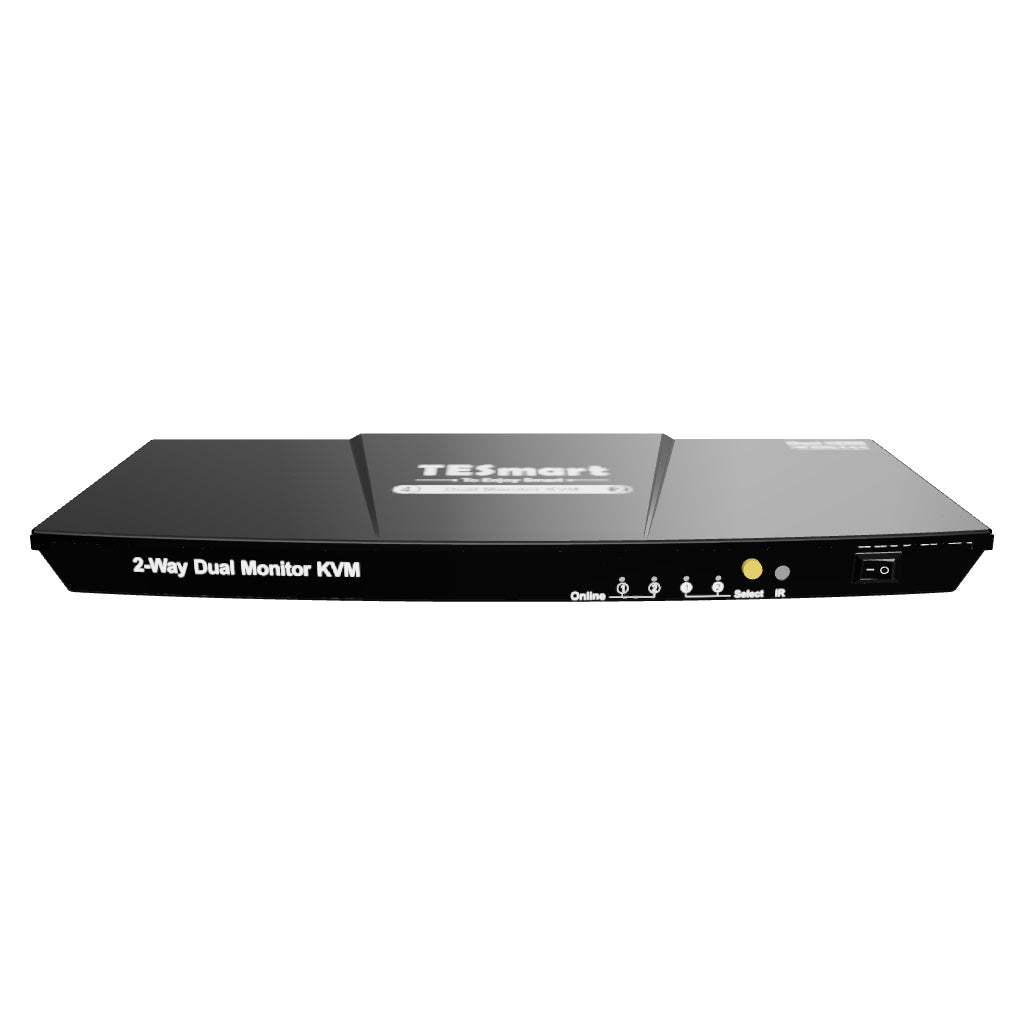
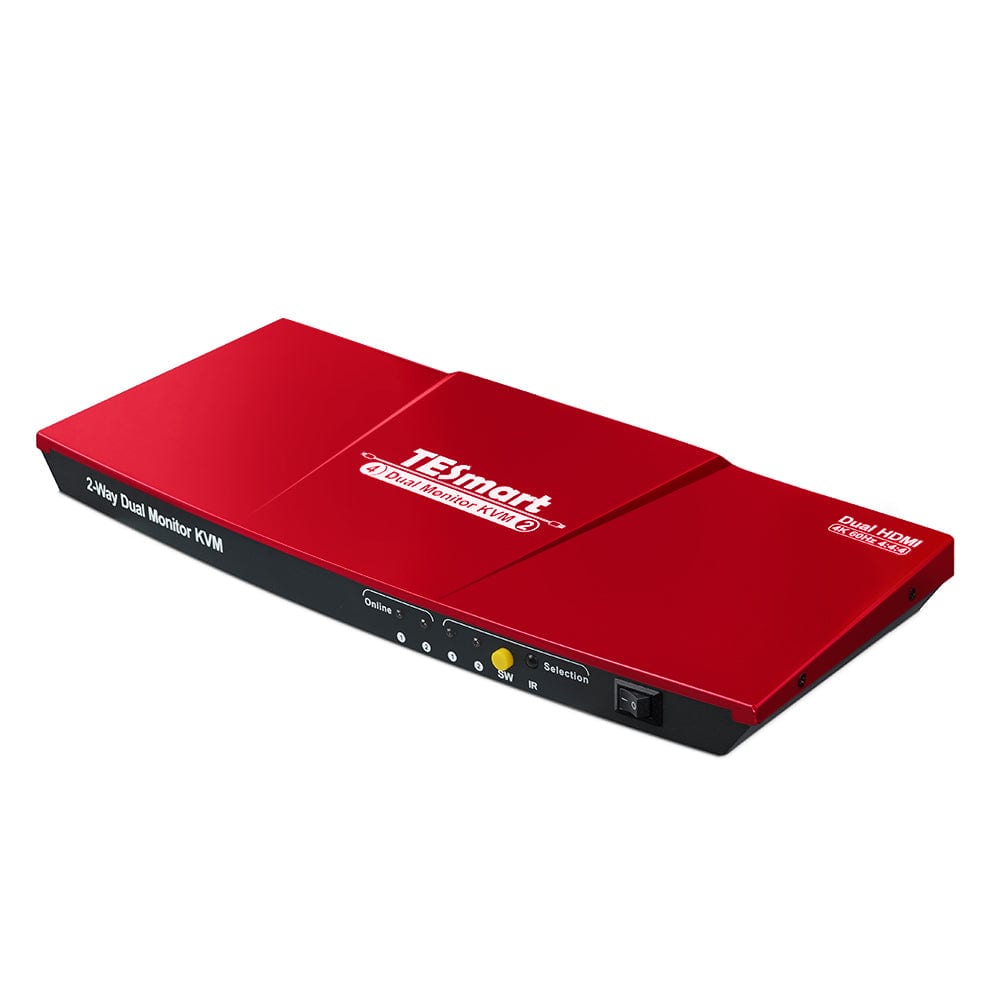
2×2 HDMI KVM | 4K60, EDID & USB 2.0
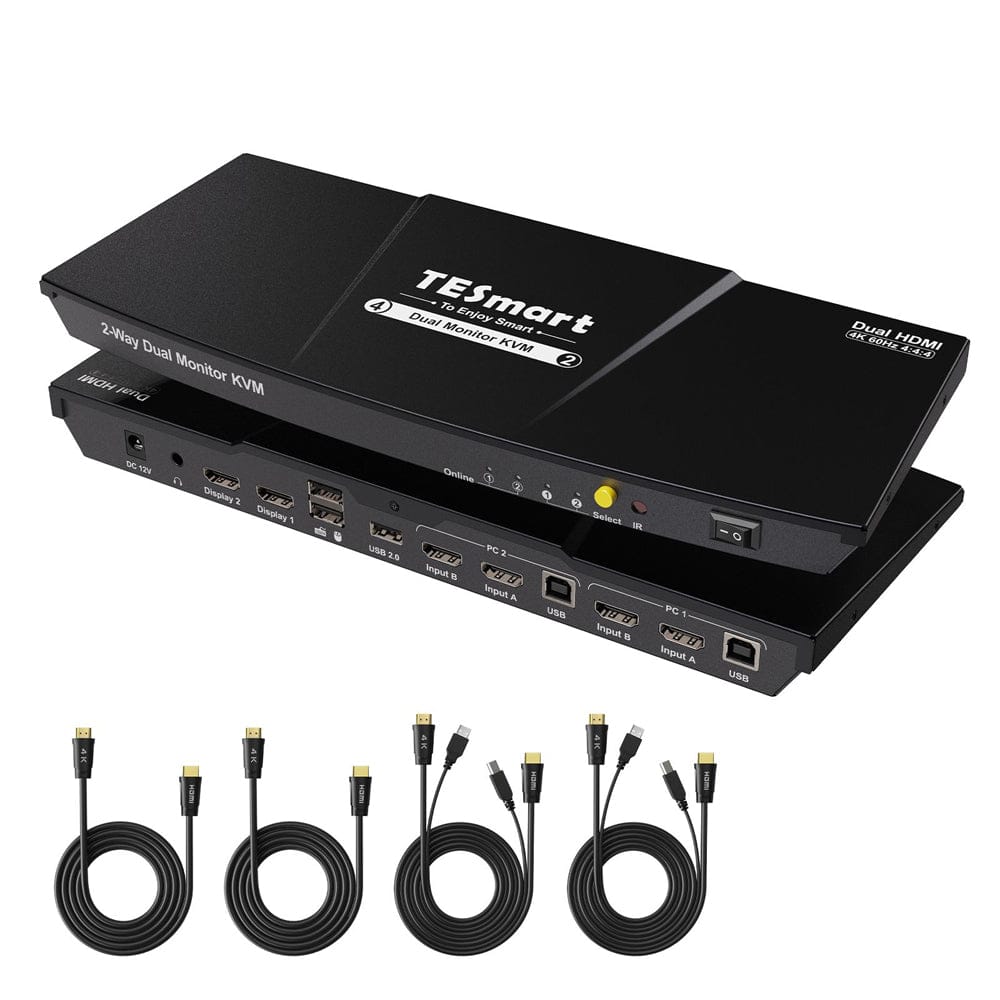
HKS202-E23 connects two PCs with two HDMI monitors. Change the image, keyboard and mouse or use both systems side by side - with up to 4K60 and EDID.
Monitorkonfiguration
Max. Auflösung
Stabile Anzeige
USB-Geräte gemeinsam nutzen
Kopierschutz
Anzeigemodus
Tastatur und Maus
2×2 HDMI KVM | 4K60, EDID & USB 2.0
Why HKS202-E23?
Overview
01
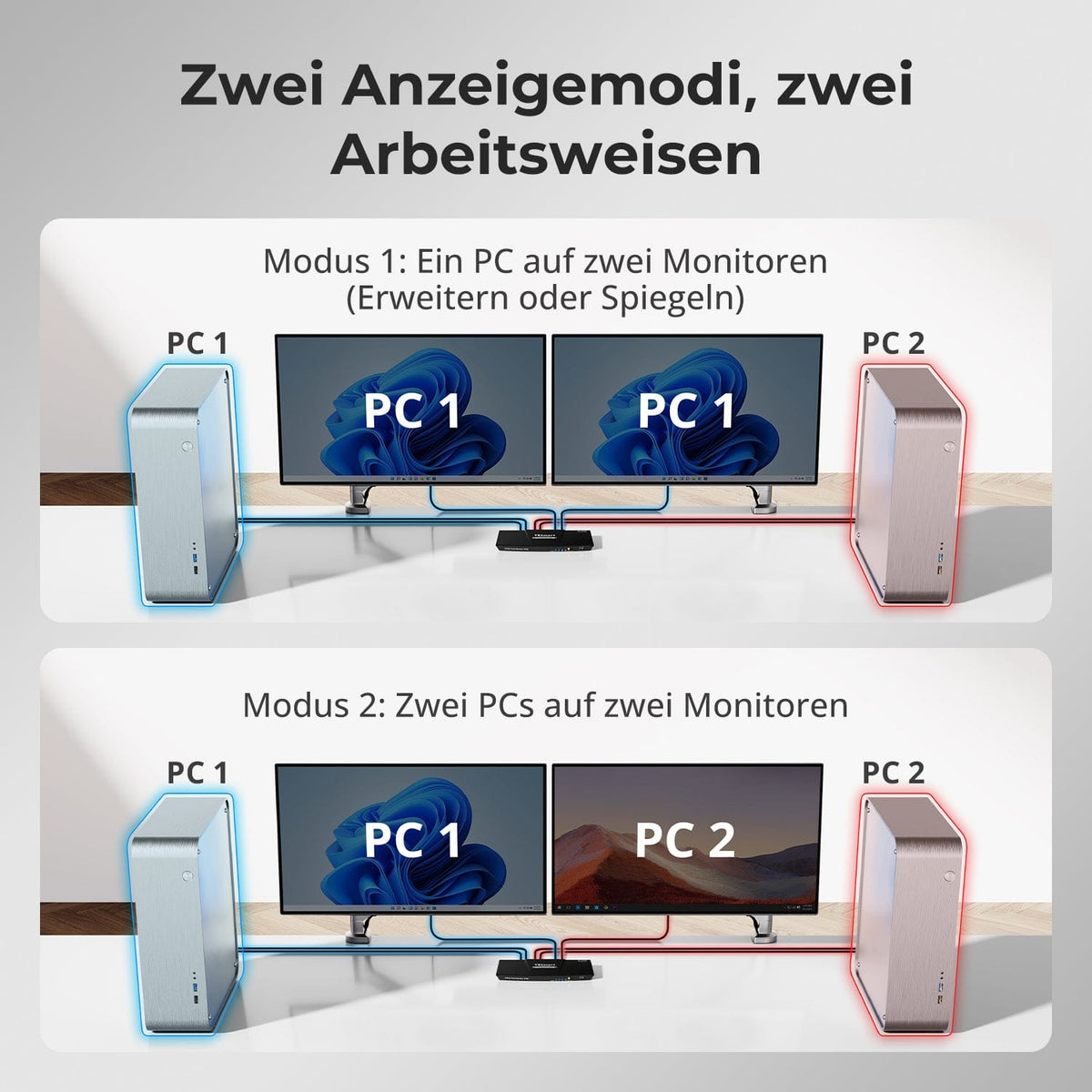
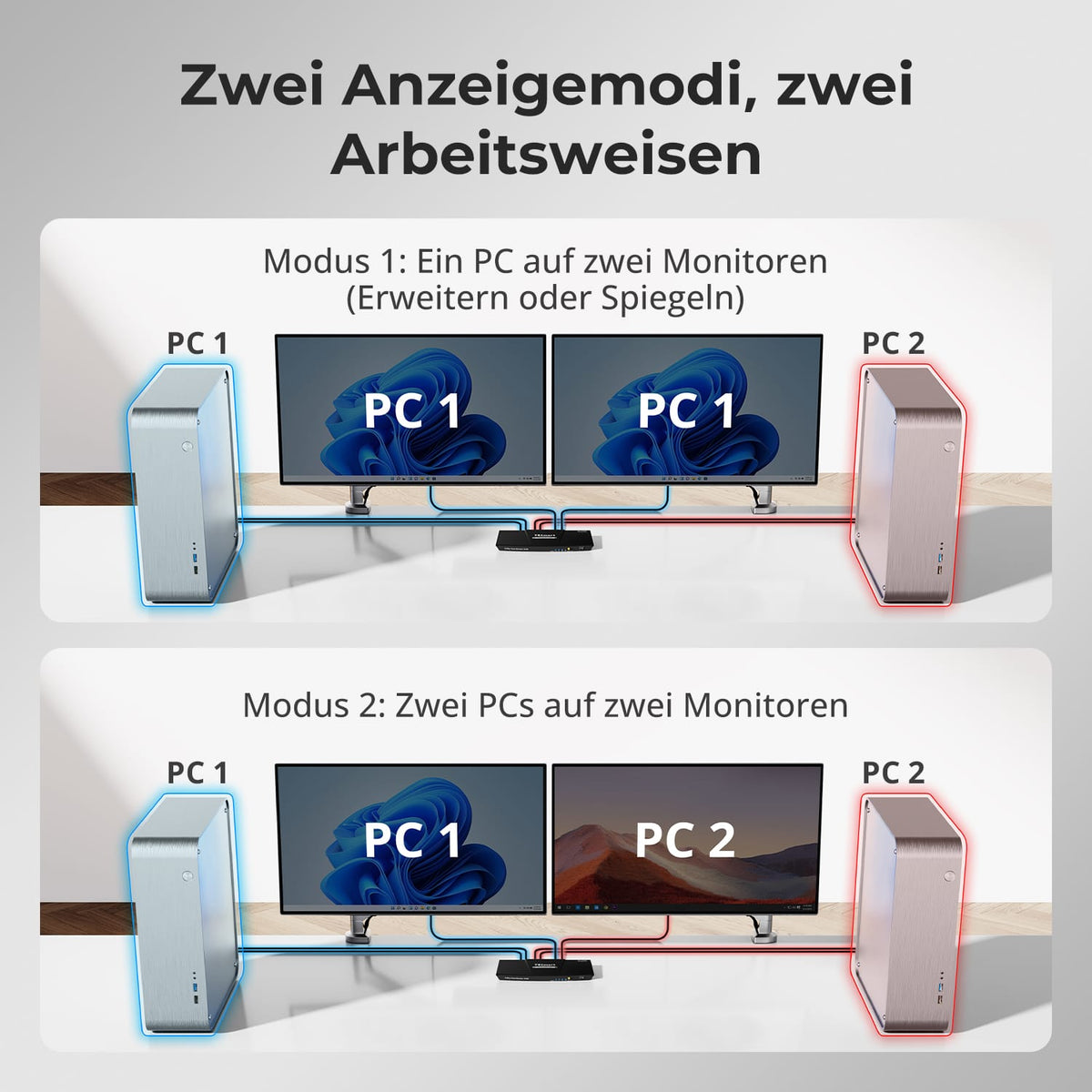
Two display modes for two computers
Use both monitors with one computer, extended or mirrored, or display a system on each monitor. For both displays, the computer needs two video outputs in the same KVM input group. Configure Extend/Mirror in the operating system. In parallel view, pressing right Alt twice toggles the keyboard/mouse controls.
02
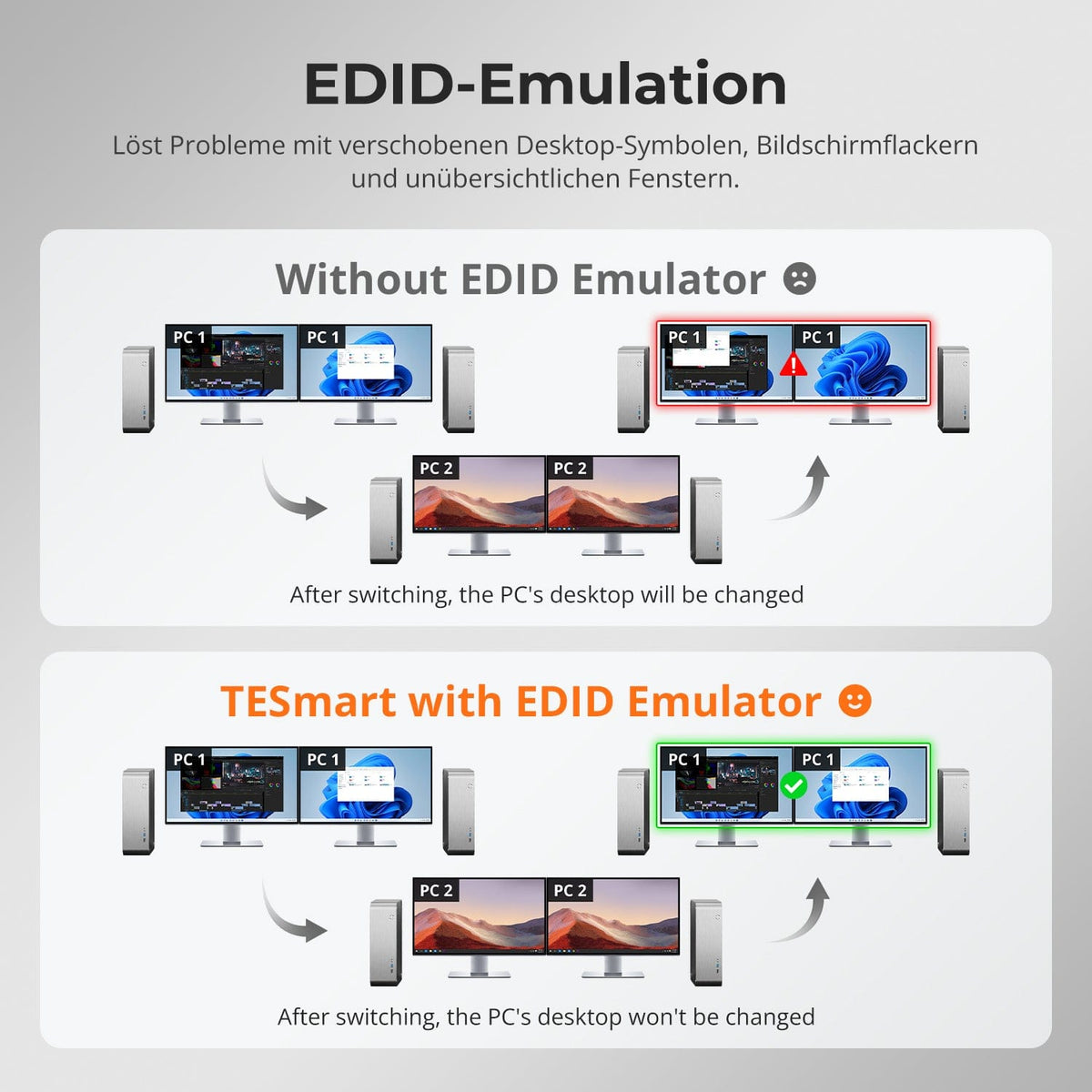
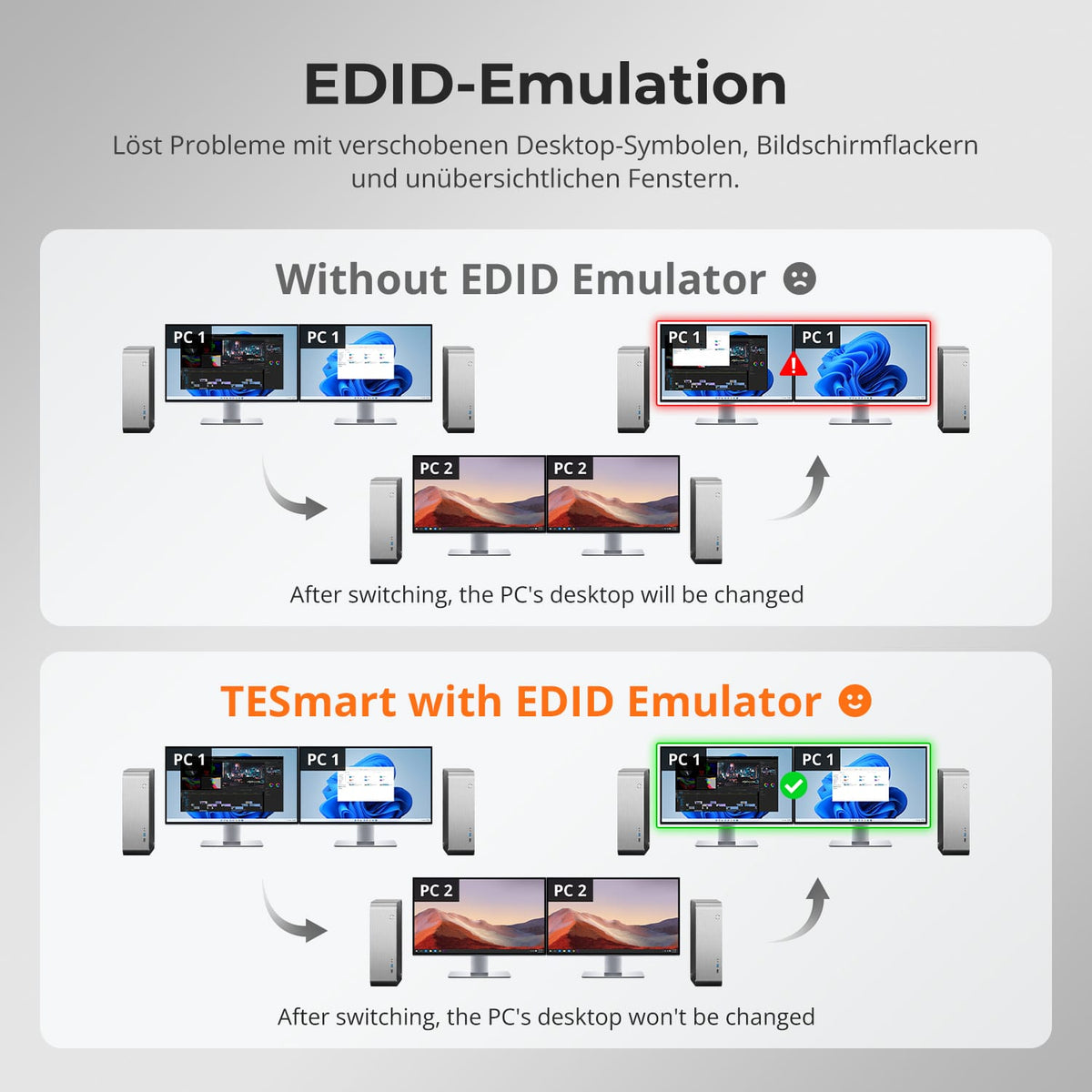
Preserve desktop arrangement when switching
EDID emulation in display mode 1 maintains the display information for both computers, preserving window positions and desktop layout. EDID emulation is not supported in display mode 2, where each monitor displays a different system.
03
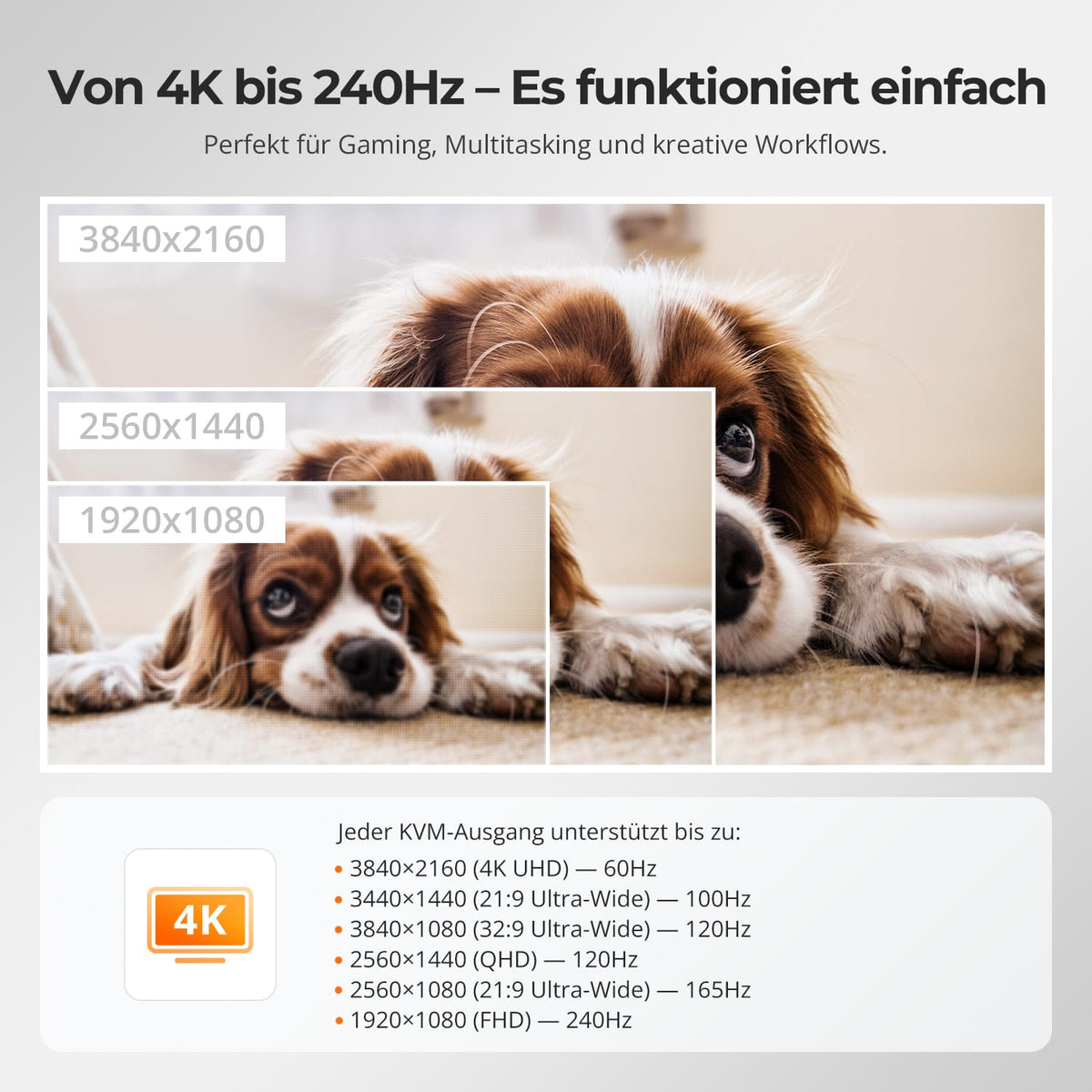
4K details or higher refresh rate at lower resolution
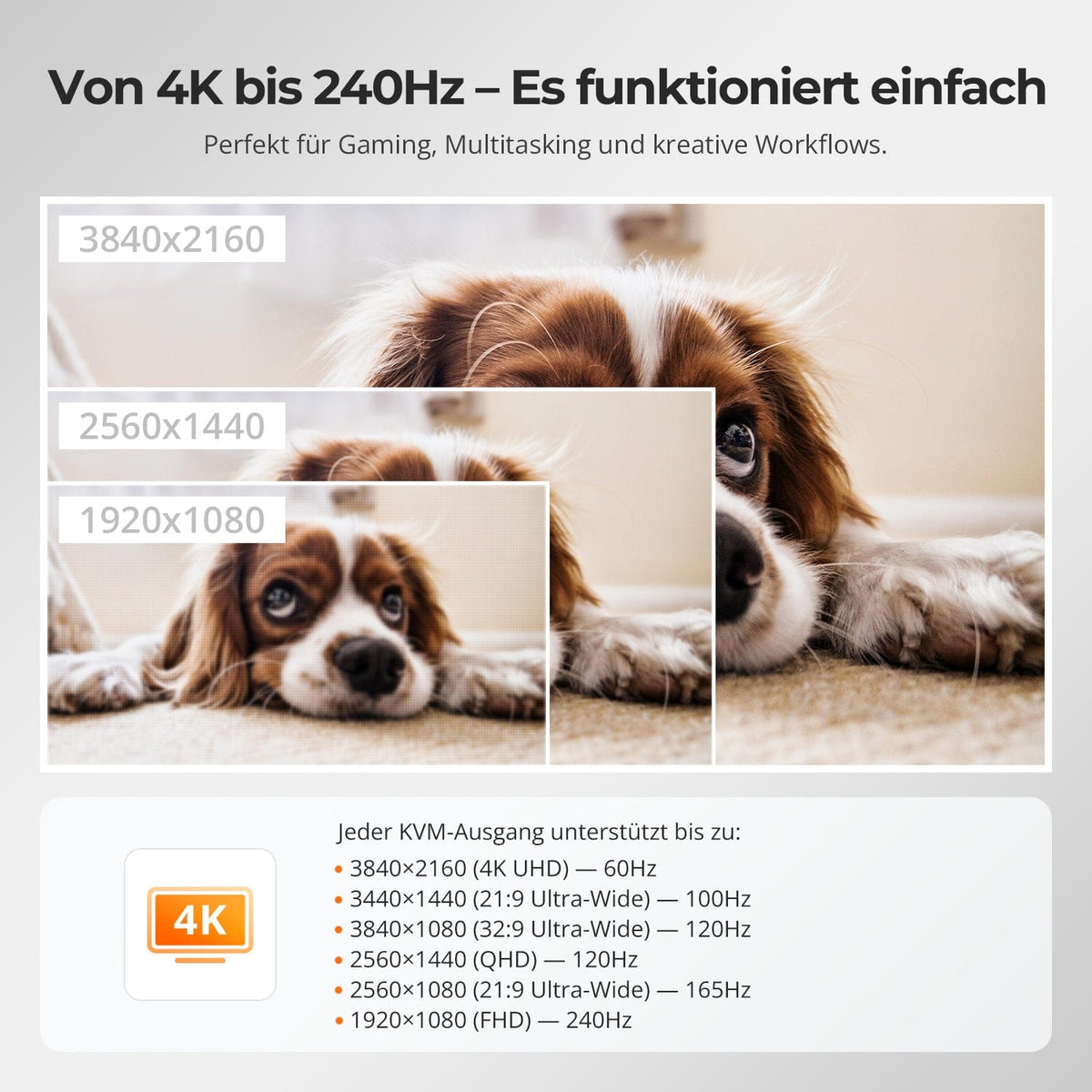
Each HDMI output supports up to 3840×2160 at 60 Hz. Other supported formats: 3440×1440 at 100 Hz, 3840×1080 and 2560×1440 at 120 Hz, 2560×1080 at 165 Hz, and 1920×1080 at 240 Hz. The computer, monitor, cable, and adapter must support the format. 4K144 and 8K are not supported.
Data & Support
Compatibility & Connections
Technical data
Instructions & Downloads
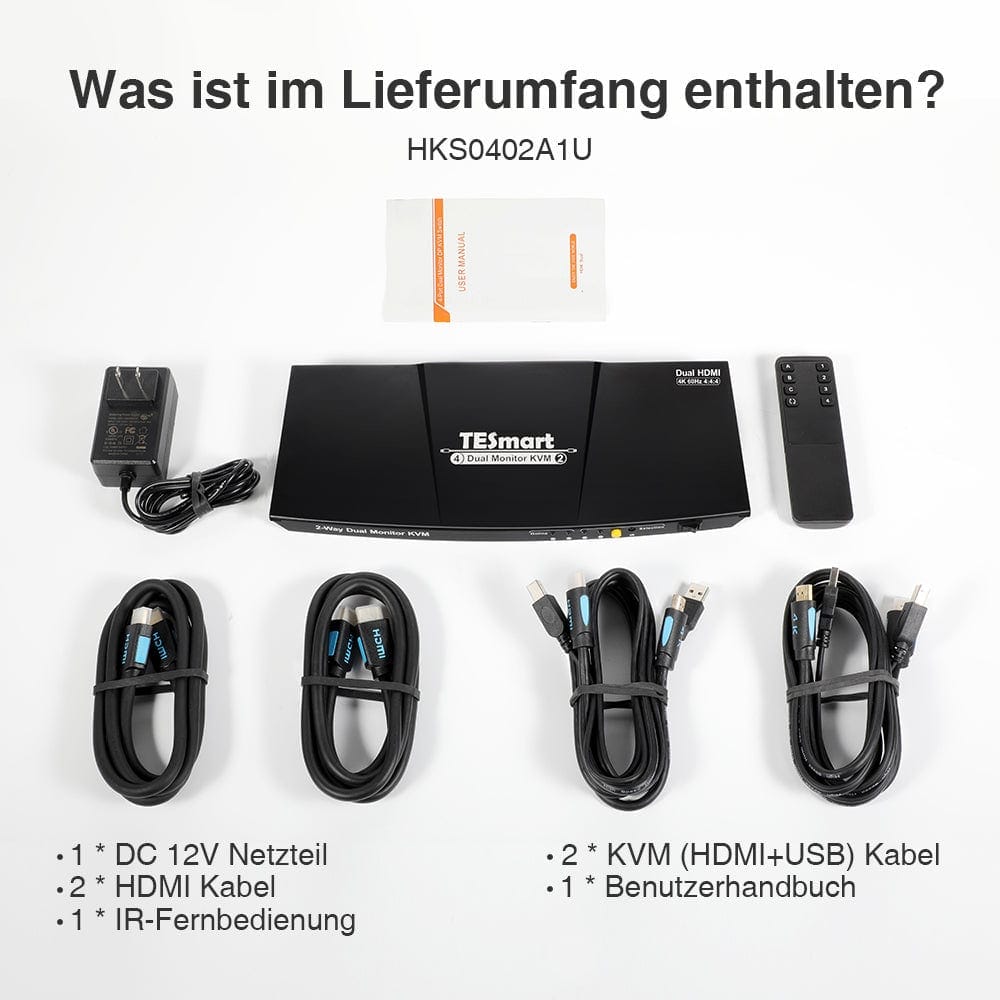
Scope of delivery
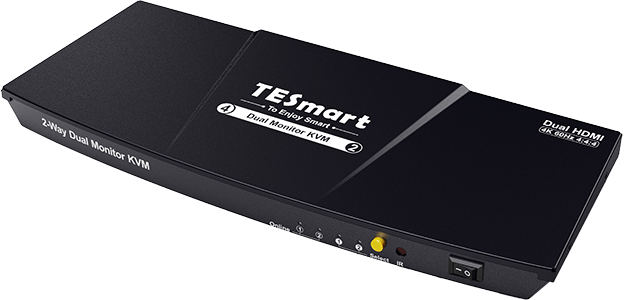
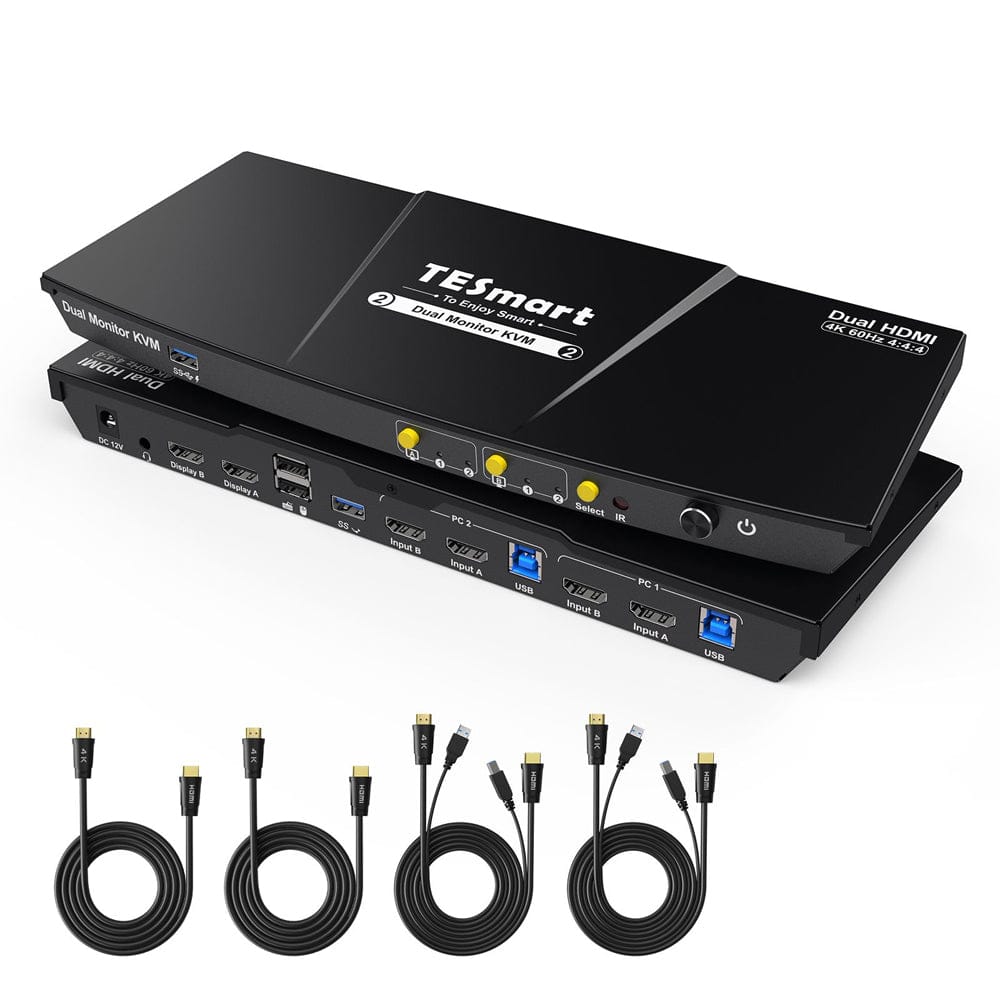
1 × HKS202-E23 HDMI Dual Monitor KVM Switch
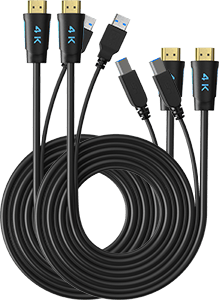
2 × KVM cable (HDMI + USB)
2 × HDMI Cable
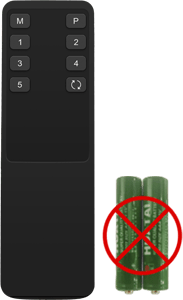
1 × IR Remote Control
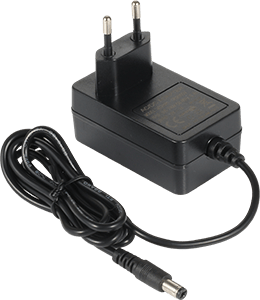
1 × 12V DC power supply
1×User manual
Compare suitable models
Select the models in the menus to compare connections, image output, and shareable features.
Model
HKS202-E23
Model
HKS202-P23-V2
Model
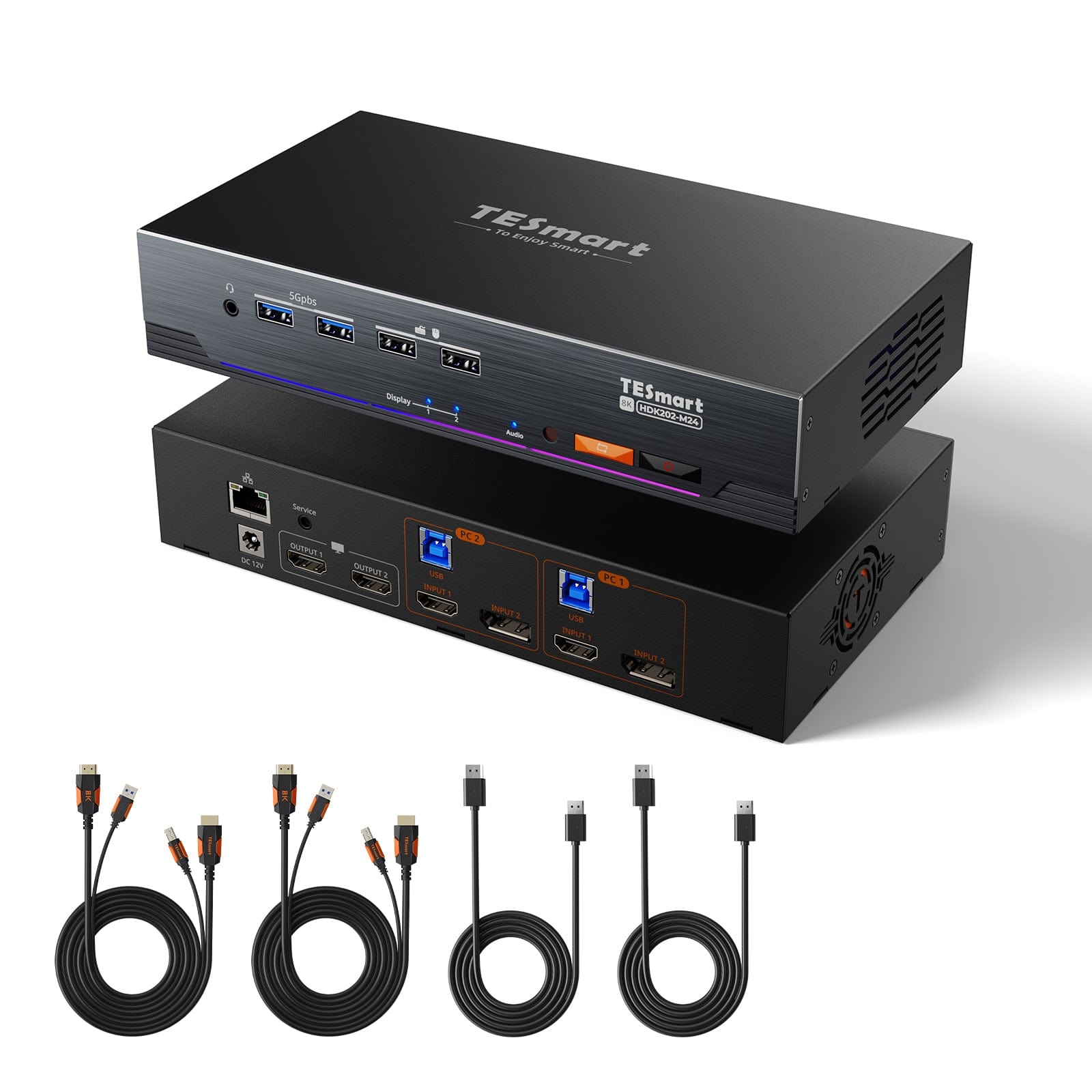
HDK202-M24
Computer count
2 computers
Computer count
2 computers
Computer count
2 computers
Computer connections
Per PC: 2 × HDMI + USB
Computer connections
Per PC: 2 × HDMI + USB
Computer connections
Per PC: HDMI + DisplayPort + USB
Monitor outputs
2 × HDMI
Monitor outputs
2 × HDMI
Monitor outputs
2 × HDMI
Image output
4K60
Image output
4K60
Image output
8K60/4K144
Shared USB devices
USB 2.0
Shared USB devices
USB 3.0/5 Gbit/s
Shared USB devices
USB 3.0/5 Gbit/s
Charge laptop
Charge laptop
Charge laptop
Shared network access
Shared network access
Shared network access
1000 Mbit/s
EDID emulation
Only in display mode 1
EDID emulation
Only in display mode 1
EDID emulation
Multi-monitor operation
Separate video outputs on each computer
Multi-monitor operation
Separate video outputs on each computer
Multi-monitor operation
Separate video outputs on each computer
Monitor requirements
Every computer must be able to drive 2 monitors.
Monitor requirements
Every computer must be able to drive 2 monitors.
Monitor requirements
Every computer must be able to drive 2 monitors.
Frequently asked questions
You can find further answers in our Help Center.
[Compatibility] Can I connect my work laptop and gaming PC?
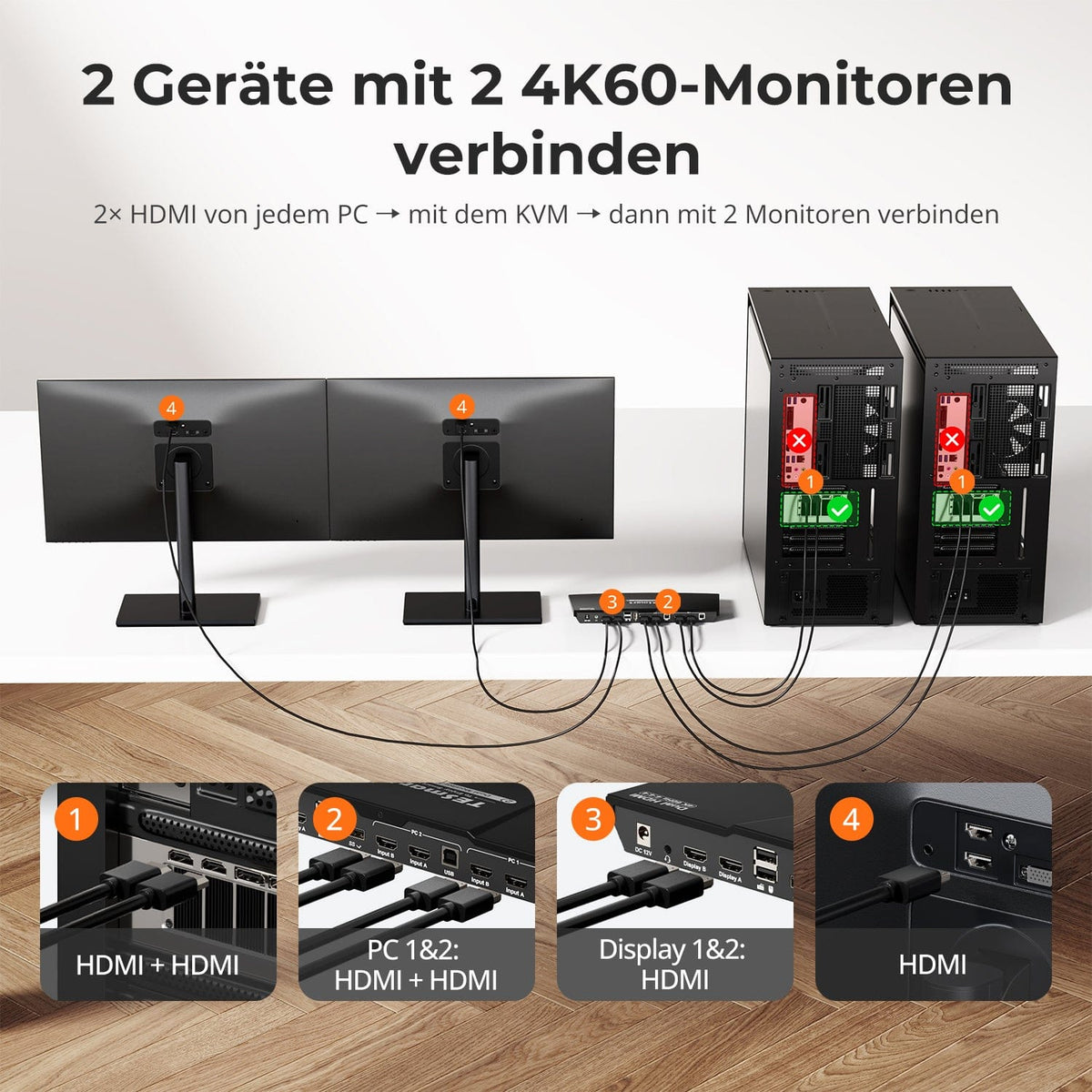
Yes. The HKS202-E23 connects two computers with up to two HDMI monitors and a shared keyboard, mouse, and USB connection. Each computer needs two video outputs for both monitors. If no HDMI output is available, a suitable USB-C to HDMI adapter or an HDMI dock for the laptop, or a DisplayPort to HDMI adapter for the desktop PC, can be used. Check the display capabilities of both the computer and the adapter beforehand.
[Compatibility] Is my 4K144 or 8K monitor reaching its full potential?
No. The HKS202-E23 offers HDMI 2.0 up to 3840×2160 at 60 Hz. Higher-spec monitors will work with supported formats such as 4K60, 2560×1440 at 120 Hz, or Full HD up to 240 Hz. The computer, monitor, cable, and adapter must all support the format. 4K144 and 8K are not supported.
[Compatibility] Can I use only one computer or monitor?
Yes. Fewer occupied inputs or outputs will not affect normal operation. You can start with one computer or HDMI monitor and expand later.
[Compatibility] Which systems are supported and what applies to macOS Tahoe?
According to the instructions, the device is compatible with Windows, macOS X, Unix, and Linux, including Debian, Ubuntu, Fedora, and Raspbian. If the keyboard/mouse is not recognized after a Tahoe upgrade, TESmart support offers the appropriate model-specific firmware and instructions.
[Compatibility] Can I connect a Bluetooth keyboard and mouse directly?
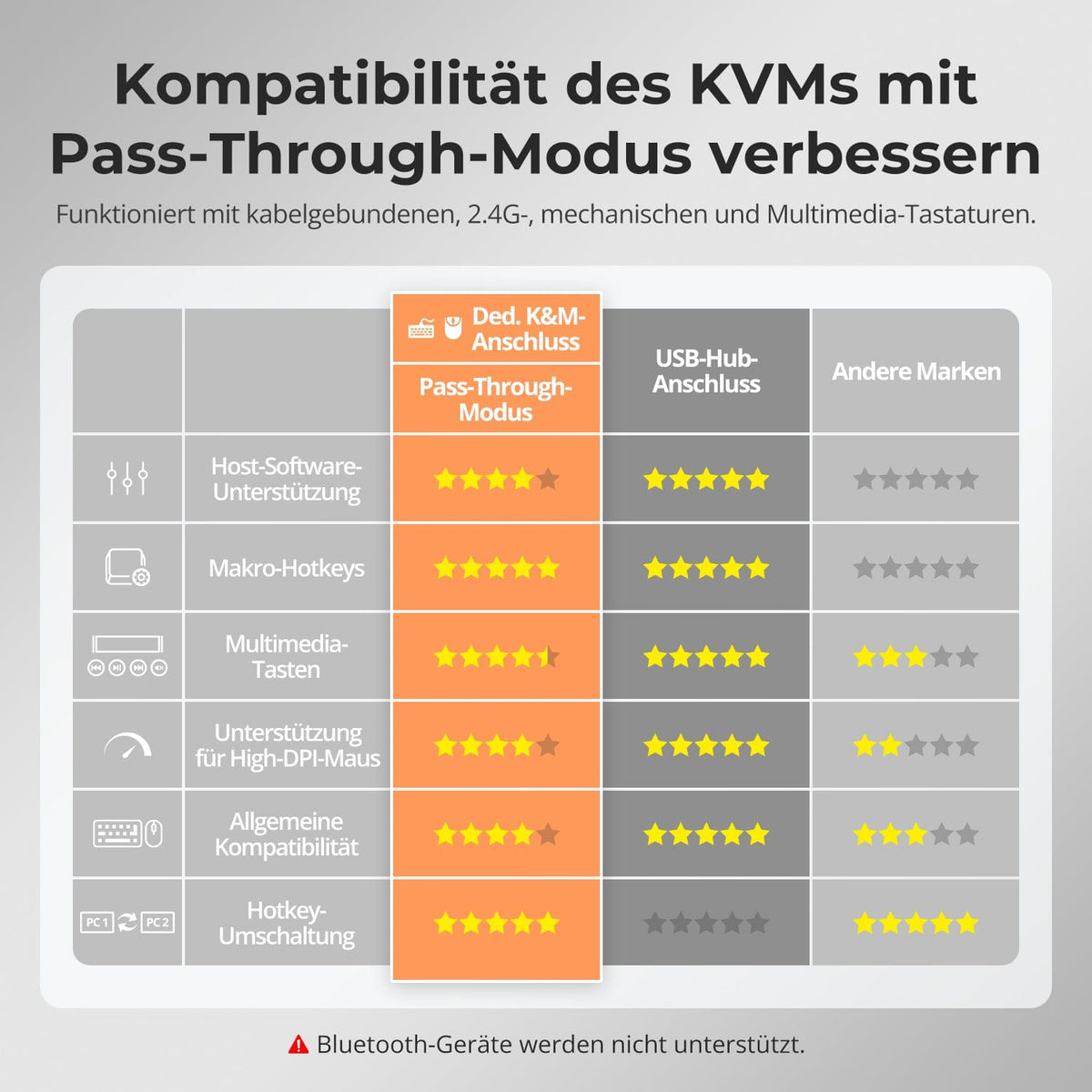
No. Direct Bluetooth connections are not supported. Wired, mechanical, and multimedia keyboards, as well as 2.4 GHz wireless devices with a USB receiver, are supported via pass-through. Compatibility and additional features depend on the device.
[Functions] What are the two display modes?
Mode 1 displays one computer on both monitors, either extended or mirrored. Both video outputs must be in the same input group. Mode 2 displays one computer on each monitor; pressing the right Alt key twice toggles the keyboard/mouse. According to the manual, the monitor images cannot be swapped if the maximum monitor resolutions differ.
[Functions] Does EDID work in both display modes?
No. EDID emulation is only supported in display mode 1. In this mode, it retains display information during switching and preserves the window and desktop layout. It is not available in mode 2.
[Connections] Where do I connect shared USB devices?
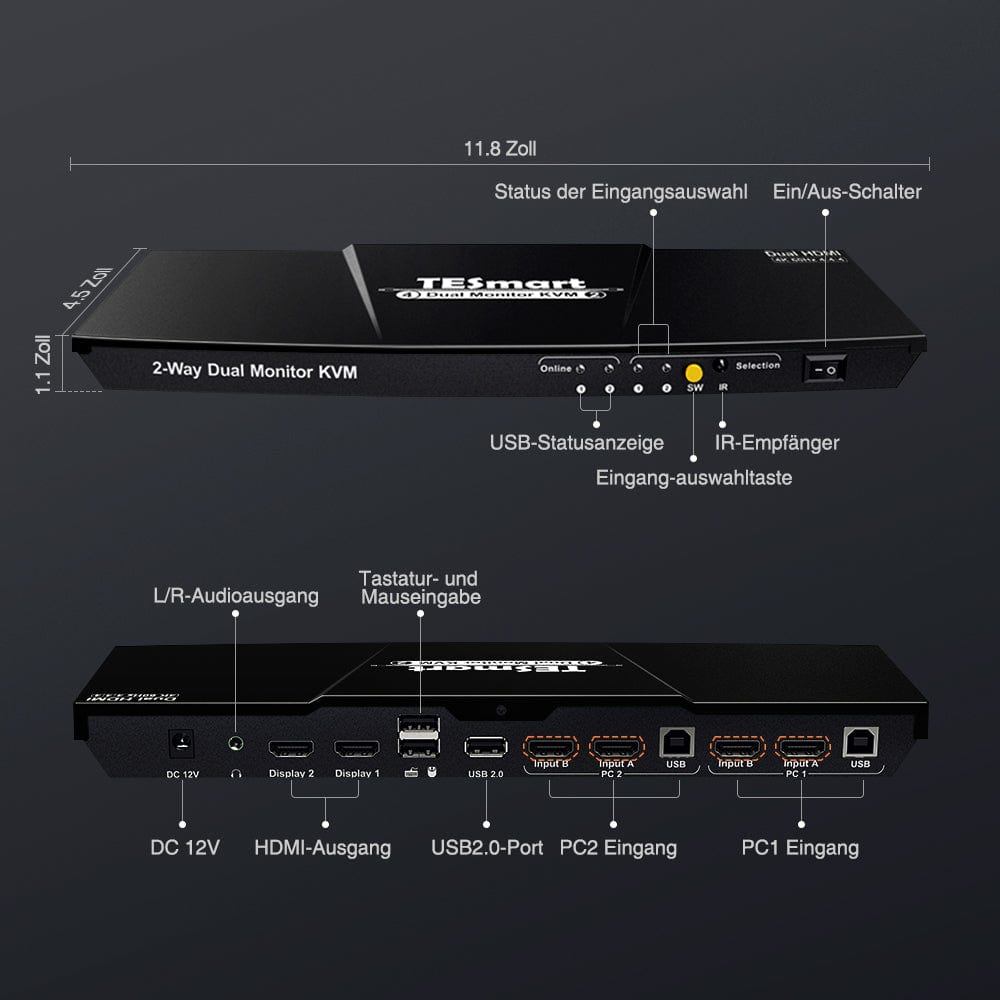
USB storage devices, printers, barcode scanners, and USB audio should be connected to the standard USB 2.0 device port. For hotkeys, connect the keyboard/mouse to the appropriately marked ports. A computer's USB and HDMI ports must be on the same input group.
[Functions] How do I connect an audio device, and why there might be no sound?
For 3.5 mm audio, use the L/R output and select the corresponding HDMI monitor audio output in the sound settings. Test Display 2 first, then Display 1. For USB audio, use the shared USB 2.0 port and select the USB headset or audio device. If analog audio still fails, test a USB 3.5 mm sound card.
[Connections] Does this model offer USB-C charging and shared Gigabit Ethernet?
No. This model does not offer USB-C Power Delivery charging or a shared Gigabit Ethernet port for computers. Use your devices' chargers and network ports separately.
[Furnishings] How do I connect computers, monitors, and accessories?
For each computer, connect the KVM cable (HDMI + USB) and an HDMI cable to the same PC1/PC2 group. Both video signals and the USB connection must originate from the same computer. Connect monitors to Display 1/2 using their own HDMI cables, the keyboard/mouse to the designated ports, and other devices via USB 2.0. Optionally, connect the L/R audio and the 12V power supply.
[Switch] How do I switch computer or display modes?
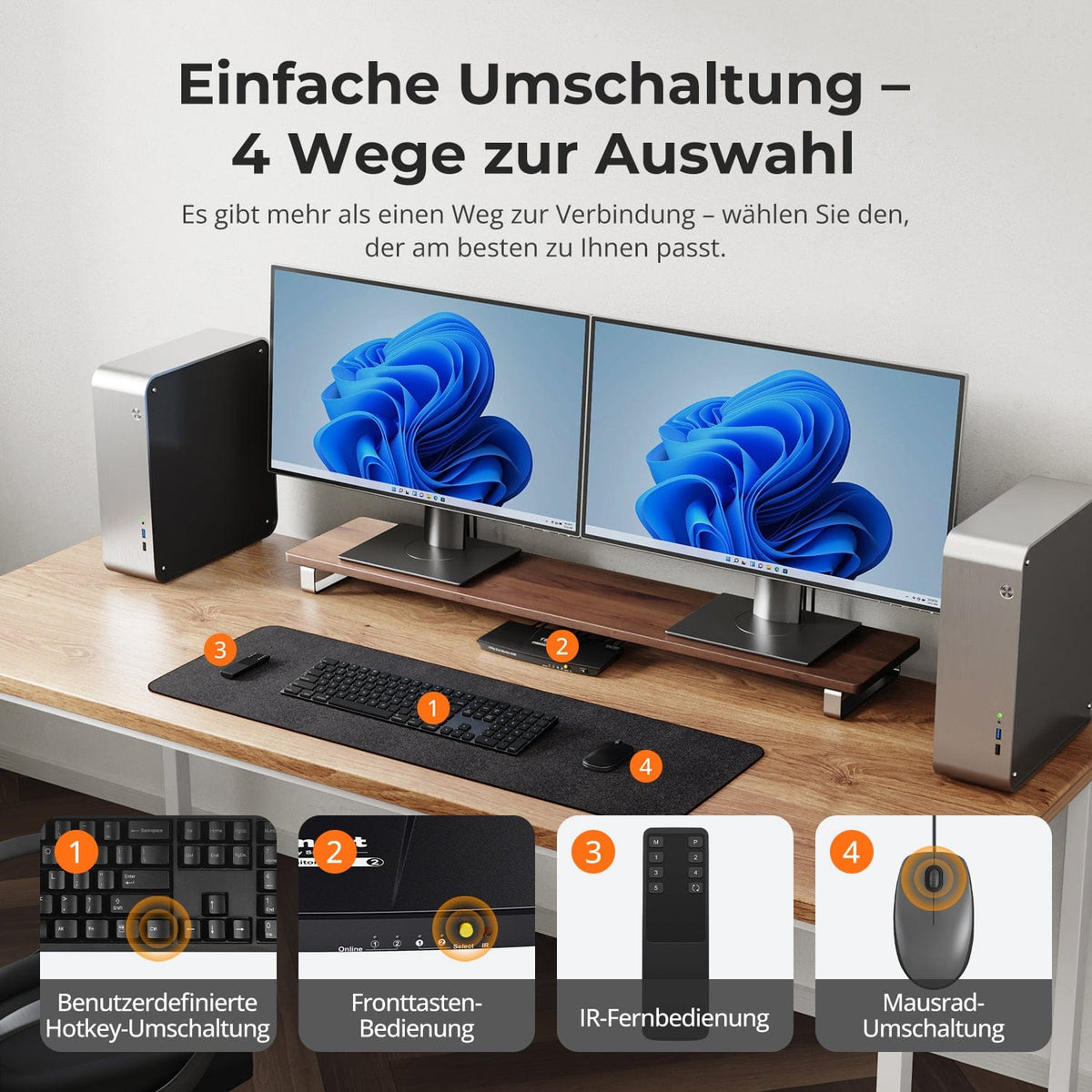
Via Select button, IR remote control or keyboard hotkeys.
[Functions] What are Pass-Through Mode and Legacy Emulation Mode?
Pass-through mode connects modern keyboards and mice directly to the computer and supports many additional functions. In case of problems, legacy emulation mode offers basic keyboard, mouse, and hotkey compatibility. Driver-dependent or programmable additional functions may not be available in this mode.
[Furnishings] Do I need drivers or switching software?
No special switching software is required for normal display switching, keyboard, mouse, and basic KVM functions. Connected devices may require their own drivers or applications.