

Select by setup
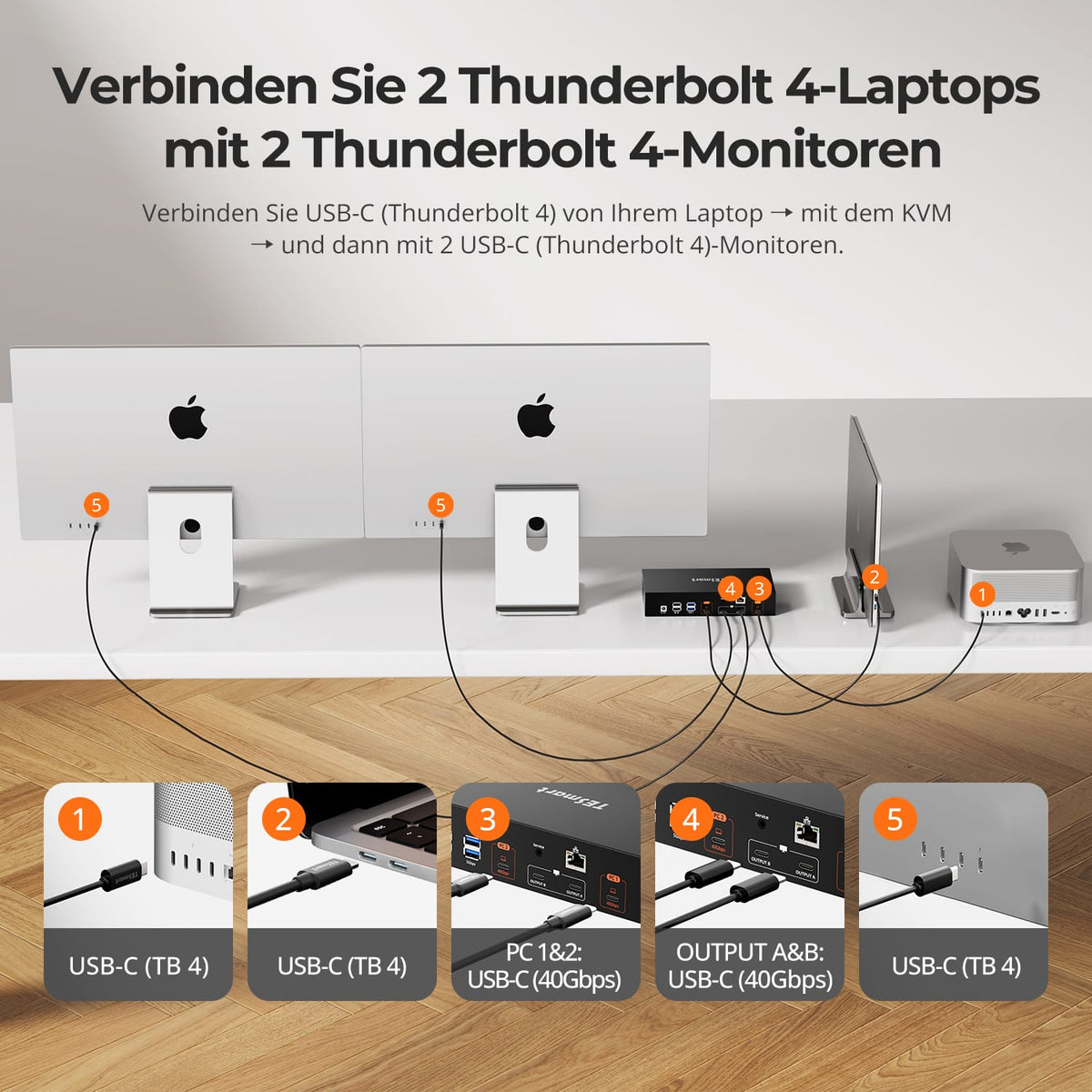
Mac and two Apple Studio Displays share
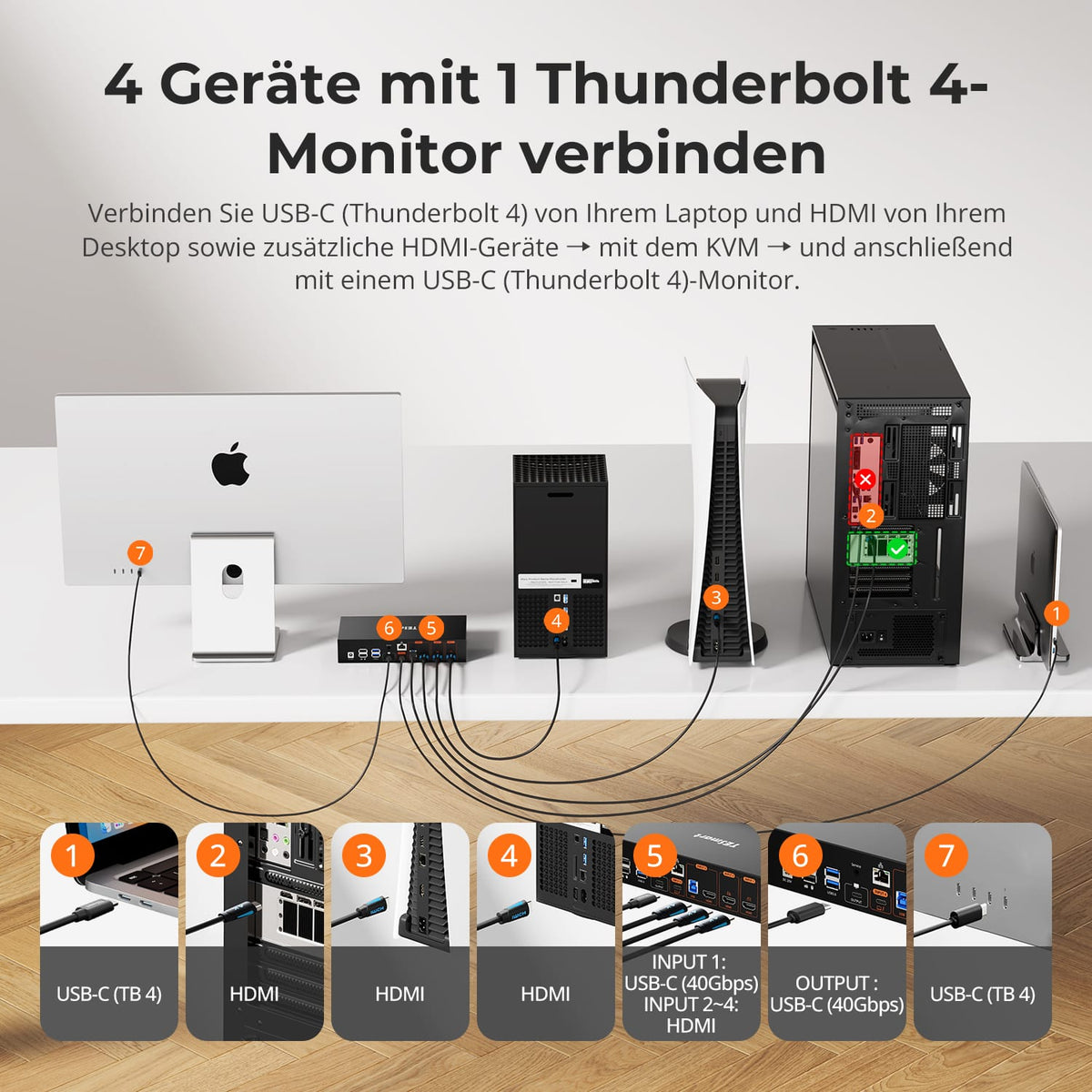
Mac/Desktop PC/PS5/Xbox at Apple Studio Display
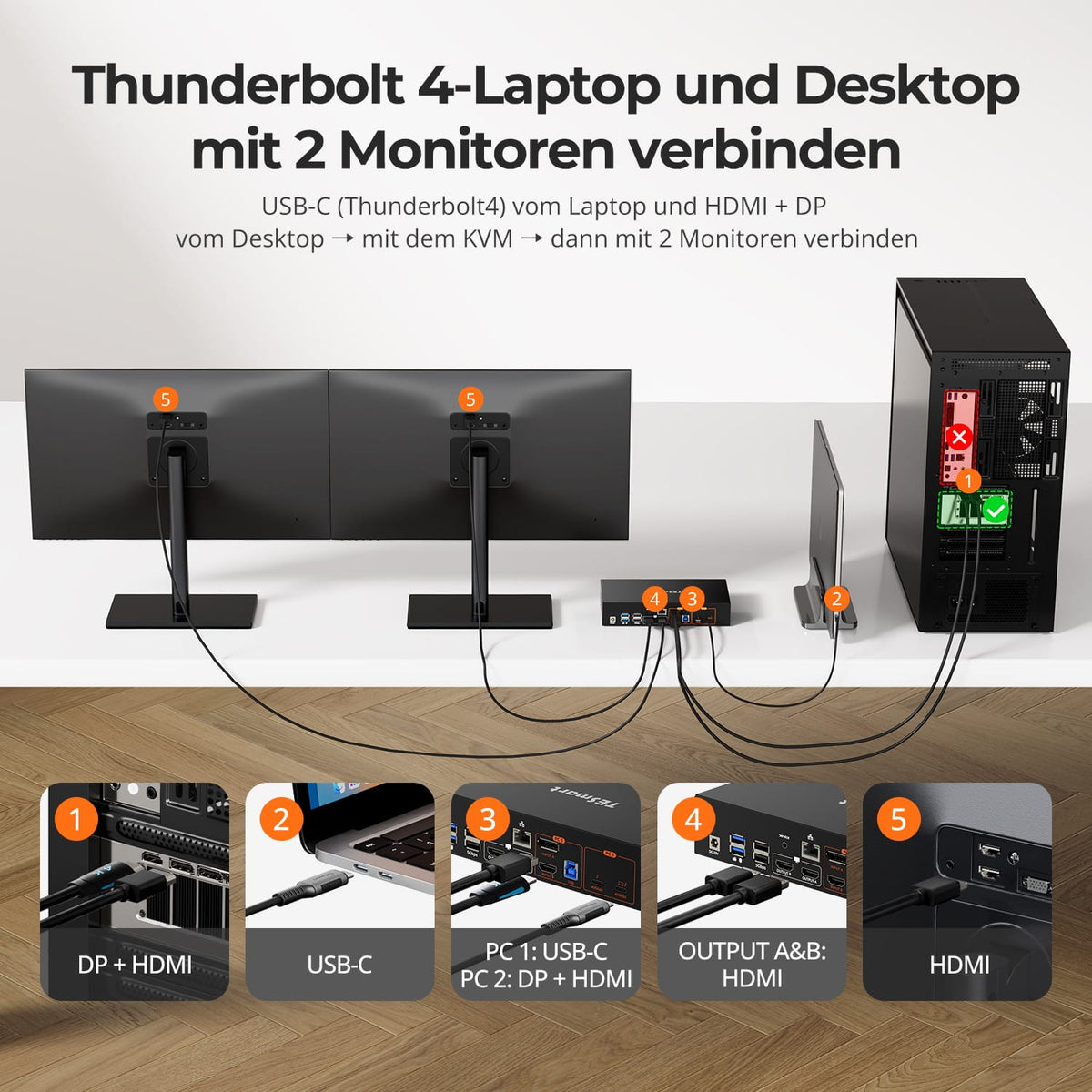
Thunderbolt laptop + desktop PC – Two HDMI monitors
Thunderbolt series

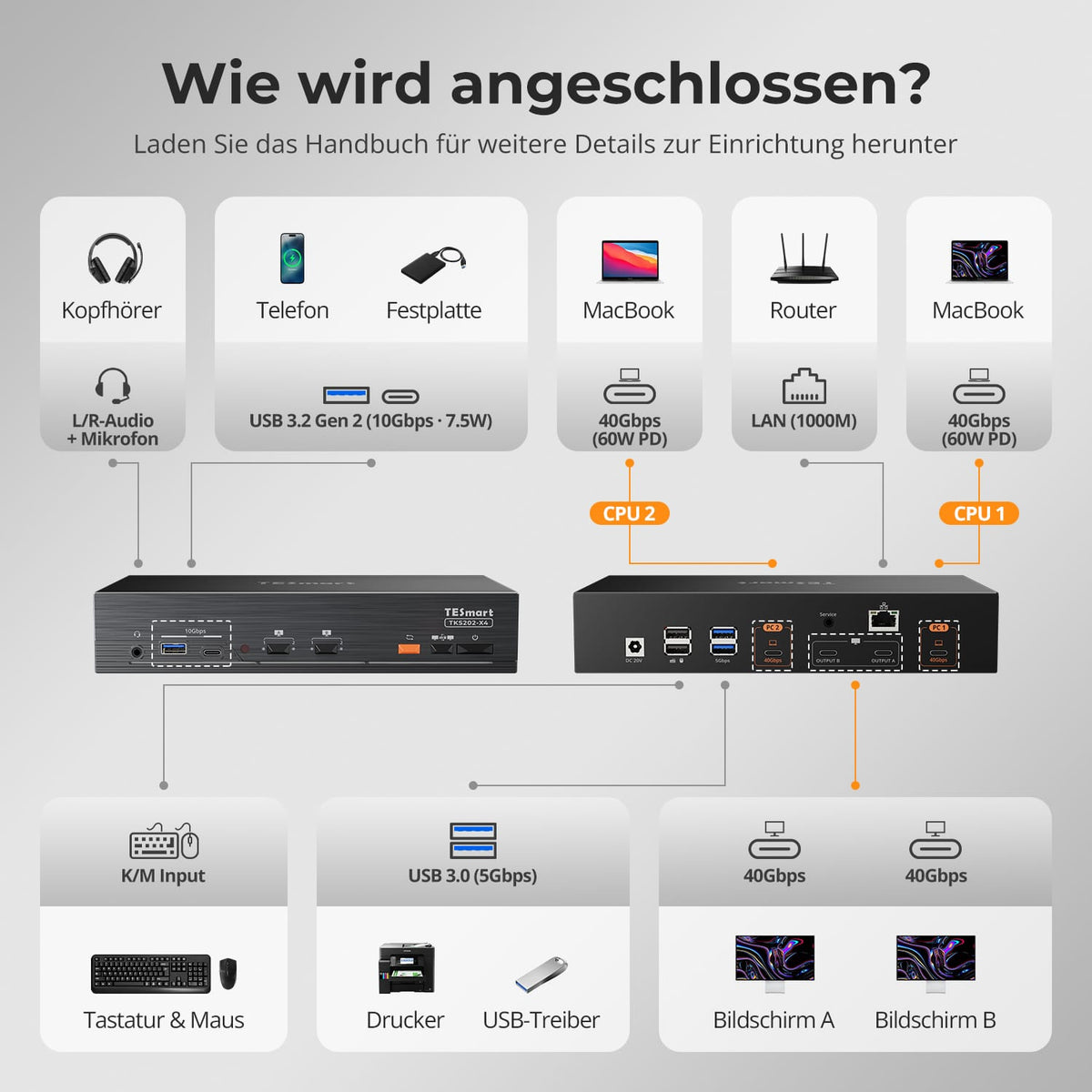
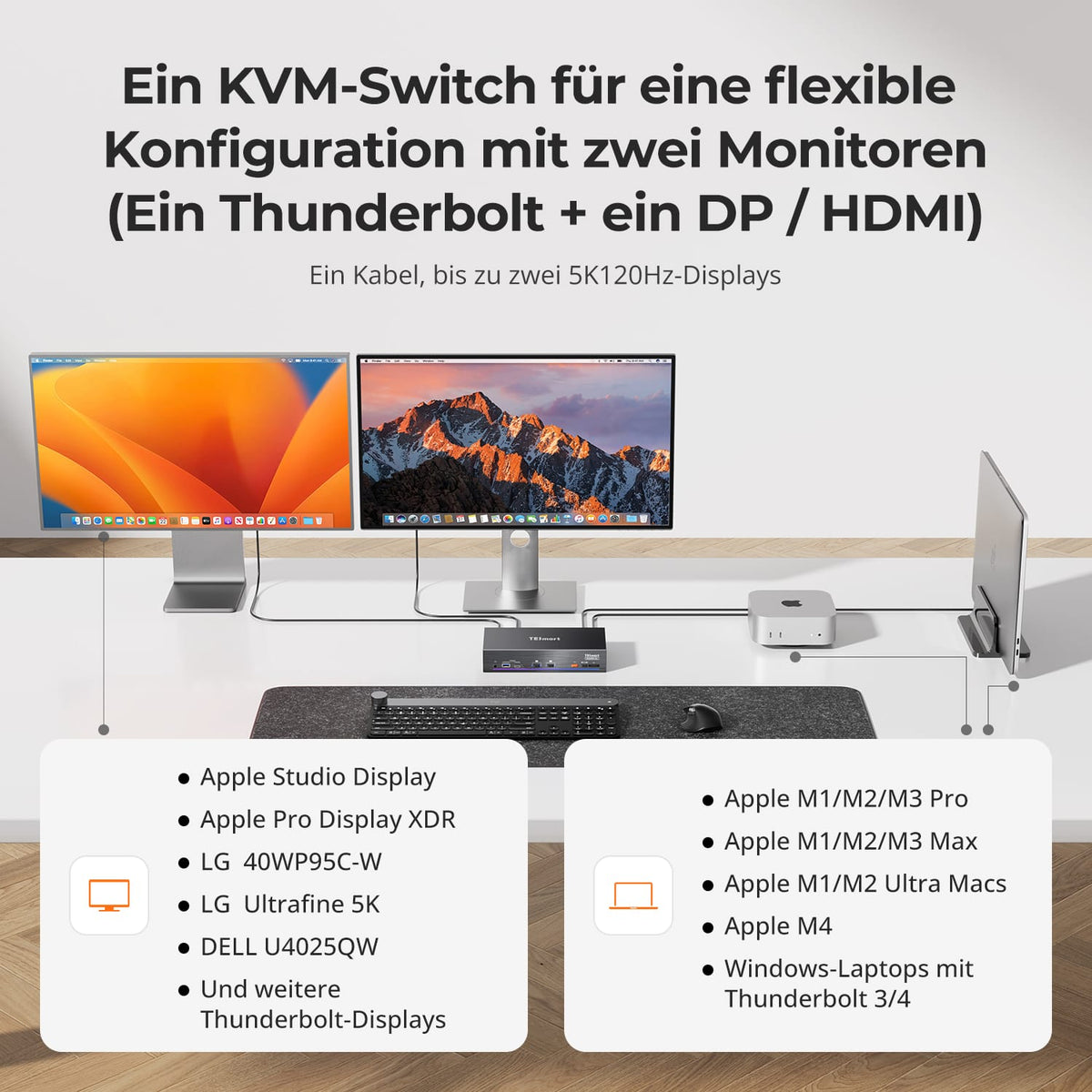
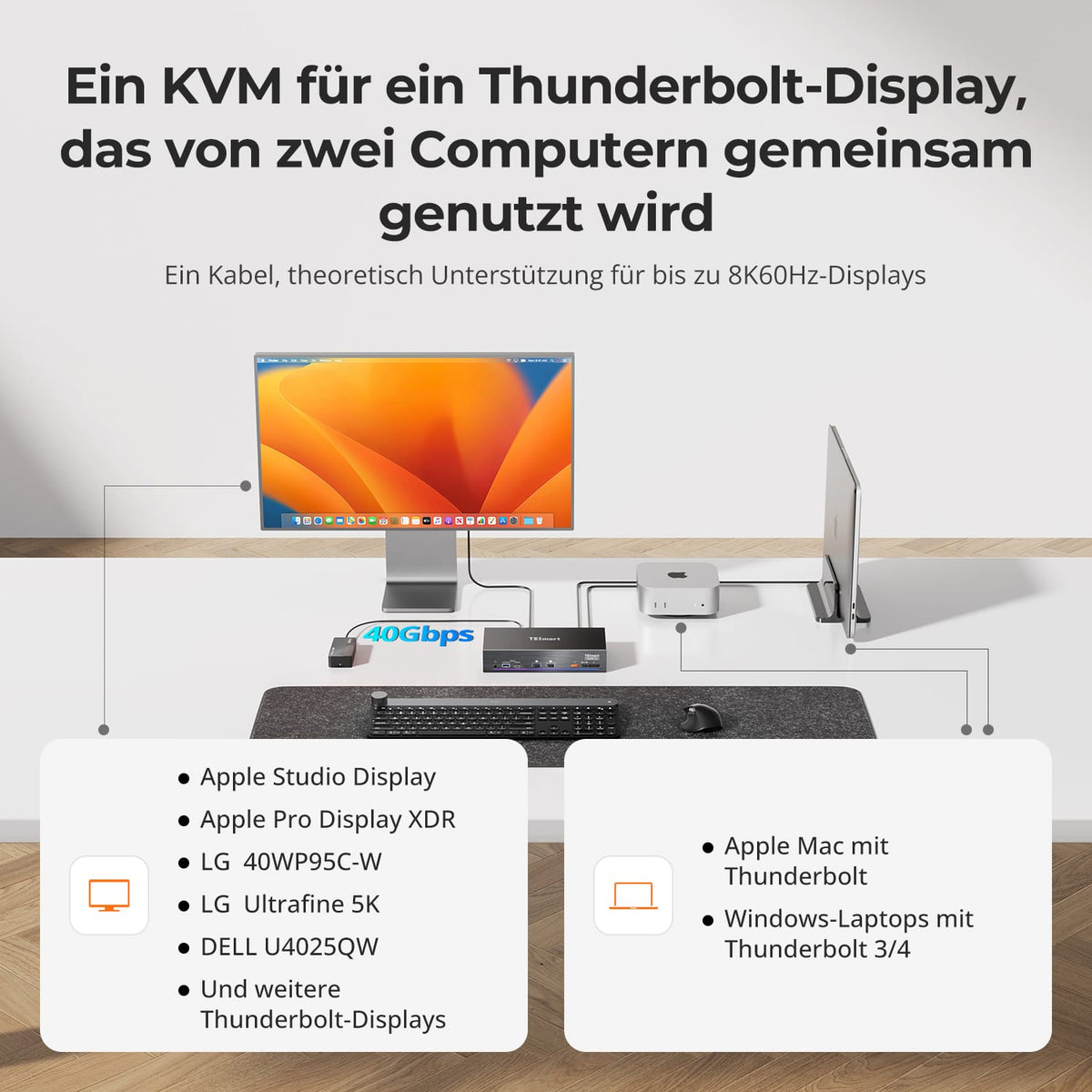

Monitorkonfiguration

Max. Auflösung
Thunderbolt-Controller

Kompatibilität

Laptop laden
Netzwerksteuerung


Monitorkonfiguration
Max. Auflösung
Kompatibilität

Für Spielkonsolen

Thunderbolt-PCIe-Anschluss

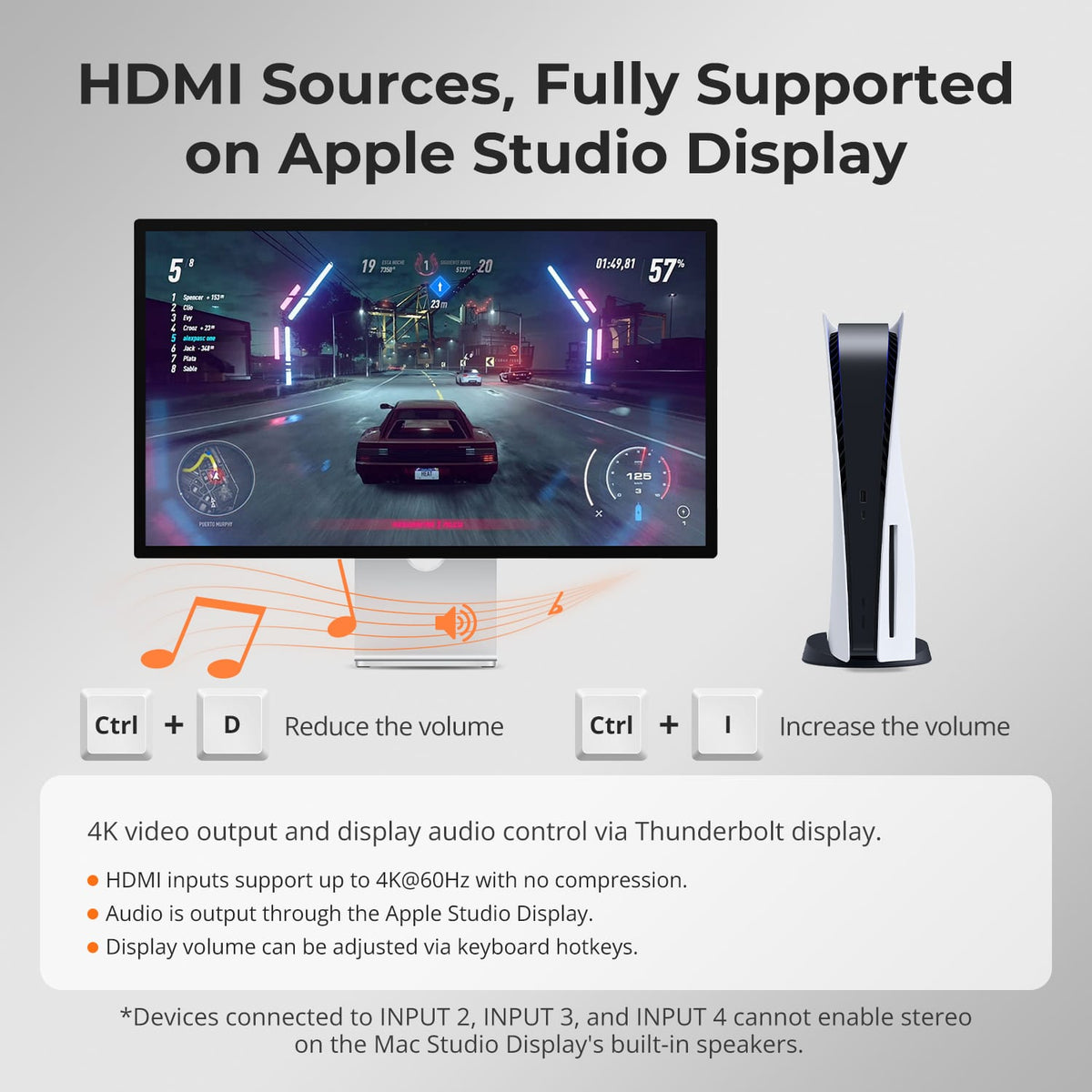
Stereo-Audio über HDMI


Monitorkonfiguration
Max. Auflösung
Thunderbolt-Controller

Anschlüsse
Kompatibilität
Laptop laden
Sources
2 × PCs (Thunderbolt™ 4)
Sources
1 × Mac (Thunderbolt™ 4)
1 × Windows PC
2 × HDMI sources
Sources
1× Laptop (Thunderbolt™ 4)
1× HDMI/DP desktop PC
Display setup
2 × Apple Studio Displays
Display setup
1 × Apple Studio Display
Display setup
2x HDMI monitors
Max. display output
Up to 6K@60Hz / 5K@120Hz
Max. display output
Entrance 1: 6K@60Hz / 5K@120Hz
Max. display output
Twice 4K@60Hz
Charge laptop
2 × 60W
Charge laptop
1 × 60W
Charge laptop
1 × 60W
Ideal for
Two Macs or Windows laptops with Thunderbolt 4 sharing two Apple Studio Displays
Ideal for
Mac, desktop PC and HDMI devices connected to one Apple Studio Display
Ideal for
Mac and desktop PC connected to two conventional monitors
Why a Thunderbolt KVM?
Traditional KVMs require separate video and USB cables. A Thunderbolt KVM combines video, data, and up to 60W charging power via USB. a cable – with up to 40 Gbit/s for high-resolution monitors and high refresh rates.
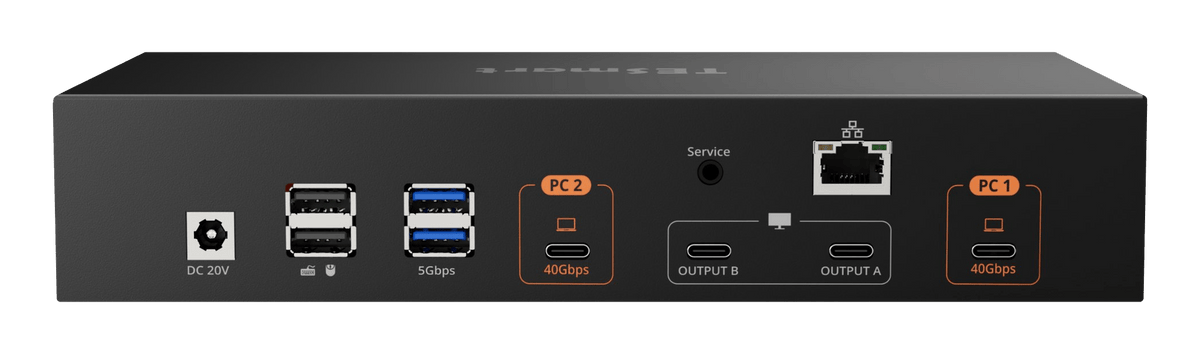
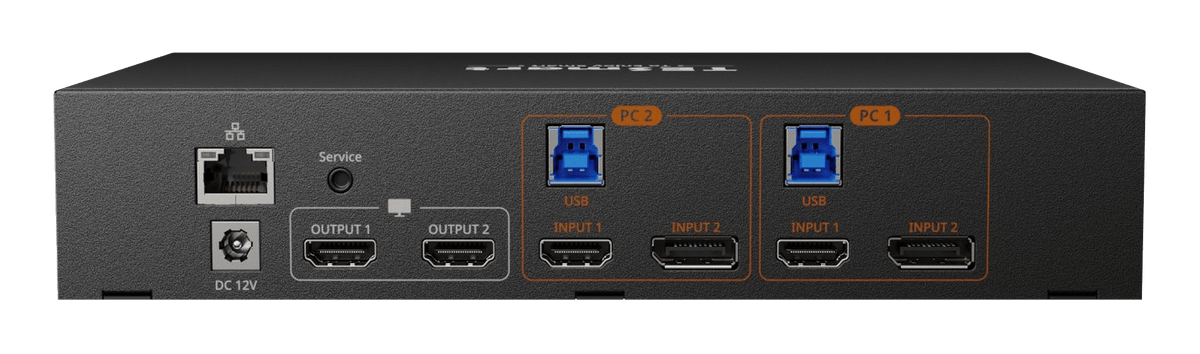
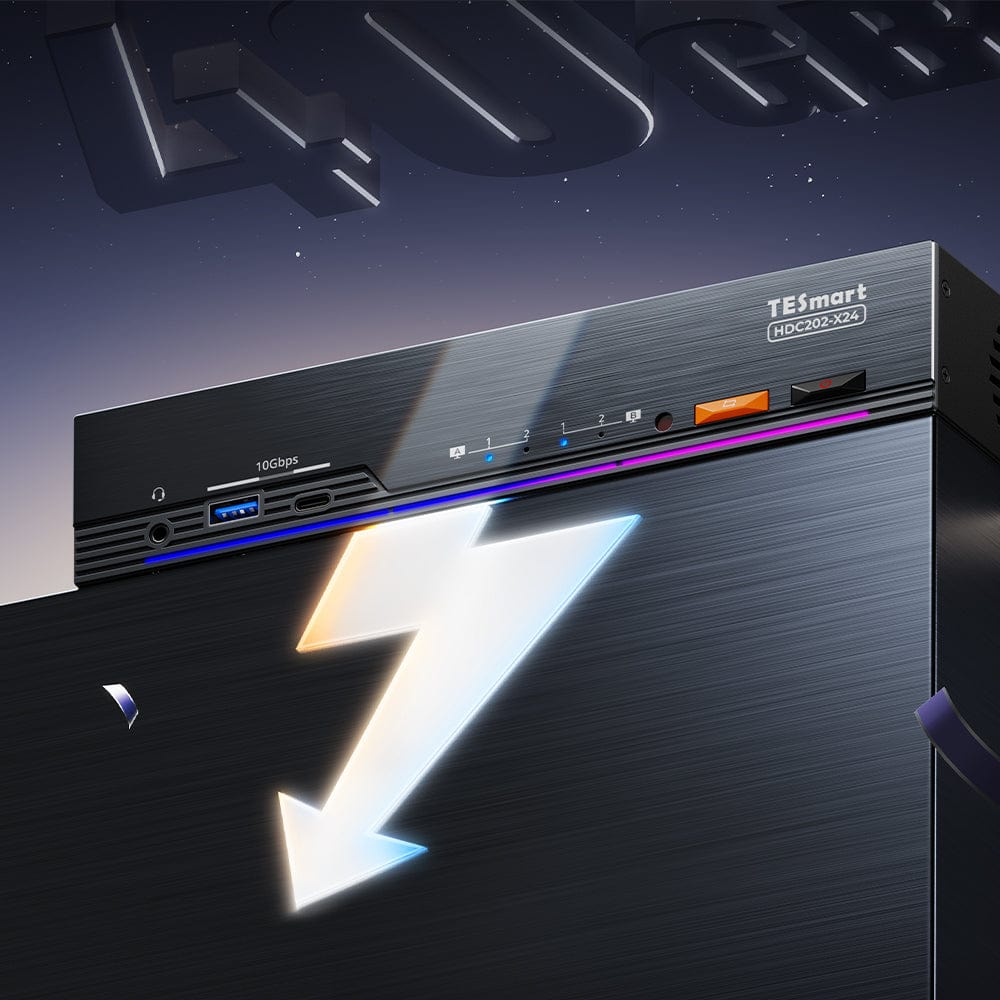
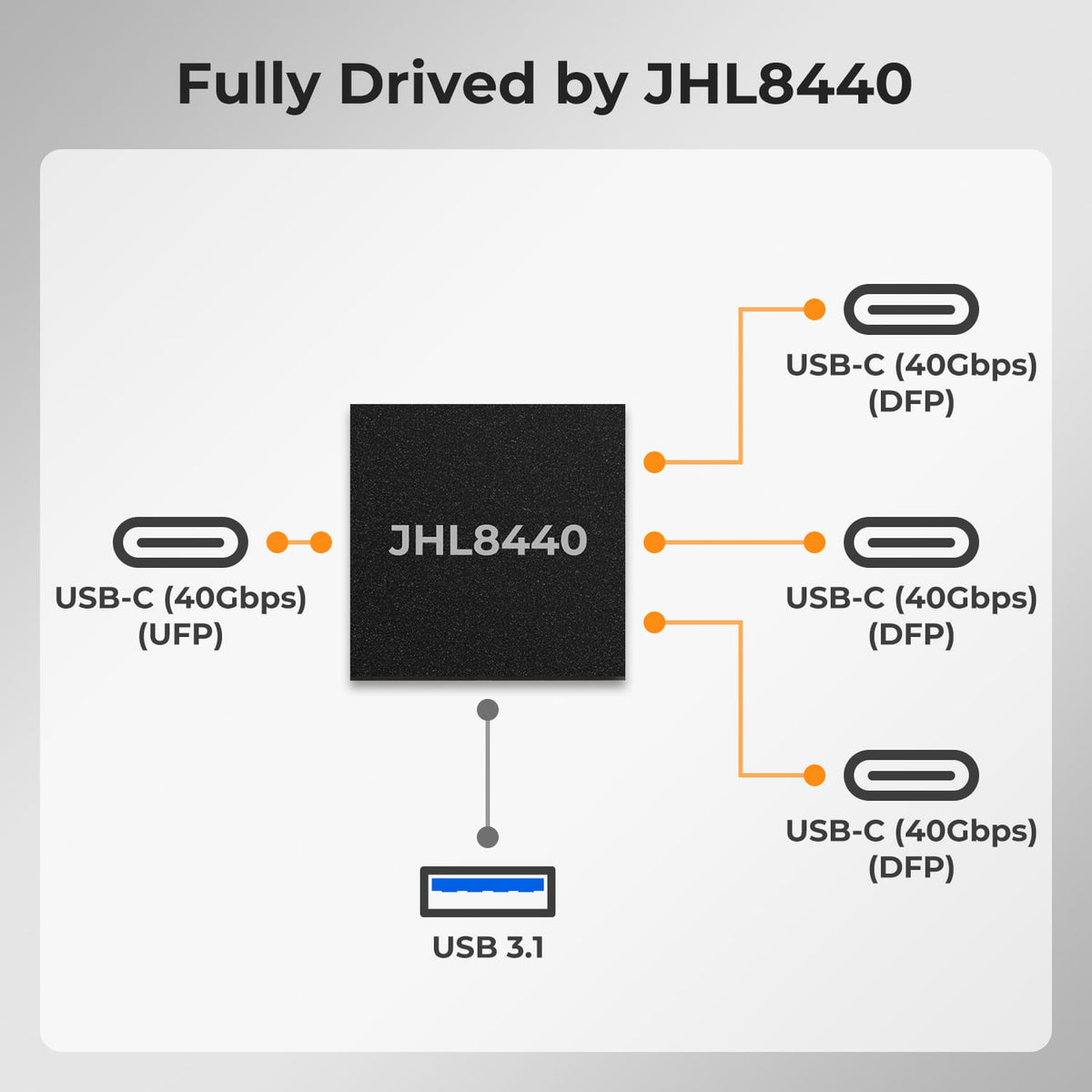
With Intel® JHL8440
Thunderbolt 4 controller. The Intel® JHL8440 provides the 40 Gbps connection for image, data and charging function.
One cable, full connection. DisplayPort video, PCIe data and 60W charging power – for 5K120/6K60 on compatible Thunderbolt monitors.
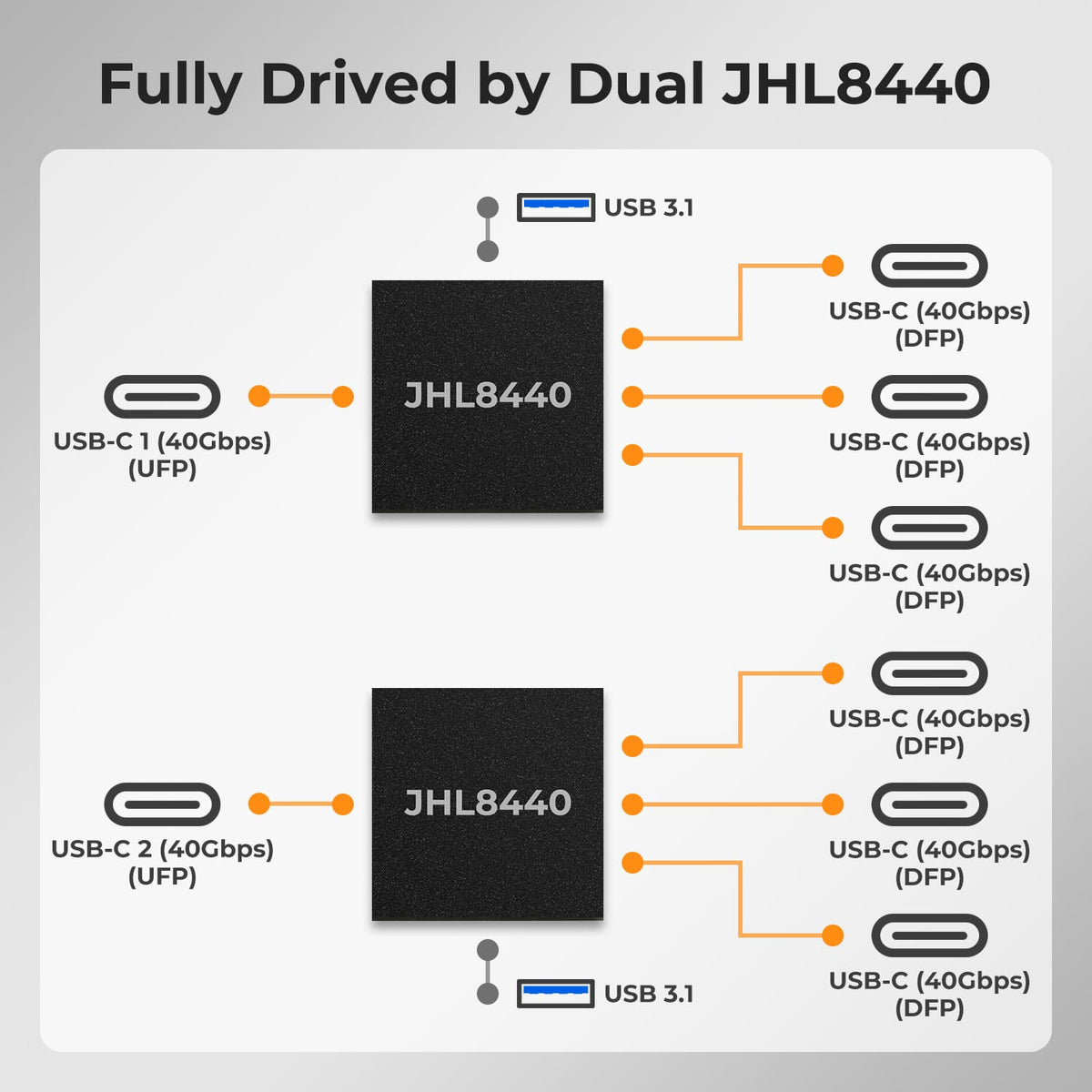
For Mac and Windows. The THK401-X4 and HDC202-X24 each use one JHL8440; the TKS202-X4 uses two.
Das sagen unsereKundenüber uns
Echte Bewertungen von Thunderbolt-KVM-Nutzern


„Ich nutze ihn mit Apple Studio Display, Mac und PS5. Die PS5 funktioniert gut, auch die Lautsprecher des Studio Display. Bei 4K60 sind Audio und Video synchron – eine tolle Erfahrung.“

„Funktioniert gut mit meinem MacBook Pro und Windows-PC. Thunderbolt 4 läuft stabil und die zusätzlichen HDMI-Eingänge sind praktisch für meine Konsole. Nur die Fernbedienung wirkt etwas leicht gebaut.“

„Endlich ein Dock, mit dem ich meine zwei 4K-Monitore zwischen Arbeitslaptop und privatem Desktop-PC wechseln kann, ohne etwas umzustecken. Das spart täglich Zeit. Solide Verarbeitung und bisher zuverlässig.“

„Teilt meine beiden Monitore und Geräte zwischen Arbeits- und Privatcomputer genau wie gewünscht. Einfach eingerichtet, schnelle Umschaltung. Einziger Grund für weniger als fünf Sterne ist das große Netzteil.“
„Ich verbinde mein MacBook und meinen Windows-Laptop über diesen KVM mit zwei 3440×1440-Monitoren und USB-C-HDMI-Adaptern. Anfangs gab es einige Probleme, die der Kundenservice alle lösen konnte.“
„Ich nutze ihn mit Apple Studio Display, Mac und PS5. Die PS5 funktioniert gut, auch die Lautsprecher des Studio Display. Bei 4K60 sind Audio und Video synchron – eine tolle Erfahrung.“
„Funktioniert gut mit meinem MacBook Pro und Windows-PC. Thunderbolt 4 läuft stabil und die zusätzlichen HDMI-Eingänge sind praktisch für meine Konsole. Nur die Fernbedienung wirkt etwas leicht gebaut.“
„Endlich ein Dock, mit dem ich meine zwei 4K-Monitore zwischen Arbeitslaptop und privatem Desktop-PC wechseln kann, ohne etwas umzustecken. Das spart täglich Zeit. Solide Verarbeitung und bisher zuverlässig.“
„Teilt meine beiden Monitore und Geräte zwischen Arbeits- und Privatcomputer genau wie gewünscht. Einfach eingerichtet, schnelle Umschaltung. Einziger Grund für weniger als fünf Sterne ist das große Netzteil.“
Thunderbolt KVM Guide

Frequently asked questions
What is a Thunderbolt™ KVM Switch?
A Thunderbolt KVM combines monitor display, PCIe data, USB, and laptop charging via a single Thunderbolt cable. Our solutions are based on the Intel® JHL8440 Thunderbolt™ 4 controller with 40 Gbps: two controllers in the TKS202-X4, and one each in the HDC202-X24 and THK401-X4. Suitable for compatible Mac and Windows computers.
HDC202-X24, THK401-X4 or TKS202-X4 – which one fits?
TKS202-X4: Two Thunderbolt 4 compatible computers share a workspace with two Thunderbolt monitors.
THK401-X4: An Apple Studio Display is shared by two computers and two additional HDMI sources.
HDC202-X24: Thunderbolt laptop and HDMI/DP desktop PC utilize two HDMI monitors with docking capabilities: 60W charging, Gigabit Ethernet and 10 Gbps USB, as well as support for high refresh rate gaming.
Do TKS202-X4 and THK401-X4 also work with other monitors?
Yes. In addition to Apple Studio Display, select Thunderbolt™ monitors are supported, including Apple Pro Display XDR and the LG and Dell models listed in the compatibility guide. Compatibility with standard USB-C monitors is model-dependent and not guaranteed. HDMI and DisplayPort monitors may work via suitable USB-C video adapters; stability depends on the adapter, monitor, and computer. Have any unlisted setups checked by TESmart Support before purchasing.
Is my computer compatible?
A full Thunderbolt™ 4 port is required. Suitable Thunderbolt™ 3/5 and tested USB4 systems are also listed in our compatibility guides. A USB-C connector alone is not sufficient: the port must support video, data, and KVM functionality. For dual monitors, the computer itself must support the desired external monitor configuration. If in doubt, contact TESmart Support.
Do USB and audio have to switch when changing monitors?
No. In the default Follow Mode, supported USB and audio devices follow the active computer. Deactivate this mode or use the model-dependent Focus Lock function to keep a headset or USB device connected to a computer and switch the display, keyboard, and mouse separately.
Are the computers loaded and connected to the network?
Compatible Thunderbolt™/USB upstream computers receive up to 60W Power Delivery and can share Gigabit Ethernet at speeds up to 1000 Mbps. These features are available on suitable Thunderbolt/USB upstream ports; HDMI-only sources do not receive power delivery or Ethernet. See the product page for connection details.
What are Pass-Through Mode and Legacy Emulation Mode?
Pass-Through Mode It is recommended for most current keyboards and mice and supports many advanced device functions.
Legacy Emulation Mode This can improve basic keyboard, mouse, and hotkey compatibility if a device is not working correctly in pass-through mode. Some advanced software features may be unavailable.
How do I switch between computers and devices?
Depending on the model, this can be done via buttons on the device, IR remote control, keyboard hotkeys, or the mouse wheel. Mouse wheel switching must first be activated. For hotkeys, connect a compatible wired USB keyboard connected to the designated keyboard port Note: Bluetooth keyboards, USB hubs, and some wireless receivers may not support hotkeys.
Do I need drivers or switching software?
Basic KVM functions such as switching between video and source devices, as well as keyboard and mouse, do not require dedicated switching software. However, individual USB, audio, or peripheral devices may require their own drivers or applications.
Her Thunderbolt setup add to
Up to 50% trade-in credit
DE: 3 working days · EU: 3–7 working days
Hassle-free returns & purchase guarantee
Register and receive 3 additional years of warranty

„Ich verbinde mein MacBook und meinen Windows-Laptop über diesen KVM mit zwei 3440×1440-Monitoren und USB-C-HDMI-Adaptern. Anfangs gab es einige Probleme, die der Kundenservice alle lösen konnte.“