

HDC403-P23-UKBK
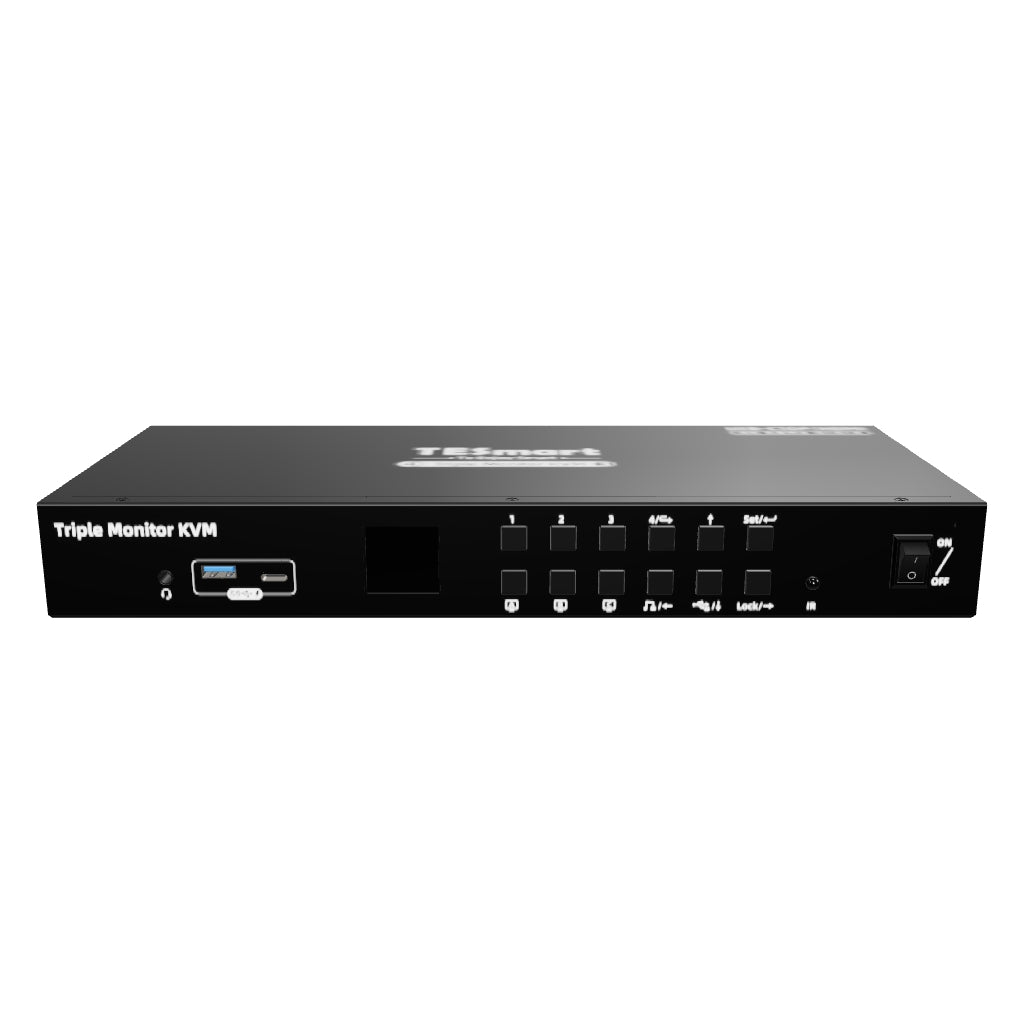
MST KVM dockingstationkit met drie monitoren - 4K60Hz, EDID voor 1 laptop en 3 pc's
- Regulärer Preis
-
€874,90 - Regulärer Preis
-
€874,90 - Verkaufspreis
-
€874,90
Abholverfügbarkeit konnte nicht geladen werden
Overzicht & Hoogtepunten
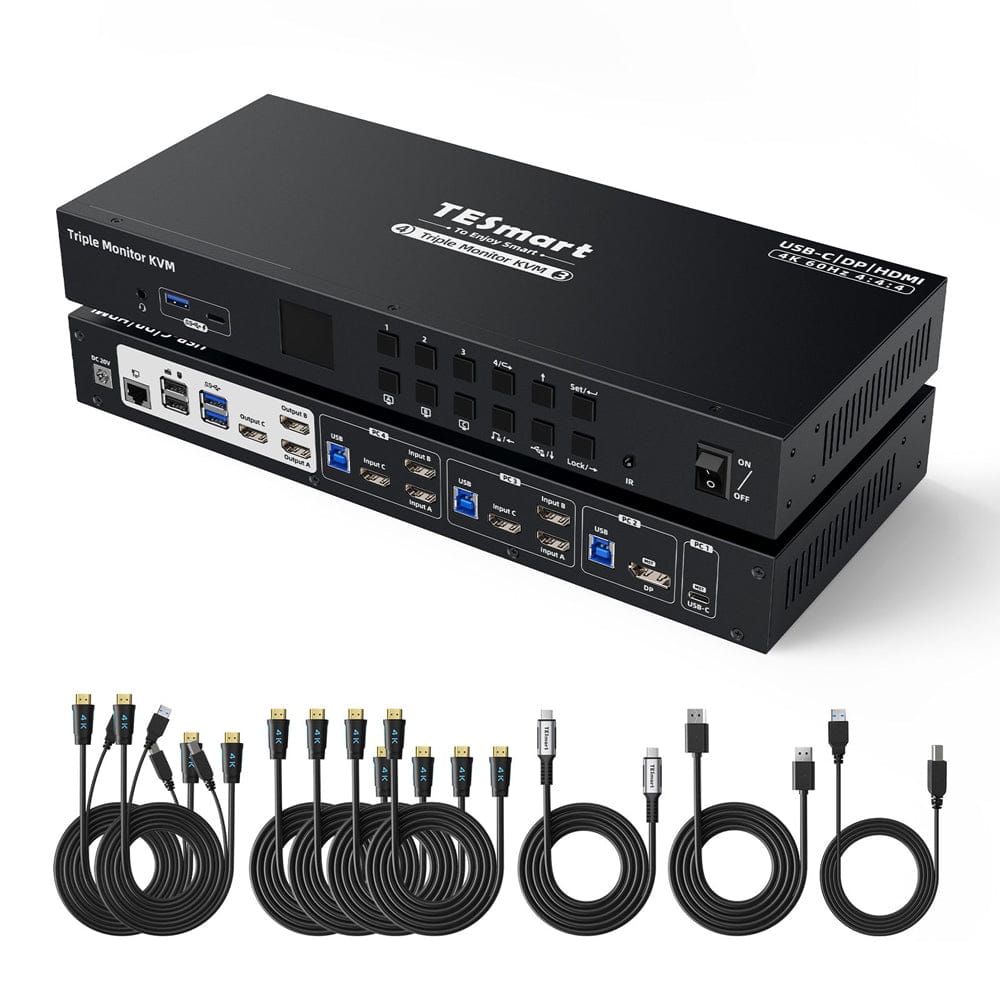
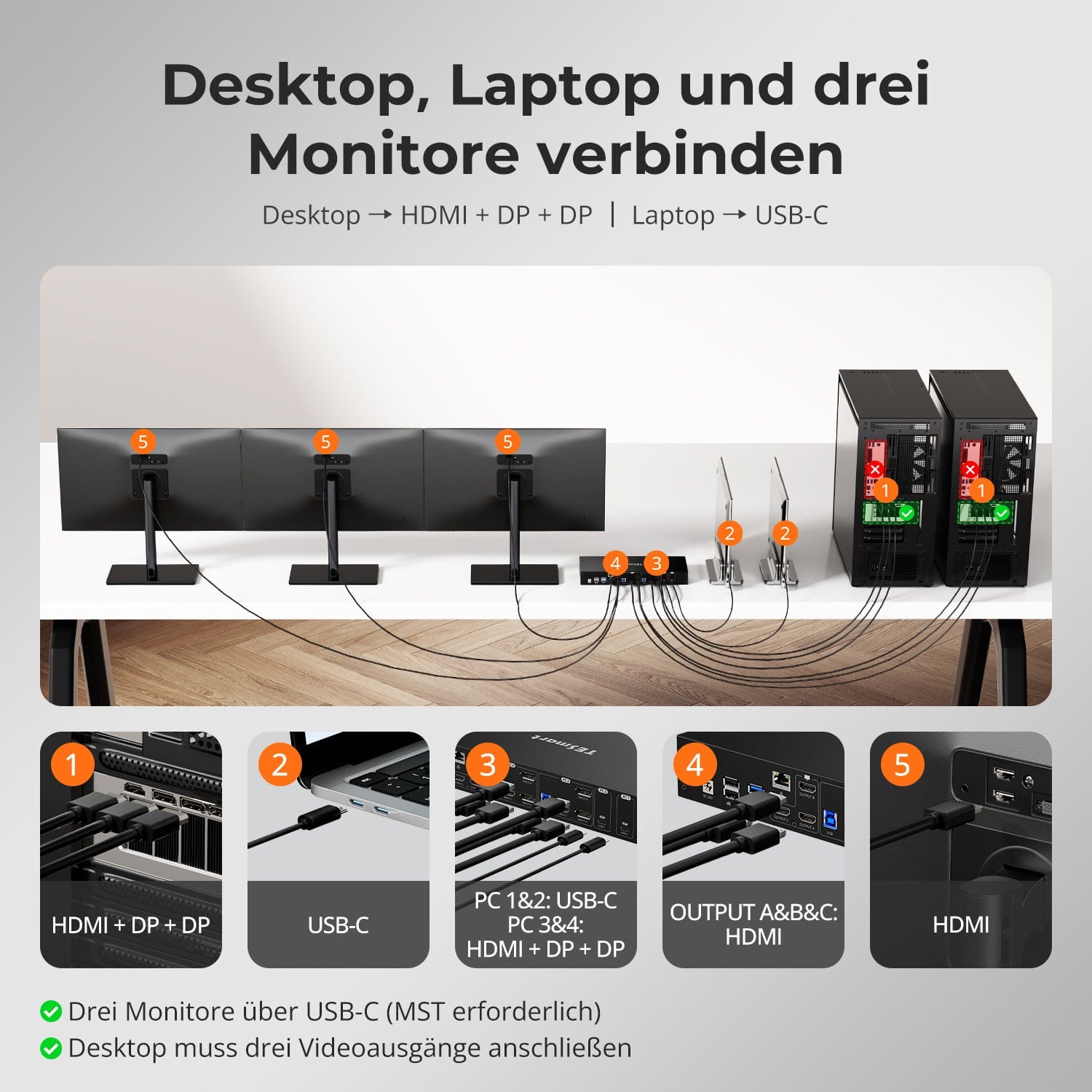
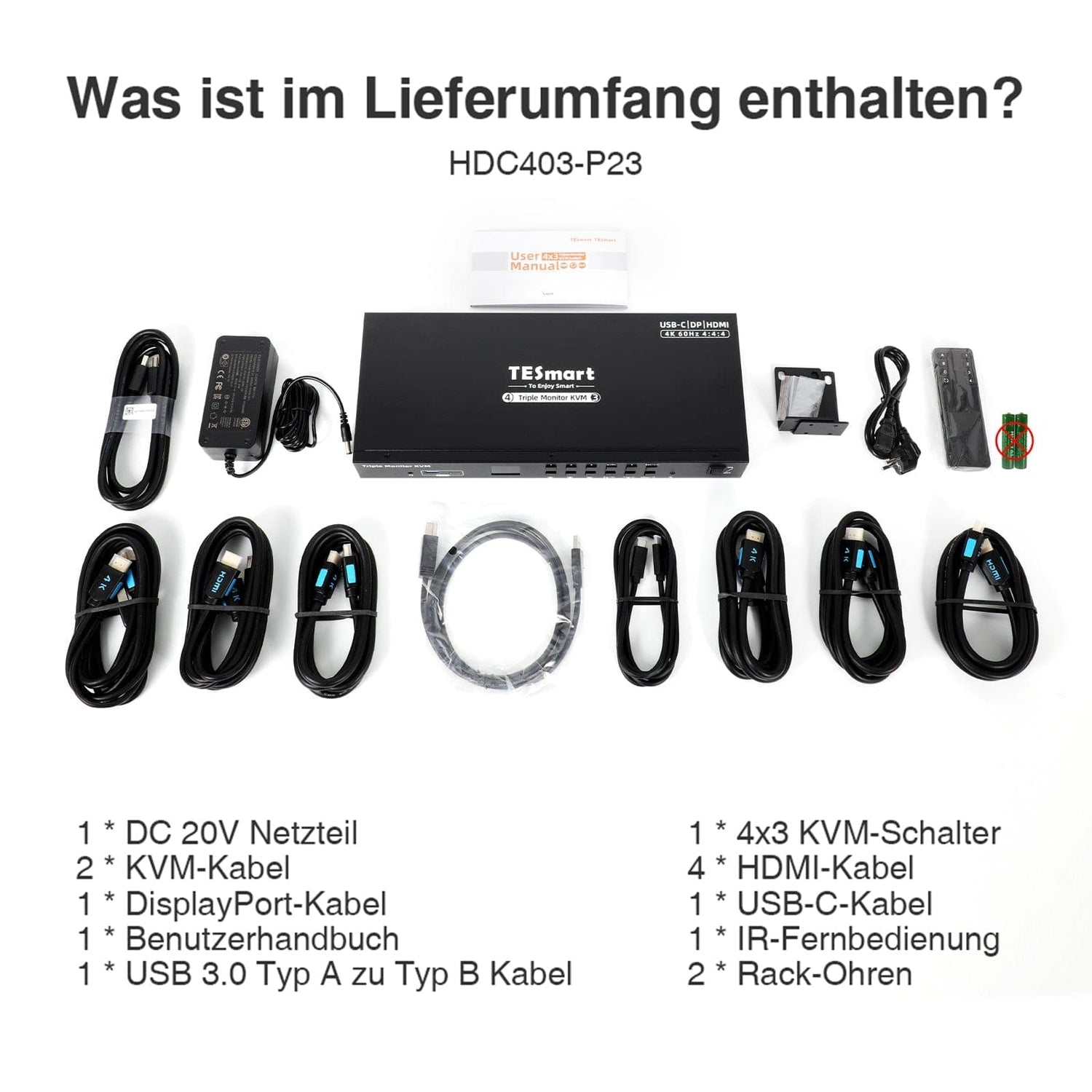
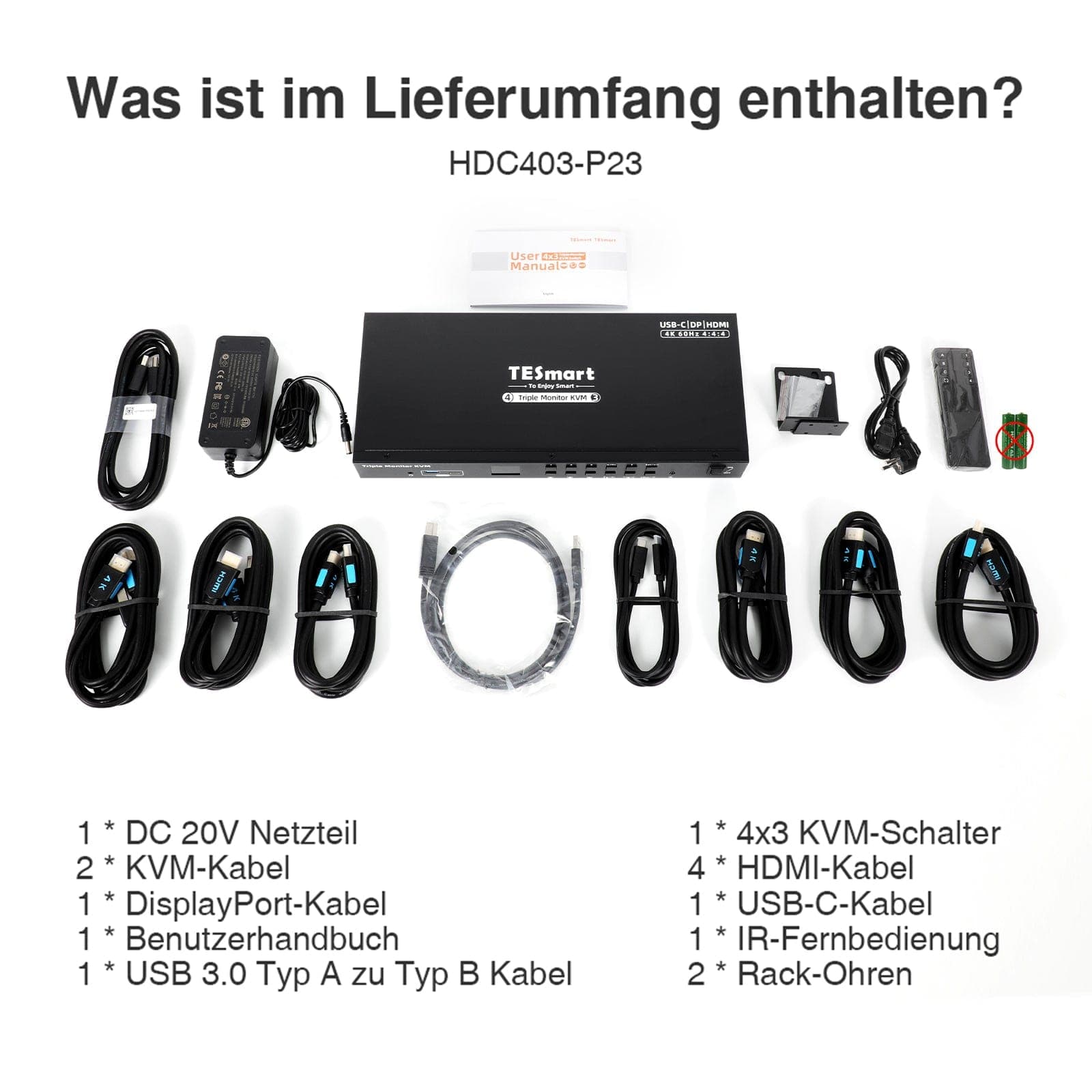
- Inclusief KVM-naar-pc-kabel (1*DisplayPort-kabel, 1*USB-C-kabel, 6*HDMI-kabel, 3*USB 3.0 Type-A naar Type-B-kabel) voor een complete installatie.
- Kies tussen gedeelde of onafhankelijke pc-weergaven met 2 modi.
- Wijzig eenvoudig de ingangen met behulp van sneltoetsen, de knop op het voorpaneel of de afstandsbediening. Naadloze toetsenbord- en muisbediening na het overschakelen.
- EDID-emulatie voorkomt het opnieuw ordenen van de resolutie en pictogrammen.
- Toetsenbord- en muisdoorvoer zorgen voor aanpassingsvermogen met verschillende toetsenborden, waaronder bekabelde, draadloze, mechanische en gamingtoetsenborden.
- KVM met één druk op de knop om privégegevens te beschermen, met audiopauze en vermindering van de helderheid van het LCD-scherm.
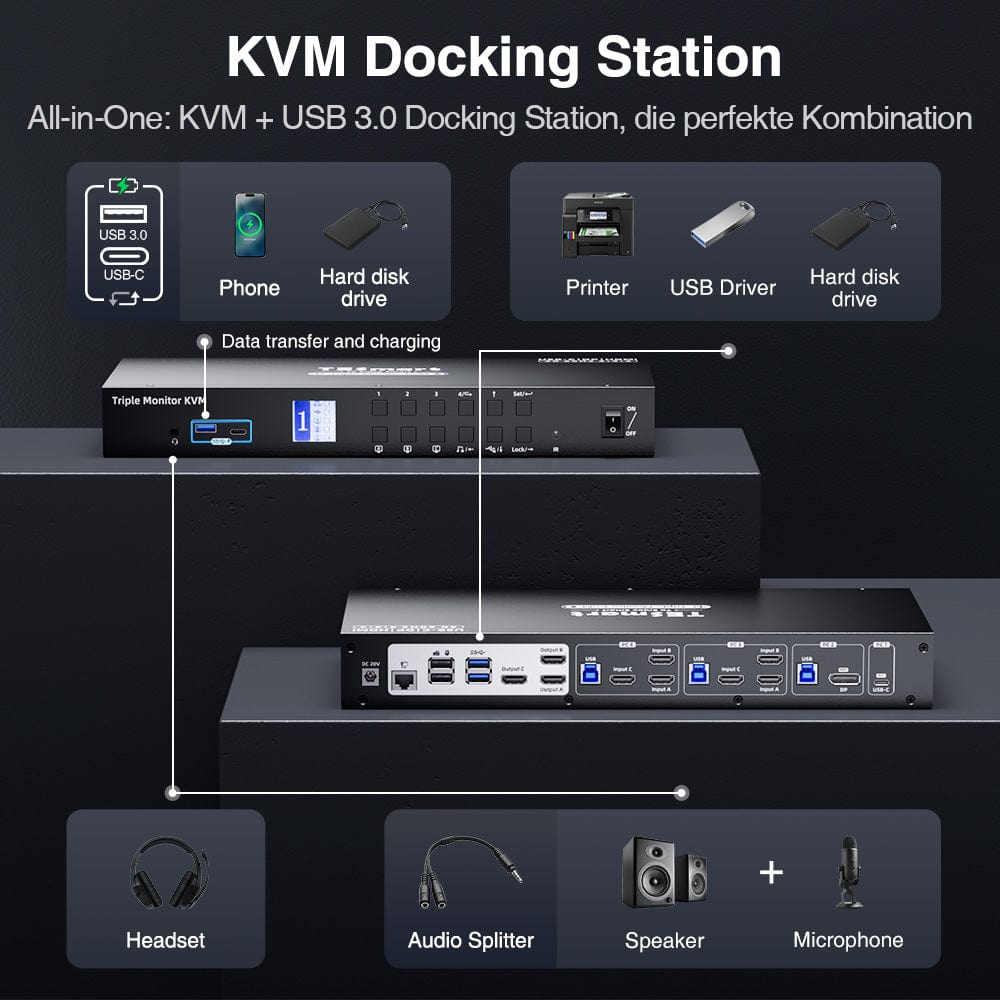
- LCD-visueel display voor eenvoudige installatie, uitgerust met 3 afsluitbare USB 3.0-kanalen en 1 geïntegreerde microfoon en L/R-audio-uitgang.
- Verwijderbare rackoren voor eenvoudige rackintegratie.
Leveringsomvang
- 1 * 4x3 KVM-switch
- 2 * KVM-kabels
- 4 * DP-kabels
- 2 * USB-C-kabels
- 1 * IR-afstandsbediening
- 1 * DC-20V voeding
- 1 * Gebruikershandleiding
- 2 * Rackpanelen
Downloads & Gebruikershandleiding



Ons verzendbeleid bestaat uit de volgende 7 onderdelen:
Verwerkingstijd van de bestelling (levertijd)
- Verzendkosten & Levertijd
- Bestelling volgen
- Vertraagde leveringen
- Bestellingen annuleren
- Sturen & Douanerechten
- Neem contact met ons op
1. Verwerkingstijd van de bestelling
De orderverwerkingstijd verwijst naar de periode vanaf het moment van de bestelling tot het moment dat de bestelling wordt overhandigd aan de verzenddienstverlener.
• Bestellingen worden doorgaans binnen 1-2 werkdagen na bevestiging/betaling verzonden.
• Bestellingen die in het weekend worden geplaatst, kunnen vertraging oplopen.
• Ons magazijn is geopend van maandag tot en met vrijdag tijdens reguliere kantooruren (met uitzondering van feestdagen). In dergelijke gevallen zullen we er alles aan doen om vertragingen in de verzending tot een minimum te beperken.
We hebben magazijnen in Duitsland en andere regio's. Uw bestelling wordt rechtstreeks vanuit het dichtstbijzijnde magazijn verzonden, afhankelijk van uw bezorgadres. Als het product niet op voorraad is in het dichtstbijzijnde magazijn, verzenden we uw bestelling vanuit een ander nabijgelegen magazijn om ervoor te zorgen dat u deze zo snel mogelijk ontvangt.
Verzending naar het Verenigd Koninkrijk 🇬🇧
Om een vlotte levering en correcte douaneafhandeling te garanderen, worden bestellingen uit het Verenigd Koninkrijk verwerkt via onze Amerikaanse webshop.
Bestellingen naar adressen in het Verenigd Koninkrijk kunnen niet via onze EU-webshop worden verzonden.
2. Verzendkosten & Levertijd
| Land of regio | Geschatte levertijd | Verzendkosten | Logistieke dienstverlener |
| Duitsland | 3 werkdagen | Gratis verzending | DHL |
| Andere EU-landen | 3-7 werkdagen | Gratis verzending | DHL/DPD |
| Niet-EU-landen | 5-12 werkdagen | Vanaf 60 euro | UPS |
3. Bestelling volgen
4.Vertraagde leveringen
5. Annulering van de bestelling
6. Belastingen & Douanerechten
7. Neem contact met ons op
- TESmart-bestellingen worden automatisch verwerkt. Zodra ze verzonden zijn, kunnen ze niet meer worden geannuleerd of gewijzigd, ook niet het adres.
- Als u het product wilt retourneren of een terugbetaling wilt aanvragen, neem dan binnen 30 dagen na ontvangst van het product contact met ons op via service@tesmart.de.
- Retourneren is alleen mogelijk als het product ongebruikt, compleet en in de originele verpakking is.
- Bij retourzendingen die niet te wijten zijn aan kwaliteitsproblemen, zijn de retourverzendkosten voor rekening van de klant.
- TESmart vergoedt de retourverzendkosten bij retourzendingen of terugbetalingen vanwege kwaliteitsproblemen.
- Producten waarnaar wordt gezocht 30 dagen en binnen 2 jaar Artikelen met gebreken kunnen niet worden geretourneerd, maar na inspectie kunnen ze worden gerepareerd of vervangen (alleen hetzelfde model, vervanging heeft de voorkeur voor leden).
- Tussen de 2e en 3e. Er wordt dit jaar geen retour- of terugbetalingsservice aangeboden. Leden kunnen na 3 maanden Als onderdeel van het inruilbeleid wordt vanaf de aankoopdatum een korting van [bedrag] verleend. tot 50% U ontvangt een terugbetaling van de oorspronkelijke productprijs in mindering op de aankoop van een nieuw product. Voor de gedetailleerde voorwaarden kunt u terecht op: https://tesmart.de/pages/tesmart-id-trade-in
- Terugbetalingen worden binnen 5 werkdagen na ontvangst van de goederen in het magazijn verwerkt.
Voor vragen: service@tesmart.de
Volledige richtlijnen:

Technische gegevens
| Produkattribute | |
|---|---|
Modell (SKU) |
HDC403-P23-UKBK
|
Kompatibles Setup |
|
Max Resolution |
|
Supported Resolutions |
|
VRR (Variable Bildwiederholfrequenz) |
|
MST (Multi-Stream Transport) |
|
Laptop-Aufladung |
|
Netzwerkanschluss |
|
Independent Audio Focus Switching |
|
Independent Audio Focus Locking |
|
Thunderbolt 4 Ports |
|
EDID Emulation |
|
Umschaltmethoden |
|
Belegbare Hotkeys |
|
Legacy-Emulationsmodus |
|
Input Ports |
|
Output Ports |
|
Docking Ports |
|
Anzeigemodi |
|
Handbuch (PDF) |
|
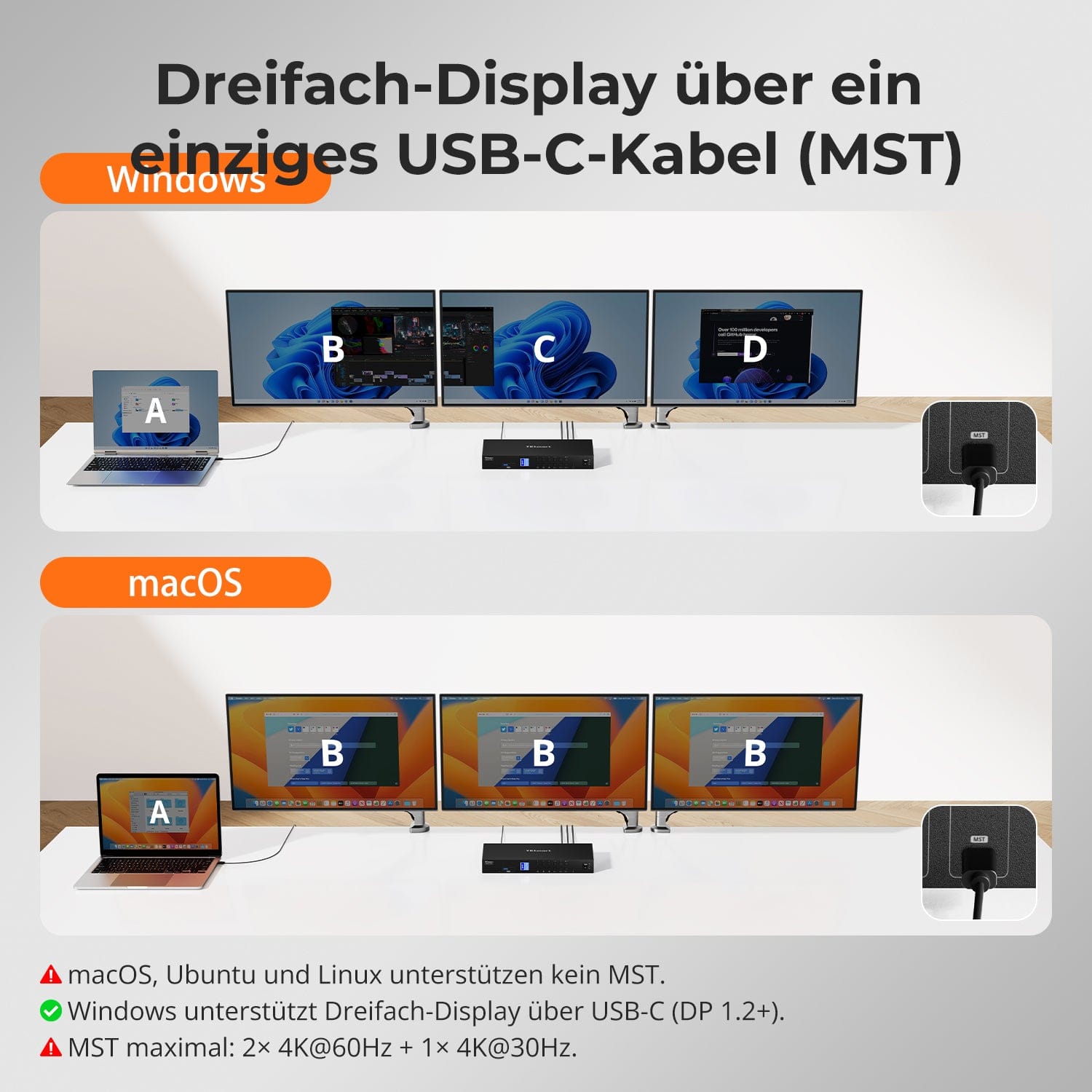
Drievoudige weergave via een enkele USB-C-kabel (MST)
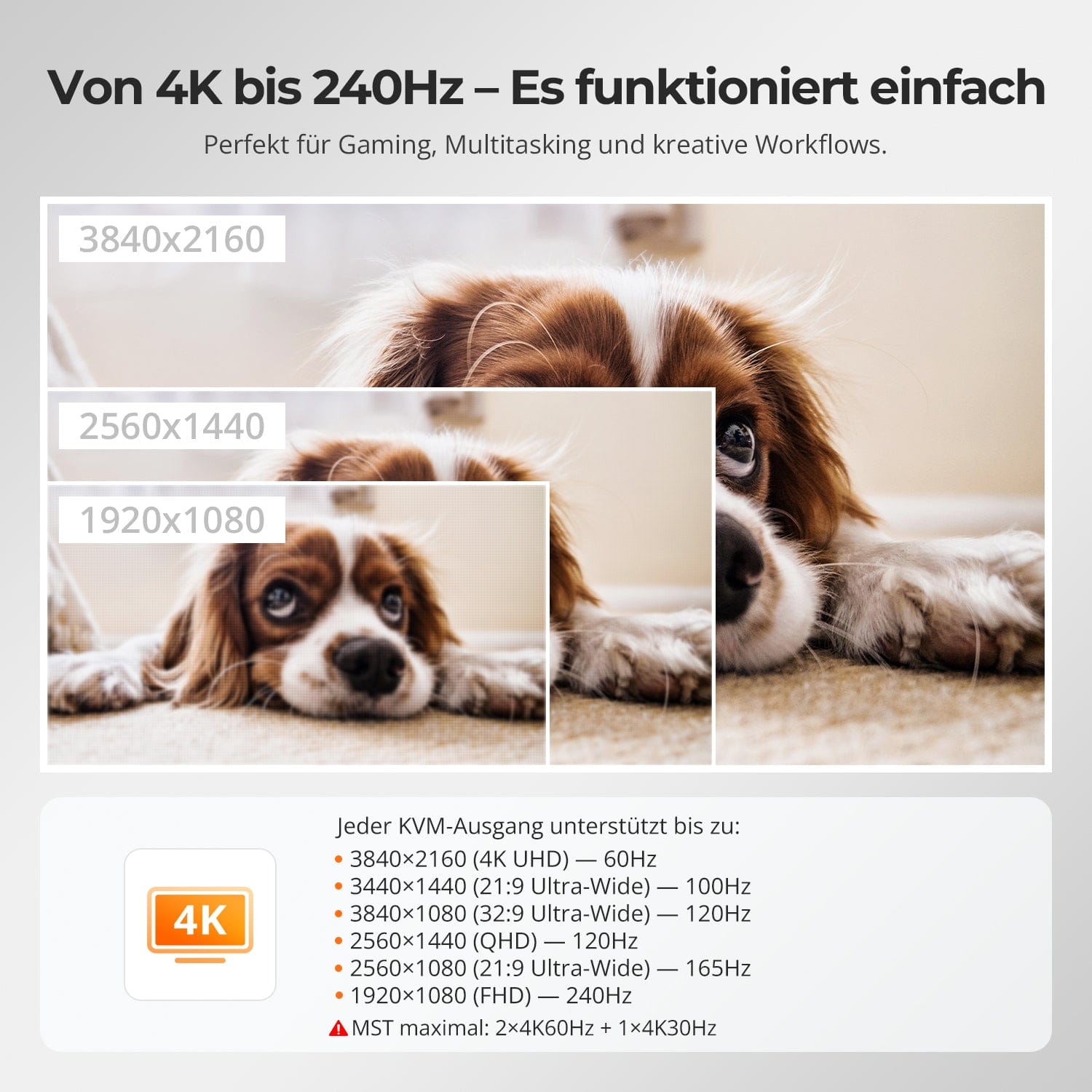
Van 4K tot 240 Hz – het werkt gewoon
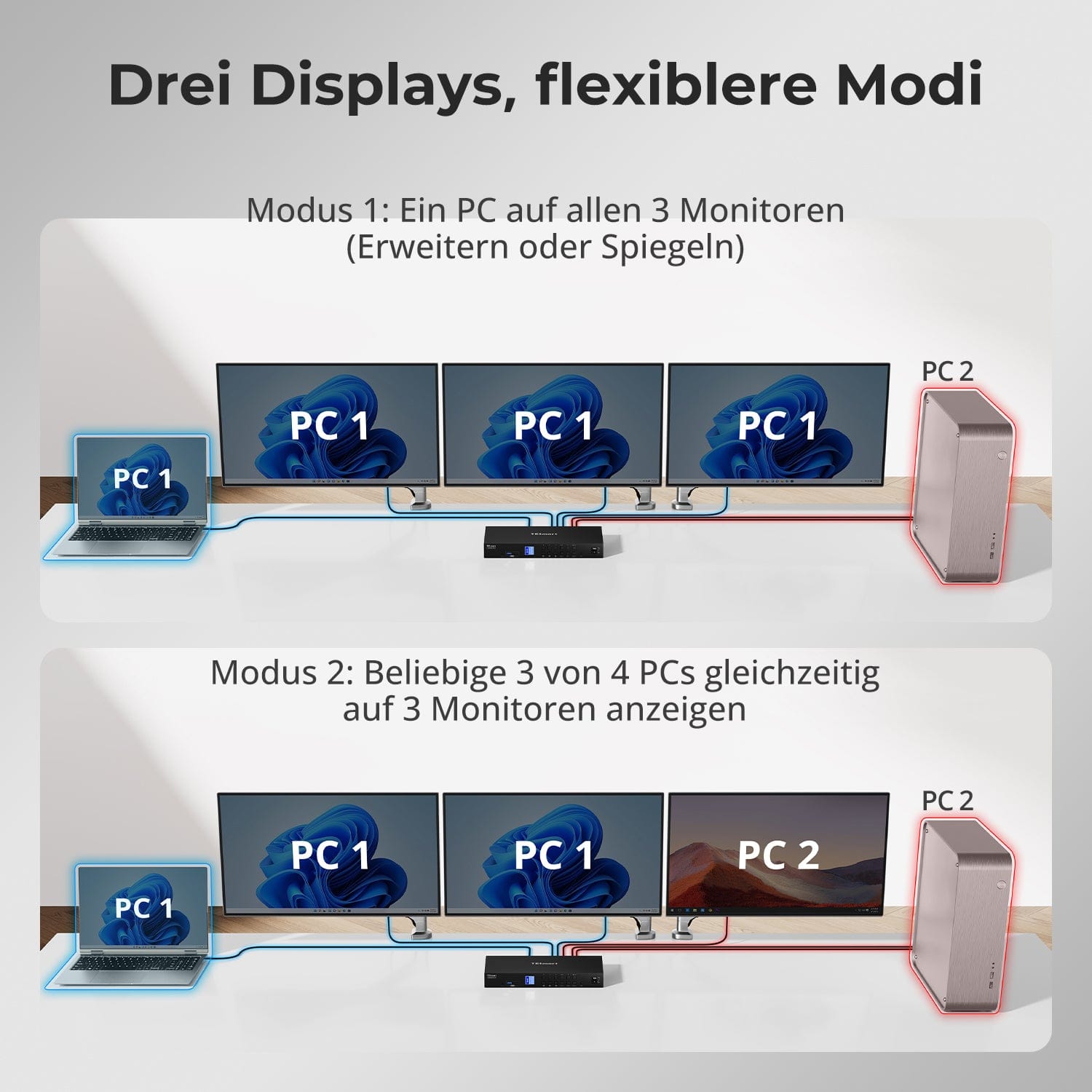
Drie displays, flexibelere modi
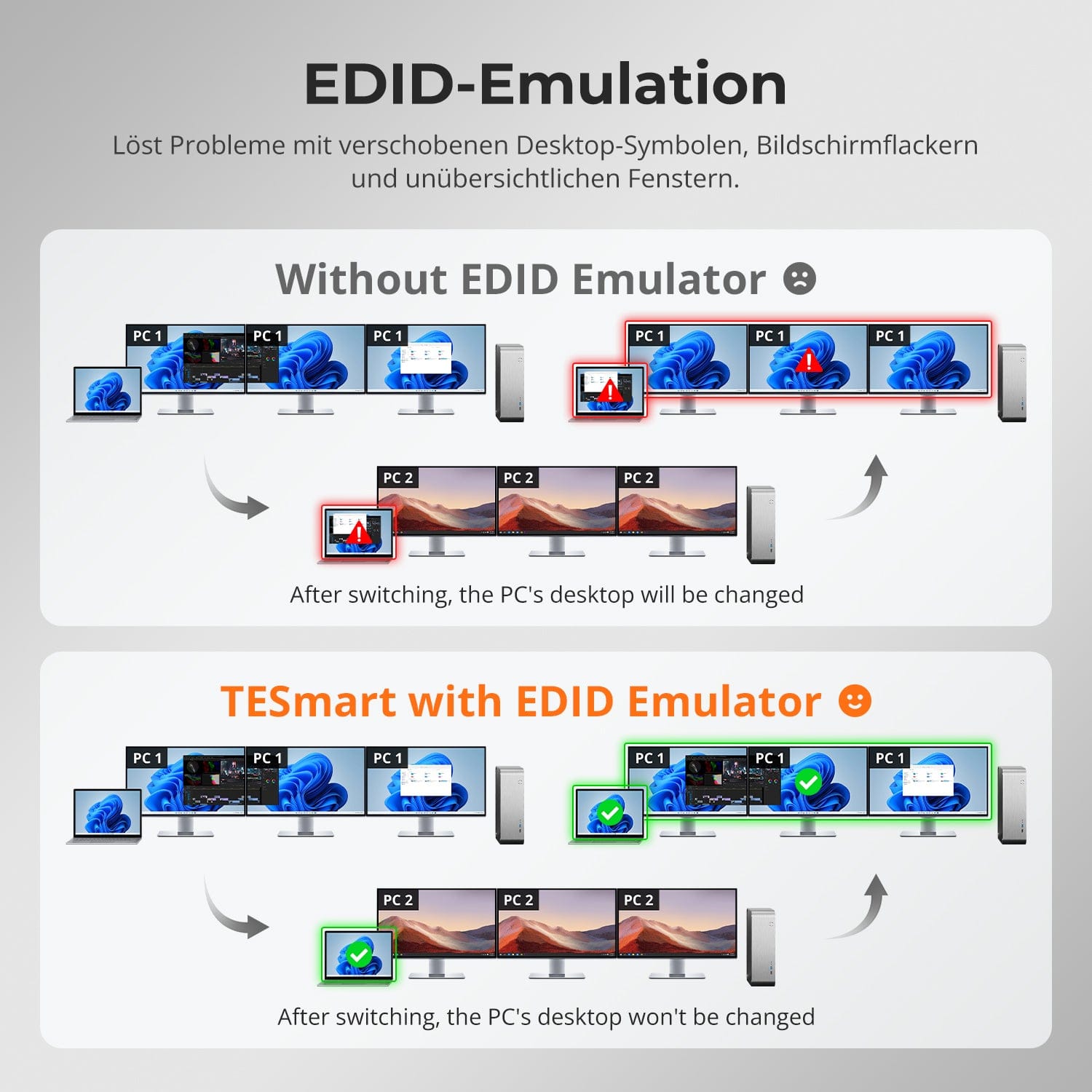
EDID-emulatie – Stabiele schermen, geen verrassingen
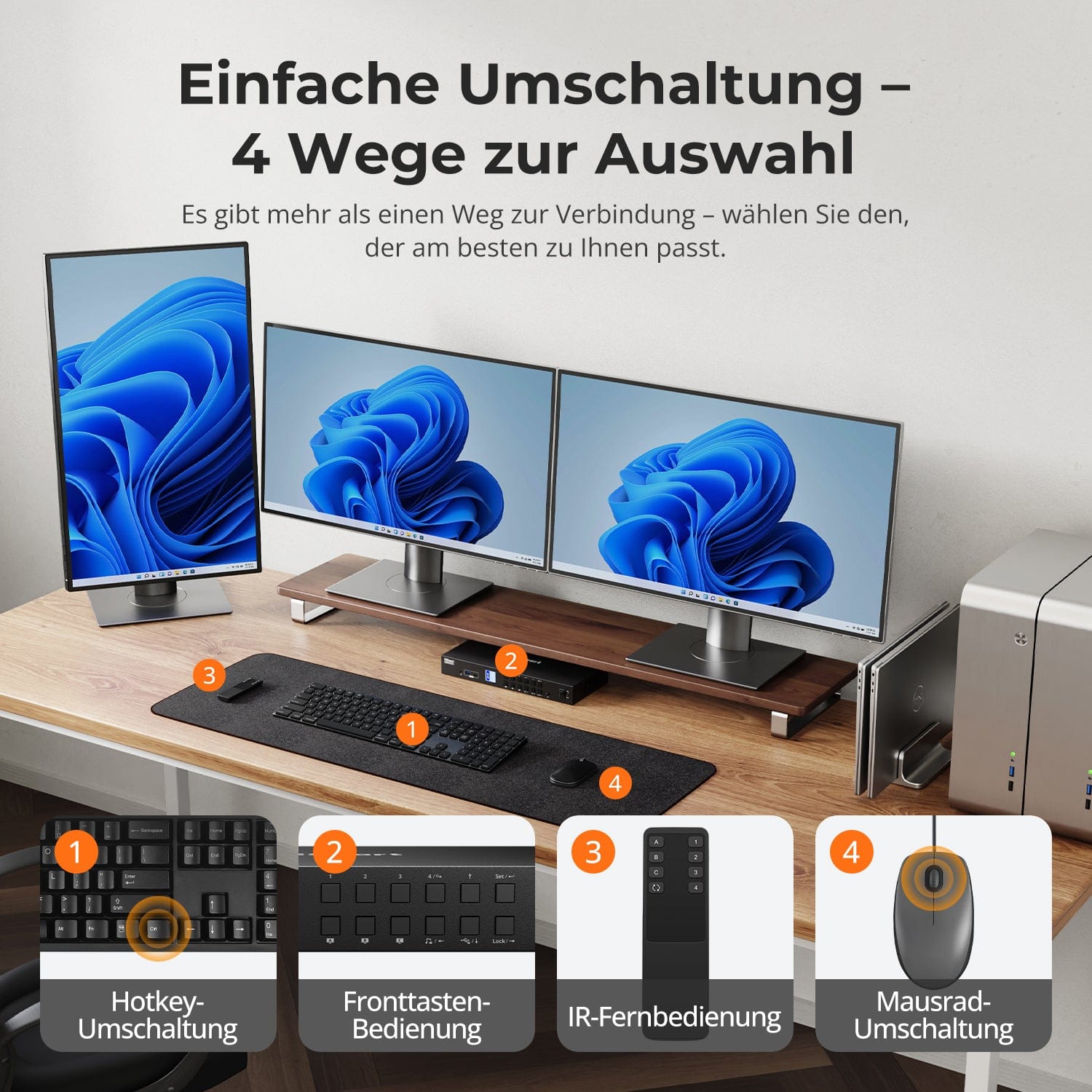
Eenvoudig overstappen – 4 manieren om uit te kiezen
Breid je werkruimte uit naar drie monitoren – met slechts één USB-C-kabel, dankzij MST (Multi-Stream Transport). Geen dockingstation nodig.
⚠️ macOS, Ubuntu en Linux ondersteunen geen MST.
✅ Windows ondersteunt drie beeldschermen via USB-C (DP 1.2+).
⚠️ Maximale configuratie: 2× 4K@60Hz + 1× 4K@30Hz.
Eén schakelaar, eindeloze mogelijkheden. Of het nu gaat om gamen, contentcreatie of workflows met meerdere vensters – onze KVM-switch kan moeiteloos overweg met een breed scala aan resoluties en verversingsfrequenties.
Elke KVM-uitgang ondersteunt maximaal:
• 3840×2160 (4K UHD) — 60 Hz
• 3440×1440 (21:9 ultrabreed) — 100 Hz
• 3840×1080 (32:9 ultrabreed) — 120 Hz
• 2560×1440 (QHD) — 120Hz
• 2560×1080 (21:9 ultrabreed) — 165 Hz
• 1920×1080 (FHD) — 240Hz
⚠️ MST-maximum: 2×4K60Hz + 1×4K30Hz
• Modus 1: Eén pc op alle 3 monitoren (uitbreiden of spiegelen)
Gebruik één pc om alle drie de monitoren aan te sturen. Ideaal voor workflows met meerdere vensters, zoals videobewerking, financiële dashboards of meeslepende simulaties. Spiegel of breid het scherm uit via de systeeminstellingen.
• Modus 2: Toon 3 van de 4 pc's tegelijk op 3 monitoren
Wijs aan elke monitor een andere pc toe. Wijs bijvoorbeeld pc1 toe aan monitor A, pc2 aan monitor B en pc4 aan monitor C – elke combinatie is mogelijk. Perfect voor ontwikkelaars, cybersecuritylabs of het bewaken van meerdere systemen.
Het wisselen tussen beeldschermen mag uw bureaublad niet in de war brengen. Onze geïntegreerde EDID-emulator zorgt ervoor dat uw lay-out precies zo blijft als u deze hebt achtergelaten.
• Geen verkeerd geplaatste symbolen meer
Behoudt de positie van bureaubladpictogrammen en de grootte van geopende vensters bij het wisselen van invoerbronnen.
• Schakelen zonder flikkering
Voorkomt schermuitval en flikkering als gevolg van het opnieuw initialiseren van het beeldscherm.
• Soepeler multitasken
Zorgt voor visuele consistentie tussen werkstations en monitoropstellingen.
✅ Met TESmart EDID-emulatie: uw weergave blijft stabiel en ongewijzigd, zelfs na het wisselen van kanalen.
⚠️ Zonder EDID-emulatie: pictogrammen bewegen, venstergroottes veranderen en het scherm flikkert na elke wijziging.
Overstappen hoeft u niet te vertragen – we bieden vier naadloze methoden die geschikt zijn voor elke configuratie en gewoonte:
• Sneltoetsen voor het wisselen van bronnen – Vaste toetscombinaties voor snel schakelen tussen bronnen
• Bediening via de knoppen aan de voorzijde – Directe toegang, altijd en gemakkelijk
• IR-afstandsbediening – Gemakkelijke bediening vanaf uw bureau
• Schakelen met het muiswiel – Dubbeltik en schakel direct
Of je nu aan het werk bent, aan het gamen bent of presentaties geeft – kies de methode die het beste bij jouw workflow past.


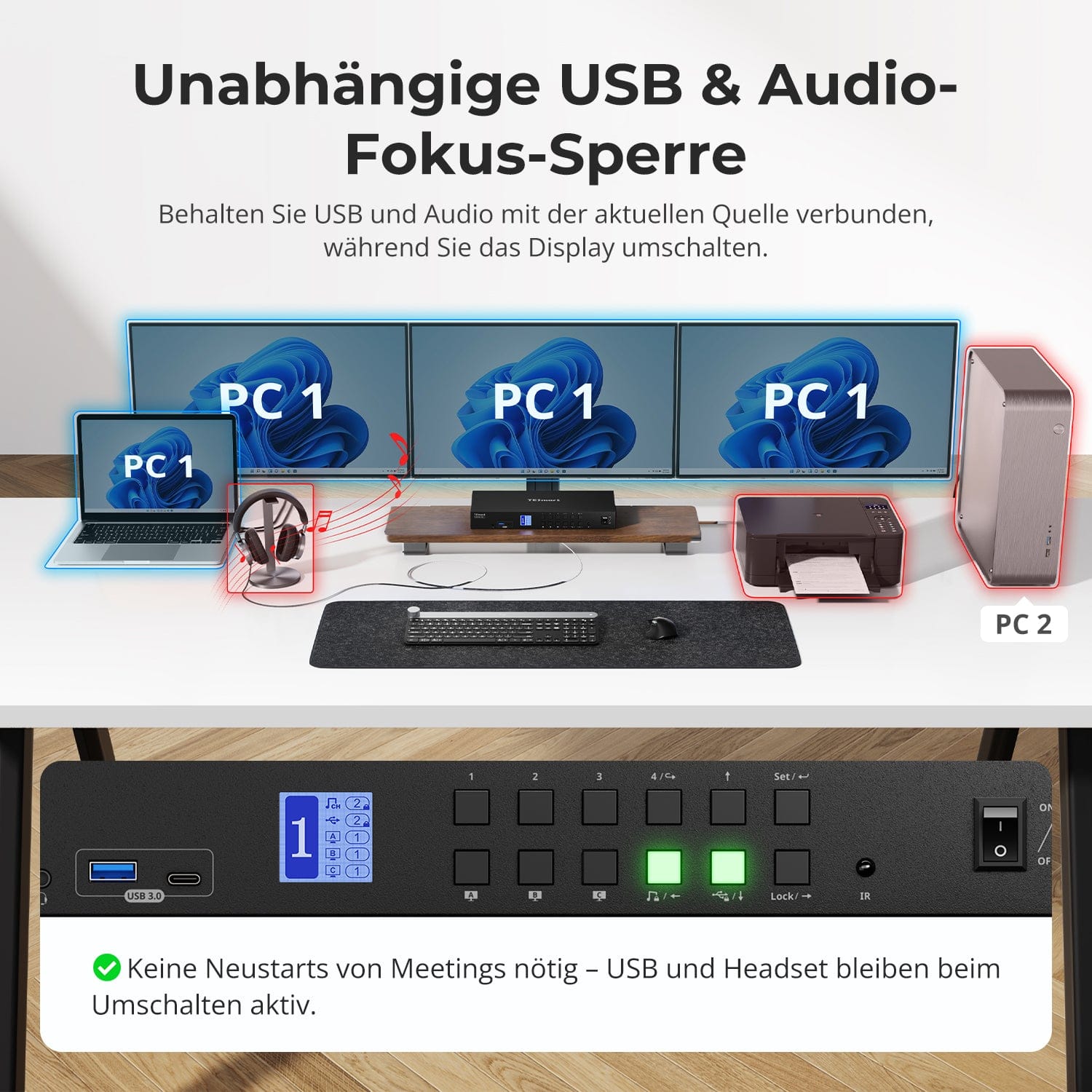
Onafhankelijke USB & audiofocusvergrendeling
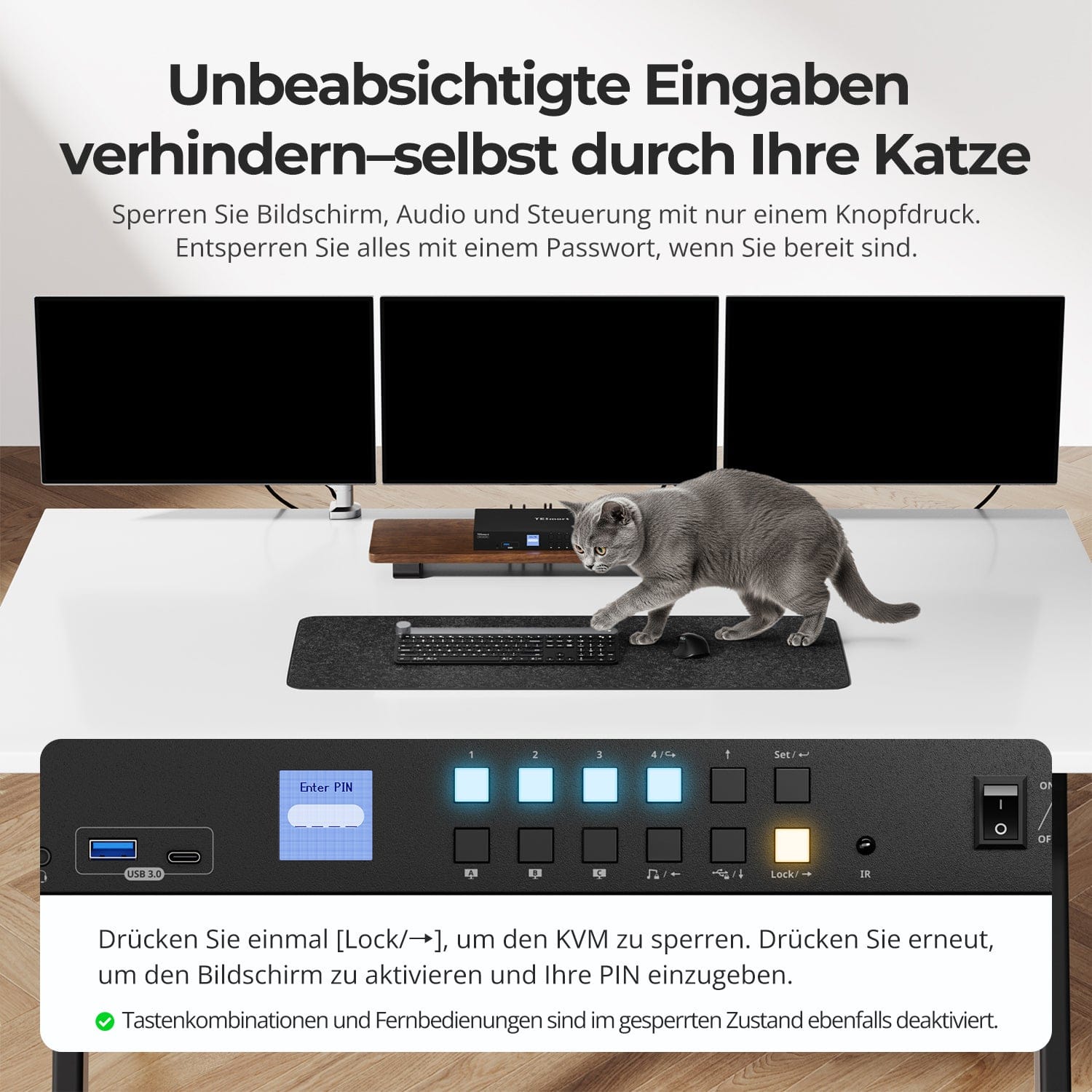
Voorkom onbedoelde toegang – zelfs door uw kat
Toegewijde K&M-Poorten met dual-mode ondersteuning
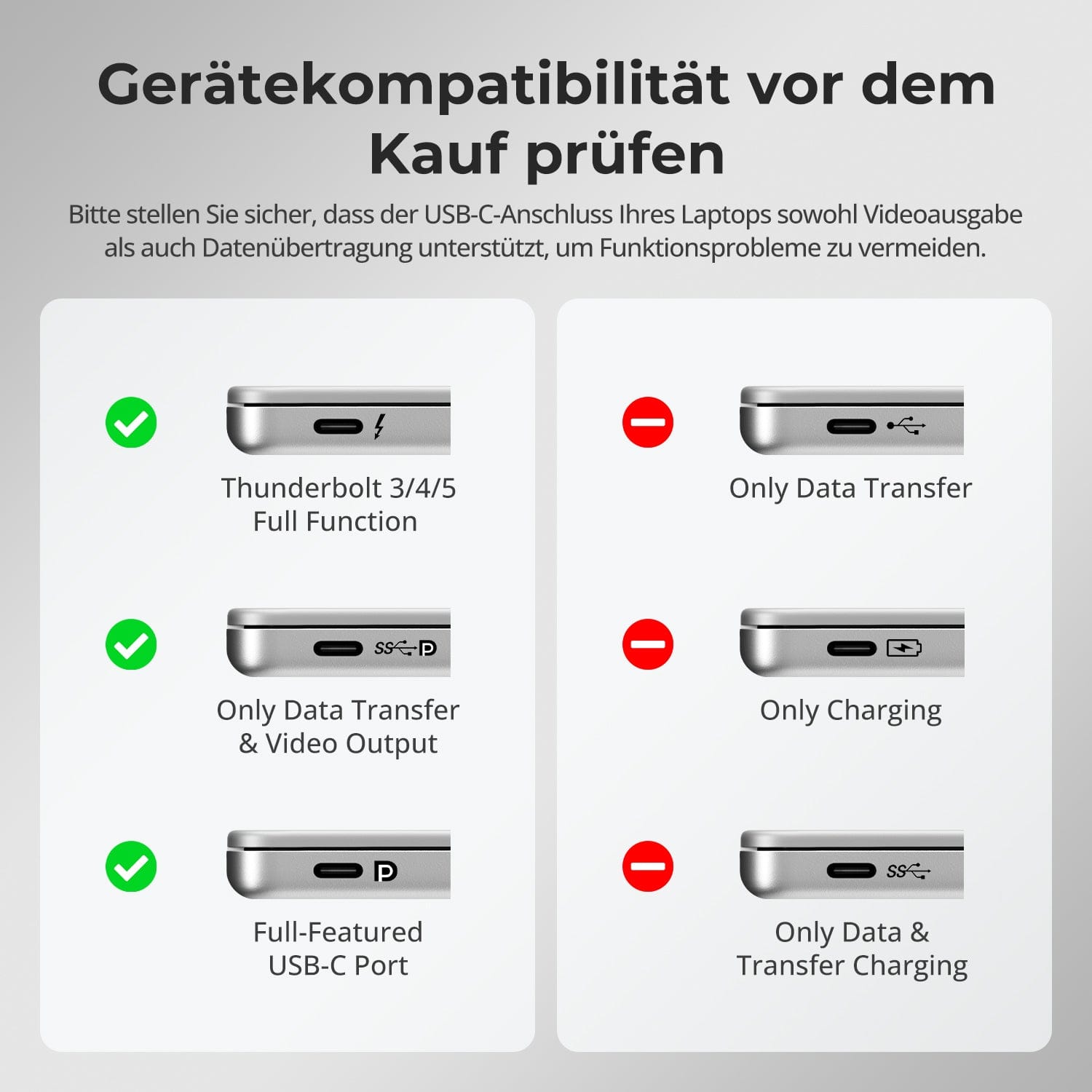
Controleer de compatibiliteit van het apparaat vóór aankoop
Schakel tussen beeldschermen zonder uw USB-apparaten of audioverbinding te onderbreken.
Met deze KVM-switch kunt u de focus van USB 3.0 en L/R-audio onafhankelijk van elkaar vergrendelen, zodat headsets, webcams of externe schijven verbonden blijven met de huidige pc, zelfs tijdens het wisselen van scherm.
Hoogtepunten:
• Vergrendel USB en audiofocus afzonderlijk
• Vermijd onderbrekingen van gesprekken of apparaten
• De vergrendelingsstatus blijft behouden, zelfs na een herstart.
✅ Ideaal voor vergaderingen, streaming en multitasken.
⚠️ USB-focus ≠ toetsenbord & Muisfocus – deze worden afzonderlijk gewisseld.
Voorkom ongewenste invoer tijdens vergaderingen, presentaties of pauzes. Met één druk op de toets vergrendelt u de video-uitvoer, audio en alle bedieningsinterfaces.
• Vergrendeling met één druk op de knop
Als het scherm vastloopt, worden USB, audio, toetsenbordshortcuts en IR-besturing uitgeschakeld.
• Ontgrendelen met pincode
Ga verder waar je gebleven was – met je eigen wachtwoord.
• Geruststellende veiligheid
Voorkomt onbedoeld schakelen – ideaal voor huishoudens met kinderen of huisdieren.
✅ Toetsencombinaties en afstandsbedieningen zijn uitgeschakeld wanneer het apparaat vergrendeld is.
⚠️ Om te ontgrendelen, drukt u nogmaals op de vergrendelingsknop en voert u uw pincode in.
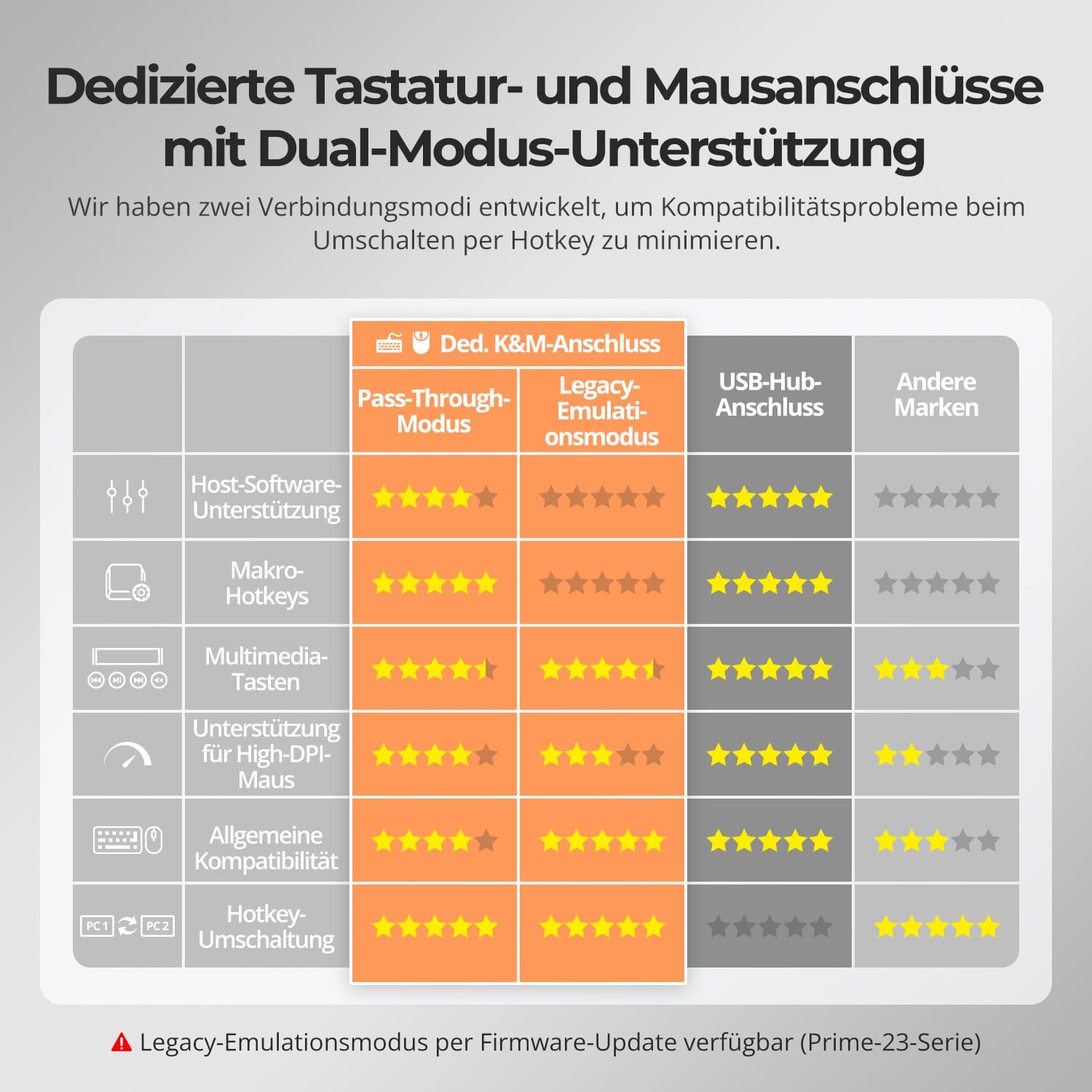
Om de compatibiliteit tussen toetsenbord en muis te verbeteren – met name bij het wisselen van sneltoetsen – hebben we twee speciale verbindingsmodi ontwikkeld:
• Doorvoermodus (aanbevolen)
Directe routing naar de pc. Ondersteunt geavanceerde drivers, macro's, muizen met hoge DPI en multifunctionele invoerapparaten. Ideaal voor gaming, ontwerp en professionele workflows.
• Legacy-emulatiemodus
Garandeert universele compatibiliteit en stabiele sneltoetsfunctionaliteit op de meeste systemen. Het meest geschikt voor kantoorgebruik of bij problemen met stuurprogramma's.
✅ Sneltoetsopdrachten werken alleen als uw toetsenbord is aangesloten op de daarvoor bestemde K-poort.&M-De poort is aangesloten.
⚠️ In de emulatiemodus zijn drivergebaseerde software en geavanceerde functies uitgeschakeld.
⚠️ Bluetooth-toetsenborden en -muizen worden niet ondersteund.
⚠️ De legacy-emulatiemodus is beschikbaar via een firmware-update (Prime-23-serie).
Zorg ervoor dat de USB-C-poort van uw laptop zowel video-uitvoer als gegevensoverdracht ondersteunt om functionele problemen te voorkomen.


Veelgestelde vragen
Waarom geeft mijn laptop 'Langzaam laden' weer?
Beperking van het laadvermogen: Om stabiliteit te garanderen en warmteontwikkeling te verminderen, biedt de KVM-switch een laadvermogen tot 60 W (20 V, 3 A). Dit is over het algemeen voldoende voor zakelijke laptops. Als uw laptop echter geen 20 V-ingang ondersteunt of een krachtig apparaat is, kan de laadsnelheid beperkt zijn.
Voor krachtige apparaten (gaming-/werkstationlaptops): Apparaten die 90–120 W of meer nodig hebben, laden mogelijk langzaam op. We raden aan om de originele laptopvoeding parallel aan de KVM-aansluiting te gebruiken.
Aanvullende informatie: Zorg voor goede ventilatie rond de KVM-switch om oververhitting te voorkomen. Als de KVM-switch gedurende langere tijd niet wordt gebruikt, is het raadzaam deze uit te schakelen.
Hoe kan de ventilatorsnelheid worden aangepast?
De KVM-switch ondersteunt vier ventilatorstanden. Elke stand wordt aangegeven door het aantal pieptonen van de zoemer. De standaardstand is stand 2.
Om de ventilatorstand in te stellen: Druk op [Rechter Ctrl] → [Rechter Ctrl] → [F3] om tussen de standen te schakelen:
- Ventilatorstand 1: De ventilator is uitgeschakeld. De zoemer klinkt één keer.
- Ventilatorstand 2: De ventilator werkt automatisch op basis van de actuele temperatuur. De zoemer klinkt twee keer.
- Ventilatorstand 3: De ventilator draait continu op lage snelheid. De zoemer klinkt drie keer.
- Ventilatorstand 4: De ventilator draait continu op hoge snelheid. De zoemer klinkt vier keer.
Kan ik een macOS-computer aansluiten om uitvoer op drie schermen te verkrijgen?
Nee. Omdat macOS MST (Multi-Stream Transport) niet standaard ondersteunt, kan de HDC403-P23 geen weergave van drie schermen bieden wanneer deze is aangesloten op een macOS-apparaat. Als u drie schermen op macOS nodig hebt, raden we ons nieuwe model HDC203-PM24 aan, dat DisplayLink-technologie ondersteunt. Dit model is specifiek geoptimaliseerd voor macOS en stelt u in staat systeembeperkingen te omzeilen en te profiteren van echte multi-display-uitbreiding.
Waarom werkt mijn audioapparaat niet?
Aansluitingsvereisten De audiofunctie van de KVM-switch maakt gebruik van de USB-C-poorten van pc 1/2 en de USB-B-poorten van pc 3/4. Zorg ervoor dat de USB-kabels van de computers goed zijn aangesloten op alle vier de poorten.
Geluidsinstellingen op de computer
- Voor een 3,5 mm jack-aansluiting: selecteer in de geluidsinstellingen van uw computer "USB-audio" als standaard uitvoerapparaat.
- Voor een USB-verbinding: selecteer de juiste USB-audio-uitgang, bijvoorbeeld "USB-audioapparaat" of "USB-headset", afhankelijk van het beeldscherm van uw systeem.
Als er zelfs na de juiste afstelling geen geluid uit de 3,5 mm-uitgang komt, raden we aan een USB-geluidskaart (USB-naar-3,5 mm-adapter) te gebruiken om de compatibiliteit te verbeteren en een goede geluidsweergave te garanderen.
Waarom werken mijn USB-randapparatuur niet?
Aansluitingsvereisten De KVM-switch maakt gebruik van USB-gegevensoverdracht via de USB-C-poorten van pc 1/2 en de USB-B-poorten van pc 3/4. Zorg ervoor dat de USB 3.0-poorten van de computers stevig zijn aangesloten op alle vier de poorten.
Havenbeperkingen De USB-poorten met het toetsenbord-/muissymbool zijn uitsluitend voor deze apparaten. Andere USB-randapparaten (zoals printers, webcams en USB-sticks) moeten worden aangesloten op de daarvoor bestemde USB-poorten van de KVM-switch.
Bandbreedtebeperkingen De KVM-switch fungeert als een USB-hub, wat betekent dat alle aangesloten randapparatuur dezelfde USB-bandbreedte deelt. Als de totale bandbreedtebehoefte de capaciteit van de KVM-switch overschrijdt, kunnen apparaten vastlopen of uitvallen.
Problemen met de stroomvoorziening Sommige krachtige USB-apparaten krijgen mogelijk niet voldoende stroom van de KVM-switch. Aanbevolen oplossing:
- Sluit krachtige USB-apparaten waar mogelijk rechtstreeks aan op uw pc.
- Voor betere stabiliteit kunt u een USB-hub met eigen voeding tussen de KVM-switch en het apparaat plaatsen.
Beperkingen bij het doorschakelen van USB-hubs De USB-architectuur ondersteunt maximaal 7 cascadeniveaus, waaronder: hostcontroller + maximaal 5 USB-hubs + 1 apparaatniveau. Overschrijding van deze limiet kan leiden tot niet-herkende of defecte apparaten. Voorbeeld van een USB-keten: pc → dockingstation → KVM-switch → USB-hub (→ extra USB-hub) → randapparaat
Aanbevolen oplossingen:
- Dockingstations omzeilen: Sluit de USB-A-poort van de pc rechtstreeks aan op de KVM-switch.
- Minimaliseer cascade-effecten: Sluit randapparatuur waar mogelijk rechtstreeks aan op de KVM om overmatige USB-hublagen te vermijden.
Ondersteunt de KVM-switch firmware-updates?
Ja, TESmart KVM-switches ondersteunen officiële firmware-updates die zijn ontworpen om veelvoorkomende problemen op te lossen en de compatibiliteit te verbeteren.
Belangrijke opmerking: Firmware-updates brengen inherente risico's met zich mee. Het installeren van de verkeerde versie of het onjuist uitvoeren van het proces kan leiden tot storingen in het apparaat. Daarom wordt ten zeerste afgeraden om zelf een firmware-update uit te voeren als uw apparaat normaal functioneert.
Als een update nodig is, neem dan contact op met onze technische ondersteuningsafdeling voor:
- De juiste firmwareversie voor uw specifieke model.
- Stapsgewijze update-instructies.
- Technische ondersteuning gedurende het hele proces.
Waarom werken mijn toetsenbord en muis niet goed?
Veelvoorkomende symptomen:
- De toetsenbordinvoer reageert niet of vertraagd;
- Toetsaanslagen blijven hangen of worden dubbel geregistreerd;
- Muisbewegingen haperen of stotteren;
- Toetsenbord sneltoetsen werken niet.
Aanbevolen oplossingen:
- Probeer over te schakelen naar de Legacy Emulation-modus om de compatibiliteit met een breder scala aan toetsenborden en muizen te verbeteren: Druk op [Rechter Ctrl] + [Rechter Ctrl] + [F2].
- Als het probleem aanhoudt, neem dan contact op met ons technische ondersteuningsteam via support@tesmart.com, Om deskundige ondersteuning en begeleiding te ontvangen bij het oplossen van het probleem.
-
recycling & inruilen
Tot 50% korting voor recycling
-
DE: 3 werkdagen · EU: 3–7 werkdagen
-
Probleemloos retourneren & Aankoopgarantie
-
Registreer en ontvang een extra jaar garantie.