


Monitorkonfiguration
Max. Auflösung

Stabile Anzeige

Gemeinsames Netzwerk

USB-Geschwindigkeit

Gerätezuweisung

Automatischer Eingangsscan
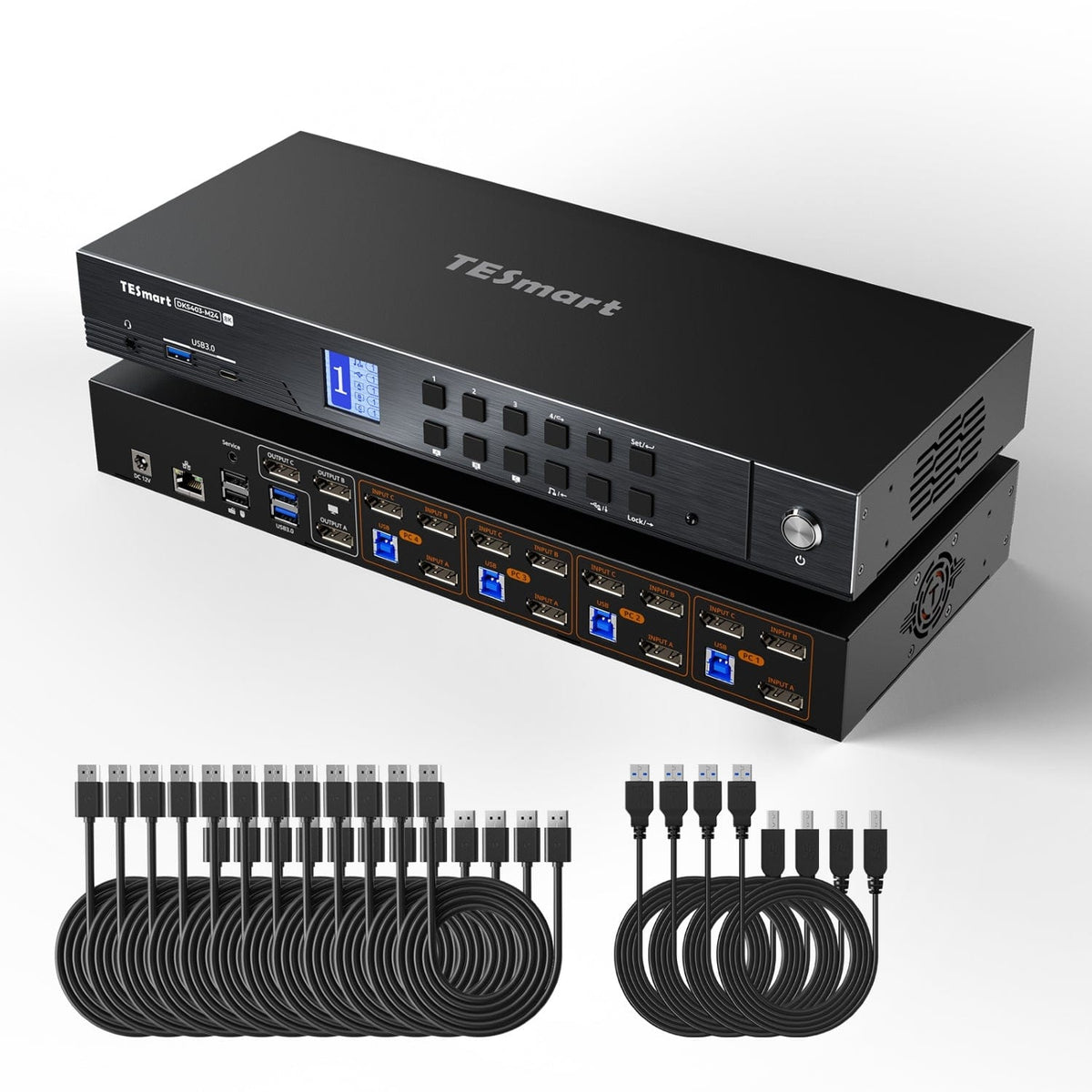
4×3 DP-1.4-KVM | 8K60/4K144 & EDID
DKS403-M24: 4 PCs share 3 DisplayPort monitors, keyboard and mouse - with up to 8K60/4K144, EDID, USB hub and Gigabit Ethernet.
Monitorkonfiguration
Max. Auflösung
Stabile Anzeige
Gemeinsames Netzwerk
USB-Geschwindigkeit
Gerätezuweisung
Automatischer Eingangsscan
4×3 DP-1.4-KVM | 8K60/4K144 & EDID
Why DKS403-M24?
Overview
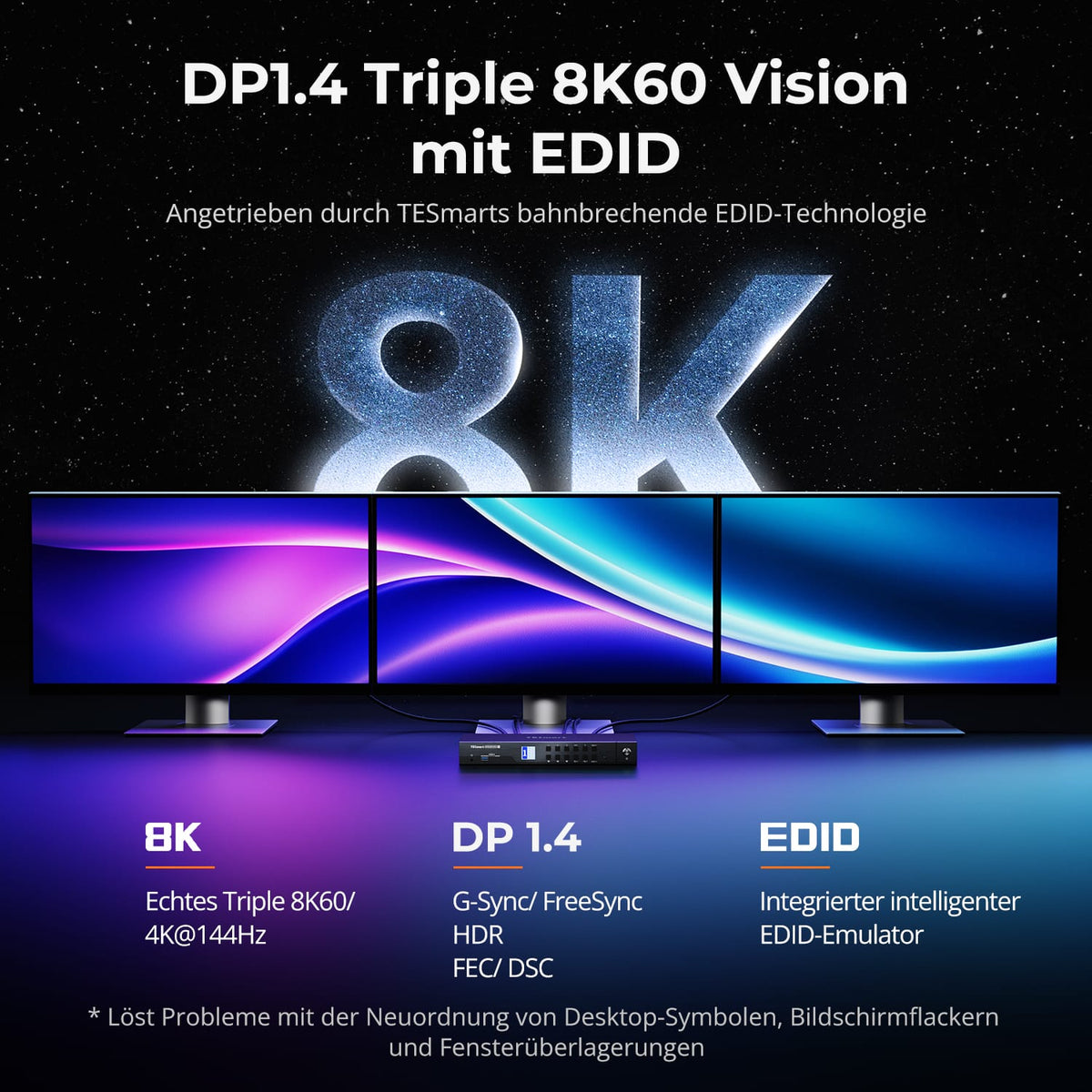
01
Three times 8K60 via DisplayPort 1.4
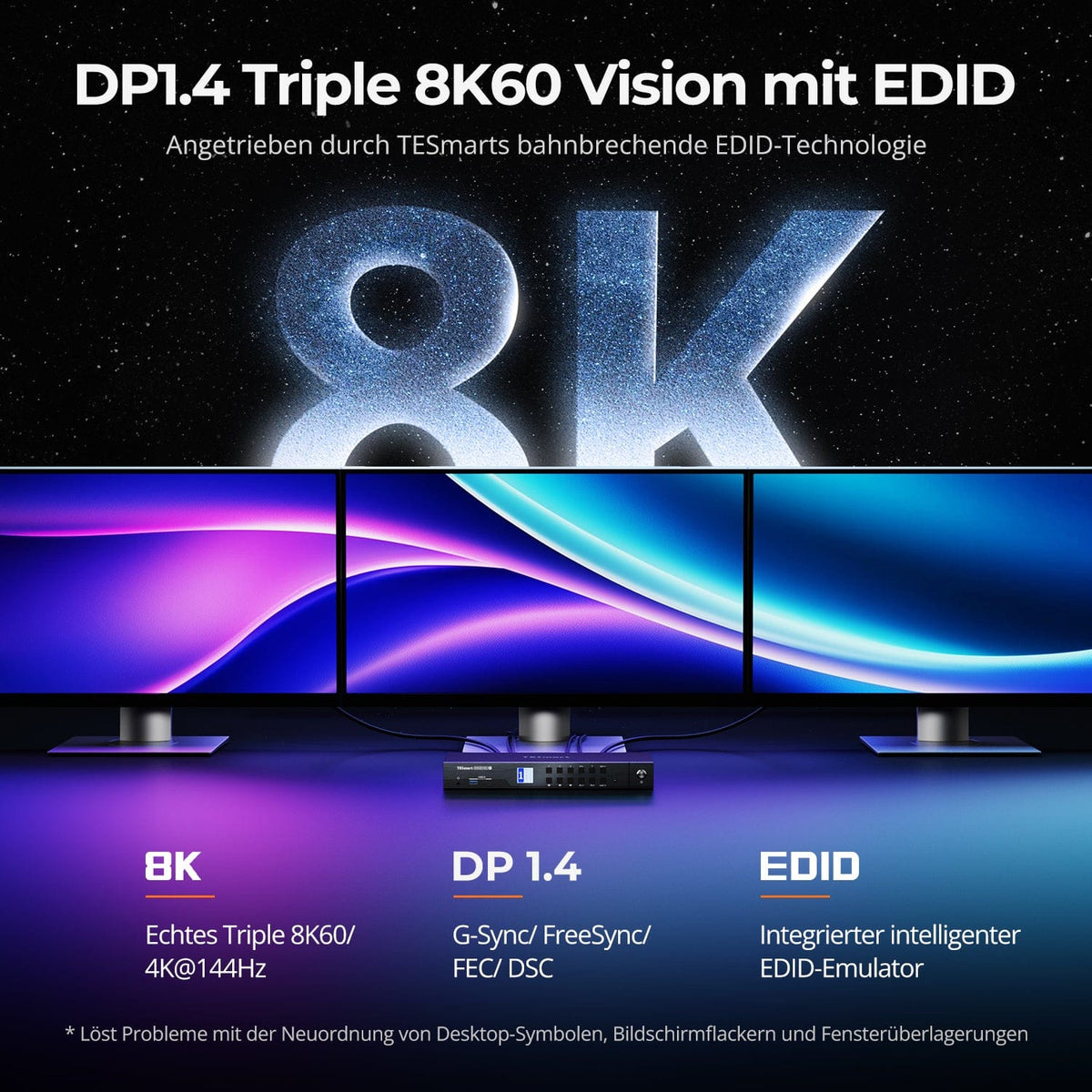
Share three DisplayPort 1.4 monitors with four computers – with up to 8K@60Hz oder 4K@144Hz je Output. EDID emulators keep the display information available for each input.
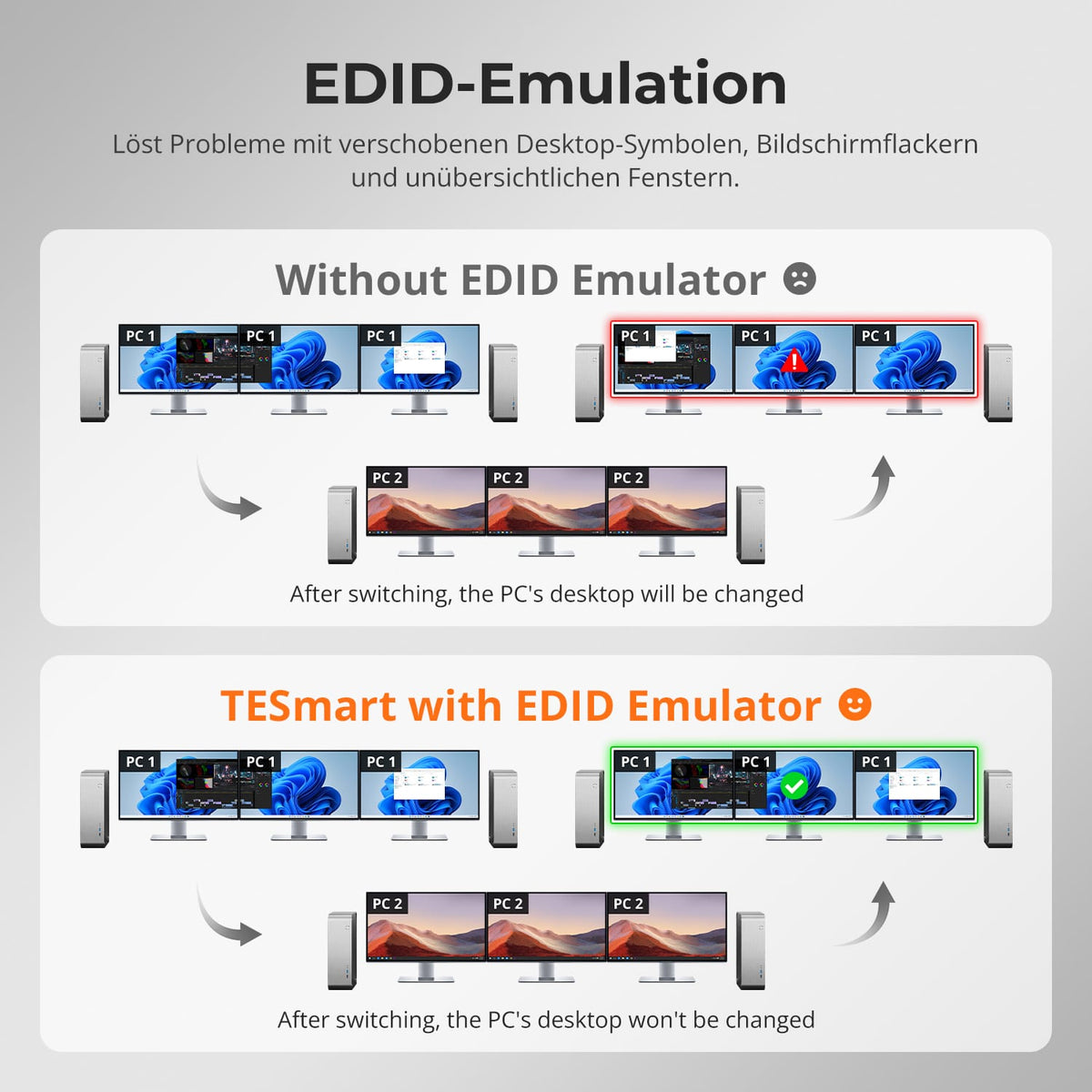
02
TESmart's proprietary DP-1.4 EDID technology
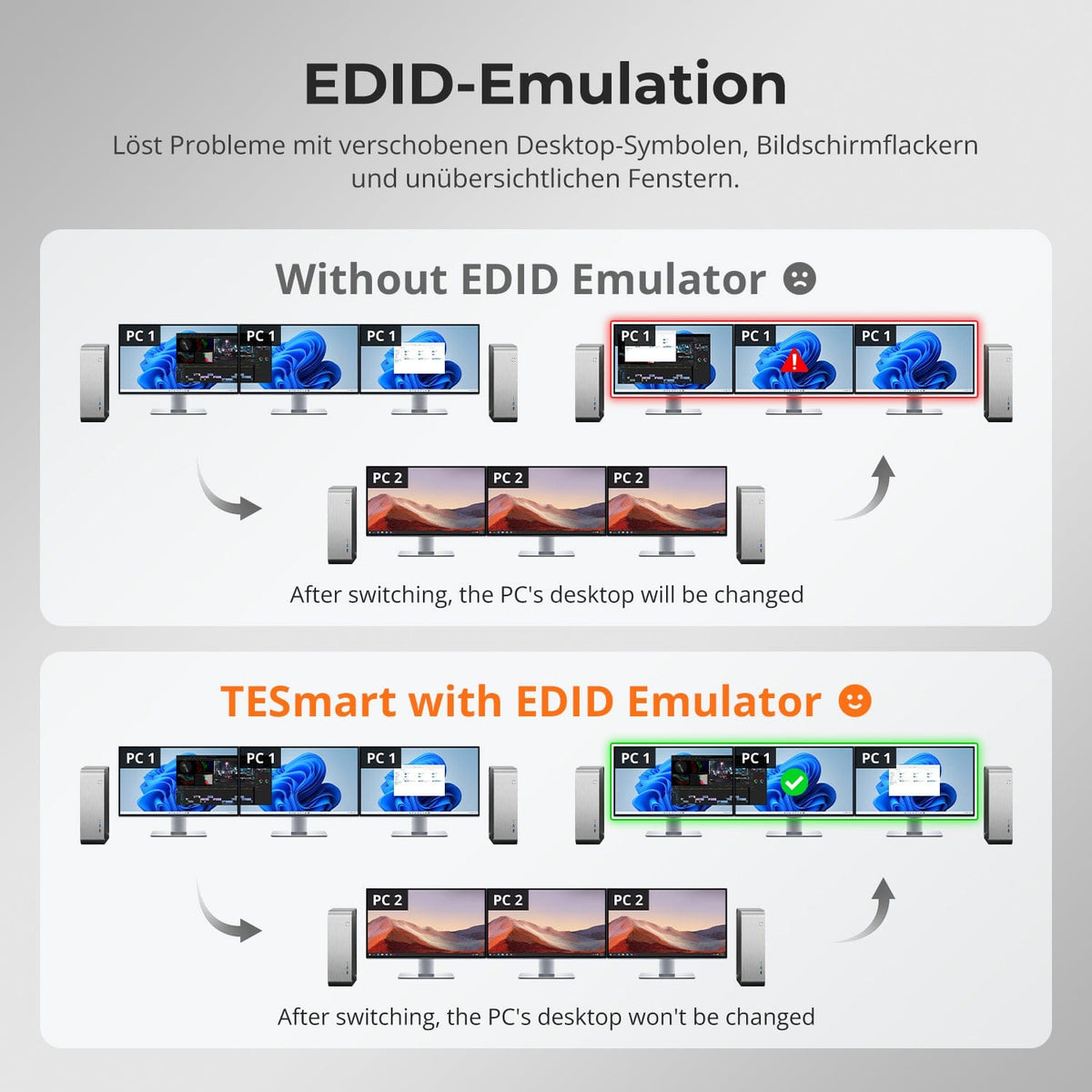
The DP-1.4 EDID emulation developed by TESmart keeps display settings stable during switching. It reduces resolution changes, shifted icons, flickering, and re-detection of the display – even with high bandwidth and two displays.
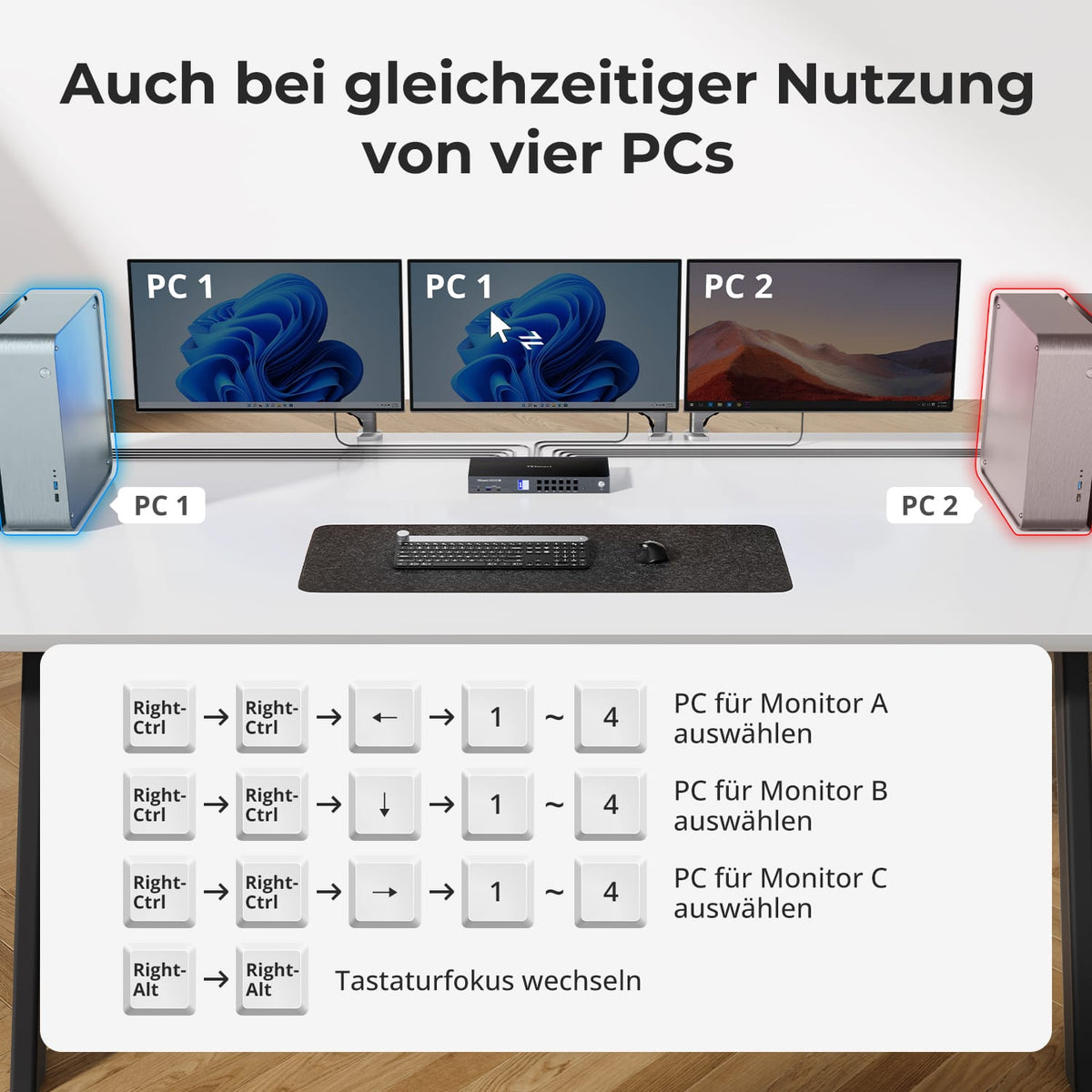
03
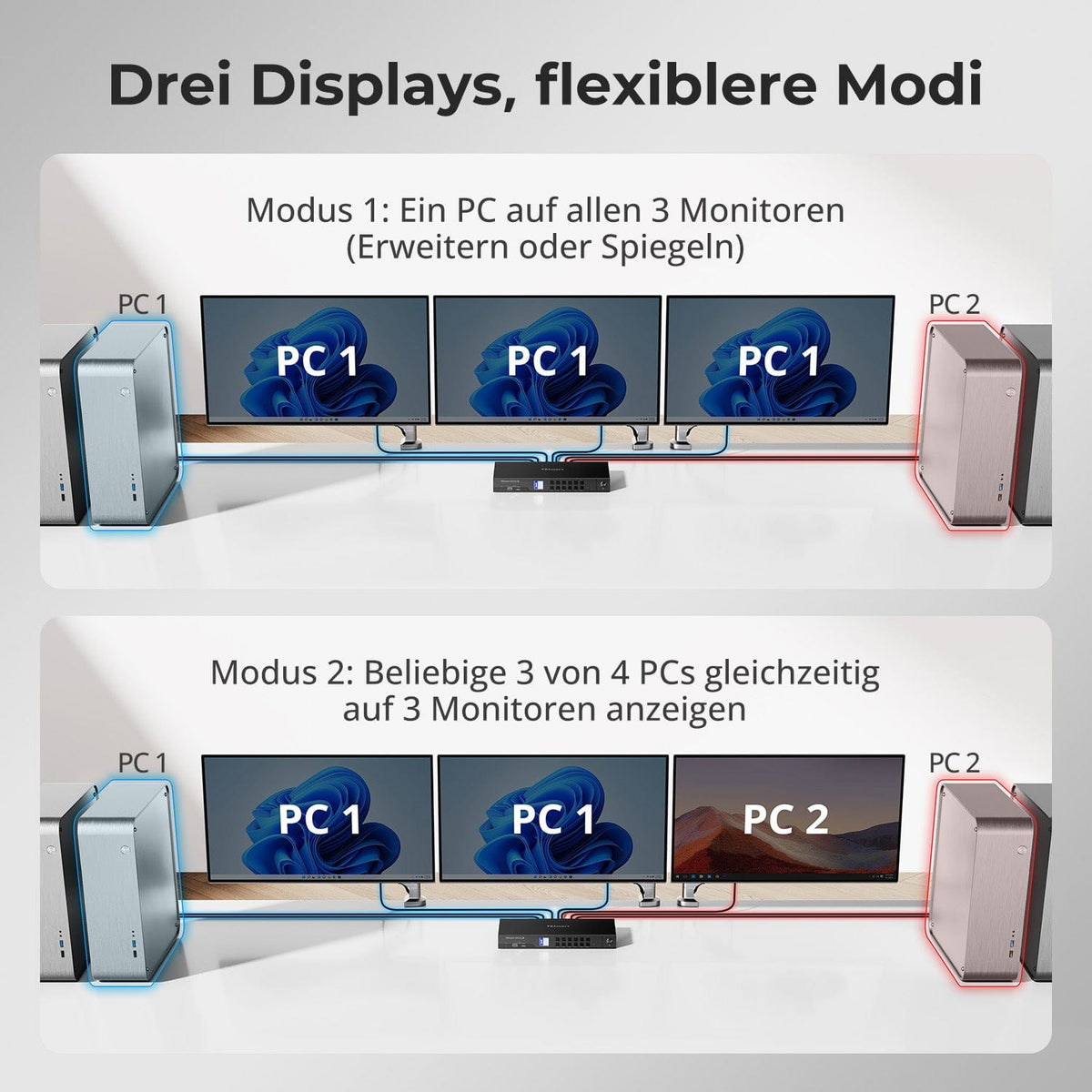
3 monitors. Flexible assignment.
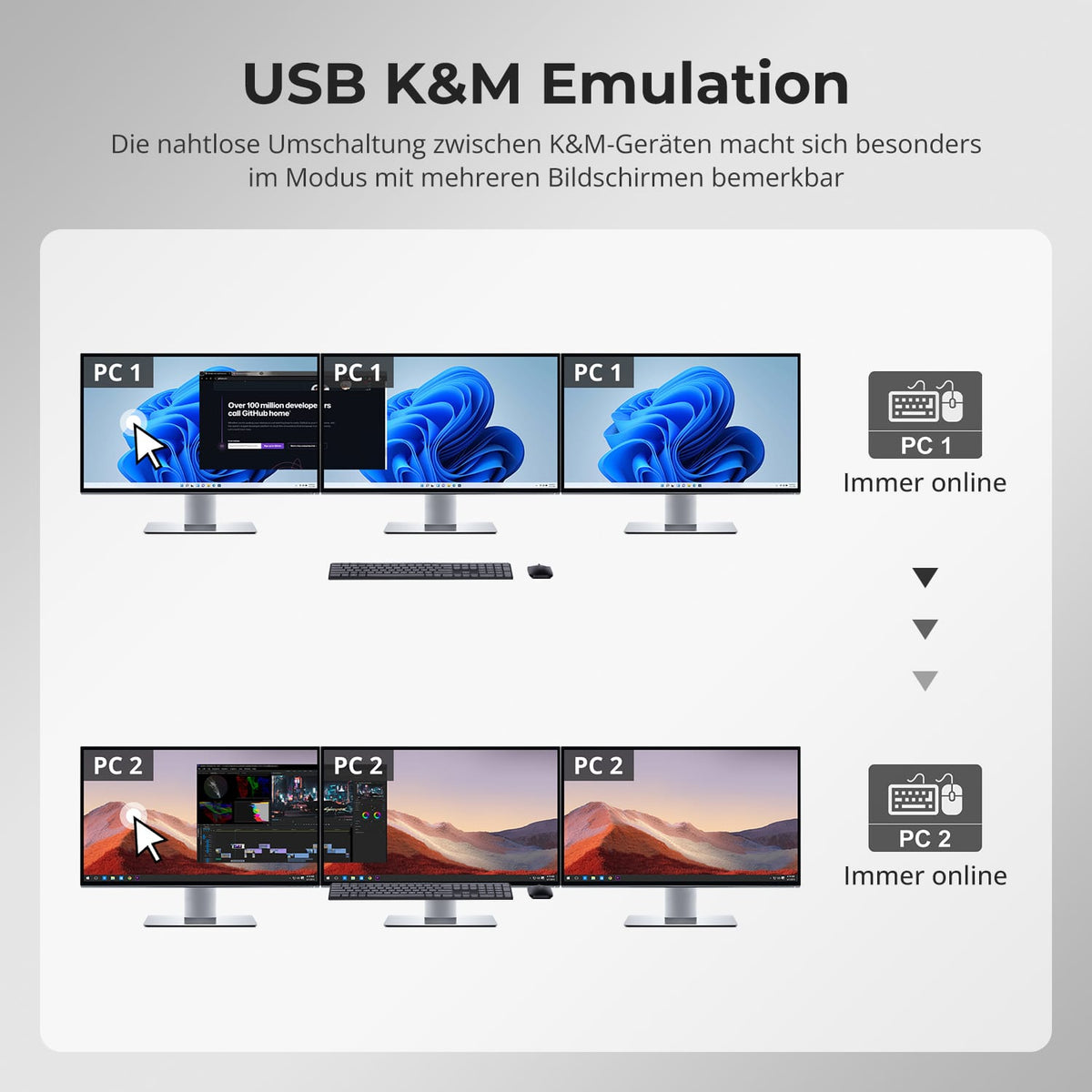
Display one computer across all three monitors, or assign different computers to individual monitors, if supported. A single keyboard and mouse control the selected computer.
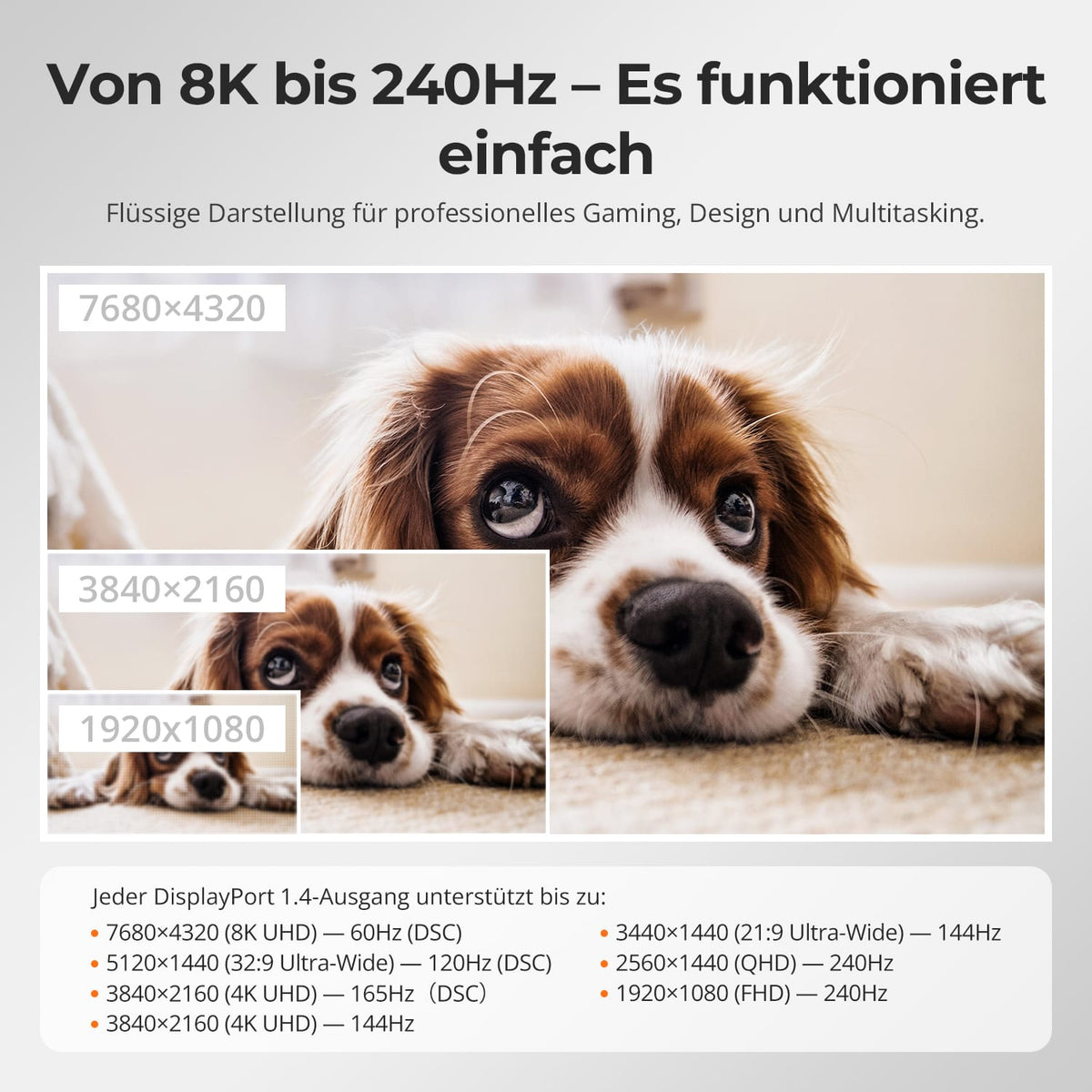
04
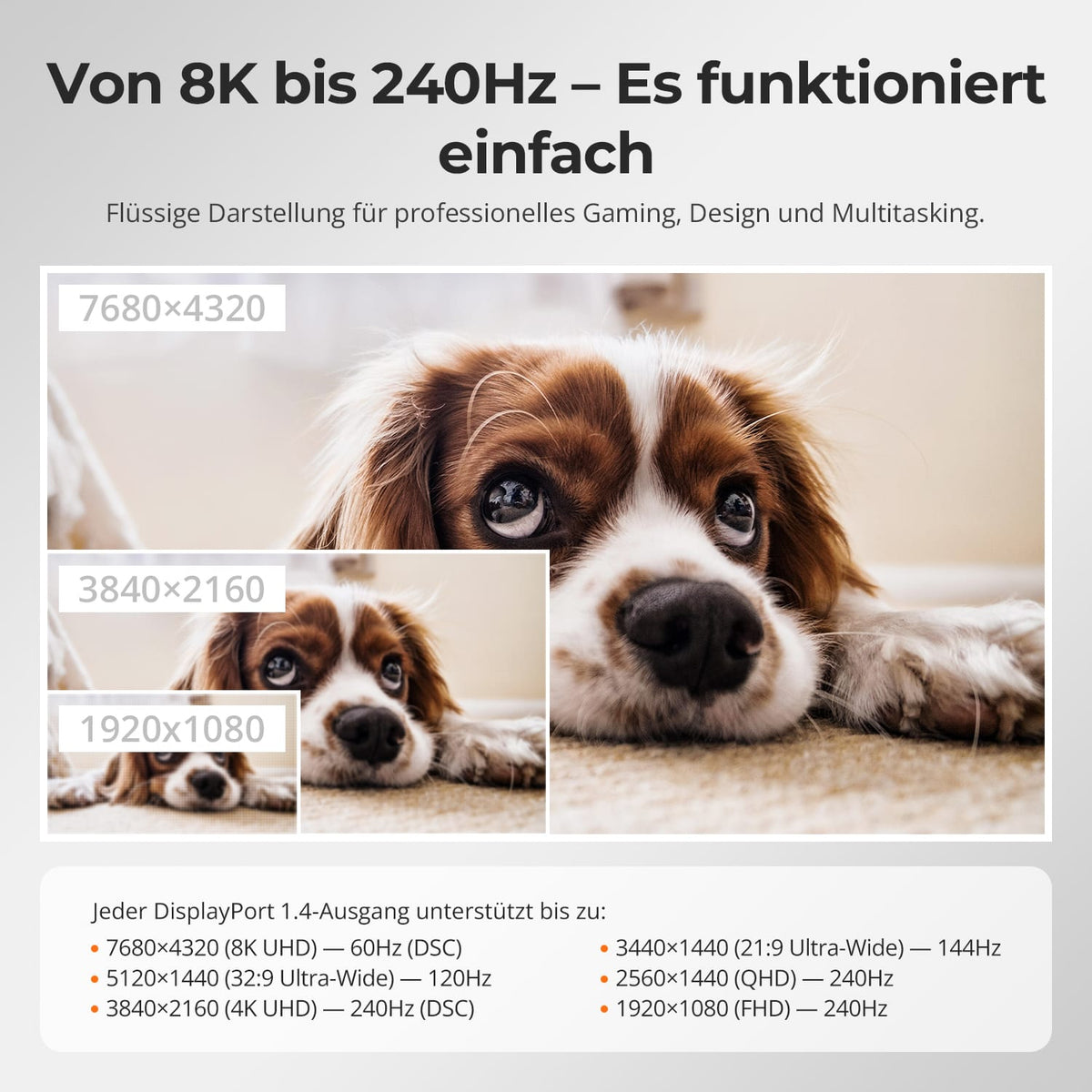
DP 1.4: from 8K60 to 240 Hz with DSC
Each DisplayPort 1.4 output supports up to 8K@60Hz for detailed work or up to 4K@144Hz und 1080p@240Hz for gaming and multitasking.
05
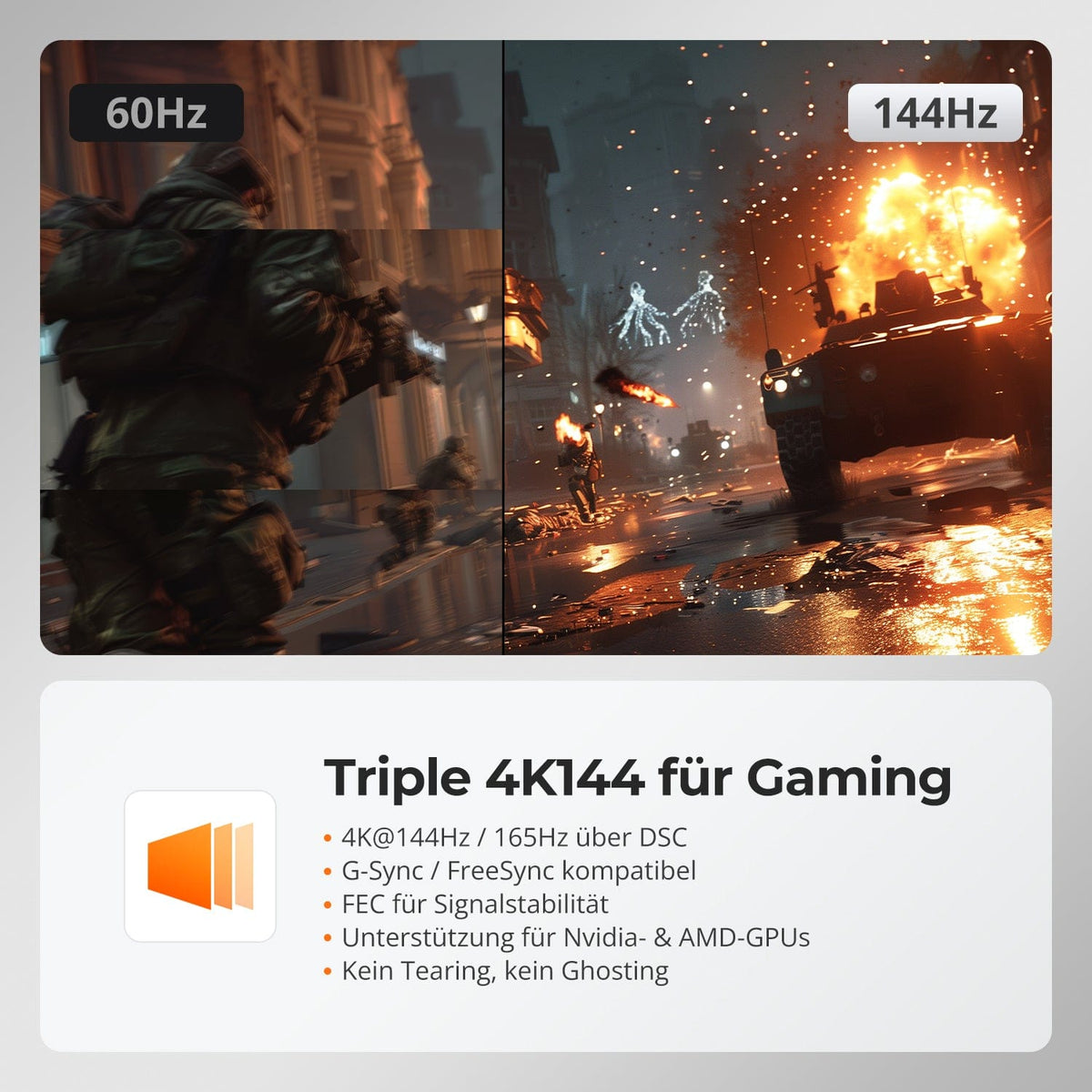
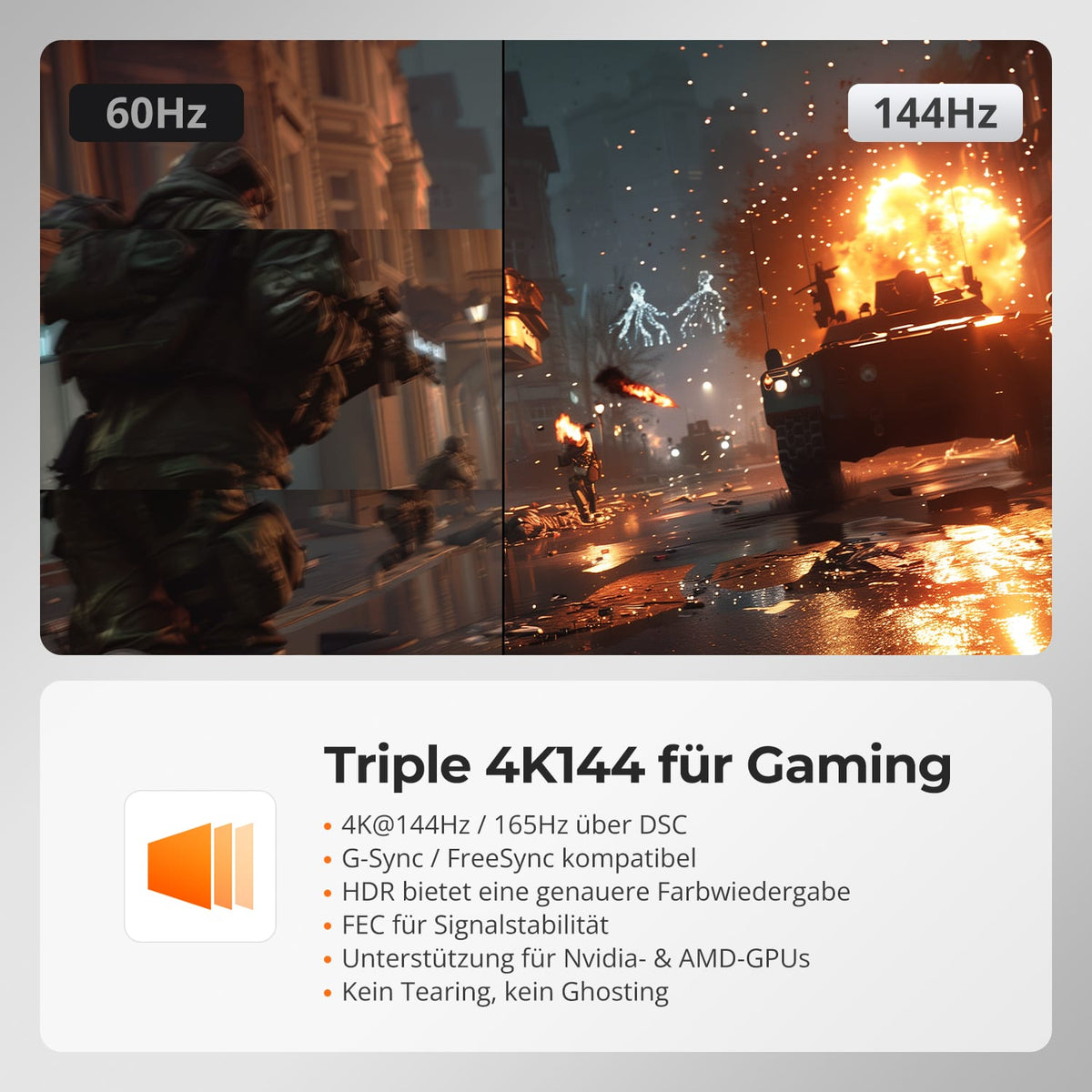
Gaming with three times 4K@144Hz
G-Sync and FreeSync enable smooth, tear-free gaming. DSC supports stable 4K@144Hz165Hz output on both compatible displays.

06
USB & Audio independent assign
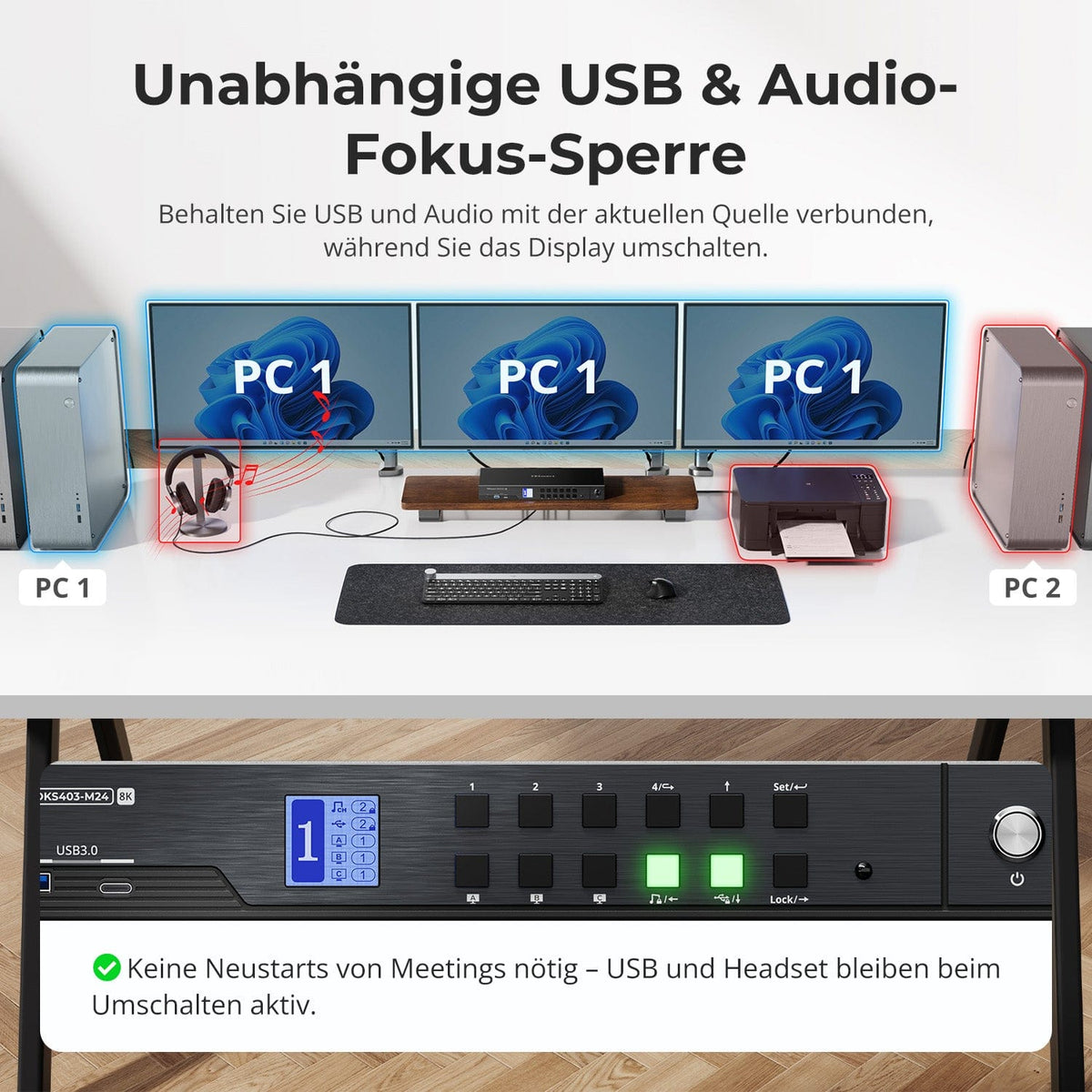
USB and audio can remain on the current source when switching displays. Deactivate Follow Mode via hotkey to switch USB and audio independently. This way, calls and devices remain active on the desired system.
07
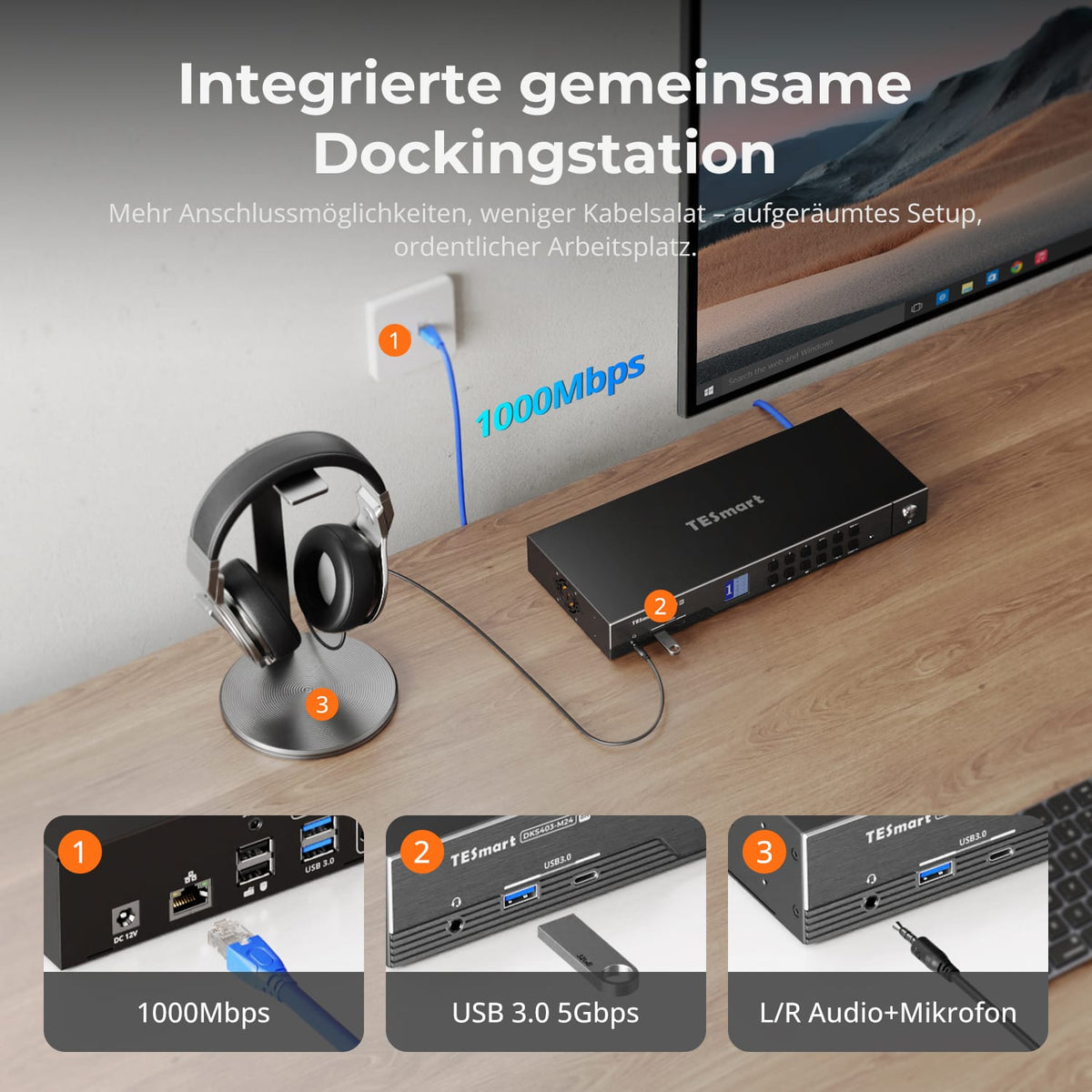
KVM and shared dock in a device
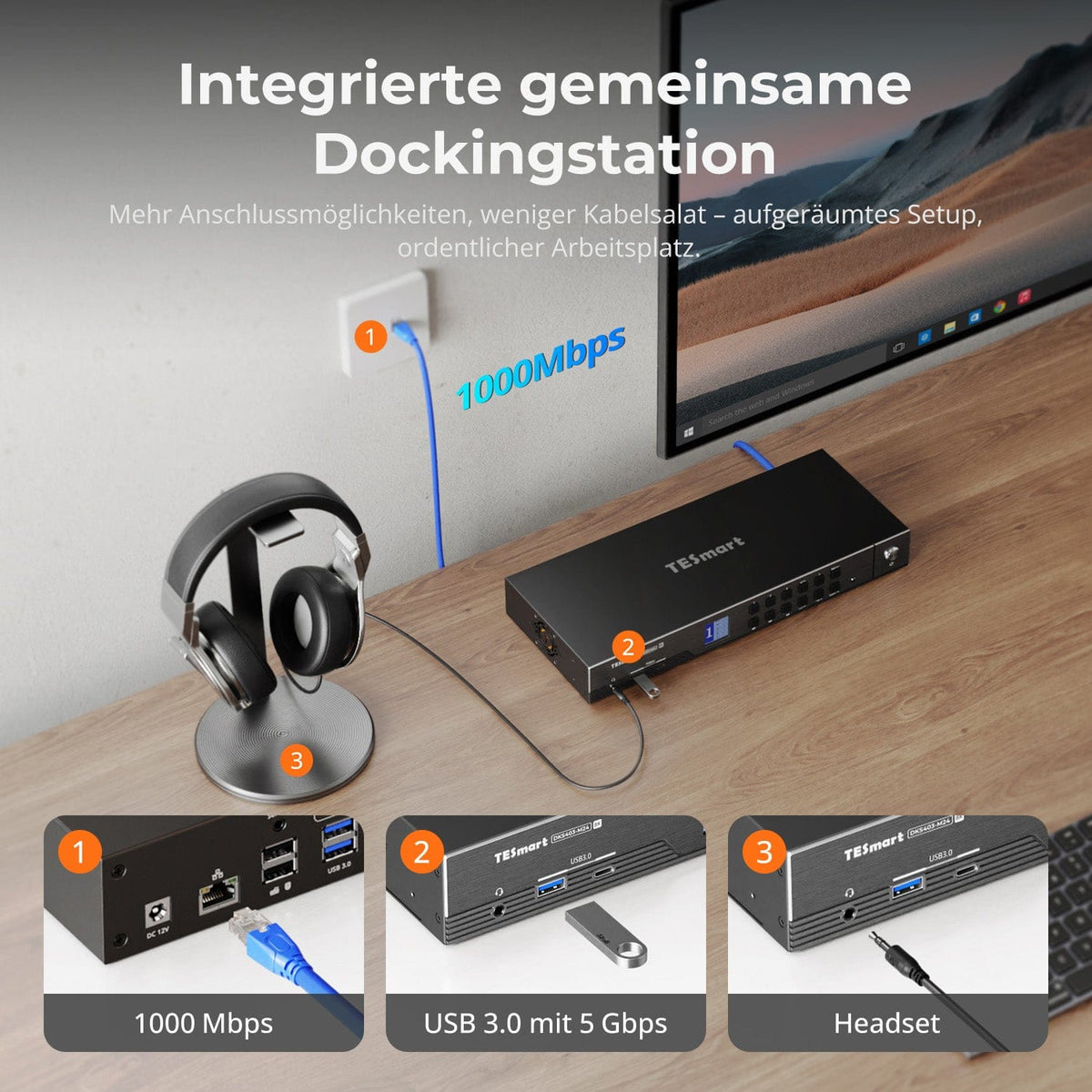
Share USB 3.0 devices, Gigabit Ethernet, and audio through a single device. Fewer adapters and cables – no separate dock or network switch required.
08
09
10
Data & Support
Compatibility & Connections
Technical data
Instructions & Downloads
Scope of delivery
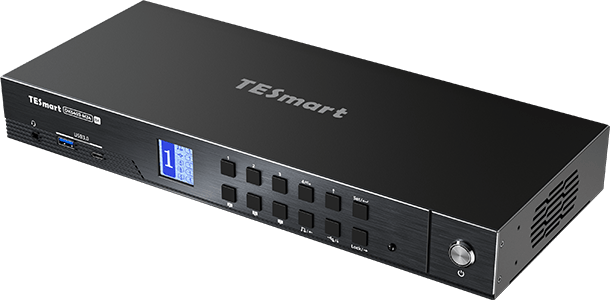
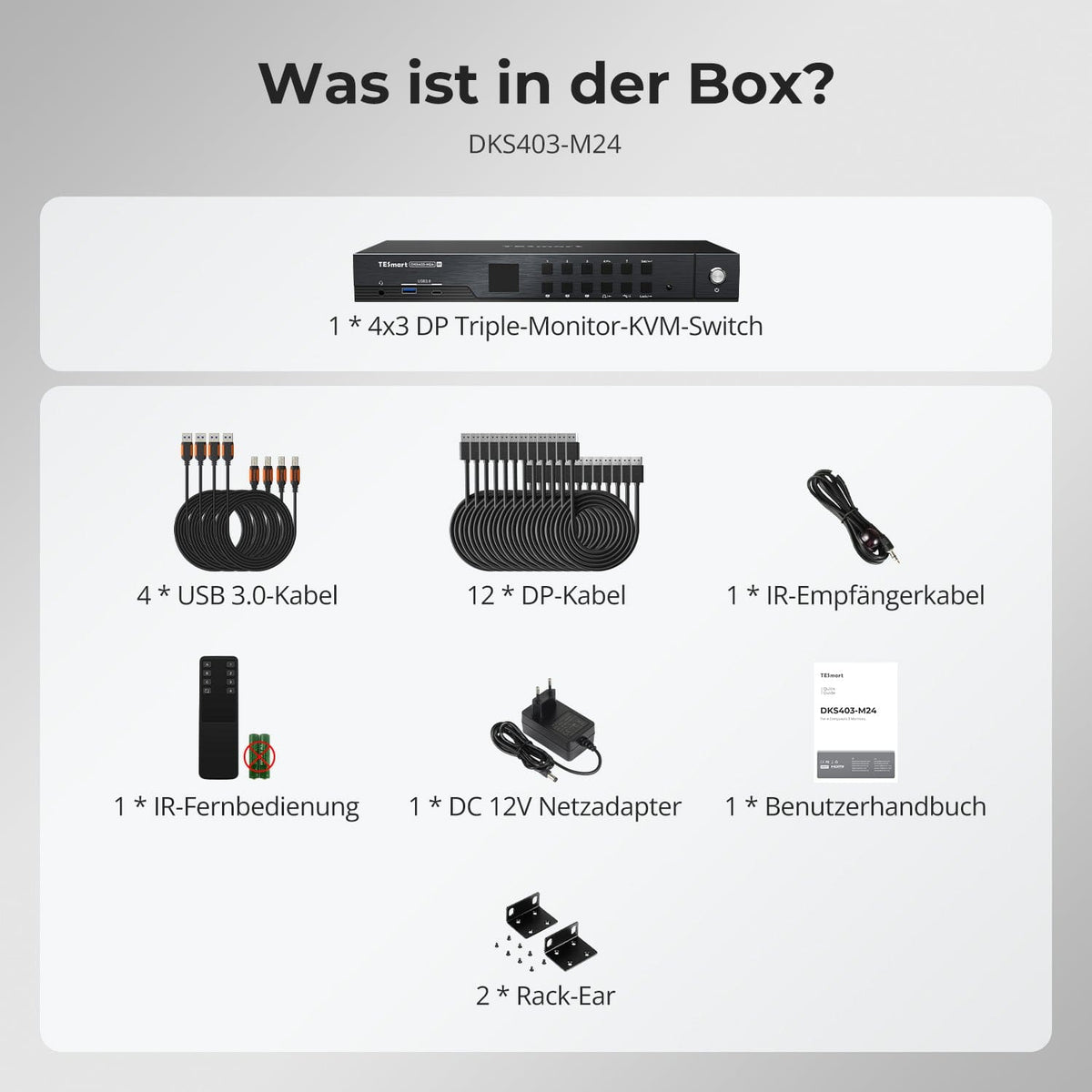
1 × DKS403-M24 KVM Switch
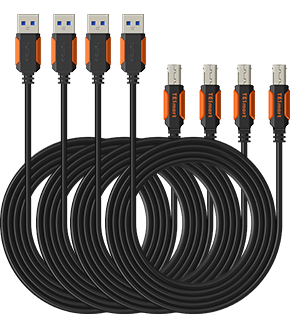
4 × USB 3.0 cables
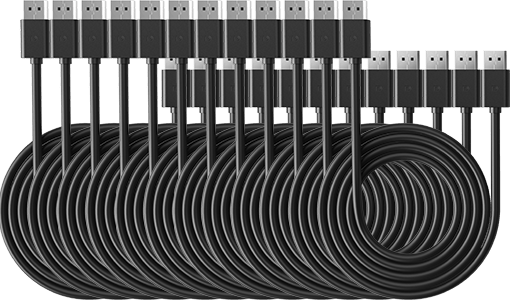
12 × DP cable
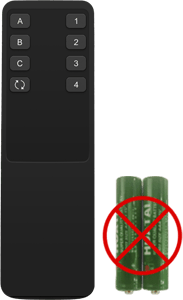
1 × IR Remote Control
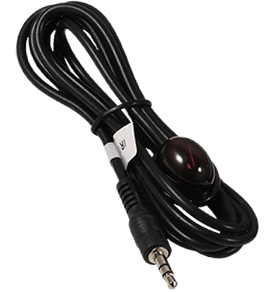
1 × IR Receiver Cable
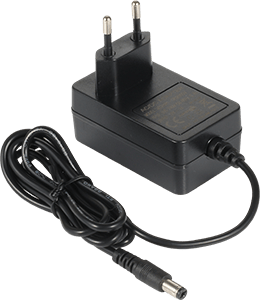
1 × 12V DC power supply
1×User manual
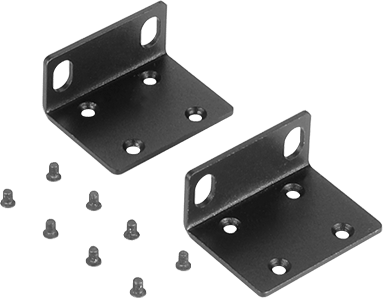
2 × Rack Mounting Bracket
Compare suitable models
Compare connections, image output, and sharing features for your workplace.
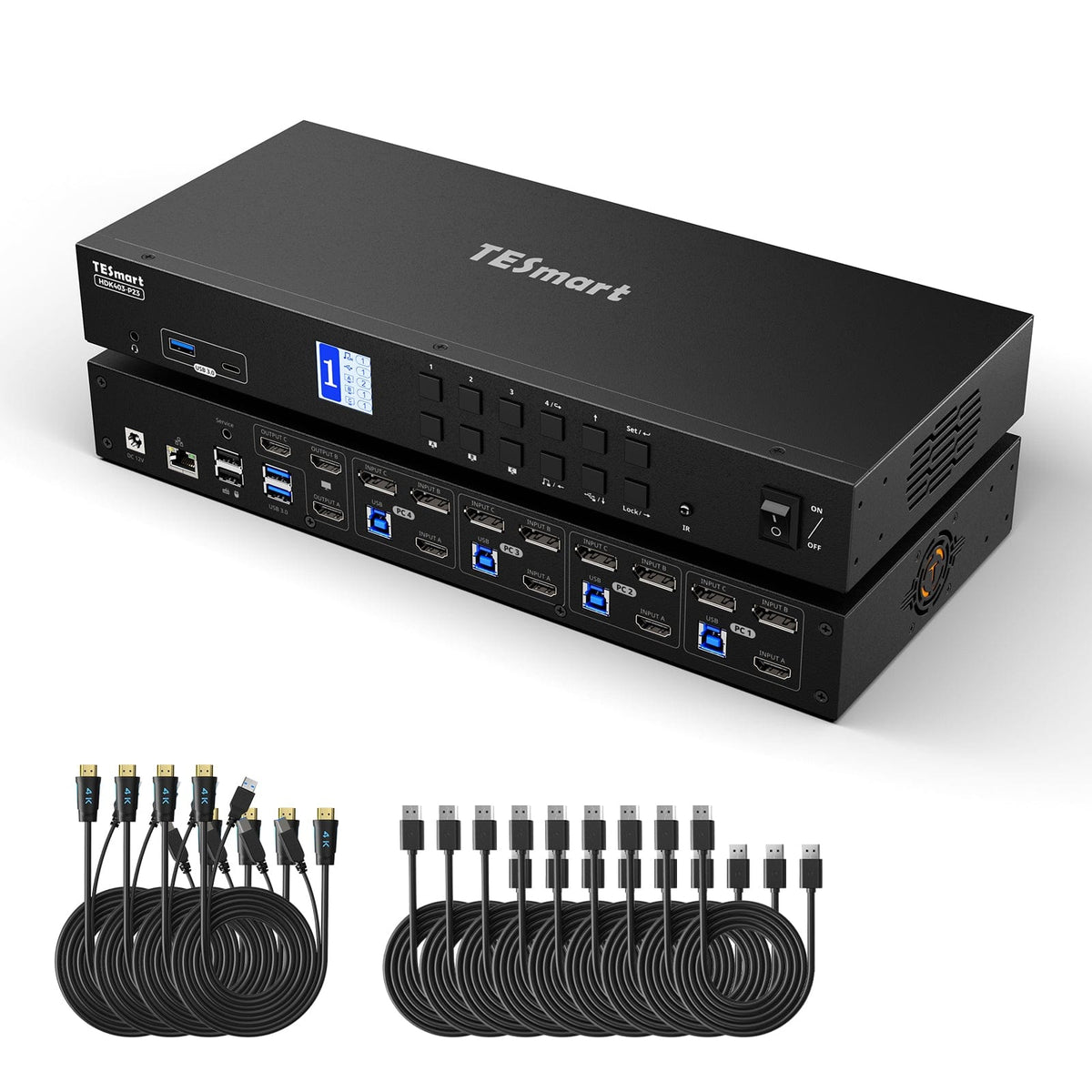
Model
DKS403-M24
Model
HDK403-P23
Computer count
4 computers
Computer count
4 computers
Computer connections
Per PC: 3 × DisplayPort + USB
Computer connections
Per PC: HDMI + 2 × DisplayPort + USB
Monitor outputs
3 × DisplayPort
Monitor outputs
3 × HDMI
Image output
8K60/4K144
Image output
4K60
Shared USB devices
USB 3.0/5 Gbit/s
Shared USB devices
USB 3.0/5 Gbit/s
Charge laptop
Charge laptop
Shared network access
1000 Mbit/s
Shared network access
1000 Mbit/s
EDID emulation
EDID emulation
Multi-monitor operation
Separate video outputs on each computer
Multi-monitor operation
Separate video outputs on each computer
Monitor requirements
Each computer must be able to drive 3 monitors.
Monitor requirements
Each computer must be able to drive 3 monitors.
Frequently asked questions
You can find further answers in our Help Center.
[Compatibility] Which devices does the DKS403-M24 support?
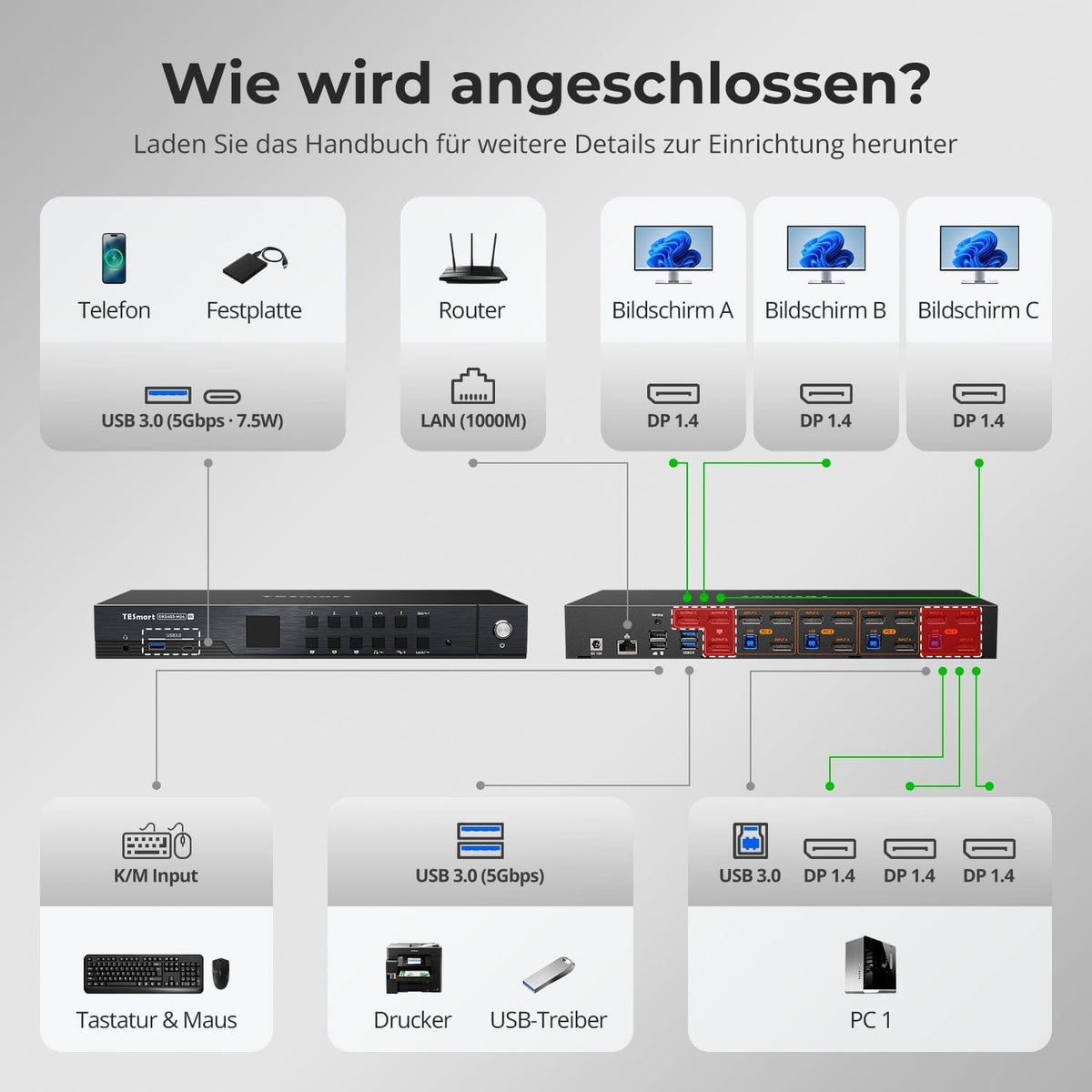
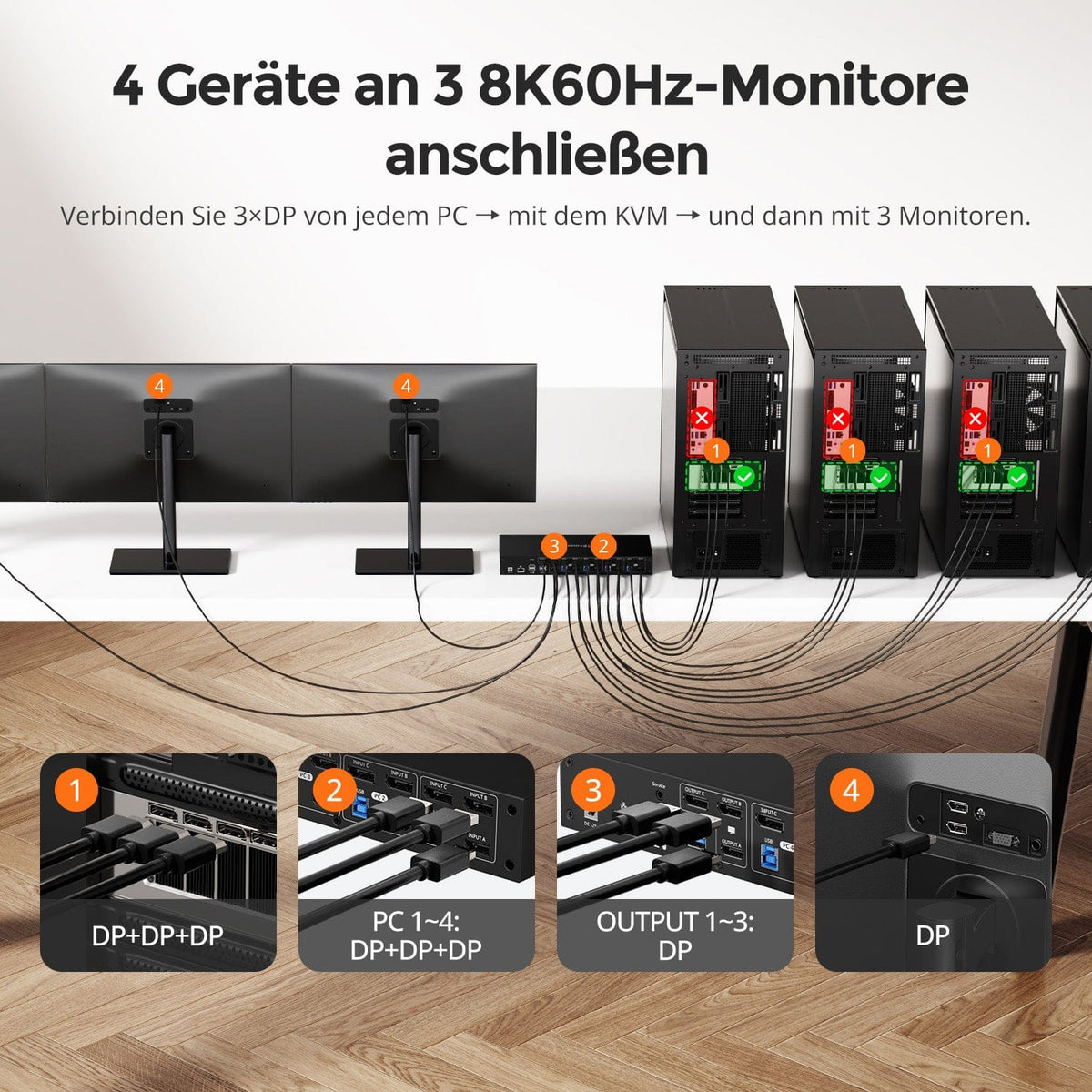
The DKS403-M24 connects four DisplayPort computers to three DP monitors. Each computer requires three DP cables and one USB-B cable. All PCs are operated with a single keyboard and mouse.
[Compatibility] Does the DKS403-M24 support HDR and VRR?
Yes. The DKS403-M24 supports HDR and VRR passthrough via DP 1.4. Both the display and GPU must support and have these features enabled. TESmart support is available to assist you with any issues.
[Compatibility] Does the DKS403-M24 support G-Sync and FreeSync?
Yes. The DKS403-M24 supports NVIDIA G-Sync and AMD FreeSync via passthrough for smooth, tear-free, and stutter-free visuals. The display must support the respective technology, and it must be enabled on the GPU.
[Compatibility] Which one fits: DKS403-M24, DKS402-M24 or DKS203-M24?
The DKS403-M24 is suitable for up to four PCs and three DP 1.4 monitors. For four PCs and two monitors, choose the DKS402-M24; for two PCs and three monitors, choose the DKS203-M24.
[Functions] What is the maximum supported resolution?
The DKS403-M24 supports three times 8K@60Hz mit DSC. Each output also has 4K@165Hz mit DSC, 4K@144Hz, QHD@240Hz und 1080p@240Hz Possible, also 32:9 ultrawide at 120 Hz and 21:9 at 144 Hz. Actual output depends on computer, display, cables, and display mode.
[Functions] Which display modes does the DKS403-M24 support?
Mode 1 displays one PC across all three monitors as an extended or mirrored desktop. Mode 2 displays a different PC on each monitor. Press the right Alt key twice to switch keyboard and mouse controls.
[Functions] What does EDID emulation do?
Each input has an EDID emulator. When switching between inputs, each PC still recognizes the display as connected. This helps to preserve icons and window positions, and prevents resizing and flickering.
[Connections] How does the integrated network switch work?
The integrated switch shares a Gigabit Ethernet connection with all four PCs via a single network cable. Separate network adapters or desktop switches are not required. For full Gigabit bandwidth, each PC must use USB 3.0 or higher. The switch can be deactivated if needed.
[Functions] Can USB and audio remain connected to a computer when switching between devices?
Yes. USB 3.0 devices and audio can be assigned independently via the control panel. Headsets, drives, or ongoing transfers remain connected to the desired computer while you switch displays, keyboards, or mice. The assignment is also saved after powering off.
[Functions] How does the lock button work and what is the default PIN?
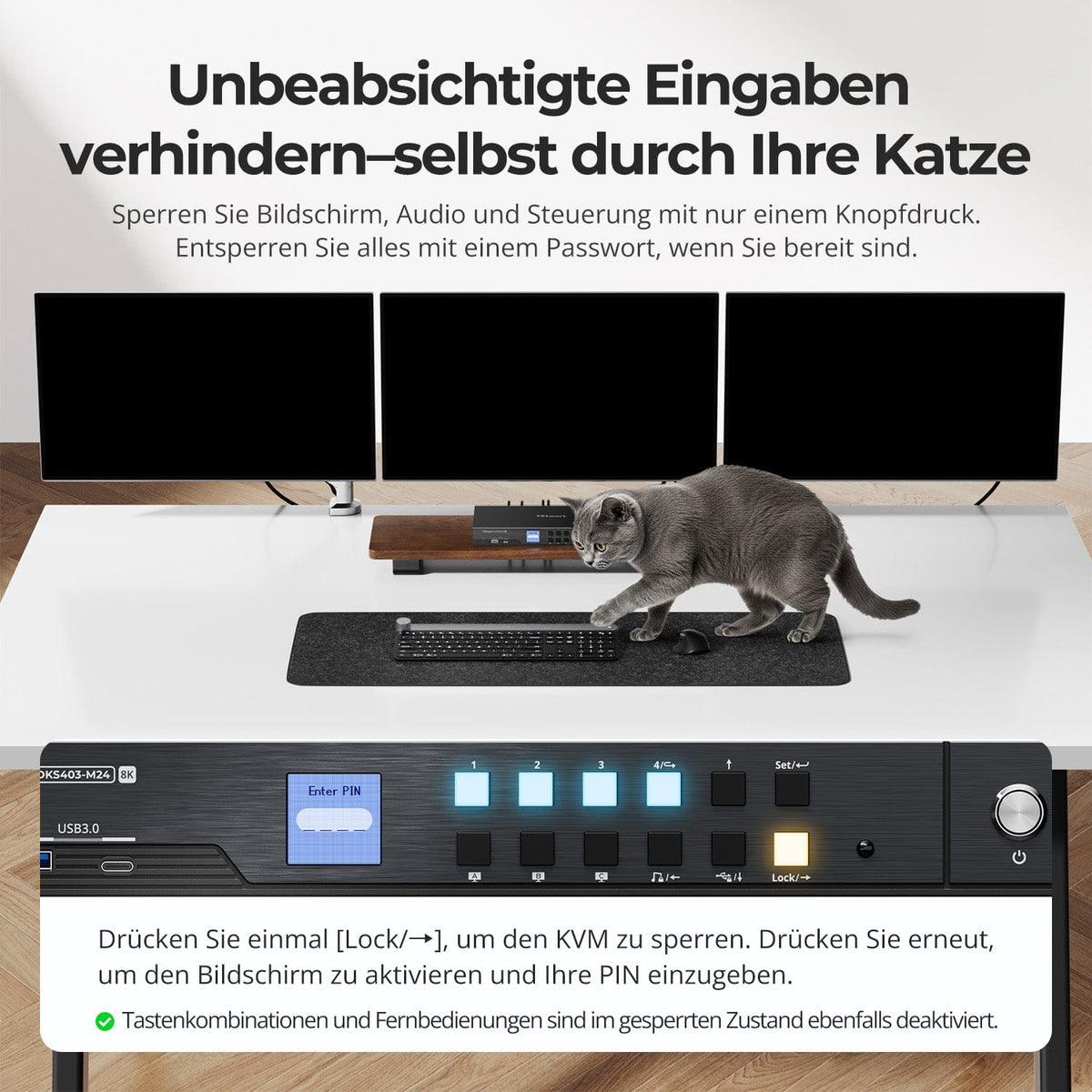
Press the Lock button to lock the DKS403-M24. Displays and audio output will be disabled, as will the control panel, hotkeys, and IR remote control. Press the button again and enter the PIN on the LCD to unlock. The default PIN is 1234 and can be changed in the LCD menu. If you forget your PIN, contact TESmart support for assistance.
[Switch] How do I switch between the four computers?
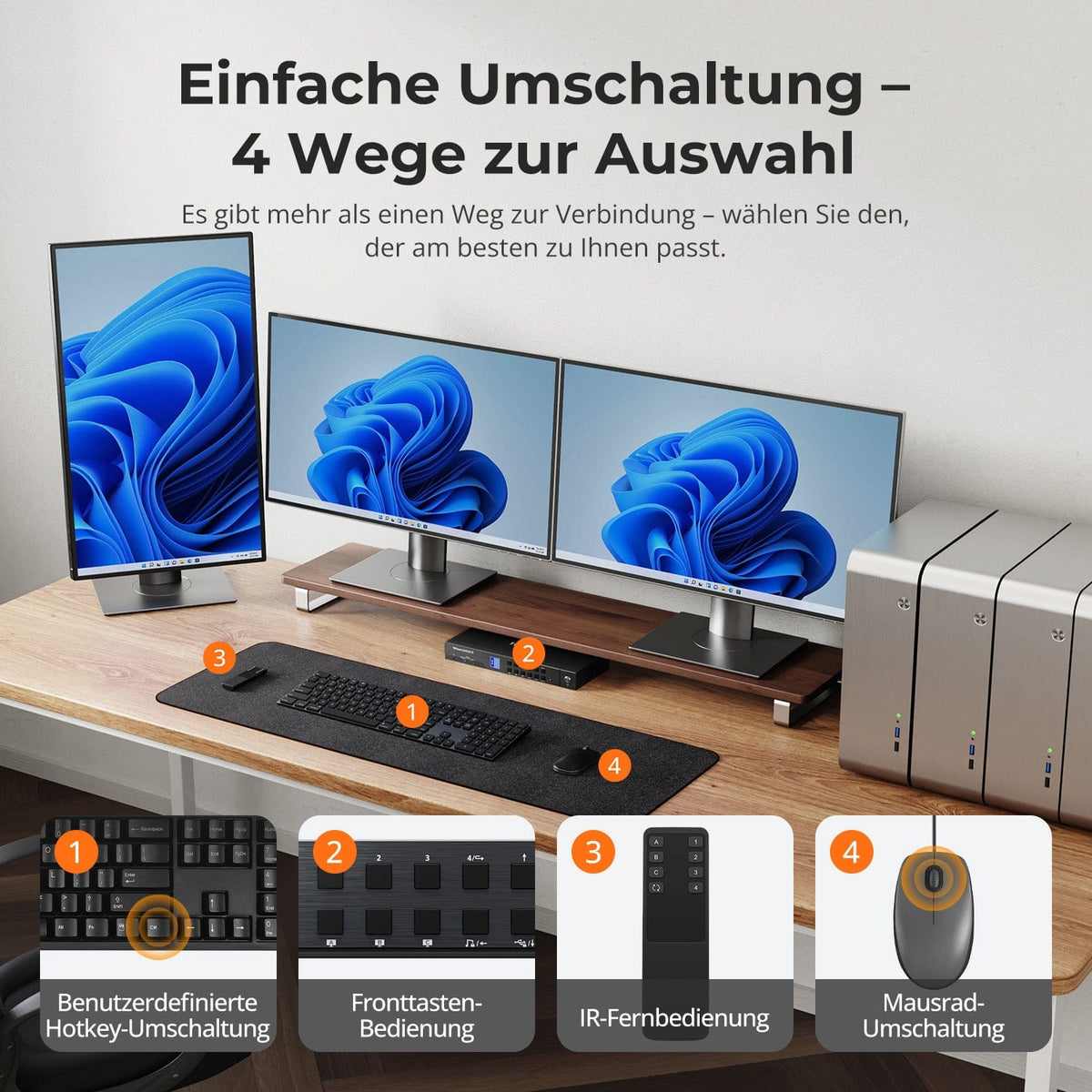
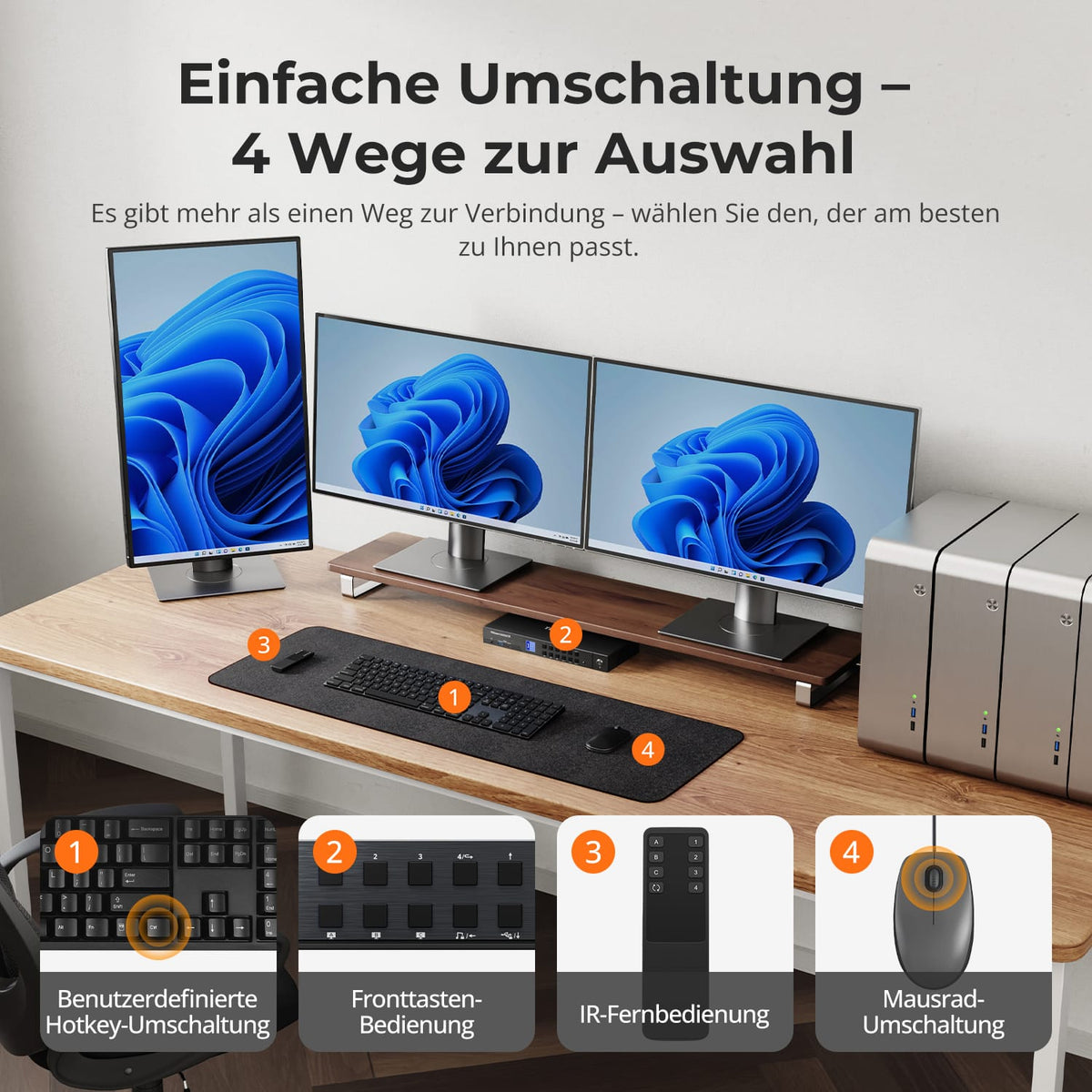
The DKS403-M24 features a control panel with LCD, IR remote control, hotkeys, and a mouse wheel for switching between computers. The mouse wheel function is disabled by default and must be activated via a hotkey. A double-click of the mouse wheel switches to the next computer.
[Furnishings] Do I need to install drivers or software?
The DKS403-M24 works via plug-and-play: Display switching, as well as keyboard and mouse, require no additional software. Some devices with additional functions still require their own drivers.
[Furnishings] Does the DKS403-M24 support keyboard hotkeys?
Yes. Connect a compatible wired USB keyboard to the designated keyboard port. Hotkeys may not work with Bluetooth keyboards, USB hubs, or some wireless receivers. By default, you press the right Ctrl key twice, followed by the Command key.
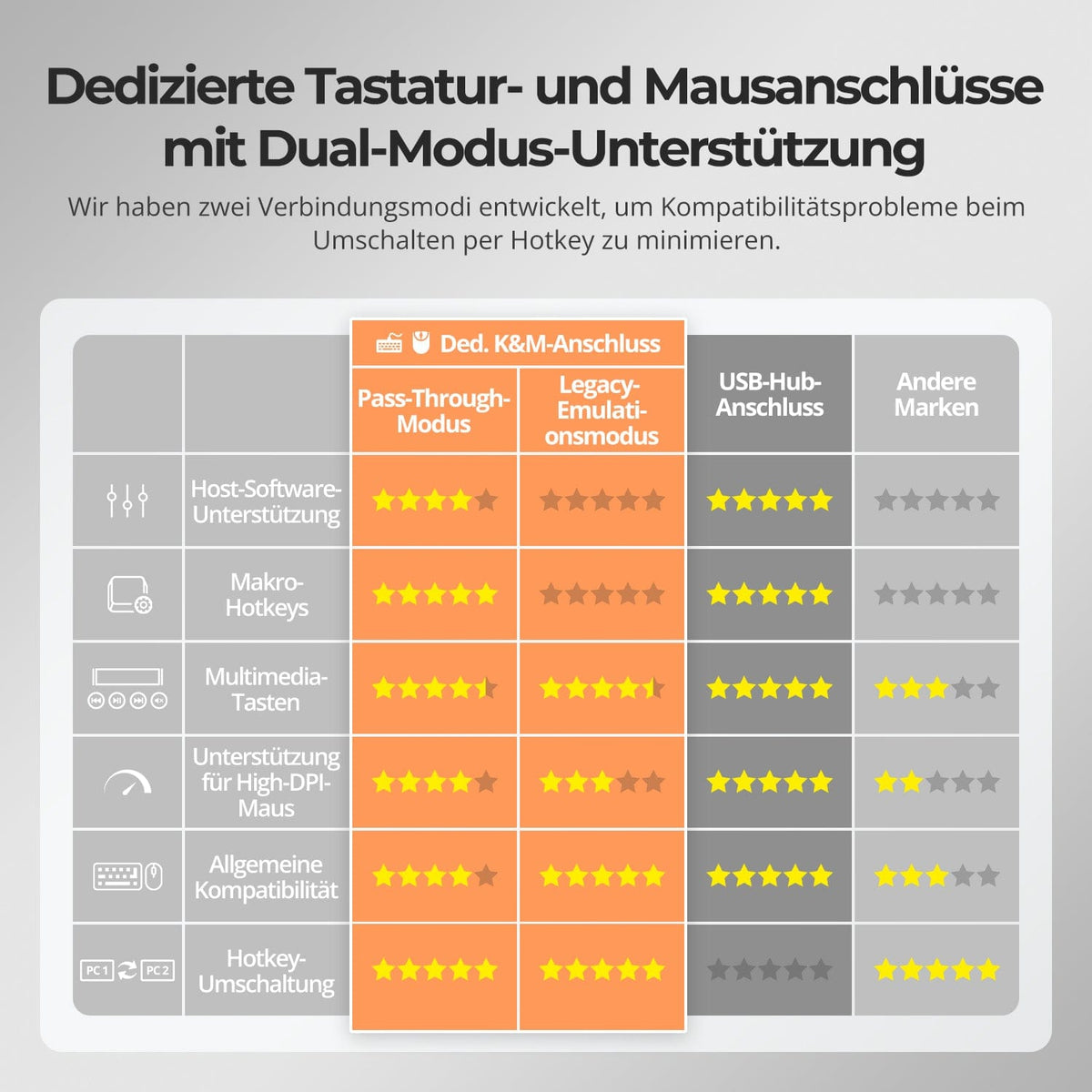
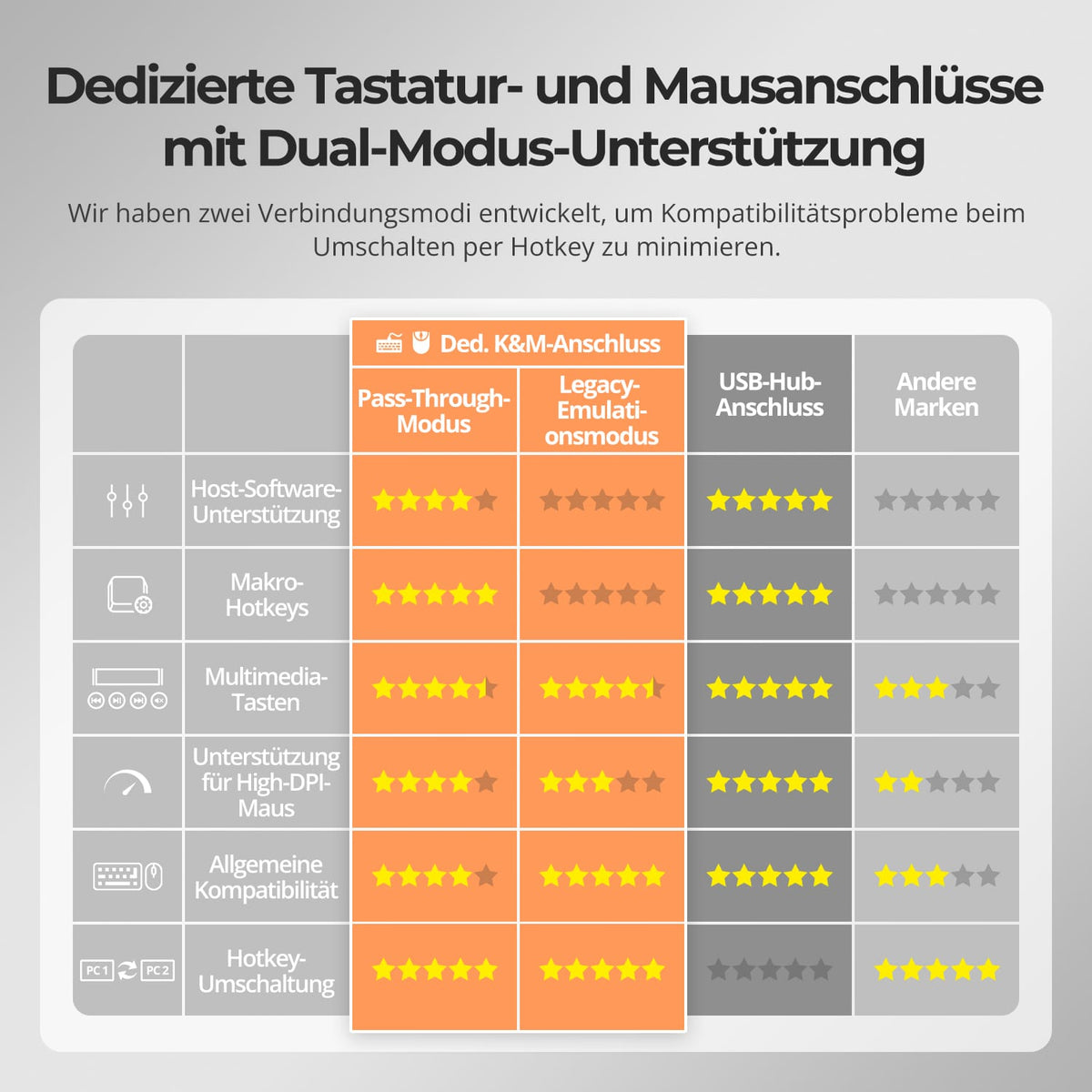
[Functions] What are Pass-Through Mode and Legacy Emulation Mode?
Pass-through mode is recommended for modern keyboards and mice and supports many additional functions. In case of problems, legacy emulation mode improves basic keyboard, mouse, and hotkey compatibility. However, some software-dependent additional functions will then be unavailable.
