

Table of contents
- Introduction
- What users actually want to solve
- Why Apple Studio Display and Pro Display XDR are different from normal monitors
- Why regular KVMs fail with the Apple Studio Display
- Displaying an image is not the same as sharing your entire workspace.
- Regular KVM vs. USB-C hub vs. Thunderbolt compatible KVM
- Who really needs this solution?
- The complete solution for 2026: How to plan an Apple display sharing setup
- Where TESmart THK401-X4 fits
- Setup checklist before purchase
- FAQ
- Conclusion
Introduction
Apple Studio Display and Pro Display XDR are excellent displays, but in a multi-computer setup they do not behave like typical HDMI or DisplayPort monitors.
A standard monitor typically provides one or more video inputs. A KVM switch simply needs to pass through HDMI or DisplayPort video while simultaneously switching keyboard and mouse control. This type works well with many office monitors, gaming displays, and workstation screens.
Apple Studio Display and Pro Display XDR are different. They are based on a Thunderbolt/USB-C display workflow where video, USB data, audio devices, camera functions, and display communication are all part of a more integrated connection. Therefore, the problem of a standard KVM switch failing with Apple Studio Display is usually not due to a low-quality switch. The switch was simply designed for a different type of monitor.
The real question isn't just, "Will I get a picture?" The better question is, "Can I share an Apple display, keyboard, mouse, USB devices, and a stable workspace workflow across multiple computers without constantly switching cables?"
What users actually want to solve
Most users looking for an Apple Studio Display KVM or Pro Display XDR KVM aren't just looking to solve a single video problem. They want to make a premium display the centerpiece of a multi-device workspace.
Typical setups include:
- A MacBook Pro and a Mac Studio share an Apple Studio Display.
- A Mac mini, a MacBook and a Windows PC in a shared Mac and PC desk setup.
- A work laptop and a private desktop use the same keyboard, mouse, display, and USB peripherals.
- A Windows PC, an HDMI source, or a game console is integrated into a Type-C/Thunderbolt Display environment.
- A user wants to avoid having to unplug and replug Thunderbolt cables, USB devices, audio devices, and input devices every day.
In these workflows, the display is only part of the problem. The user also needs control switching, USB switching, device detection, audio behavior, and a predictable reconnection after each switch.

Therefore, Apple Display Sharing requires different planning than ordinary HDMI monitor switching.
Why Apple Studio Display and Pro Display XDR are different from normal monitors
A standard HDMI or DisplayPort monitor is primarily a video endpoint. It receives a video signal, reports its display identity via EDID, and displays the image.
The Apple Studio Display and Pro Display XDR are more like complete display systems.Depending on the display model and connected host, the connection can include high-resolution video, USB data, audio devices, camera access, brightness control, and other device communication.
The single cable transmits more than just video.
With the Apple Studio Display, a single cable can transmit the display signal while simultaneously providing access to the display's built-in USB hub, speakers, microphone, and camera for the connected computer. A standard HDMI KVM switch cannot maintain this complete device relationship because HDMI only transmits video and audio, not the full USB-C/Thunderbolt device workflow.
The input structure does not correspond to a multi-port HDMI monitor.
Many standard monitors have multiple HDMI and DisplayPort inputs. Apple Studio Display and Pro Display XDR are not built around the same multi-input switching model. If users attempt to force these displays into a traditional HDMI KVM workflow, adapters and protocol conversion become part of the connection chain.
That's exactly where many problems begin.
Mac and Windows systems do not always output signals in the same way.
A MacBook might use USB-C/Thunderbolt ports for display output. A desktop PC might use HDMI or DisplayPort from the GPU. A laptop might support USB-C DisplayPort Alt Mode, but not Thunderbolt. A game console might only output HDMI.
All these devices can display an image on regular monitors, but they don't all communicate with Apple displays in the same way. A USB-C KVM for Apple Studio Display must be evaluated based on the complete signal path from the source device to the display, not just the connector type.
Why regular KVMs fail with the Apple Studio Display
Standard KVM switches fail in Apple Studio Display and Pro Display XDR setups because their design target is usually a classic HDMI or DisplayPort display. Within this target environment, they may function correctly but still fail in an Apple display sharing setting.
1. HDMI KVMs do not create a Thunderbolt/USB-C display connection.
An HDMI KVM switch passes HDMI video through. The Apple Studio Display doesn't work like a conventional HDMI monitor with a native HDMI input. Even with an HDMI-to-USB-C adapter, it's not just about the connector type. The adapter must actively convert the signal into a display format that the Apple display can accept.
This conversion may only resolve the image issue. It does not automatically restore USB hub functionality, camera access, microphone behavior, or the same device communication that the display expects from a directly compatible connection.
2. DisplayPort KVMs are still not the same as Thunderbolt display sharing.
DisplayPort can transmit high-resolution video and is often a strong option for gaming monitors or professional PC displays. However, a DP-KVM still primarily switches DisplayPort video plus USB peripherals over separate paths.
Apple displays based on Thunderbolt/USB-C workflows are not simply DisplayPort monitors with a different connector. A DP-to-USB-C workaround can work in certain cases, but it adds another layer of negotiation and doesn't guarantee the full Apple display experience.
3. USB-C hubs and docks expand one computer; they do not reliably switch between multiple computers.
A USB-C hub or dock is designed to expand the capabilities of a host computer. It can add HDMI, USB-A, Ethernet, storage, or charging functionality to a laptop.This is useful, but not the same as switching a display and peripherals between multiple computers.
When users place a dock in front of a KVM, a chain like this often results:
Computer → Dock → Adapter → KVM → Adapter → Apple Display
Each layer can modify display negotiation, USB enumeration, power behavior, or wake-from-sleep timing. If the setup works directly but fails via the dock, the problem usually lies in the complexity of the chain and not in a single faulty device.
4. Integrated Apple display devices may not follow the video signal.
With a standard monitor, simply switching the video signal is usually sufficient. However, with the Apple Studio Display, users often expect the camera, microphone, speakers, and USB ports to also switch to the active computer.
A standard KVM switch can toggle video and keyboard/mouse control, but that doesn't mean every built-in Apple display feature will be recognized the same way by every host. macOS and Windows may also handle these devices differently.
5. “It shows a picture” does not mean that the setup is stable.
Some users get a picture via a chain of adapters, but still experience black screens after sleep mode, USB devices not reconnecting, audio not switching, reset display settings, or long re-detection times after each change.
Therefore, "Can it make the display light up?" is not a sufficient purchase criterion for a professional Apple display sharing setup.
Displaying an image is not the same as sharing your entire workspace.
A normal monitor setup often has one simple condition for success: The image appears with the expected resolution and refresh rate.
An Apple Studio Display KVM setup has a significantly broader success condition. The user might expect the active computer to have access to:
- The Apple display panel with the expected resolution.
- Keyboard and mouse control.
- USB peripherals connected to the workstation.
- Audio devices and display-side sound output, if supported.
- Camera and microphone access, provided it is supported by the host and workflow.
- Stable reconnection after sleep mode, waking up, and switching.
This distinction is important because a simple HDMI KVM might only address the first point. A Thunderbolt-compatible KVM workflow is designed to address the more comprehensive switching problem.
At TESmart, we focus on solving the real switching problem: how users can switch between computers while keeping the workplace usable, predictable, and organized.
Regular KVM vs. USB-C hub vs. Thunderbolt compatible KVM
The right solution depends on what you actually want to switch. The following table distinguishes three device types that are frequently confused in discussions about Apple display sharing.
| Solution type | What it was developed for | What it can solve | Why this is important for Apple display sharing |
|---|---|---|---|
| Standard HDMI/DP KVM | Switching between classic HDMI or DisplayPort monitors between computers. | Video switching, keyboard/mouse sharing and partial USB peripheral sharing for standard monitors. | It may not have the USB-C/Thunderbolt device relationship required by Apple Studio Display or Pro Display XDR workflows. |
| USB-C Hub/Dock | Expanding a single laptop with additional ports, displays, network, storage, or charging capabilities. | Expansion of a single computer, docking at the desk and peripheral connection for an active host. | A dock is not a multi-computer switching system. It can introduce additional complexity when used between the host, KVM, and Apple display. |
| Thunderbolt-compatible KVM | Managing display and device switching in workflows with USB-C/Thunderbolt compatible display connections. | Apple display sharing, multi-device control, USB peripheral switching, and cleaner Mac + PC desk scheduling. | It is better suited for Thunderbolt display sharing because the display is treated as part of a broader device workflow, not just as a video endpoint. |
Many users search for a "Thunderbolt 4 KVM" when they encounter these problems. The more accurate purchasing decision is: Does the switch support a Thunderbolt-compatible workflow for the specific display, host computers, and peripherals in your setup?
Who really needs this solution?
You may need an Apple Studio Display KVM or Pro Display XDR KVM workflow if your desk includes more than one computer and you want the Apple display to remain the central screen.
You will probably need this solution if...
- You are using a MacBook and a desktop Mac with the same Apple Studio Display.
- You switch between macOS and Windows during the workday.
- You want to use a common set of keyboard, mouse and USB peripherals for multiple devices.
- You are tired of having to unplug and replug a Thunderbolt or USB-C cable every time you change computers.
- You want to integrate HDMI sources, PCs or consoles into a Type-C/Apple Display Sharing environment.
- For them, stable daily switching is more important than one-off adapter experiments.

You may not need this solution if...
- You can only use one Mac with an Apple display.
- Your monitor already has multiple HDMI or DisplayPort inputs and you only switch video occasionally.
- You don't have to share any keyboard, mouse, USB, audio or peripheral devices.
- You can live with having to manually reconnect cables when you change devices.

The goal is not to recommend a more complex switch to every user. The goal is to adapt the switching device to the actual desktop setup.
The complete solution for 2026: How to plan an Apple display sharing setup
A reliable Apple display sharing setup in 2026 begins with planning the entire signal path before purchasing any hardware.
Step 1: Identify the display workflow
Start with the display. Are you using an Apple Studio Display, Pro Display XDR, or another Type-C/Thunderbolt-compatible display? Check what input path the display expects and which functions you want to share.
Don't assume that every USB-C port transmits the same type of signal. USB-C is a connector shape.The actual capability may only be USB data, USB-C DisplayPort Alt Mode, Thunderbolt 3, Thunderbolt 4, or some other implementation.
Step 2: Identify each source device
List each device you want to connect:
- MacBook Pro or MacBook Air.
- Mac mini or Mac Studio.
- Windows desktop PC.
- Windows laptop with USB-C or Thunderbolt support.
- HDMI source such as a game console or media device.
Next, check what each device can actually output. A Windows PC with only HDMI is significantly different from a laptop with a compatible USB-C/Thunderbolt port.
Step 3: Decide what needs to switch over together
Some users only need video switching. Others want the entire desktop to follow the active computer.
For Apple display sharing, you should define whether the following needs to be switched:
- Display signal.
- Keyboard and mouse.
- USB storage device or webcam.
- Audio input and output.
- Display-side USB devices.
- Network or other desktop peripherals.
This determines whether a normal video switch is sufficient or whether a Thunderbolt-compatible KVM workflow is a better fit.
Step 4: Reduce adapter levels
Each adapter can introduce a new point of negotiation. With Apple Studio Display and Pro Display XDR, a cleaner path is usually more reliable than a chain of converters.
A practical rule: If the setup requires multiple active adapters to convert HDMI or DisplayPort to USB-C and then back to another format, the risk of black screen, USB failure, or inconsistent wake behavior increases.
Step 5: Test the workflow, not just the image
After setup, test more than just the resolution. Switch between computers several times. Wake each computer from sleep mode. Check that the keyboard and mouse follow the selected host. Test the USB devices you actually use. Check audio and camera behavior if your workflow requires them.
That's the difference between a temporary connection and a reliable workplace system.
Where TESmart THK401-X4 fits
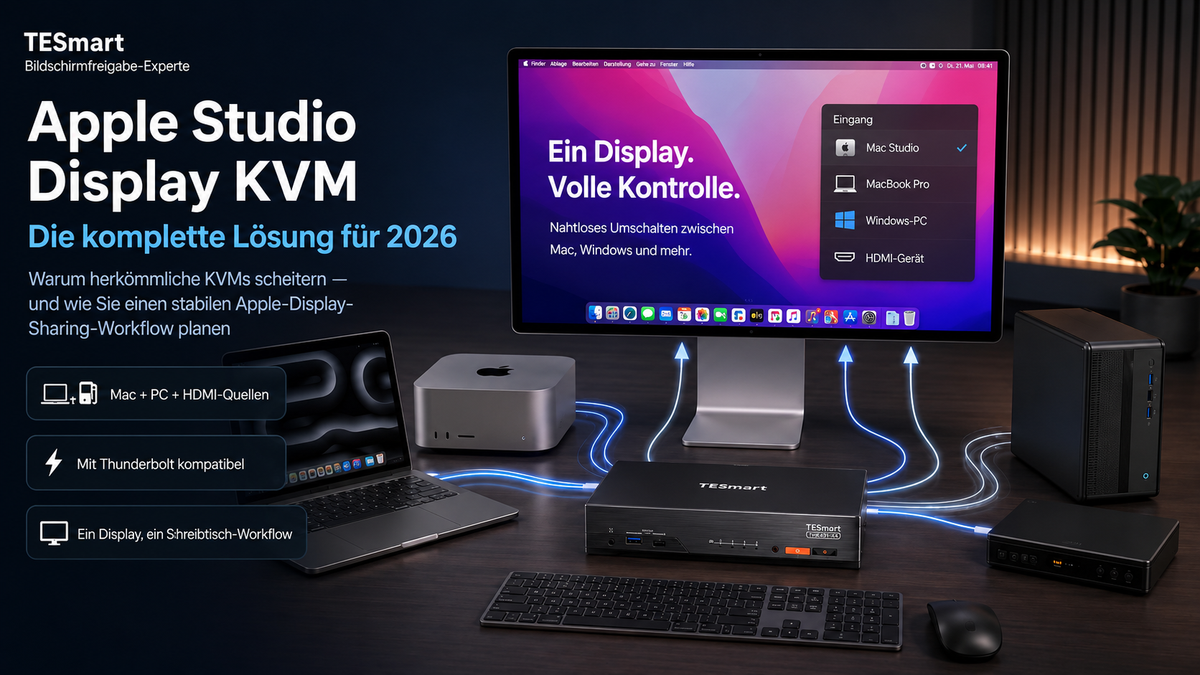
For users who set up a mixed Apple display sharing setup, TESmart THK401-X4 designed for a practical Thunderbolt-compatible workflow and not just simple HDMI monitor switching.
It is particularly relevant when the workstation includes multiple source types, such as HDMI-based computers or devices alongside a Thunderbolt-compatible laptop/display setup. This makes it a better fit for users who want to connect multiple systems to a Type-C/Apple Display environment without treating the display like a simple HDMI screen.
THK401-X4 is particularly well suited for
- Users who share an Apple Studio Display across multiple devices.
- Mac and PC desktop setups that need to switch more smoothly between systems.
- Workflows that combine HDMI sources with a Thunderbolt-compatible display path.
- Users who want to reduce the daily need to unplug and replug cables on an Apple display.
- Professional users for whom the display, keyboard, mouse and USB switching should function as a common desk workflow.
What he solves
THK401-X4 focuses on bridging the gap between ordinary HDMI/DP KVM switching and true Apple display sharing.It helps users manage a mixed-source desktop where the display side is more complex than with a normal HDMI monitor.
Instead of forcing users to assemble a fragile adapter chain, the workflow is built around the switching problem itself: multiple devices, one display environment, one control surface, and fewer manual reconnections.
Important compatibility information
The THK401-X4 should not be considered a universal adapter for every Thunderbolt 5 device or every possible Apple display function on every host computer. Apple display behavior may vary depending on the source device, operating system, cable, adapter, and display firmware.
Camera, microphone, speakers, USB hub, and display functions should be validated in the specific setup where they are relevant. Mac and Windows systems do not provide every Apple display function in the same way.
Compatible with Thunderbolt™ 4 — transparent & tested
The THK401-X4 was designed for use with Thunderbolt™ 4 laptops and common Thunderbolt-compatible workflows, including Apple Studio Display Sharing scenarios and mixed Mac/PC desk setups.
It was tested in real-world desk configurations to support stable display and device switching behavior in common Apple display sharing workflows.
The THK401-X4 is not yet Intel® certified for Thunderbolt™. Certification is currently underway. Compatibility validation and official certification are different things, and we keep this distinction clear so users can realistically plan their setups.
Setup checklist before purchase
Before choosing an Apple Studio Display KVM, check these points:
- Display model: Apple Studio Display, Pro Display XDR or another Type-C/Thunderbolt compatible display.
- Source devices: MacBook, Mac mini, Mac Studio, Windows PC, laptop, console or HDMI source.
- Output capability: HDMI, DisplayPort, USB-C DisplayPort Alt Mode, Thunderbolt 3 or Thunderbolt 4.
- Required resolution: Confirm the target display mode, e.g. 5K60, if applicable.
- Peripheral requirements: Keyboard, mouse, USB storage, webcam, audio, microphone or other USB devices.
- Number of adapters: Reduce unnecessary conversion levels whenever possible.
- Operating systems: macOS and Windows may behave differently on display-side devices.
- Switching behavior: Test sleep/wake mode, USB reconnection, audio selection, and repeated switching.
We develop KVM solutions around real-world desk workflows, because compatibility isn't just about a datasheet. What matters is whether the entire workstation behaves predictably after repeated switching.
FAQ
Q1: Why does a normal KVM fail with the Apple Studio Display?
A standard HDMI or DisplayPort KVM switch is typically designed for switching traditional video signals. The Apple Studio Display, however, is based on a USB-C/Thunderbolt display workflow that can encompass video, USB data, audio, camera, and device communication. A standard KVM switch might not be able to maintain this full range of connections.
Q2: Can I use an HDMI-to-USB-C adapter with the Apple Studio Display?
In some cases, an active adapter from an HDMI source can help to output an image to a USB-C display.However, this is not the same as full Apple display sharing. USB devices, camera, microphone, speakers, or stable switching behavior between computers may not be supported.
Q3: Is a USB-C KVM always sufficient for Apple Studio Display?
No. USB-C is just the connector type. The underlying signal can be USB data, DisplayPort Alt Mode, Thunderbolt, or another mode. With the Apple Studio Display, the entire host-to-display workflow is more important than the connector alone.
Q4: Can the Pro Display XDR be used with a KVM?
Yes, but it requires careful planning. A Pro Display XDR KVM setup should be evaluated based on the expected connection path of the display, the capabilities of the source devices, the resolution requirements, and whether the workflow requires more than just video switching.
Q5: Do all Apple Studio Display features work on any Mac and PC via a KVM?
No KVM should be considered a guarantee for every Apple display function on every computer. Camera, microphone, speakers, USB hub behavior, brightness control, and sleep/wake behavior may vary depending on the host system, operating system, cable, adapter, and display firmware.
Q6: What is the difference between Dock and KVM in this setup?
A dock extends a computer. A KVM switch switches control and shared devices between multiple computers. If an Apple display, keyboard, mouse, and USB peripherals need to be moved between multiple computers, a dock alone is usually not the right tool.
Q7: Is THK401-X4 a Thunderbolt 5 product?
No. The THK401-X4 should not be described as a Thunderbolt 5 KVM. It is positioned for Thunderbolt-compatible workflows and current Thunderbolt 4 desk setups, especially Apple Studio Display Sharing and mixed Mac/PC configurations.
Q8: Why do some setups show video but lose USB or audio after switching?
Video, USB, and audio are often negotiated separately in many desktop setups. A chain of docks, adapters, and KVM devices might provide a video signal, while USB devices or audio endpoints fail to reconnect correctly. Therefore, thorough workflow testing is essential.
Conclusion
Standard KVM switches don't necessarily fail with the Apple Studio Display or Pro Display XDR because they are poor products. They fail because they were usually designed for a different type of monitor: one where HDMI or DisplayPort video switching is the primary requirement.
Apple Studio Display and Pro Display XDR are part of a more complex display workflow. The connection can involve video, USB data, audio devices, camera access, display communication, operating system behavior, and the capabilities of the source device. A setup that simply "makes the screen light up" may still be insufficient as a daily workstation.
For Apple display sharing in 2026, the better approach is to plan the entire desktop: source devices, display path, USB peripherals, operating systems, adapter levels, and switching behavior.
If your goal is to share an Apple Studio Display or similar Type-C/Thunderbolt-compatible display across multiple computers, including a mixed Mac and PC desktop setup, the TESmart THK401-X4 is worth considering. It's designed for users who need more than simple video switching and want to neatly manage Thunderbolt display sharing, HDMI sources, keyboard, mouse, and USB devices within a single desktop workflow.
Discover TESmart THK401-X4 and build a more reliable Apple display sharing setup for your 2026 workstation.
Split:
Best Thunderbolt™ 4 Compatible KVM for Mac Users 2026: Single or Dual Monitor Setup
Why traditional KVMs fail with Apple Studio Display and Pro Display XDR: The complete solution for 2026