

HDC203-PM24-EUBK
Triple 4K60Hz DisplayLink® Hybrid KVM Dockingstation – USB-C mit EDID & 100W PD für 2 PCs (Mac & Desktop)
- Regulärer Preis
-
€770,19 - Regulärer Preis
-
€770,19 - Verkaufspreis
-
€770,19
Abholverfügbarkeit konnte nicht geladen werden
Overview & Highlights
Konzipiert für hybride Workflows mit Mac & Desktop
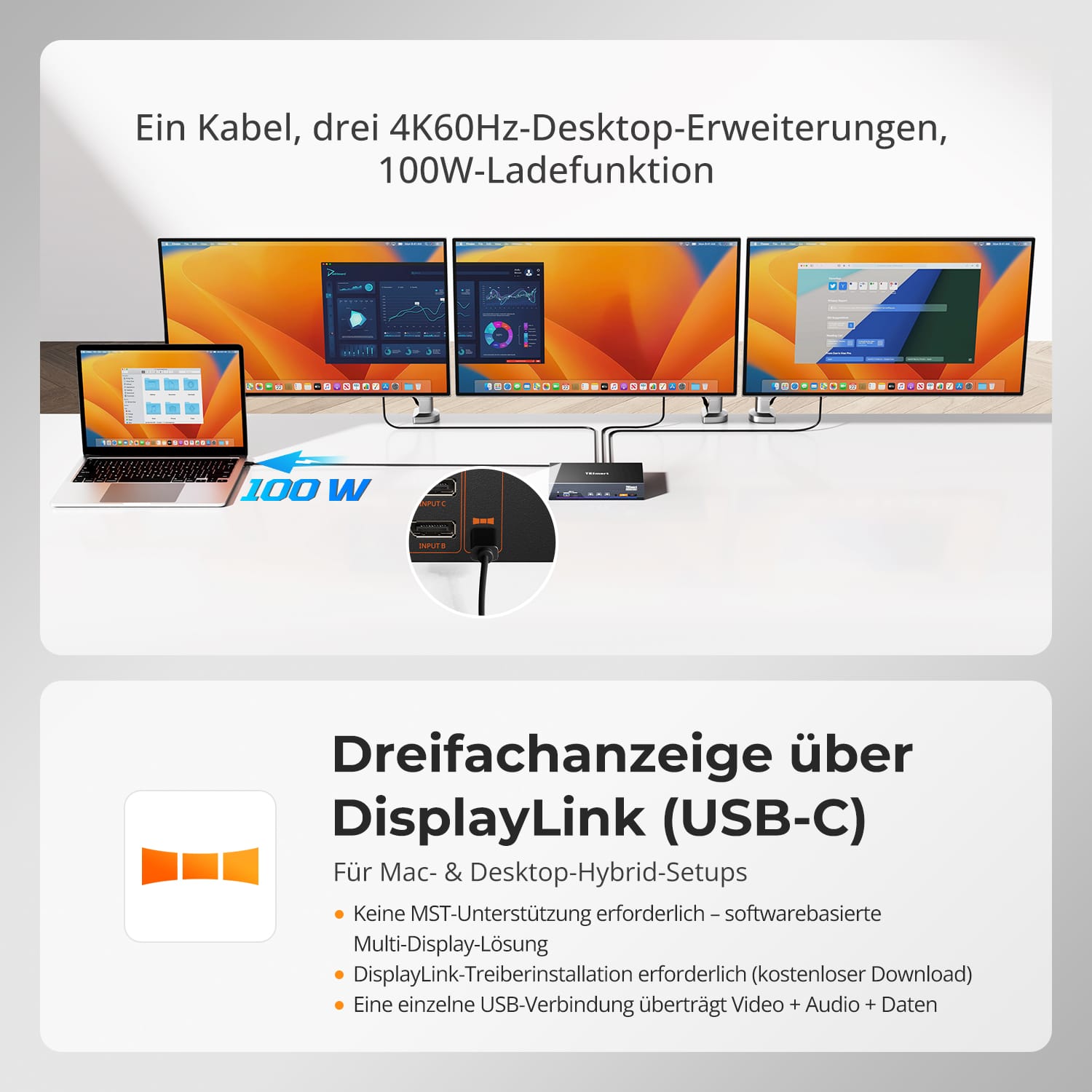
Ein USB-C-Kabel überträgt Video, Daten und Strom – ermöglicht echten Triple-Display-Betrieb, sofortiges Umschalten und volle Docking-Station-Funktionalität.
Wichtige Funktionen
-
Triple Display für Mac – Überwindet die macOS-MST-Beschränkungen und erweitert nahtlos auf 3×4K-60-Hz-Bildschirme.
-
Hybride KVM + Dockingstation – Ein Arbeitsplatz für MacBook und Desktop-PC; Video, Daten, Audio, 1000M LAN und Strom über ein einziges Kabel.
-
100W PD (Power Delivery) – Versorgt leistungsstarke Laptops auch bei hoher Auslastung mit voller Leistung.
-
Intelligentes EDID-Sofortumschaltung – Wechseln Sie blitzschnell zwischen PCs – kein Signalverlust, keine langen Blackouts.
-
Unterstützt durch DisplayLink® – Kombiniert 1 DP- + 2 USB-Videostreams für eine stabile, flüssige Triple-Display-Leistung.
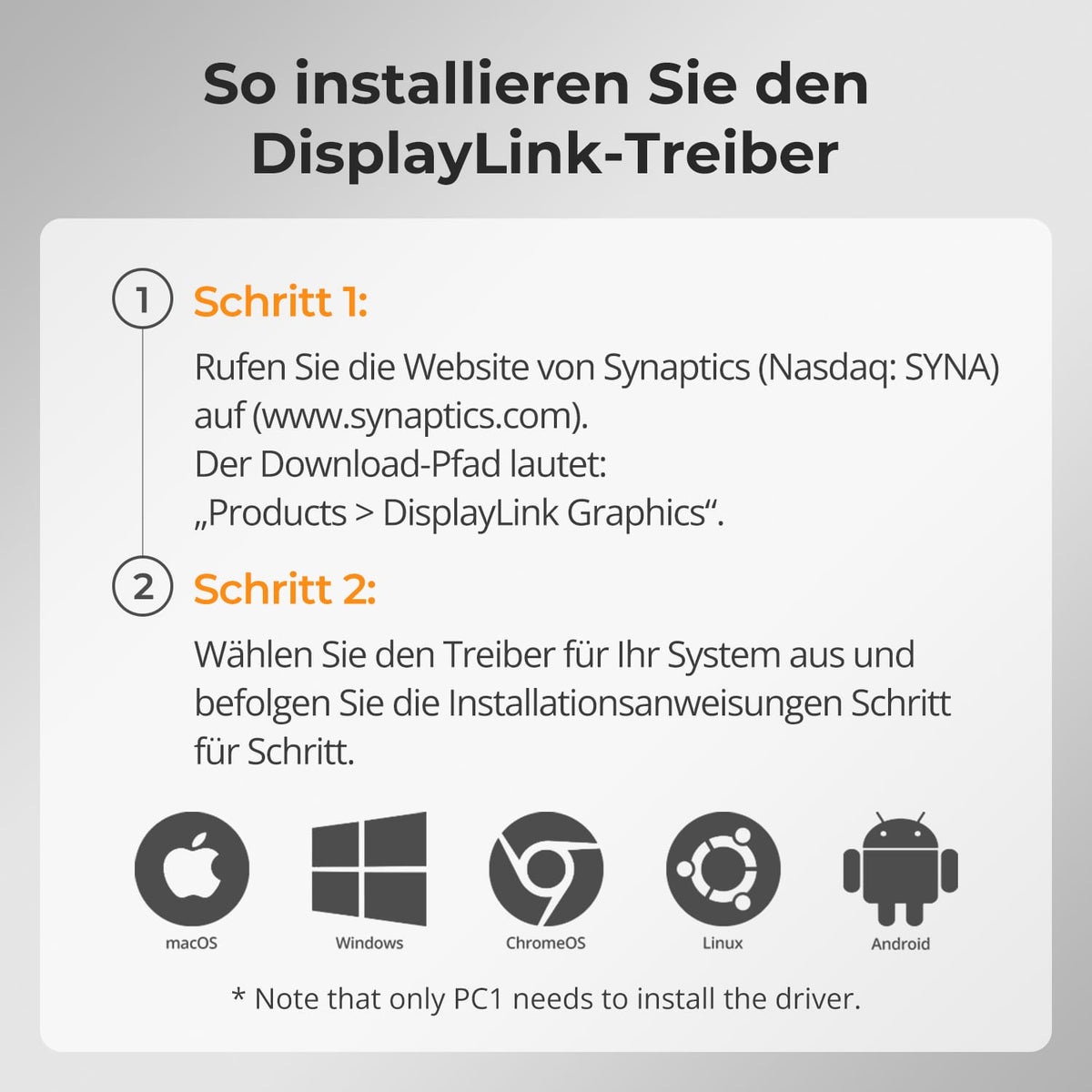
⚠️ DisplayLink-Treiber erforderlich (kostenloser Download).
Unter macOS können Videos von Amazon Prime Video, Netflix, Disney+ und anderen HDCP-geschützten Diensten nicht über DisplayLink angezeigt werden.
Wenn der DisplayLink-Treiber aktiv ist, kann macOS die von diesen Plattformen benötigte HDCP-Sicherheitsprüfung nicht abschließen. Infolgedessen wird das Videofenster vollständig schwarz. Dies ist eine bekannte Einschränkung der macOS- und DisplayLink-Architektur und wird nicht durch ein Hardwareproblem verursacht.
Scope of delivery
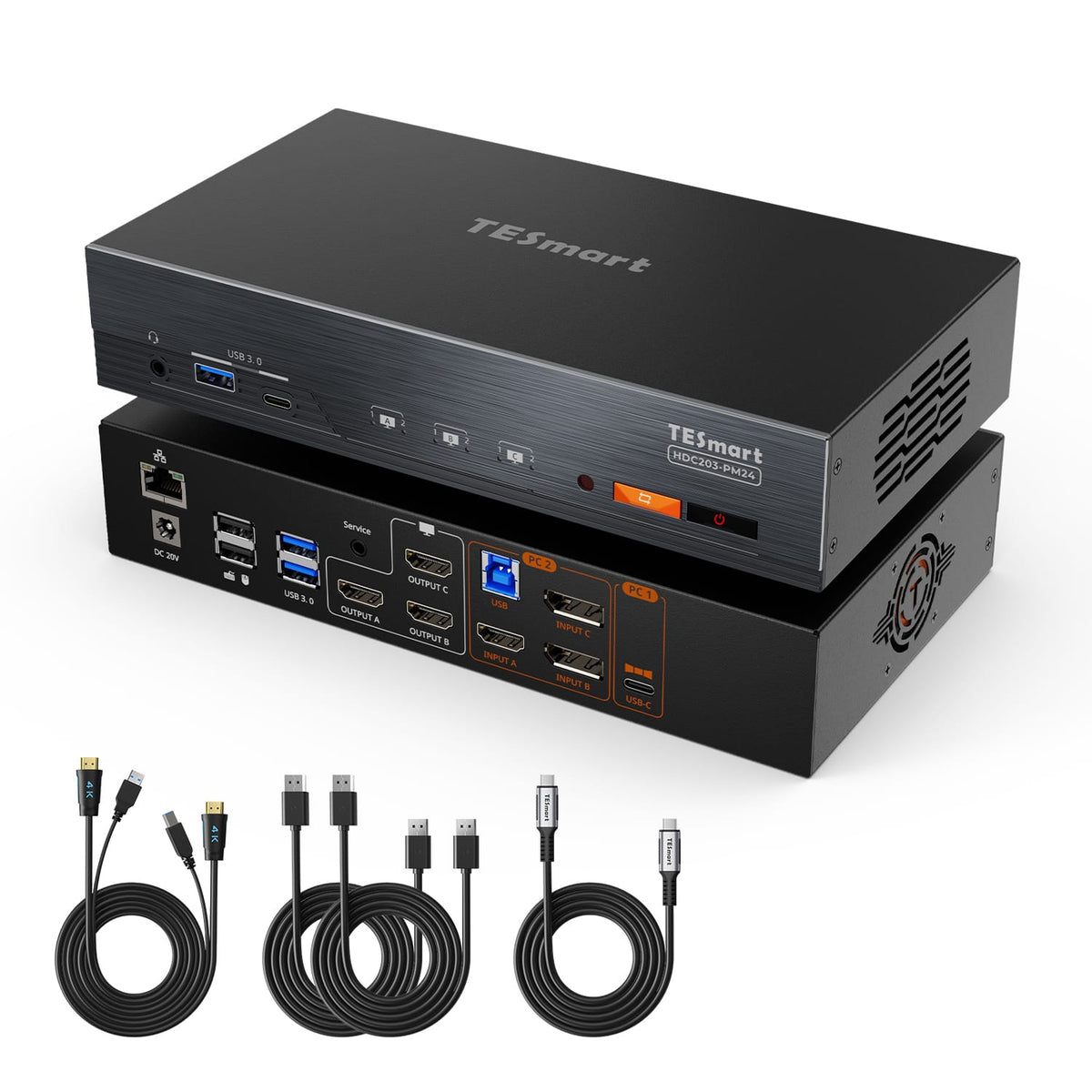
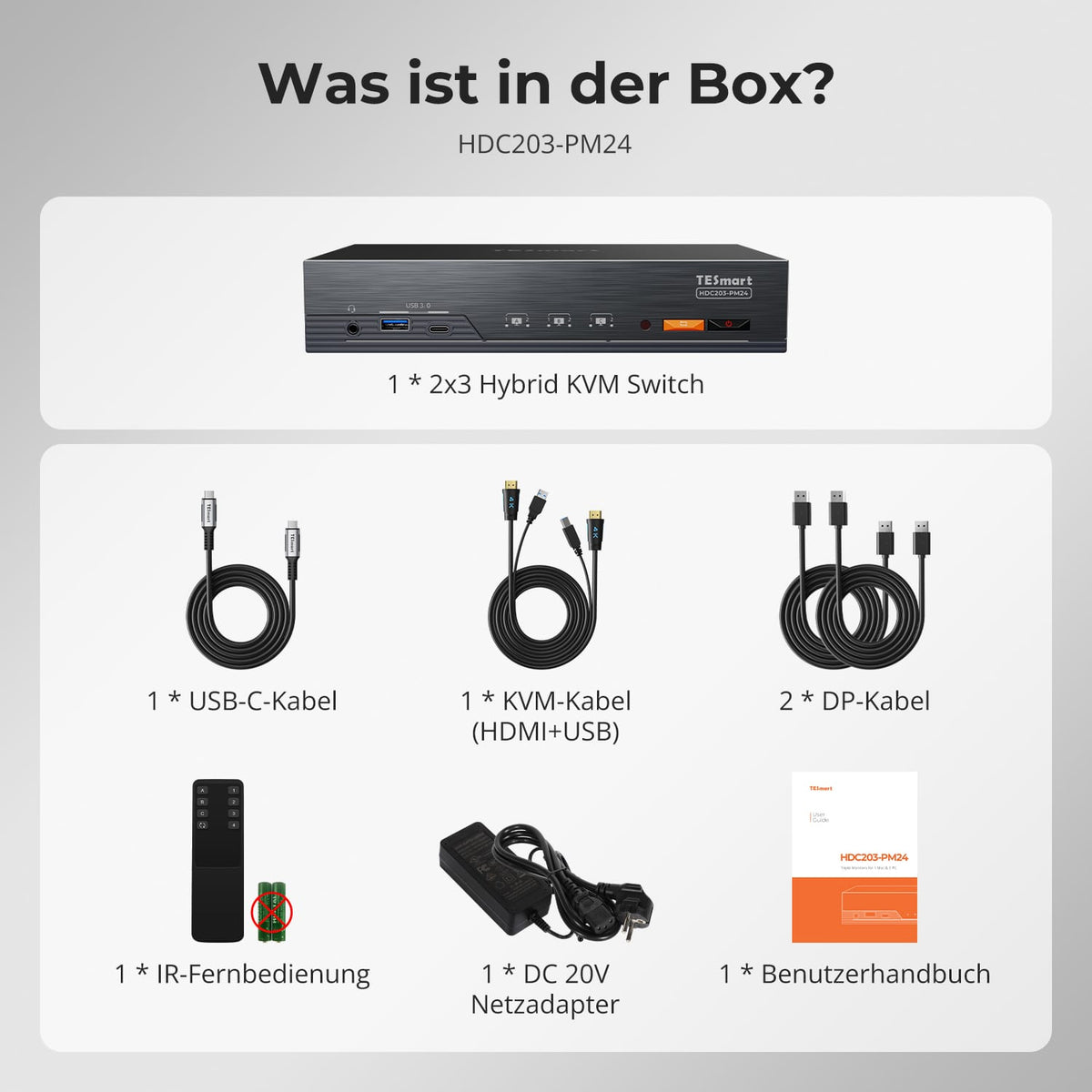
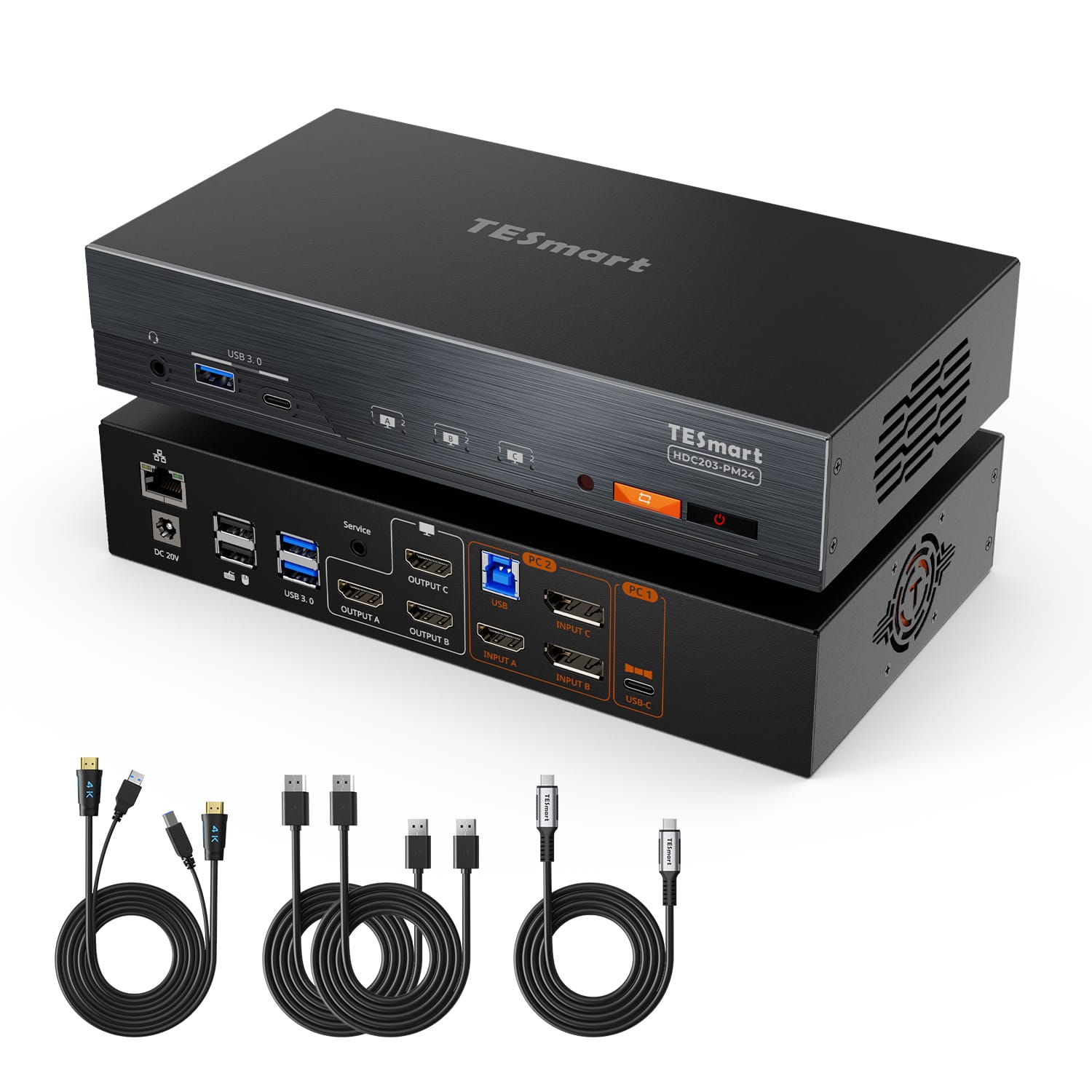
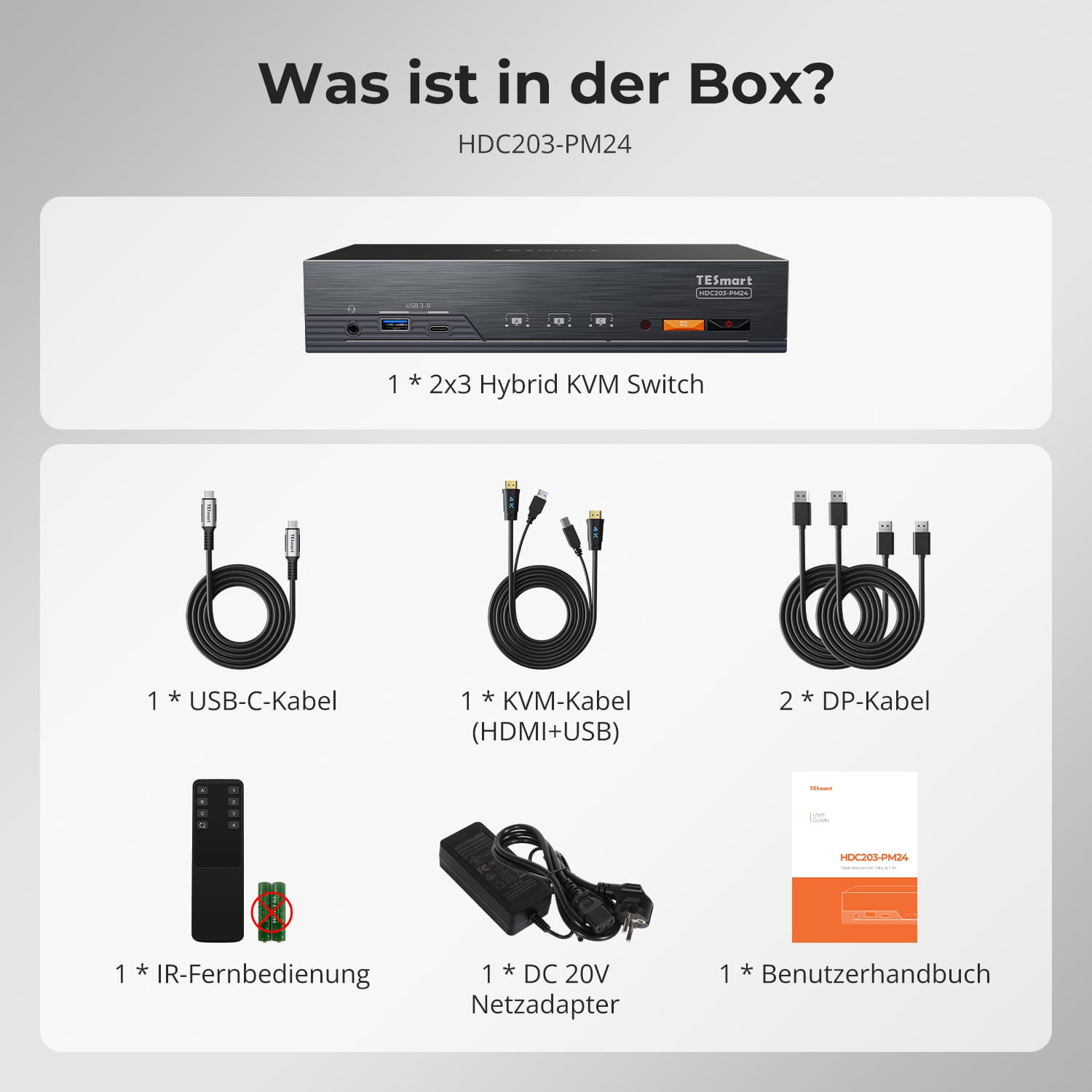
- 1 * 2x3 Hybrid KVM Switch
- 1 * USB-C cable
- 1 * KVM cable
- 2 * DP cables
- 1 * IR remote control
- 1 * 20V power supply
- 1 * User manual
Downloads & User manual

Our shipping policy consists of the following 7 sections:
Order processing time (shipping lead time)
- Shipping costs & Delivery time
- Order tracking
- Delayed shipments
- Order cancellations
- Steer & Customs duties
- Contact us
1. Order processing time
The order processing time refers to the period from the time of the order until the order is handed over to the shipping service provider.
• Orders are usually shipped within 1-2 working days after confirmation/payment.
• Orders placed on weekends may be subject to delays.
• Our warehouse operates Monday to Friday during regular business hours (excluding public holidays). In such cases, we will make every effort to minimize shipping delays.
We have warehouses in Germany and other regions. Your order will be shipped directly from the nearest warehouse, depending on your delivery address. If the nearest warehouse does not have the product in stock, we will ship your order from another nearby warehouse to ensure you receive it as quickly as possible.
Shipping to the United Kingdom 🇬🇧
To ensure smooth delivery and correct customs clearance, orders from the United Kingdom are processed through our US shop.
Orders to UK addresses cannot be shipped via our EU shop.
2. Shipping costs & Delivery time
| Country or region | Estimated delivery time | Shipping costs | Logistics service provider |
| Germany | 3 working days | Free Shipping | DHL |
| Other EU countries | 3-7 working days | Free Shipping | DHL/DPD |
| Non-EU countries | 5-12 working days | From 60 euros | UPS |
3. Order tracking
4.Delayed shipments
5. Order Cancellation
6. Taxes & Customs duties
7. Contact us
- TESmart orders are processed automatically. Once shipped, they cannot be canceled or changed, including address changes.
- If you wish to return or request a refund, please contact us within 30 days of receiving the product at service@tesmart.de.
- Returns are only possible if the product is unused, complete and in its original packaging.
- For returns not due to quality issues, the customer bears the return shipping costs.
- TESmart will cover the return shipping costs for returns or refunds due to quality issues.
- Products that are searched for 30 days and within 2 years Items exhibiting problems cannot be returned, but depending on inspection, they can be repaired or replaced (same model only, replacements preferred for members).
- Between the 2nd and 3rd. No return or refund service is offered this year. Members can after 3 months A discount of [amount] will be granted from the date of purchase as part of the trade-in policy. up to 50% You will receive a refund of the original product price towards the purchase of a new product. For detailed terms and conditions, please visit: https://tesmart.de/pages/tesmart-id-trade-in
- Refunds will be processed within 5 working days of the goods being received at the warehouse.
For questions: service@tesmart.de
Full guidelines:

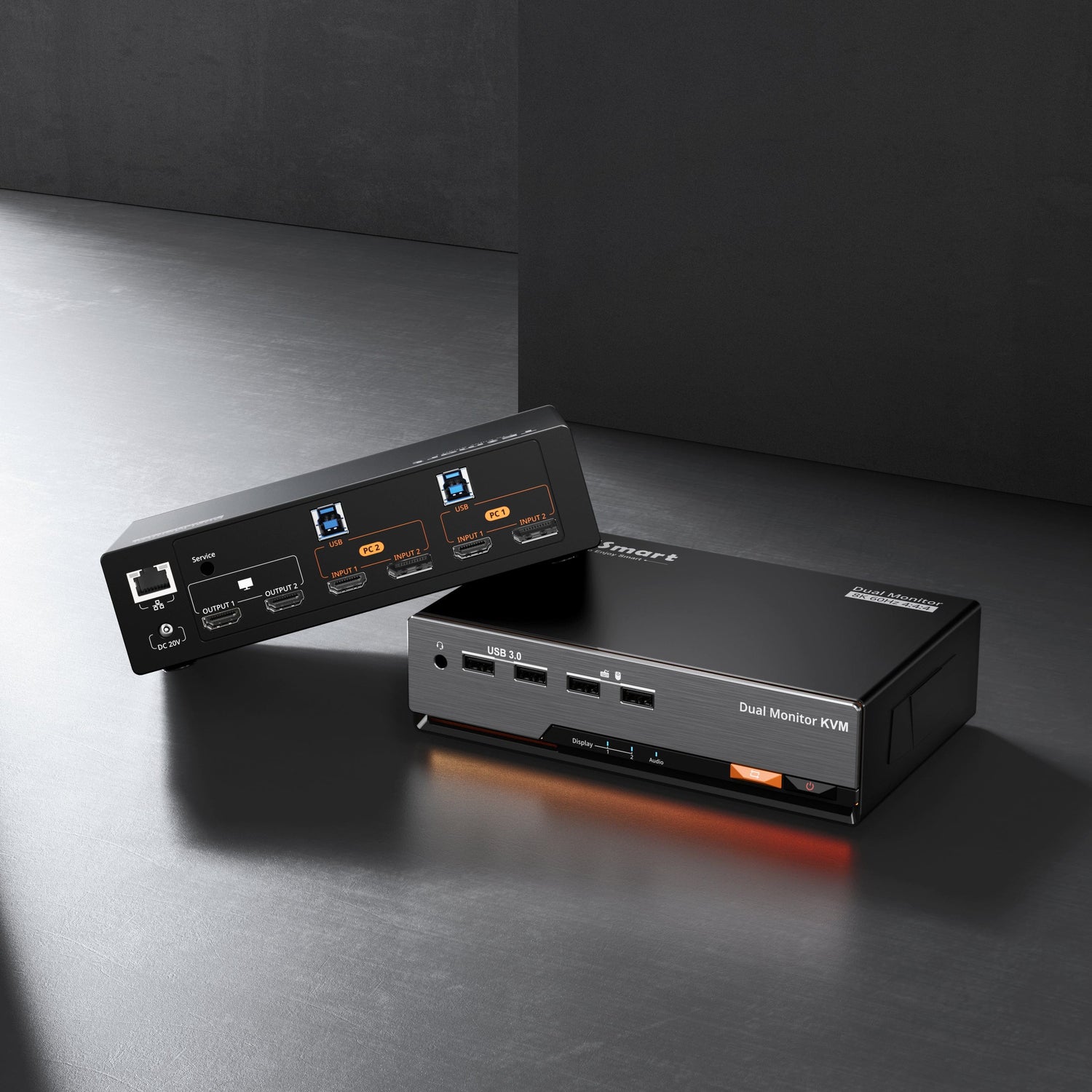
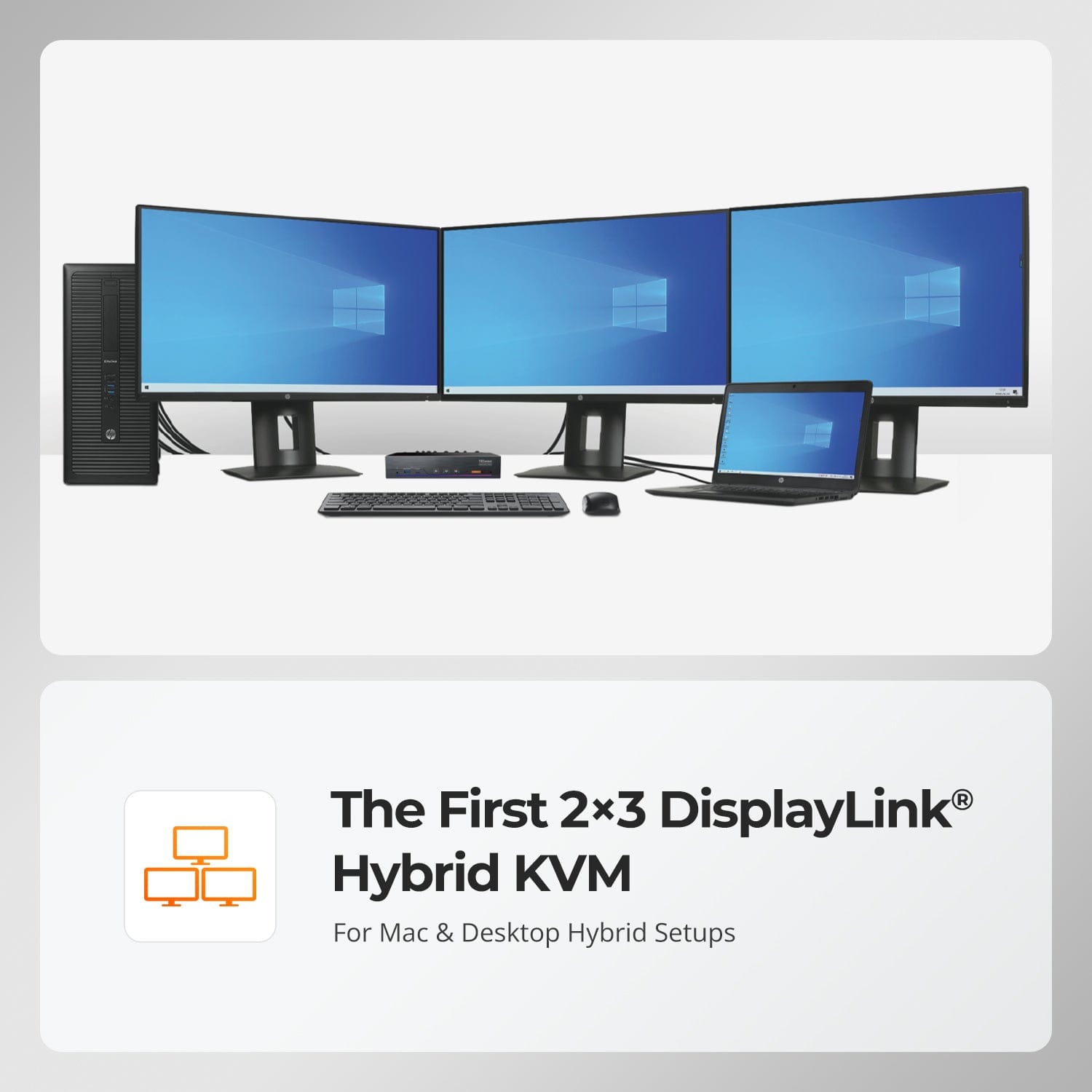
The first 2×3 DisplayLink® Hybrid KVM
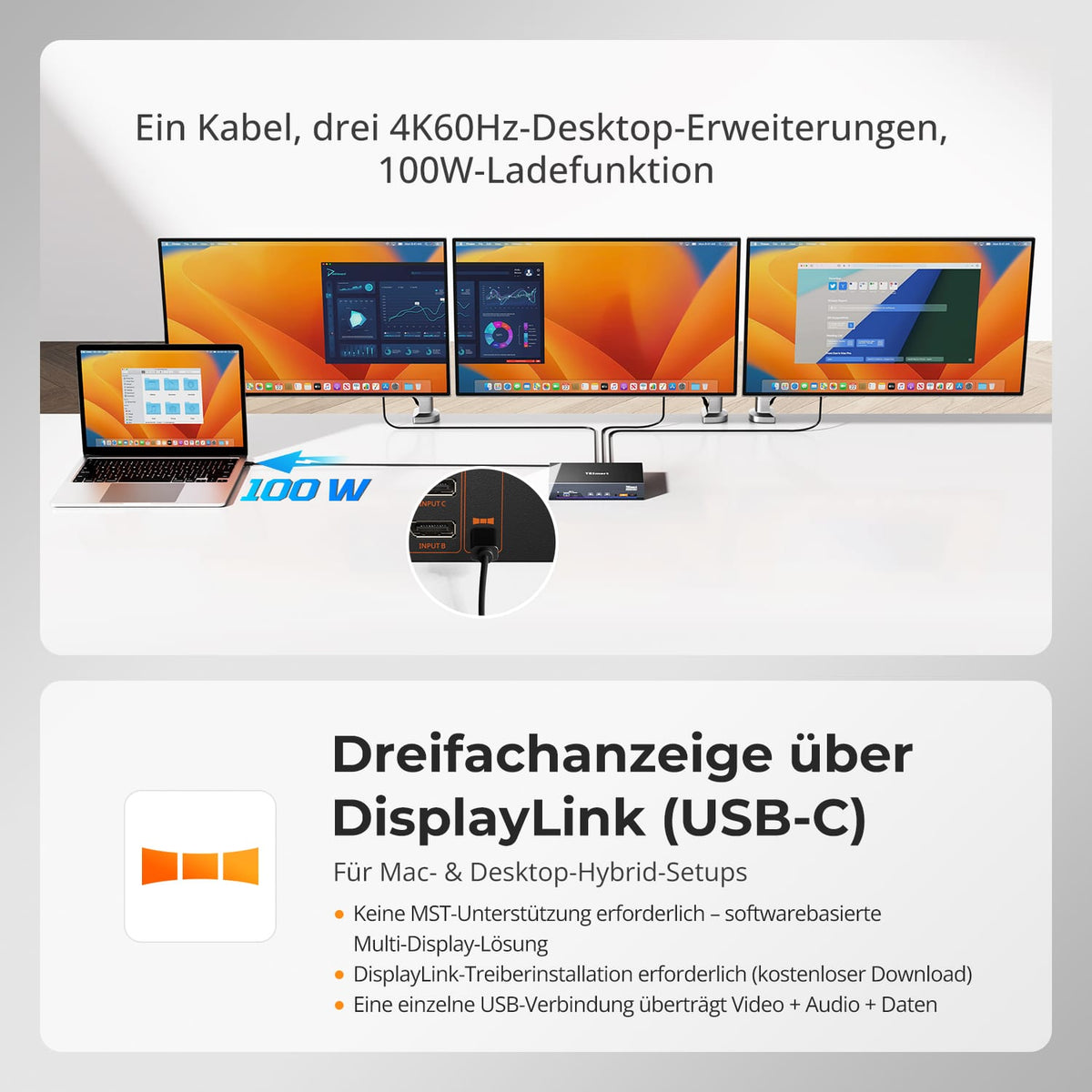
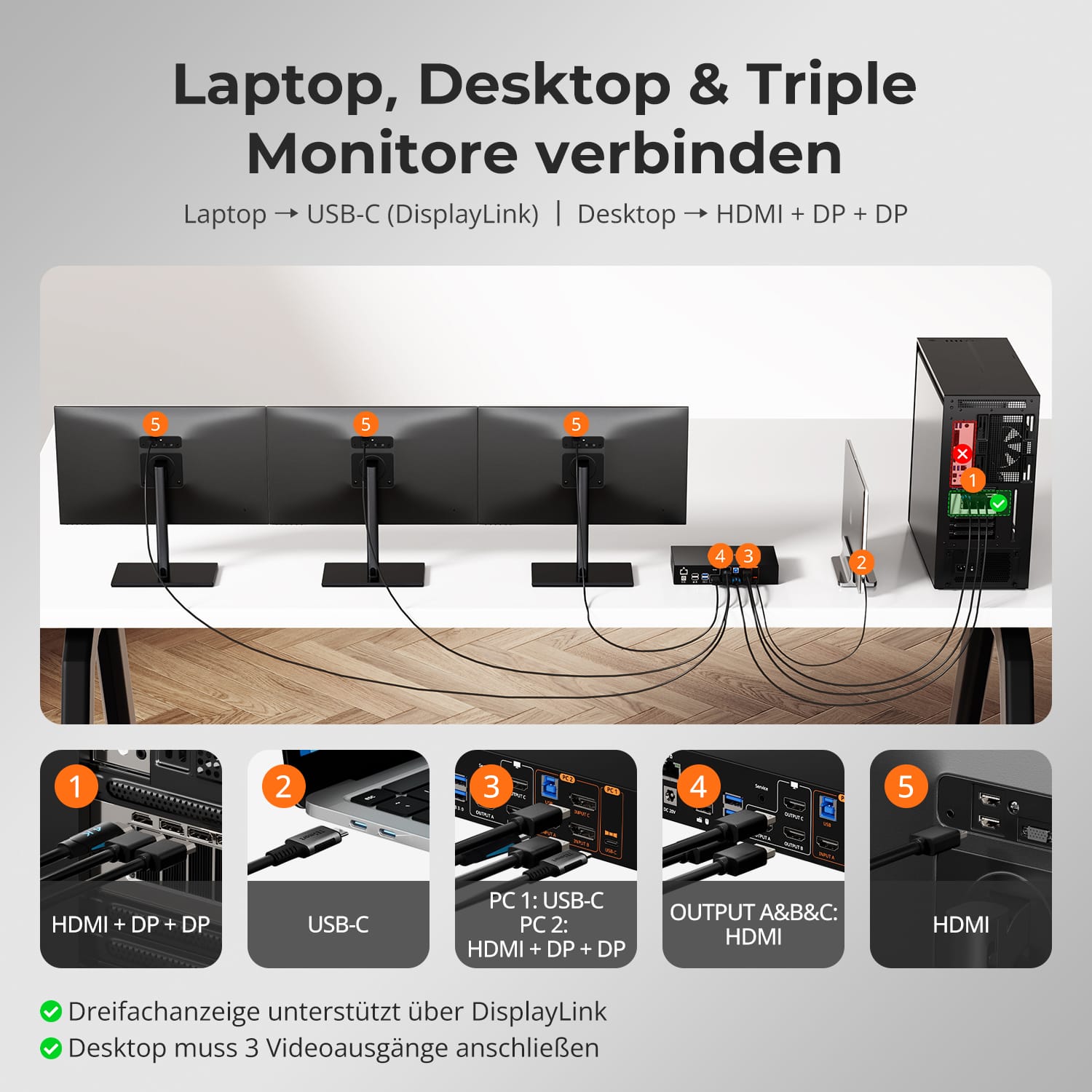
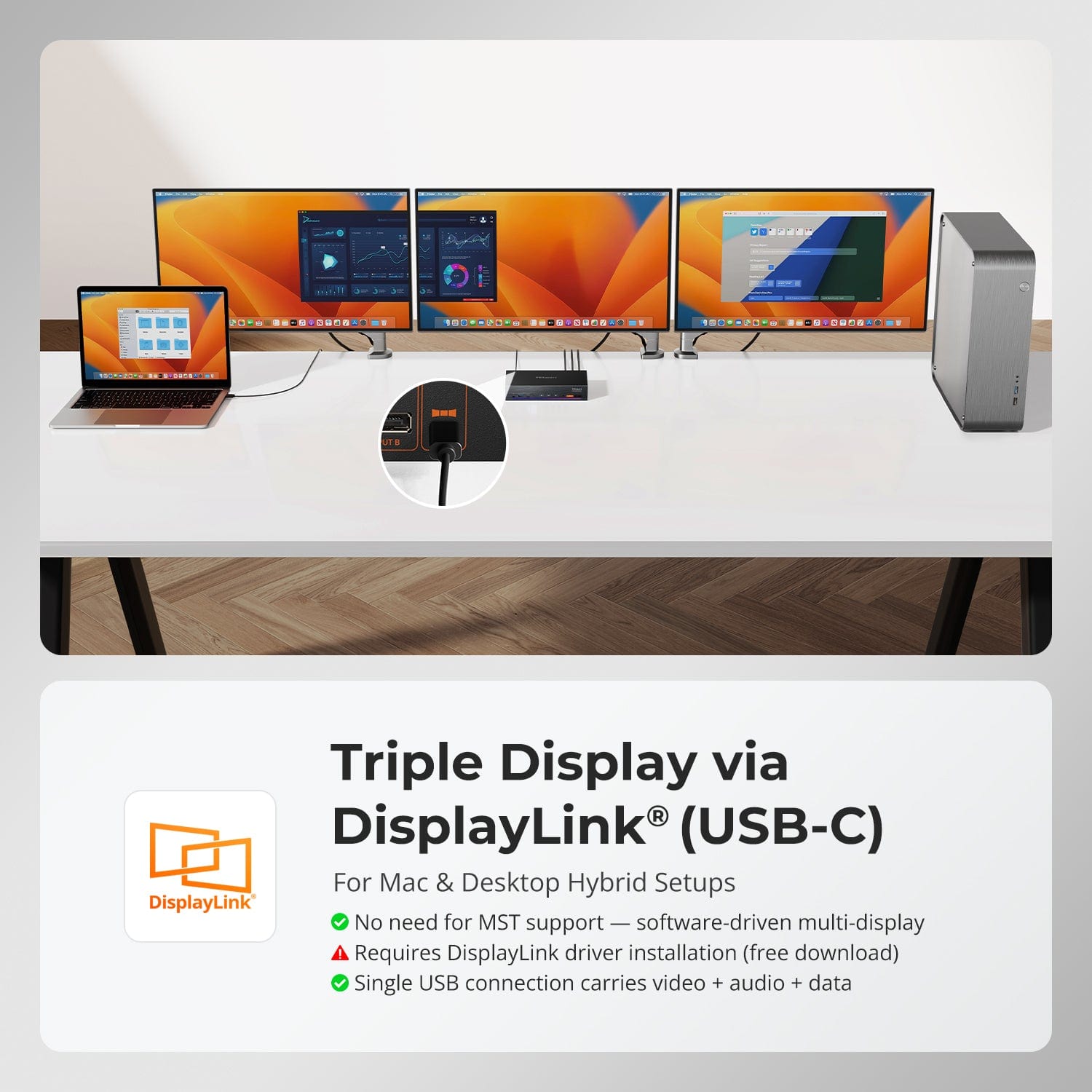
Triple display via DisplayLink® (USB-C)
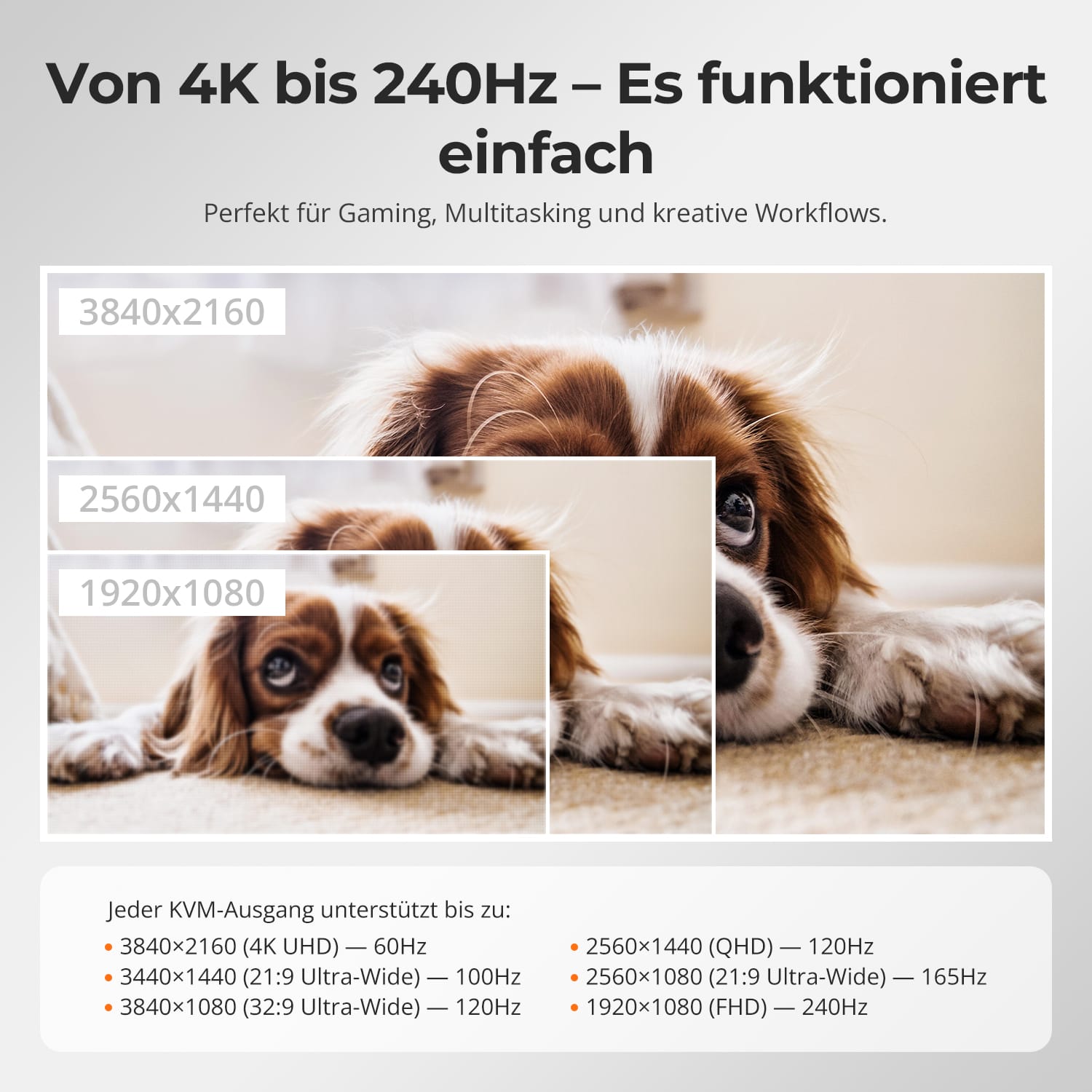
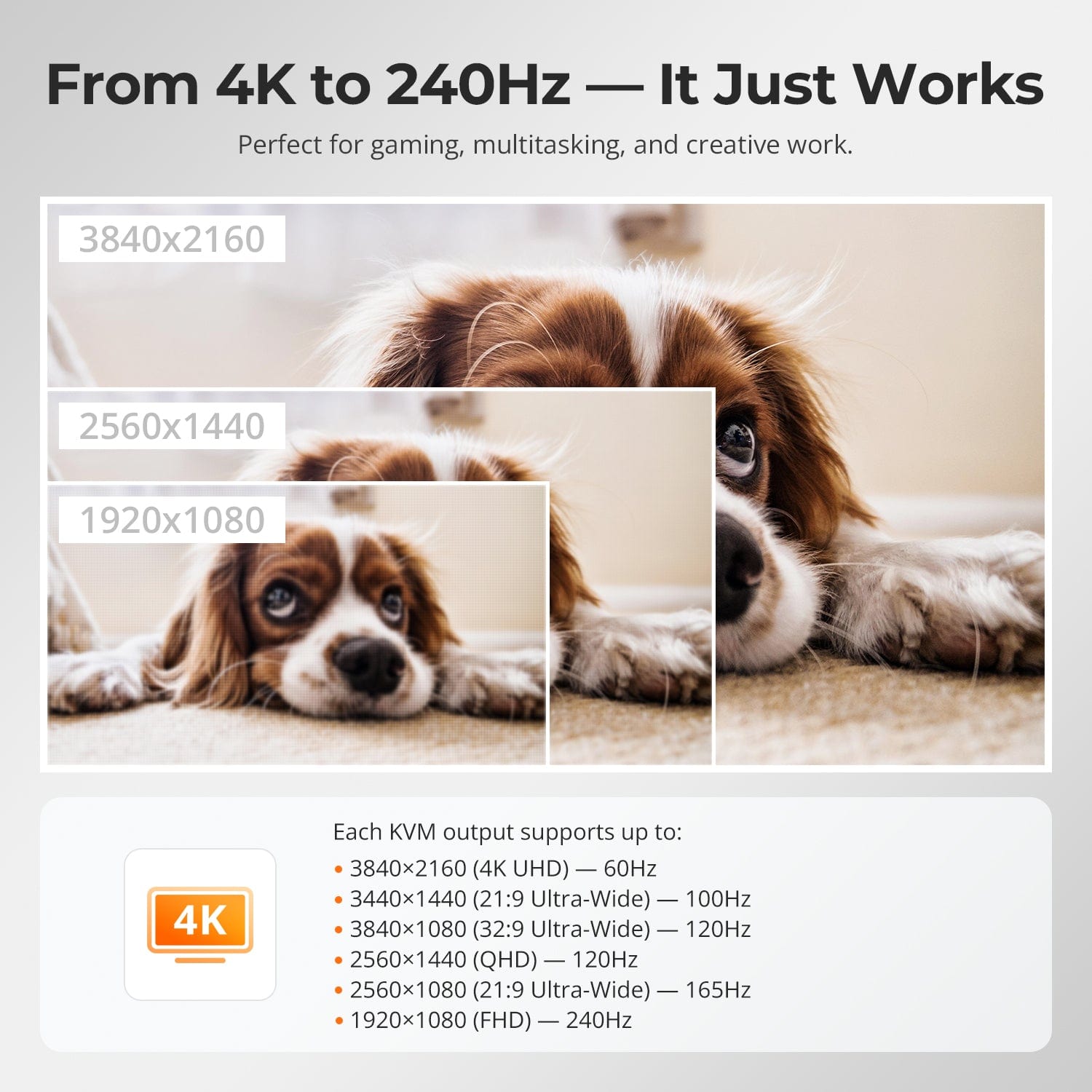
From 4K to 240 Hz — It just works
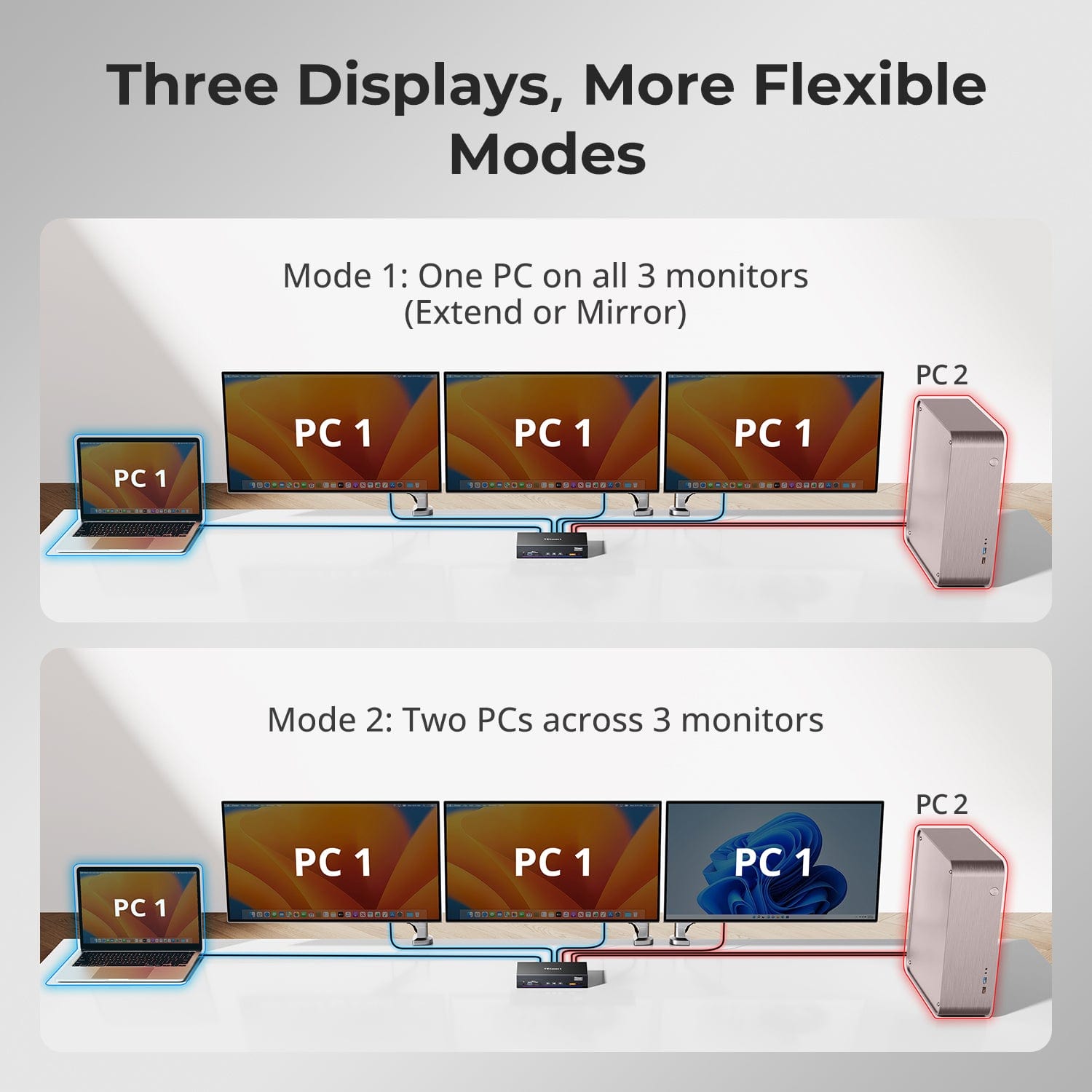
Three displays, more flexible modes
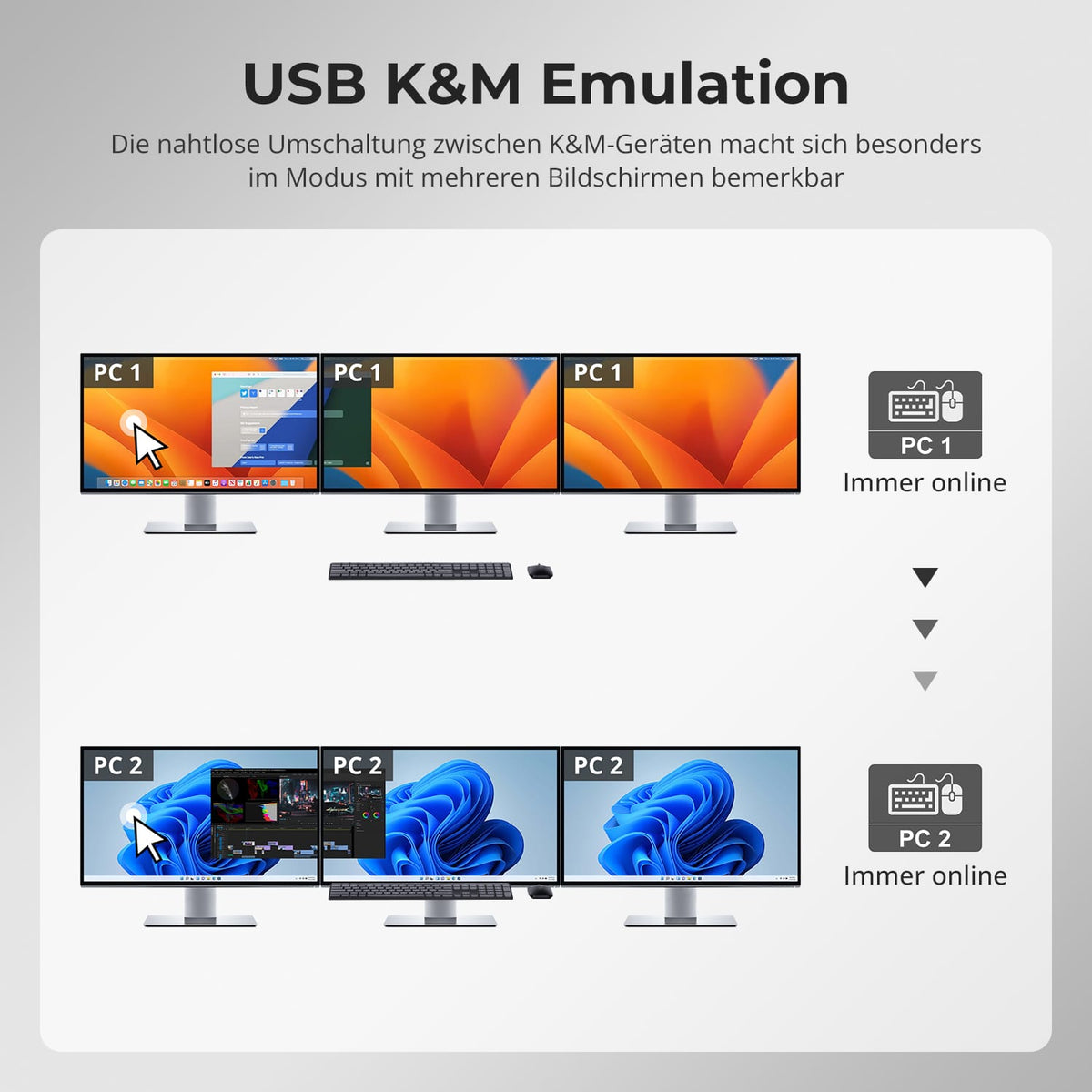
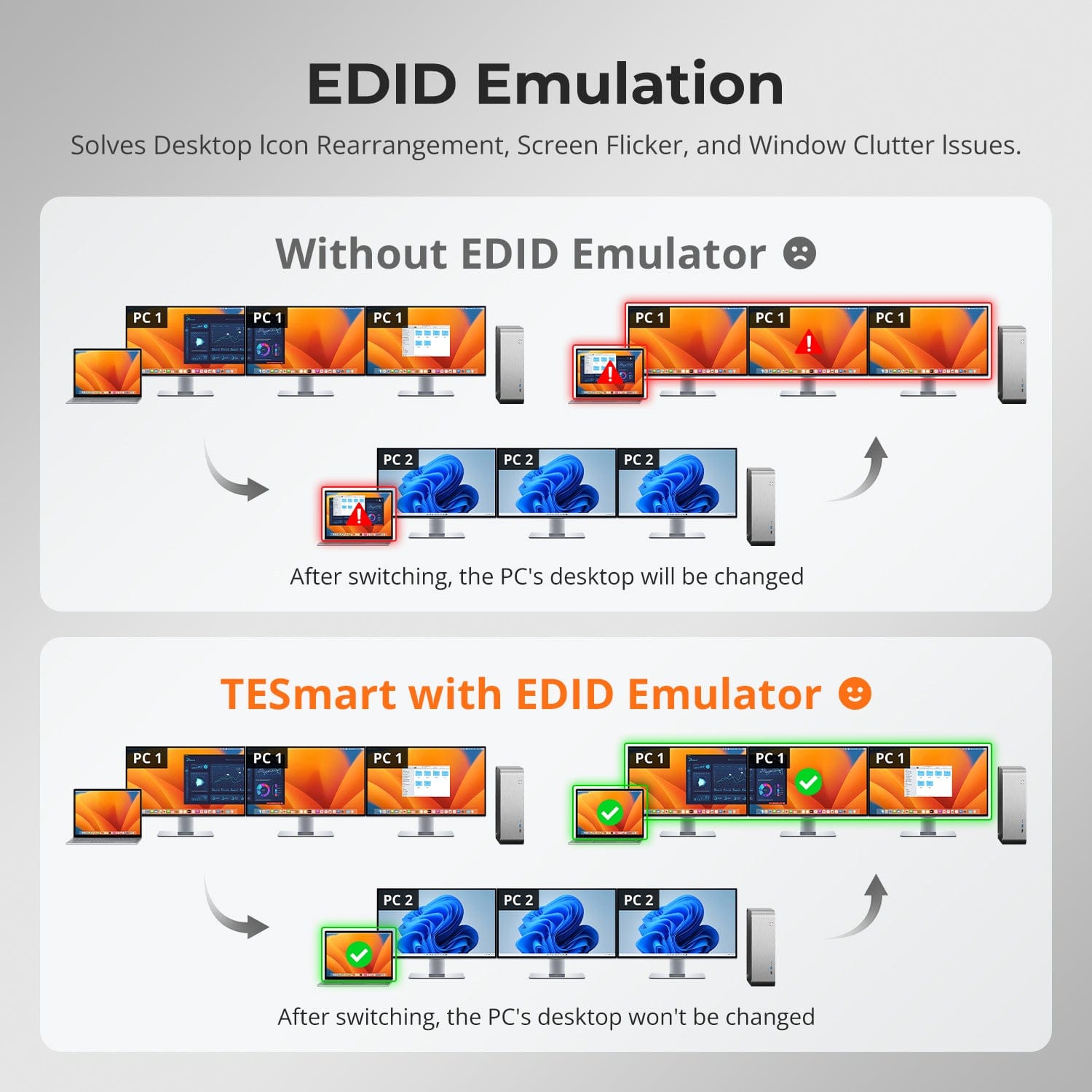
EDID emulation
For hybrid setups with Mac & Desktop
This is the world's first dual-computer KVM switch that supports three monitors simultaneously with DisplayLink®.
- Seamlessly combine a USB-C laptop and a multi-port desktop PC into a shared 3-monitor workstation.
- Optimized for macOS and Windows – without compromising on flexibility or speed.
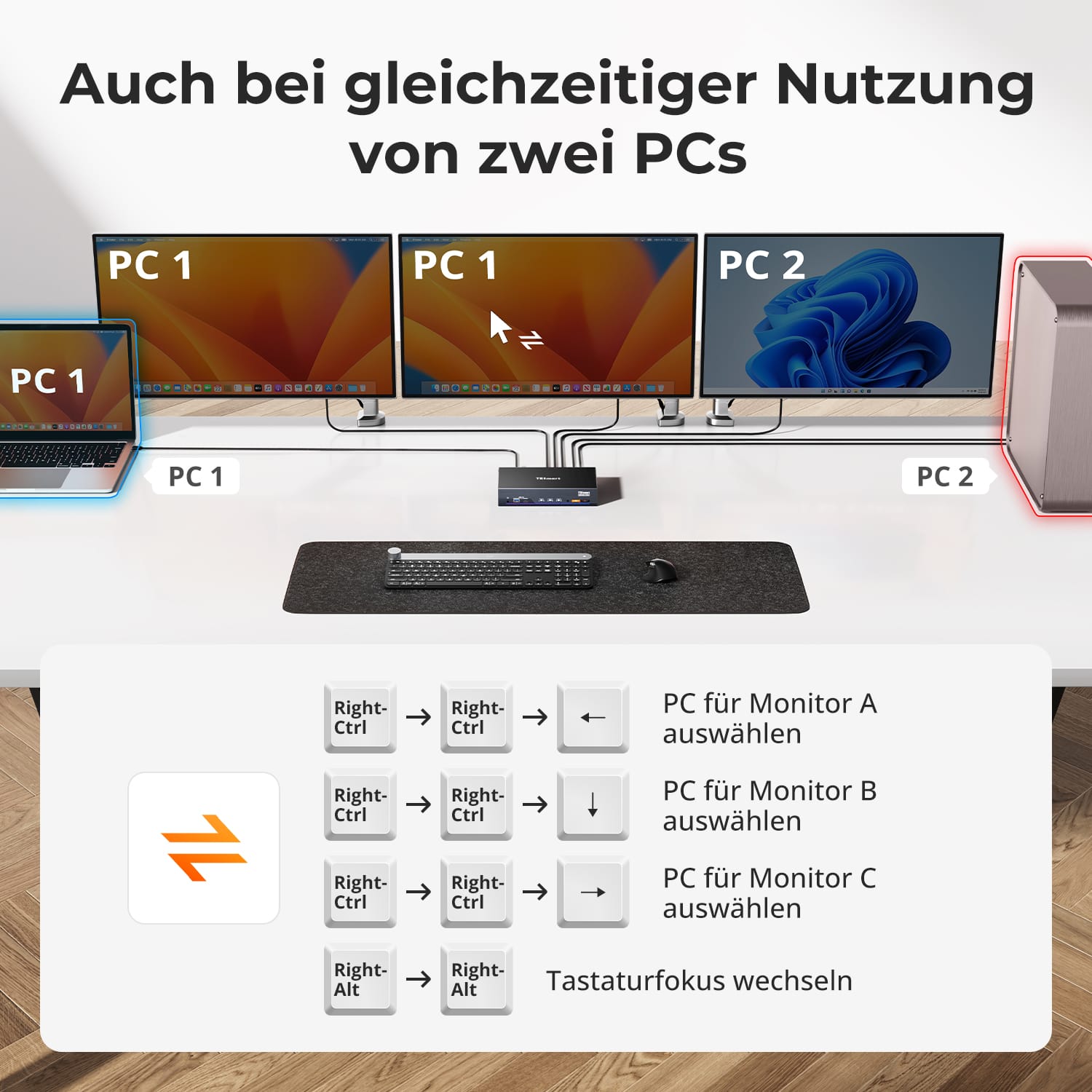
- TESmart's proprietary hybrid switching mechanism ensures immediate response and minimal delay during switching.
For hybrid setups with Mac & Desktop
The DisplayLink® software unlocks full triple-display capability – even on systems without MST support.
- Transmits image, sound and data simultaneously via a single USB-C cable.
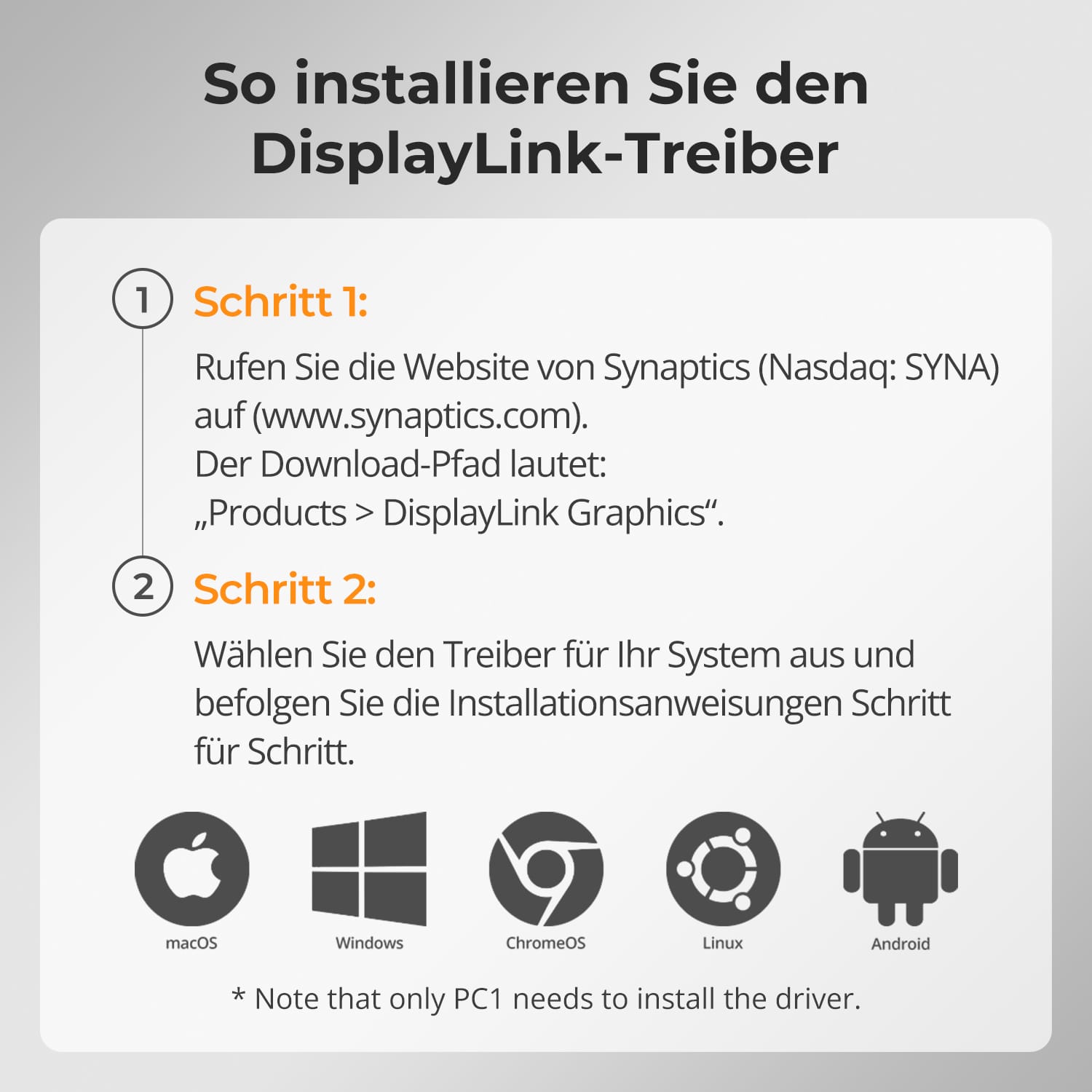
- Requires installation of the DisplayLink driver (free download).
- Enables multi-monitor expansion for macOS laptops that traditionally only support one external display.
This makes complex setups simple and consistent across platforms.
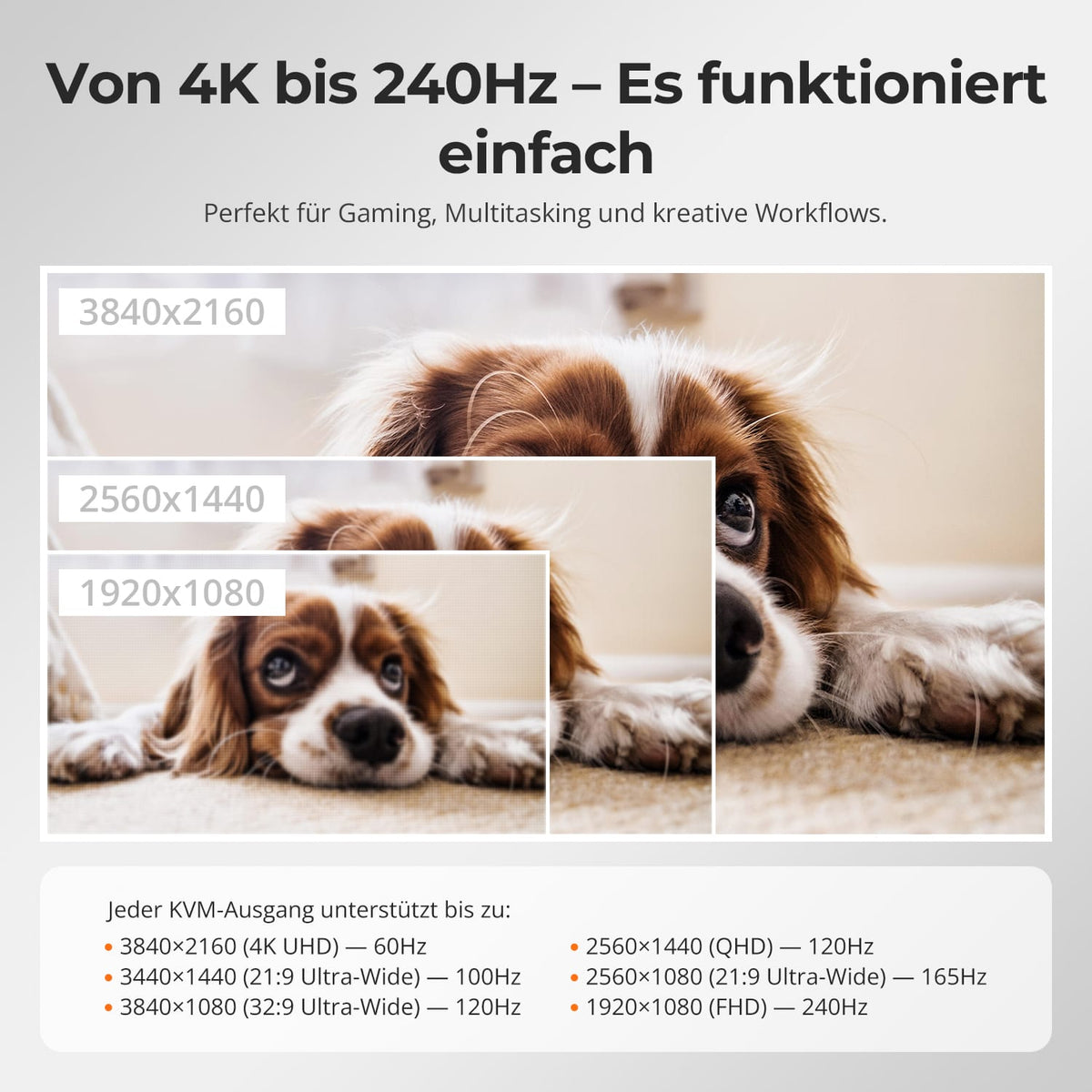
TESmart KVM switches are designed for creators, gamers and professionals who demand precise image reproduction and smooth motion.
- Supports a wide range of resolutions and refresh rates up to 4K@60Hz und 1080p@240Hz.
- Ensures consistent image timing and color accuracy in multi-monitor environments.
- Optimized signal integrity guarantees zero flickering or frame drops, even under high load.
You get gaming-ready performance with professional reliability.
Adapt your workspace to every task. TESmart's flexible display modes offer unparalleled versatility.
- Mode 1: Extend or mirror a single PC across three monitors for ultrawide productivity.
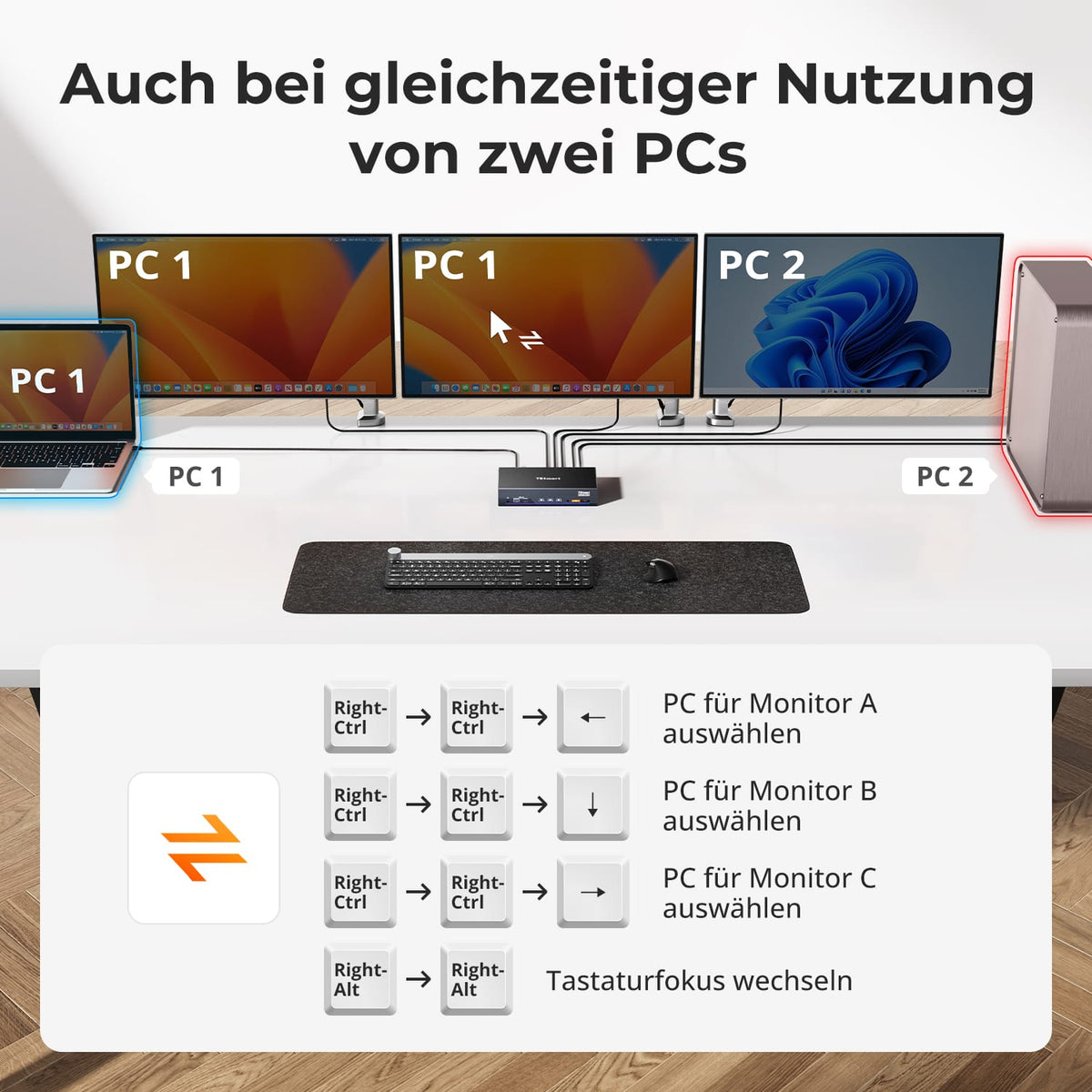
- Mode 2: Split the screens between two PCs – ideal for real-time monitoring, development, or content review.
Switching between modes takes only seconds and allows you to adjust without rewiring or reconfiguring.
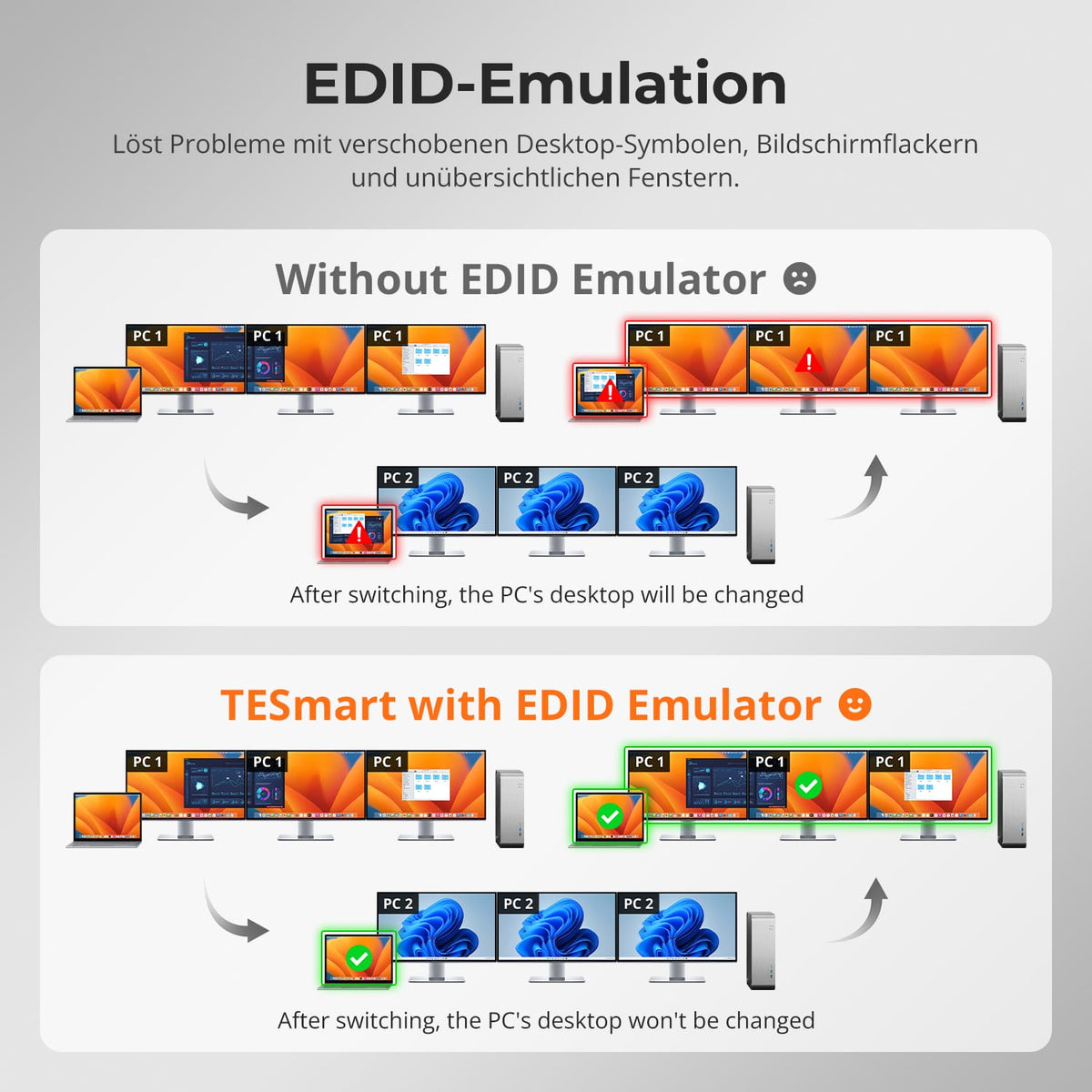
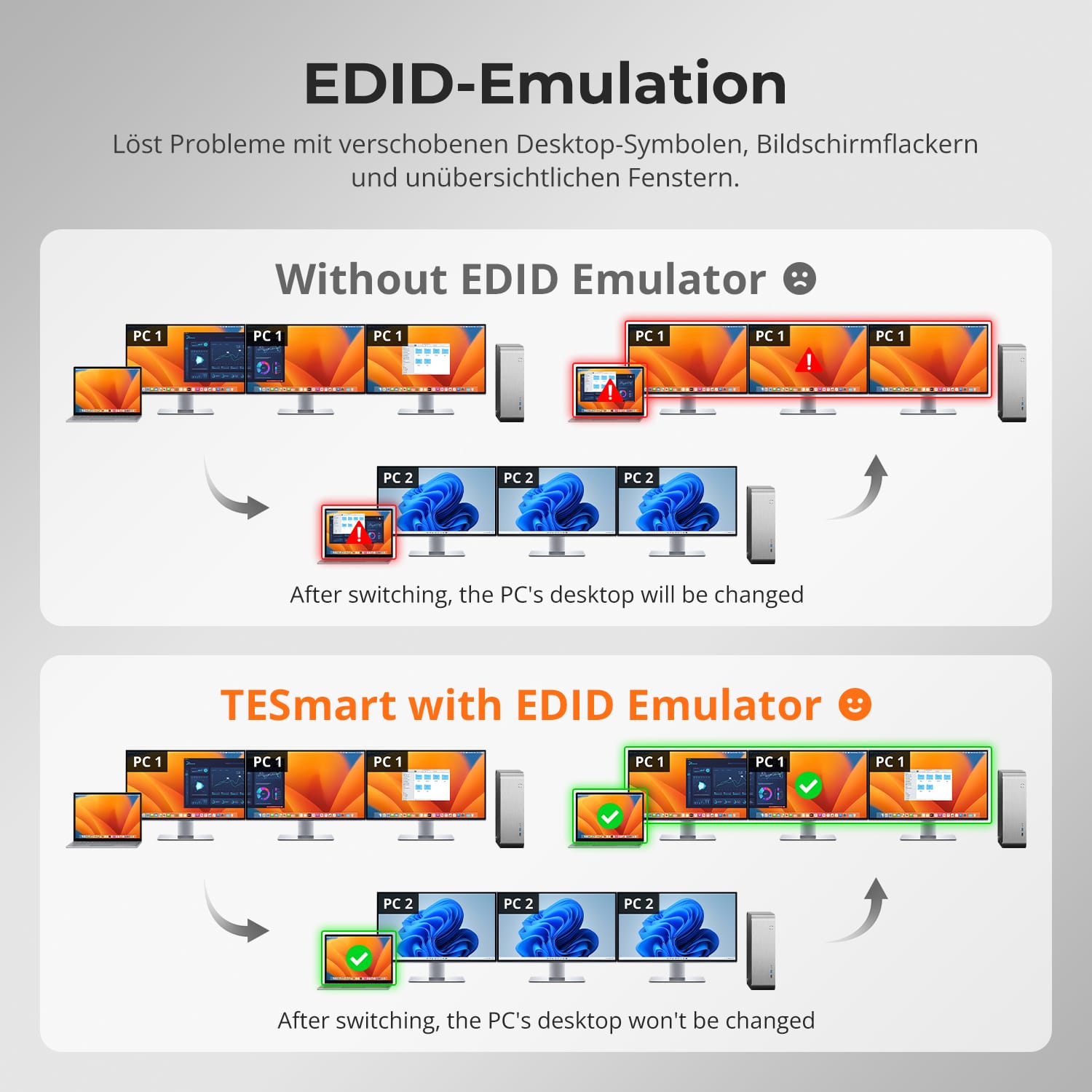
No more rearranging icons or window chaos after switching to a different input. TESmart's intelligent EDID emulation keeps your desktop layout stable.
- Preserves the screen configuration between switches.
- Prevents screen flickering, blackouts, or resolution resets.
- Saves valuable time in multi-monitor environments where precise window placement is important.
Your monitors remember exactly how you left them.
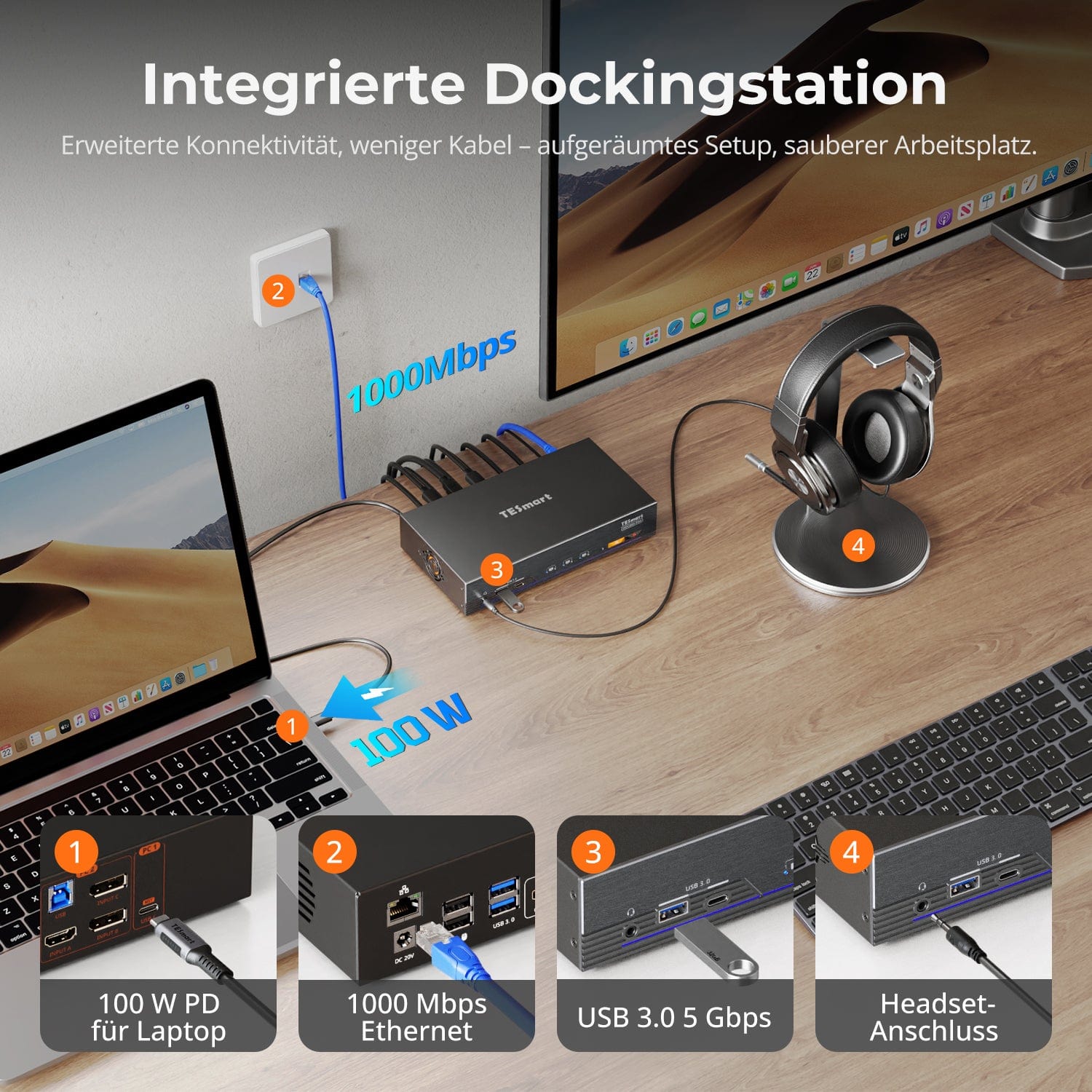
Integrated shared docking station
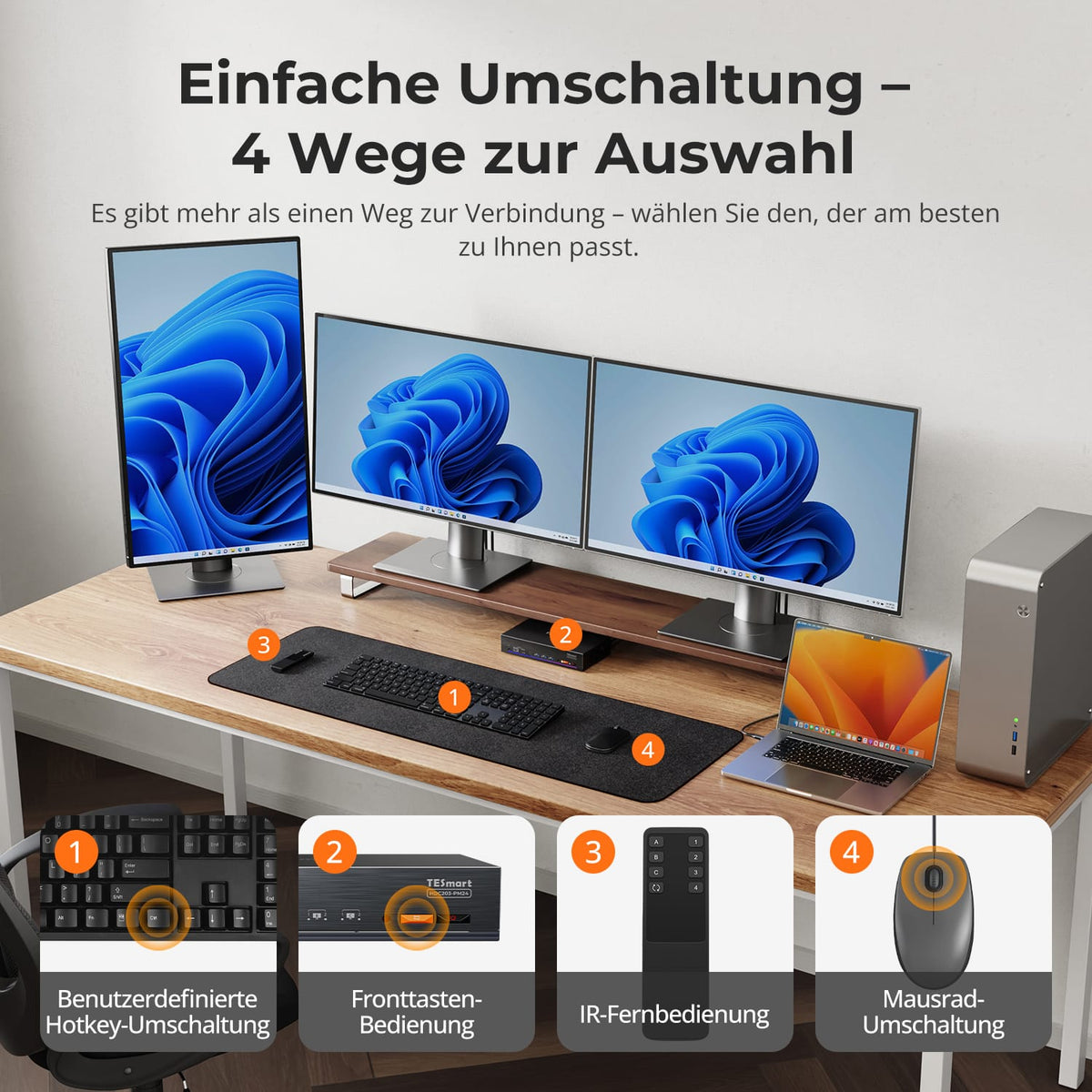
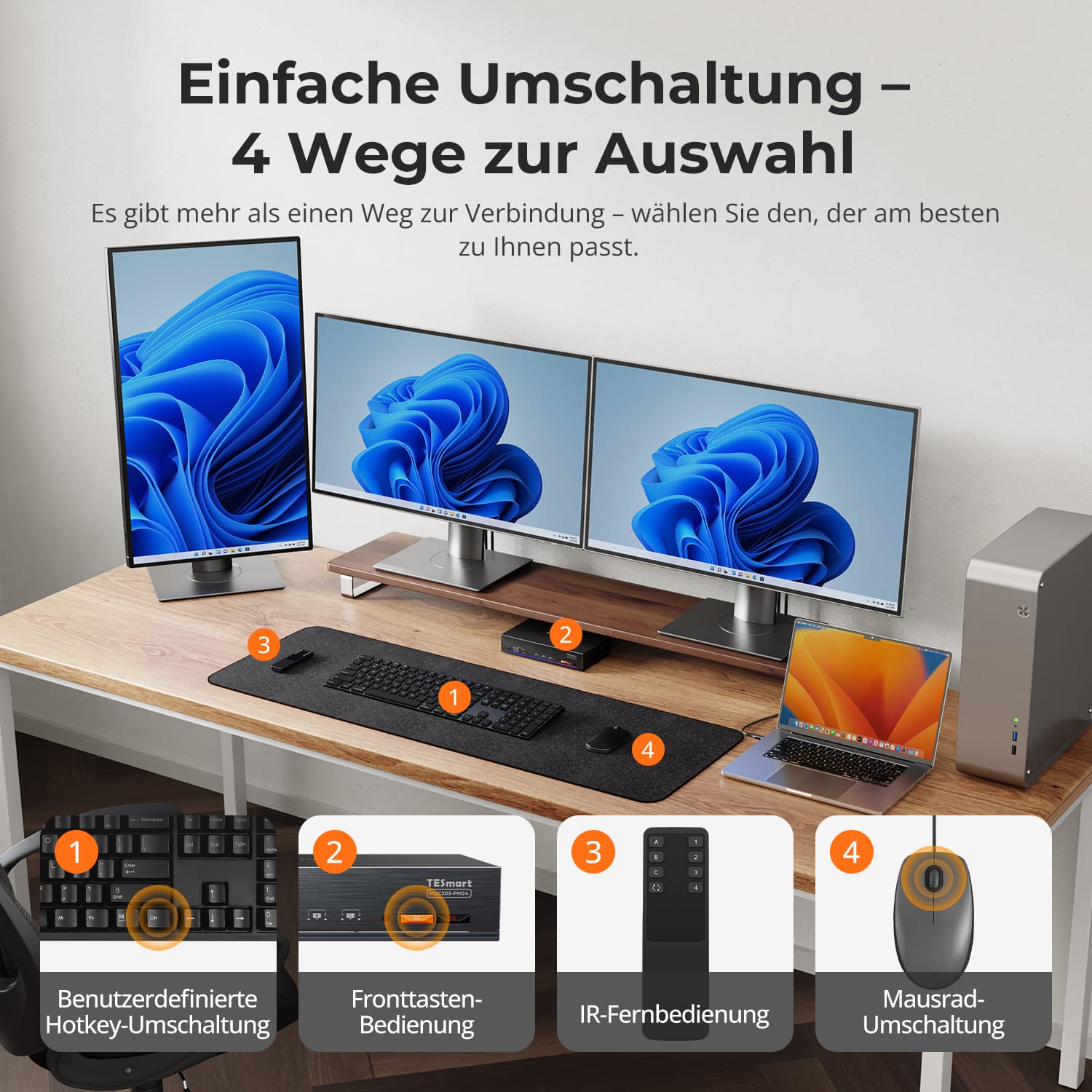
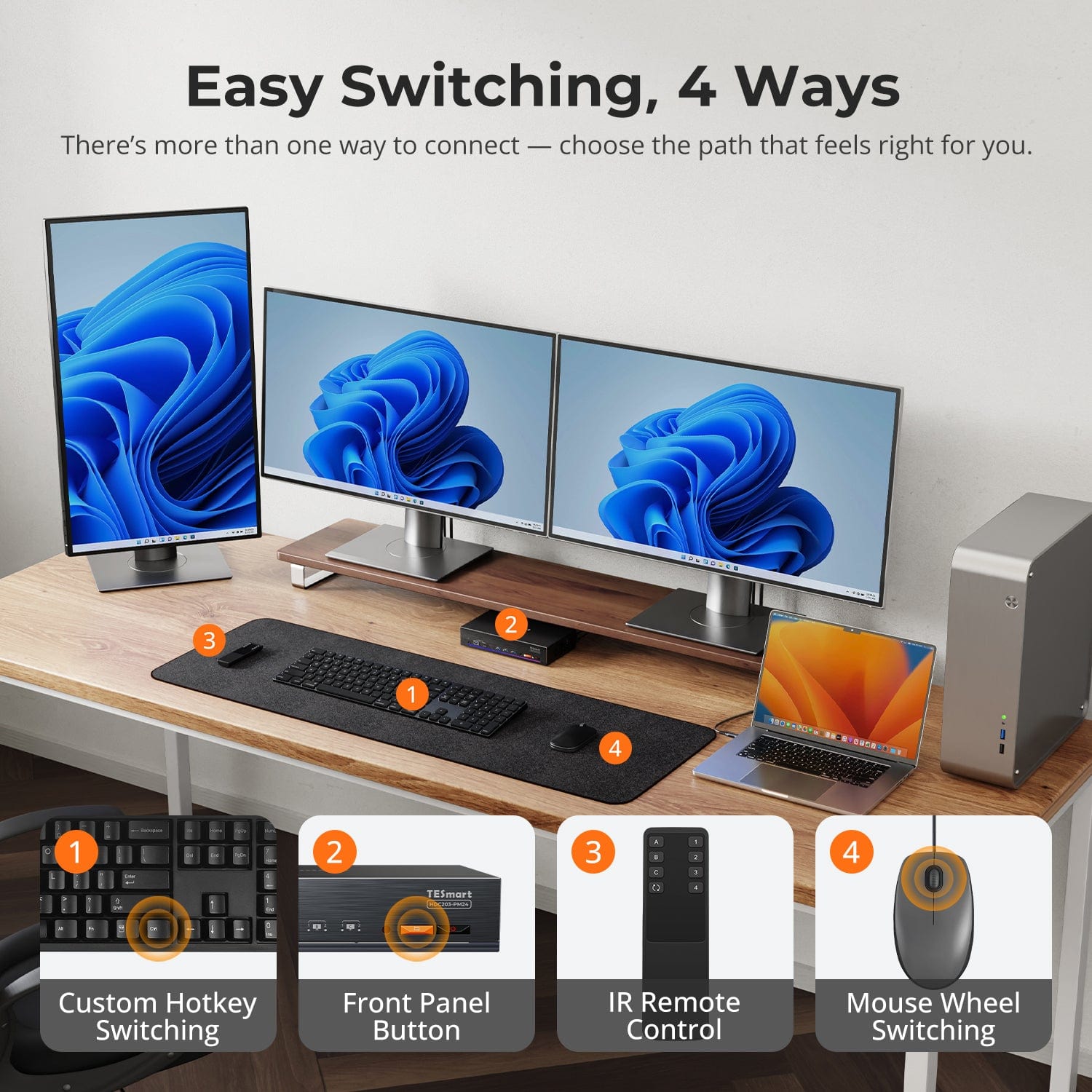
Easy switching, 4 ways
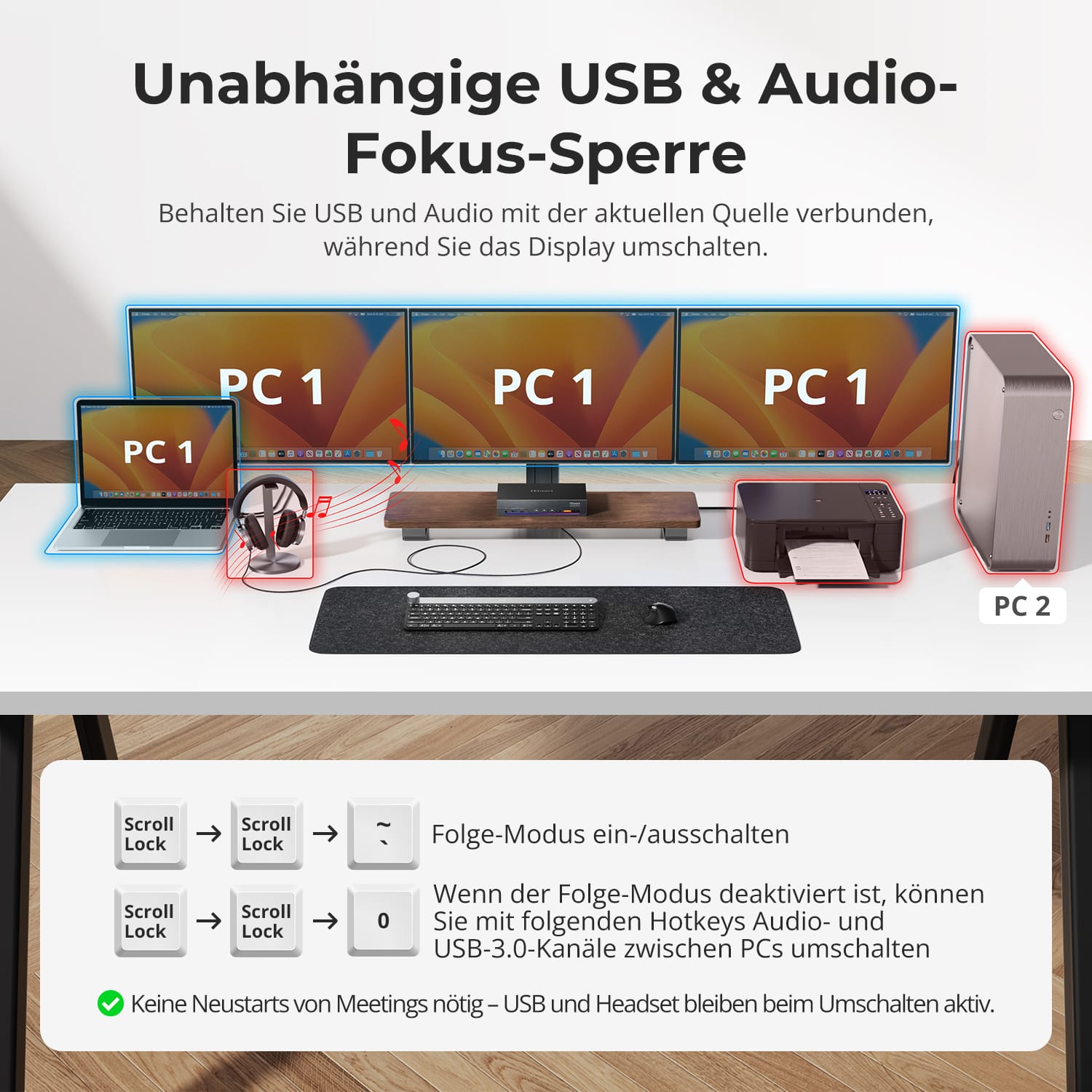
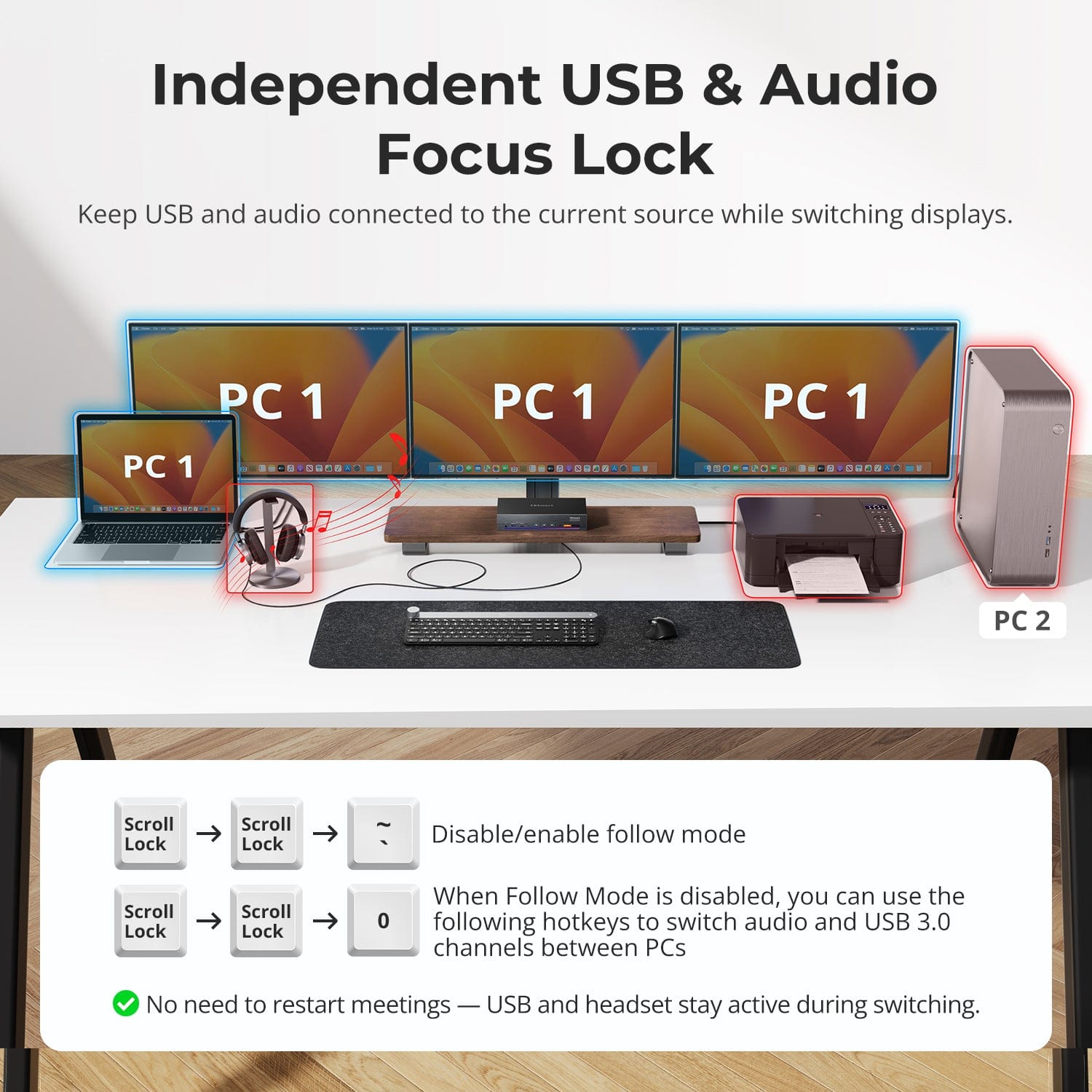
Independent USB & audio focus lock
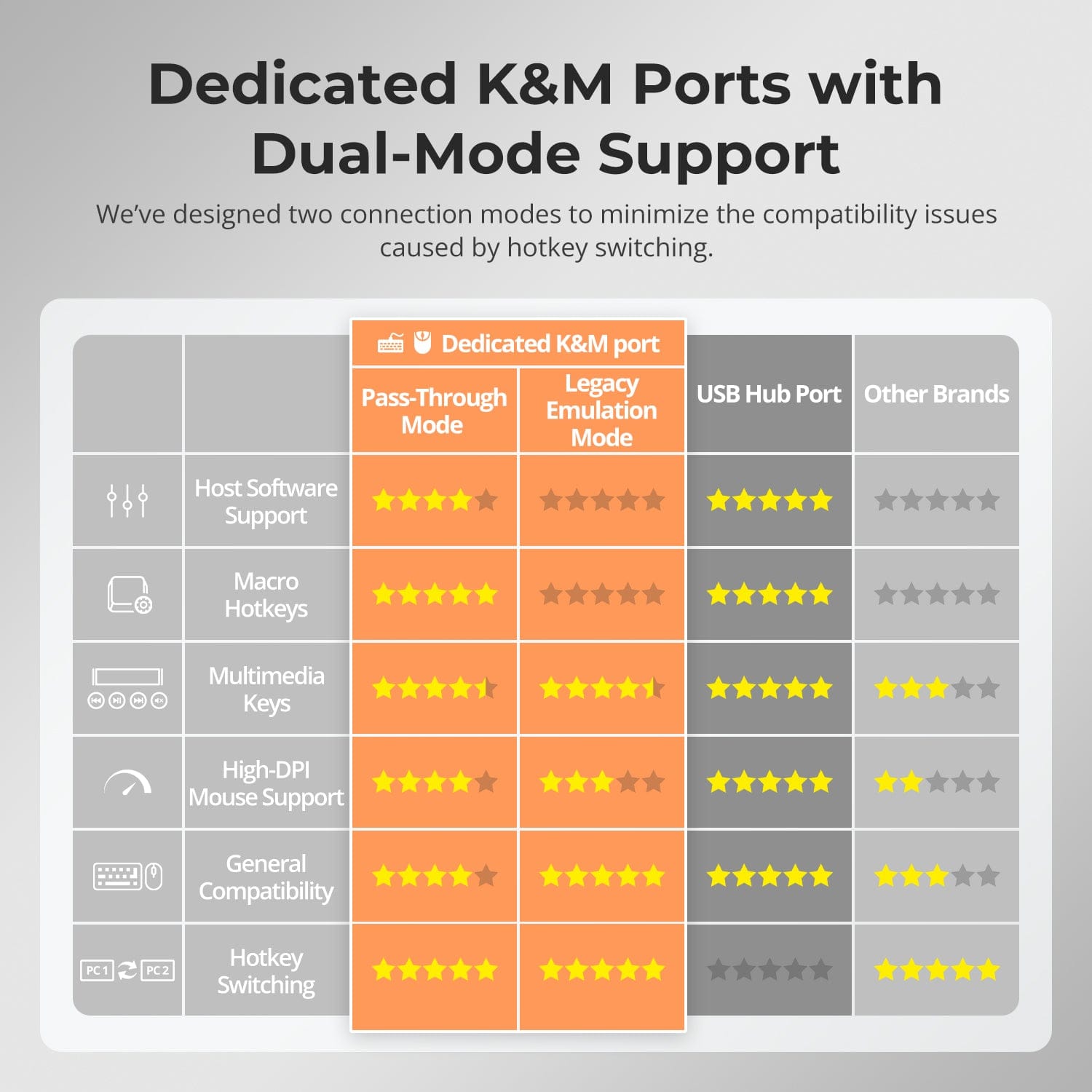
Dedicated K&M-Ports with dual-mode support
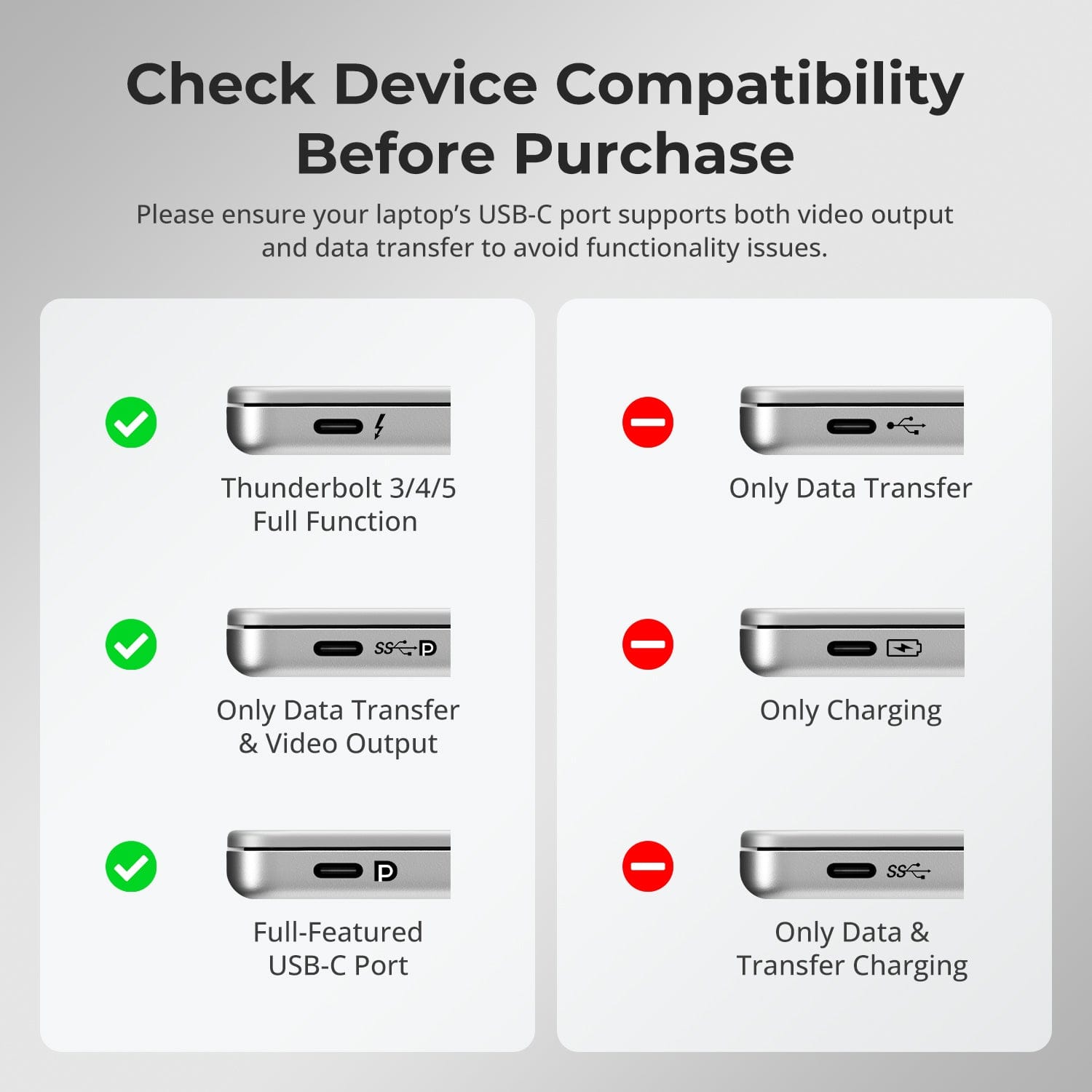
Check device compatibility before purchasing
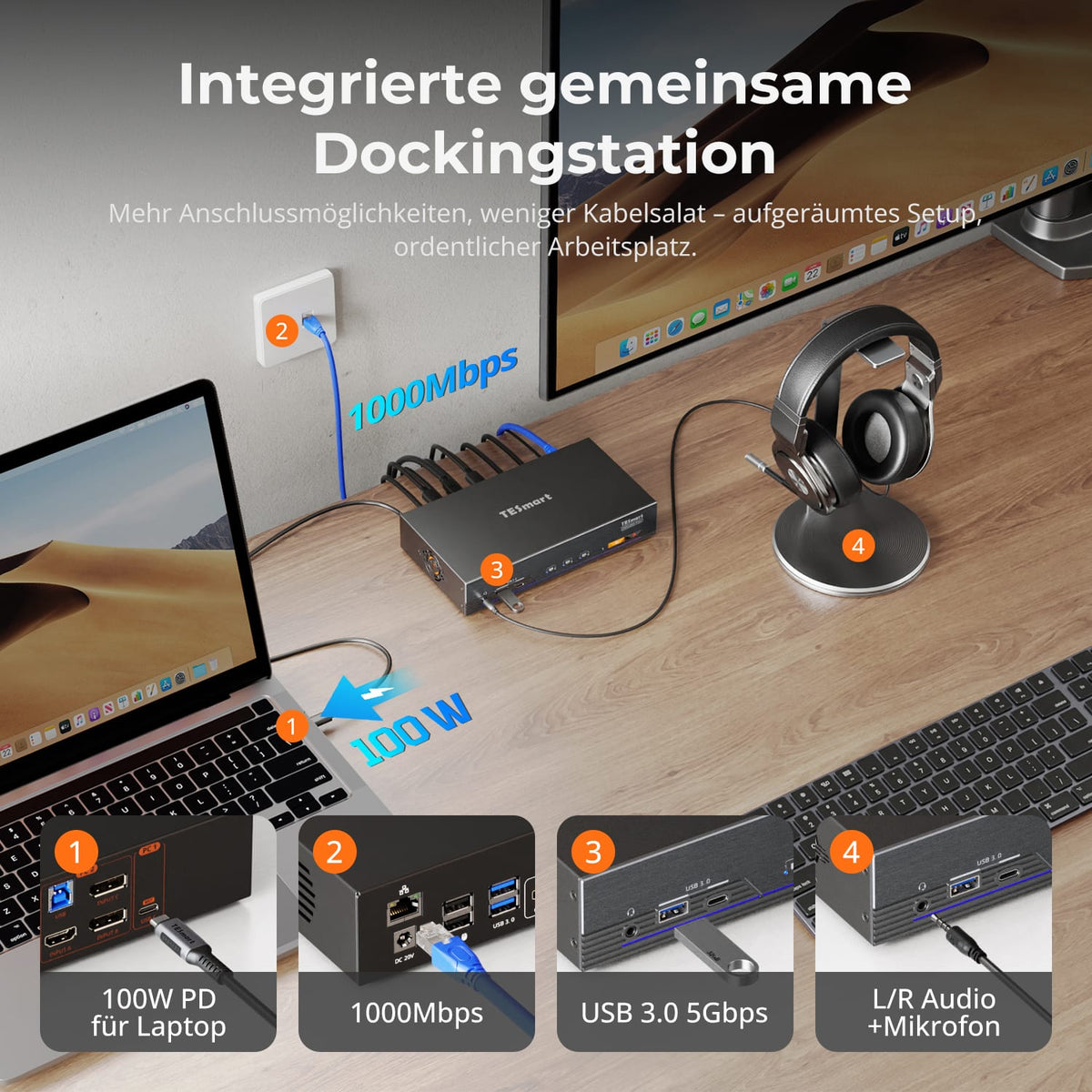
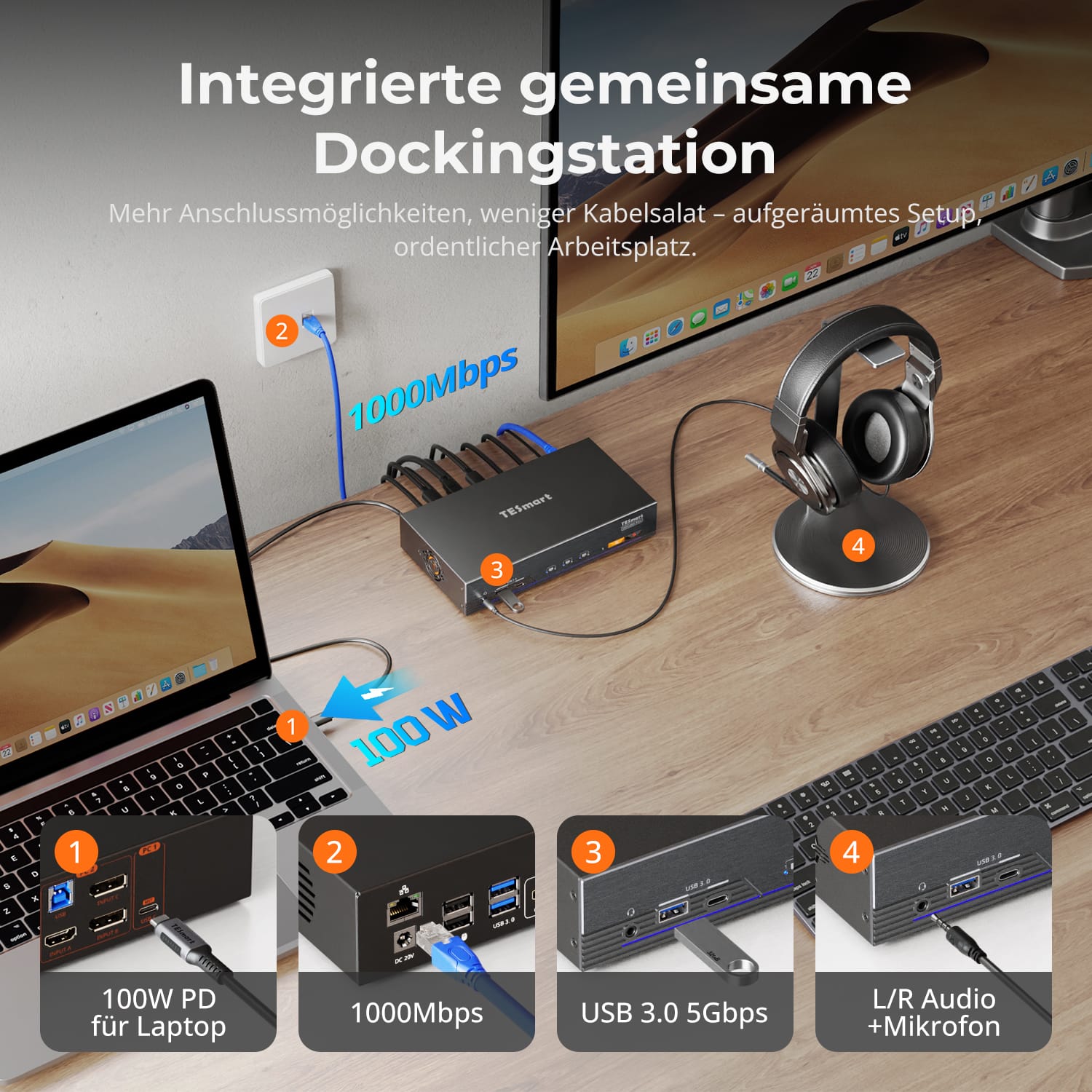
Less cable clutter, more efficiency with a fully integrated docking system.
- 100W PD for fast charging of the laptop.
- USB 3.0 (5 Gbit/s) for peripherals and storage.
- Gigabit Ethernet (1000 Mbit/s) for stable cable connections.
- Combined audio jack socket for headsets or speakers.
This single-dock design eliminates the need for additional hubs, keeping your setup tidy and organized.
Switch between computers in your preferred way – without having to adapt to a fixed control method.
- Customizable keyboard hotkeys for instant switching.
- Front buttons for quick access within easy reach.
- IR remote control for flexible desk setups.
- Mouse wheel switching for seamless workflow transitions.
Each method is designed for speed and reliability, giving you true control over your setup.
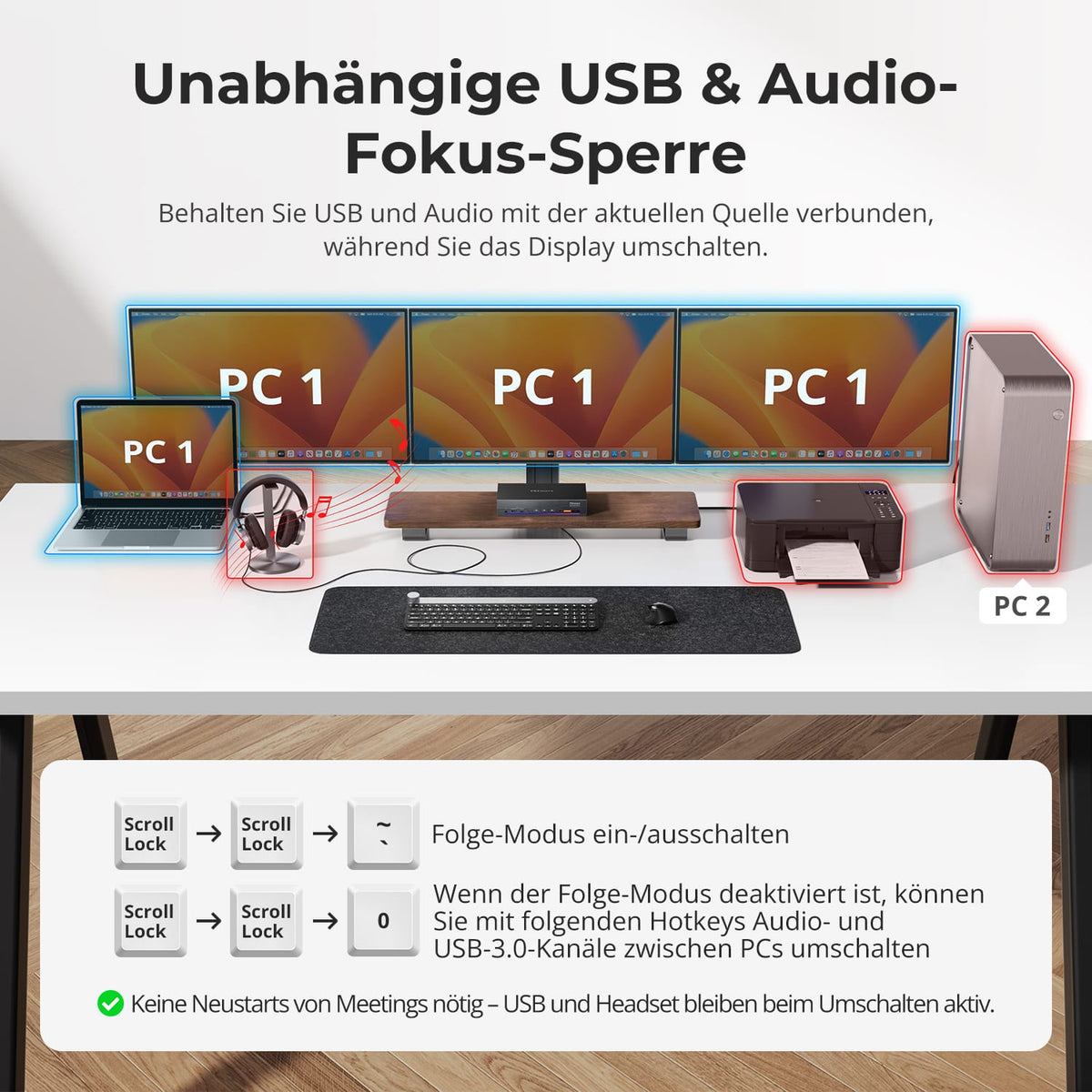
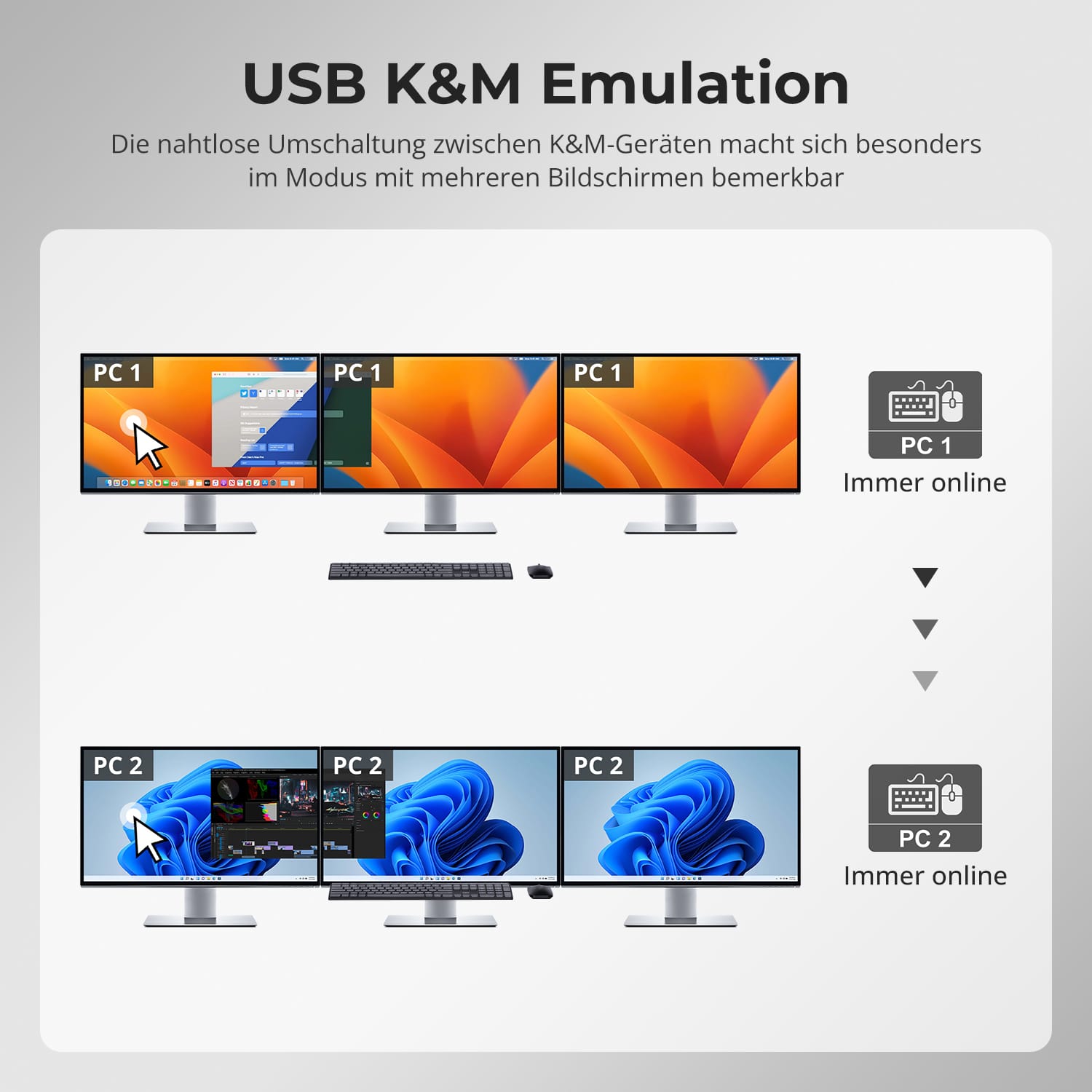
Stay in your meeting or music session, even while switching displays.
- USB and audio devices remain connected to the active computer until you manually switch them.
- Prevents interruptions to ongoing calls or data transfers.
- Ideal for conference, streaming and multitasking environments.
You can switch displays without interrupting your connection.
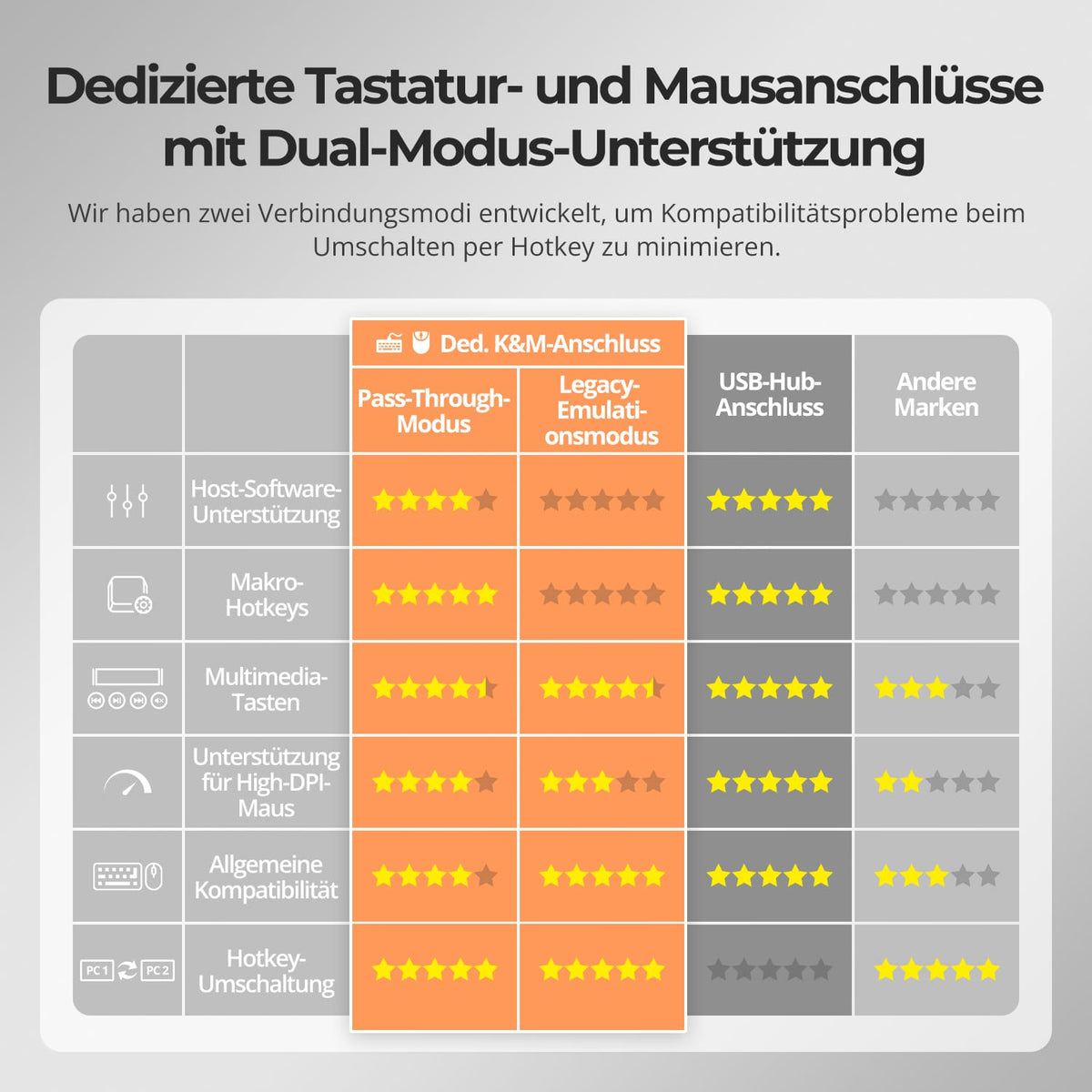
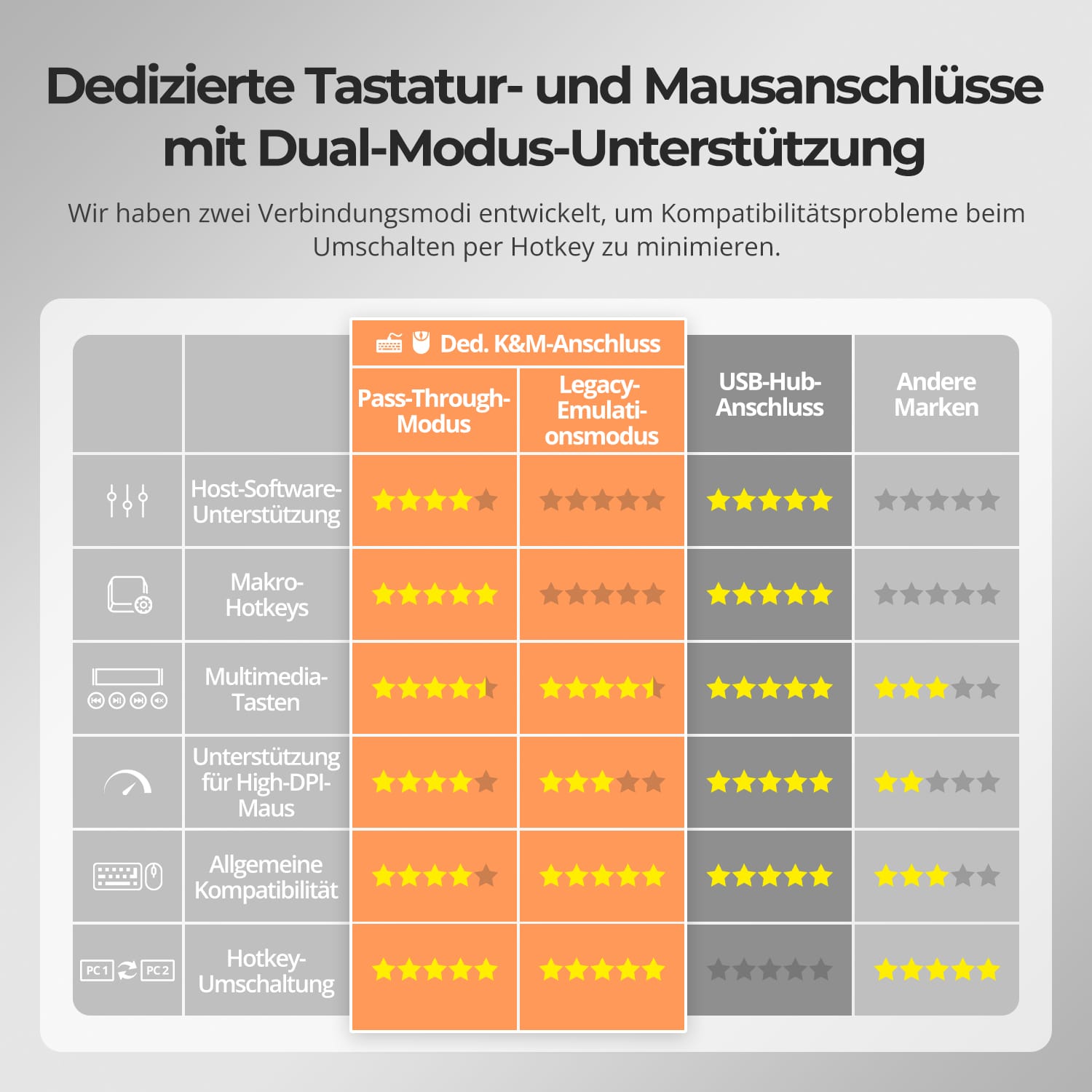
TESmart KVMs feature dedicated keyboard and mouse ports (K&M), which minimize compatibility issues.
- Emulation mode: Ensures instant response and hotkey control.
- Pass-through mode: Provides native device behavior for gaming or special input devices.
Choose the mode that suits your workflow – stability for work, precision for play.
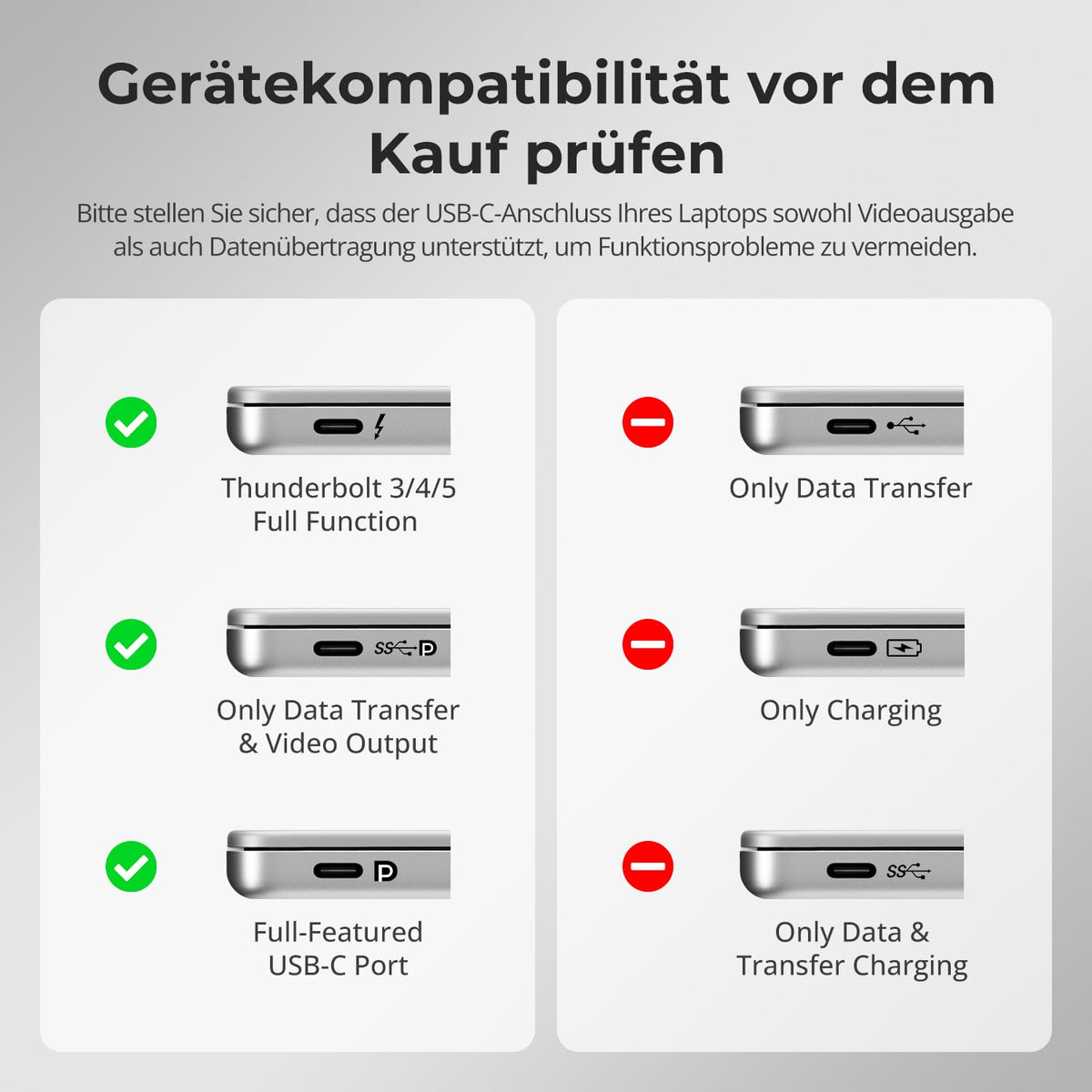
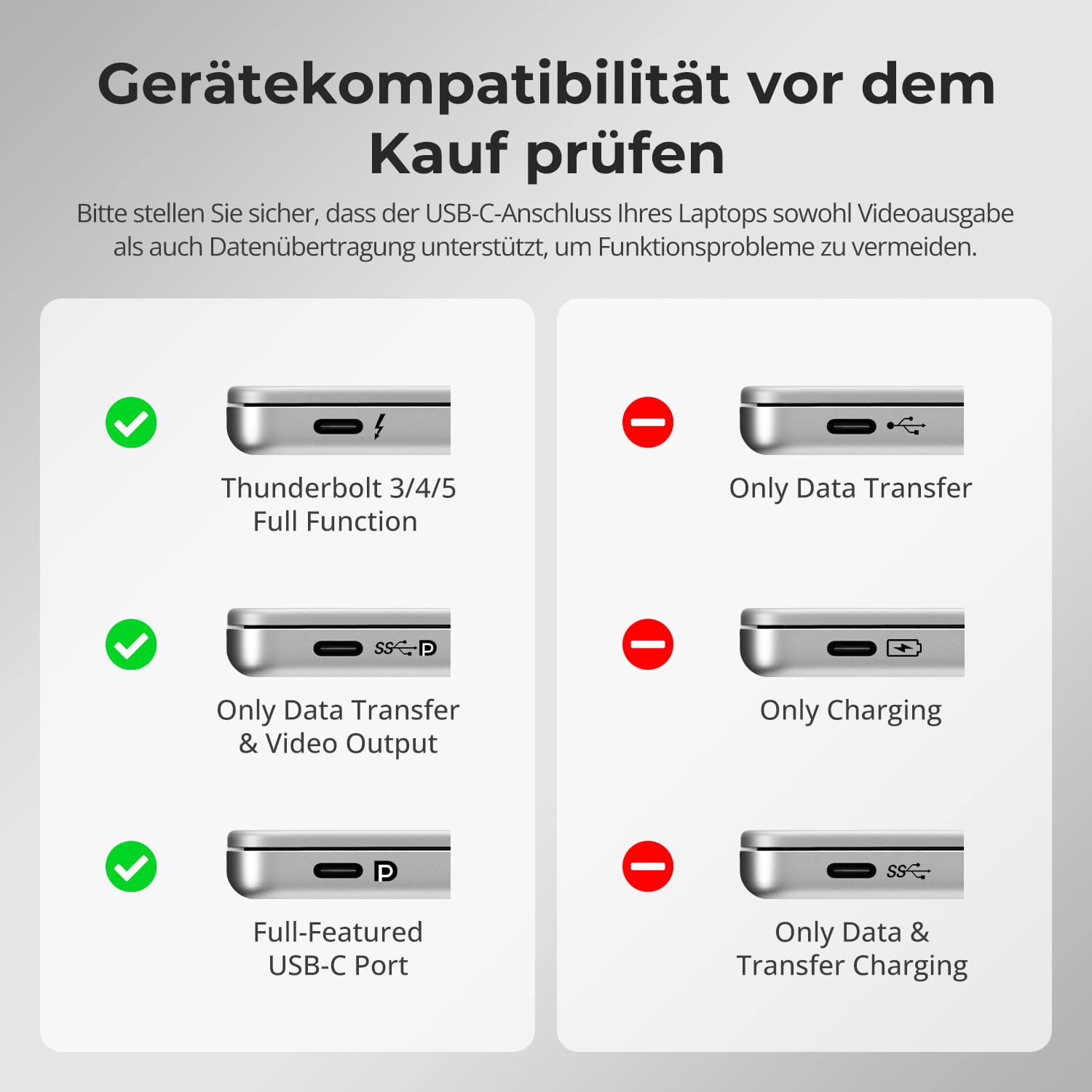
- Before connecting, check if your laptop's USB-C port supports both video output and data transfer.
- Some USB-C ports only transfer data, which limits display functionality.
Check your laptop's specifications to ensure full performance and avoid setup problems.
FAQs
Does it support macOS computers for triple display output?
Yes. The HDC203-PM24 is optimized for macOS and utilizes DisplayLink technology. By installing the DisplayLink driver, it can overcome macOS's native multi-monitor limitations to enable three independent displays.
Note: The DisplayLink driver on macOS only starts after login, therefore OUTPUT C must be connected to a monitor to see the startup screen.
Can it charge a connected laptop?
The HDC203-PM24 supports PD (Power Delivery) fast charging and can deliver up to 100W (20V, 5A) via the USB-C port. Most laptops, including MacBook Pro and MacBook Air, can be charged reliably in typical office or creative scenarios.
Notes:
- If the laptop requires more than 100 W (z.B. For high-end gaming laptops or mobile workstations, it is recommended to use the original power adapter for stable charging.
- During prolonged operation at high power, ensure adequate ventilation to prevent overheating.
- Turn off the KVM switch if it will not be used for an extended period of time.
If my laptop's USB-C port doesn't support DP Alt mode, can I achieve triple display output?
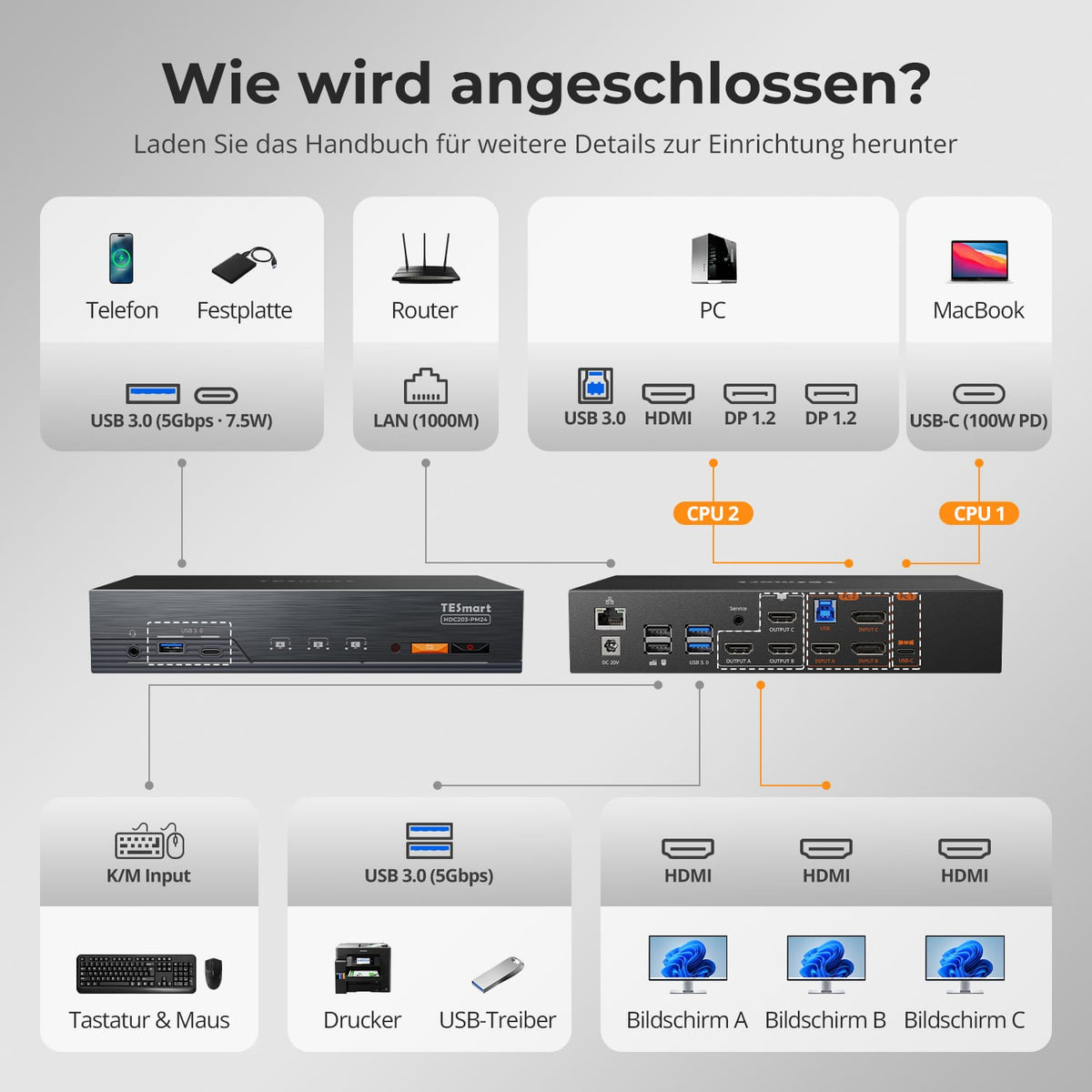
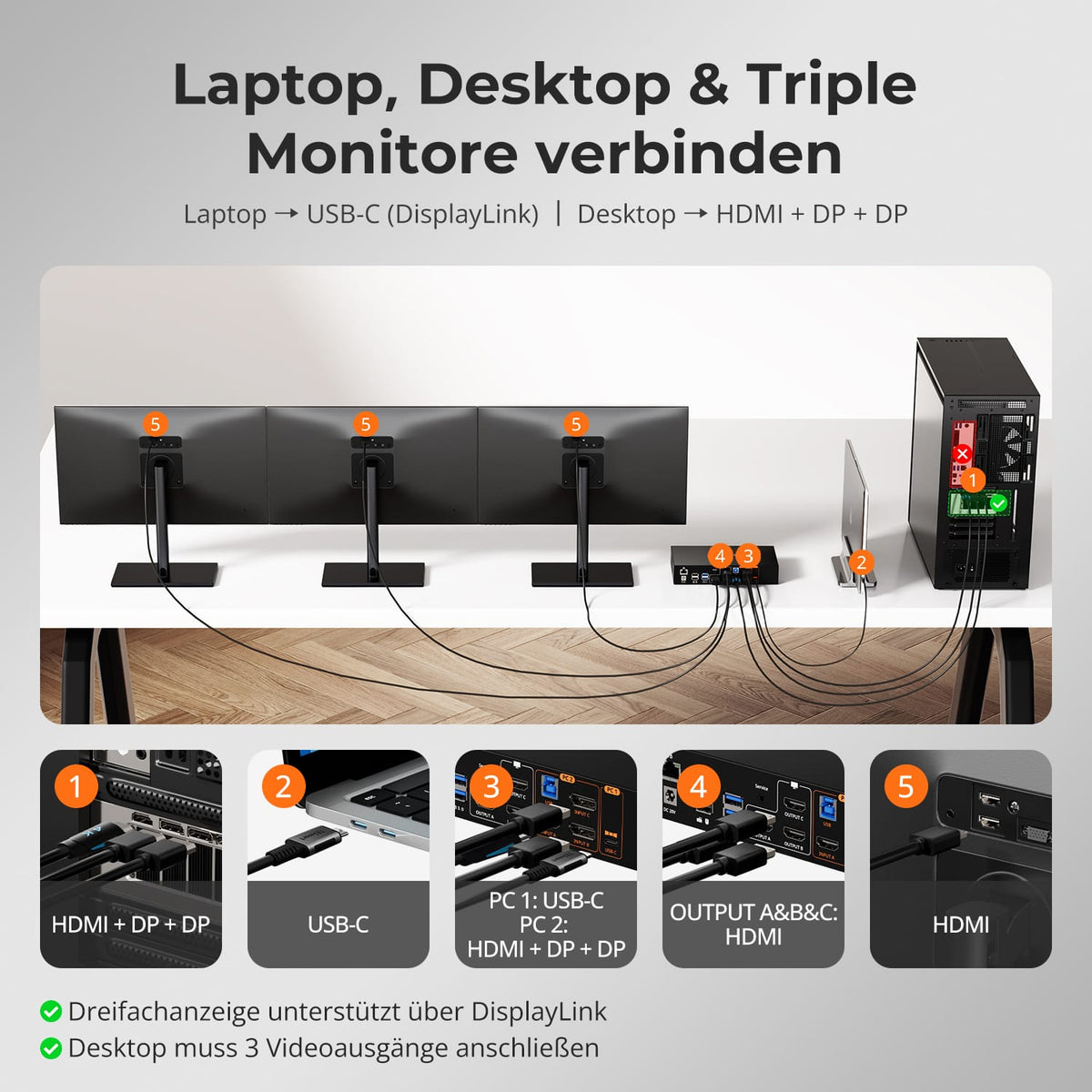
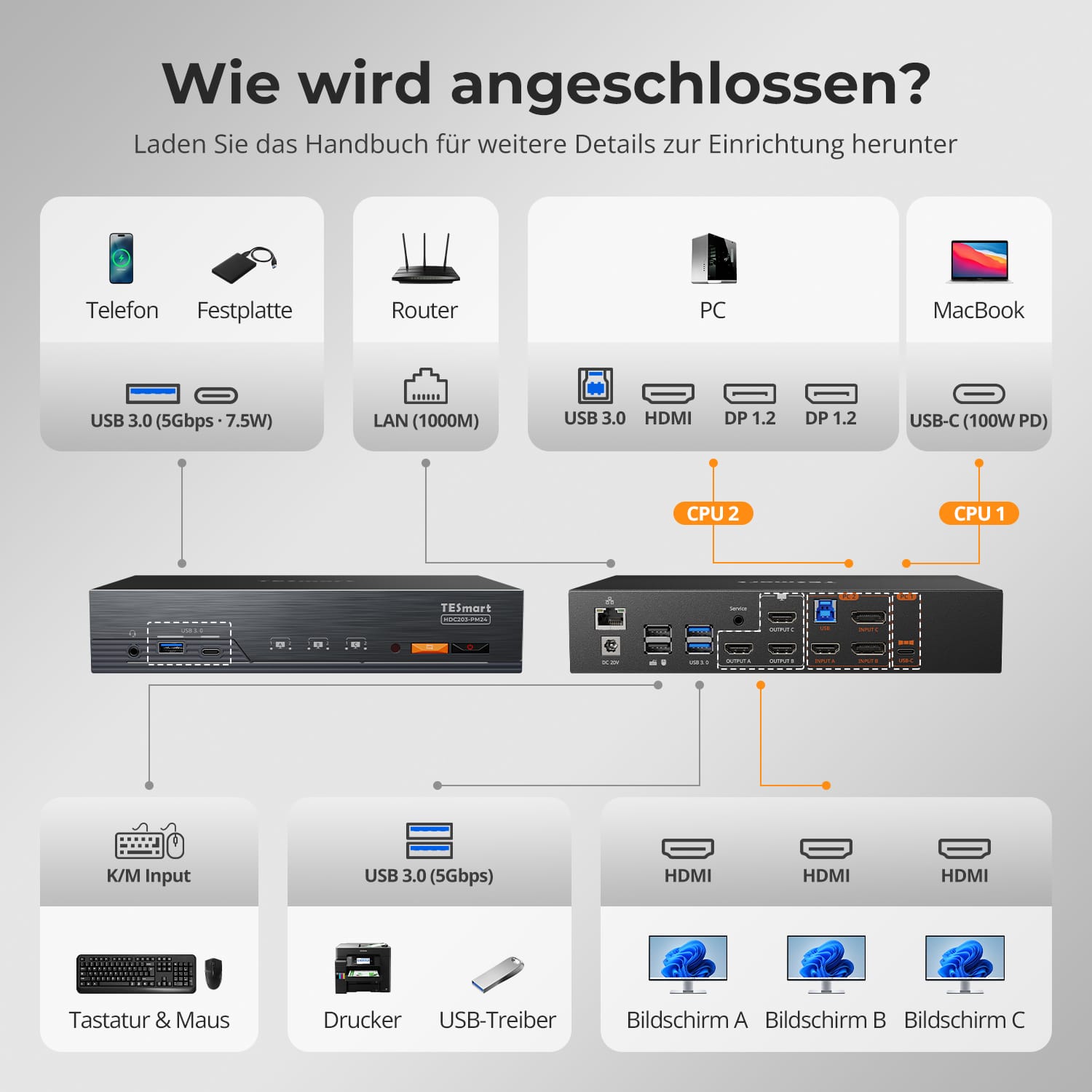
The PC1 connector of the HDC203-PM24 uses a combined architecture that integrates DisplayLink technology, a DP-1.2 video channel and a USB-3.0 data channel for triple display expansion.
Triple display configuration:
- Native DP video → OUTPUT C (Monitor 1)
- Two DisplayLink video signals (via USB data) → OUTPUTS A/B (Monitors 2 and 3)
Laptop USB-C without DP Alt Mode:
- Without DisplayLink drivers: No video output, all monitors remain black.
- With DisplayLink driver: Two DisplayLink signals, achieves dual display (OUTPUTS A/B)
Laptop USB-C with DP Alt Mode:
- Without DisplayLink driver: Native DP output, single display (OUTPUT C)
- With DisplayLink driver: Triple display output (OUTPUTS A/B/C)
Notes:
- Only the PC1 port supports DisplayLink
- DisplayLink driver download: https://www.synaptics.com/products/displaylink-graphics/downloadsKeep your driver up to date to ensure triple-display functionality.
- DisplayLink uses compressed video transmission; slight latency or color variations may occur.
- Use cables that support USB 3.0 or higher for stable DisplayLink video.
Which operating system versions are supported?
Windows:
Windows 10/11
macOS:
Ventura 13, Sonoma 14, Sequoia 15
Android:
5.0 (Lollipop) or higher
ChromeOS:
R51 or higher
Linux:
Ubuntu 20.04/22.04/23.04/24.04
How can I switch USB peripherals or audio devices independently?
By default, the KVM operates in Follow Mode, which means that connected USB 3.0 devices and audio devices automatically switch focus with the keyboard/mouse.
Here's how to disable follow mode:
Press [Right Ctrl] → [Right Ctrl] → [~] to toggle follow mode.
Note: The buzzer sounds twice when activated and once when deactivated.
How to turn on USB 3.0 & Audio focus independent:
After deactivating follow mode, press [Right Ctrl] → [Right Ctrl] → [O] to synchronously switch the focus of USB 3.0 and audio devices between both computers.
Why is my audio device not working?
Connection requirements:
The KVM switch's audio functionality is limited to the PC1 USB-C port and the PC2 USB-B port. Ensure that the computers are securely connected to these two ports.
Computer sound settings:
- For 3.5 mm jack connection: Select "Plugable Audio" as the default output device in your computer's sound settings.
- For USB 3.0 connection: Select the appropriate USB audio output, such as "USB Audio Device" or "USB Headset", depending on the system display.
If no sound is output via the 3.5 mm output even after correct settings, we recommend using a USB sound card (USB to 3.5 mm adapter) to improve compatibility and ensure that the audio output works properly.
Why can't my computer use WiFi after connecting to the KVM switch?
The KVM switch has a built-in network card that is enabled by default. Computers may prioritize the wired connection.
Here's how you can use Wi-Fi instead of the wired KVM connection:
- Disable the built-in network card of the KVM switch for the selected computer
Press [Right Ctrl] → [Right Ctrl] → [F4] to turn off the built-in network card.
Note: The buzzer sounds twice when activated and once when deactivated. - Disabling the USB network adapter in computer settings (Windows 11 example):
Method 1: Advanced network settings
Press [Win + I] to open Windows settings.
Go to "Network" & Internet → Advanced Network Settings
Look for the adapter called "Plugable Ethernet" in the list.
Click on "Deactivate"
Method 2: Device Manager
Press [Win + X] and select "Device Manager"
Expand "Network adapters" and look for "Plugable Ethernet"
Right-click and select "Disable device"
-
recycling & trade-in
Up to 50% credit for recycling
-
DE: 3 working days · EU: 3–7 working days
-
Hassle-free returns & Purchase guarantee
-
Register and receive an additional year of warranty