



HKS403-P23-EUBK
4 Port Three Monitor KVM Switch HDMI 4K@60Hz mit USB Hub
- Regulärer Preis
-
€661,10 - Regulärer Preis
-
€661,10 - Verkaufspreis
-
€661,10
Abholverfügbarkeit konnte nicht geladen werden
-
Beeilen Sie sich, nur noch 12 Artikel auf Lager!
Overview & Highlights
Last upgrade:
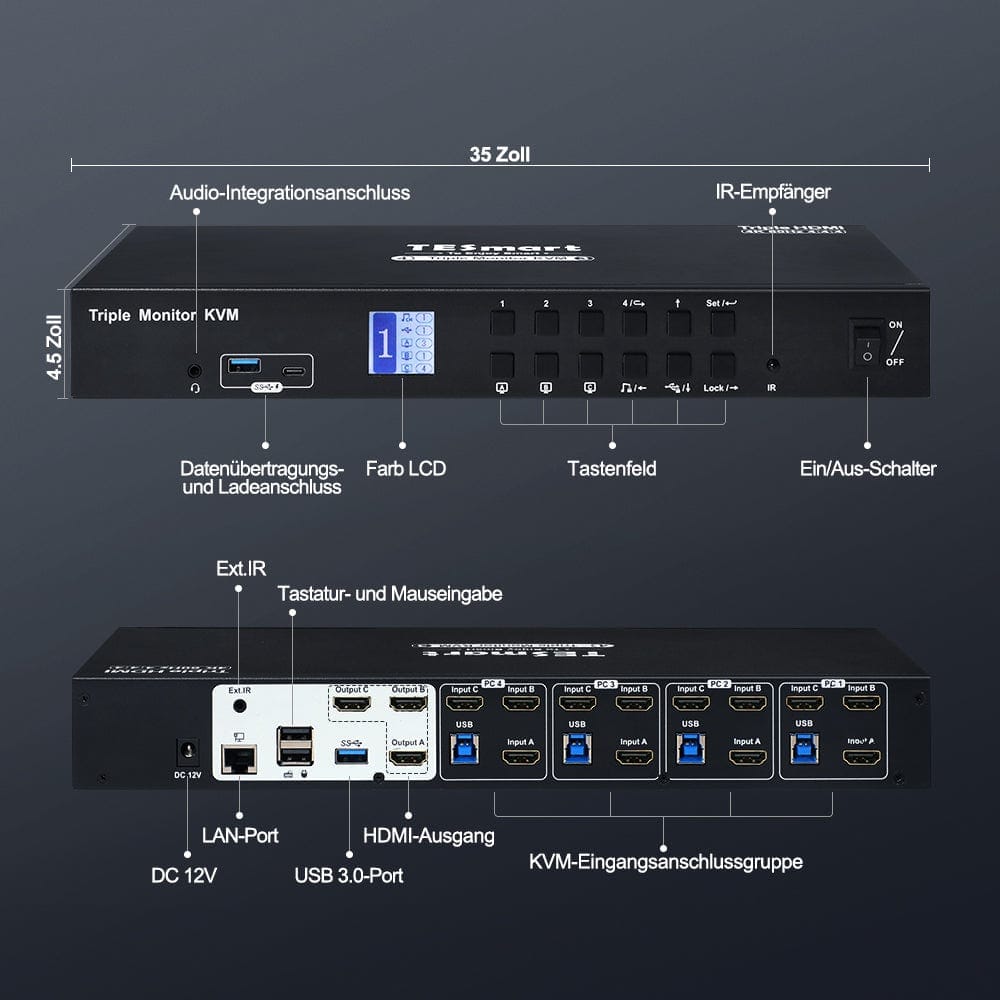
- 3*USB 3.0 (including 1*USB C), 2 of which are suitable for charging.
- Newly added is a LAN port for a stable network connection. Make sure all 4 computers are connected to the network via RJ45 with a speed of up to 100 Mbps.
- New additions include a integrated microphone and an L/R audio output.
- Supports the right Alt-Gr key.
About this article:
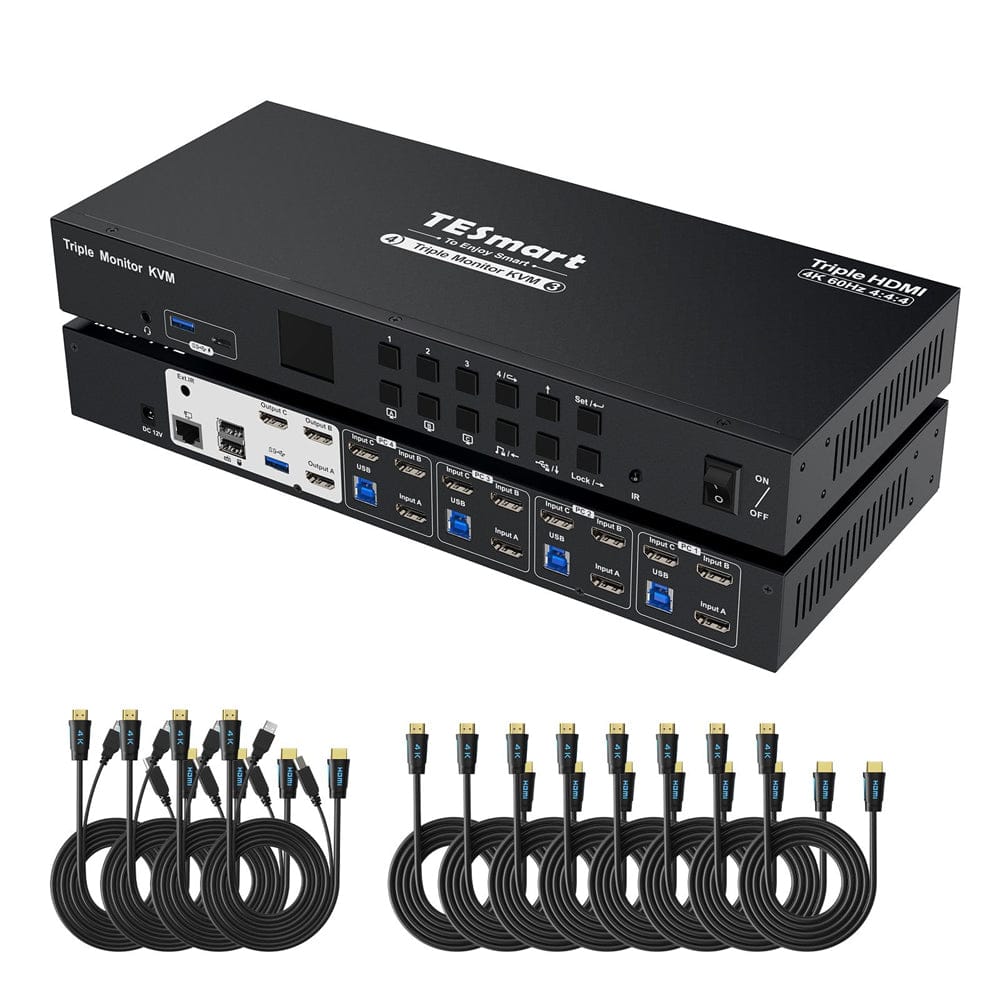
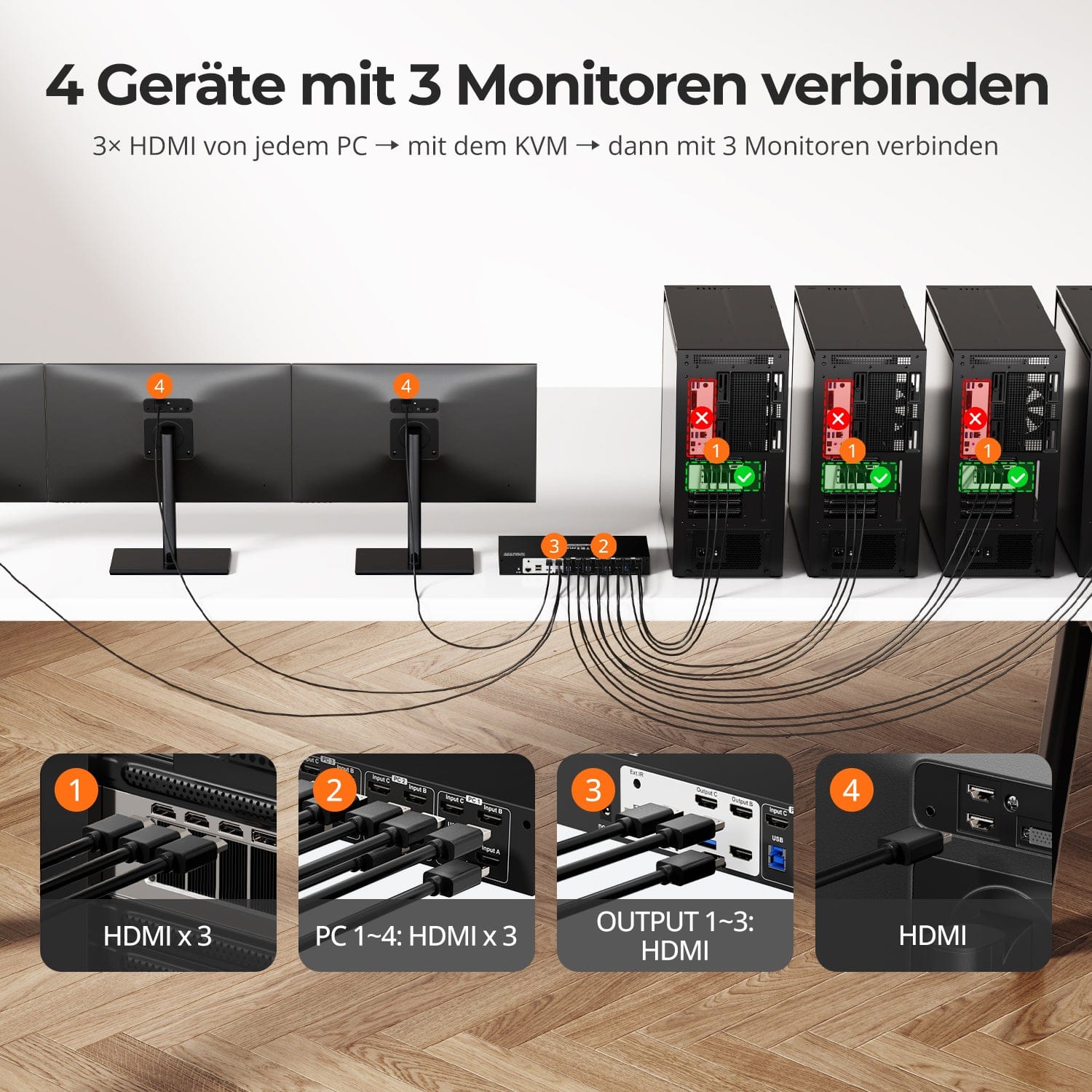
- The KVM switch comes with full PC cables. 4* HDMI/USB + 8* HDMI cables (for the 2nd and 3rd monitor) to the computers are included.
- Use up to 4 desktops or laptops with one set of keyboards, mice and three monitors.
- 3 advanced switching modes including keyboard hotkeys, IR remote control and front panel buttons. Automatic scans with adjustable intervals for monitoring and testing.
- Triple monitor outputs support high resolutions up to 3840x2160 (4K) @60hz, 3440x1440@100hz und 2560x1440@144hz for work, video and gaming purposes. Supports 3D, HDR, HDCP and Dolby Vision.
- EDID emulators in each input port ensure PCs always have the correct display information.
- KVM with one-touch lock to protect private data, with audio output pause and LCD screen brightness reduction.
- Visual LCD display for easy setup, equipped with 3 lockable USB 3.0 channels and 1 built-in microphone and L/R audio output.
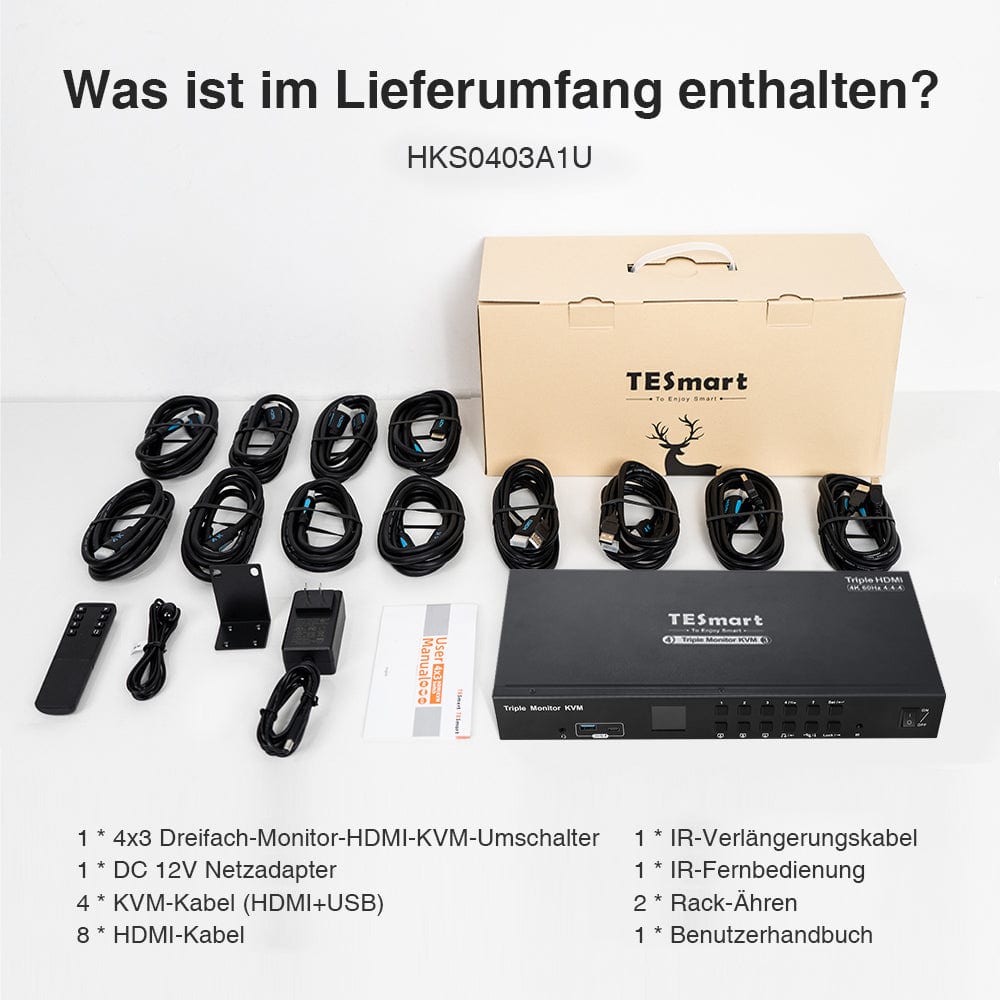
Scope of delivery
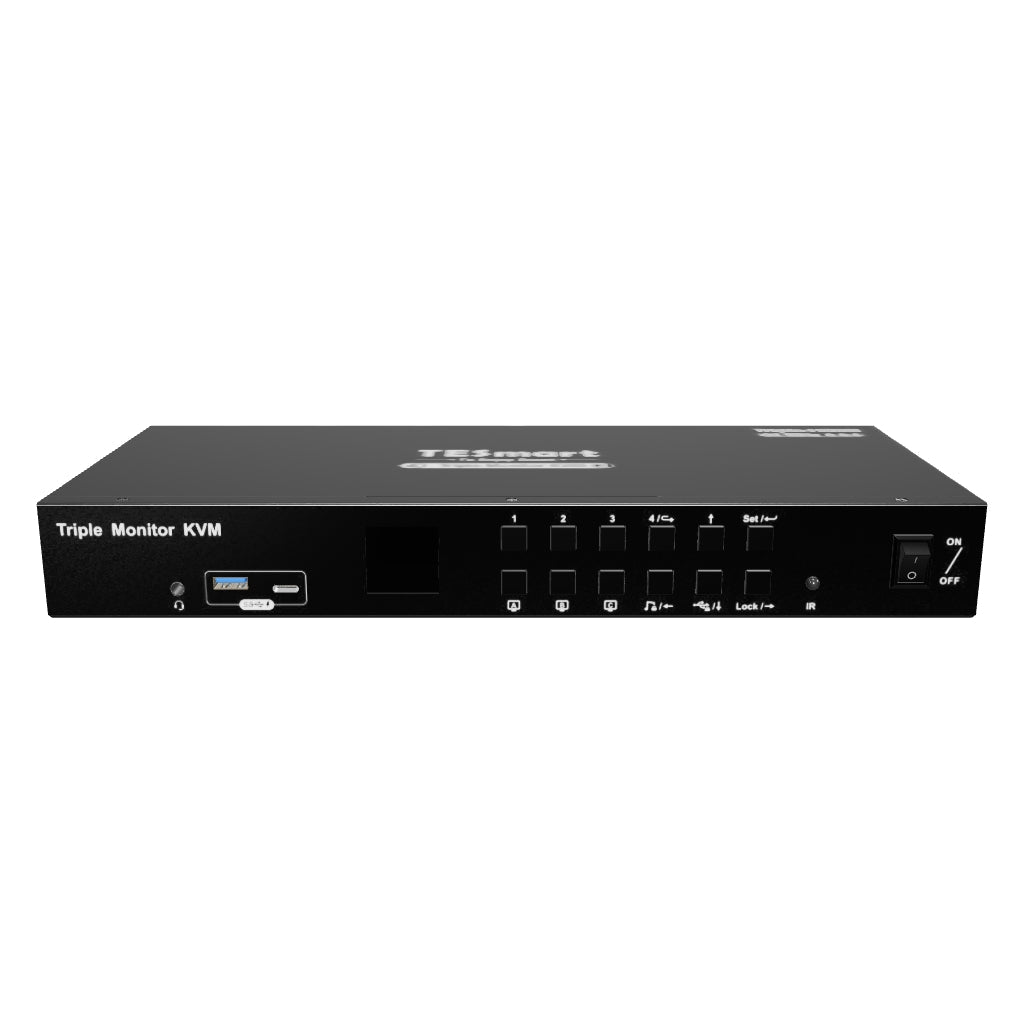
- 1 * 4x3 HDMI KVM switch
- 4 * KVM cables
- 8 * HDMI cables
- 1 * IR remote control
- 1 * IR extension cable
- 1 * DC-12V power supply
- 1 * User manual
- 2 * Rack panels
Downloads & User manual


Our shipping policy consists of the following 7 sections:
Order processing time (shipping lead time)
- Shipping costs & Delivery time
- Order tracking
- Delayed shipments
- Order cancellations
- Steer & Customs duties
- Contact us
1. Order processing time
The order processing time refers to the period from the time of the order until the order is handed over to the shipping service provider.
• Orders are usually shipped within 1-2 working days after confirmation/payment.
• Orders placed on weekends may be subject to delays.
• Our warehouse operates Monday to Friday during regular business hours (excluding public holidays). In such cases, we will make every effort to minimize shipping delays.
We have warehouses in Germany and other regions. Your order will be shipped directly from the nearest warehouse, depending on your delivery address. If the nearest warehouse does not have the product in stock, we will ship your order from another nearby warehouse to ensure you receive it as quickly as possible.
Shipping to the United Kingdom 🇬🇧
To ensure smooth delivery and correct customs clearance, orders from the United Kingdom are processed through our US shop.
Orders to UK addresses cannot be shipped via our EU shop.
2. Shipping costs & Delivery time
| Country or region | Estimated delivery time | Shipping costs | Logistics service provider |
| Germany | 3 working days | Free Shipping | DHL |
| Other EU countries | 3-7 working days | Free Shipping | DHL/DPD |
| Non-EU countries | 5-12 working days | From 60 euros | UPS |
3. Order tracking
4.Delayed shipments
5. Order Cancellation
6. Taxes & Customs duties
7. Contact us
- TESmart orders are processed automatically. Once shipped, they cannot be canceled or changed, including address changes.
- If you wish to return or request a refund, please contact us within 30 days of receiving the product at service@tesmart.de.
- Returns are only possible if the product is unused, complete and in its original packaging.
- For returns not due to quality issues, the customer bears the return shipping costs.
- TESmart will cover the return shipping costs for returns or refunds due to quality issues.
- Products that are searched for 30 days and within 2 years Items exhibiting problems cannot be returned, but depending on inspection, they can be repaired or replaced (same model only, replacements preferred for members).
- Between the 2nd and 3rd. No return or refund service is offered this year. Members can after 3 months A discount of [amount] will be granted from the date of purchase as part of the trade-in policy. up to 50% You will receive a refund of the original product price towards the purchase of a new product. For detailed terms and conditions, please visit: https://tesmart.de/pages/tesmart-id-trade-in
- Refunds will be processed within 5 working days of the goods being received at the warehouse.
For questions: service@tesmart.de
Full guidelines:

Technical data
| Produkattribute | |
|---|---|
Modell (SKU) |
HKS403-P23-EUBK
|
Kompatibles Setup |
|
Max Resolution |
|
Supported Resolutions |
|
VRR (Variable Bildwiederholfrequenz) |
|
MST (Multi-Stream Transport) |
|
Laptop-Aufladung |
|
Netzwerkanschluss |
|
Independent Audio Focus Switching |
|
Independent Audio Focus Locking |
|
Thunderbolt 4 Ports |
|
EDID Emulation |
|
Umschaltmethoden |
|
Belegbare Hotkeys |
|
Legacy-Emulationsmodus |
|
Input Ports |
|
Output Ports |
|
Docking Ports |
|
Anzeigemodi |
|
Handbuch (PDF) |
|
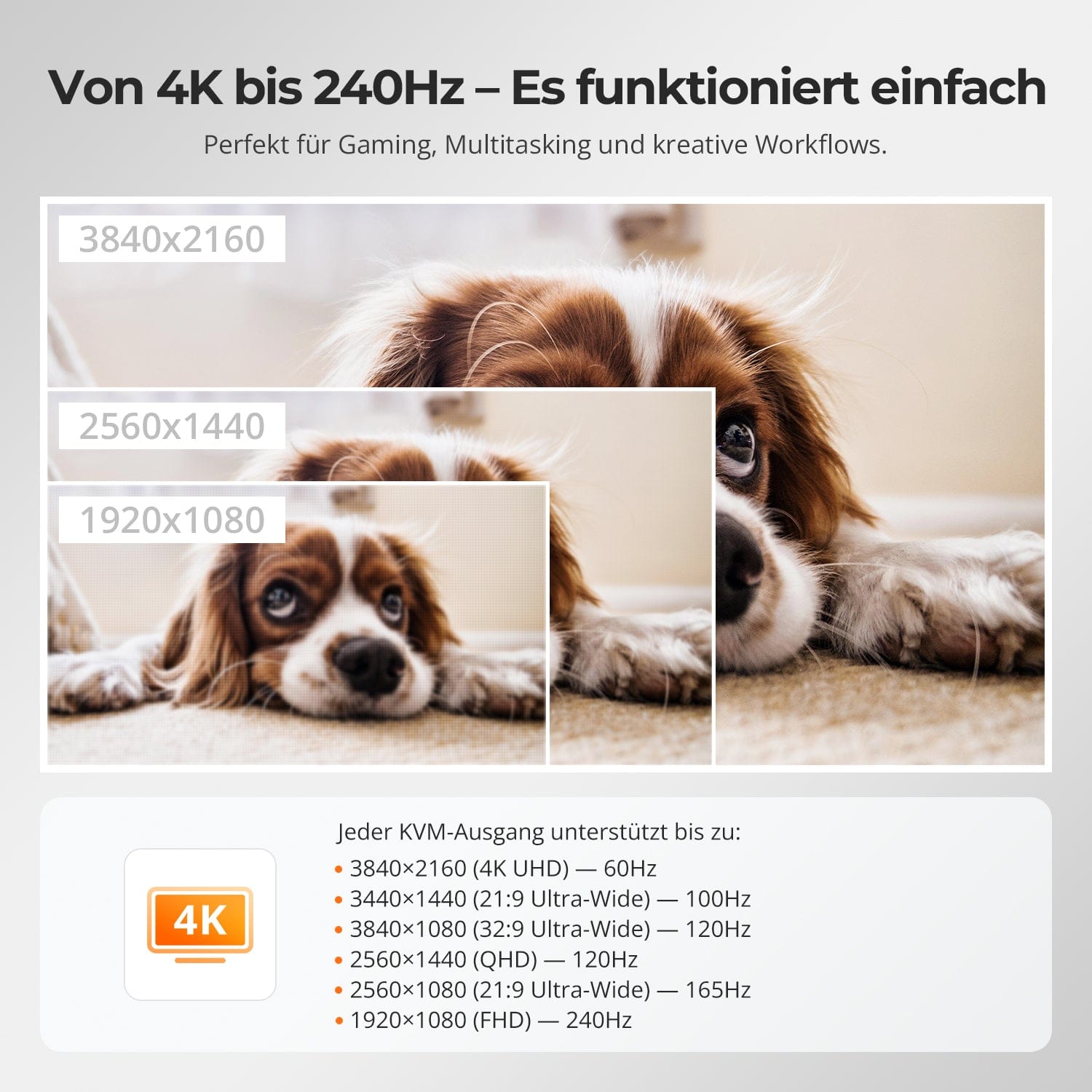
From 4K to 240Hz – It just works
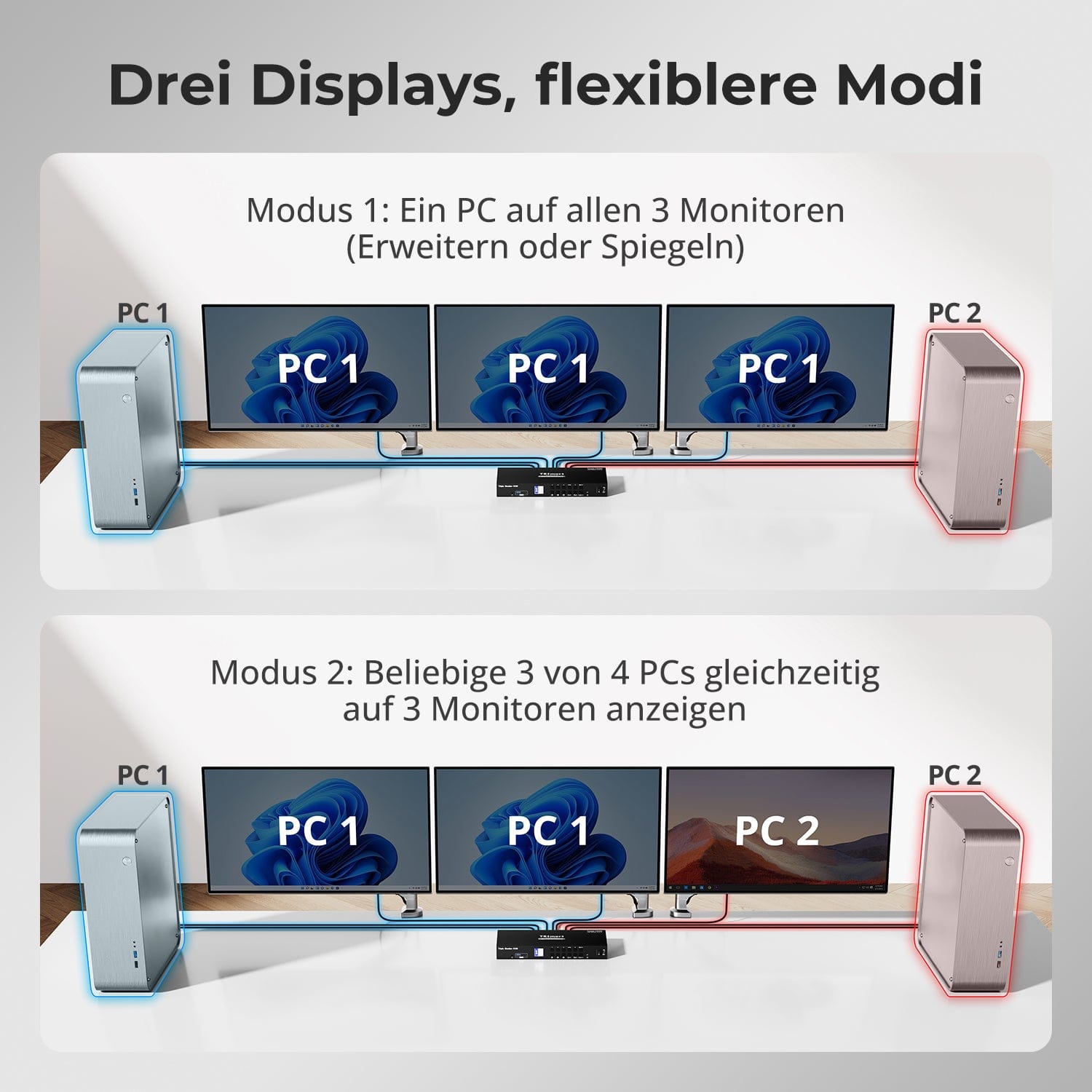
Three displays, more flexible modes
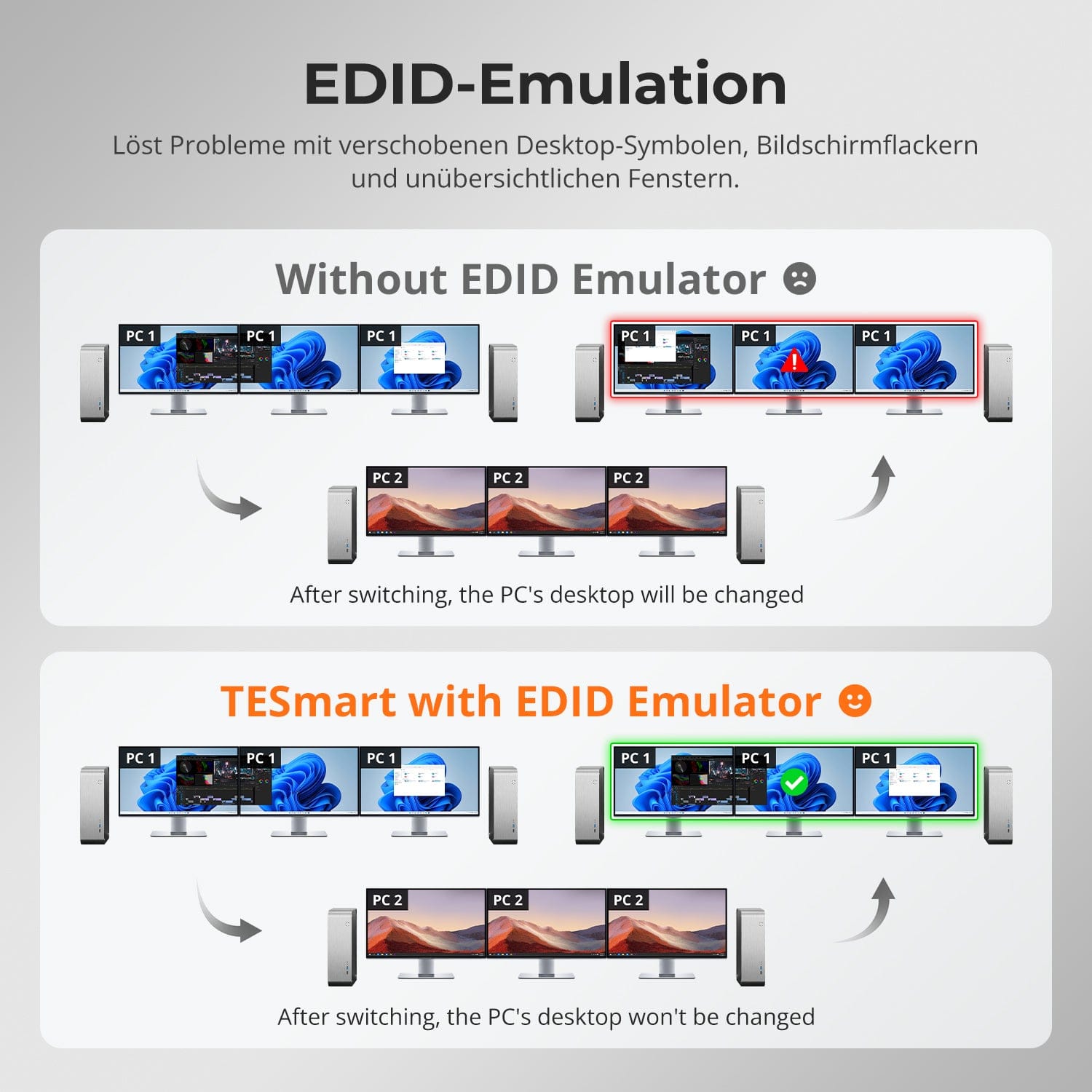
EDID Emulation – Stable screens, no surprises
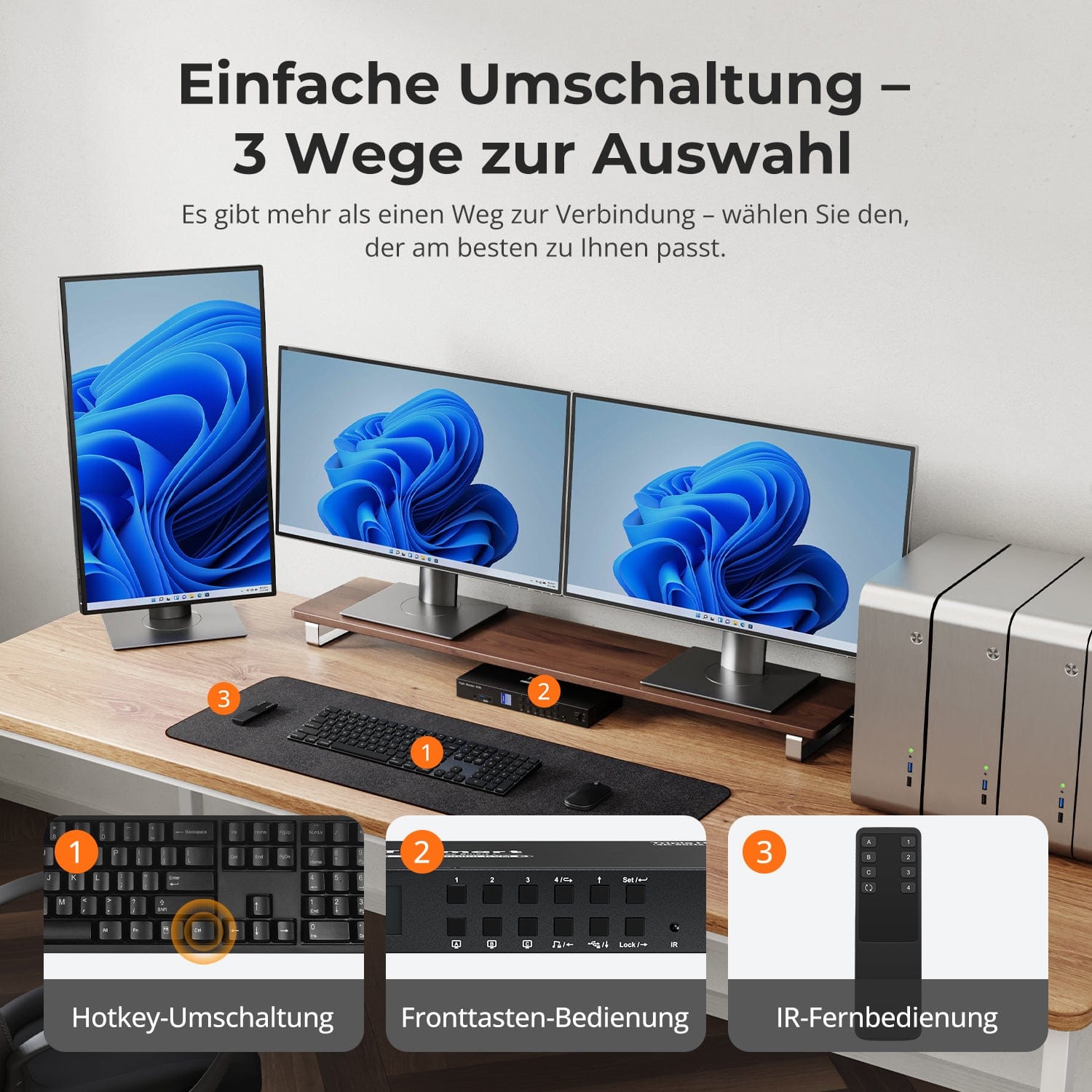
Easy switching – 3 ways to choose from
One switch, endless possibilities. Whether for gaming, content creation, or multi-window workflows – our KVM effortlessly handles a wide range of resolutions and refresh rates.
Each KVM output supports up to:
• 3840×2160 (4K UHD) — 60Hz
• 3440×1440 (21:9 Ultra-Wide) — 100 Hz
• 3840×1080 (32:9 Ultra Wide) — 120 Hz
• 2560×1440 (QHD) — 120Hz
• 2560×1080 (21:9 Ultra-Wide) — 165 Hz
• 1920×1080 (FHD) — 240Hz
• Mode 1: One PC on all 3 monitors (Extend or Mirror)
Use a single PC to drive all three monitors. Ideal for multi-window workflows such as video editing, financial dashboards, or immersive simulations. Mirror or extend the display via your system settings.
• Mode 2: Display any 3 out of 4 PCs simultaneously on 3 monitors
Assign a different PC to each monitor. For example, point PC1 to monitor A, PC2 to monitor B, and PC4 to monitor C – any combination is possible. Perfect for developers, cybersecurity labs, or monitoring multiple systems.
Switching between displays shouldn't mess up your desktop. Our integrated EDID emulator ensures your layout stays exactly as you left it.
• No more misplaced symbols
Retains the position of desktop icons and the size of open windows when switching inputs.
• Flicker-free switching
Prevents screen dropouts and flickering caused by re-initializing the display.
• Smoother multitasking
Maintains visual consistency between workstations and monitor setups.
✅ With TESmart EDID emulation: Your display remains stable and unchanged – even after switching channels.
⚠️ Without EDID emulation: icons move, window sizes change, and the screen flickers after each change.
Switching shouldn't slow you down – we offer three seamless methods to suit every setup and habit:
• Hotkey switching – Fixed key combinations for quick source switching
• Front button operation – Direct access, anytime and easily
• IR remote control – Convenient control from your desk
Whether at work, gaming, or giving presentations – choose the method that suits you best.


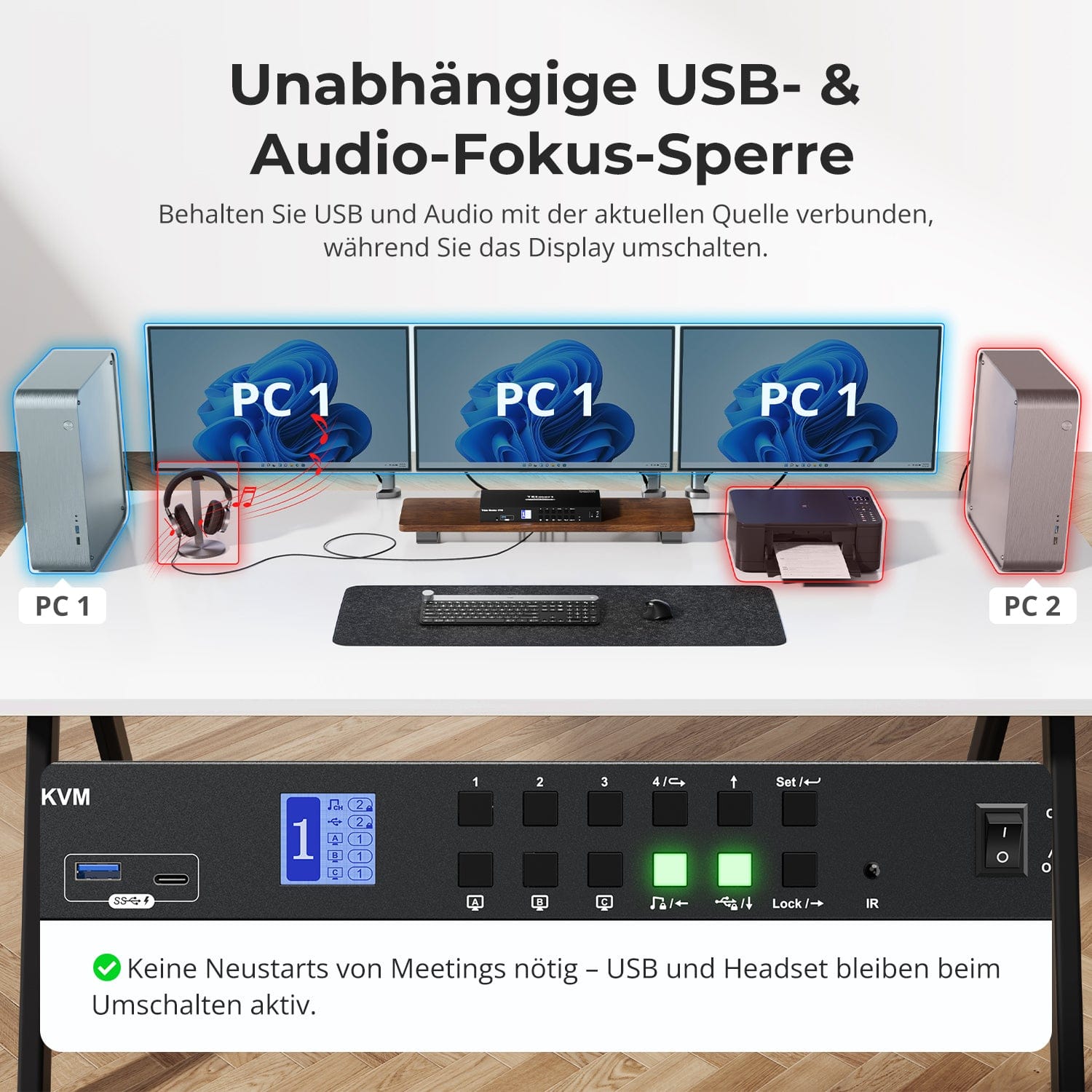
Independent USB & audio focus lock
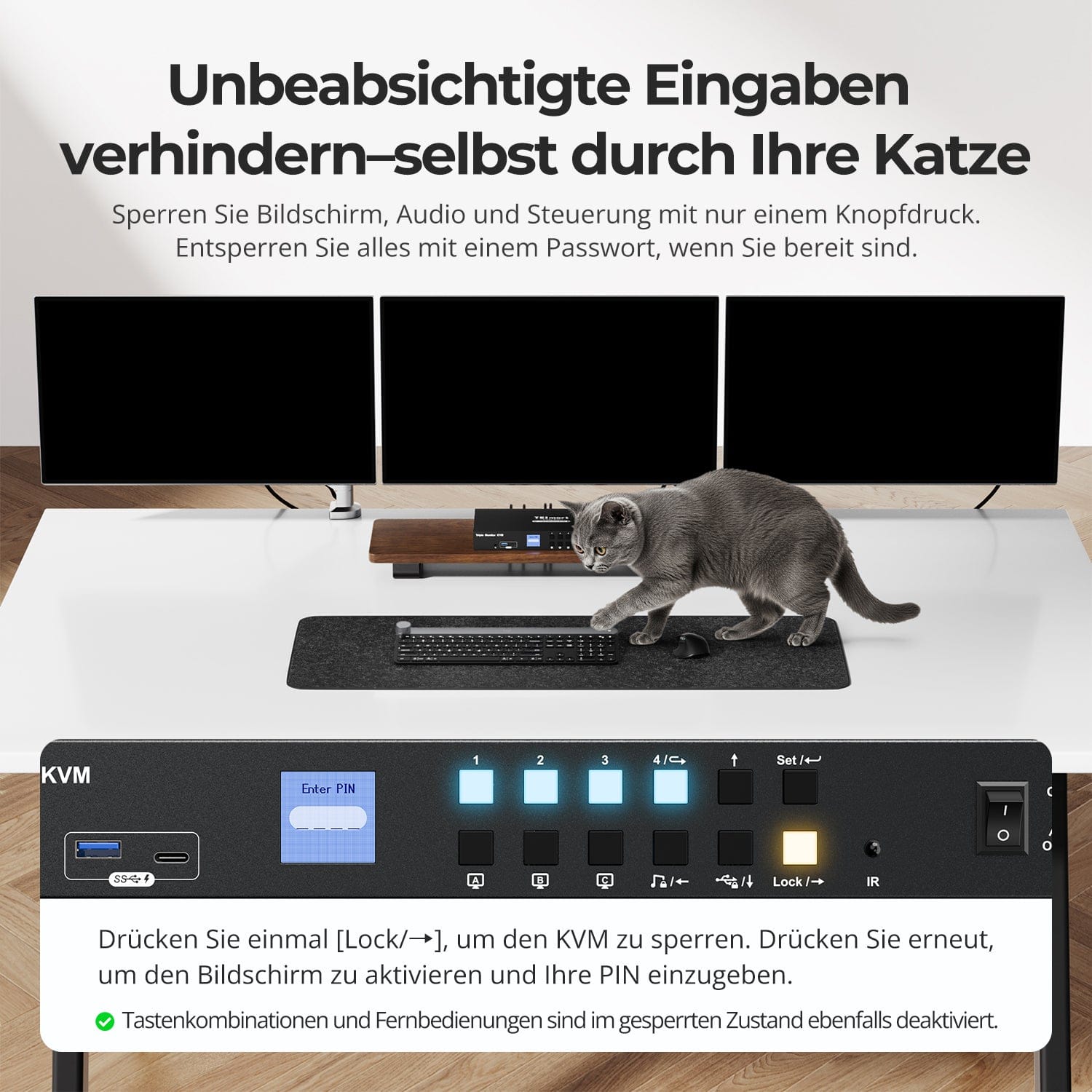
Prevent accidental entries – even by your cat
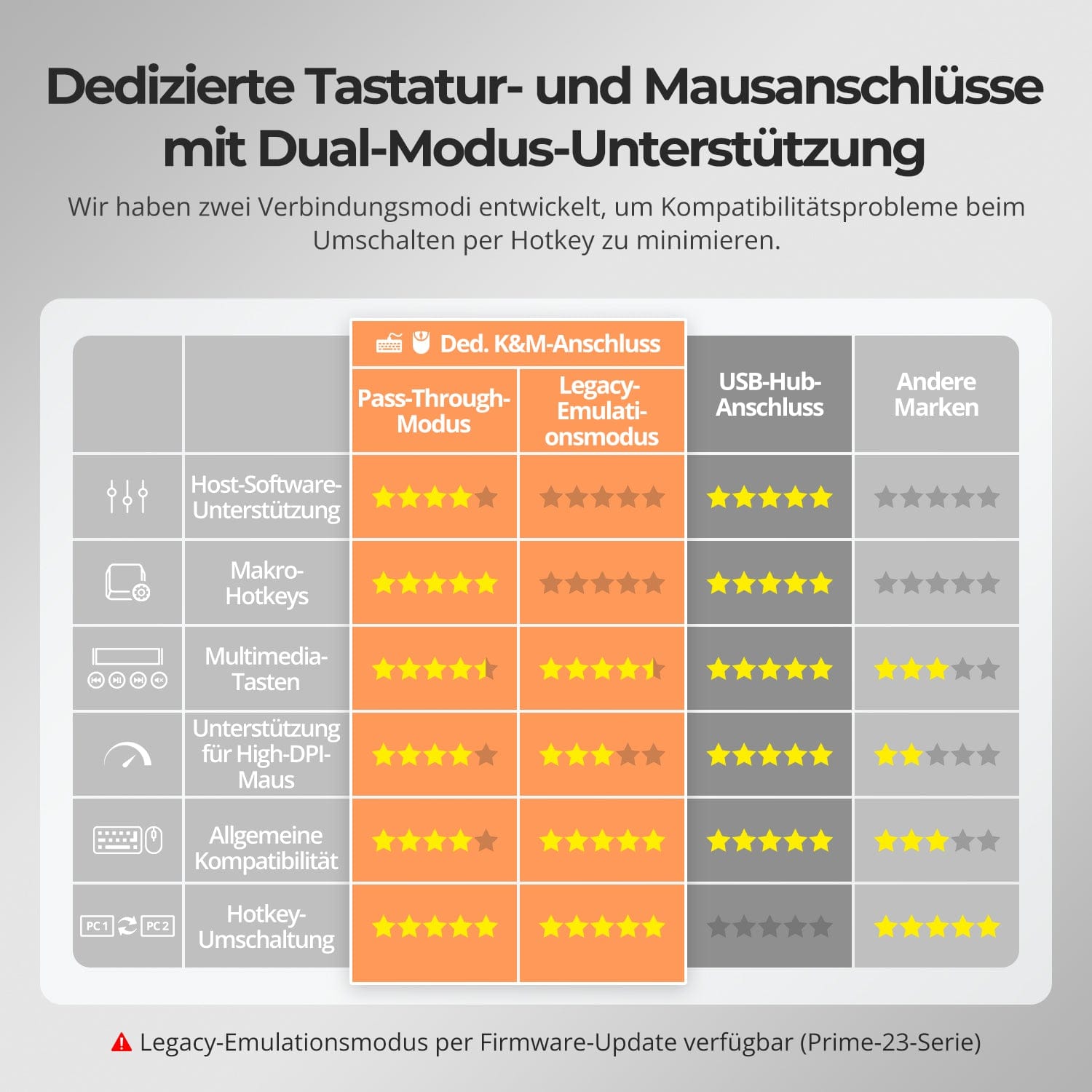
Dedicated K&M-Ports with dual-mode support
Switch displays without interrupting your USB devices or audio connection.
This KVM allows you to independently lock the focus of USB 3.0 and L/R audio – so that headsets, webcams or external drives remain connected to the current PC, even during screen switching.
Highlights:
• Lock USB and audio focus separately
• Avoid interruptions to calls or devices
• Lock status remains even after restarting
✅ Ideal for meetings, streaming and multitasking
⚠️ USB focus ≠ keyboard & Mouse focus – they are switched separately.
Prevent unwanted input during meetings, presentations, or breaks. With just one keystroke, you can lock the video output, audio, and all control interfaces.
• One-touch lock
If the display freezes, USB, audio, keyboard shortcuts and IR control are disabled.
• PIN unlocking
Continue your session exactly where you left off – with your individual password.
• Reassuring security
Prevents accidental switching – ideal for households with children or pets.
✅ Key combinations and remote controls are disabled when the device is locked.
⚠️ To unlock, press the lock button again and enter your PIN.
To improve keyboard and mouse compatibility – especially when switching hotkeys – we have developed two special connection modes:
• Pass-through mode (recommended)
Direct routing to the PC. Supports advanced drivers, macros, high-DPI mice, and multifunctional input devices. Ideal for gaming, design, and professional workflows.
• Legacy emulation mode
Ensures universal compatibility and stable hotkey functionality on most systems. Best suited for office use or when experiencing driver issues.
✅ Hotkey commands only work if your keyboard is connected to the dedicated K&M-Port is connected.
⚠️ In emulation mode, driver-based software and advanced features are disabled.
⚠️ Bluetooth keyboards and mice are not supported.
⚠️ Legacy emulation mode is available via firmware update (Prime-23 series).


FAQs
Why are my USB peripherals not working?
Connection requirements:
The KVM switch uses USB data transfer via the USB-B ports on PC1/2/3/4. Please ensure that the computers' USB 3.0 ports are securely connected to these four ports.
Port restrictions:
USB ports marked with keyboard/mouse symbols are exclusively for these devices. Other USB peripherals (e.g., printers, webcams, flash drives) must be connected to the dedicated USB ports on the KVM switch.
Bandwidth limitations:
The KVM switch acts as a USB hub, meaning all connected peripherals share the same USB bandwidth. If the total bandwidth requirement exceeds the KVM switch's capacity, devices may become unresponsive or fail.
Power supply problems:
Some high-performance USB devices may not receive enough power from the KVM switch.
Recommended workaround:
- Connect high-performance USB devices directly to your PC whenever possible.
- For better stability, use a powered USB hub between the KVM switch and the device.
USB hub cascading limitations:
The USB architecture supports a maximum of 7 cascade levels, including: host controller + up to 5 USB hubs + 1 device level. Exceeding this limit may result in undetected or faulty devices.
Example of a USB chain:
PC → Docking station → KVM switch → USB hub (→ additional USB hub) → Peripheral device
Recommended solutions:
- Bypass docking stations: Connect the PC's USB-A port directly to the KVM switch.
- Minimize cascading: Connect peripherals directly to the KVM whenever possible to avoid excessive USB hub layers.
Why is my audio device not working?
Connection requirements:
The KVM switch's audio functionality relies on the USB-B ports of PC1/2/3/4. Ensure your computer is securely connected to all four ports.
Sound settings on your computer:
- For 3.5 mm jack connection: In your computer's sound settings, select "USB Audio" as the default output device.
- For USB 3.0 connection: Select the appropriate USB audio output, e.g., "USB Audio Device" or "USB Headset", depending on your system's display.
If no sound is output via the 3.5 mm output even after correct adjustment, we recommend using a USB sound card (USB to 3.5 mm adapter) to improve compatibility and ensure proper audio output.
Does the KVM switch support firmware updates?
Yes, TESmart KVM switches support official firmware updates designed to fix common problems and improve compatibility.
Important NOTE:
Firmware updates carry inherent risks. Installing the wrong version or performing the process incorrectly can lead to device malfunctions. Therefore, it is strongly advised against performing a firmware update yourself if your device is functioning normally.
If an update is required, please contact our technical support team for:
- The correct firmware version for your specific model.
- Step-by-step update instructions.
- Technical support throughout the entire process.
What should I do if my keyboard and mouse stop working after upgrading to macOS Tahoe?
Das macOS Tahoe-System verwendet ein proprietäres Protokoll, das Kompatibilitätsprobleme mit dem KVM-Switch verursachen kann, wodurch Tastatur und Maus nicht erkannt werden. Dieses Problem kann durch ein Firmware-Update behoben werden. Bitte kontaktieren Sie unser technisches Support-Team, um das mit macOS Tahoe kompatible Firmware-Paket zu erhalten, und befolgen Sie die bereitgestellten Anweisungen, um das Update durchzuführen.
Wie kann ich Tastatur und Maus zwischen verschiedenen Computern nutzen?
Im Anzeigemodus 2 (d. h. wenn zwei Monitore unterschiedliche Computerbildschirme anzeigen) kann der Tastatur-/Maus-Fokus unabhängig umgeschaltet werden, um verschiedene Computer zu steuern.
Anleitung: Das LCD-Display des KVM-Switch zeigt den aktuellen Status in Echtzeit an: Die linke Zahl gibt an, auf welchem Computer sich der Tastatur-/Maus-Fokus gerade befindet (z. B. "1" für PC1, "2" für PC2).
Hotkey-Umschaltung: Drücken Sie [Rechte Alt] → [Rechte Alt], um den Tastatur-/Maus-Fokus zwischen verschiedenen Computern zu wechseln.
Tipp: Das Umschalten des Tastatur-/Maus-Fokus beeinflusst nicht die Videoanzeige; das Videolayout bleibt wie im Anzeigemodus 2 konfiguriert.
Kann ich meinen Arbeits-Laptop und meinen Gaming-Desktop gleichzeitig anschließen?
Ja. Der KVM-Switch ermöglicht es Ihnen, die Steuerung zwischen zwei Computern schnell mit nur einem Monitor, einer Tastatur und einer Maus umzuschalten – ohne wiederholtes Ein- und Ausstecken. Dies eignet sich besonders für hybride Szenarien, die Homeoffice und persönliche Unterhaltung kombinieren. Der HKS403-P23 verfügt über HDMI-Eingangs-/Ausgangsanschlüsse. Wenn ein Computer nur einen HDMI-Anschluss hat, kann ein Konvertierungsgerät erforderlich sein:
Laptop: Verwenden Sie einen zusätzlichen USB-C-auf-HDMI-Adapter, ein USB-C-auf-HDMI-Kabel oder eine Dockingstation mit HDMI-Ausgang.
Desktop-PC: Verwenden Sie einen zusätzlichen DisplayPort-auf-HDMI-Adapter oder ein DisplayPort-auf-HDMI-Kabel.
Kann das Umschalten dazu führen, dass die Auflösung des Host-Computers zurückgesetzt wird oder Fenster neu angeordnet werden?
Nein. Der HKS403-P23 verfügt über einen EDID-Emulator, der verhindert, dass die Auflösung oder Bildwiederholrate verloren geht, und vermeidet die Neuorganisation von Fenstern beim Wechsel zwischen Computern.
Unterstützt der KVM sowohl Mac- als auch Windows-Umgebungen?
Ja. Der HKS403-P23 ist mit einer Vielzahl von Betriebssystemen kompatibel, darunter: Windows, macOS, Unix und Linux-basierte Systeme wie Debian, Ubuntu, Fedora und Raspbian (einschließlich Unterstützung für Raspberry Pi). Er funktioniert gut in gemischten Betriebssystemumgebungen ohne zusätzliche Konfiguration.
Unterstützt dieser KVM meinen 4K@144Hz- oder 8K-Monitor?
Nein. Der HKS403-P23 unterstützt HDMI 2.0 mit einer maximalen Auflösung von 4K (2160p)@60Hz und ist abwärtskompatibel mit 2K (1440p)@60Hz/120Hz.
Warum funktionieren meine Tastatur und Maus nicht richtig?
Häufige Symptome:
- Tastatureingaben reagieren nicht oder sind verzögert
- Tastaturanschläge bleiben hängen oder werden doppelt erfasst
- Mausbewegungen ruckeln oder hinken hinterher
- Tastenkombinationen (Hotkeys) funktionieren nicht
Bitte wenden Sie sich an unser technisches Support-Team unter support@tesmart.com, um Unterstützung bei der Fehlerbehebung und Lösung zu erhalten.
-
Recycling & Inzahlungnahme
Bis zu 50 % Gutschrift beim Recycling
-
Kostenloser Versand
DE: 3 Werktage · EU: 3–7 Werktage
-
30 Tage Gratis-Retoure
Sorgenfreie Rückgabe & Kaufgarantie
-
Verlängerte Garantie: 2+3 Jahre
Registrieren und 3 zusätzliches Jahr Garantie erhalten