



HKS401-P23-V2-EUBK
4 Port KVM Switch Kit HDMI 4K60Hz with USB 3.0 Docking Station, 4 PCs 1 Monitor
- Regulärer Preis
-
€187,30 - Regulärer Preis
-
€187,30 - Verkaufspreis
-
€187,30
Abholverfügbarkeit konnte nicht geladen werden
-
Beeilen Sie sich, nur noch 8 Artikel auf Lager!
Overview & Highlights
TESmart with you. Evolving for you!
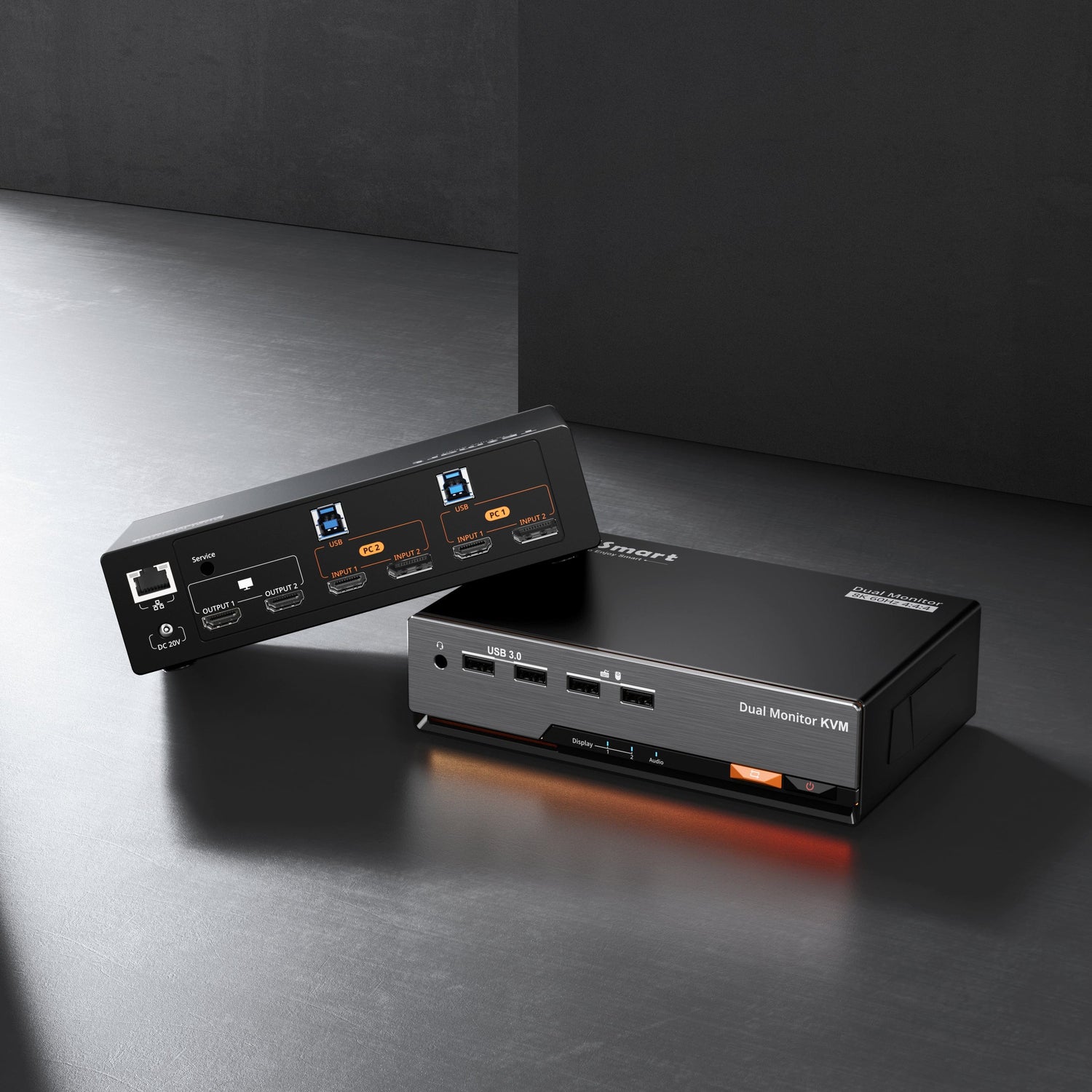
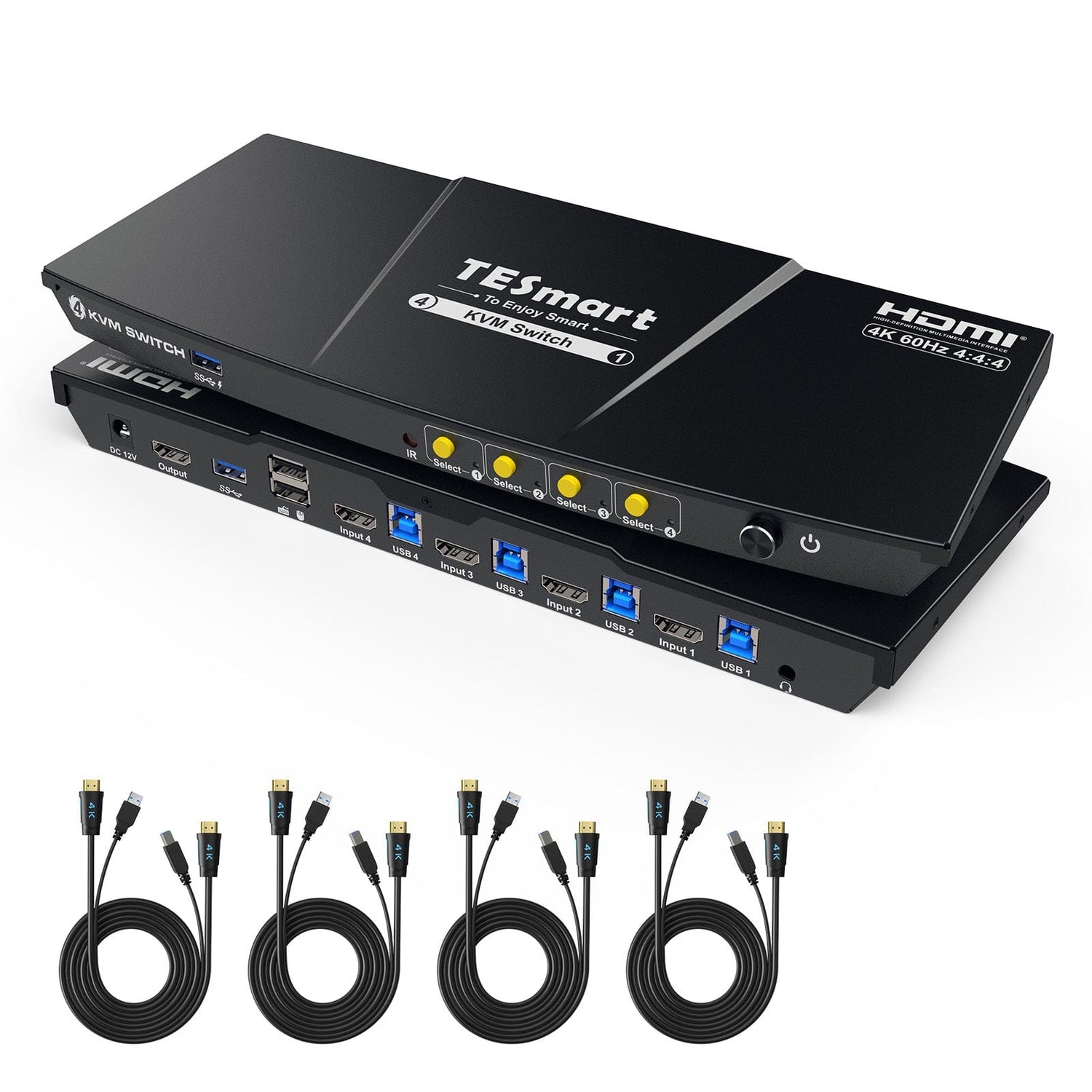
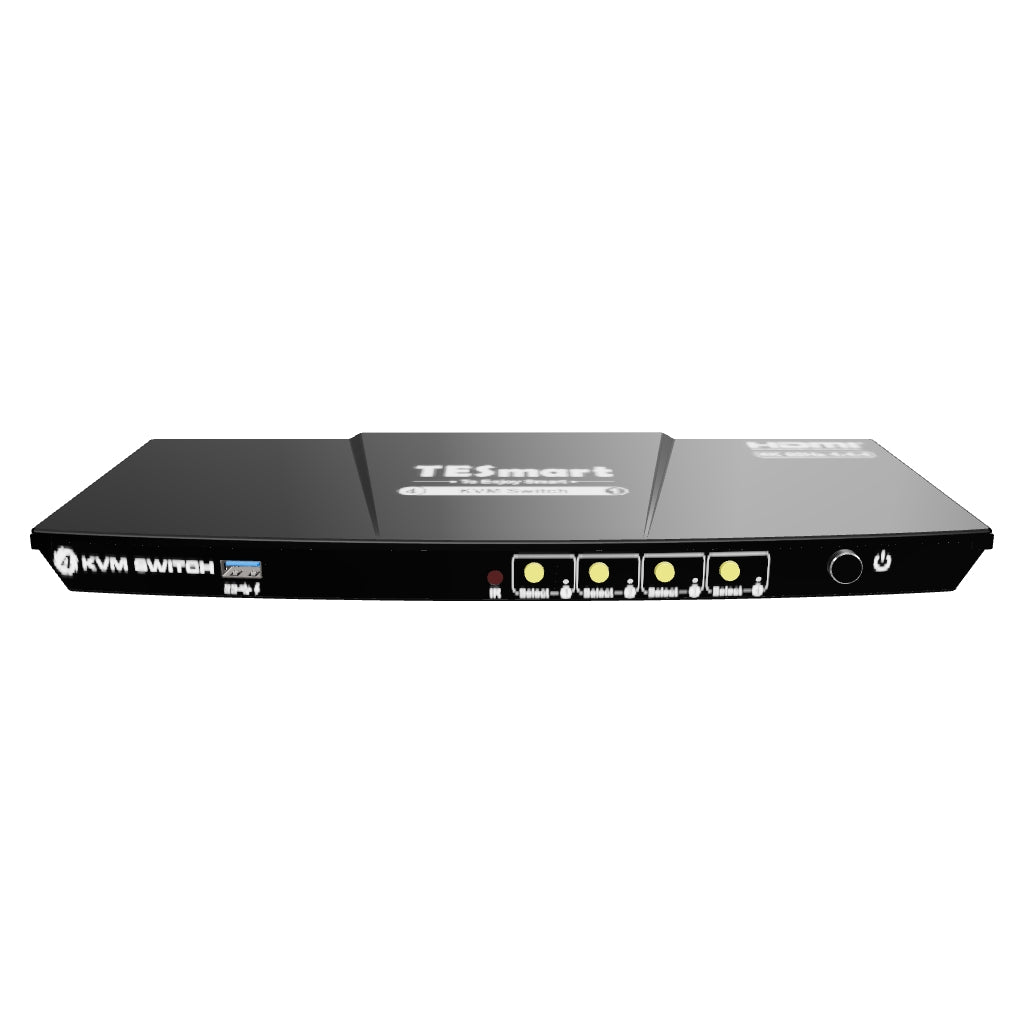
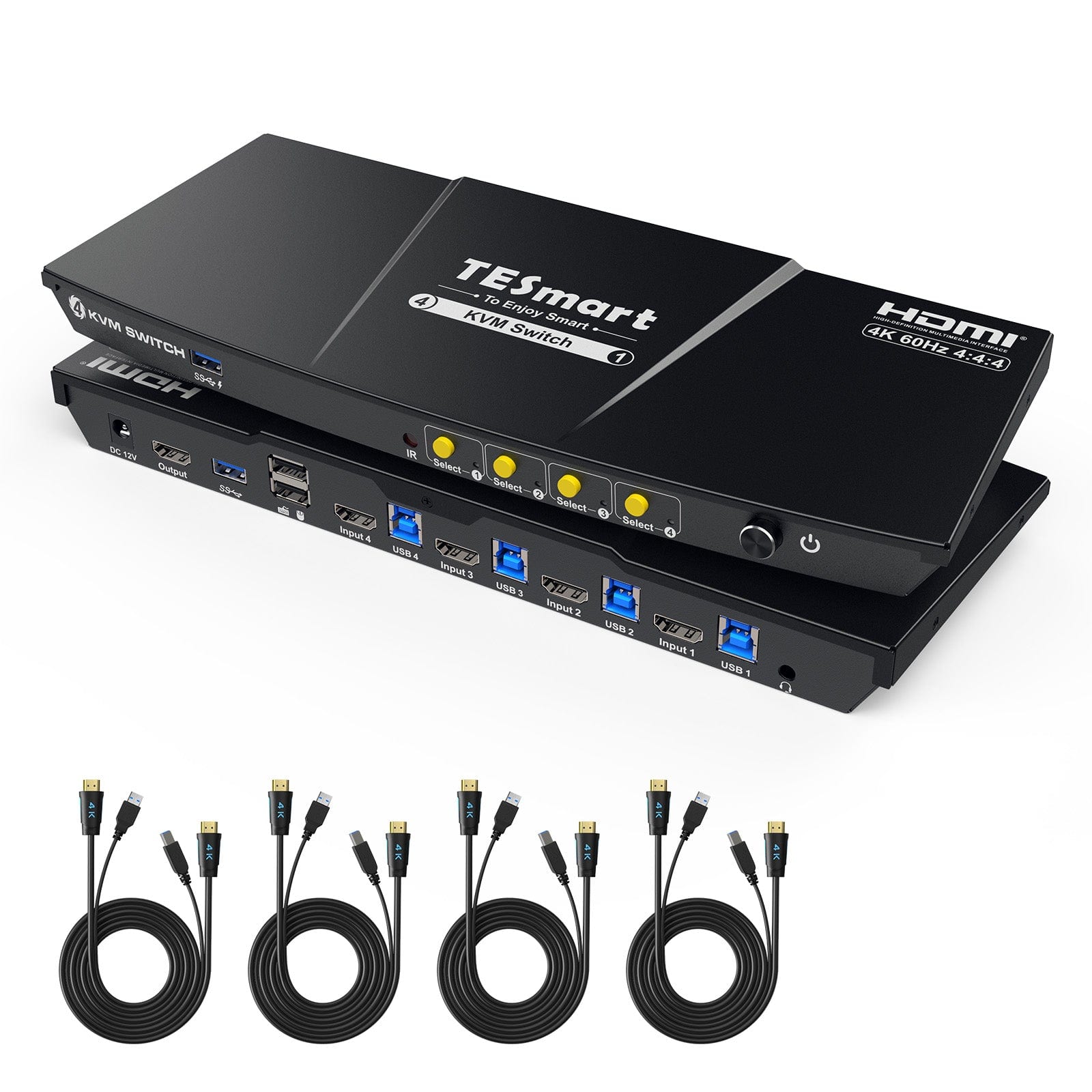
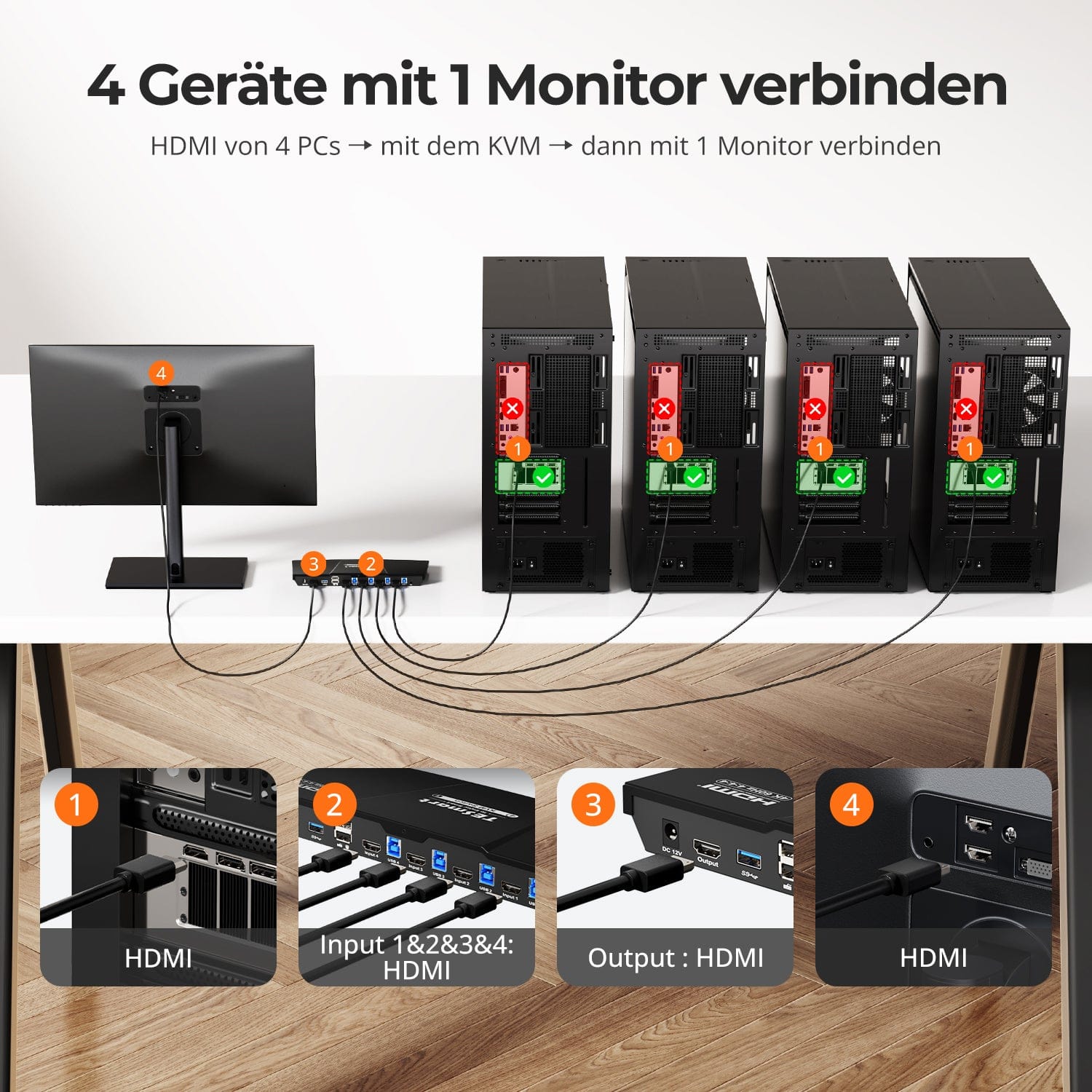
The HKS401-P23 supports one keyboard and mouse for controlling 4 computers and 1 monitor with HDMI 2.0. 4K@60Hz und USB 3.0. With advanced EDID simulation technology and an automatic scan function, it is ideal for users seeking stability and high-resolution, lightweight performance.
Why you'll love him:
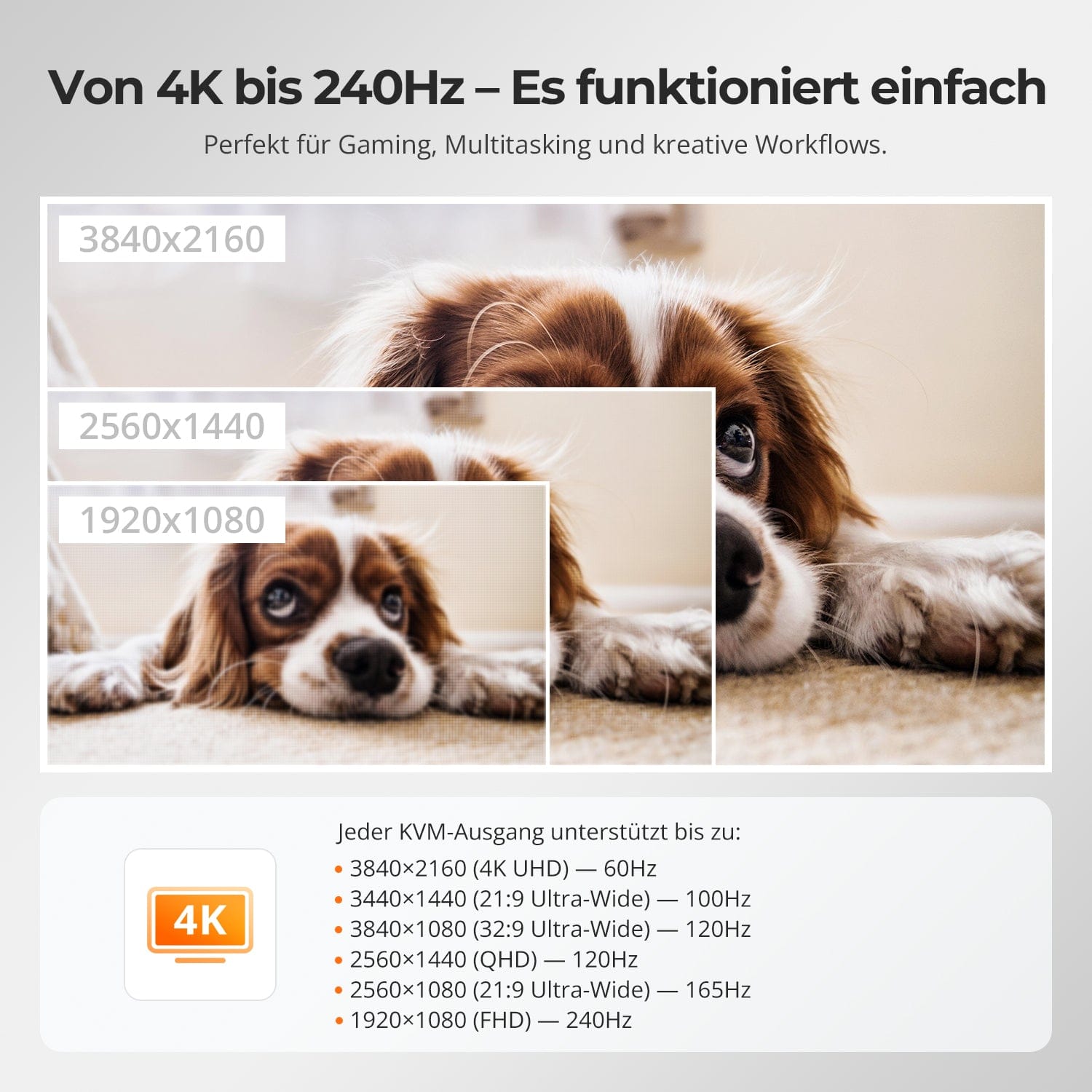
•Supports up to 3840×2160@60Hz, Compatible with:
3440×1440@100Hz, 2560×1440@120Hz, 1920×1080@240Hz
• USB 3.0 & Audio integration: High-speed data transfer for peripherals, headphones, and storage devices
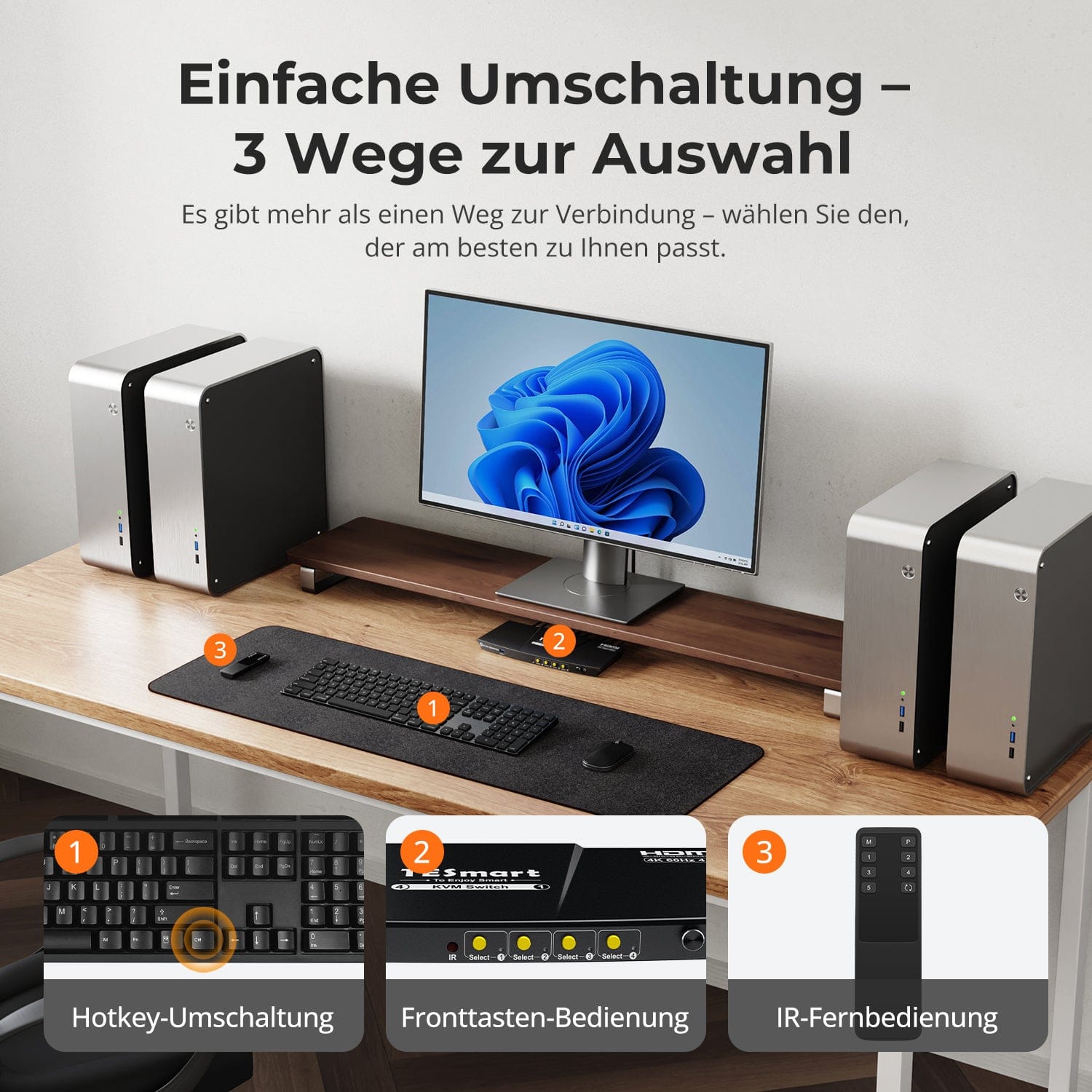
•4 input switching modes: Hotkeys, mouse wheel, front panel buttons or infrared
•Pass-through mode: Compatible with many mechanical and gaming keyboards
• Automatic scan function: Automatically switches the display between connected input devices after a set time interval when the KVM is switched on.
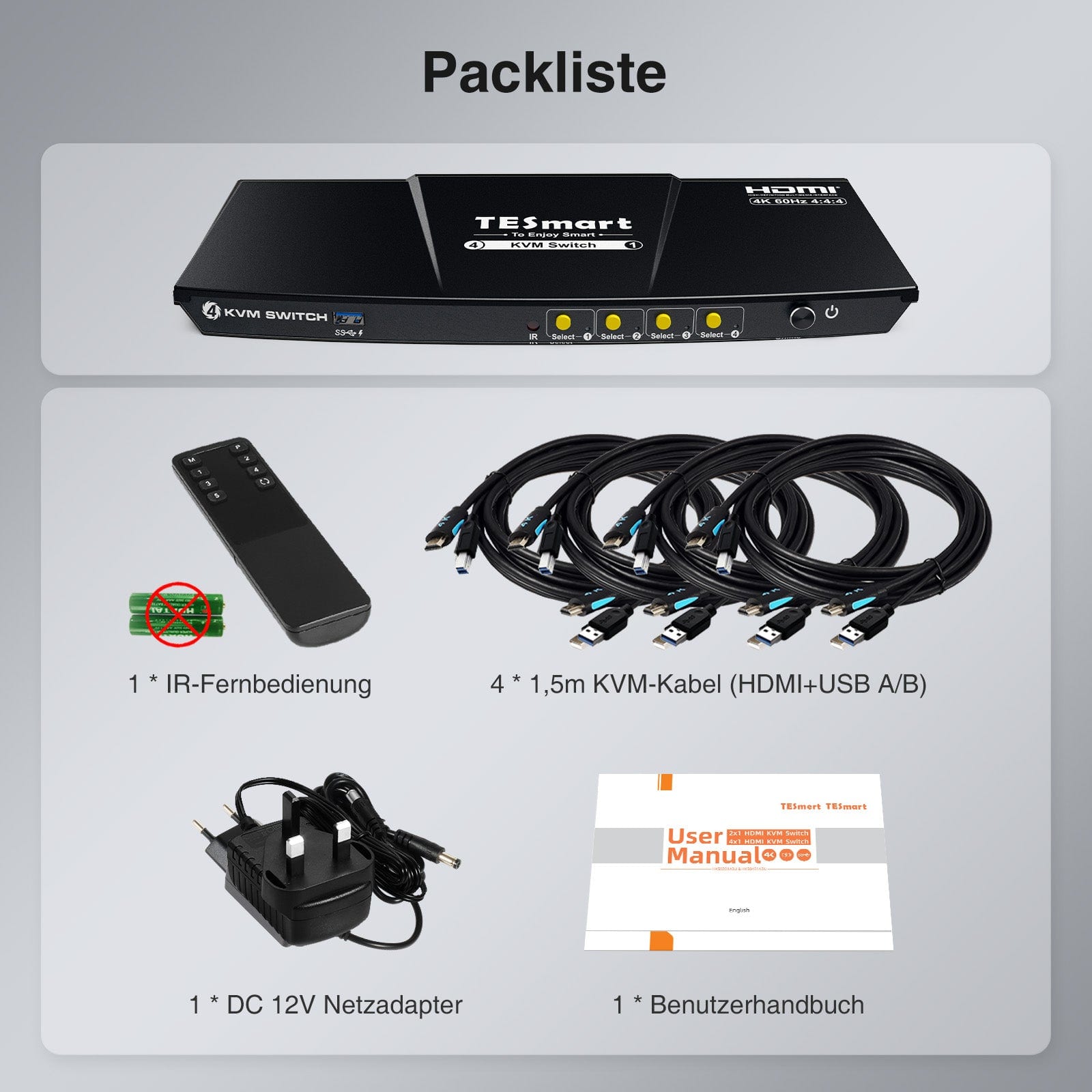
Scope of delivery
- 1 * 4x1 HDMI KVM switch
- 4 * KVM cables
- 1 * IR remote control
- 1 * DC-12V power supply
- 1 * User manual
Downloads & User manual


Our shipping policy consists of the following 7 sections:
Order processing time (shipping lead time)
- Shipping costs & Delivery time
- Order tracking
- Delayed shipments
- Order cancellations
- Steer & Customs duties
- Contact us
1. Order processing time
The order processing time refers to the period from the time of the order until the order is handed over to the shipping service provider.
• Orders are usually shipped within 1-2 working days after confirmation/payment.
• Orders placed on weekends may be subject to delays.
• Our warehouse operates Monday to Friday during regular business hours (excluding public holidays). In such cases, we will make every effort to minimize shipping delays.
We have warehouses in Germany and other regions. Your order will be shipped directly from the nearest warehouse, depending on your delivery address. If the nearest warehouse does not have the product in stock, we will ship your order from another nearby warehouse to ensure you receive it as quickly as possible.
Shipping to the United Kingdom 🇬🇧
To ensure smooth delivery and correct customs clearance, orders from the United Kingdom are processed through our US shop.
Orders to UK addresses cannot be shipped via our EU shop.
2. Shipping costs & Delivery time
| Country or region | Estimated delivery time | Shipping costs | Logistics service provider |
| Germany | 3 working days | Free Shipping | DHL |
| Other EU countries | 3-7 working days | Free Shipping | DHL/DPD |
| Non-EU countries | 5-12 working days | From 60 euros | UPS |
3. Order tracking
4.Delayed shipments
5. Order Cancellation
6. Taxes & Customs duties
7. Contact us
- TESmart orders are processed automatically. Once shipped, they cannot be canceled or changed, including address changes.
- If you wish to return or request a refund, please contact us within 30 days of receiving the product at service@tesmart.de.
- Returns are only possible if the product is unused, complete and in its original packaging.
- For returns not due to quality issues, the customer bears the return shipping costs.
- TESmart will cover the return shipping costs for returns or refunds due to quality issues.
- Products that are searched for 30 days and within 2 years Items exhibiting problems cannot be returned, but depending on inspection, they can be repaired or replaced (same model only, replacements preferred for members).
- Between the 2nd and 3rd. No return or refund service is offered this year. Members can after 3 months A discount of [amount] will be granted from the date of purchase as part of the trade-in policy. up to 50% You will receive a refund of the original product price towards the purchase of a new product. For detailed terms and conditions, please visit: https://tesmart.de/pages/tesmart-id-trade-in
- Refunds will be processed within 5 working days of the goods being received at the warehouse.
For questions: service@tesmart.de
Full guidelines:

Technical data
| Produkattribute | |
|---|---|
Modell (SKU) |
HKS401-P23-V2-EUBK
|
Kompatibles Setup |
|
Max Resolution |
|
Supported Resolutions |
|
VRR (Variable Bildwiederholfrequenz) |
|
MST (Multi-Stream Transport) |
|
Laptop-Aufladung |
|
Netzwerkanschluss |
|
Independent Audio Focus Switching |
|
Independent Audio Focus Locking |
|
Thunderbolt 4 Ports |
|
EDID Emulation |
|
Umschaltmethoden |
|
Belegbare Hotkeys |
|
Legacy-Emulationsmodus |
|
Input Ports |
|
Output Ports |
|
Docking Ports |
|
Anzeigemodi |
|
Handbuch (PDF) |
|
From 4K to 240Hz – It just works
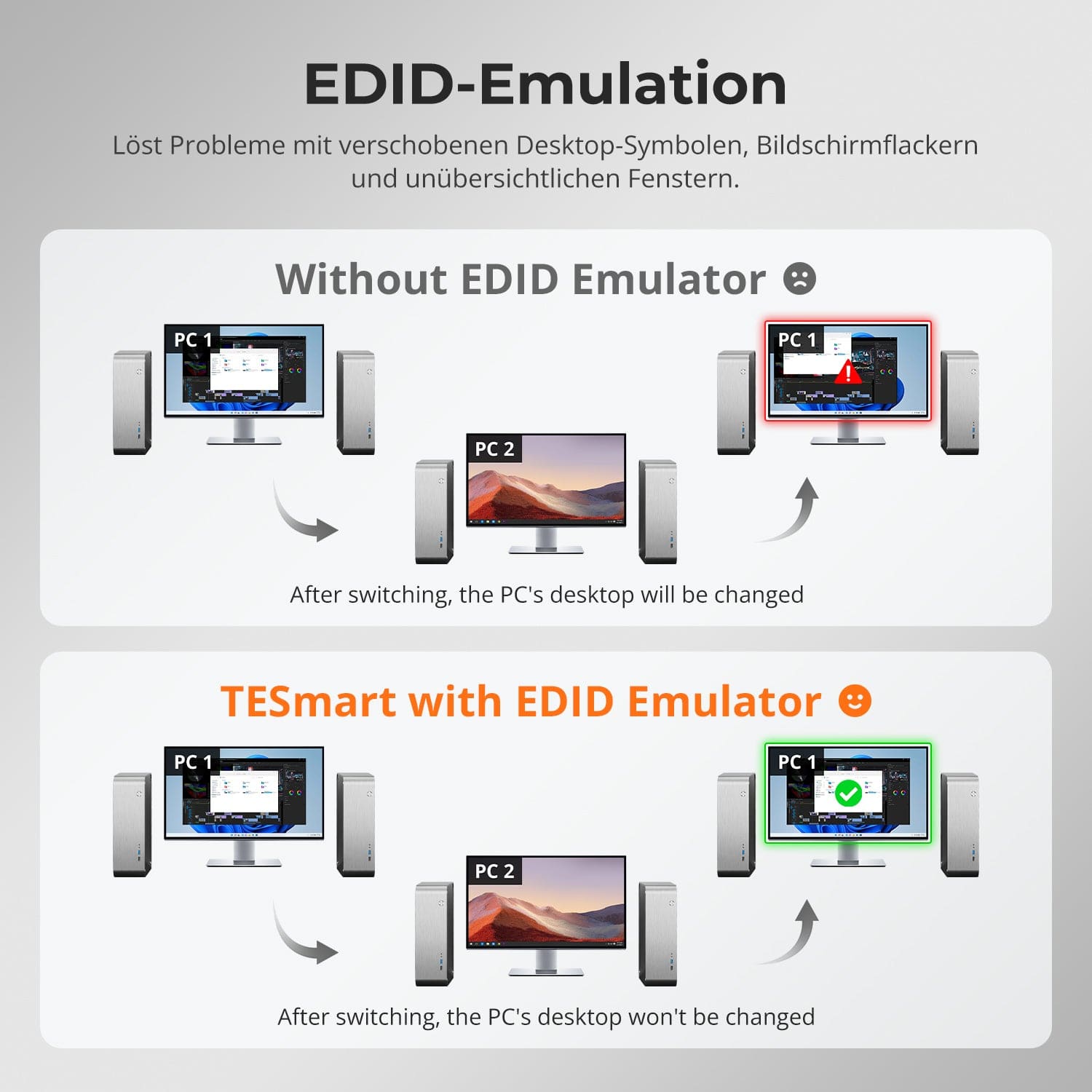
EDID Emulation – Stable screens, no surprises
One switch, endless possibilities. Whether for gaming, content creation, or multi-window workflows – our KVM effortlessly handles a wide range of resolutions and refresh rates.
Each KVM output supports up to:
• 3840×2160 (4K UHD) — 60Hz
• 3440×1440 (21:9 Ultra-Wide) — 100 Hz
• 3840×1080 (32:9 Ultra Wide) — 120 Hz
• 2560×1440 (QHD) — 120Hz
• 2560×1080 (21:9 Ultra-Wide) — 165 Hz
• 1920×1080 (FHD) — 240Hz
Switching between displays shouldn't mess up your desktop. Our integrated EDID emulator ensures your layout stays exactly as you left it.
• No more misplaced symbols
Retains the position of desktop icons and the size of open windows when switching inputs.
• Flicker-free switching
Prevents screen dropouts and flickering caused by re-initializing the display.
• Smoother multitasking
Maintains visual consistency between workstations and monitor setups.
✅ With TESmart EDID emulation: Your display remains stable and unchanged – even after switching channels.
⚠️ Without EDID emulation: icons move, window sizes change, and the screen flickers after each change.


Easy switching – 3 ways to choose from
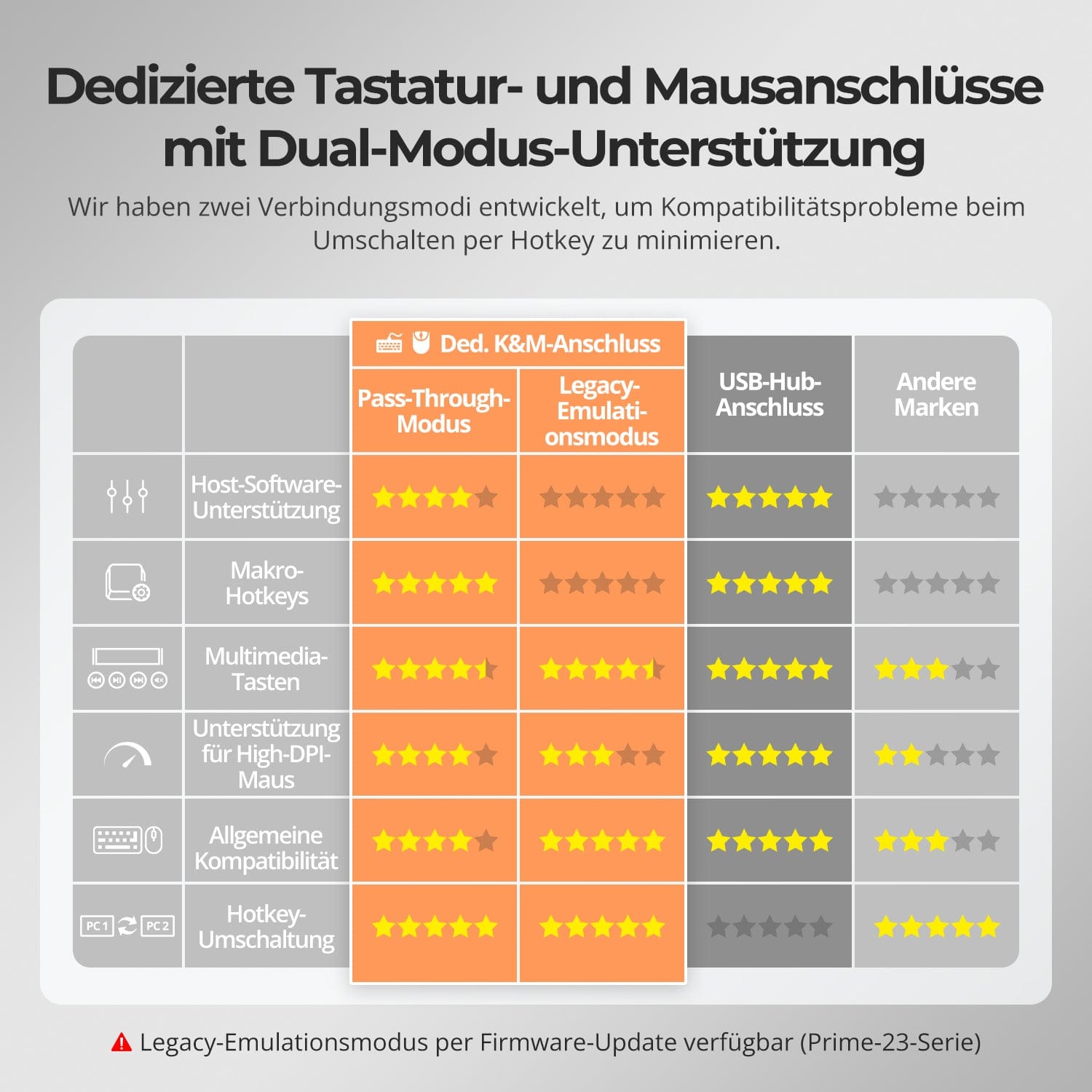
Dedicated K&M-Ports with dual-mode support
Switching shouldn't slow you down – we offer three seamless methods to suit every setup and habit:
• Hotkey switching – Fixed key combinations for quick source switching
• Front button operation – Direct access, anytime and easily
• IR remote control – Convenient control from your desk
Whether at work, gaming, or giving presentations – choose the method that suits you best.
To improve keyboard and mouse compatibility – especially when switching hotkeys – we have developed two special connection modes:
• Pass-through mode (recommended)
Direct routing to the PC. Supports advanced drivers, macros, high-DPI mice, and multifunctional input devices. Ideal for gaming, design, and professional workflows.
• Legacy emulation mode
Ensures universal compatibility and stable hotkey functionality on most systems. Best suited for office use or when experiencing driver issues.
✅ Hotkey commands only work if your keyboard is connected to the dedicated K&M-Port is connected.
⚠️ In emulation mode, driver-based software and advanced features are disabled.
⚠️ Bluetooth keyboards and mice are not supported.
⚠️ Legacy emulation mode is available via firmware update (Prime-23 series).


FAQs
Wie stelle ich das Auto-Scan-Intervall ein?
Bestätigen, dass Auto-Scan aktiviert ist: Aktivieren Sie die Funktion mit der Tastenkombination: [Rechte Strg] + [Rechte Strg] + Leertaste. Hinweis: Die Auto-Scan-Zeit kann nicht eingestellt werden, wenn die Auto-Scan-Funktion deaktiviert ist.
Scan-Intervall anpassen: Der Intervallbereich beträgt 5–255 Sekunden (Standard: 5 Sekunden). Verwenden Sie [Rechte Strg] + [Rechte Strg] + [+] / [-], um das Intervall pro Tastendruck um 1 Sekunde zu erhöhen oder zu verringern. Um schnell ein längeres Intervall einzustellen, drücken Sie [Rechte Strg] zweimal und tippen Sie dann wiederholt auf [+] / [-] (halten Sie die Taste nicht gedrückt).
Tipp: Passen Sie das Scan-Intervall entsprechend Ihrem Verwendungsszenario an, um ein reibungsloses Umschalten zwischen den angeschlossenen Geräten zu gewährleisten.
Warum funktioniert mein Audio-Gerät nicht?
Verbindungsvoraussetzungen: Die Audiofunktionalität des KVM-Switch ist auf die Datenübertragung über die Eingangsports USB1/2/3/4 angewiesen. Stellen Sie sicher, dass Ihr Computer fest mit allen vier Ports verbunden ist.
Sound-Einstellungen am Computer: Bei 3,5-mm-Klinkenanschluss: Wählen Sie in den Sound-Einstellungen Ihres Computers 'USB Audio' als Standardausgabegerät. Bei USB-3.0-Anschluss: Wählen Sie die entsprechende USB-Audioausgabe, z. B. 'USB Audio Device' oder 'USB Headset', je nach Anzeige Ihres Systems.
Wenn auch nach korrekter Einstellung kein Ton über den 3,5-mm-Ausgang ausgegeben wird, empfehlen wir die Verwendung einer USB-Soundkarte (USB-auf-3,5-mm-Adapter), um die Kompatibilität zu verbessern und eine ordnungsgemäße Audioausgabe zu gewährleisten.
Why is my monitor display unstable or flickering/remaining black?
Resolution/refresh rate not compatible - The HKS401-P23 supports a maximum resolution of 4K@60Hz. Wenn Your monitor is set to a higher resolution or refresh rate (e.g. 4K@144HzThis can lead to unstable display or flickering. You can try manually lowering the resolution or refresh rate.
Device connection Ensure your computer and monitor are securely connected to the KVM's HDMI ports using the appropriate cables. Cable length and quality are important: long or low-quality cables can lead to signal degradation. Use the HDMI/USB cables supplied with your PCs, and keep the monitor's HDMI cable under 3 meters if possible. Avoid using adapters or docking stations whenever possible.
EDID read error If the KVM switch cannot correctly read the monitor's EDID data, the PC may not output a correct video signal. Try reconnecting or replacing the cables to see if the problem improves. If the problem persists, contact our technical support team for further diagnosis and assistance.
Why are my keyboard and mouse not working properly?
Common symptoms: Keyboard shortcuts (hotkeys) don't work, keyboard input is unresponsive or delayed, keystrokes get stuck or are registered twice, mouse movements are jerky or laggy. Please contact our technical support team at support@tesmart.com, to receive support in troubleshooting and resolving the issue.
Does the KVM switch support firmware updates?
Yes, TESmart KVM switches support official firmware updates designed to fix common issues and improve compatibility. Important note: Firmware updates carry inherent risks. Installing the wrong version or performing the process incorrectly can lead to device malfunctions. Therefore, it is strongly advised against performing a firmware update yourself if your device is working normally. If an update is necessary, please contact our technical support team for: the correct firmware version for your specific model, step-by-step update instructions, and technical support throughout the entire process.
My keyboard and mouse stopped working after upgrading to macOS Sequoia – what should I do?
The macOS version Sequoia uses a proprietary protocol that can cause compatibility issues with KVM switches, resulting in keyboard and mouse not being recognized. This problem can usually be resolved with a firmware update. Please contact our technical support team at support@tesmart.com, to obtain the firmware package compatible with Sequoia, and follow the provided instructions to perform the update.
Why are my USB peripherals not working?
Connection requirements: USB data transfer for the KVM switch is via input ports USB1/2/3/4. Ensure your computer is securely connected to all four ports.
Port restrictions: USB ports marked with keyboard/mouse symbols are exclusively for these devices. Other USB peripherals (e.g., printers, webcams, flash drives) must be connected to the dedicated USB 3.0 ports on the KVM switch.
Bandwidth limitations: The KVM switch acts as a USB hub, meaning all connected peripherals share the same USB bandwidth. If the total bandwidth requirement exceeds the KVM's capacity, devices may become unresponsive or fail.
Power supply problems: Some high-power USB devices may not receive enough power from the KVM switch. Recommended workaround: Connect high-power USB devices directly to your PC whenever possible. For improved stability, use a powered USB hub between the KVM switch and the device.
USB hub cascading limitations: The USB architecture supports a maximum of 7 cascading levels, including: host controller + up to 5 USB hubs + 1 device level. Exceeding this limit can result in unrecognized or malfunctioning devices. Example of a USB chain: PC → Docking station → KVM switch → USB hub (→ additional USB hub) → Peripheral device. Recommended solutions: Bypass docking stations: Connect the PC's USB-A port directly to the KVM switch. Minimize cascading: Connect peripheral devices directly to the KVM switch whenever possible to avoid excessive USB hub levels.
-
DE: 3 working days · EU: 3–7 working days
-
Hassle-free returns & Purchase guarantee
-
Register and receive 2 additional years of warranty
-
TESmart+ members
Trade-in with 30% discount + lifetime technical support