Table of contents
- Introduction
- Why Mac users will still need a KVM that is compatible with Thunderbolt 4 workflows in 2026
- Thunderbolt 4 compatible KVM vs. USB-C KVM vs. Dock: What's the difference?
- Mac setup with one monitor: When a Thunderbolt-compatible KVM makes sense
- Mac setup with two monitors: Why display workflows are becoming more complex
- A desk for MacBook, Mac mini, Mac Studio and Windows PC
- Why the Apple Studio Display is changing the KVM decision
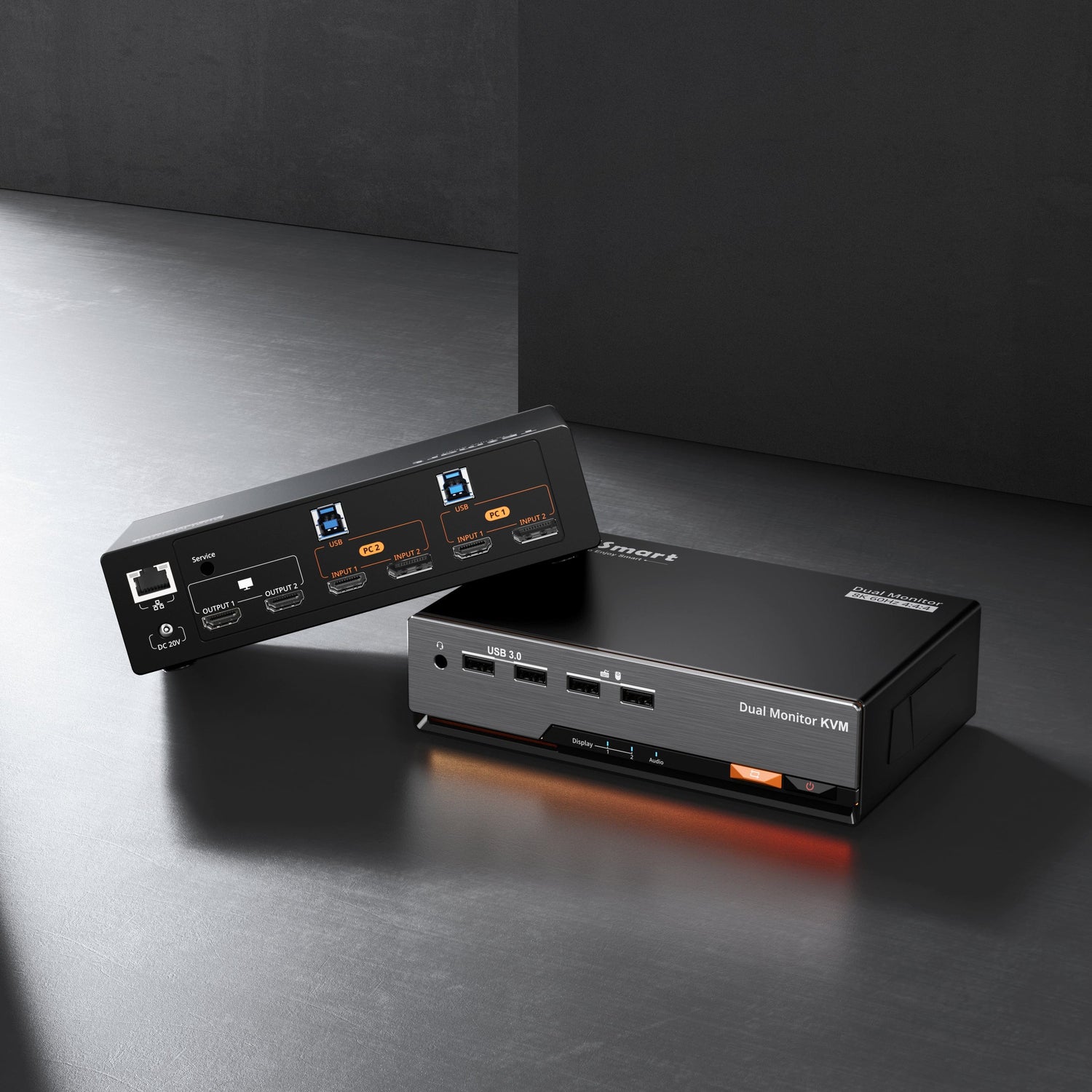
- How TESmart THK401-X4 helps create a cleaner Mac workspace
- Who should choose a Thunderbolt-compatible KVM?
- FAQ
- Conclusion
Introduction
Many Mac users today no longer have a simple, single-computer desk. A typical setup might include a MacBook Pro for mobile work, a Mac mini or Mac Studio as a desktop system, a Windows PC for testing or gaming, and a shared monitor with keyboard, mouse, webcam, audio device, or USB storage.
The first impulse is often to buy a dock. This works if the goal is to extend a single Mac. However, it doesn't solve the more difficult problem: sharing the same monitor and peripherals across multiple computers without constantly unplugging and replugging cables.
This is precisely where a KVM switch compatible with Thunderbolt 4 workflows becomes relevant. Its value lies not only in the bandwidth. The real value is in hardware-based switching between computers, while the desktop remains usable for Mac, Windows, USB peripherals, and display workflows that rely on USB-C or Thunderbolt-enabled connections.
This guide explains how to assess whether you need a Thunderbolt-compatible KVM, how it differs from a dock or USB-C KVM, and where the TESmart THK401-X4 fits into Mac workstations with one or two monitors.

Why Mac users will still need a KVM that is compatible with Thunderbolt 4 workflows in 2026
A single Mac connected to a display typically doesn't require a KVM switch. A dock or hub can provide additional ports, connect USB devices, and charge the laptop. However, the question changes as soon as more than one computer needs to share the same desk.
For example, a developer might use a MacBook Pro for daily work and a Windows workstation for testing. A creator might leave a Mac Studio connected for video editing while using a MacBook Air on the go. An IT user might need to switch between a Mac mini, a Windows PC, and a service laptop. In these cases, it's not about port expansion. It's about shared control.
A KVM switch is designed to switch keyboard, video, and mouse control between computers. In a Mac workstation, this usually means that several things need to switch together: display signal, USB keyboard and mouse, audio devices, webcam, external storage, and sometimes a USB-C or Thunderbolt-enabled display workflow.
Therefore, the best KVM setup for Mac users isn't always the device with the highest specifications on paper. What matters is whether it fits the actual desktop setup: how many computers, how many displays, what type of display input, and whether the monitor behaves like a simple video display or a full USB-C/Thunderbolt device.

Thunderbolt 4 compatible KVM vs. USB-C KVM vs. Dock: What's the difference?
The easiest way to avoid buying the wrong device is to distinguish between "expansion" and "switching." A dock extends a computer. A KVM switch divides a workstation between multiple computers. A video switch simply changes the display input. These are different functions.
| Device type | Main task | Best suited for | Main restriction |
|---|---|---|---|
| KVM compatible with Thunderbolt 4 workflows | Switch shared displays and peripherals across multiple computers with USB-C/Thunderbolt-enabled display workflows. | MacBook, Mac mini, Mac Studio, Windows PC and Apple Studio display sharing scenarios | Must be carefully matched to display type, host ports, USB requirements, and tested workflows. |
| USB-C KVM | Switch USB-C video and USB peripherals between computers | USB-C laptops and monitors that support DP Alt Mode | USB-C does not automatically mean video output, charging, or Thunderbolt device behavior. |
| Thunderbolt Dock | Adding extra ports to a computer | A MacBook connected to a fixed desk with several peripherals. | It does not normally switch an entire workstation between multiple computers. |
| Classic HDMI/DisplayPort KVM | Switch between standard video signals and USB control | PC monitors with HDMI or DisplayPort inputs | Not suitable if the display itself requires USB-C or Thunderbolt-type device communication. |
The key difference is this: a dock follows a computer, a KVM switch follows the desk. If your MacBook is your only computer, a dock might suffice. However, if you need to move your keyboard, mouse, display, and USB devices between a MacBook and another computer, a KVM switch is usually the more logical solution.
Mac setup with one monitor: When a Thunderbolt-compatible KVM makes sense
A single-monitor KVM for Mac is particularly useful when a display needs to be shared by two or more computers. The monitor can be an Apple Studio Display, a USB-C monitor, or a standard HDMI/DisplayPort display connected via an adapter chain.
The basic requirement for a MacBook and Mac mini KVM setup is simple: both computers need access to the same display and USB devices. The details determine whether the setup is easy or difficult.
If you're using a standard HDMI or DisplayPort monitor, a classic KVM switch can work well, provided each computer can output the necessary signal. A MacBook typically doesn't have a native DisplayPort output, so a USB-C to DisplayPort cable, a USB-C to HDMI adapter, or a dock might be required. This additional conversion layer should be considered part of the video chain, not an afterthought.
If the display relies on USB-C or Thunderbolt-type connectivity, the decision changes. The monitor might not only receive video; it could also provide camera, speakers, a USB hub, a microphone, or power delivery functionality. In this case, a Thunderbolt-compatible KVM switch might be a better fit because the workflow depends on more than just a simple video input.
This is the scenario in which users often search for the best Thunderbolt 4 KVM switch for Mac.However, the more precise question would be: Does the device support the display workflow that my Mac actually uses, and has this workflow been tested with real Mac and PC setups?

Mac setup with two monitors: Why display workflows are becoming more complex
A dual-monitor KVM for Mac is more demanding than a single-display setup because each screen requires a valid display path. A KVM doesn't magically create additional display outputs from a computer that can't provide them.
Before choosing a dual-monitor setup, check three things. First: Can each Mac drive the desired number of external displays? Second: Does each computer have the correct output path for both displays? Third: Do the monitors use standard HDMI/DisplayPort inputs or USB-C/Thunderbolt-enabled display connections?
Mac users should be especially careful with mixed adapter chains. A Windows desktop might have two native DisplayPort outputs, while a MacBook relies on USB-C, a dock, or a USB-C to DP cable. If both computers are routed through the same KVM, these differences become important. A stable setup depends on the entire path: computer port, cable, adapter, KVM, display input, resolution, and refresh rate.
Dual-display workflows also create switching behavior that users immediately notice. If display detection isn't maintained reliably, windows can shift, displays can wake up slowly, or the system can behave as if a monitor has been disconnected. Therefore, EDID handling and tested compatibility are more critical in multi-monitor environments than at simple single-screen workstations.
For Mac users with a USB-C or Thunderbolt-enabled display plus another HDMI or DisplayPort monitor, the right setup might require a hybrid workflow rather than a simple one-cable solution. The goal isn't to force every display through the same connection type. The goal is to connect each display via the path that best suits its design.

A desk for MacBook, Mac mini, Mac Studio and Windows PC
A Mac and PC KVM setup has different potential sources of error than a purely Mac-based desktop. macOS and Windows can handle display negotiation, USB devices, sleep mode, and monitor detection differently. The physical ports can also differ: A MacBook might use USB-C or Thunderbolt-enabled ports, while a Windows PC might use HDMI, DisplayPort, or USB-C depending on the motherboard and GPU.
In a MacBook and Windows PC KVM setup, the first practical question is not: "Which interface is the fastest?" but rather: "What signals does each device actually provide?" A gaming PC with a DisplayPort output, a MacBook with USB-C ports, and a USB-C display cannot be connected as if they were all the same type of device.
A good KVM workflow reduces cable changes, but it cannot eliminate the need for proper signal planning. Every computer must provide the video signal that the KVM expects. Every shared USB device must be connected via the correct USB path. Every monitor must receive a signal type that it can accept.
This is another way in which a hardware KVM differs from software screen sharing. Remote desktop tools are useful for occasional access, but they don't offer both computers the same direct use of the monitor, local USB devices, audio hardware, or low-latency input as a physical KVM.

Why the Apple Studio Display is changing the KVM decision
The Apple Studio Display isn't just a panel with a standard HDMI or DisplayPort input. It was designed around a USB-C/Thunderbolt-enabled display workflow, where video, USB device behavior, audio, camera, and system communication are all part of the same connectivity experience.
Therefore, a classic HDMI or DisplayPort KVM switch is usually the wrong choice for users who want to share the Apple Studio Display between a Mac and a PC. Even if a KVM switch supports high resolutions over HDMI or DisplayPort, that doesn't mean it can maintain the device behavior expected by the display.
For an Apple Studio Display KVM workflow, the important questions are more specific:
- Does the computer support the display connection required by the monitor?
- Does the KVM support a USB-C or Thunderbolt-compatible display workflow instead of just HDMI or DisplayPort video?
- Should USB peripherals, audio, and control devices switch together?
- Does the setup consist only of Macs or a mix of Mac and Windows systems?
- Was the workflow validated with actual devices, rather than just derived from the connector shape?
The connector shape alone isn't enough. USB-C can transmit different functions depending on the host, cable, and device. Therefore, Mac users should evaluate the entire workflow instead of assuming that every USB-C port will function like a full Thunderbolt-enabled connection.
Like TESmart THK401-X4 helps to create a cleaner Mac workspace
TESmart THK401-X4 was designed for users who want to cleanly manage Mac, PC, HDMI source and Thunderbolt compatible display workflows from a single desktop.
Instead of treating the monitor merely as a video endpoint, THK401-X4 Positioned for users who require switching logic across a more complex workstation. This can include a MacBook, Mac mini, Mac Studio, Windows PC, HDMI source, USB peripherals, and a display workflow that benefits from USB-C or Thunderbolt-compatible connectivity.
That makes THK401-X4 especially relevant for users who:
- Want to share Apple Studio Display between Mac and PC setups, provided the workflow is compatible?
- want to reduce cable switching between MacBook and desktop computer
- want to use a keyboard and mouse across multiple systems
- Want to set up a single-monitor or dual-monitor Mac workstation with smoother switching behavior
- Want to combine Mac and Windows devices without relying solely on software remote access?
At TESmart, we focus on adapting the KVM to the workstation structure. THK401-X4 This isn't for every Mac user. A single MacBook with a regular monitor might be better served by a dock. THK401-X4 This is more useful if the user needs hardware-based switching across multiple devices and the desk is intended to behave like a shared workstation.
Compatibility note for Thunderbolt™ workflows
Compatible with Thunderbolt™ 4 devices — transparent and tested.
THK401-X4 was designed for use with Thunderbolt™ 4 laptops and common Thunderbolt Display workflows, including MacBook Pro and mixed device setups.It was tested in real-world configurations to support stable display and peripheral behavior in compatible workflows.
THK401-X4 It is not yet Intel®-certified for Thunderbolt™. TESmart is validating compatibility through practical workstation testing, and certification is currently underway.
Who should choose a Thunderbolt-compatible KVM?
A Thunderbolt-compatible KVM is the right direction if the desk includes more than one computer and at least one display or device workflow depends on USB-C or Thunderbolt-enabled connectivity.
It is particularly suitable for Mac users who switch between MacBook and desktop systems, for creators who share a display across editing and rendering machines, for developers who use macOS and Windows in parallel, and for IT users who need to control multiple machines locally from one desk.
For users with only one Mac and one monitor, it might not be necessary. In that case, a dock could be simpler and less expensive. It might also be unnecessary if all devices use standard HDMI or DisplayPort monitors and don't require USB-C or Thunderbolt-like display behavior.
Making the right purchase decision is simple: Choose a dock if you want to expand a computer; choose a standard HDMI/DisplayPort KVM if you want to switch ordinary video signals; choose a Thunderbolt-compatible KVM if multiple computers need to share a display workflow that relies on USB-C or Thunderbolt-enabled device communication.
FAQ
Do Mac users really need a KVM that is compatible with Thunderbolt 4 workflows?
Not always. If you're using a Mac with a single monitor, a dock might suffice. A KVM switch becomes useful when two or more computers need to share the same display, keyboard, mouse, and USB peripherals.
Is a Thunderbolt dock the same as a KVM?
No. A dock expands a computer by adding more ports. A KVM switches a shared workstation between multiple computers. If your problem is, "I need more ports," choose a dock. If your problem is, "This desk needs to work with more than one computer," a KVM is the more relevant category.
Can I use an Apple Studio Display with both a Mac and a Windows PC?
This depends on the Windows PC, the display workflow, the cable routing, and the KVM switch. The Apple Studio Display is not a standard HDMI or DisplayPort monitor, so the setup requires a Thunderbolt-compatible workflow instead of a simple video switch.
What is the best KVM setup for a MacBook and a Mac mini?
A standard KVM switch can work with a simple monitor using HDMI or DisplayPort, provided both Macs can supply the necessary video signals. For Apple Studio Display or other USB-C/Thunderbolt-enabled displays, a Thunderbolt-compatible KVM workflow is typically more suitable.
Is a Thunderbolt-compatible KVM better for single- or dual-monitor Mac setups?
It can be useful for both, but for different reasons. In a single-monitor setup, it helps share a display and peripherals across multiple computers. In a dual-monitor setup, it must also support a more complex display path where each screen must receive a valid signal from each computer.
Can THK401-X4 Can it be called a Thunderbolt 5 KVM?
No. THK401-X4 It should not be described as a Thunderbolt 5 KVM. A more accurate external description states that it was designed for Thunderbolt-compatible display workflows and tested with common Mac and mixed-device desk setups.
Conclusion
The best KVM setup for Mac users isn't determined by a single port name. The entire desktop environment is crucial: how many computers you use, what type of display you need to share, whether USB devices should follow the active computer, and whether the monitor behaves like a standard video display or a USB-C/Thunderbolt-enabled device.
For a Mac and a standard display, a dock or hub may suffice. For scenarios involving a MacBook, Mac mini, Mac Studio, Windows PC, or Apple Studio Display, a Thunderbolt-compatible KVM switch may provide a more suitable hardware-based switching path.
If your Mac workspace includes more than one computer, a shared display, or a mix of Mac and Windows devices, TESmart was designed for you. THK401-X4 Designed to simplify compatible Thunderbolt display workflows, USB peripheral sharing, and local control across mixed-device setups.
Learn more about TESmart THK401-X4 and see how it can fit into your Mac and PC workspace.